
عرض شكل إعلان مدمج مع المحتوى يحدّده النظام
عند تحميل إعلان مدمج مع المحتوى، سيتلقّى تطبيقك عنصر إعلان مدمج مع المحتوى باستخدام إحدى رسائل بروتوكول GADAdLoaderDelegate. ويكون تطبيقك مسؤولاً بعد ذلك عن عرض الإعلان (مع أنّه ليس بالضرورة أن يتم ذلك على الفور).
لتسهيل عرض أشكال الإعلانات التي يحدّدها النظام، توفّر حزمة SDK بعض المراجع المفيدة.
GADNativeAdView
بالنسبة إلى GADNativeAd، هناك فئة "عرض الإعلان" مقابلة:
GADNativeAdView.
فئة عرض الإعلان هذه هي UIView التي يجب أن يستخدمها الناشرون لعرض الإعلان.
يمكن أن يعرض GADNativeAdView واحد، على سبيل المثال، مثيلاً واحدًا من GADNativeAd. يجب أن تكون كل عناصر UIView المستخدَمة لعرض مواد عرض هذا الإعلان عبارة عن طرق عرض فرعية لعنصر GADNativeAdView هذا.
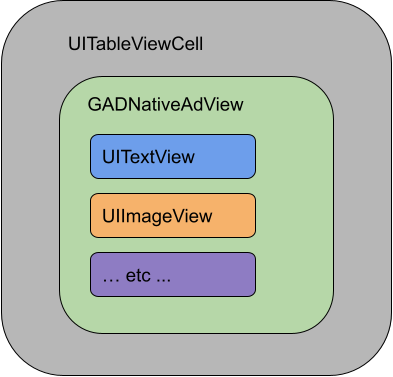
إذا كنت تعرض إعلانًا في UITableView، على سبيل المثال، قد تبدو هيكلية طرق العرض لأحد الخلايا على النحو التالي:
توفّر الفئة GADNativeAdView أيضًا IBOutlets المستخدَمة لتسجيل طريقة العرض المستخدَمة لكل مادة عرض فردية، وطريقة لتسجيل العنصر GADNativeAd نفسه. يتيح تسجيل طرق العرض بهذه الطريقة لحزمة تطوير البرامج (SDK) معالجة مهام مثل ما يلي تلقائيًا:
- النقرات على التسجيل
- تسجيل مرّات الظهور (عندما تكون وحدة البكسل الأولى مرئية على الشاشة)
- عرض تراكب "خيارات الإعلان"
تراكب "خيارات الإعلان"
بالنسبة إلى الإعلانات ذات الصلة غير المباشرة (التي يتم عرضها من خلال الإعلانات الاحتياطية في AdMob أو من خلال Ad Exchange أو AdSense)، تتم إضافة تراكب AdChoices من خلال حزمة SDK. اترك مساحة في الزاوية المفضّلة لديك من طريقة عرض الإعلان الأصلي لشعار "خيارات الإعلان" الذي يتم إدراجه تلقائيًا. تأكَّد أيضًا من وضع التراكب "خيارات الإعلان" فوق محتوى يسمح برؤية الرمز بوضوح. لمزيد من المعلومات حول مظهر التراكب ووظيفته، يُرجى الاطّلاع على إرشادات تنفيذ الإعلانات المدمجة مع المحتوى الآلية.
التصنيف كإعلان
عند عرض إعلانات مدمجة مع المحتوى آليًا، يجب عرض شارة "التصنيف كإعلان" للإشارة إلى أنّ العرض هو إعلان.مثال على الرمز
يوضّح هذا القسم كيفية عرض الإعلانات المدمجة مع المحتوى باستخدام طرق العرض التي يتم تحميلها ديناميكيًا من ملفات xib. يمكن أن يكون هذا النهج مفيدًا جدًا عند استخدام GADAdLoaders
الذي تم إعداده لطلب تنسيقات متعددة.
تخطيط عناصر UIViews
تتمثّل الخطوة الأولى في تحديد UIViews الذي سيعرض مواد عرض الإعلانات المدمجة مع المحتوى.
يمكنك إجراء ذلك في Interface Builder كما تفعل عند إنشاء أي ملف xib آخر. في ما يلي الشكل الذي قد يبدو عليه تصميم إعلان مُدمَج مع المحتوى:
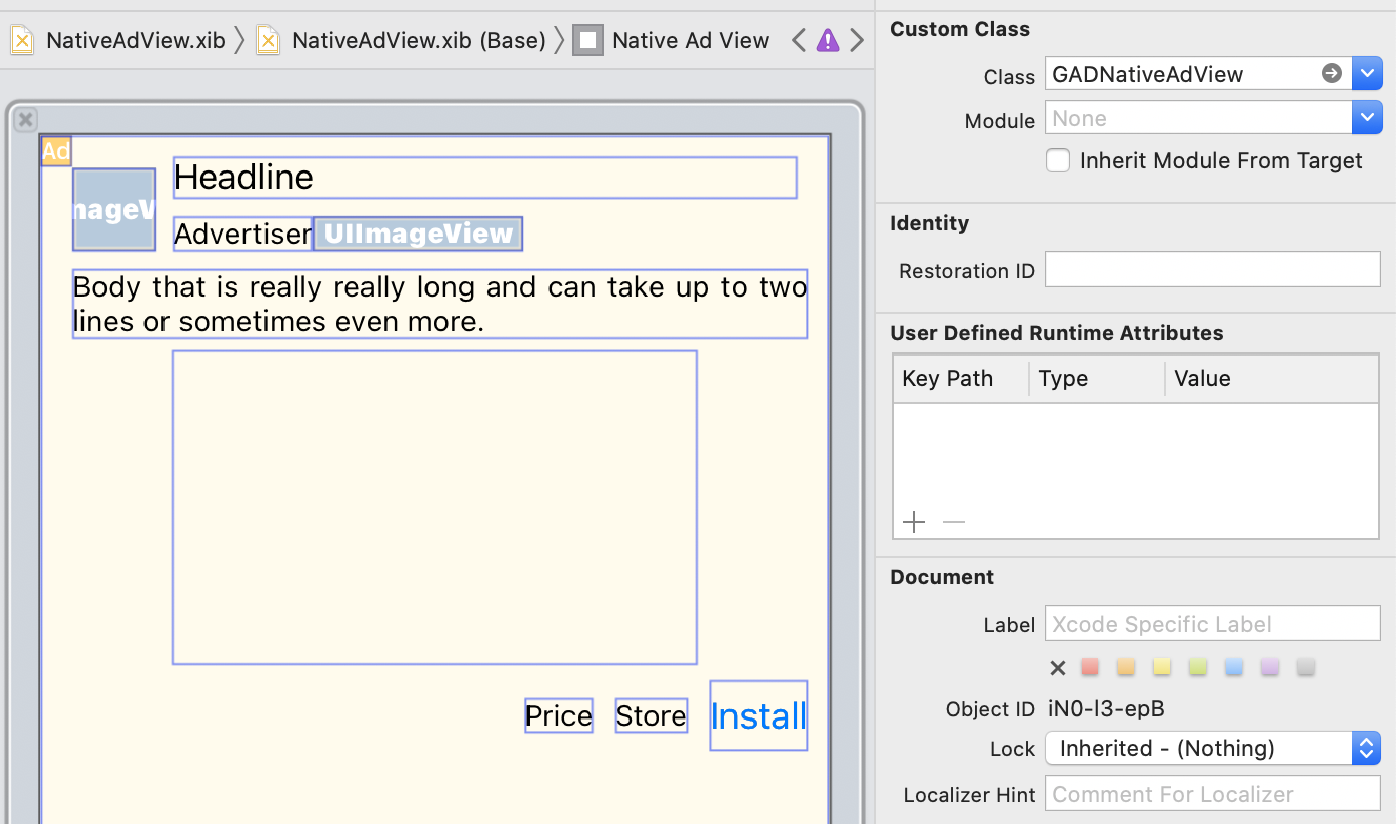
لاحظ قيمة "الفئة المخصّصة" في أعلى يسار الصورة. تم ضبطه على
GADNativeAdView.
هذا هو فئة عرض الإعلانات المستخدَمة لعرض GADNativeAd.
عليك أيضًا ضبط الفئة المخصّصة للعنصر GADMediaView، والذي يُستخدَم لعرض الفيديو أو الصورة للإعلان.
ربط منافذ العرض بالملفات الشخصية
بعد وضع طرق العرض وتحديد فئة طريقة عرض الإعلان الصحيحة للتصميم، اربط منافذ مواد عرض طريقة عرض الإعلان بـ UIViews الذي أنشأته.
في ما يلي كيفية ربط منافذ مواد العرض في طريقة عرض الإعلان بـ UIViews التي تم إنشاؤها
للإعلان:
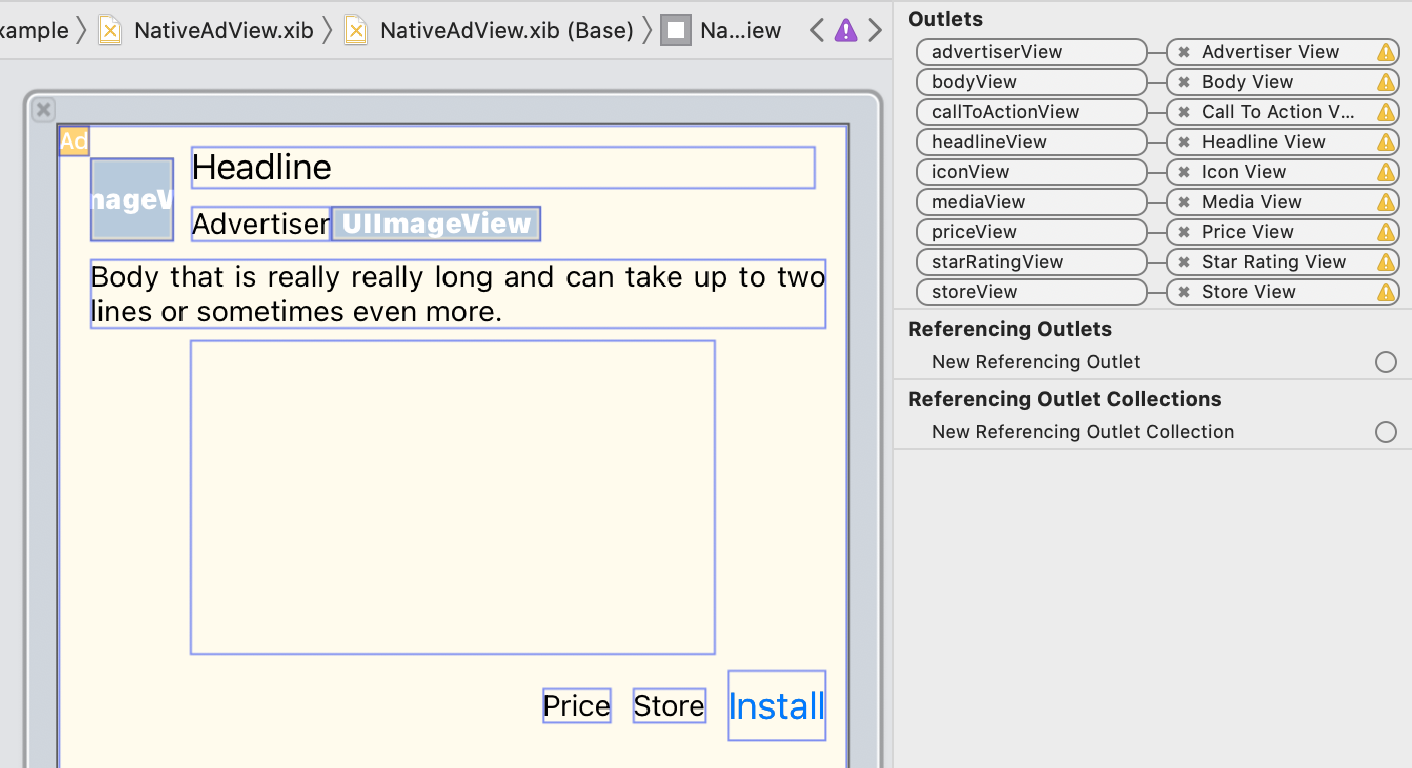
في لوحة المنافذ، تم ربط المنافذ في GADNativeAdView بالعناصر UIViews التي تم ترتيبها في Interface Builder. يتيح ذلك لحزمة تطوير البرامج (SDK) معرفة UIView التي تعرض مادة العرض.
من المهم أيضًا تذكُّر أنّ هذه المنافذ تمثّل الآراء التي يمكن النقر عليها في الإعلان.
عرض الإعلان
بعد اكتمال التصميم وربط عناصر التحكّم، أضِف الرمز التالي إلى تطبيقك الذي يعرض إعلانًا بعد تحميله:
Swift
func adLoader(_ adLoader: AdLoader, didReceive nativeAd: NativeAd) {
// ...
// Set ourselves as the native ad delegate to be notified of native ad events.
nativeAd.delegate = self
// Populate the native ad view with the native ad assets.
// The headline and mediaContent are guaranteed to be present in every native ad.
(nativeAdView.headlineView as? UILabel)?.text = nativeAd.headline
nativeAdView.mediaView?.mediaContent = nativeAd.mediaContent
// Some native ads will include a video asset, while others do not. Apps can use the
// GADVideoController's hasVideoContent property to determine if one is present, and adjust their
// UI accordingly.
let mediaContent = nativeAd.mediaContent
if mediaContent.hasVideoContent {
// By acting as the delegate to the GADVideoController, this ViewController receives messages
// about events in the video lifecycle.
mediaContent.videoController.delegate = self
videoStatusLabel.text = "Ad contains a video asset."
} else {
videoStatusLabel.text = "Ad does not contain a video."
}
// This app uses a fixed width for the GADMediaView and changes its height to match the aspect
// ratio of the media it displays.
if let mediaView = nativeAdView.mediaView, nativeAd.mediaContent.aspectRatio > 0 {
let aspectRatioConstraint = NSLayoutConstraint(
item: mediaView,
attribute: .width,
relatedBy: .equal,
toItem: mediaView,
attribute: .height,
multiplier: CGFloat(nativeAd.mediaContent.aspectRatio),
constant: 0)
mediaView.addConstraint(aspectRatioConstraint)
nativeAdView.layoutIfNeeded()
}
// These assets are not guaranteed to be present. Check that they are before
// showing or hiding them.
(nativeAdView.bodyView as? UILabel)?.text = nativeAd.body
nativeAdView.bodyView?.isHidden = nativeAd.body == nil
(nativeAdView.callToActionView as? UIButton)?.setTitle(nativeAd.callToAction, for: .normal)
nativeAdView.callToActionView?.isHidden = nativeAd.callToAction == nil
(nativeAdView.iconView as? UIImageView)?.image = nativeAd.icon?.image
nativeAdView.iconView?.isHidden = nativeAd.icon == nil
(nativeAdView.starRatingView as? UIImageView)?.image = imageOfStars(from: nativeAd.starRating)
nativeAdView.starRatingView?.isHidden = nativeAd.starRating == nil
(nativeAdView.storeView as? UILabel)?.text = nativeAd.store
nativeAdView.storeView?.isHidden = nativeAd.store == nil
(nativeAdView.priceView as? UILabel)?.text = nativeAd.price
nativeAdView.priceView?.isHidden = nativeAd.price == nil
(nativeAdView.advertiserView as? UILabel)?.text = nativeAd.advertiser
nativeAdView.advertiserView?.isHidden = nativeAd.advertiser == nil
// In order for the SDK to process touch events properly, user interaction should be disabled.
nativeAdView.callToActionView?.isUserInteractionEnabled = false
// Associate the native ad view with the native ad object. This is
// required to make the ad clickable.
// Note: this should always be done after populating the ad views.
nativeAdView.nativeAd = nativeAd
}
SwiftUI
إنشاء نموذج عرض
أنشئ نموذج عرض يحمّل إعلانًا مدمجًا مع المحتوى وينشر تغييرات بيانات الإعلان المدمج مع المحتوى:
import GoogleMobileAds
class NativeAdViewModel: NSObject, ObservableObject, NativeAdLoaderDelegate {
@Published var nativeAd: NativeAd?
private var adLoader: AdLoader!
func refreshAd() {
adLoader = AdLoader(
adUnitID: "ca-app-pub-3940256099942544/3986624511",
// The UIViewController parameter is optional.
rootViewController: nil,
adTypes: [.native], options: nil)
adLoader.delegate = self
adLoader.load(Request())
}
func adLoader(_ adLoader: AdLoader, didReceive nativeAd: NativeAd) {
// Native ad data changes are published to its subscribers.
self.nativeAd = nativeAd
nativeAd.delegate = self
}
func adLoader(_ adLoader: AdLoader, didFailToReceiveAdWithError error: Error) {
print("\(adLoader) failed with error: \(error.localizedDescription)")
}
}
إنشاء UIViewRepresentable
أنشئ
UIViewRepresentable
لـ NativeView، واشترِك في تغييرات البيانات في الفئة ViewModel:
private struct NativeAdViewContainer: UIViewRepresentable {
typealias UIViewType = NativeAdView
// Observer to update the UIView when the native ad value changes.
@ObservedObject var nativeViewModel: NativeAdViewModel
func makeUIView(context: Context) -> NativeAdView {
return
Bundle.main.loadNibNamed(
"NativeAdView",
owner: nil,
options: nil)?.first as! NativeAdView
}
func updateUIView(_ nativeAdView: NativeAdView, context: Context) {
guard let nativeAd = nativeViewModel.nativeAd else { return }
// Each UI property is configurable using your native ad.
(nativeAdView.headlineView as? UILabel)?.text = nativeAd.headline
nativeAdView.mediaView?.mediaContent = nativeAd.mediaContent
(nativeAdView.bodyView as? UILabel)?.text = nativeAd.body
(nativeAdView.iconView as? UIImageView)?.image = nativeAd.icon?.image
(nativeAdView.starRatingView as? UIImageView)?.image = imageOfStars(from: nativeAd.starRating)
(nativeAdView.storeView as? UILabel)?.text = nativeAd.store
(nativeAdView.priceView as? UILabel)?.text = nativeAd.price
(nativeAdView.advertiserView as? UILabel)?.text = nativeAd.advertiser
(nativeAdView.callToActionView as? UIButton)?.setTitle(nativeAd.callToAction, for: .normal)
// For the SDK to process touch events properly, user interaction should be disabled.
nativeAdView.callToActionView?.isUserInteractionEnabled = false
// Associate the native ad view with the native ad object. This is required to make the ad
// clickable.
// Note: this should always be done after populating the ad views.
nativeAdView.nativeAd = nativeAd
}
إضافة طريقة العرض إلى هيكلية طرق العرض
يوضّح الرمز التالي كيفية إضافة UIViewRepresentable إلى بنية العرض الهرمية:
struct NativeContentView: View {
// Single source of truth for the native ad data.
@StateObject private var nativeViewModel = NativeAdViewModel()
var body: some View {
ScrollView {
VStack(spacing: 20) {
// Updates when the native ad data changes.
NativeAdViewContainer(nativeViewModel: nativeViewModel)
.frame(minHeight: 300) // minHeight determined from xib.
Objective-C
- (void)adLoader:(GADAdLoader *)adLoader didReceiveNativeAd:(GADNativeAd *)nativeAd {
// ...
GADNativeAdView *nativeAdView = self.nativeAdView;
// Set ourselves as the ad delegate to be notified of native ad events.
nativeAd.delegate = self;
// Populate the native ad view with the native ad assets.
// The headline and mediaContent are guaranteed to be present in every native ad.
((UILabel *)nativeAdView.headlineView).text = nativeAd.headline;
nativeAdView.mediaView.mediaContent = nativeAd.mediaContent;
// This app uses a fixed width for the GADMediaView and changes its height
// to match the aspect ratio of the media content it displays.
if (nativeAdView.mediaView != nil && nativeAd.mediaContent.aspectRatio > 0) {
NSLayoutConstraint *aspectRatioConstraint =
[NSLayoutConstraint constraintWithItem:nativeAdView.mediaView
attribute:NSLayoutAttributeWidth
relatedBy:NSLayoutRelationEqual
toItem:nativeAdView.mediaView
attribute:NSLayoutAttributeHeight
multiplier:(nativeAd.mediaContent.aspectRatio)
constant:0];
[nativeAdView.mediaView addConstraint:aspectRatioConstraint];
[nativeAdView layoutIfNeeded];
}
if (nativeAd.mediaContent.hasVideoContent) {
// By acting as the delegate to the GADVideoController, this ViewController
// receives messages about events in the video lifecycle.
nativeAd.mediaContent.videoController.delegate = self;
self.videoStatusLabel.text = @"Ad contains a video asset.";
} else {
self.videoStatusLabel.text = @"Ad does not contain a video.";
}
// These assets are not guaranteed to be present. Check that they are before
// showing or hiding them.
((UILabel *)nativeAdView.bodyView).text = nativeAd.body;
nativeAdView.bodyView.hidden = nativeAd.body ? NO : YES;
[((UIButton *)nativeAdView.callToActionView) setTitle:nativeAd.callToAction
forState:UIControlStateNormal];
nativeAdView.callToActionView.hidden = nativeAd.callToAction ? NO : YES;
((UIImageView *)nativeAdView.iconView).image = nativeAd.icon.image;
nativeAdView.iconView.hidden = nativeAd.icon ? NO : YES;
((UIImageView *)nativeAdView.starRatingView).image = [self imageForStars:nativeAd.starRating];
nativeAdView.starRatingView.hidden = nativeAd.starRating ? NO : YES;
((UILabel *)nativeAdView.storeView).text = nativeAd.store;
nativeAdView.storeView.hidden = nativeAd.store ? NO : YES;
((UILabel *)nativeAdView.priceView).text = nativeAd.price;
nativeAdView.priceView.hidden = nativeAd.price ? NO : YES;
((UILabel *)nativeAdView.advertiserView).text = nativeAd.advertiser;
nativeAdView.advertiserView.hidden = nativeAd.advertiser ? NO : YES;
// In order for the SDK to process touch events properly, user interaction
// should be disabled.
nativeAdView.callToActionView.userInteractionEnabled = NO;
// Associate the native ad view with the native ad object. This is
// required to make the ad clickable.
// Note: this should always be done after populating the ad views.
nativeAdView.nativeAd = nativeAd;
}
مثال كامل على GitHub
يمكنك الاطّلاع على المثال الكامل لدمج الإعلانات المدمجة مع المحتوى في Swift وSwiftUI وObjective-C من خلال اتّباع رابط GitHub ذي الصلة.
مثال متقدّم على "الإعلانات المدمجة مع المحتوى" في Swift مثال على "الإعلانات المدمجة مع المحتوى" في SwiftUI مثال متقدّم على "الإعلانات المدمجة مع المحتوى" في Objective-CGADMediaView
يتم عرض مواد عرض الصور والفيديوهات للمستخدمين باستخدام
GADMediaView.
هذا هو UIView الذي يمكن تحديده في ملف xib أو إنشاؤه ديناميكيًا.
يجب وضعها ضمن هيكلية طرق العرض لعرض GADNativeAdView، كما هو الحال مع أي عرض آخر لمادة عرض.
كما هو الحال مع جميع طرق عرض مواد العرض، يجب ملء طريقة عرض الوسائط بالمحتوى. يتم ضبط ذلك باستخدام السمة
mediaContent
في GADMediaView. تحتوي السمة
mediaContent
الخاصة بالنوع
GADNativeAd
على محتوى وسائط يمكن تمريره إلى
GADMediaView.
في ما يلي مقتطف من
مثال "الإعلان المدمج مع المحتوى (متقدّم)"
(Swift |
Objective-C)
يوضّح كيفية ملء GADMediaView بمواد عرض الإعلان المدمج مع المحتوى باستخدام
GADMediaContent من GADNativeAd:
Swift
nativeAdView.mediaView?.mediaContent = nativeAd.mediaContent
Objective-C
nativeAdView.mediaView.mediaContent = nativeAd.mediaContent;
تأكَّد من أنّ ملف أداة إنشاء واجهة المستخدم الخاص بعرض الإعلان المدمج مع المحتوى يتضمّن فئة مخصّصة للعروض تم ضبطها على GADMediaView، وأنّك ربطتها بمنفذ mediaView.
تغيير وضع محتوى الصورة
تراعي الفئة GADMediaView السمة UIView
contentMode
عند عرض الصور. إذا أردت تغيير طريقة توسيع نطاق صورة في GADMediaView، اضبط UIViewContentMode المقابل على السمة contentMode الخاصة بـ GADMediaView لتحقيق ذلك.
على سبيل المثال، لملء GADMediaView عند عرض صورة (لا يتضمّن الإعلان فيديو):
Swift
nativeAdView.mediaView?.contentMode = .scaleAspectFit
Objective-C
nativeAdView.mediaView.contentMode = UIViewContentModeScaleAspectFit;
GADMediaContent
يحتوي صف GADMediaContent على البيانات المرتبطة بمحتوى الوسائط الخاص بالإعلان المدمج مع المحتوى، والذي يتم عرضه باستخدام صف GADMediaView. عند ضبطها على السمة GADMediaView
mediaContent:
إذا كانت مادة عرض الفيديو متاحة، يتم تخزينها مؤقتًا ويبدأ تشغيلها داخل
GADMediaView. يمكنك معرفة ما إذا كانت مادة عرض الفيديو متوفرة من خلال التحقّق منhasVideoContent.إذا لم يكن الإعلان يتضمّن مادة عرض فيديو، يتم تنزيل مادة العرض
mainImageووضعها داخلGADMediaViewبدلاً من ذلك.
الخطوات التالية
مزيد من المعلومات حول خصوصية المستخدم