
Page Summary
-
The Actions Center's Reservations End-to-End integration allows linking out to your booking page for reservations requiring deposits, no-show fees, or prepaid inventory to handle the transaction.
-
To add payments to specific reservations, you need an existing live E2E Integration, the ability to deep link to a booking page that handles payment processing, and compliance with Payment Redirect Policies.
-
Implementing Payments Redirect involves setting up your URL template and additional fields, specifying payment types for slots, and enabling conversion tracking.
-
Partners using Real-Time Updates must update them to include the new payments redirect fields.
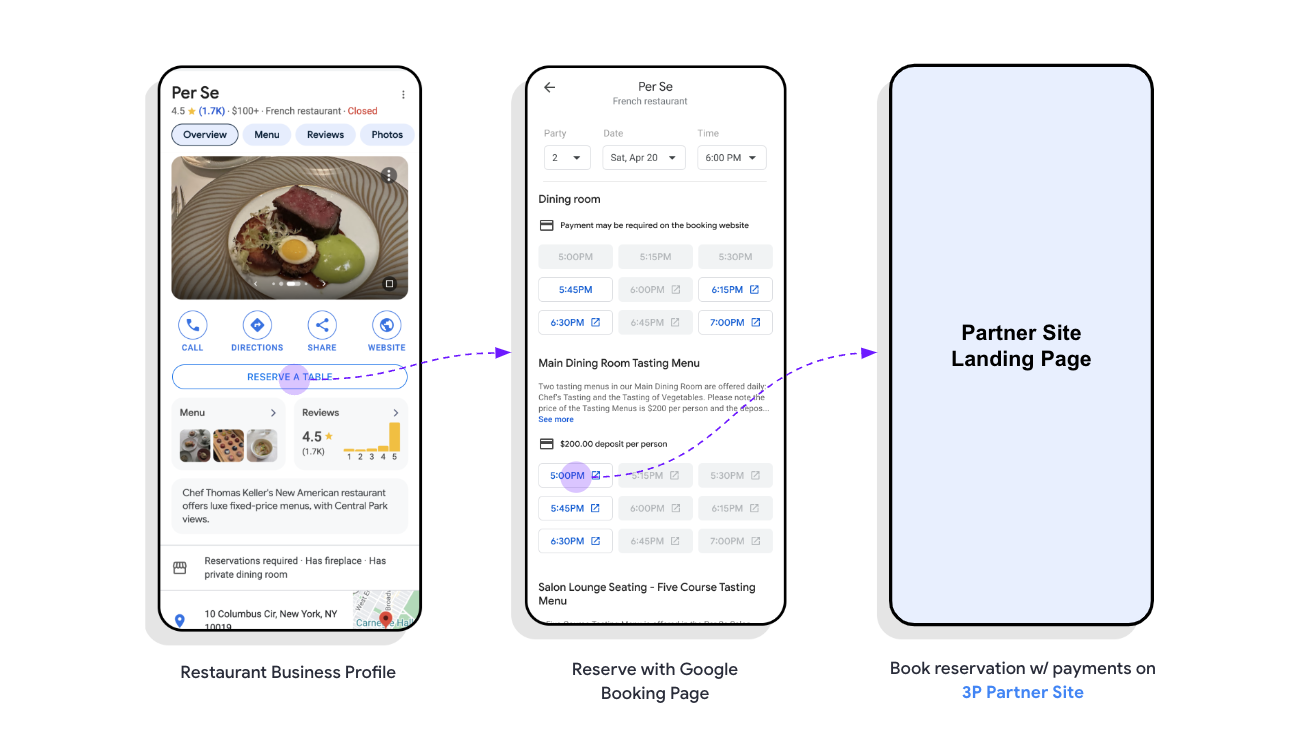
As part of the Actions Center's Reservations End-to-End integration, you can enable any deposits, no-show fees, or prepaid inventory to be linkedout to your booking page for any transactions that may requirement payments. Enabling payments in this manner lets you handle the entire booking flow and transaction on the booking page that you specify.
Eligibility
To add payments to specific reservations, you must have the following prerequisites:
- An existing live E2E Integration.
- The ability to deep link directly into a booking page that can handle payment processing.
- Ensure compliance of our Payment Redirect Policies
Payments Redirect Implementation Steps
- Setting up your Url Template and additional fields.
- Specifying the payment types for your slots.
- Enabling conversion tracking for your integration.
Booking Modifications
This section describes how booking modifications and cancellations interact with Payments Redirect, including slot exclusion and error handling.
Payments Redirect Bookings
Bookings created through Payments Redirect are completed directly on the partner's booking platform. Google does not store or manage these bookings, so users cannot view or modify them through Reserve with Google. Any modifications or cancellations for Payments Redirect bookings must be performed directly on the partner's platform.
Modifying End-to-End Bookings
When a user modifies an existing end-to-end reservation (originally created
using CreateBooking), Google automatically excludes all slots marked with
linkout_required_reason: PAYMENT_REQUIRED from the available options in the
modification view (rendering them unavailable or greyed out). This prevents
users from switching an end-to-end reservation to a payment redirect
(e.g. deposit-required) slot without completing payment.
Handling UpdateBooking Requests
The UpdateBooking API endpoint does not support transitioning a user into
the Payments Redirect flow or returning a redirect URL. In the unlikely event
that the partner's server receives an UpdateBooking request for a payment
redirect (e.g. deposit-required) slot (for example, if a user attempts an edit
before updated availability has fully propagated across serving caches):
- Reject the request by returning an
UpdateBookingResponsecontaining abooking_failure. - Failure Cause: Set
booking_failure.causetoSLOT_UNAVAILABLE. This surfaces a clear message to the user ("Sorry, this time is no longer available.") and prevents incorrect confirmation emails from being sent. - Failure Description: Provide an explicit description (such as
"UpdateBooking not allowed on PR slots") inbooking_failure.descriptionto facilitate logging and troubleshooting.
Sandbox Testing
Once Payments Redirect is enabled for the partner's integration, this behavior can be verified directly in the Sandbox environment:
- Create a standard end-to-end reservation using
CreateBooking. - Provide availability slots with a mix of standard and
PAYMENT_REQUIREDslots. - Open the reservation in the Sandbox booking management view to attempt a
modification and confirm that
PAYMENT_REQUIREDslots appear as unavailable (greyed out). - Verify that the server rejects unexpected
UpdateBookingcalls on paid slots withSLOT_UNAVAILABLE.