Users with Owner access to MMM Data Platform can create a project and request data. Users with Reader access can only view existing projects.
To request data:
Sign in to your organization's unique instance of the MMM Data Platform landing page. (Contact your organization's primary user for access to MMM Data Center.)
Click the plus icon in the bottom left corner to create a new project. The Create Project dialog opens, where you enter information about your project.
To download data from an existing project, click a project from the list of previously created projects.
On the Project information tab, edit the fields to define your project scope and click Next.
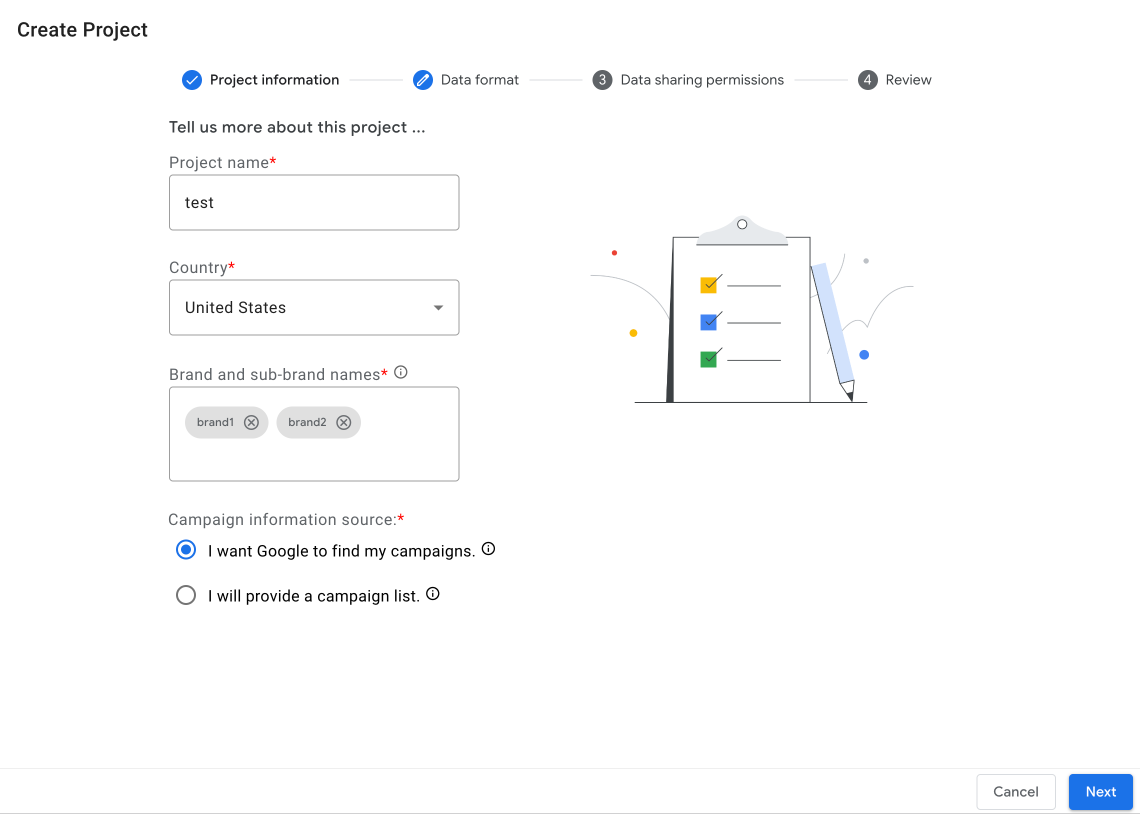
- Project Name: Include the brand and country. If you are a 3P vendor, enter the parent or holding company instead of the specific brand.
- Country: Submit one country per request. To request data for multiple countries, fill out a separate request form for each country.
- Brand Names: Include all brands and subbrands that you would like data broken down by. Use a comma or press Enter to separate brands and sub-brands.
Campaign information source:
- I want Google to find my campaigns: Google will find the campaigns that it believes to be representative of the brands and sub-brands requested.
- I will provide a campaign list: You can provide a list of Google Ads Campaigns, DV360 Insertion Orders, or both in the provided Google Sheet. The MMM Data Platform will deliver data for those campaigns. Additionally, the expected delivery time is typically 5 days or less.
On the Data format tab, enter the data format details that you want, and click Next.
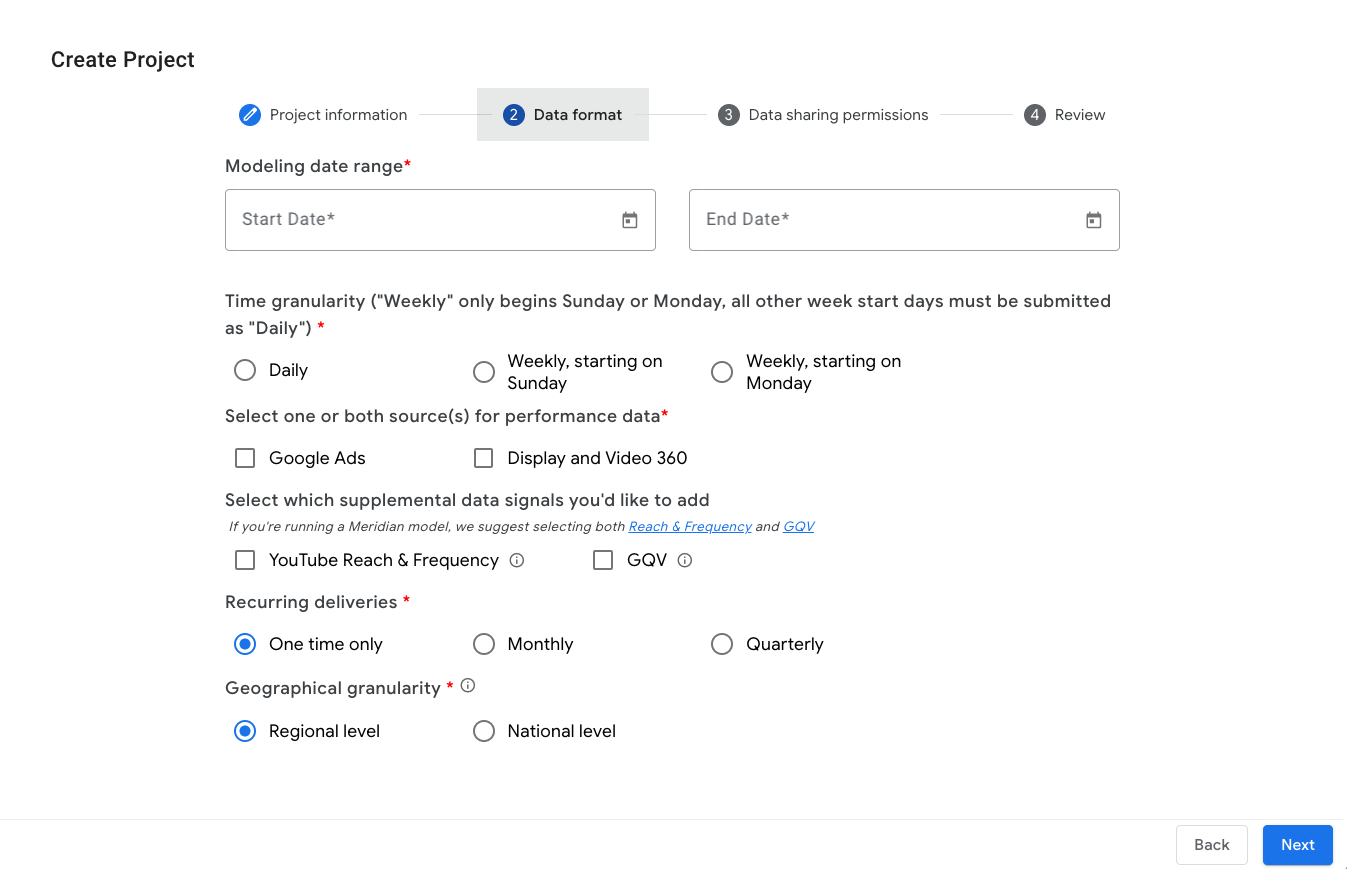
- Modeling data range: Select the start and end date. Historical data is usually available for the past 5 years, depending on account activity. YouTube reach and frequency data is available for a 3-year time period and can only be pulled for after December 6, 2021.
- Time granularity: Select Daily, Weekly-Sunday (begins Sunday), or Weekly-Monday (begins Monday).
- Which performance data sources are needed?: We recommend selecting all sources through which you buy media. Select Google Ads, Display and Video 360, or select both options.
- Supplemental data signals:
- Select YouTube Reach & Frequency (R&F) as an add-on to core MMM inputs.
- Select GQV to receive an add-on Google Query Volume (GQV) report for the brands listed in the request.
- Do you want recurring deliveries for this data?: Select the frequency that you want the data delivered (One time only, Monthly, or Quarterly).
- Geographical Granularity: Geo availability varies by country. If regional level is selected but not available, national level data is provided by default.
On the Data sharing permissions tab, enter the Google Ads and DV 360 account information.
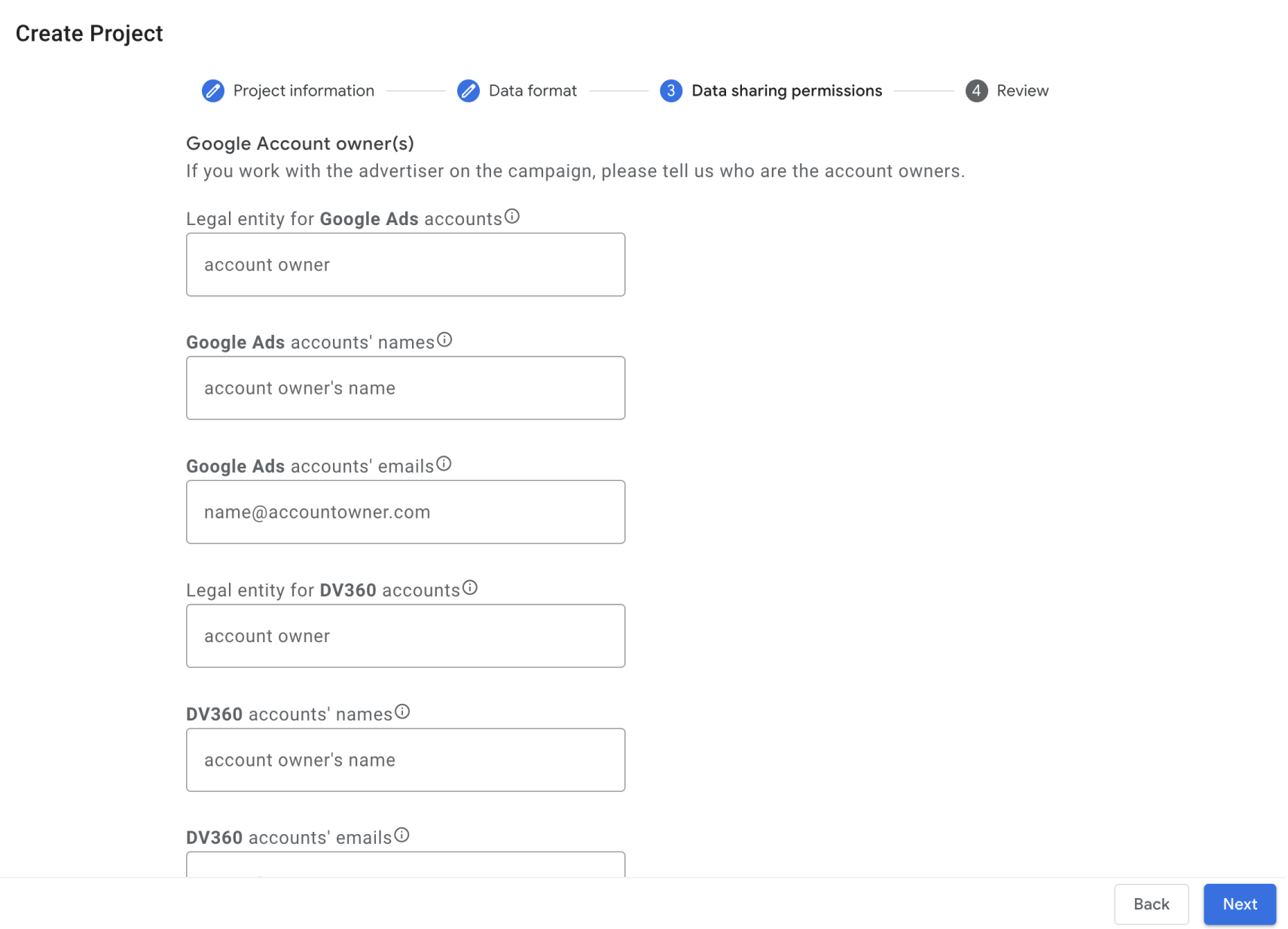
If you are the data owner, Google will be able to share data directly to you without additional permissions. For Google to share this data with anyone else, prior permissions must be obtained from the data owner (which is typically the advertiser but can be the media agency or other third-party). The data owner is defined as the media-buying entity listed on the Payments profile.
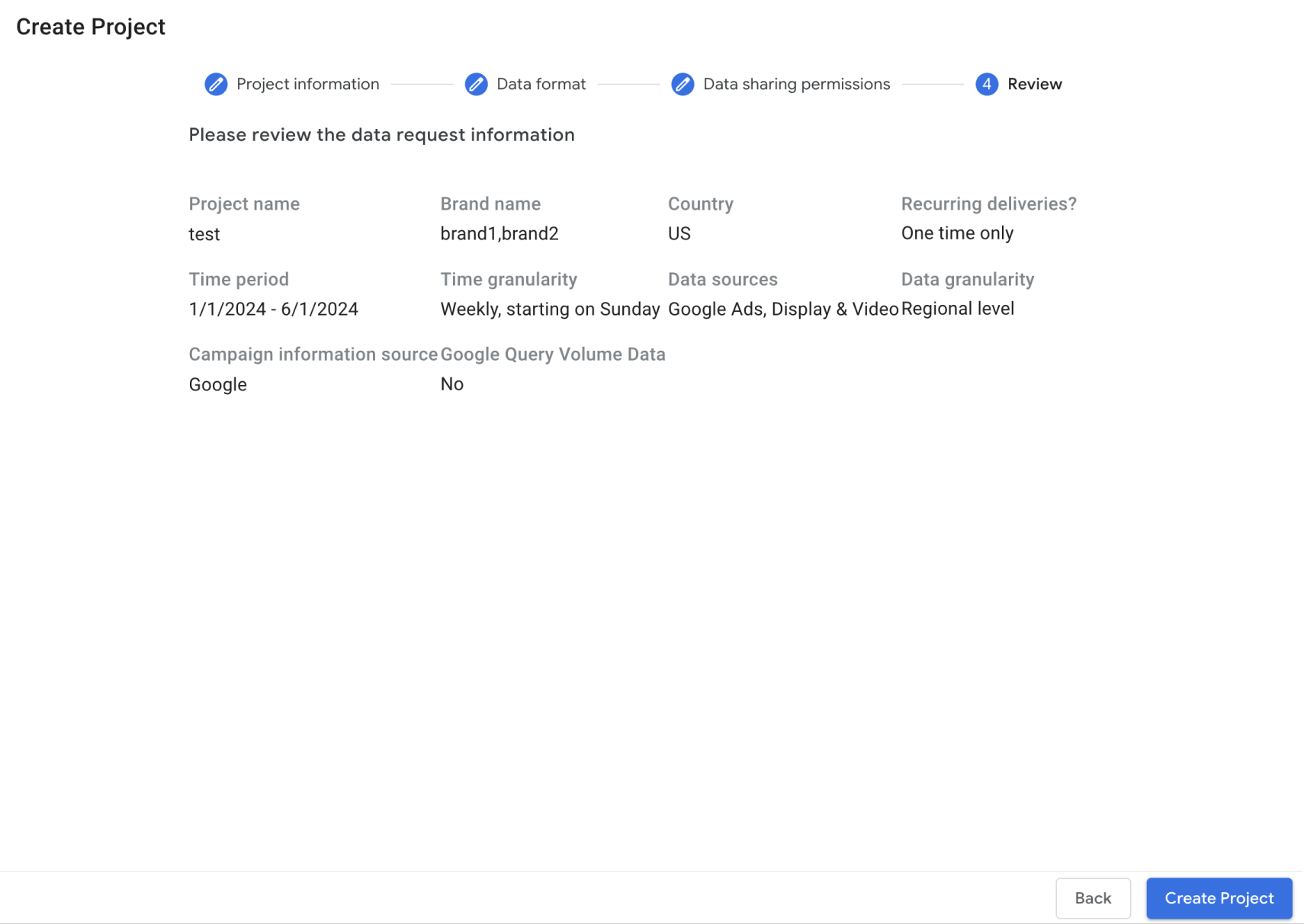
Click Review and review the project information. Click Back to make changes. Click Create Project > Done to create the project. It can take up to three weeks for the final delivery of data.
From your workspace, select the Standards projects or Recurring projects tab to access the approved data. To access data in Google Drive, click Access to data in the row for your project. Alternatively, access data from a data lake if you configured one.