
This document explains the process for setting up the Navigation Connect API and lists the driver's device requirements for using the Navigation Connect API.
Navigation Connect setup process
Before you can use the Navigation Connect API, you must complete the following setup steps:
- Create and configure a Google Cloud project.
- Enable Navigation Connect API and verify your app.
- Set up OAuth to create OAuth tokens.
- Set up your service account to enable communication between your backend infrastructure and Google Maps or Waze.
Minimum device requirements for using Navigation Connect
These requirements are necessary for the driver's device to successfully run a Navigation Connect session. A session uses the Navigation Connect API to send real-time trip data, such as location and estimated time of arrival, to your backend server.
Supported app versions
The device must have Waze or Google Maps for Android installed. The following table lists the minimum version of each app for Navigation Connect and for features that need a later version.
| App | Minimum version | Remaining route reporting | Route deviation reporting |
|---|---|---|---|
| Waze for Android | 5.15.5 | 5.20.0.2 | 5.22 |
| Waze for iOS | 5.15.5 | 5.20.0.1 | 5.22 |
| Google Maps for Android | 26.14 | 26.27 | Not supported |
Precise location enabled
Prompt the driver to turn on precise location permissions on their device. Waze and Google Maps require precise location to begin navigation.
Driver's consent
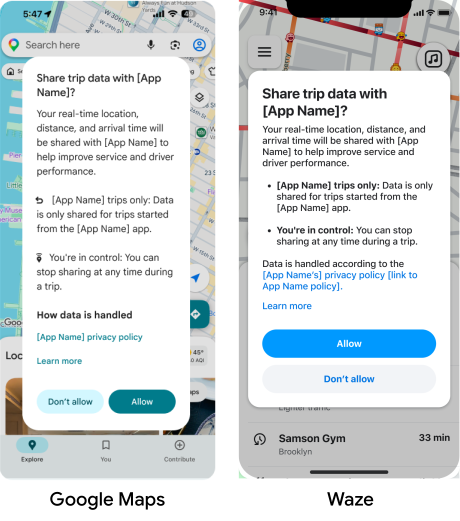
Navigation Connect requires the driver's consent to share trip data. You don't need to trigger the consent dialog; Google Maps or Waze automatically handles this user interface.
On the first trip initiated from your app, Google Maps or Waze prompts the driver to share their trip data.
- If the driver taps Allow, Navigation Connect begins sharing real-time location and ETA data with your backend.
- If the driver taps Don't allow, or revokes consent later, Google Maps or Waze
provides turn-by-turn directions, but Navigation Connect doesn't send
data. Your backend receives a
CLIENT_ERRORstatus in the trip data payload.
Drivers must reconfirm this consent every 12 months.
What's next
The first step for setting up the Navigation Connect API is to create and configure a Google Cloud project.