
To start the navigation session, your app must dynamically construct a launch URL to open Google Maps or Waze. This guide describes how to use the authenticated trip token from Create a trip to launch Google Maps or Waze and configure the return experience back to your app.
How to launch Google Maps or Waze
To launch Google Maps or Waze, you must provide a way to let drivers start a navigation session from your app, construct the launch URL with the required parameters, and supply your application ID to attribute the session.
Let drivers start navigation from your app
You should provide a way for drivers to start navigation from your app. If you let drivers launch Google Maps or Waze using a button, ensure proper attribution and avoid confusion by clearly labeling it. For example, place the text "Google Maps" or "Waze" on or near the button.
Construct the launch URL
To start a navigation session, construct a Navigation Connect launch URL. This URL is a string containing the destination, trip token, and required navigation parameters. It functions similarly to a standard Google Maps URL or Waze Deep Link.
To launch Google Maps or Waze on the driver's device, use the platform-specific mechanism:
- Android: Pass the URL string in an
Intent. - iOS: Use the URL string as a Universal Link (or deep link).
Format the destination
To ensure Google Maps or Waze can calculate a route successfully, adhere to the following rules when formatting your destination:
Specify exactly one reachable destination. You can pass the destination as an address string, latitude/longitude coordinates, or a place ID.
Don't use multiple waypoints. If you pass multiple waypoints directly in the URL, Google Maps or Waze displays an error. Instead, create separate trips.
Add trip token and navigation parameters
To complete the launch URL, you must include the authenticated trip token that you received from the Create a trip request. You must also include the navigation parameters that tell Google Maps or Waze to start active navigation.
Google Maps
For Google Maps, include the following parameters in your launch URL:
dir_action=navigate: This parameter forces active navigation.action_token: This parameter supplies your authenticated trip token.
The following examples show how to format the launch URL for Google Maps using different destination formats:
-
Latitude/longitude coordinates:
https://www.google.com/maps/dir/?api=1&destination=-33.8569%2C151.2152&dir_action=navigate&action_token=TRIP_TOKEN
-
Address string:
https://www.google.com/maps/dir/?api=1&destination=1600%20Amphitheatre%20Parkway...&dir_action=navigate&action_token=TRIP_TOKEN
-
Place ID:
https://www.google.com/maps/dir/?api=1&destination_place_id=PLACE_ID&dir_action=navigate&action_token=TRIP_TOKEN
Waze
For Waze, include the following parameters in your launch URL:
navigate=yes: This parameter forces active navigation.external_trip_token: This parameter supplies your authenticated trip token.
The following examples show how to format the launch URL for Waze using different destination formats:
-
Latitude/longitude coordinates:
https://waze.com/ul?ll=-33.8569%2C151.2152&navigate=yes&external_trip_token=TRIP_TOKEN
-
Address string:
https://waze.com/ul?&q=1600%20Amphitheatre...&navigate=yes&external_trip_token=TRIP_TOKEN
-
Place ID:
https://waze.com/ul?google_place_id=PLACE_ID&navigate=yes&external_trip_token=TRIP_TOKEN
Provide your application ID (Android only)
To start a trip with Navigation Connect, you must attribute a navigation session to your app on Android. To do so, provide your verified application ID. This identifies your app as the source of the trip so that Google Maps or Waze can link the active journey back to your platform. A missing or invalid application ID results in failed trip token authentication.
Providing your application ID enables the following features:
- Authorize data sharing: Verifies that your app is authorized to receive active trip data.
- Enable driver consent: Populates the consent screen with your business name and privacy policy, ensuring the driver knows who is receiving their real-time location and ETA.
- Enable the return button: Enables Google Maps or Waze to build a branded return button so drivers can switch back to your app.
To pass the application ID to Google Maps or Waze on Android, add your package name to
the launch intent (which carries the launch URL string) using
Intent.EXTRA_REFERRER_NAME.
The following example shows how to add the package name to the intent:
intent.putExtra(Intent.EXTRA_REFERRER_NAME, "android-app://${application.packageName}")
How to let drivers return to your app
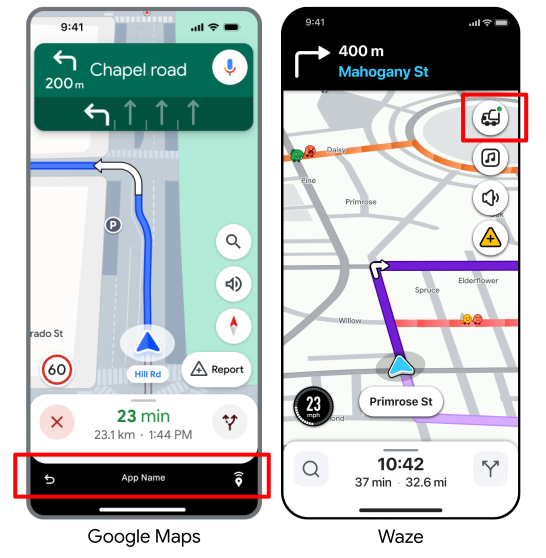
Navigation Connect displays a bottom bar (Google Maps) or a branded back button (Waze) so the driver can seamlessly switch back to your app at any point during the trip or when they arrive at the destination.
Android
You must create a PendingIntent that points back to your
app's activity. Attach this PendingIntent as an extra to the launch
intent using the exact key "pendingIntent". When the user taps the
return button, Google Maps or Waze executes this intent to bring your app to
the foreground.
intent.putExtra("pendingIntent", getPendingIntent())iOS (Waze only)
You don't need to add anything to the launch URL to enable the return button. Waze automatically uses the Universal Link that you registered when you verified your app.
Code samples
The following code samples show how to launch Google Maps or Waze from your app using Navigation Connect and enable the "Return to app" button.
Google Maps (Android)
The following Kotlin code shows a sample function that launches a Navigation Connect session with the required parameters.
private val destinationAddress = "1600 Amphitheatre Parkway, Mountain View, CA 94043"

        private fun launchNavConnect() {
           val jwtToken = "TRIP_TOKEN"

           try {
               // URL Encode the destination
               val encodedDestination = URLEncoder.encode(destinationAddress, "UTF-8")
               val navConnectUrl = "https://www.google.com/maps/dir/?api=1" +
                       "&destination=$encodedDestination" +
                       "&dir_action=navigate" +
                       "&action_token=$jwtToken"

               val intent = Intent(Intent.ACTION_VIEW, Uri.parse(navConnectUrl))
               // Explicitly set GMM package to ensure it opens in Google Maps
               intent.setPackage("com.google.android.apps.maps")
               // Add your application ID to the intent
               intent.putExtra(Intent.EXTRA_REFERRER_NAME, "android-app://${application.packageName}")
               // set up the NavConnect back button
               intent.putExtra("pendingIntent", getPendingIntent())
               startActivity(intent)

           } catch (e: Exception) {
               // handle errors
           }
        }

        private fun getPendingIntent(): PendingIntent? {
          val returnIntent = Intent(application, MainActivity::class.java) // replace with your activity to launch
          returnIntent.addFlags(Intent.FLAG_ACTIVITY_CLEAR_TOP or Intent.FLAG_ACTIVITY_SINGLE_TOP)
          val flags = PendingIntent.FLAG_IMMUTABLE
          if (Build.VERSION.SDK_INT < Build.VERSION_CODES.VANILLA_ICE_CREAM) {
            return PendingIntent.getActivity(application, 0, returnIntent, flags)
          }

          val options =
            ActivityOptions.makeBasic()
              .setPendingIntentCreatorBackgroundActivityStartMode(
                ActivityOptions.MODE_BACKGROUND_ACTIVITY_START_ALLOWED
              )

          return PendingIntent.getActivity(application, 0, returnIntent, flags, options.toBundle())
        }
Waze (Android)
The following Kotlin code shows a sample function that launches a Navigation Connect session with the required parameters.
private val destinationAddress = "1600 Amphitheatre Parkway, Mountain View, CA 94043"

         private fun launchNavConnect() {
            val tripToken = "TRIP_TOKEN"

            try {
                // URL Encode the destination
                val encodedDestination = URLEncoder.encode(destinationAddress, "UTF-8")
                val navConnectUrl = "https://waze.com/ul?" +
                        "&q=$encodedDestination" +
                        "&navigate=yes" +
                        "&external_trip_token=$tripToken"

                val intent = Intent(Intent.ACTION_VIEW, Uri.parse(navConnectUrl))
                // Explicitly set package name to ensure it opens in Waze
                intent.setPackage("com.waze")
                // Add your application ID to the intent
                val referrerName = "android-app://${application.packageName}"
                intent.putExtra(Intent.EXTRA_REFERRER_NAME, referrerName)

                // set up the NavConnect back button
                intent.putExtra("pendingIntent", getPendingIntent())
                startActivity(intent)

            } catch (e: Exception) {
                // handle errors
            }
         }

         private fun getPendingIntent(): PendingIntent? {
           val returnIntent = Intent(application, MainActivity::class.java) // replace with your activity to launch
           returnIntent.addFlags(Intent.FLAG_ACTIVITY_CLEAR_TOP or Intent.FLAG_ACTIVITY_SINGLE_TOP)
           val flags = PendingIntent.FLAG_IMMUTABLE
           if (Build.VERSION.SDK_INT < Build.VERSION_CODES.VANILLA_ICE_CREAM) {
             return PendingIntent.getActivity(application, 0, returnIntent, flags)
           }

           val options =
             ActivityOptions.makeBasic()
               .setPendingIntentCreatorBackgroundActivityStartMode(
                 ActivityOptions.MODE_BACKGROUND_ACTIVITY_START_ALLOWED
               )

           return PendingIntent.getActivity(application, 0, returnIntent, flags, options.toBundle())
         }
Waze (iOS)
The following Swift code shows a sample function that launches a Navigation Connect session with the required parameters.
openWazeUrl(queryItems: [URLQueryItem(name: "q", value: "1600 Amphitheatre Parkway")])

        private func openWazeUrl(queryItems: [URLQueryItem]) {
          var components = URLComponents()
          components.scheme = "https"
          components.host = "waze.com"
          components.path = "/ul"

          // Create a mutable copy of the queryItems.
          var mutableQueryItems = queryItems

          // Add Trip Token
          guard let tokenText = tokenField.text, !tokenText.isEmpty else {
            return
          }
          let token = URLQueryItem(name: "external_trip_token", value: tokenText)

          mutableQueryItems.append(token)

          // Add compulsory params
          mutableQueryItems.append(URLQueryItem(name: "navigate", value: "yes"))

          // Construct and Launch URL
          components.queryItems = mutableQueryItems

          guard let url = components.url else {
            return
          }

          UIApplication.shared.open(url, options: [:], completionHandler: nil)
        }
       }