

내비게이션 세션을 시작하려면 앱이 Google 지도 또는 Waze를 여는 실행 URL을 동적으로 구성해야 합니다. 이 가이드에서는 이동 생성에서 인증된 이동 토큰을 사용하여 Google 지도 또는 Waze를 실행하고 앱으로 돌아가는 환경을 구성하는 방법을 설명합니다.
Google 지도 또는 Waze를 실행하는 방법
Google 지도 또는 Waze를 실행하려면 운전자가 앱에서 탐색 세션을 시작할 수 있는 방법을 제공하고, 필수 매개변수로 실행 URL을 구성하고, 세션을 귀속시킬 애플리케이션 ID를 제공해야 합니다.
운전자가 앱에서 내비게이션을 시작하도록 허용
운전자가 앱에서 내비게이션을 시작할 수 있는 방법을 제공해야 합니다. 운전자가 버튼을 사용하여 Google 지도 또는 Waze를 실행할 수 있도록 하는 경우 명확하게 라벨을 지정하여 적절한 저작자 표시를 하고 혼동을 방지하세요. 예를 들어 버튼 위나 근처에 'Google 지도' 또는 'Waze'라는 텍스트를 배치합니다.
실행 URL 구성
탐색 세션을 시작하려면 탐색 연결 실행 URL을 구성합니다. 이 URL은 대상, 여행 토큰, 필수 탐색 매개변수가 포함된 문자열입니다. 표준 Google 지도 URL 또는 Waze 딥 링크와 유사하게 작동합니다.
운전자 기기에서 Google 지도 또는 Waze를 실행하려면 플랫폼별 메커니즘을 사용하세요.
- Android:
Intent에서 URL 문자열을 전달합니다. - iOS: URL 문자열을 범용 링크 (또는 딥 링크)로 사용합니다.
대상 형식 지정
Google 지도 또는 Waze에서 경로를 성공적으로 계산할 수 있도록 목적지 형식을 지정할 때 다음 규칙을 준수하세요.
도달 가능한 대상을 정확히 하나 지정합니다. 주소 문자열, 위도/경도 좌표 또는 장소 ID로 목적지를 전달할 수 있습니다.
경유지를 여러 개 사용하지 마세요. URL에 여러 경유지를 직접 전달하면 Google 지도 또는 Waze에 오류가 표시됩니다. 대신 별도의 여정을 만드세요.
이동 토큰 및 탐색 매개변수 추가
실행 URL을 완료하려면 여행 만들기 요청에서 받은 인증된 여행 토큰을 포함해야 합니다. Google 지도 또는 Waze에 활성 내비게이션을 시작하도록 지시하는 내비게이션 매개변수도 포함해야 합니다.
Google 지도
Google 지도의 경우 실행 URL에 다음 매개변수를 포함하세요.
dir_action=navigate: 이 매개변수는 활성 탐색을 강제합니다.action_token: 이 파라미터는 인증된 이동 토큰을 제공합니다.
다음 예에서는 다양한 대상 형식을 사용하여 Google 지도 실행 URL의 형식을 지정하는 방법을 보여줍니다.
-
위도/경도 좌표:
https://www.google.com/maps/dir/?api=1&destination=-33.8569%2C151.2152&dir_action=navigate&action_token=TRIP_TOKEN
-
주소 문자열:
https://www.google.com/maps/dir/?api=1&destination=1600%20Amphitheatre%20Parkway...&dir_action=navigate&action_token=TRIP_TOKEN
-
장소 ID:
https://www.google.com/maps/dir/?api=1&destination_place_id=PLACE_ID&dir_action=navigate&action_token=TRIP_TOKEN
Waze
Waze의 경우 실행 URL에 다음 매개변수를 포함합니다.
navigate=yes: 이 파라미터는 활성 탐색을 강제합니다.external_trip_token: 이 매개변수는 인증된 여행 토큰을 제공합니다.
다음 예에서는 다양한 대상 형식을 사용하여 Waze의 실행 URL을 형식화하는 방법을 보여줍니다.
-
위도/경도 좌표:
https://waze.com/ul?ll=-33.8569%2C151.2152&navigate=yes&external_trip_token=TRIP_TOKEN
-
주소 문자열:
https://waze.com/ul?&q=1600%20Amphitheatre...&navigate=yes&external_trip_token=TRIP_TOKEN
-
장소 ID:
https://waze.com/ul?google_place_id=PLACE_ID&navigate=yes&external_trip_token=TRIP_TOKEN
애플리케이션 ID 제공 (Android만 해당)
Navigation Connect로 이동을 시작하려면 Android에서 내비게이션 세션을 앱에 기여도로 부여해야 합니다. 이렇게 하려면 인증된 애플리케이션 ID를 제공하세요. 이렇게 하면 Google 지도 또는 Waze가 활성 여정을 플랫폼에 다시 연결할 수 있도록 앱이 여정의 소스로 식별됩니다. 애플리케이션 ID가 누락되었거나 잘못되면 이동 토큰 인증이 실패합니다.
애플리케이션 ID를 제공하면 다음 기능을 사용할 수 있습니다.
- 데이터 공유 승인: 앱이 활성 이동 데이터를 수신할 수 있는지 확인합니다.
- 운전자 동의 사용 설정: 동의 화면에 비즈니스 이름과 개인정보처리방침을 입력하여 운전자가 실시간 위치와 도착 예정 시간을 누가 수신하는지 알 수 있도록 합니다.
- 돌아가기 버튼 사용 설정: 운전자가 앱으로 다시 전환할 수 있도록 Google 지도 또는 Waze에서 브랜드가 지정된 돌아가기 버튼을 빌드할 수 있습니다.
Android에서 애플리케이션 ID를 Google 지도 또는 Waze에 전달하려면 Intent.EXTRA_REFERRER_NAME를 사용하여 실행 URL 문자열을 전달하는 실행 인텐트에 패키지 이름을 추가하세요.
다음 예시에서는 인텐트에 패키지 이름을 추가하는 방법을 보여줍니다.
intent.putExtra(Intent.EXTRA_REFERRER_NAME, "android-app://${application.packageName}")
운전자가 앱으로 돌아가도록 하는 방법
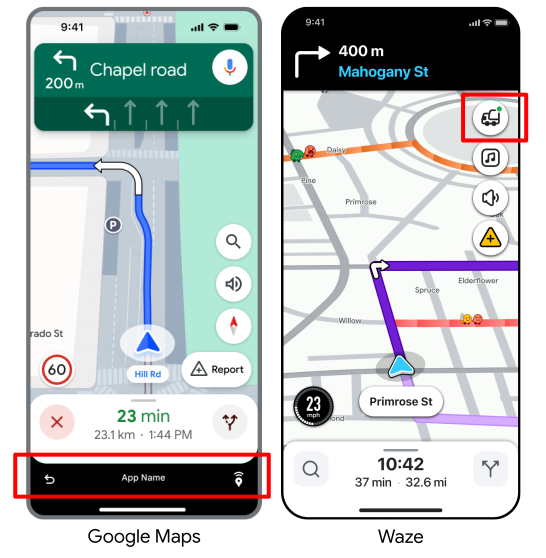
Navigation Connect는 하단 바 (Google 지도) 또는 브랜드가 지정된 뒤로 버튼(Waze)을 표시하므로 운전자는 이동 중 언제든지 또는 목적지에 도착했을 때 앱으로 원활하게 다시 전환할 수 있습니다.
Android
앱의 활동을 다시 가리키는 PendingIntent를 만들어야 합니다. 정확한 키 "pendingIntent"를 사용하여 이 PendingIntent를 실행 인텐트에 추가로 첨부합니다. 사용자가 돌아가기 버튼을 탭하면 Google 지도 또는 Waze가 이 인텐트를 실행하여 앱을 포그라운드로 가져옵니다.
intent.putExtra("pendingIntent", getPendingIntent())iOS (Waze만 해당)
반환 버튼을 사용 설정하기 위해 실행 URL에 추가할 필요는 없습니다. Waze는 앱을 인증할 때 등록한 범용 링크를 자동으로 사용합니다.
코드 샘플
다음 코드 샘플은 Navigation Connect를 사용하여 앱에서 Google 지도 또는 Waze를 실행하고 '앱으로 돌아가기' 버튼을 사용 설정하는 방법을 보여줍니다.
Google 지도 (Android)
다음 Kotlin 코드는 필수 매개변수를 사용하여 Navigation Connect 세션을 실행하는 샘플 함수를 보여줍니다.
private val destinationAddress = "1600 Amphitheatre Parkway, Mountain View, CA 94043"

        private fun launchNavConnect() {
           val jwtToken = "TRIP_TOKEN"

           try {
               // URL Encode the destination
               val encodedDestination = URLEncoder.encode(destinationAddress, "UTF-8")
               val navConnectUrl = "https://www.google.com/maps/dir/?api=1" +
                       "&destination=$encodedDestination" +
                       "&dir_action=navigate" +
                       "&action_token=$jwtToken"

               val intent = Intent(Intent.ACTION_VIEW, Uri.parse(navConnectUrl))
               // Explicitly set GMM package to ensure it opens in Google Maps
               intent.setPackage("com.google.android.apps.maps")
               // Add your application ID to the intent
               intent.putExtra(Intent.EXTRA_REFERRER_NAME, "android-app://${application.packageName}")
               // set up the NavConnect back button
               intent.putExtra("pendingIntent", getPendingIntent())
               startActivity(intent)

           } catch (e: Exception) {
               // handle errors
           }
        }

        private fun getPendingIntent(): PendingIntent? {
          val returnIntent = Intent(application, MainActivity::class.java) // replace with your activity to launch
          returnIntent.addFlags(Intent.FLAG_ACTIVITY_CLEAR_TOP or Intent.FLAG_ACTIVITY_SINGLE_TOP)
          val flags = PendingIntent.FLAG_IMMUTABLE
          if (Build.VERSION.SDK_INT < Build.VERSION_CODES.VANILLA_ICE_CREAM) {
            return PendingIntent.getActivity(application, 0, returnIntent, flags)
          }

          val options =
            ActivityOptions.makeBasic()
              .setPendingIntentCreatorBackgroundActivityStartMode(
                ActivityOptions.MODE_BACKGROUND_ACTIVITY_START_ALLOWED
              )

          return PendingIntent.getActivity(application, 0, returnIntent, flags, options.toBundle())
        }
Waze (Android)
다음 Kotlin 코드는 필수 매개변수를 사용하여 Navigation Connect 세션을 실행하는 샘플 함수를 보여줍니다.
private val destinationAddress = "1600 Amphitheatre Parkway, Mountain View, CA 94043"

         private fun launchNavConnect() {
            val tripToken = "TRIP_TOKEN"

            try {
                // URL Encode the destination
                val encodedDestination = URLEncoder.encode(destinationAddress, "UTF-8")
                val navConnectUrl = "https://waze.com/ul?" +
                        "&q=$encodedDestination" +
                        "&navigate=yes" +
                        "&external_trip_token=$tripToken"

                val intent = Intent(Intent.ACTION_VIEW, Uri.parse(navConnectUrl))
                // Explicitly set package name to ensure it opens in Waze
                intent.setPackage("com.waze")
                // Add your application ID to the intent
                val referrerName = "android-app://${application.packageName}"
                intent.putExtra(Intent.EXTRA_REFERRER_NAME, referrerName)

                // set up the NavConnect back button
                intent.putExtra("pendingIntent", getPendingIntent())
                startActivity(intent)

            } catch (e: Exception) {
                // handle errors
            }
         }

         private fun getPendingIntent(): PendingIntent? {
           val returnIntent = Intent(application, MainActivity::class.java) // replace with your activity to launch
           returnIntent.addFlags(Intent.FLAG_ACTIVITY_CLEAR_TOP or Intent.FLAG_ACTIVITY_SINGLE_TOP)
           val flags = PendingIntent.FLAG_IMMUTABLE
           if (Build.VERSION.SDK_INT < Build.VERSION_CODES.VANILLA_ICE_CREAM) {
             return PendingIntent.getActivity(application, 0, returnIntent, flags)
           }

           val options =
             ActivityOptions.makeBasic()
               .setPendingIntentCreatorBackgroundActivityStartMode(
                 ActivityOptions.MODE_BACKGROUND_ACTIVITY_START_ALLOWED
               )

           return PendingIntent.getActivity(application, 0, returnIntent, flags, options.toBundle())
         }
Waze (iOS)
다음 Swift 코드는 필수 매개변수를 사용하여 탐색 연결 세션을 실행하는 샘플 함수를 보여줍니다.
openWazeUrl(queryItems: [URLQueryItem(name: "q", value: "1600 Amphitheatre Parkway")])

        private func openWazeUrl(queryItems: [URLQueryItem]) {
          var components = URLComponents()
          components.scheme = "https"
          components.host = "waze.com"
          components.path = "/ul"

          // Create a mutable copy of the queryItems.
          var mutableQueryItems = queryItems

          // Add Trip Token
          guard let tokenText = tokenField.text, !tokenText.isEmpty else {
            return
          }
          let token = URLQueryItem(name: "external_trip_token", value: tokenText)

          mutableQueryItems.append(token)

          // Add compulsory params
          mutableQueryItems.append(URLQueryItem(name: "navigate", value: "yes"))

          // Construct and Launch URL
          components.queryItems = mutableQueryItems

          guard let url = components.url else {
            return
          }

          UIApplication.shared.open(url, options: [:], completionHandler: nil)
        }
       }