
Page Summary
-
Updating your iOS Cast sender app to Google Cast SDK v4.6.0 or later is necessary to maintain Cast functionality with iOS 14 due to new restrictions and permissions.
-
Beginning with iOS 14, applications scanning for local network devices will prompt users for one-time permission, and denying this will prevent casting.
-
To update your app for iOS 14, you need to add Cast iOS SDK 4.8.4, specify
NSBonjourServicesandNSLocalNetworkUsageDescriptionin yourInfo.plist, and re-release your app. -
If using a custom device picker with Cast SDK 4.6.0 or later, you must explicitly call the
startDiscoverymethod to initiate device discovery.
Applications that scan for devices on the local network will now prompt users with a one-time permissions dialog to find and connect to local network devices. The Cast platform uses the local network to discover and control Cast devices, so if the user denies permission, they will not be able to cast.
To improve the user experience, we are making some UX modifications to the SDK for those apps that are using the standard device picker. These UX modifications make it more obvious to users why local network access permissions are needed, as well as how to enable casting if local network device access has been disabled.
The Cast iOS SDK v4.6.0 or later can be added with Swift Package Manager by following the Swift Package Manager setup or downloaded manually by following the manual setup. This release includes changes to the underlying discovery mechanism to allow apps that are built with Xcode 12 to find Cast devices on the network. The Cast button should now always display. If no devices are available when the user taps on the Cast button, a dialog will be displayed providing guidance on why devices may not be available, including information on how to re-enable local-network access permission.
Cast SDK changes
First-time casting
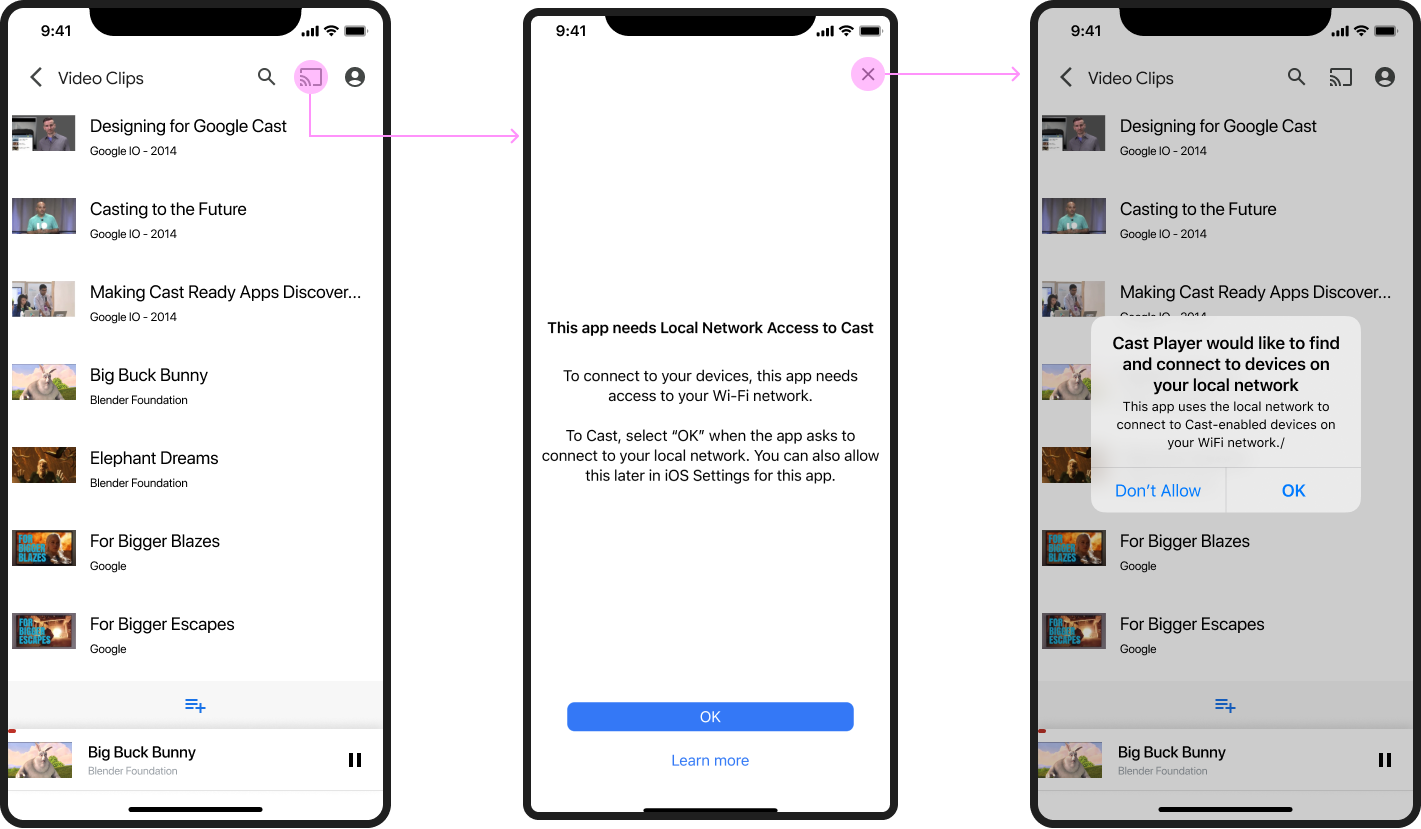
The first time a user attempts to Cast, a local network access (LNA) interstitial dialog will appear explaining why local networking access is needed, followed by the Apple-provided iOS local network access permissions prompt. The mocks below illustrate the flow:
Cast unavailable
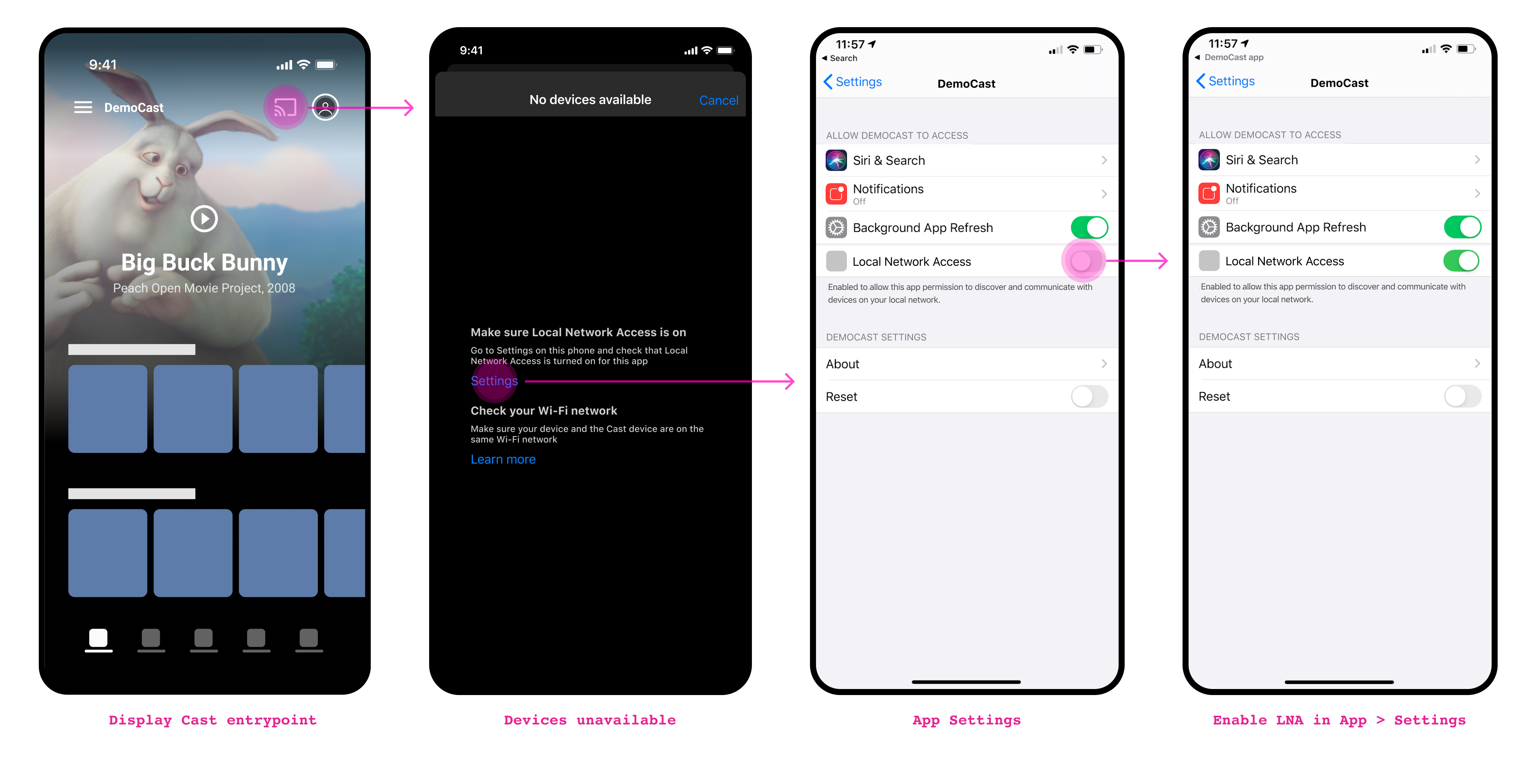
Starting with iOS sender SDK 4.6.0, the Cast button always appears when the user is connected to Wi-Fi. When Cast devices are unavailable, tapping on the Cast button brings up a dialog that gives the user hints as to possible reasons Cast is unavailable, as shown in the mocks below:
Updating your app
-
Add the Cast iOS SDK 4.8.6 to your project
If using Swift Package Manager, update the
google-cast-ios-sdkpackage to version 4.8.6.Otherwise, pull in the SDK manually.
-
Add
NSBonjourServicesto yourInfo.plistSpecify
NSBonjourServicesin yourInfo.plistto allow local network discovery to succeed.You will need to add both
_googlecast._tcpand_<your-app-id>._googlecast._tcpas services for device discovery to work properly.The appID is your receiverID, which is the same ID that is defined in your
GCKDiscoveryCriteria.Update the following example
NSBonjourServicesdefinition and replace "ABCD1234" with your appID. -
Add
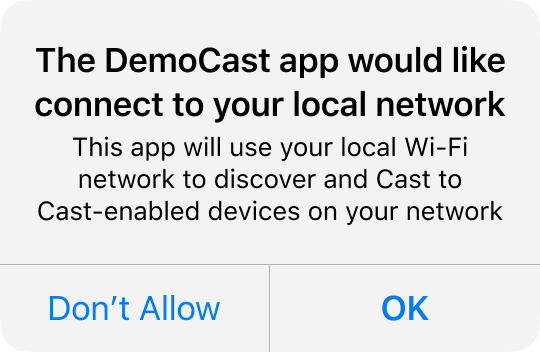
NSLocalNetworkUsageDescriptionto yourInfo.plistWe strongly recommend that you customize the message shown in the Local Network prompt by adding an app-specific permission string in your app's
Info.plistfile for theNSLocalNetworkUsageDescriptionsuch as to describe Cast discovery and other discovery services, like DIAL.This message will appear as part of the iOS Local Network Access dialog as shown in the mock.
-
Re-release your app to the Apple App Store
We recommend you also re-release your app using 4.8.6 as soon as possible.
Customizations
Cast device discovery initiation
By default, Cast device discovery is initiated the first time the user taps
the Cast button (GCKUICastButton). If this is the first time the user has
attempted to use the Cast app on the local network,
the new LNA interstitial will appear, followed by the iOS Local Network
Access permissions dialog.
A new flag is available to allow you to control when device discovery starts and the behavior of certain elements of the UX:
startDiscoveryAfterFirstTapOnCastButton: BOOL(true/false)
The default value is true. This flag is only applicable when the flag
GCKCastOptions::disableDiscoveryAutostart
is set to false.
If set to true, Cast device discovery starts when a user taps on the
GCKUICastButton for the first time. An informational message will be
displayed to the user letting them know why local network permission is
needed. Following that message, the iOS LNA message will be displayed.
Cast device discovery starts after the message is acknowledged.
In subsequent App launches, GCKUICastButton always displays.
If set to false, device discovery will start based on the value of the
flag
GCKCastOptions::disableDiscoveryAutostart.
Frequently asked questions
What happens if I re-release my Cast sender app with the Cast SDK v4.4.8 and Xcode 12?
Your app may not be able to discover Cast devices on the local network unless you have obtained a networking multicast entitlement from Apple. Note that Apple will not be granting multicast entitlements solely for the purpose of supporting Cast. If you plan to build with Xcode 12, you should release your app with Cast 4.6.0.
What will I need to do to update my app once the new version of the Cast SDK is released?
- Update your app's
Info.plistto include a local network usage description. - Add
NSBonjourServicesto your app'sInfo.plistand provide the Bonjour service names for Cast and your app ID. - Upgrade your sender app to use Cast SDK 4.6.0.
- Re-release your app to the Apple app store.
Why did devices stop showing up in my custom device picker after I upgraded to 4.6.0?
This is a known issue that can happen if you are using a custom device
picker instead of the standard device picker. In version 4.4.8 of the
Cast SDK and earlier, device scanning was automatic. Beginning in version
4.6.0, you will need to explicitly call the startDiscovery
method on the
GCKDiscoveryManager class to initiate device discovery.
The reason for this change is because the Local Network Access (LNA) permissions prompt will appear after the app has scanned for the first time. This could result in permissions dialogs appearing at random places in your app.
Developers who build a custom device picker for their app will be expected to provide an one-time interstitial prior to intiating device scanning for the first time.