
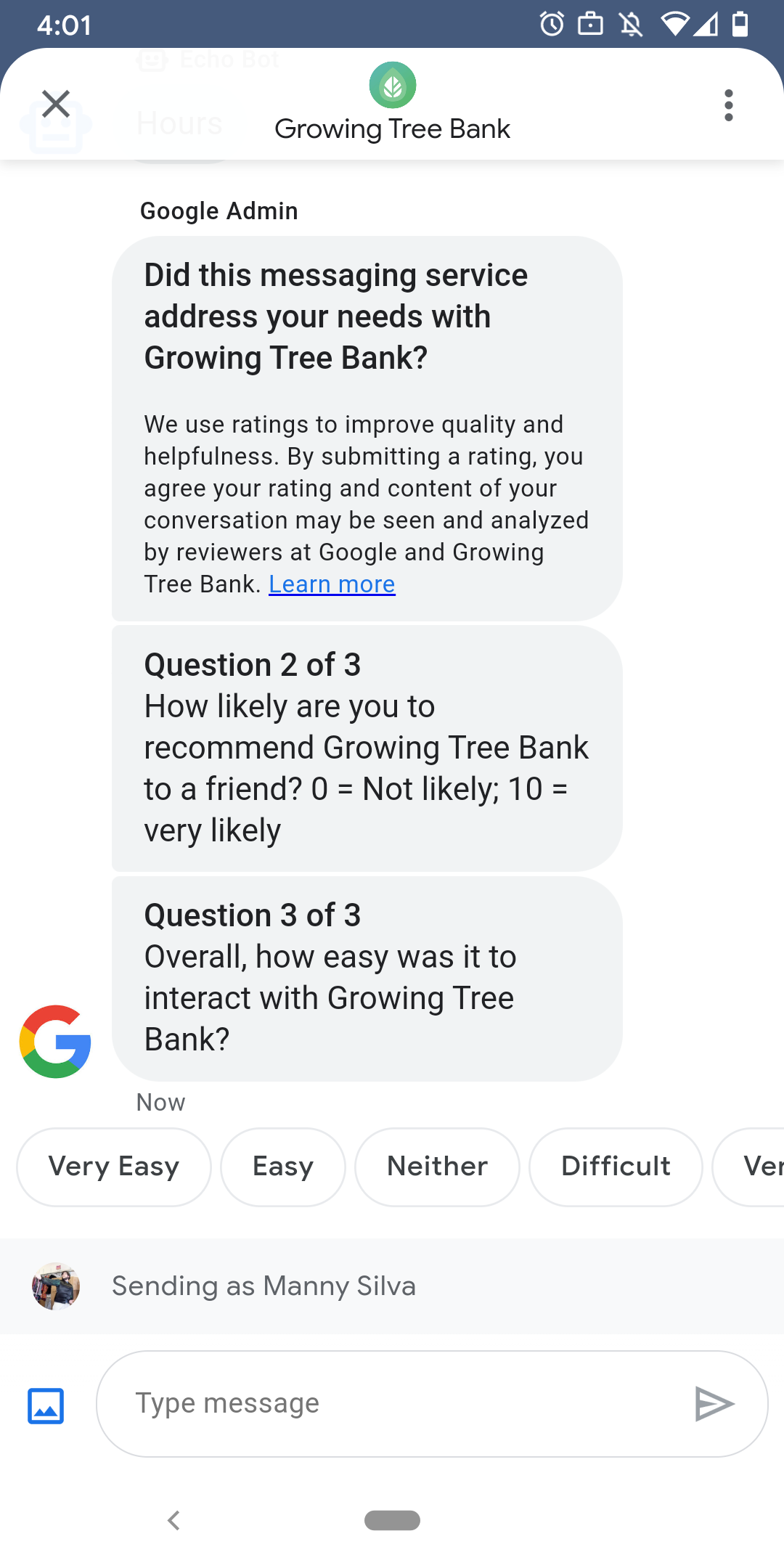
यह पक्का करने के लिए कि उपयोगकर्ताओं को आपके एजेंट के साथ बातचीत करने में अच्छा अनुभव मिले, Google, उपयोगकर्ताओं को सर्वे भेजता है. यह सर्वे, आपके एजेंट के साथ बातचीत खत्म होने के बाद भेजा जाता है. अगर आपको अलग-अलग समय पर डेटा इकट्ठा करना है, जैसे कि बातचीत खत्म होने पर, तो बातचीत के दौरान सर्वे भेजे जा सकते हैं. सर्वे, बातचीत में दिखते हैं. इनमें दिए गए सवालों के आधार पर, उपयोगकर्ता अलग-अलग विकल्पों की मदद से अपना सुझाव या शिकायत दर्ज कर सकते हैं.
Google की ओर से भेजे जाने वाले सर्वे का समय, एजेंट के मैसेजिंग की उपलब्धता पर निर्भर करता है:
| उपलब्धता | सर्वे भेजने का समय |
|---|---|
| सिर्फ़ बॉट | आखिरी मैसेज के 30 मिनट बाद |
| सिर्फ़ एजेंट | आखिरी मैसेज के 24 कामकाजी घंटों बाद |
| बॉट और एजेंट | आखिरी मैसेज के 24 कामकाजी घंटों बाद |
अगर अगले सात दिनों में 24 से कम कामकाजी घंटे हैं, तो हम 24 घंटे का इस्तेमाल करते हैं.
हर 24 घंटे में, हर बातचीत के लिए एक सर्वे भेजा जा सकता है. अगर Google से पहले, बातचीत के दौरान सर्वे भेजा जाता है, तो Google उस बातचीत के लिए सर्वे नहीं भेजता. अगर आपका एजेंट, 24 घंटे के अंदर एक ही बातचीत में एक से ज़्यादा सर्वे भेजता है, तो Business Messages सिर्फ़ पहला सर्वे उपयोगकर्ता को भेजने की कोशिश करता है.
सर्वे पूरा करने के बाद, जब कोई उपयोगकर्ता आपके एजेंट के साथ बातचीत शुरू करता है, तो एजेंट उसे वेलकम मैसेज दिखाता है. अगर कोई उपयोगकर्ता सर्वे का जवाब नहीं देता है, तो सर्वे सात दिनों बाद खत्म हो जाता है. इसके बाद, अगली बातचीत में उपयोगकर्ता को वेलकम मैसेज दिखता है.
अगर कोई उपयोगकर्ता, बातचीत में सर्वे के चालू रहने के दौरान, सर्वे से जुड़ा कोई मैसेज भेजता है, तो Business Messages सर्वे को रद्द कर देता है. साथ ही, उपयोगकर्ता का मैसेज, एजेंट के वेबहुक पर भेज देता है.
सवाल
सर्वे में ज़्यादा से ज़्यादा पांच सवाल शामिल किए जा सकते हैं. इन्हें तीन कैटगरी में बांटा जा सकता है: ज़रूरी, टेंप्लेट, और कस्टम. सर्वे में हमेशा ज़रूरी सवाल शामिल होता है. इसके बाद, टेंप्लेट के ज़्यादा से ज़्यादा दो सवाल दिखते हैं. फिर, कस्टम के ज़्यादा से ज़्यादा दो सवाल दिखते हैं.
ज़रूरी सवाल
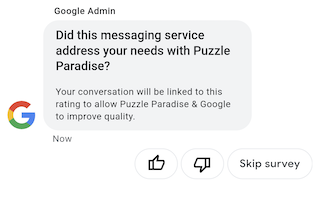
ज़रूरी सवाल, Business Messages के साथ काम करने वाली सभी भाषाओं में उपलब्ध है. उपयोगकर्ता, 'पसंद है' या 'पसंद नहीं है' में से किसी एक को चुनकर जवाब दे सकते हैं.
ज़रूरी सवाल: "क्या AGENT_NAME के साथ बातचीत करने पर, आपकी ज़रूरतें पूरी हुईं?"
टेंप्लेट के सवाल
टेंप्लेट के सवाल, Google की ओर से तय किए गए ऐसे सवाल होते हैं जिन्हें Business Messages के साथ काम करने वाली सभी भाषाओं में उपलब्ध कराया जाता है. हालांकि, इन्हें शामिल करना ज़रूरी नहीं है. एक सर्वे में, टेंप्लेट के ज़्यादा से ज़्यादा दो सवाल शामिल किए जा सकते हैं. उपयोगकर्ता के जवाब का फ़ॉर्मैट, सवाल के हिसाब से अलग-अलग होता है.
टेंप्लेट के सवालों में ये शामिल हैं
- AGENT_NAME को मैसेज करने का आपका अनुभव कैसा रहा?
- आप AGENT_NAME को किसी दोस्त को रेफ़र करने की कितनी संभावना रखते हैं?
- अगली बार AGENT_NAME से संपर्क करने पर, मैसेजिंग को चुनने की आपकी कितनी संभावना है ?
- कुल मिलाकर, AGENT_NAME के साथ बातचीत करना कितना आसान था?
- आप इस स्टेटमेंट से किस हद तक सहमत या असहमत हैं: AGENT_NAME ने मेरी समस्या को हल करना आसान बना दिया.
- कृपया रेटिंग देकर बताएं कि आपको मिली सहायता से आप कुल मिलाकर कितने संतुष्ट हैं.
- क्या इस चैट सेशन से आपको AGENT_NAME को कॉल करने की ज़रूरत नहीं पड़ी?
इस्तेमाल के लिए उपलब्ध, टेंप्लेट के सभी सवालों की सूची देखने और टेंप्लेट आईडी पाने के लिए,
- Business Communications Developer Console खोलें और अपने Business Messages के Google खाते से साइन इन करें.
- अपना एजेंट चुनें.
- बाईं ओर मौजूद नेविगेशन बार में, सर्वे पर क्लिक करें.
कस्टम सवाल
एक सर्वे में, कस्टम के ज़्यादा से ज़्यादा दो सवाल शामिल किए जा सकते हैं. अगर कोई कस्टम सवाल तय किया जाता है, तो अपने एजेंट के साथ काम करने वाली हर भाषा के लिए, सवाल के वर्शन शामिल करें. आपको अपनी डिफ़ॉल्ट भाषा के लिए, हर सवाल का एक वर्शन तय करना होगा. अगर किसी उपयोगकर्ता को सर्वे मिलता है, लेकिन वह ऐसी भाषा में है जिसके लिए कस्टम सवाल का कोई वर्शन तय नहीं किया गया है, तो सवाल, एजेंट की डिफ़ॉल्ट भाषा में दिखता है.
सर्वे को पसंद के मुताबिक बनाना
किसी एजेंट के लिए सर्वे को पसंद के मुताबिक बनाने के लिए,
- Business Communications Developer Console खोलें और अपने Business Messages के Google खाते से साइन इन करें.
- अपना एजेंट चुनें.
- बाईं ओर मौजूद नेविगेशन बार में, सर्वे पर क्लिक करें.
- सर्वे में, टेंप्लेट के ज़्यादा से ज़्यादा दो सवाल जोड़ें.
- अपने सर्वे में कस्टम सवाल जोड़ने के लिए, कस्टम सवाल बनाएं पर क्लिक करें.
फ़ॉर्मैटिंग और वैल्यू के विकल्पों के लिए, देखें
surveyConfig.
सर्वे भेजना
सर्वे भेजने के लिए, यह कमांड चलाएं. CONVERSATION_ID की जगह, उस बातचीत का आइडेंटिफ़ायर डालें जिसके लिए आपको सर्वे भेजना है. साथ ही, SURVEY_ID की जगह, सर्वे के लिए यूनीक आइडेंटिफ़ायर डालें.
cURL
# Copyright 2021 Google LLC # # Licensed under the Apache License, Version 2.0 (the "License"); # you may not use this file except in compliance with the License. # You may obtain a copy of the License at # https://www.apache.org/licenses/LICENSE-2.0 # Unless required by applicable law or agreed to in writing, software # distributed under the License is distributed on an "AS IS" BASIS, # WITHOUT WARRANTIES OR CONDITIONS OF ANY KIND, either express or implied. # See the License for the specific language governing permissions and # limitations under the License. # This code sends a survey to the user: # Read more: https://developers.google.com/business-communications/business-messages/guides/how-to/message/surveys?hl=en # Replace the __CONVERSATION_ID__ with a conversation id that you can send messages to # Make sure a service account key file exists at ./service_account_key.json curl -X POST "https://businessmessages.googleapis.com/v1/conversations/__CONVERSATION_ID__/surveys?surveyId=f4bd7576-6c2e-4674-9db4-d697166f63ce" \ -H "Content-Type: application/json" \ -H "User-Agent: curl/business-messages" \ -H "$(oauth2l header --json ./service_account_key.json businessmessages)"
Node.js
/** * This code sends a survey to the user: * Read more: https://developers.google.com/business-communications/business-messages/guides/how-to/message/surveys?hl=en * * This code is based on the https://github.com/google-business-communications/nodejs-businessmessages Node.js * Business Messages client library. */ /** * Edit the values below: */ const PATH_TO_SERVICE_ACCOUNT_KEY = './service_account_key.json'; const CONVERSATION_ID = 'EDIT_HERE'; const businessmessages = require('businessmessages'); const uuidv4 = require('uuid').v4; const {google} = require('googleapis'); // Initialize the Business Messages API const bmApi = new businessmessages.businessmessages_v1.Businessmessages({}); // Set the scope that we need for the Business Messages API const scopes = [ 'https://www.googleapis.com/auth/businessmessages', ]; // Set the private key to the service account file const privatekey = require(PATH_TO_SERVICE_ACCOUNT_KEY); /** * Posts a survey to the Business Messages API. * * @param {string} conversationId The unique id for this user and agent. */ async function sendSurvey(conversationId) { const authClient = await initCredentials(); // Create the payload for creating a new survey const apiParams = { auth: authClient, parent: 'conversations/' + conversationId, surveyId: uuidv4(), resource: {} }; // Call the message create function using the // Business Messages client library bmApi.conversations.surveys.create(apiParams, {auth: authClient}, (err, response) => { console.log(err); console.log(response); }); } /** * Initializes the Google credentials for calling the * Business Messages API. */ async function initCredentials() { // configure a JWT auth client const authClient = new google.auth.JWT( privatekey.client_email, null, privatekey.private_key, scopes, ); return new Promise(function(resolve, reject) { // authenticate request authClient.authorize(function(err, tokens) { if (err) { reject(false); } else { resolve(authClient); } }); }); } sendSurvey(CONVERSATION_ID);
Java
import com.google.api.client.googleapis.services.AbstractGoogleClientRequest; import com.google.api.client.http.HttpBackOffUnsuccessfulResponseHandler; import com.google.api.client.http.HttpRequest; import com.google.api.client.googleapis.auth.oauth2.GoogleCredential; import com.google.api.client.googleapis.javanet.GoogleNetHttpTransport; import com.google.api.client.http.HttpTransport; import com.google.api.client.json.jackson2.JacksonFactory; import com.google.api.client.util.ExponentialBackOff; import com.google.api.services.businessmessages.v1.Businessmessages; import com.google.api.services.businessmessages.v1.model.*; import java.io.FileInputStream; import java.util.Arrays; import java.util.UUID; class SendSurveySnippet { /** * Initializes credentials used by the Business Messages API. */ private static Businessmessages.Builder getBusinessMessagesBuilder() { Businessmessages.Builder builder = null; try { GoogleCredential credential = GoogleCredential .fromStream(new FileInputStream("PATH_TO_SERVICE_ACCOUNT_KEY")); credential = credential.createScoped(Arrays.asList( "https://www.googleapis.com/auth/businessmessages")); credential.refreshToken(); HttpTransport httpTransport = GoogleNetHttpTransport.newTrustedTransport(); JacksonFactory jsonFactory = JacksonFactory.getDefaultInstance(); // Create instance of the Business Messages API builder = new Businessmessages .Builder(httpTransport, jsonFactory, null) .setApplicationName("Sample Application"); // Set the API credentials and endpoint builder.setHttpRequestInitializer(credential); } catch (Exception e) { e.printStackTrace(); } return builder; } public static void main(String args[]) { try { String conversationId = "CONVERSATION_ID"; // Create client library reference Businessmessages.Builder builder = getBusinessMessagesBuilder(); // Create a new survey to send to the user associated with the conversationId Businessmessages.Conversations.Surveys.Create request = bmBuilder.build().conversations().surveys() .create("conversations/" + conversationId, new BusinessMessagesSurvey()); request.setSurveyId(UUID.randomUUID().toString()); // Setup retries with exponential backoff HttpRequest httpRequest = ((AbstractGoogleClientRequest) request).buildHttpRequest(); httpRequest.setUnsuccessfulResponseHandler(new HttpBackOffUnsuccessfulResponseHandler( new ExponentialBackOff())); // Execute request httpRequest.execute(); } catch (Exception e) { e.printStackTrace(); } } }
Python
"""This code sends a survey to the user. Read more: https://developers.google.com/business-communications/business-messages/guides/how-to/message/surveys?hl=en This code is based on the https://github.com/google-business-communications/python-businessmessages Python Business Messages client library. """ import uuid from businessmessages import businessmessages_v1_client as bm_client from businessmessages.businessmessages_v1_messages import BusinessmessagesConversationsSurveysCreateRequest from businessmessages.businessmessages_v1_messages import BusinessMessagesSurvey from oauth2client.service_account import ServiceAccountCredentials # Edit the values below: path_to_service_account_key = './service_account_key.json' conversation_id = 'EDIT_HERE' credentials = ServiceAccountCredentials.from_json_keyfile_name( path_to_service_account_key, scopes=['https://www.googleapis.com/auth/businessmessages']) client = bm_client.BusinessmessagesV1(credentials=credentials) # Create the survey request survey_request = BusinessmessagesConversationsSurveysCreateRequest( surveyId=str(uuid.uuid4().int), parent='conversations/' + conversation_id, businessMessagesSurvey=BusinessMessagesSurvey()) # Send the survey bm_client.BusinessmessagesV1.ConversationsSurveysService( client=client).Create(request=survey_request)
फ़ॉर्मैटिंग और वैल्यू के विकल्पों के लिए, देखें
conversations.surveys.
सर्वे के जवाब पाना
जब कोई उपयोगकर्ता, सर्वे में मौजूद किसी सवाल का जवाब देता है, तो आपका एजेंट, जवाब को अपने वेबहुक पर पाता है. सर्वे के जवाब पाने और उन्हें प्रोसेस करने का तरीका, मैसेज पाने और उन्हें प्रोसेस करने के तरीके जैसा ही होता है.
सर्वे में मौजूद सभी सवालों की surveyResponse.survey वैल्यू एक ही होती है. अगर
आपके सर्वे में एक से ज़्यादा सवाल शामिल हैं, तो पक्का करें कि आपके इन्फ़्रास्ट्रक्चर में,
एक ही surveyResponse.survey वैल्यू वाले एक से ज़्यादा जवाब स्वीकार किए जा सकें. साथ ही,
surveyResponse.surveyQuestionId फ़ील्ड की मदद से, अलग-अलग सवालों की पहचान की जा सके.
सर्वे के जवाबों की टेक्स्ट वैल्यू, surveyResponse.questionResponseText में दिखती हैं. ज़रूरी और टेंप्लेट के सवालों के लिए, Business Messages, 'पसंद है' के जवाब को VERY_SATISFIED और 'पसंद नहीं है' के जवाब को VERY_DISSATISFIED के तौर पर दिखाता है. अगर कस्टम सवाल के जवाब में कोई इमोजी शामिल है, तो यूनीकोड वैल्यू को पार्स करने के बजाय, surveyResponse.questionResponsePostbackData पर भरोसा करना सबसे सही तरीका है.
सर्वे के जवाबों का फ़ॉर्मैट यह होता है.
{
  "agent": "brands/BRAND_ID/agents/AGENT_ID",
  "sendTime": "SEND_TIME",
  "conversationId": "CONVERSATION_ID",
  "requestId": "REQUEST_ID",
  "surveyResponse": {
    "survey": "conversations/CONVERSATION_ID/surveys/SURVEY_ID",
    "rating": "SURVEY_RATING",
    "createTime": "CREATE_TIME",
    "surveyQuestionId": "QUESTION_ID",
    "questionResponseText": "RESPONSE_TEXT",
    "questionResponsePostbackData": "RESPONSE_POSTBACK_DATA",
    "questionType": "QUESTION_TYPE",
    "questionIndex": QUESTION_INDEX,
    "totalQuestionCount": TOTAL_QUESTION_COUNT,
    "surveyTriggerSource": "TRIGGER_SOURCE"
  }
}
फ़ॉर्मैटिंग और वैल्यू के विकल्पों के लिए, देखें
UserMessage
और
SurveyResponse.