
يوضّح هذا الدليل أفضل الممارسات حول كيفية ترميز تطبيقاتك لعرض الإعلانات بشكل صحيح على iPhone X.
المتطلبات الأساسية
- استورِد الإصدار 7.26.0 أو إصدارًا أحدث من Google Mobile Ads SDK، إما بشكل مستقل أو كجزء من Firebase.
إعلانات البانر
يجب وضع "إعلانات البانر" في "المنطقة الآمنة" لتجنُّب حجبها بسبب الزوايا المستديرة ومبيت أداة الاستشعار ومؤشر الشاشة الرئيسية. ستجد في هذه الصفحة أمثلة على كيفية إضافة قيود لتحديد موضع بانر في أعلى "المنطقة الآمنة" أو أسفلها.
Storyboard/Interface Builder
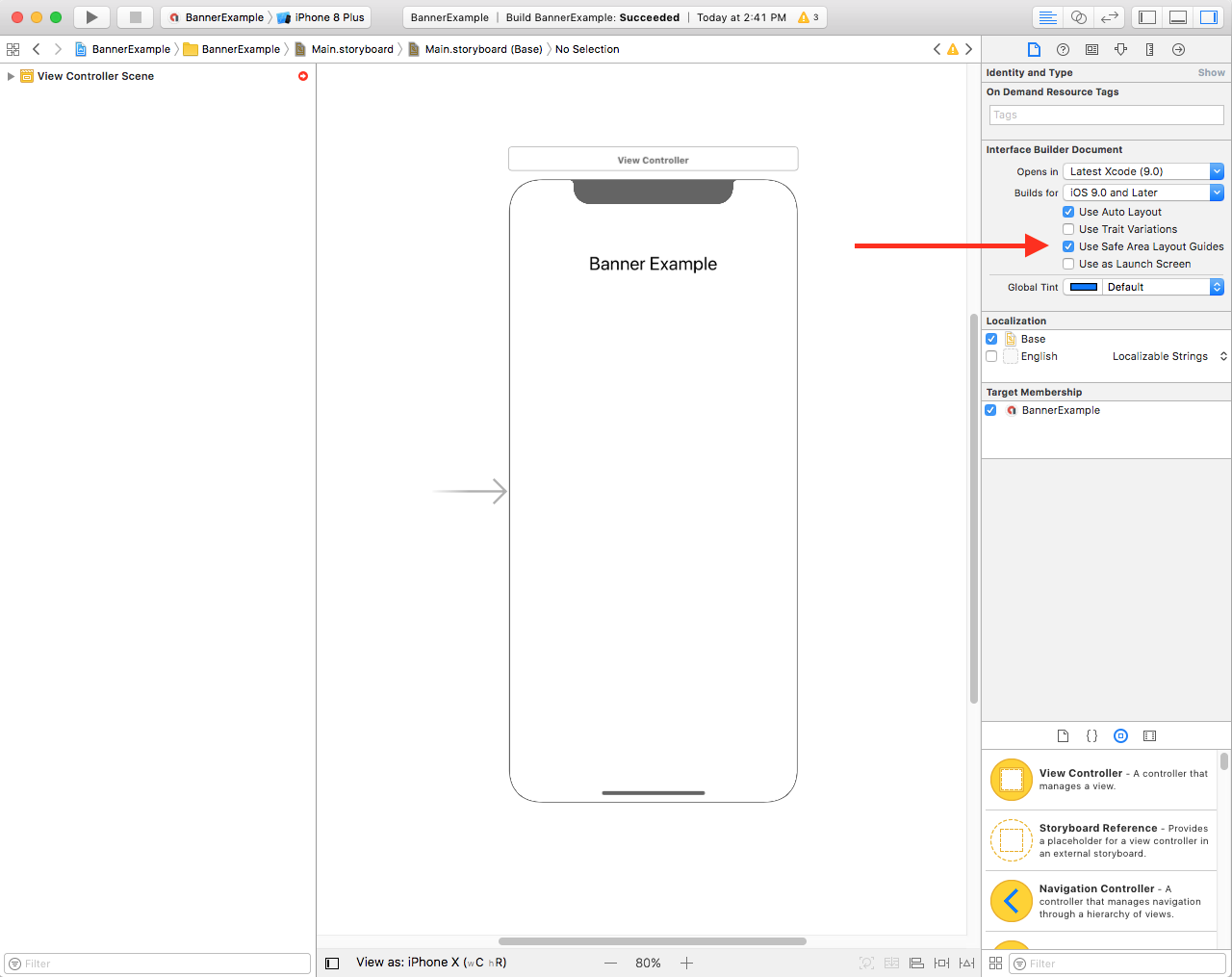
إذا كان تطبيقك يستخدم Interface Builder، تأكَّد أولاً من تفعيل أدلة تنسيق "المنطقة الآمنة". لإجراء ذلك، يجب استخدام الإصدار 9 من Xcode أو إصدار أحدث واستهداف الإصدار 9 من iOS أو إصدار أحدث.
افتح ملف Interface Builder وانقر على مشهد وحدة التحكّم في العرض. ستظهر لك خيارات Interface Builder Document (مستند أداة إنشاء الواجهة) على يسار الصفحة. تحقَّق من استخدام أدلة تخطيط المنطقة الآمنة وتأكَّد من أنّك تنشئ تطبيقات لنظام التشغيل iOS 9.0 والإصدارات الأحدث كحد أدنى.
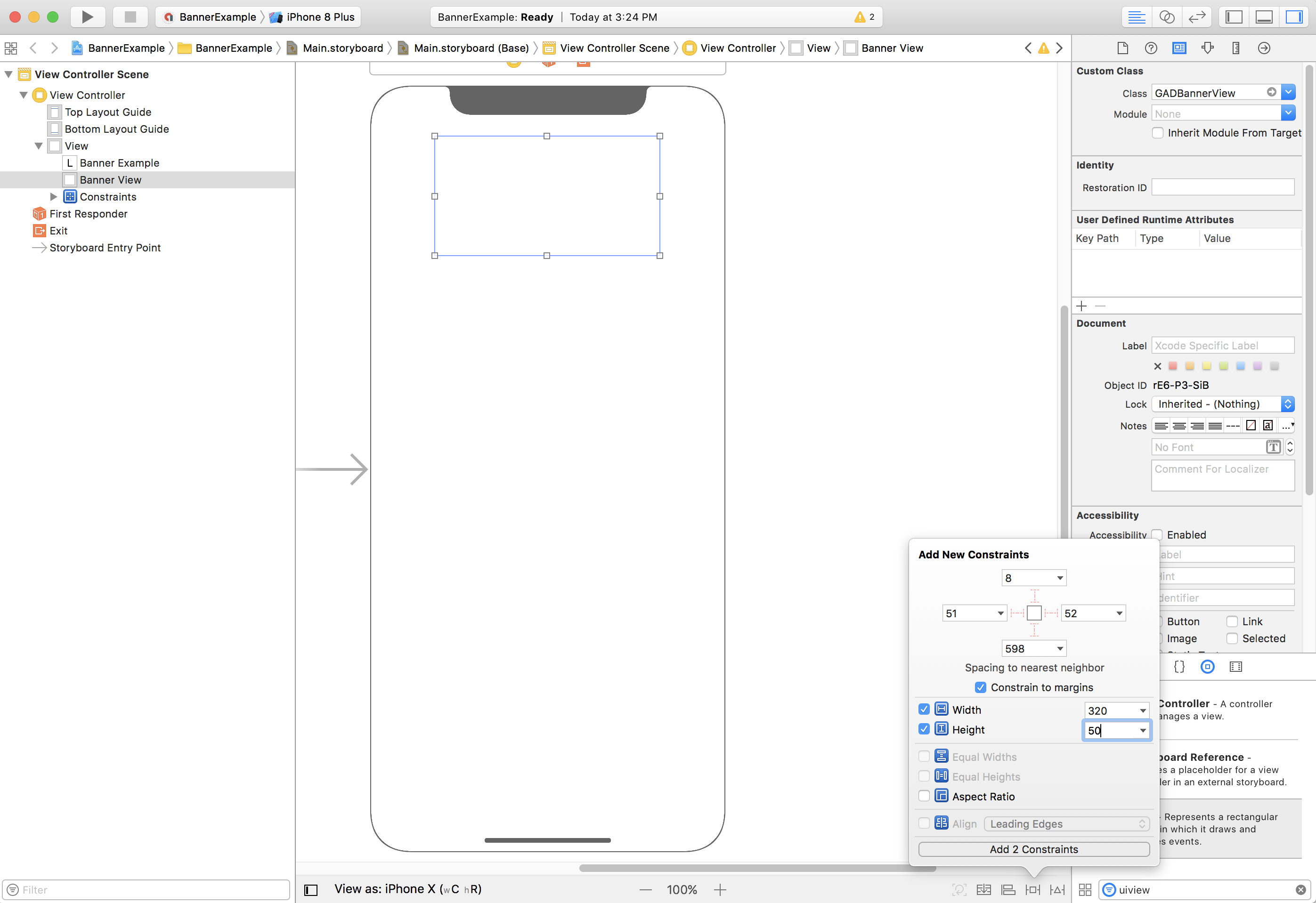
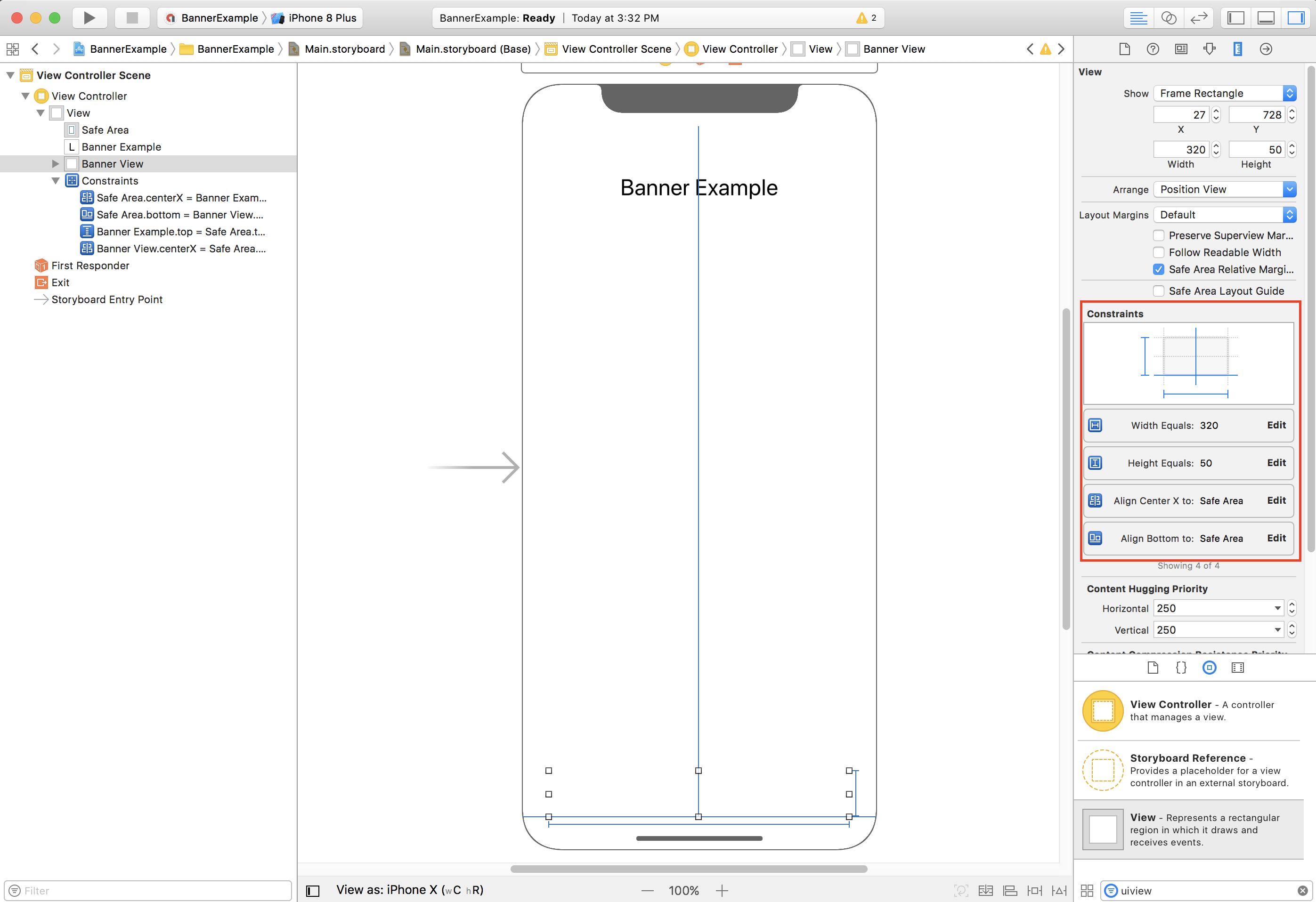
ننصحك بتقييد البانر بالحجم المطلوب باستخدام قيود العرض والارتفاع.
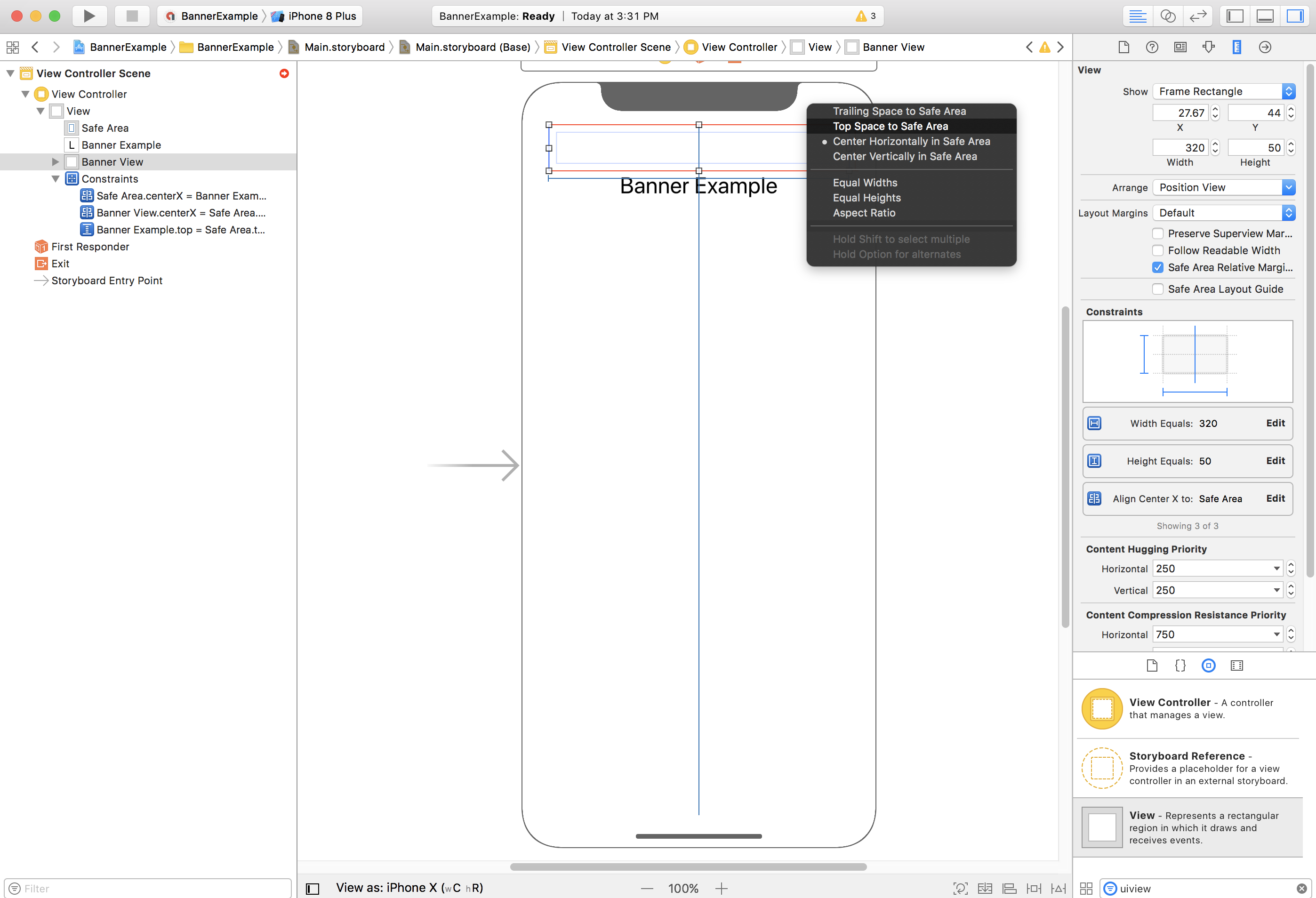
يمكنك الآن محاذاة إعلان البانر مع أعلى "المنطقة الآمنة" عن طريق تقييد السمة "أعلى" في GADBannerView بأعلى "المنطقة الآمنة":
وبالمثل، يمكنك محاذاة إعلان البانر مع أسفل "المنطقة الآمنة" من خلال تقييد السمة Bottom في GADBannerView بأسفل المنطقة الآمنة:
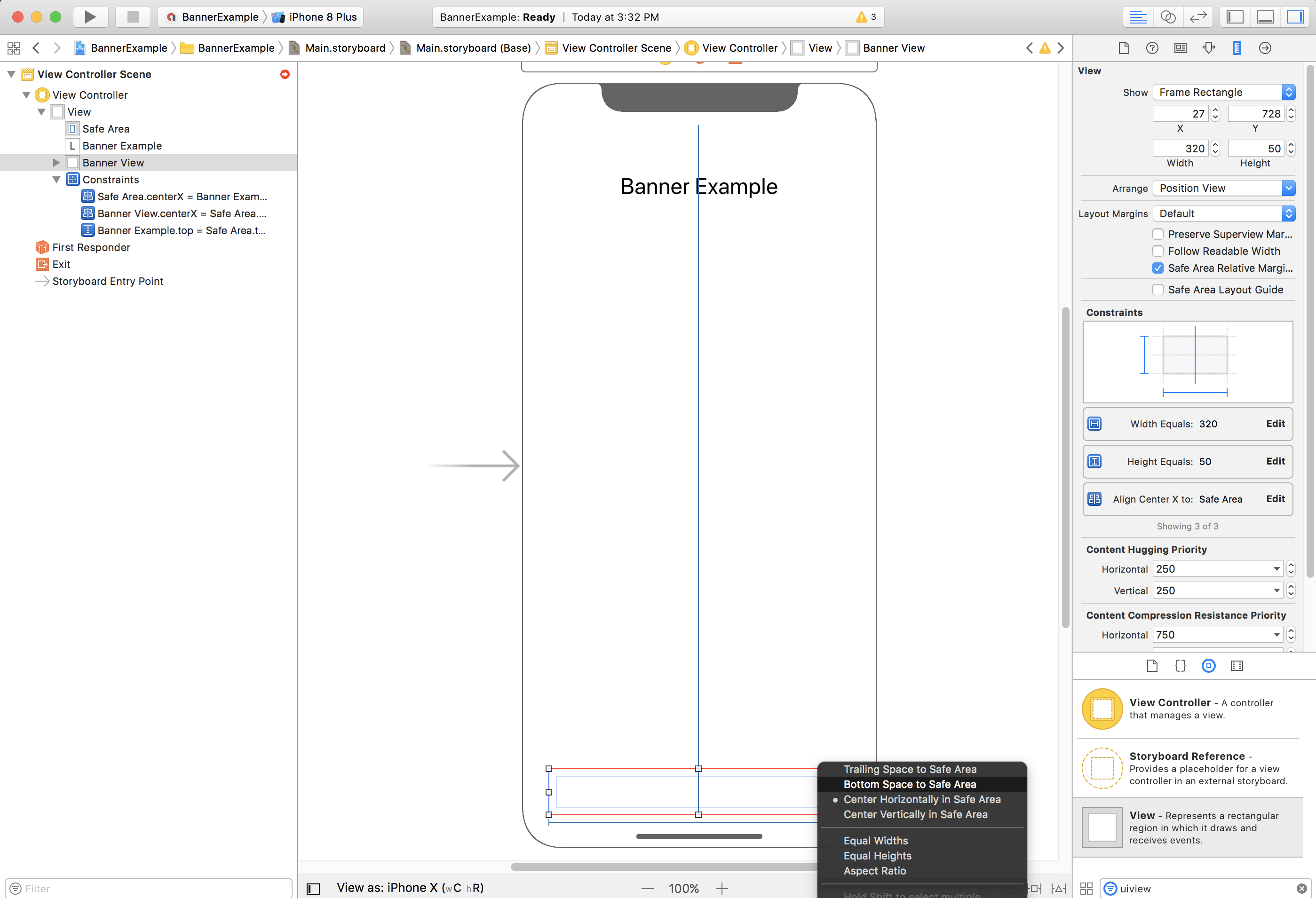
يُفترض أن تظهر القيود الآن مشابهة للقطة الشاشة أدناه (يمكن أن يختلف الحجم/الموضع):
ViewController
في ما يلي مقتطف رمز بسيط لوحدة التحكّم في العرض ينفّذ الحدّ الأدنى المطلوب لعرض إعلان بانر في GADBannerView كما تم ضبطه في لوحة العمل أعلاه:
Swift
class ViewController: UIViewController {

  /// The banner view.
  @IBOutlet var bannerView: BannerView!

  override func viewDidLoad() {
    super.viewDidLoad()
    // Replace this ad unit ID with your own ad unit ID.
    bannerView.adUnitID = "ca-app-pub-3940256099942544/2934735716"
    bannerView.rootViewController = self
    bannerView.load(Request())
  }

}
Objective-C
@interface ViewController()

@property(nonatomic, strong) IBOutlet GADBannerView *bannerView;

@end

@implementation ViewController

- (void)viewDidLoad {
  [super viewDidLoad];

  // Replace this ad unit ID with your own ad unit ID.
  self.bannerView.adUnitID = @"ca-app-pub-3940256099942544/2934735716";
  self.bannerView.rootViewController = self;
  GADRequest *request = [GADRequest request];
  [self.bannerView loadRequest:request];
}
محاذاة البانرات مع حافة المنطقة الآمنة
إذا أردت عرض إعلان بانر بمحاذاة اليمين أو اليسار، عليك تقييد الحافة اليمنى أو اليسرى لإعلان البانر بالحافة اليمنى أو اليسرى للمنطقة الآمنة، وليس بالحافة اليمنى أو اليسرى للعرض الفائق.
إذا كان خيار استخدام أدلة تخطيط المنطقة الآمنة مفعَّلاً، سيستخدم Interface Builder تلقائيًا حواف المنطقة الآمنة عند إضافة قيود إلى العرض.
آلية
إذا كان تطبيقك ينشئ "إعلانات بانر" آليًا، يمكنك تحديد القيود ووضع "إعلان البانر" في الرمز البرمجي. يوضّح هذا المثال كيفية تقييد إعلان بانر ليتوسّط الشاشة أفقيًا في أسفل "المنطقة الآمنة":
Swift
class ViewController: UIViewController {

  var bannerView: BannerView!

  override func viewDidLoad() {
    super.viewDidLoad()

    // Instantiate the banner view with your desired banner size.
    bannerView = BannerView(adSize: AdSizeBanner)
    addBannerViewToView(bannerView)
    bannerView.rootViewController = self
    // Set the ad unit ID to your own ad unit ID here.
    bannerView.adUnitID = "ca-app-pub-3940256099942544/2934735716"
    bannerView.load(Request())
  }

  func addBannerViewToView(_ bannerView: UIView) {
    bannerView.translatesAutoresizingMaskIntoConstraints = false
    view.addSubview(bannerView)
    if #available(iOS 11.0, *) {
      positionBannerAtBottomOfSafeArea(bannerView)
    }
    else {
      positionBannerAtBottomOfView(bannerView)
    }
  }

  @available (iOS 11, *)
  func positionBannerAtBottomOfSafeArea(_ bannerView: UIView) {
    // Position the banner. Stick it to the bottom of the Safe Area.
    // Centered horizontally.
    let guide: UILayoutGuide = view.safeAreaLayoutGuide

    NSLayoutConstraint.activate(
      [bannerView.centerXAnchor.constraint(equalTo: guide.centerXAnchor),
       bannerView.bottomAnchor.constraint(equalTo: guide.bottomAnchor)]
    )
  }

  func positionBannerAtBottomOfView(_ bannerView: UIView) {
    // Center the banner horizontally.
    view.addConstraint(NSLayoutConstraint(item: bannerView,
                                          attribute: .centerX,
                                          relatedBy: .equal,
                                          toItem: view,
                                          attribute: .centerX,
                                          multiplier: 1,
                                          constant: 0))
    // Lock the banner to the top of the bottom layout guide.
    view.addConstraint(NSLayoutConstraint(item: bannerView,
                                          attribute: .bottom,
                                          relatedBy: .equal,
                                          toItem: self.bottomLayoutGuide,
                                          attribute: .top,
                                          multiplier: 1,
                                          constant: 0))
  }

}
Objective-C
@interface ViewController()

@property(nonatomic, strong) GADBannerView *bannerView;

@end

@implementation ViewController

- (void)viewDidLoad {
  [super viewDidLoad];

  // Instantiate the banner view with your desired banner size.
  self.bannerView = [[GADBannerView alloc] initWithAdSize:GADAdSizeBanner];
  [self addBannerViewToView:self.bannerView];

  // Replace this ad unit ID with your own ad unit ID.
  self.bannerView.adUnitID = @"ca-app-pub-3940256099942544/2934735716";
  self.bannerView.rootViewController = self;
  GADRequest *request = [GADRequest request];
  [self.bannerView loadRequest:request];
}

#pragma mark - view positioning

-(void)addBannerViewToView:(UIView *_Nonnull)bannerView {
  self.bannerView.translatesAutoresizingMaskIntoConstraints = NO;
  [self.view addSubview:self.bannerView];
  if (@available(ios 11.0, *)) {
    [self positionBannerViewAtBottomOfSafeArea:bannerView];
  } else {
    [self positionBannerViewAtBottomOfView:bannerView];
  }
}

- (void)positionBannerViewAtBottomOfSafeArea:(UIView *_Nonnull)bannerView NS_AVAILABLE_IOS(11.0) {
  // Position the banner. Stick it to the bottom of the Safe Area.
  // Centered horizontally.
  UILayoutGuide *guide = self.view.safeAreaLayoutGuide;
  [NSLayoutConstraint activateConstraints:@[
    [bannerView.centerXAnchor constraintEqualToAnchor:guide.centerXAnchor],
    [bannerView.bottomAnchor constraintEqualToAnchor:guide.bottomAnchor]
  ]];
}

- (void)positionBannerViewAtBottomOfView:(UIView *_Nonnull)bannerView {
  [self.view addConstraint:[NSLayoutConstraint constraintWithItem:bannerView
                                                        attribute:NSLayoutAttributeCenterX
                                                        relatedBy:NSLayoutRelationEqual
                                                           toItem:self.view
                                                        attribute:NSLayoutAttributeCenterX
                                                       multiplier:1
                                                         constant:0]];
  [self.view addConstraint:[NSLayoutConstraint constraintWithItem:bannerView
                                                        attribute:NSLayoutAttributeBottom
                                                        relatedBy:NSLayoutRelationEqual
                                                           toItem:self.bottomLayoutGuide
                                                        attribute:NSLayoutAttributeTop
                                                       multiplier:1
                                                         constant:0]];
}

@end
يمكن بسهولة استخدام الأساليب المذكورة أعلاه لتقييد الجزء العلوي من المنطقة الآمنة من خلال تعديل السمات والمثبّتات المستخدَمة.
إعلانات البانر الذكية
إذا كنت تستخدم إعلانات البانر الذكية، خاصةً في الوضع الأفقي، ننصحك باستخدام القيود لمحاذاة حواف البانر مع الحواف اليمنى واليسرى للمنطقة الآمنة.
في أداة إنشاء الواجهة، يتوفّر هذا الخيار في الإصدار iOS 9 والإصدارات الأحدث من خلال وضع علامة في المربّع بجانب الخيار استخدام أدلة تنسيق المنطقة الآمنة كما هو موضّح أعلاه.
في الرمز، يجب أن تجعل قيود الحواف مرتبطة بأدلة تخطيط المنطقة الآمنة حيثما كان ذلك متاحًا. في ما يلي مقتطف رمز يضيف عرض إعلان بانر إلى العرض ويقيّده في أسفل العرض، بالعرض الكامل:
Swift
func addBannerViewToView(_ bannerView: BannerView) {
  bannerView.translatesAutoresizingMaskIntoConstraints = false
  view.addSubview(bannerView)
  if #available(iOS 11.0, *) {
    // In iOS 11, we need to constrain the view to the safe area.
    positionBannerViewFullWidthAtBottomOfSafeArea(bannerView)
  }
  else {
    // In lower iOS versions, safe area is not available so we use
    // bottom layout guide and view edges.
    positionBannerViewFullWidthAtBottomOfView(bannerView)
  }
}

// MARK: - view positioning
@available (iOS 11, *)
func positionBannerViewFullWidthAtBottomOfSafeArea(_ bannerView: UIView) {
  // Position the banner. Stick it to the bottom of the Safe Area.
  // Make it constrained to the edges of the safe area.
  let guide = view.safeAreaLayoutGuide
  NSLayoutConstraint.activate([
    guide.leftAnchor.constraint(equalTo: bannerView.leftAnchor),
    guide.rightAnchor.constraint(equalTo: bannerView.rightAnchor),
    guide.bottomAnchor.constraint(equalTo: bannerView.bottomAnchor)
  ])
}

func positionBannerViewFullWidthAtBottomOfView(_ bannerView: UIView) {
  view.addConstraint(NSLayoutConstraint(item: bannerView,
                                        attribute: .leading,
                                        relatedBy: .equal,
                                        toItem: view,
                                        attribute: .leading,
                                        multiplier: 1,
                                        constant: 0))
  view.addConstraint(NSLayoutConstraint(item: bannerView,
                                        attribute: .trailing,
                                        relatedBy: .equal,
                                        toItem: view,
                                        attribute: .trailing,
                                        multiplier: 1,
                                        constant: 0))
  view.addConstraint(NSLayoutConstraint(item: bannerView,
                                        attribute: .bottom,
                                        relatedBy: .equal,
                                        toItem: bottomLayoutGuide,
                                        attribute: .top,
                                        multiplier: 1,
                                        constant: 0))
}
Objective-C
- (void)addBannerViewToView:(UIView *)bannerView {
  bannerView.translatesAutoresizingMaskIntoConstraints = NO;
  [self.view addSubview:bannerView];
  if (@available(ios 11.0, *)) {
    // In iOS 11, we need to constrain the view to the safe area.
    [self positionBannerViewFullWidthAtBottomOfSafeArea:bannerView];
  } else {
    // In lower iOS versions, safe area is not available so we use
    // bottom layout guide and view edges.
    [self positionBannerViewFullWidthAtBottomOfView:bannerView];
  }
}

#pragma mark - view positioning

- (void)positionBannerViewFullWidthAtBottomOfSafeArea:(UIView *_Nonnull)bannerView NS_AVAILABLE_IOS(11.0) {
  // Position the banner. Stick it to the bottom of the Safe Area.
  // Make it constrained to the edges of the safe area.
  UILayoutGuide *guide = self.view.safeAreaLayoutGuide;

  [NSLayoutConstraint activateConstraints:@[
    [guide.leftAnchor constraintEqualToAnchor:bannerView.leftAnchor],
    [guide.rightAnchor constraintEqualToAnchor:bannerView.rightAnchor],
    [guide.bottomAnchor constraintEqualToAnchor:bannerView.bottomAnchor]
  ]];
}

- (void)positionBannerViewFullWidthAtBottomOfView:(UIView *_Nonnull)bannerView {
  [self.view addConstraint:[NSLayoutConstraint constraintWithItem:bannerView
                                                        attribute:NSLayoutAttributeLeading
                                                        relatedBy:NSLayoutRelationEqual
                                                           toItem:self.view
                                                        attribute:NSLayoutAttributeLeading
                                                       multiplier:1
                                                         constant:0]];
  [self.view addConstraint:[NSLayoutConstraint constraintWithItem:bannerView
                                                        attribute:NSLayoutAttributeTrailing
                                                        relatedBy:NSLayoutRelationEqual
                                                           toItem:self.view
                                                        attribute:NSLayoutAttributeTrailing
                                                       multiplier:1
                                                         constant:0]];
  [self.view addConstraint:[NSLayoutConstraint constraintWithItem:bannerView
                                                        attribute:NSLayoutAttributeBottom
                                                        relatedBy:NSLayoutRelationEqual
                                                           toItem:self.bottomLayoutGuide
                                                        attribute:NSLayoutAttributeTop
                                                       multiplier:1
                                                         constant:0]];
}
إعلانات مدمجة مع المحتوى
إذا كان تطبيقك يثبّت "الإعلانات المدمجة مع المحتوى" في أعلى الشاشة أو أسفلها، تنطبق المبادئ نفسها على "الإعلانات المدمجة مع المحتوى" كما هو الحال مع إعلانات البانر.
يكمن الاختلاف الرئيسي في أنّه بدلاً من إضافة قيود إلى GADBannerView، ستحتاج إلى إضافة قيود إلى GADNativeAdView (أو العرض الذي يتضمّن الإعلان) من أجل الالتزام بأدلة تنسيق "المنطقة الآمنة". بالنسبة إلى طرق العرض المدمجة مع المحتوى،
ننصح بتقديم قيود أكثر وضوحًا للحجم.
الإعلانات البينية والإعلانات مقابل مكافأة
اعتبارًا من الإصدار 7.26.0، يتيح Google Mobile Ads SDK بشكل كامل أشكال الإعلانات البينية والإعلانات مقابل مكافأة على iPhone X.