
সিস্টেম-সংজ্ঞায়িত নেটিভ বিজ্ঞাপন ফর্ম্যাট দেখানো
কোনও নেটিভ বিজ্ঞাপন লোড হলে, আপনার অ্যাপ GADAdLoaderDelegateপ্রোটোকল মেসেজগুলির
একটি ব্যবহার করে নেটিভ বিজ্ঞাপন অবজেক্ট পাবে। আপনার অ্যাপের দায়িত্ব হল
বিজ্ঞাপন দেখানো (যদিও এটি অবিলম্বে করতে হবে না)।
সিস্টেম-ডিফাইন করা বিজ্ঞাপন ফর্ম্যাট দেখানো আরও সহজ করতে, SDK কিছু সহায়ক
রিসোর্স অফার করে।
GADNativeAdView
GADNativeAd-এর জন্য, সংশ্লিষ্ট "বিজ্ঞাপন দেখা"
ক্লাস:
GADNativeAdView আছে।
এই বিজ্ঞাপন ভিউ ক্লাস হল একটি UIView যা প্রকাশকদের বিজ্ঞাপন দেখানোর জন্য ব্যবহার করা উচিত।
যেমন, একটি GADNativeAdView, একটি GADNativeAd-এর একটি ইনস্ট্যান্স দেখাতে পারে।
ওই বিজ্ঞাপনের অ্যাসেট দেখানোর জন্য ব্যবহৃত
UIView প্রতিটি অবজেক্টকে সেই GADNativeAdView অবজেক্টের সাবভিউ হতে হবে।
আপনি যদি UITableView-এ বিজ্ঞাপন দেখাচ্ছিলেন, তাহলে, উদাহরণস্বরূপ, একটি সেলের জন্য
ভিউ হায়ারার্কি এইরকম দেখতে হতে পারে:
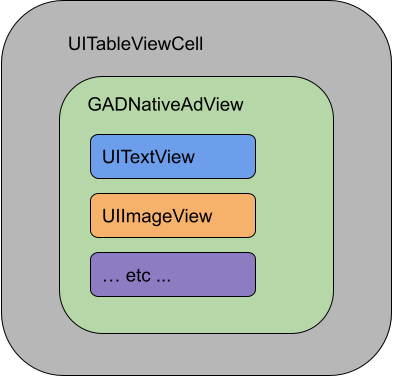
GADNativeAdView ক্লাসটি প্রতিটি স্বতন্ত্র অ্যাসেটের জন্য ব্যবহৃত ভিউ রেজিস্টার করতে ব্যবহৃত IBOutlets-ও প্রদান করে
এবং GADNativeAd
অবজেক্টটি রেজিস্টার করার একটি পদ্ধতিও প্রদান করে। এইভাবে ভিউ রেজিস্টার করলে SDK অটোমেটিক
এইসব টাস্ক ম্যানেজ করতে পারে:
- রেকর্ডিং ক্লিক।
- ইম্প্রেশন রেকর্ড করা (স্ক্রিনে প্রথম পিক্সেল দেখা গেলে)।
- AdChoices ওভারলে দেখানো।
AdChoices ওভারলে
পরোক্ষ নেটিভ বিজ্ঞাপনের (AdMob ব্যাকফিল বা Ad Exchange বা AdSense-এর মাধ্যমে ডেলিভার করা) ক্ষেত্রে, SDK-এর মাধ্যমে AdChoices ওভারলে যোগ করা হয়। অটোমেটিক যোগ করা AdChoices লোগোর জন্য নেটিভ বিজ্ঞাপন ভিউয়ের আপনার পছন্দের কোণে জায়গা রাখুন। এছাড়াও, AdChoices ওভারলে এমন কন্টেন্টে প্লেস করা হয়েছে কিনা তা নিশ্চিত করুন যেখানে আইকনটি স্পষ্টভাবে দেখা যাচ্ছে। ওভারলেয়ের চেহারা ও ফাংশন সম্পর্কে আরও জানতে, প্রোগ্রামাটিক নেটিভ বিজ্ঞাপন প্রয়োগ সংক্রান্ত নির্দেশিকা দেখুন।
বিজ্ঞাপন অ্যাট্রিবিউশন
প্রোগ্রামাটিক নেটিভ বিজ্ঞাপন দেখানোর সময়, ভিউটি যে একটি বিজ্ঞাপন তা বোঝাতে আপনাকে অবশ্যই একটি বিজ্ঞাপন অ্যাট্রিবিউশন দেখাতে হবে।কোডের উদাহরণ
এই বিভাগে xib ফাইল থেকে ডায়নামিক লোড করা ভিউ ব্যবহার করে কীভাবে নেটিভ বিজ্ঞাপন দেখানো যায় তা দেখানো হয়েছে। একাধিক ফর্ম্যাটের অনুরোধ করার জন্য কনফিগার করা GADAdLoaders
ব্যবহার করার সময় এটি খুব উপযোগী পদ্ধতি হতে পারে।
UIViews লে-আউট করা
প্রথম ধাপ হল, নেটিভ বিজ্ঞাপন অ্যাসেট দেখানোর জন্য UIViews লেআউট তৈরি করা।
আপনি এটি Interface Builder-এ করতে পারেন, ঠিক যেভাবে অন্য কোনও
xib ফাইল তৈরি করার সময় করেন। নেটিভ
বিজ্ঞাপনের লেআউট কেমন হতে পারে তা এখানে দেওয়া হল:
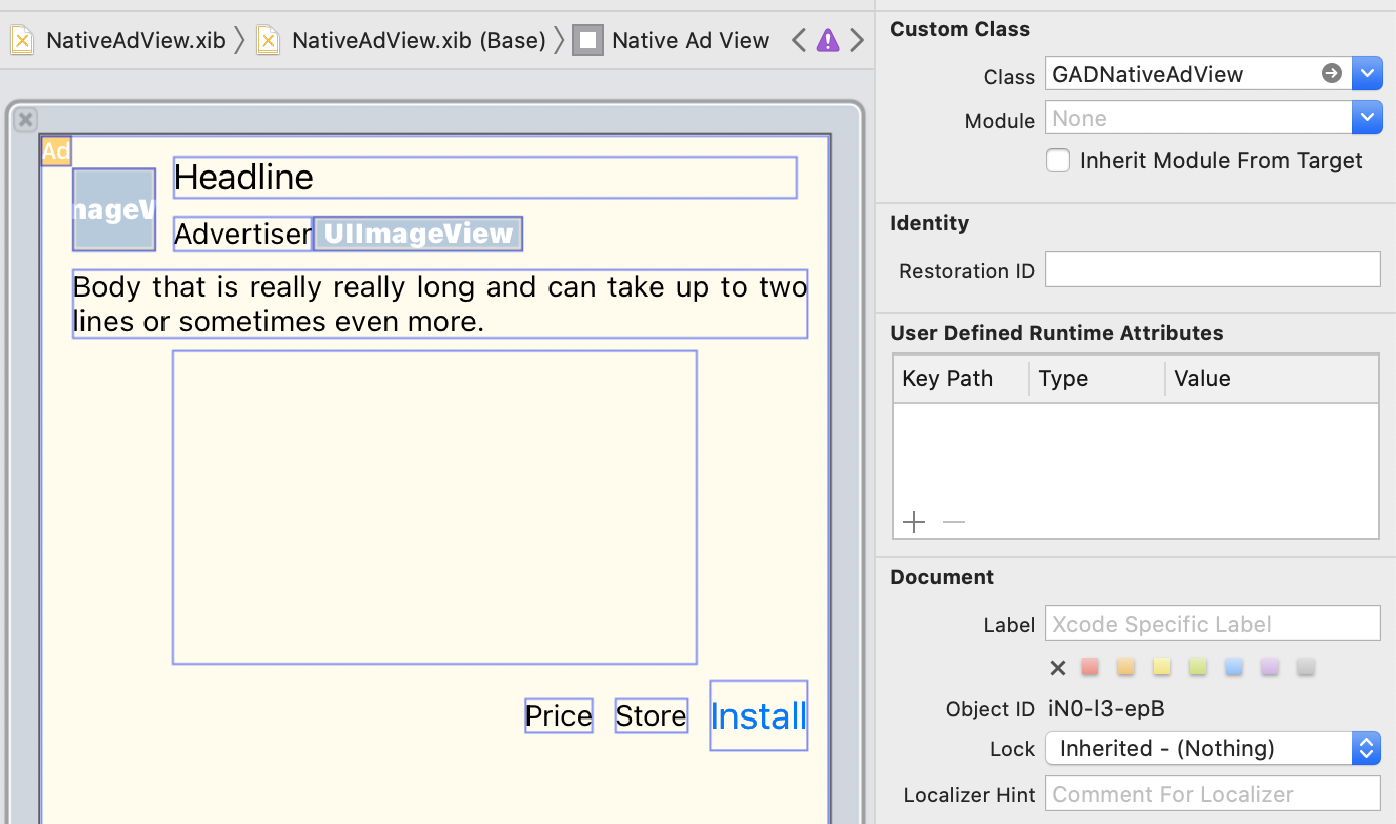
ছবির উপরে ডানদিকে কাস্টম ক্লাসের ভ্যালু দেখুন। এটি
GADNativeAdView।
এটি হল বিজ্ঞাপন ভিউ ক্লাস যা GADNativeAd দেখানোর জন্য ব্যবহার করা হয়।
এছাড়াও, আপনাকে GADMediaView-এর জন্য কাস্টম ক্লাস সেট করতে হবে, যা বিজ্ঞাপন
দেখানোর জন্য ভিডিও বা ছবি ডিসপ্লে করতে ব্যবহার করা হয়।
আউটলেটকে ভিউয়ের সাথে লিঙ্ক করা
ভিউ সেট-আপ করা হয়ে গেলে এবং লেআউটে সঠিক বিজ্ঞাপন ভিউ ক্লাস অ্যাসাইন করার পরে, আপনার তৈরি করা UIViews-এর সাথে বিজ্ঞাপন ভিউয়ের অ্যাসেট আউটলেট লিঙ্ক করুন।
বিজ্ঞাপনের ভিউয়ের অ্যাসেট আউটলেটকে UIViewsবিজ্ঞাপনের জন্য
তৈরি করা
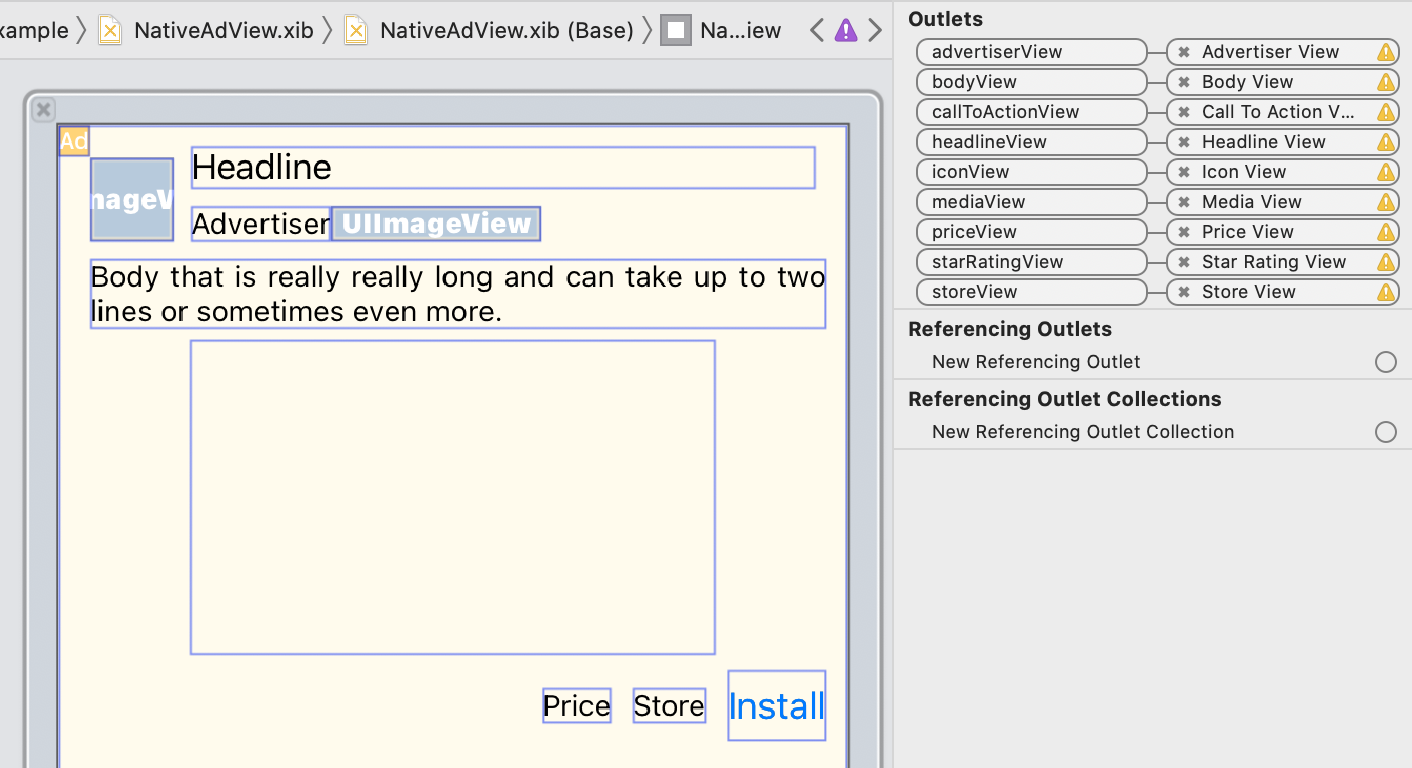 অ্যাসেটের সাথে কীভাবে লিঙ্ক করবেন তা এখানে দেওয়া হল:
আউটলেট প্যানেলে, GADNativeAdView-এ থাকা আউটলেটগুলি
ইন্টারফেস বিল্ডারে লেআউট করা UIViews-এর সাথে লিঙ্ক করা হয়েছে। এর ফলে SDK জানতে পারে যে কোন UIView কোন অ্যাসেট ডিসপ্লে করে।
এছাড়াও, এটি মনে রাখা গুরুত্বপূর্ণ যে এইসব আউটলেট সেইসব ভিউয়ের প্রতিনিধিত্ব করে যেগুলি
বিজ্ঞাপনে ক্লিক করা যায়।
বিজ্ঞাপন দেখানো
লেআউট সম্পূর্ণ হয়ে গেলে এবং আউটলেট লিঙ্ক করা হয়ে গেলে, আপনার অ্যাপে নিম্নলিখিত কোড যোগ করুন, এটি লোড হয়ে গেলে বিজ্ঞাপন দেখাবে:
Swift
func adLoader(_ adLoader: AdLoader, didReceive nativeAd: NativeAd) {
// ...
// Set ourselves as the native ad delegate to be notified of native ad events.
nativeAd.delegate = self
// Populate the native ad view with the native ad assets.
// The headline and mediaContent are guaranteed to be present in every native ad.
(nativeAdView.headlineView as? UILabel)?.text = nativeAd.headline
nativeAdView.mediaView?.mediaContent = nativeAd.mediaContent
// Some native ads will include a video asset, while others do not. Apps can use the
// GADVideoController's hasVideoContent property to determine if one is present, and adjust their
// UI accordingly.
let mediaContent = nativeAd.mediaContent
if mediaContent.hasVideoContent {
// By acting as the delegate to the GADVideoController, this ViewController receives messages
// about events in the video lifecycle.
mediaContent.videoController.delegate = self
videoStatusLabel.text = "Ad contains a video asset."
} else {
videoStatusLabel.text = "Ad does not contain a video."
}
// This app uses a fixed width for the GADMediaView and changes its height to match the aspect
// ratio of the media it displays.
if let mediaView = nativeAdView.mediaView, nativeAd.mediaContent.aspectRatio > 0 {
let aspectRatioConstraint = NSLayoutConstraint(
item: mediaView,
attribute: .width,
relatedBy: .equal,
toItem: mediaView,
attribute: .height,
multiplier: CGFloat(nativeAd.mediaContent.aspectRatio),
constant: 0)
mediaView.addConstraint(aspectRatioConstraint)
nativeAdView.layoutIfNeeded()
}
// These assets are not guaranteed to be present. Check that they are before
// showing or hiding them.
(nativeAdView.bodyView as? UILabel)?.text = nativeAd.body
nativeAdView.bodyView?.isHidden = nativeAd.body == nil
(nativeAdView.callToActionView as? UIButton)?.setTitle(nativeAd.callToAction, for: .normal)
nativeAdView.callToActionView?.isHidden = nativeAd.callToAction == nil
(nativeAdView.iconView as? UIImageView)?.image = nativeAd.icon?.image
nativeAdView.iconView?.isHidden = nativeAd.icon == nil
(nativeAdView.starRatingView as? UIImageView)?.image = imageOfStars(from: nativeAd.starRating)
nativeAdView.starRatingView?.isHidden = nativeAd.starRating == nil
(nativeAdView.storeView as? UILabel)?.text = nativeAd.store
nativeAdView.storeView?.isHidden = nativeAd.store == nil
(nativeAdView.priceView as? UILabel)?.text = nativeAd.price
nativeAdView.priceView?.isHidden = nativeAd.price == nil
(nativeAdView.advertiserView as? UILabel)?.text = nativeAd.advertiser
nativeAdView.advertiserView?.isHidden = nativeAd.advertiser == nil
// In order for the SDK to process touch events properly, user interaction should be disabled.
nativeAdView.callToActionView?.isUserInteractionEnabled = false
// Associate the native ad view with the native ad object. This is
// required to make the ad clickable.
// Note: this should always be done after populating the ad views.
nativeAdView.nativeAd = nativeAd
}
SwiftUI
ভিউ মডেল তৈরি করা
নেটিভ বিজ্ঞাপন লোড করে এবং নেটিভ বিজ্ঞাপন ডেটা পরিবর্তন প্রকাশ করে এমন একটি ভিউ মডেল তৈরি করুন:
import GoogleMobileAds
class NativeAdViewModel: NSObject, ObservableObject, NativeAdLoaderDelegate {
@Published var nativeAd: NativeAd?
private var adLoader: AdLoader!
func refreshAd() {
adLoader = AdLoader(
adUnitID: "ca-app-pub-3940256099942544/3986624511",
// The UIViewController parameter is optional.
rootViewController: nil,
adTypes: [.native], options: nil)
adLoader.delegate = self
adLoader.load(Request())
}
func adLoader(_ adLoader: AdLoader, didReceive nativeAd: NativeAd) {
// Native ad data changes are published to its subscribers.
self.nativeAd = nativeAd
nativeAd.delegate = self
}
func adLoader(_ adLoader: AdLoader, didFailToReceiveAdWithError error: Error) {
print("\(adLoader) failed with error: \(error.localizedDescription)")
}
}
UIViewRepresentable তৈরি করা
NativeView-এর জন্য
UIViewRepresentable
তৈরি করুন এবং ViewModel ক্লাসে ডেটা পরিবর্তনের ব্যাপারে সাবস্ক্রাইব করুন:
private struct NativeAdViewContainer: UIViewRepresentable {
typealias UIViewType = NativeAdView
// Observer to update the UIView when the native ad value changes.
@ObservedObject var nativeViewModel: NativeAdViewModel
func makeUIView(context: Context) -> NativeAdView {
return
Bundle.main.loadNibNamed(
"NativeAdView",
owner: nil,
options: nil)?.first as! NativeAdView
}
func updateUIView(_ nativeAdView: NativeAdView, context: Context) {
guard let nativeAd = nativeViewModel.nativeAd else { return }
// Each UI property is configurable using your native ad.
(nativeAdView.headlineView as? UILabel)?.text = nativeAd.headline
nativeAdView.mediaView?.mediaContent = nativeAd.mediaContent
(nativeAdView.bodyView as? UILabel)?.text = nativeAd.body
(nativeAdView.iconView as? UIImageView)?.image = nativeAd.icon?.image
(nativeAdView.starRatingView as? UIImageView)?.image = imageOfStars(from: nativeAd.starRating)
(nativeAdView.storeView as? UILabel)?.text = nativeAd.store
(nativeAdView.priceView as? UILabel)?.text = nativeAd.price
(nativeAdView.advertiserView as? UILabel)?.text = nativeAd.advertiser
(nativeAdView.callToActionView as? UIButton)?.setTitle(nativeAd.callToAction, for: .normal)
// For the SDK to process touch events properly, user interaction should be disabled.
nativeAdView.callToActionView?.isUserInteractionEnabled = false
// Associate the native ad view with the native ad object. This is required to make the ad
// clickable.
// Note: this should always be done after populating the ad views.
nativeAdView.nativeAd = nativeAd
}
ভিউ হায়ারার্কিতে ভিউ যোগ করা
নিচের কোডটি UIViewRepresentable-কে ভিউ
হায়ারার্কিতে যোগ করার ডেমো দেয়:
struct NativeContentView: View {
// Single source of truth for the native ad data.
@StateObject private var nativeViewModel = NativeAdViewModel()
var body: some View {
ScrollView {
VStack(spacing: 20) {
// Updates when the native ad data changes.
NativeAdViewContainer(nativeViewModel: nativeViewModel)
.frame(minHeight: 300) // minHeight determined from xib.
Objective-C
- (void)adLoader:(GADAdLoader *)adLoader didReceiveNativeAd:(GADNativeAd *)nativeAd {
// ...
GADNativeAdView *nativeAdView = self.nativeAdView;
// Set ourselves as the ad delegate to be notified of native ad events.
nativeAd.delegate = self;
// Populate the native ad view with the native ad assets.
// The headline and mediaContent are guaranteed to be present in every native ad.
((UILabel *)nativeAdView.headlineView).text = nativeAd.headline;
nativeAdView.mediaView.mediaContent = nativeAd.mediaContent;
// This app uses a fixed width for the GADMediaView and changes its height
// to match the aspect ratio of the media content it displays.
if (nativeAdView.mediaView != nil && nativeAd.mediaContent.aspectRatio > 0) {
NSLayoutConstraint *aspectRatioConstraint =
[NSLayoutConstraint constraintWithItem:nativeAdView.mediaView
attribute:NSLayoutAttributeWidth
relatedBy:NSLayoutRelationEqual
toItem:nativeAdView.mediaView
attribute:NSLayoutAttributeHeight
multiplier:(nativeAd.mediaContent.aspectRatio)
constant:0];
[nativeAdView.mediaView addConstraint:aspectRatioConstraint];
[nativeAdView layoutIfNeeded];
}
if (nativeAd.mediaContent.hasVideoContent) {
// By acting as the delegate to the GADVideoController, this ViewController
// receives messages about events in the video lifecycle.
nativeAd.mediaContent.videoController.delegate = self;
self.videoStatusLabel.text = @"Ad contains a video asset.";
} else {
self.videoStatusLabel.text = @"Ad does not contain a video.";
}
// These assets are not guaranteed to be present. Check that they are before
// showing or hiding them.
((UILabel *)nativeAdView.bodyView).text = nativeAd.body;
nativeAdView.bodyView.hidden = nativeAd.body ? NO : YES;
[((UIButton *)nativeAdView.callToActionView) setTitle:nativeAd.callToAction
forState:UIControlStateNormal];
nativeAdView.callToActionView.hidden = nativeAd.callToAction ? NO : YES;
((UIImageView *)nativeAdView.iconView).image = nativeAd.icon.image;
nativeAdView.iconView.hidden = nativeAd.icon ? NO : YES;
((UIImageView *)nativeAdView.starRatingView).image = [self imageForStars:nativeAd.starRating];
nativeAdView.starRatingView.hidden = nativeAd.starRating ? NO : YES;
((UILabel *)nativeAdView.storeView).text = nativeAd.store;
nativeAdView.storeView.hidden = nativeAd.store ? NO : YES;
((UILabel *)nativeAdView.priceView).text = nativeAd.price;
nativeAdView.priceView.hidden = nativeAd.price ? NO : YES;
((UILabel *)nativeAdView.advertiserView).text = nativeAd.advertiser;
nativeAdView.advertiserView.hidden = nativeAd.advertiser ? NO : YES;
// In order for the SDK to process touch events properly, user interaction
// should be disabled.
nativeAdView.callToActionView.userInteractionEnabled = NO;
// Associate the native ad view with the native ad object. This is
// required to make the ad clickable.
// Note: this should always be done after populating the ad views.
nativeAdView.nativeAd = nativeAd;
}
GitHub-এ সম্পূর্ণ উদাহরণ
Swift, SwiftUI এবং Objective-C-তে নেটিভ বিজ্ঞাপন ইন্টিগ্রেট করার সম্পূর্ণ উদাহরণ দেখতে, সংশ্লিষ্ট GitHub লিঙ্কে যান।
Swift নেটিভ উন্নত উদাহরণ SwiftUI নেটিভ বিজ্ঞাপন উদাহরণ Objective-C নেটিভ উন্নত উদাহরণGADMediaView
GADMediaView ব্যবহার করে ব্যবহারকারীদের ইমেজ ও ভিডিও অ্যাসেট দেখানো হয়।
এটি একটি UIView যা xib ফাইলে সংজ্ঞায়িত করা যেতে পারে বা ডায়নামিক পদ্ধতিতে তৈরি করা যেতে পারে।
এটি GADNativeAdView-এর ভিউ হায়ারার্কির মধ্যে প্লেস করতে হবে, যেমন
অন্যান্য অ্যাসেট ভিউয়ের ক্ষেত্রে করা হয়।
সব অ্যাসেট ভিউয়ের মতো, মিডিয়া ভিউয়ের কন্টেন্টও
পপুলেট করা থাকতে হবে। এটি GADMediaView-এ
mediaContent
প্রপার্টি ব্যবহার করে সেট করা হয়। mediaContent
প্রপার্টির
GADNativeAd
মধ্যে এমন মিডিয়া কন্টেন্ট থাকে যা
GADMediaView-এ পাঠানো যেতে পারে।
এখানে
নেটিভ অ্যাডভান্সড উদাহরণ
(Swift |
Objective-C)
থেকে একটি স্নিপেট দেওয়া হল যা দেখায় যে কীভাবে GADNativeAd থেকে
GADMediaContent ব্যবহার করে নেটিভ বিজ্ঞাপন অ্যাসেট দিয়ে GADMediaView পূরণ করতে হয়:
Swift
nativeAdView.mediaView?.mediaContent = nativeAd.mediaContent
Objective-C
nativeAdView.mediaView.mediaContent = nativeAd.mediaContent;
আপনার নেটিভ বিজ্ঞাপন ভিউয়ের জন্য ইন্টারফেস বিল্ডার ফাইলে নিশ্চিত করুন যে আপনার
GADMediaView-এ সেট করা ভিউ কাস্টম ক্লাস আছে এবং আপনি এটিকে
mediaView আউটলেটের সাথে কানেক্ট করেছেন।
ইমেজ কন্টেন্ট মোড পরিবর্তন করা
ছবি দেখানোর সময় GADMediaView ক্লাস UIView
contentMode
প্রপার্টি মেনে চলে। GADMediaView-এ কোনও ছবি কীভাবে স্কেল করা হয় তা পরিবর্তন করতে চাইলে, এটি করার জন্য GADMediaView-এর contentMode প্রপার্টিতে সংশ্লিষ্ট
UIViewContentMode
সেট করুন।
যেমন, কোনও ছবি দেখানো হলে GADMediaView পূরণ করতে (বিজ্ঞাপনে কোনও
ভিডিও নেই):
Swift
nativeAdView.mediaView?.contentMode = .scaleAspectFit
Objective-C
nativeAdView.mediaView.contentMode = UIViewContentModeScaleAspectFit;
GADMediaContent
GADMediaContent
ক্লাসে নেটিভ বিজ্ঞাপনের মিডিয়া কন্টেন্ট সম্পর্কিত ডেটা থাকে, যা GADMediaView ক্লাস ব্যবহার করে
দেখানো হয়। GADMediaView
mediaContent প্রপার্টিতে সেট করা হলে:
ভিডিও অ্যাসেট উপলভ্য থাকলে, সেটি বাফার করা হয় এবং
GADMediaView-এর মধ্যে চালানো শুরু হয়। ভিডিও অ্যাসেট উপলভ্য আছে কিনা তা আপনিhasVideoContentচেক করে দেখতে পারেন।বিজ্ঞাপনে ভিডিও অ্যাসেট না থাকলে,
mainImageঅ্যাসেট ডাউনলোড করা হয় এবং তার পরিবর্তেGADMediaView-এর মধ্যে প্লেস করা হয়।
পরবর্তী ধাপ
ব্যবহারকারীর গোপনীয়তা সম্পর্কে আরও জানুন।