
Page Summary
-
Ad calls are visible in Charles proxy on Android N or higher by following four main steps.
-
The four steps involve updating Google Play services, enabling network tracing, installing Charles SSL certificate and setting up a proxy, and enabling SSL Proxy for the mobile app.
-
Updating Google Play services requires either updating Android Studio and system images for emulators or using the Google Play app for physical devices.
-
Enabling network tracing involves enabling developer options and selecting "Enable debug logging for ads" within Google Settings.
-
Installing the Charles SSL certificate and setting up a proxy involves installing Charles, installing its SSL certificate, and configuring proxy settings on either an emulator or a physical device connected to the same Wi-Fi network.
-
Enabling SSL Proxy for the mobile app requires adding a network security configuration XML file and updating the AndroidManifest.xml file to trust user-provided SSL certificates.
On Android N or higher, ad calls are visible in Charles proxy only when the following steps are performed:
- Update Google Play services on the mobile device.
- Enable network tracing on the mobile device.
- Install Charles SSL certificate on your device, and set up proxy.
- Enable SSL Proxy for your mobile app.
Update Google Play services on the mobile device
For an emulator, if you don't see the Google Play section in the side menu, you might need to update Android Studio. Download the latest system images in Virtual Device Configuration, and use a system image with Google Play in its target.
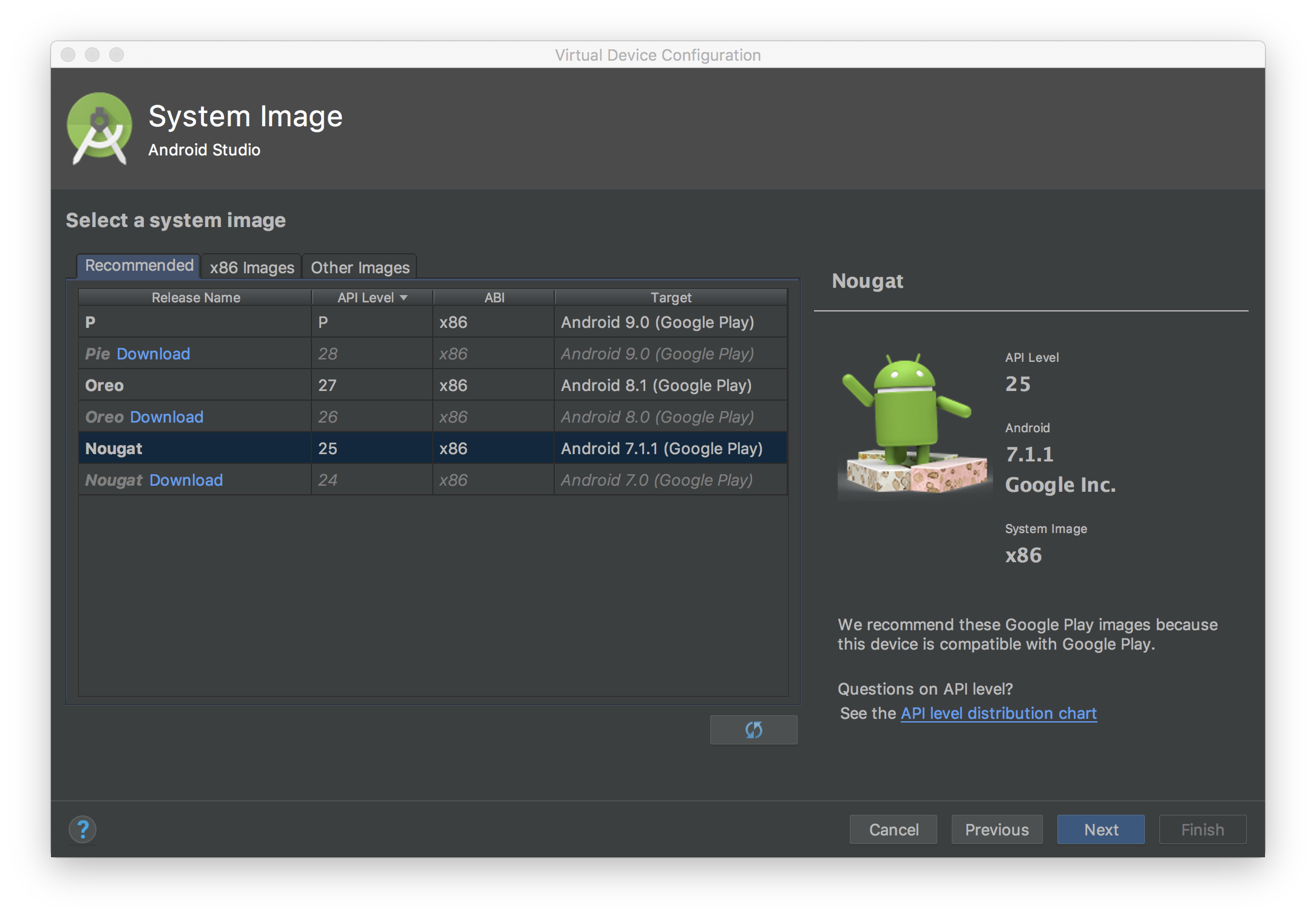
Use the side menu to check and update Google Play services to the latest version.

For a physical mobile device (phone or tablet), you can search for Google Play or follow this link to open Google Play directly.
Enable network tracing on the mobile device
To turn on network tracing, enable developer options on your device. For details, see Configure on-device developer options.
Open the Google Settings app and select Google > Ads > Enable debug logging for ads. For details, see Network tracing.

Install Charles SSL certificate on your device, and set up proxy
To use Charles as a proxy for your app, download and install Charles on your computer.
To save the certificate as a .pem or .cer file, select
Help > SSL Proxying > Save Charles Root Certificate. To install the
certificate on your device, follow the prompts in Help > SSL Proxying.

If you use an
Android emulator with a proxy,
set the proxy address to http://127.0.0.1. Set the port to the value shown in
Charles from Proxy > Proxy Settings.
If you use a physical device, connect the device to the same Wi-Fi network as your computer. To set up the proxy, open your device's advanced network settings. For details, see Connect to Wi-Fi networks on your Pixel phone. In Charles, select Help > Local IP Address to find your IP address. On your device, enter the IP address from Charles and the Charles port as the proxy.
Enable SSL proxy for your mobile app
For Charles to intercept your mobile app's SSL traffic, declare
that your app can trust an SSL certificate. You can trust a user-installed
certificate or embed the Charles certificate as a raw resource in your app. For
example, you can save the certificate in your res/raw/charles_cert.pem file.
First, add a new XML resource file for
Network Security Configuration
in your res/xml/network_security_config.xml file:
<network-security-config>
   <debug-overrides>
       <trust-anchors>
           <!-- Trust Charles SSL certificate stored in res/raw -->
           <certificates src="@raw/charles_cert" />
           <!-- Trust user added CAs while debuggable only -->
           <certificates src="user" />
       </trust-anchors>
   </debug-overrides>
</network-security-config>

Next, update the AndroidManifest.xml file to use the network security
configuration.
<?xml version="1.0" encoding="utf-8"?>
<manifest ... >
    <application ...
                 android:networkSecurityConfig="@xml/network_security_config"
                 ... >
        ...
    </application>
</manifest>

After that, you can launch the mobile app and look for ad requests in the Charles log.