

Google Drive API では、ファイルのコンテンツの制限や、ファイルのダウンロード、印刷、コピーのオプションの禁止など、ファイルの変更を防ぐためのさまざまな方法がサポートされています。
ドライブのコンテンツ制限を使用してファイルを読み取り専用にする
Google ドライブのファイルにコンテンツの制限を追加すると、ユーザーが次の操作を行うのを防ぐことができます。
- タイトルを変更する
- コンテンツの編集
- リビジョンをアップロードする
- コメントを追加または変更する
コンテンツの制限はアクセス制限ではありません。ユーザーはファイルの内容を変更できませんが、アクセスレベルに応じて他の操作は引き続き許可されます。たとえば、編集権限を持つユーザーは、アイテムを移動したり、共有設定を変更したりできます。
ドライブ内のファイルにコンテンツ制限を追加または削除するには、ユーザーが関連する permissions を持っている必要があります。capabilities.canModifyEditorContentRestriction が設定されているマイドライブまたは共有ドライブ内のファイルやフォルダの場合、role=writer が割り当てられている必要があります。ownerRestricted コンテンツ制限が設定されているマイドライブまたは共有ドライブ内のファイルやフォルダについては、そのファイルのオーナーであるか、role=organizer が必要です。コンテンツ制限のあるアイテムを表示するには、ユーザーが role=reader 以上である必要があります。ロールの完全なリストについては、ロールと権限をご覧ください。ファイルの権限を更新するには、権限を更新するをご覧ください。
files リソースの contentRestrictions.readOnly ブール値フィールドを使用して、コンテンツ制限を設定できます。アイテムにコンテンツの制限を設定すると、既存の制限が上書きされます。
コンテンツの制限のシナリオ
ドライブ アイテムのコンテンツ制限は、コンテンツを変更すべきでないことをユーザーに知らせます。これには、次のような理由が考えられます。
- レビュー中または監査中の共同編集ドキュメントの編集を一時停止します。
- アイテムを承認済みなどの最終状態に設定する。
- 機密性の高い会議中の変更を防止する。
- 自動化されたシステムで処理されるワークフローに対する外部からの変更を禁止します。
- Google Apps Script と Google Workspace アドオンによる編集を制限する。
- ドキュメントの誤編集を回避する。
コンテンツの制限はコンテンツの管理に役立ちますが、十分な権限を持つユーザーがアイテムの作業を続行することを防ぐためのものではありません。また、不変レコードを作成する方法でもありません。ドライブのコンテンツの制限は変更可能であるため、アイテムに対するコンテンツの制限によって、アイテムが変更されないことが保証されるわけではありません。
コンテンツの制限があるファイルを管理する
Google ドキュメント、Google スプレッドシート、Google スライド、およびその他のすべてのファイルには、コンテンツの制限が含まれる可能性があります。
アイテムのコンテンツの制限により、タイトルやコンテンツの変更が禁止されます。具体的には、次の変更が禁止されます。
- コメントと提案(ドキュメント、スプレッドシート、スライド、バイナリ ファイル)
- バイナリ ファイルの変更履歴
- Google ドキュメントのテキストと書式設定
- スプレッドシートのテキストまたは数式、スプレッドシートのレイアウト、スプレッドシートのインスタンス
- スライド内のすべてのコンテンツ、スライドの順序と番号
一部のファイル形式にはコンテンツ制限を設定できません。以下に例を示します。
- Google フォーム
- Google サイト
- Google 図形描画
- ショートカットとサードパーティのショートカット。詳しくは、アプリで保存されたコンテンツへのショートカット ファイルを作成するとドライブ ファイルへのショートカットを作成するをご覧ください。
コンテンツの制限を追加する
ファイル コンテンツの制限を追加するには、contentRestrictions.readOnly フィールドを true に設定して files.update メソッドを使用します。「契約が確定した」など、制限を追加する理由を示すオプションの reason を追加します。次のコードサンプルは、コンテンツ制限を追加する方法を示しています。
Java
File updatedFile =
  new File()
      .setContentRestrictions(
          ImmutableList.of(new ContentRestriction().setReadOnly(true).setReason("Finalized contract."));

File response = driveService.files().update("FILE_ID", updatedFile).setFields("contentRestrictions").execute();
Python
content_restriction = {'readOnly': True, 'reason':'Finalized contract.'}

response = drive_service.files().update(fileId="FILE_ID", body = {'contentRestrictions' : [content_restriction]}, fields = "contentRestrictions").execute();
Node.js
/**
* Set a content restriction on a file.
* @return{obj} updated file
**/
async function addContentRestriction() {
  // Get credentials and build service
  // TODO (developer) - Use appropriate auth mechanism for your app

  const {GoogleAuth} = require('google-auth-library');
  const {google} = require('googleapis');

  const auth = new GoogleAuth({scopes: 'https://www.googleapis.com/auth/drive'});
  const service = google.drive({version: 'v3', auth});
  const contentRestriction = {
    'readOnly': True,
    'reason': 'Finalized contract.',
  };
  const updatedFile = {
    'contentRestrictions': [contentRestriction],
  };
  try {
    const response = await service.files.update({
      fileId: 'FILE_ID',
      resource: updatedFile,
      fields: 'contentRestrictions',
    });
    return response;
  } catch (err) {
    // TODO (developer) - Handle error
    throw err;
  }
}
FILE_ID は、変更するファイルの fileId に置き換えます。
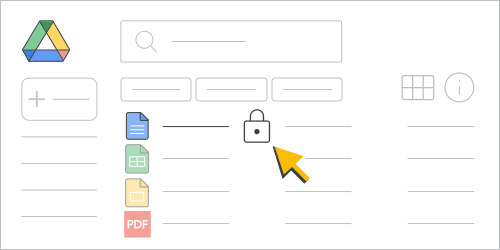
サンプルコードを実行すると、ファイルはコンテンツ制限され、Google ドライブのユーザー インターフェース(UI)内のファイル名の横にロック記号()が表示されます。ファイルが読み取り専用になりました。
コンテンツの制限を解除する
ファイル コンテンツの制限を削除するには、contentRestrictions.readOnly フィールドを false に設定して files.update メソッドを使用します。次のコードサンプルは、コンテンツ制限を削除する方法を示しています。
Java
File updatedFile =
new File()
    .setContentRestrictions(
        ImmutableList.of(new ContentRestriction().setReadOnly(false));

File response = driveService.files().update("FILE_ID", updatedFile).setFields("contentRestrictions").execute();
Python
content_restriction = {'readOnly': False}

response = drive_service.files().update(fileId="FILE_ID", body = {'contentRestrictions' : [content_restriction]}, fields = "contentRestrictions").execute();
Node.js
/**
* Remove a content restriction on a file.
* @return{obj} updated file
**/
async function removeContentRestriction() {
  // Get credentials and build service
  // TODO (developer) - Use appropriate auth mechanism for your app

  const {GoogleAuth} = require('google-auth-library');
  const {google} = require('googleapis');

  const auth = new GoogleAuth({scopes: 'https://www.googleapis.com/auth/drive'});
  const service = google.drive({version: 'v3', auth});
  const contentRestriction = {
    'readOnly': False,
  };
  const updatedFile = {
    'contentRestrictions': [contentRestriction],
  };
  try {
    const response = await service.files.update({
      fileId: 'FILE_ID',
      resource: updatedFile,
      fields: 'contentRestrictions',
    });
    return response;
  } catch (err) {
    // TODO (developer) - Handle error
    throw err;
  }
}
FILE_ID は、変更するファイルの fileId に置き換えます。
サンプルコードを実行すると、ファイルのコンテンツ制限が解除されます。
ドライブの UI を使用して、コンテンツの制限を削除し、コンテンツの編集を許可することもできます(適切な権限がある場合)。これには、次の 2 つの方法があります。
ドライブで、コンテンツ制限のあるファイルを右クリックし、[ロックを解除] をクリックします。
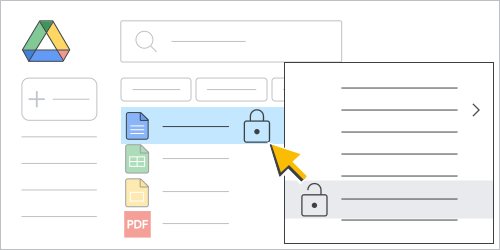
図 2. ドライブ ファイル リスト内のファイル コンテンツ制限を削除します。 コンテンツ制限のあるファイルを開き、[(ロックモード) > ファイルのロックを解除] をクリックします。
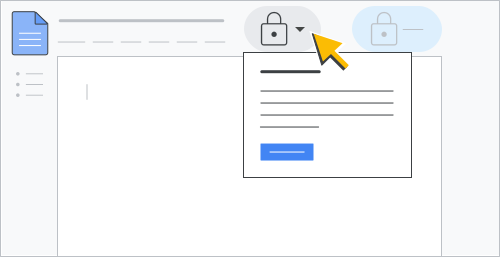
図 3. ドキュメント内のファイル コンテンツの制限を削除します。
コンテンツの制限を確認する
コンテンツ制限を確認するには、contentRestrictions 返信フィールドで files.get メソッドを使用します。次のコードサンプルは、コンテンツ制限のステータスを確認する方法を示しています。
Java
File response = driveService.files().get("FILE_ID").setFields("contentRestrictions").execute();
Python
response = drive_service.files().get(fileId="FILE_ID", fields = "contentRestrictions").execute();
Node.js
/**
* Get content restrictions on a file.
* @return{obj} updated file
**/
async function fetchContentRestrictions() {
  // Get credentials and build service
  // TODO (developer) - Use appropriate auth mechanism for your app

  const {GoogleAuth} = require('google-auth-library');
  const {google} = require('googleapis');

  const auth = new GoogleAuth({scopes: 'https://www.googleapis.com/auth/drive'});
  const service = google.drive({version: 'v3', auth});
  try {
    const response = await service.files.get({
      fileId: 'FILE_ID',
      fields: 'contentRestrictions',
    });
    return response;
  } catch (err) {
    // TODO (developer) - Handle error
    throw err;
  }
}
FILE_ID は、確認するファイルの fileId に置き換えます。
サンプルコードを実行すると、メソッドは ContentRestriction リソースが存在する場合はそれを返します。
ファイル オーナーのみが変更できるコンテンツ制限を追加する
ファイル オーナーのみがメカニズムを切り替えられるようにファイル コンテンツの制限を追加するには、contentRestrictions.ownerRestricted ブール値フィールドを true に設定して files.update メソッドを使用します。次のコードサンプルは、ファイル所有者のみにコンテンツ制限を追加する方法を示しています。
Java
File updatedFile =
  new File()
      .setContentRestrictions(
          ImmutableList.of(new ContentRestriction().setReadOnly(true).setOwnerRestricted(true).setReason("Finalized contract."));

File response = driveService.files().update("FILE_ID", updatedFile).setFields("contentRestrictions").execute();
Python
content_restriction = {'readOnly': True, 'ownerRestricted': True, 'reason':'Finalized contract.'}

response = drive_service.files().update(fileId="FILE_ID", body = {'contentRestrictions' : [content_restriction]}, fields = "contentRestrictions").execute();
Node.js
/**
* Set an owner restricted content restriction on a file.
* @return{obj} updated file
**/
async function addOwnerRestrictedContentRestriction() {
  // Get credentials and build service
  // TODO (developer) - Use appropriate auth mechanism for your app

  const {GoogleAuth} = require('google-auth-library');
  const {google} = require('googleapis');

  const auth = new GoogleAuth({scopes: 'https://www.googleapis.com/auth/drive'});
  const service = google.drive({version: 'v3', auth});
  const contentRestriction = {
    'readOnly': True,
    'ownerRestricted': True,
    'reason': 'Finalized contract.',
  };
  const updatedFile = {
    'contentRestrictions': [contentRestriction],
  };
  try {
    const response = await service.files.update({
      fileId: 'FILE_ID',
      resource: updatedFile,
      fields: 'contentRestrictions',
    });
    return response;
  } catch (err) {
    // TODO (developer) - Handle error
    throw err;
  }
}
FILE_ID は、変更するファイルの fileId に置き換えます。
サンプルコードを実行すると、ファイルはコンテンツ制限され、ファイルのオーナーのみが削除できるようになります。ファイルのオーナーの場合、 ドライブのユーザー インターフェース(UI)内のファイル名の横に、アクティブなロック シンボル()が表示されます。オーナーでない場合、鍵のアイコンは薄く表示されます。
ownerRestricted フラグを削除するには、contentRestrictions.ownerRestricted フィールドを false に設定して files.update メソッドを使用します。
コンテンツの制限機能
files リソースには、ファイルに対してアクションを実行できるかどうかを示すために使用されるブール値の capabilities フィールドのコレクションが含まれています。
コンテンツの制限には次の capabilities が含まれます。
capabilities.canModifyEditorContentRestriction: 現在のユーザーがコンテンツ制限を追加または変更できるかどうか。capabilities.canModifyOwnerContentRestriction: 現在のユーザーが所有者のコンテンツ制限を追加または変更できるかどうか。capabilities.canRemoveContentRestriction: 現在のユーザーが適用されているコンテンツ制限(存在する場合)を削除できるかどうか。
詳細については、ファイルの機能についてをご覧ください。
ファイル capabilities の取得例については、ファイル機能を取得するをご覧ください。
他のユーザーがファイルをダウンロード、印刷、コピーできないようにする
ドライブ、ドキュメント、スプレッドシート、スライド内でのファイルのダウンロード、印刷、コピーをユーザーがどのように行えるかを制限できます。
ユーザーがファイルに適用されたオーナーまたは主催者によるダウンロード制限を変更できるかどうかを判断するには、capabilities.canChangeItemDownloadRestriction ブール値フィールドを確認します。capabilities.canChangeItemDownloadRestriction が true に設定されている場合、ダウンロード制限をファイルに適用できます。詳しくは、ファイルのケーパビリティについてをご覧ください。
ファイルにダウンロード制限を適用するには、files.update メソッドを使用して downloadRestrictions フィールドを設定します。このフィールドは DownloadRestrictionsMetadata オブジェクトを使用して設定できます。
DownloadRestrictionsMetadata オブジェクトには、itemDownloadRestriction と effectiveDownloadRestrictionWithContext の 2 つのフィールドがあります。両方のフィールドは読み取り可能ですが、itemDownloadRestriction のみ設定できます。itemDownloadRestriction フィールドは DownloadRestriction オブジェクトを返します。DownloadRestriction オブジェクトには、restrictedForReaders と restrictedForWriters の 2 つの個別のブール値フィールドがあります。
itemDownloadRestriction フィールドを設定すると、ファイルのダウンロード制限がオーナーまたは主催者によって直接適用されます。共有ドライブの設定やデータ損失防止(DLP)ルールは考慮されません。詳細については、DLP についてをご覧ください。
restrictedForWriters フィールドを true に設定して itemDownloadRestriction フィールドを更新する場合、restrictedForReaders は true になります。同様に、restrictedForWriters を true に、restrictedForReaders を false に設定することは、restrictedForWriters と restrictedForReaders の両方を true に設定することと同じです。
effectiveDownloadRestrictionWithContext フィールドの場合、ダウンロード制限がファイルに適用され、すべての制限設定と DLP ルールが考慮されます。
effectiveDownloadRestrictionWithContext フィールドは restrictedForWriters または restrictedForReaders に設定できます。ファイル設定、共有ドライブ設定、DLP ルール(コンテキストを含む)で、対応するロールにダウンロードまたはコピーの制限設定がある場合は、値が true に設定されます。それ以外の場合は false に設定されます。
下位互換性
DownloadRestriction オブジェクトを使用して、ユーザーがファイルをダウンロード、印刷、コピーする方法を適用することをおすすめします。
copyRequiresWriterPermission ブール値フィールドを使用する場合、フィールドからの読み取りとフィールドへの書き込みで機能が異なります。
copyRequiresWriterPermission フィールドの取得値は、role=commenter または role=reader 権限を持つユーザーがドライブ内のファイルをダウンロード、印刷、コピーできるかどうかを反映します。フィールド値には、ファイル設定、共有ドライブ設定、DLP ルールの組み合わせが反映されます。ただし、DLP ルールのコンテキスト評価は含まれません。
copyRequiresWriterPermission フィールドを false に設定すると、restrictedForWriters フィールドと restrictedForReaders フィールドの両方が false に更新されます。つまり、すべてのユーザーに対してダウンロードまたはコピーの制限設定が削除されます。
ダウンロード、印刷、コピー機能を制御するフィールド
次の表に、ダウンロード、印刷、コピーの機能に影響する files リソース フィールドを示します。
| フィールド | 説明 | バージョン |
|---|---|---|
capabilities.canCopy |
現在のユーザーがファイルをコピーできるかどうか。 | v2 & v3 |
capabilities.canDownload |
現在のユーザーがファイルをダウンロードできるかどうか。 | v2 & v3 |
capabilities.canChangeCopyRequiresWriterPermission |
現在のユーザーがファイルの copyRequiresWriterPermission 制限を変更できるかどうか。 |
v2 & v3 |
capabilities.canChangeItemDownloadRestriction |
現在のユーザーがファイルのダウンロード制限を変更できるかどうか。 | v3 のみ |
copyRequiresWriterPermission |
閲覧者とコメント投稿者に対して、このファイルのコピー、印刷、ダウンロードのオプションを無効にするかどうか。 | v2 & v3 |
downloadRestrictions |
ファイルに適用されているダウンロード制限。 | v3 のみ |