
在 Google Chat 中安排会议

编码水平:中级
时长:25 分钟
项目类型:Google Chat 应用

目标

  • 了解解决方案的功能。
  • 了解 Apps 脚本服务在解决方案中的作用。
  • 设置环境。
  • 设置脚本。
  • 运行脚本。

关于此解决方案

通过 Google Chat 中的私信 (DM) 或聊天室在 Google 日历中安排会议。您可以设置会议的具体细节,例如会议的主题、开始时间和时长等,也可以使用默认设置安排即时会议。
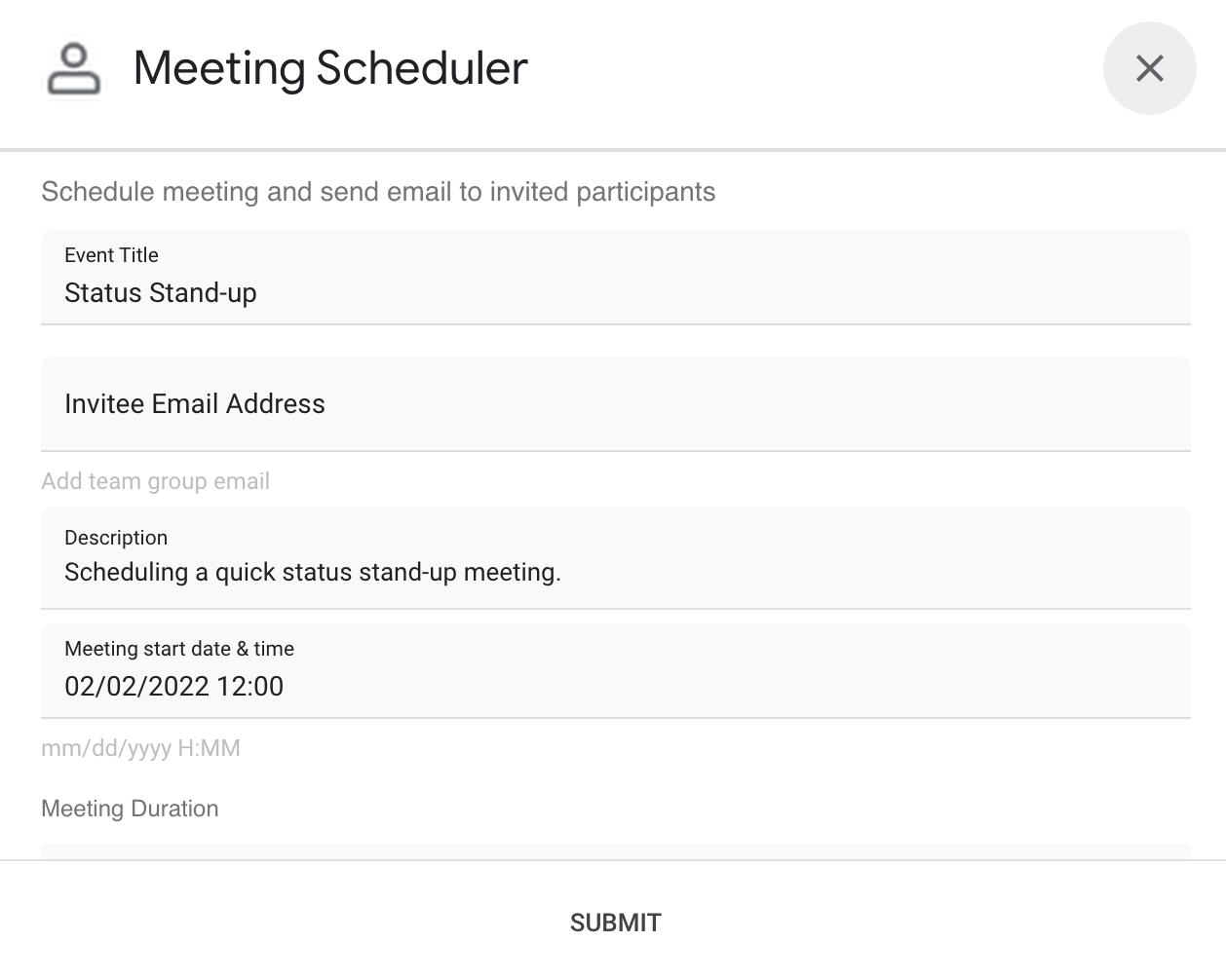
会议安排工具 Chat 应用的对话界面

运作方式

Chat 应用脚本使用斜杠命令和对话框从用户处获取会议详细信息,并安排日历活动。该脚本包含默认会议设置,您可以根据自己的需求进行自定义。

Apps 脚本服务

此解决方案使用以下服务:

  • 日历服务 - 根据提供的会议信息创建日历活动。
  • 基本服务 - 使用 Session 类获取脚本的时区。Google 日历会在安排活动时使用此时区。
  • 实用程序服务 - 用于设置日历活动的日期格式,并对活动 ID 进行编码以帮助获取活动网址。

前提条件

设置环境

在 Google Cloud 控制台中打开您的云项目

如果尚未打开,请打开您打算用于此示例的 Cloud 项目:

  1. 在 Google Cloud 控制台中,前往选择项目页面。

    选择 Cloud 项目

  2. 选择要使用的 Google Cloud 项目。或者,点击创建项目,然后按照屏幕上的说明操作。如果您创建了 Google Cloud 项目,可能需要为该项目启用结算功能。

启用 API

在使用 Google API 之前,您需要在 Google Cloud 项目中启用它们。 您可以在单个 Google Cloud 项目中开启一个或多个 API。
  • 在您的云项目中,开启 Google Chat API。

    启用 API

所有 Chat 应用都需要配置权限请求页面。配置应用的 OAuth 权限请求页面可定义 Google 向用户显示的内容,并注册应用以便以后发布。

  1. 在 Google API 控制台中,依次前往“菜单”图标 > Google Auth 平台 > 品牌推广。

    前往“品牌塑造”

  2. 如果您已配置 Google Auth 平台,则可以在品牌推广、受众群体和数据访问中配置以下 OAuth 权限请求页面设置。如果您看到一条消息,提示尚未配置 Google Auth 平台,请点击开始使用:
    1. 在应用信息下方的应用名称中,输入应用的名称。
    2. 在用户支持邮箱中,选择一个支持电子邮件地址,以便用户在对自己的同意情况有疑问时与您联系。
    3. 点击下一步。
    4. 在受众群体下,选择内部。
    5. 点击下一步。
    6. 在联系信息下,输入一个电子邮件地址,以便您接收有关项目变更的通知。
    7. 点击下一步。
    8. 在完成部分,查看 Google API 服务用户数据政策,如果您同意,请选择我同意 Google API 服务:用户数据政策。
    9. 点击继续。
    10. 点击创建。
  3. 目前,您可以跳过添加范围的步骤。 未来,如果您创建的应用要在 Google Workspace 组织外部使用,则必须将用户类型更改为外部。然后,添加应用所需的授权范围。如需了解详情,请参阅完整的配置 OAuth 同意指南。

设置脚本

创建 Apps 脚本项目

  1. 点击以下按钮,打开 Schedule meetings from Google Chat Apps 脚本项目。
    打开项目
  2. 点击概览 。
  3. 在概览页面上,点击“制作副本”图标 用于创建副本的图标。

日后,如果您想使用某些 Google APIs 或发布应用,则必须将云项目与 Apps 脚本项目相关联。在本指南中,您无需执行此操作。如需了解详情,请参阅 Google Cloud 项目指南。

创建测试部署

  1. 在复制的 Apps 脚本项目中,依次点击部署 > 测试部署。
  2. 复制主要部署 ID 以便在后续步骤中使用,然后点击完成。

配置 Chat API

  1. 在 Google API 控制台中,前往 Chat API 页面。
    前往 Chat API
  2. 点击配置。
  3. 使用以下信息配置 Chat API:
    • 名称:Meeting Scheduler
    • 头像网址:https://goo.gle/3SfMkjb。
    • 说明:Quickly create meetings.
    • 功能:勾选这两个复选框,以便用户直接向应用发送消息并将其添加到聊天室。
    • 连接设置:点击 Apps 脚本,然后输入主要部署 ID。
    • 命令:通过以下步骤为 /help 和 /schedule_Meeting 添加斜杠命令:
      1. 点击添加命令,然后使用以下信息进行配置:
        • 命令 ID:1。
        • 说明:Learn what this app does.
        • 命令类型:Slash command。
        • 斜杠命令名称:/help。
      2. 再次点击添加命令,然后使用以下信息进行配置:
        • 命令 ID:2。
        • 说明:Schedule a meeting.
        • 命令类型:Slash command。
        • 斜杠命令名称:/schedule_Meeting。
        • 勾选打开对话框复选框。
    • 权限:选择您网域中的特定人员和群组,然后输入您的电子邮件地址。
  4. 点击保存。

运行脚本

  1. 打开 Google Chat。

    前往 Google Chat

  2. 点击“开始聊天”图标 。

  3. 搜索应用的名称 Meeting Scheduler。

  4. 发送初始消息(例如 hello)以提示授权。

  5. 当应用回复时,点击配置并授权该应用。 如果 OAuth 权限请求页面显示警告此应用未经验证,请继续操作,依次选择高级 > 前往“{项目名称}”(不安全)。

  6. 向应用发送 /schedule_Meeting。

  7. 在对话框中,添加至少一个受邀者的电子邮件地址。您可以更新其他字段,也可以使用默认条目。

  8. 点击提交。

  9. 如需查看会议,请点击打开日历活动。

查看代码

点击可查看 GitHub 上托管的此解决方案的 Apps 脚本代码:

在 GitHub 上查看

如需内嵌查看此解决方案的 Apps 脚本代码,请点击查看源代码:

查看源代码

Code.gs

apps-script/chat/schedule-meetings/Code.gs
// To learn how to use this script, refer to the documentation:
// https://developers.google.com/workspace/add-ons/samples/tutorial-schedule-meetings

/*
Copyright 2022 Google LLC

Licensed under the Apache License, Version 2.0 (the "License");
you may not use this file except in compliance with the License.
You may obtain a copy of the License at

    https://www.apache.org/licenses/LICENSE-2.0

Unless required by applicable law or agreed to in writing, software
distributed under the License is distributed on an "AS IS" BASIS,
WITHOUT WARRANTIES OR CONDITIONS OF ANY KIND, either express or implied.
See the License for the specific language governing permissions and
limitations under the License.
*/

// Command IDs
const COMMANDS = {
  HELP: 1, // /help
  DIALOG: 2, // /schedule_Meeting
};

/**
 * Responds to a added to space event in Google Chat.
 *
 * @param {Object} event The event object from the Google Workspace add-on.
 * @return {Object} Response from the Chat app.
 */
function onAddedToSpace(event) {
  // Lets users know what they can do and how they can get help.
  return { hostAppDataAction: { chatDataAction: { createMessageAction: { message: {
    text: `Hi there! I can quickly schedule a meeting for you with just a few clicks. Try me out by typing */schedule_Meeting*. To learn what else I can do, type */help*.`
  }}}}};
}

/**
 * Responds to a message event in Google Chat.
 *
 * @param {Object} event The event object from the Google Workspace add-on.
 * @return {Object} Response from the Chat app.
 */
function onMessage(event) {
  // Displays help message to users.
  return getHelpTextResponse_();
}

/**
 * Responds to an app command event in Google Chat.
 *
 * @param {Object} event The event object from the Google Workspace add-on.
 * @return {Object} Response from the Chat app.
 */
function onAppCommand(event) {
  // Executes the app command logic based on ID.
  switch (event.chat.appCommandPayload.appCommandMetadata.appCommandId) {
    case COMMANDS.DIALOG:
      // Displays meeting dialog for /schedule_Meeting.
      return getInputFormAsDialog_({
        invitee: "",
        startTime: getTopOfHourDateString_(),
        duration: 30,
        subject: "Status Stand-up",
        body: "Scheduling a quick status stand-up meeting.",
      });
    case COMMANDS.HELP:
      // Displays help message for /help.
      return getHelpTextResponse_();
  }
}

/**
 * Handles the form submission from the meeting scheduling dialog.
 * 
 * @param {Object} event The event object from the Google Workspace add-on.
 * @return {Object} Response from the Chat app.
 */
function handleFormSubmit(event) {
  const recipients = getFieldValue_(event.commonEventObject.formInputs, "email");
  const subject = getFieldValue_(event.commonEventObject.formInputs, "subject");
  const body = getFieldValue_(event.commonEventObject.formInputs, "body");

  // Assumes dialog card inputs for date and times are in the correct format. mm/dd/yyy HH:MM
  const dateTimeInput = getFieldValue_(event.commonEventObject.formInputs, "date");
  const startTime = getStartTimeAsDateObject_(dateTimeInput);
  const duration = Number(
    getFieldValue_(event.commonEventObject.formInputs, "duration"),
  );

  // Handles instances of missing or invalid input parameters.
  const errors = [];
  if (!recipients) {
    errors.push("Missing or invalid recipient email address.");
  }
  if (!subject) {
    errors.push("Missing subject line.");
  }
  if (!body) {
    errors.push("Missing event description.");
  }
  if (!startTime) {
    errors.push("Missing or invalid start time.");
  }
  if (!duration || Number.isNaN(duration)) {
    errors.push("Missing or invalid duration");
  }
  if (errors.length) {
    // Redisplays the form if missing or invalid inputs exist.
    return getInputFormAsDialog_({
      errors,
      invitee: recipients,
      startTime: dateTimeInput,
      duration,
      subject,
      body,
    });
  }

  // Calculates the end time via duration.
  const endTime = new Date(startTime.valueOf());
  endTime.setMinutes(endTime.getMinutes() + duration);

  // Creates calendar event with notification.
  const calendar = CalendarApp.getDefaultCalendar();
  const scheduledEvent = calendar.createEvent(subject, startTime, endTime, {
    guests: recipients,
    sendInvites: true,
    description: `${body}\nThis meeting scheduled by a Google Chat App!`,
  });

  // Gets a link to the Calendar event.
  const url = getCalendarEventURL_(scheduledEvent, calendar);

  return getConfirmationDialog_(url);
}

/**
 * Handles the form submission from the meeting scheduling dialog confirmation.
 * 
 * @param {Object} event The event object from the Google Workspace add-on.
 * @return {Object} Response from the Chat app.
 */
function closeDialog(event) {
  return { action: {
    navigations: [{ endNavigation: { action: "CLOSE_DIALOG"}}],
    notification: { text: "Success!" }
  }};
}

/**
 * Gets the help text message creation response.
 * 
 * @return {Object} Response from the Chat app.
 */
function getHelpTextResponse_() {
  const help = `*Meeting Scheduler* lets you quickly create meetings from Google Chat. Here\'s a list of all its commands:

  - \`/schedule_Meeting\`  Opens a dialog with editable, preset parameters to create a meeting event
  - \`/help\`  Displays this help message

Learn more about creating Chat apps built as Google Workspace add-on at https://developers.google.com/workspace/add-ons/chat.`;

  return { hostAppDataAction: { chatDataAction: { createMessageAction: { message: {
    text: help
  }}}}};
}

Dialog.gs

apps-script/chat/schedule-meetings/Dialog.gs
/**
 * Copyright 2022 Google LLC
 *
 * Licensed under the Apache License, Version 2.0 (the "License");
 * you may not use this file except in compliance with the License.
 * You may obtain a copy of the License at
 *
 *      http://www.apache.org/licenses/LICENSE-2.0
 *
 * Unless required by applicable law or agreed to in writing, software
 * distributed under the License is distributed on an "AS IS" BASIS,
 * WITHOUT WARRANTIES OR CONDITIONS OF ANY KIND, either express or implied.
 * See the License for the specific language governing permissions and
 * limitations under the License.
 */

/**
 * Gets the open / update dialog response for the input form.
 * 
 * @return {Object} Response from the Chat app.
 */
function getInputFormAsDialog_(options) {
  const form = getForm_(options);
  return { action: { navigations: [{
    pushCard: form
  }]}};
}

/**
 * Generates the meeting scheduling form as JSON based on given options.
 * 
 * @return {Object} JSON-formatted card.
 */
function getForm_(options) {
  const sections = [];

  // If errors present, display additional section with validation messages.
  if (options.errors?.length) {
    let errors = options.errors.reduce((str, err) => `${str}• ${err}<br>`, "");
    errors = `<font color="#ba0000"><b>Errors:</b><br>${errors}</font>`;
    sections.push({ widgets: [{
      textParagraph: { text: errors }
    }]});
  }
  // Main form section.
  sections.push({
    header: "Schedule meeting and send email to invited participants",
    widgets: [
      { textInput: {
        label: "Event Title",
        type: "SINGLE_LINE",
        name: "subject",
        value: options.subject,
      }},
      { textInput: {
        label: "Invitee Email Address",
        type: "SINGLE_LINE",
        name: "email",
        value: options.invitee,
        hintText: "Add team group email",
      }},
      { textInput: {
        label: "Description",
        type: "MULTIPLE_LINE",
        name: "body",
        value: options.body,
      }},
      { textInput: {
        label: "Meeting start date & time",
        type: "SINGLE_LINE",
        name: "date",
        value: options.startTime,
        hintText: "mm/dd/yyyy H:MM",
      }},
      { selectionInput: {
        type: "DROPDOWN",
        label: "Meeting Duration",
        name: "duration",
        items: [
          { text: "15 minutes", value: "15", selected: options.duration === 15 },
          { text: "30 minutes", value: "30", selected: options.duration === 30 },
          { text: "45 minutes", value: "45", selected: options.duration === 45 },
          { text: "1 Hour", value: "60", selected: options.duration === 60 },
          { text: "1.5 Hours", value: "90", selected: options.duration === 90 },
          { text: "2 Hours", value: "120", selected: options.duration === 120 },
        ]
      }}
    ],
    collapsible: false,
  });
  // Build the card with sections.
  return {
    sections: sections,
    name: "Google Chat Scheduled Meeting",
    fixedFooter: { primaryButton: {
      text: "Submit",
      onClick: { action: { function: "handleFormSubmit" }},
      altText: "Submit"
    }}
  };
}

/**
 * Gets the open / update dialog response for the confirmation form.
 * 
 * @param {string} url The Google Calendar Event url.
 * @return {Object} Response from the Chat app.
 */
function getConfirmationDialog_(url) {
  return { action: { navigations: [{ pushCard: {
    sections: [{ widgets: [
      { textParagraph: {
          text: "Meeting created successfully!",
        },
        horizontalAlignment: "CENTER",
      },
      { buttonList: { buttons: [{
          text: "Open Calendar Event",
          onClick: { openLink: { url: url }}
        }]},
        horizontalAlignment: "CENTER",
      }
    ]}],
    fixedFooter: { primaryButton: {
      text: "OK",
      onClick: { action: { function: "closeDialog" }}
    }}
  }}]}};
}

Utilities.gs

apps-script/chat/schedule-meetings/Utilities.gs
/**
 * Copyright 2022 Google LLC
 *
 * Licensed under the Apache License, Version 2.0 (the "License");
 * you may not use this file except in compliance with the License.
 * You may obtain a copy of the License at
 *
 *      http://www.apache.org/licenses/LICENSE-2.0
 *
 * Unless required by applicable law or agreed to in writing, software
 * distributed under the License is distributed on an "AS IS" BASIS,
 * WITHOUT WARRANTIES OR CONDITIONS OF ANY KIND, either express or implied.
 * See the License for the specific language governing permissions and
 * limitations under the License.
 */

/**
 * Helper function that gets the field value from the given form input.
 * 
 * @param {object} formInputs The form inputs object from the event
 * @param {string} fieldName The name of the field to get the value for
 * @return {string}
 */
function getFieldValue_(formInputs, fieldName) {
  return formInputs[fieldName].stringInputs.value[0];
}

// Regular expression to validate the date/time input.
const DATE_TIME_PATTERN = /\d{1,2}\/\d{1,2}\/\d{4}\s+\d{1,2}:\d\d/;

/**
 * Casts date and time from string to Date object.
 * @param {string} dateTimeStr The date/time string in mm/dd/yyyy HH:MM format
 * 
 * @return {date} Date object representing the input date/time or null if invalid
 */
function getStartTimeAsDateObject_(dateTimeStr) {
  if (!dateTimeStr || !dateTimeStr.match(DATE_TIME_PATTERN)) {
    return null;
  }

  const parts = dateTimeStr.split(" ");
  const [month, day, year] = parts[0].split("/").map(Number);
  const [hour, minute] = parts[1].split(":").map(Number);

  Session.getScriptTimeZone();

  return new Date(year, month - 1, day, hour, minute);
}

/**
 * Gets the current date and time for the upcoming top of the hour (e.g. 01/25/2022 18:00).
 * 
 * @return {string} date/time in mm/dd/yyy HH:MM format needed for use by Calendar
 */
function getTopOfHourDateString_() {
  const date = new Date();
  date.setHours(date.getHours() + 1);
  date.setMinutes(0, 0, 0);
  // Adding the date as string might lead to an incorrect response due to time zone adjustments.
  return Utilities.formatDate(
    date,
    Session.getScriptTimeZone(),
    "MM/dd/yyyy H:mm",
  );
}

/**
 * Creates the URL for the Google Calendar event.
 *
 * @param {object} event The Google Calendar Event instance
 * @param {object} cal The associated Google Calendar
 * @return {string} URL in the form of 'https://google.com/calendar/event?eid={event-id}'
 */
function getCalendarEventURL_(event, cal) {
  const baseCalUrl = "https://google.com/calendar";
  // Joins Calendar Event Id with Calendar Id, then base64 encode to derive the event URL.
  let encodedId = Utilities.base64Encode(
    `${event.getId().split("@")[0]} ${cal.getId()}`,
  ).replace(/\=/g, "");
  encodedId = `/event?eid=${encodedId}`;
  return baseCalUrl + encodedId;
}

后续步骤

非插件的 Chat 应用:使用 Google Chat 安排会议

以下说明和代码示例适用于非 Google Workspace 附加组件的 Chat 应用(在 GitHub 上查看)。

设置 Apps 脚本项目

  1. 打开使用 Google Chat 安排会议 Apps 脚本项目(适用于非加购项的 Chat 应用),然后制作副本。
  2. 在 Google API 控制台中配置 Chat API 时: 取消选中将此 Chat 应用构建为 Google Workspace 插件。系统会打开一个对话框,要求您确认。在该对话框中,点击停用。

源代码

Code.gs

apps-script/schedule-meetings/Code.js
// To learn how to use this script, refer to the documentation:
// https://developers.google.com/workspace/chat/tutorial-schedule-meetings

/*
Copyright 2022 Google LLC

Licensed under the Apache License, Version 2.0 (the "License");
you may not use this file except in compliance with the License.
You may obtain a copy of the License at

    https://www.apache.org/licenses/LICENSE-2.0

Unless required by applicable law or agreed to in writing, software
distributed under the License is distributed on an "AS IS" BASIS,
WITHOUT WARRANTIES OR CONDITIONS OF ANY KIND, either express or implied.
See the License for the specific language governing permissions and
limitations under the License.
*/

// Application constants
const APPNAME = "Chat Meeting Scheduler";
const SLASHCOMMAND = {
  HELP: 1, // /help
  DIALOG: 2, // /schedule_Meeting
};

/**
 * Responds to an ADDED_TO_SPACE event in Google Chat.
 * Called when the Chat app is added to a space. The Chat app can either be directly added to the space
 * or added by a @mention. If the Chat app is added by a @mention, the event object includes a message property.
 * Returns a Message object, which is usually a welcome message informing users about the Chat app.
 *
 * @param {Object} event The event object from Google Chat
 */
function onAddToSpace(event) {
  let message = "";

  // Personalizes the message depending on how the Chat app is called.
  if (event.space.singleUserBotDm) {
    message = `Hi ${event.user.displayName}!`;
  } else {
    const spaceName = event.space.displayName
      ? event.space.displayName
      : "this chat";
    message = `Hi! Thank you for adding me to ${spaceName}`;
  }

  // Lets users know what they can do and how they can get help.
  message = `${message}/nI can quickly schedule a meeting for you with just a few clicks.Try me out by typing */schedule_Meeting*. /nTo learn what else I can do, type */help*.`;

  return { text: message };
}

/**
 * Responds to a MESSAGE event triggered in Chat.
 * Called when the Chat app is already in the space and the user invokes it via @mention or / command.
 * Returns a message object containing the Chat app's response. For this Chat app, the response is either the
 * help text or the dialog to schedule a meeting.
 *
 * @param {object} event The event object from Google Chat
 * @return {object} JSON-formatted response as text or Card message
 */
function onMessage(event) {
  // Handles regular onMessage logic.
  // Evaluates if and handles for all slash commands.
  if (event.message.slashCommand) {
    switch (event.message.slashCommand.commandId) {
      case SLASHCOMMAND.DIALOG: // Displays meeting dialog for /schedule_Meeting.
        // TODO update this with your own logic to set meeting recipients, subjects, etc (e.g. a group email).
        return getInputFormAsDialog_({
          invitee: "",
          startTime: getTopOfHourDateString_(),
          duration: 30,
          subject: "Status Stand-up",
          body: "Scheduling a quick status stand-up meeting.",
        });

      case SLASHCOMMAND.HELP: // Responds with help text for /help.
        return getHelpTextResponse_();

      /* TODO Add other use cases here. E.g:
      case SLASHCOMMAND.NEW_FEATURE:  // Your Feature Here
        getDialogForAddContact(message);
      */
    }
  }
  // Returns text if users didn't invoke a slash command.
  return { text: "No action taken - use Slash Commands." };
}

/**
 * Responds to a CARD_CLICKED event triggered in Chat.
 * @param {object} event the event object from Chat
 * @return {object} JSON-formatted response
 * @see https://developers.google.com/workspace/chat/receive-respond-interactions
 */
function onCardClick(event) {
  if (event.action.actionMethodName === "handleFormSubmit") {
    const recipients = getFieldValue_(event.common.formInputs, "email");
    const subject = getFieldValue_(event.common.formInputs, "subject");
    const body = getFieldValue_(event.common.formInputs, "body");

    // Assumes dialog card inputs for date and times are in the correct format. mm/dd/yyy HH:MM
    const dateTimeInput = getFieldValue_(event.common.formInputs, "date");
    const startTime = getStartTimeAsDateObject_(dateTimeInput);
    const duration = Number(
      getFieldValue_(event.common.formInputs, "duration"),
    );

    // Handles instances of missing or invalid input parameters.
    const errors = [];

    if (!recipients) {
      errors.push("Missing or invalid recipient email address.");
    }
    if (!subject) {
      errors.push("Missing subject line.");
    }
    if (!body) {
      errors.push("Missing event description.");
    }
    if (!startTime) {
      errors.push("Missing or invalid start time.");
    }
    if (!duration || Number.isNaN(duration)) {
      errors.push("Missing or invalid duration");
    }
    if (errors.length) {
      // Redisplays the form if missing or invalid inputs exist.
      return getInputFormAsDialog_({
        errors,
        invitee: recipients,
        startTime: dateTimeInput,
        duration,
        subject,
        body,
      });
    }

    //  Calculates the end time via duration.
    const endTime = new Date(startTime.valueOf());
    endTime.setMinutes(endTime.getMinutes() + duration);

    // Creates calendar event with notification.
    const calendar = CalendarApp.getDefaultCalendar();
    const scheduledEvent = calendar.createEvent(subject, startTime, endTime, {
      guests: recipients,
      sendInvites: true,
      description: `${body}\nThis meeting scheduled by a Google Chat App!`,
    });

    // Gets a link to the Calendar event.
    const url = getCalendarEventURL_(scheduledEvent, calendar);

    return getConfirmationDialog_(url);
  }
  if (event.action.actionMethodName === "closeDialog") {
    // Returns this dialog as success.
    return {
      actionResponse: {
        type: "DIALOG",
        dialog_action: {
          actionStatus: "OK",
        },
      },
    };
  }
}

/**
 * Responds with help text about this Chat app.
 * @return {string} The help text as seen below
 */
function getHelpTextResponse_() {
  const help = `*${APPNAME}* lets you quickly create meetings from Google Chat. Here\'s a list of all its commands:
  \`/schedule_Meeting\`  Opens a dialog with editable, preset parameters to create a meeting event
  \`/help\`  Displays this help message

  Learn more about creating Google Chat apps at https://developers.google.com/chat.`;

  return { text: help };
}

Dialog.gs

apps-script/schedule-meetings/Dialog.js
/**
 * Copyright 2022 Google LLC
 *
 * Licensed under the Apache License, Version 2.0 (the "License");
 * you may not use this file except in compliance with the License.
 * You may obtain a copy of the License at
 *
 *      http://www.apache.org/licenses/LICENSE-2.0
 *
 * Unless required by applicable law or agreed to in writing, software
 * distributed under the License is distributed on an "AS IS" BASIS,
 * WITHOUT WARRANTIES OR CONDITIONS OF ANY KIND, either express or implied.
 * See the License for the specific language governing permissions and
 * limitations under the License.
 */

/**
 * Form input dialog as JSON.
 * @return {object} JSON-formatted cards for the dialog.
 */
function getInputFormAsDialog_(options) {
  const form = getForm_(options);
  return {
    actionResponse: {
      type: "DIALOG",
      dialogAction: {
        dialog: {
          body: form,
        },
      },
    },
  };
}

/**
 * Form JSON to collect inputs regarding the meeting.
 * @return {object} JSON-formatted cards.
 */
function getForm_(options) {
  const sections = [];

  // If errors present, display additional section with validation messages.
  if (options.errors?.length) {
    let errors = options.errors.reduce((str, err) => `${str}• ${err}<br>`, "");
    errors = `<b>Errors:</b><br><font color="#ba0000">${errors}</font>`;
    const errorSection = {
      widgets: [
        {
          textParagraph: {
            text: errors,
          },
        },
      ],
    };
    sections.push(errorSection);
  }
  const formSection = {
    header: "Schedule meeting and send email to invited participants",
    widgets: [
      {
        textInput: {
          label: "Event Title",
          type: "SINGLE_LINE",
          name: "subject",
          value: options.subject,
        },
      },
      {
        textInput: {
          label: "Invitee Email Address",
          type: "SINGLE_LINE",
          name: "email",
          value: options.invitee,
          hintText: "Add team group email",
        },
      },
      {
        textInput: {
          label: "Description",
          type: "MULTIPLE_LINE",
          name: "body",
          value: options.body,
        },
      },
      {
        textInput: {
          label: "Meeting start date & time",
          type: "SINGLE_LINE",
          name: "date",
          value: options.startTime,
          hintText: "mm/dd/yyyy H:MM",
        },
      },
      {
        selectionInput: {
          type: "DROPDOWN",
          label: "Meeting Duration",
          name: "duration",
          items: [
            {
              text: "15 minutes",
              value: "15",
              selected: options.duration === 15,
            },
            {
              text: "30 minutes",
              value: "30",
              selected: options.duration === 30,
            },
            {
              text: "45 minutes",
              value: "45",
              selected: options.duration === 45,
            },
            {
              text: "1 Hour",
              value: "60",
              selected: options.duration === 60,
            },
            {
              text: "1.5 Hours",
              value: "90",
              selected: options.duration === 90,
            },
            {
              text: "2 Hours",
              value: "120",
              selected: options.duration === 120,
            },
          ],
        },
      },
    ],
    collapsible: false,
  };
  sections.push(formSection);
  const card = {
    sections: sections,
    name: "Google Chat Scheduled Meeting",
    fixedFooter: {
      primaryButton: {
        text: "Submit",
        onClick: {
          action: {
            function: "handleFormSubmit",
          },
        },
        altText: "Submit",
      },
    },
  };
  return card;
}

/**
 * Confirmation dialog after a calendar event is created successfully.
 * @param {string} url The Google Calendar Event url for link button
 * @return {object} JSON-formatted cards for the dialog
 */
function getConfirmationDialog_(url) {
  return {
    actionResponse: {
      type: "DIALOG",
      dialogAction: {
        dialog: {
          body: {
            sections: [
              {
                widgets: [
                  {
                    textParagraph: {
                      text: "Meeting created successfully!",
                    },
                    horizontalAlignment: "CENTER",
                  },
                  {
                    buttonList: {
                      buttons: [
                        {
                          text: "Open Calendar Event",
                          onClick: {
                            openLink: {
                              url: url,
                            },
                          },
                        },
                      ],
                    },
                    horizontalAlignment: "CENTER",
                  },
                ],
              },
            ],
            fixedFooter: {
              primaryButton: {
                text: "OK",
                onClick: {
                  action: {
                    function: "closeDialog",
                  },
                },
              },
            },
          },
        },
      },
    },
  };
}

Utilities.gs

apps-script/schedule-meetings/Utilities.js
/**
 * Copyright 2022 Google LLC
 *
 * Licensed under the Apache License, Version 2.0 (the "License");
 * you may not use this file except in compliance with the License.
 * You may obtain a copy of the License at
 *
 *      http://www.apache.org/licenses/LICENSE-2.0
 *
 * Unless required by applicable law or agreed to in writing, software
 * distributed under the License is distributed on an "AS IS" BASIS,
 * WITHOUT WARRANTIES OR CONDITIONS OF ANY KIND, either express or implied.
 * See the License for the specific language governing permissions and
 * limitations under the License.
 */

/**
 * Helper function that gets the field value from the given form input.
 * @return {string}
 */
function getFieldValue_(formInputs, fieldName) {
  return formInputs[fieldName][""].stringInputs.value[0];
}

// Regular expression to validate the date/time input.
const DATE_TIME_PATTERN = /\d{1,2}\/\d{1,2}\/\d{4}\s+\d{1,2}:\d\d/;

/**
 * Casts date and time from string to Date object.
 * @return {date}
 */
function getStartTimeAsDateObject_(dateTimeStr) {
  if (!dateTimeStr || !dateTimeStr.match(DATE_TIME_PATTERN)) {
    return null;
  }

  const parts = dateTimeStr.split(" ");
  const [month, day, year] = parts[0].split("/").map(Number);
  const [hour, minute] = parts[1].split(":").map(Number);

  Session.getScriptTimeZone();

  return new Date(year, month - 1, day, hour, minute);
}

/**
 * Gets the current date and time for the upcoming top of the hour (e.g. 01/25/2022 18:00).
 * @return {string} date/time in mm/dd/yyy HH:MM format needed for use by Calendar
 */
function getTopOfHourDateString_() {
  const date = new Date();
  date.setHours(date.getHours() + 1);
  date.setMinutes(0, 0, 0);
  // Adding the date as string might lead to an incorrect response due to time zone adjustments.
  return Utilities.formatDate(
    date,
    Session.getScriptTimeZone(),
    "MM/dd/yyyy H:mm",
  );
}

/**
 * Creates the URL for the Google Calendar event.
 *
 * @param {object} event The Google Calendar Event instance
 * @param {object} cal The associated Google Calendar
 * @return {string} URL in the form of 'https://www.google.com/calendar/event?eid={event-id}'
 */
function getCalendarEventURL_(event, cal) {
  const baseCalUrl = "https://www.google.com/calendar";
  // Joins Calendar Event Id with Calendar Id, then base64 encode to derive the event URL.
  let encodedId = Utilities.base64Encode(
    `${event.getId().split("@")[0]} ${cal.getId()}`,
  ).replace(/\=/g, "");
  encodedId = `/event?eid=${encodedId}`;
  return baseCalUrl + encodedId;
}