
Planowanie spotkań w Google Chat

Poziom kodowania: średnio zaawansowany
Czas trwania: 25 minut
Typ projektu: aplikacja Google Chat

Cele

  • Dowiedz się, co robi rozwiązanie.
  • Dowiedz się, co robią usługi Apps Script w ramach rozwiązania.
  • skonfigurować środowisko,
  • Skonfiguruj skrypt.
  • Uruchom skrypt.

Informacje o rozwiązaniu

Zaplanuj spotkanie w Kalendarzu Google z poziomu wiadomości na czacie lub pokoju w Google Chat. Możesz ustawić szczegóły spotkania, takie jak temat, godzina rozpoczęcia lub czas trwania, albo użyć ustawień domyślnych, aby zaplanować spotkanie natychmiastowe.
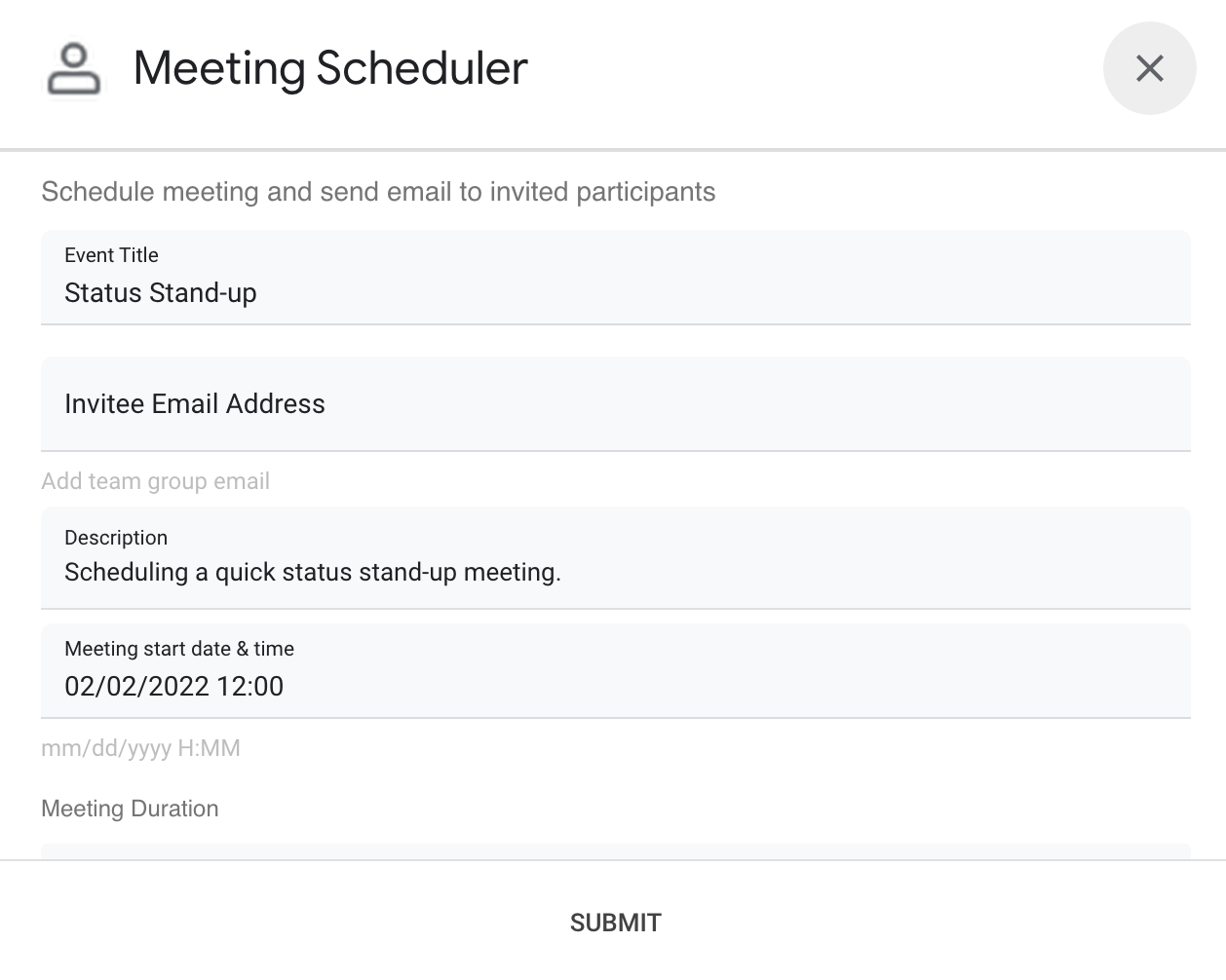
Interfejs dialogowy aplikacji do planowania spotkań w Google Chat

Jak to działa

Skrypt aplikacji do obsługi czatu używa poleceń z ukośnikiem i okien, aby uzyskać od użytkowników szczegóły spotkania i zaplanować wydarzenie w Kalendarzu. Skrypt zawiera domyślne ustawienia spotkania, które można dostosować do swoich potrzeb.

Usługi Apps Script

To rozwiązanie korzysta z tych usług:

  • Usługa Kalendarz – tworzy wydarzenie w kalendarzu na podstawie podanych informacji o spotkaniu.
  • Usługa podstawowa – używa klasy Session do pobierania strefy czasowej skryptu. Kalendarz używa tej strefy czasowej podczas planowania wydarzenia.
  • Usługa narzędziowa – formatuje datę wydarzenia w kalendarzu i koduje identyfikator wydarzenia, aby ułatwić uzyskanie adresu URL wydarzenia.

Wymagania wstępne

Konfigurowanie środowiska

Otwórz projekt w chmurze w konsoli Google Cloud

Jeśli nie jest jeszcze otwarty, otwórz projekt w chmurze, którego chcesz użyć w tym przykładzie:

  1. W konsoli Google Cloud otwórz stronę Wybierz projekt.

    Wybierz projekt w chmurze

  2. Wybierz projekt w chmurze Google, którego chcesz używać. Możesz też kliknąć Utwórz projekt i postępować zgodnie z instrukcjami wyświetlanymi na ekranie. Jeśli utworzysz projekt Google Cloud, może być konieczne włączenie płatności za ten projekt.

Włączanie interfejsu API

Zanim zaczniesz korzystać z interfejsów API Google, musisz je włączyć w projekcie w chmurze Google. W jednym projekcie Google Cloud możesz włączyć co najmniej 1 interfejs API.

Wszystkie aplikacje do obsługi Google Chat wymagają konfiguracji ekranu zgody. Skonfigurowanie ekranu zgody OAuth aplikacji określa, co Google wyświetla użytkownikom, i rejestruje aplikację, aby można ją było później opublikować.

  1. W konsoli interfejsów API Google otwórz Menu  > Platforma uwierzytelniania Google > Branding.

    Przejdź do sekcji Elementy marki

  2. Jeśli platforma uwierzytelniania Google została już skonfigurowana, możesz skonfigurować te ustawienia ekranu zgody OAuth w sekcjach Branding, Odbiorcy i Dostęp do danych. Jeśli zobaczysz komunikat Platforma uwierzytelniania Google nie została jeszcze skonfigurowana, kliknij Rozpocznij:
    1. W sekcji Informacje o aplikacji w polu Nazwa aplikacji wpisz nazwę aplikacji.
    2. W polu Adres e-mail dla użytkowników potrzebujących pomocy wybierz adres e-mail, na który użytkownicy mogą pisać, aby się z Tobą skontaktować, jeśli mają pytania dotyczące ich zgody.
    3. Kliknij Dalej.
    4. W sekcji Odbiorcy wybierz Wewnętrzny.
    5. Kliknij Dalej.
    6. W sekcji Informacje kontaktowe wpisz adres e-mail, na który będziesz otrzymywać powiadomienia o wszelkich zmianach w projekcie.
    7. Kliknij Dalej.
    8. W sekcji Finish (Zakończ) zapoznaj się z zasadami dotyczącymi danych użytkownika w usługach interfejsu API Google i jeśli je akceptujesz, kliknij I agree to the Google API Services: User Data Policy (Akceptuję zasady dotyczące danych użytkownika w usługach interfejsu API Google).
    9. Kliknij Dalej.
    10. Kliknij Utwórz.
  3. Na razie możesz pominąć dodawanie zakresów. W przyszłości, gdy będziesz tworzyć aplikację do użytku poza organizacją Google Workspace, musisz zmienić Typ użytkownika na Zewnętrzny. Następnie dodaj zakresy autoryzacji wymagane przez aplikację. Więcej informacji znajdziesz w pełnym przewodniku Konfigurowanie zgody OAuth.

Konfigurowanie skryptu

Tworzenie projektu Apps Script

  1. Kliknij ten przycisk, aby otworzyć projekt Apps Script Planowanie spotkań w Google Chat.
    Otwórz projekt
  2. Kliknij Przegląd .
  3. Na stronie przeglądu kliknij Utwórz kopię Ikona tworzenia kopii.

Jeśli w przyszłości zechcesz używać określonych interfejsów API Google lub opublikować aplikację, musisz powiązać projekt w chmurze z projektem Apps Script. W tym przewodniku nie musisz tego robić. Więcej informacji znajdziesz w przewodniku po projektach Google Cloud.

Tworzenie wdrożenia testowego

  1. W skopiowanym projekcie Apps Script kliknij Wdróż > Testuj wdrożenia.
  2. Skopiuj identyfikator wdrożenia Head, aby użyć go w późniejszym kroku, i kliknij Gotowe.

Konfigurowanie interfejsu Chat API

  1. W Konsoli interfejsów API Google otwórz stronę Chat API.
    Otwórz Chat API
  2. Kliknij Konfiguracja.
  3. Skonfiguruj Chat API, podając te informacje:
    • Nazwa: Meeting Scheduler
    • Adres URL awatara: https://goo.gle/3SfMkjb.
    • Opis: Quickly create meetings.
    • Funkcjonalność: zaznacz oba pola, aby umożliwić użytkownikom wysyłanie wiadomości bezpośrednio do aplikacji i dodawanie jej do pokoi.
    • Ustawienia połączenia: kliknij Apps Script i wpisz identyfikator wdrożenia head.
    • Polecenia: dodaj polecenia po ukośniku dla /help i /schedule_Meeting, wykonując te czynności:
      1. Kliknij Dodaj polecenie i skonfiguruj je, podając te informacje:
        • Identyfikator polecenia: 1.
        • Opis: Learn what this app does.
        • Typ polecenia: Slash command.
        • Nazwa polecenia po ukośniku: /help.
      2. Ponownie kliknij Dodaj polecenie i skonfiguruj je za pomocą tych informacji:
        • Identyfikator polecenia: 2.
        • Opis: Schedule a meeting.
        • Typ polecenia: Slash command.
        • Nazwa polecenia po ukośniku: /schedule_Meeting.
        • Zaznacz pole Otwiera okno.
    • Uprawnienia: wybierz Określeni użytkownicy i grupy w Twojej domenie i wpisz swój adres e-mail.
  4. Kliknij Zapisz.

Uruchamianie skryptu

  1. Otwórz Google Chat.

    Otwórz Google Chat

  2. Kliknij Rozpocznij czat .

  3. Wyszukaj nazwę aplikacji, Meeting Scheduler.

  4. Wyślij pierwszą wiadomość, np. hello, aby poprosić o autoryzację.

  5. Gdy aplikacja odpowie, kliknij Skonfiguruj i autoryzuj aplikację. Jeśli na ekranie zgody OAuth pojawi się ostrzeżenie Ta aplikacja nie została zweryfikowana, kliknij Zaawansowane > Otwórz {nazwa projektu} (niebezpieczne).

  6. Wyślij /schedule_Meeting do aplikacji.

  7. W oknie dodaj co najmniej 1 adres e-mail zapraszanej osoby. Możesz zaktualizować inne pola lub użyć domyślnych wpisów.

  8. Kliknij Prześlij.

  9. Aby wyświetlić spotkanie, kliknij Otwórz wydarzenie w Kalendarzu.

Sprawdź kod

Kliknij, aby przejrzeć kod Apps Script tego rozwiązania hostowanego w GitHub:

Wyświetl w GitHubie

Aby sprawdzić kod Apps Script tego rozwiązania wbudowany w tekst, kliknij Wyświetl kod źródłowy:

Pokaż kod źródłowy

Code.gs

apps-script/chat/schedule-meetings/Code.gs
// To learn how to use this script, refer to the documentation:
// https://developers.google.com/workspace/add-ons/samples/tutorial-schedule-meetings

/*
Copyright 2022 Google LLC

Licensed under the Apache License, Version 2.0 (the "License");
you may not use this file except in compliance with the License.
You may obtain a copy of the License at

    https://www.apache.org/licenses/LICENSE-2.0

Unless required by applicable law or agreed to in writing, software
distributed under the License is distributed on an "AS IS" BASIS,
WITHOUT WARRANTIES OR CONDITIONS OF ANY KIND, either express or implied.
See the License for the specific language governing permissions and
limitations under the License.
*/

// Command IDs
const COMMANDS = {
  HELP: 1, // /help
  DIALOG: 2, // /schedule_Meeting
};

/**
 * Responds to a added to space event in Google Chat.
 *
 * @param {Object} event The event object from the Google Workspace add-on.
 * @return {Object} Response from the Chat app.
 */
function onAddedToSpace(event) {
  // Lets users know what they can do and how they can get help.
  return { hostAppDataAction: { chatDataAction: { createMessageAction: { message: {
    text: `Hi there! I can quickly schedule a meeting for you with just a few clicks. Try me out by typing */schedule_Meeting*. To learn what else I can do, type */help*.`
  }}}}};
}

/**
 * Responds to a message event in Google Chat.
 *
 * @param {Object} event The event object from the Google Workspace add-on.
 * @return {Object} Response from the Chat app.
 */
function onMessage(event) {
  // Displays help message to users.
  return getHelpTextResponse_();
}

/**
 * Responds to an app command event in Google Chat.
 *
 * @param {Object} event The event object from the Google Workspace add-on.
 * @return {Object} Response from the Chat app.
 */
function onAppCommand(event) {
  // Executes the app command logic based on ID.
  switch (event.chat.appCommandPayload.appCommandMetadata.appCommandId) {
    case COMMANDS.DIALOG:
      // Displays meeting dialog for /schedule_Meeting.
      return getInputFormAsDialog_({
        invitee: "",
        startTime: getTopOfHourDateString_(),
        duration: 30,
        subject: "Status Stand-up",
        body: "Scheduling a quick status stand-up meeting.",
      });
    case COMMANDS.HELP:
      // Displays help message for /help.
      return getHelpTextResponse_();
  }
}

/**
 * Handles the form submission from the meeting scheduling dialog.
 * 
 * @param {Object} event The event object from the Google Workspace add-on.
 * @return {Object} Response from the Chat app.
 */
function handleFormSubmit(event) {
  const recipients = getFieldValue_(event.commonEventObject.formInputs, "email");
  const subject = getFieldValue_(event.commonEventObject.formInputs, "subject");
  const body = getFieldValue_(event.commonEventObject.formInputs, "body");

  // Assumes dialog card inputs for date and times are in the correct format. mm/dd/yyy HH:MM
  const dateTimeInput = getFieldValue_(event.commonEventObject.formInputs, "date");
  const startTime = getStartTimeAsDateObject_(dateTimeInput);
  const duration = Number(
    getFieldValue_(event.commonEventObject.formInputs, "duration"),
  );

  // Handles instances of missing or invalid input parameters.
  const errors = [];
  if (!recipients) {
    errors.push("Missing or invalid recipient email address.");
  }
  if (!subject) {
    errors.push("Missing subject line.");
  }
  if (!body) {
    errors.push("Missing event description.");
  }
  if (!startTime) {
    errors.push("Missing or invalid start time.");
  }
  if (!duration || Number.isNaN(duration)) {
    errors.push("Missing or invalid duration");
  }
  if (errors.length) {
    // Redisplays the form if missing or invalid inputs exist.
    return getInputFormAsDialog_({
      errors,
      invitee: recipients,
      startTime: dateTimeInput,
      duration,
      subject,
      body,
    });
  }

  // Calculates the end time via duration.
  const endTime = new Date(startTime.valueOf());
  endTime.setMinutes(endTime.getMinutes() + duration);

  // Creates calendar event with notification.
  const calendar = CalendarApp.getDefaultCalendar();
  const scheduledEvent = calendar.createEvent(subject, startTime, endTime, {
    guests: recipients,
    sendInvites: true,
    description: `${body}\nThis meeting scheduled by a Google Chat App!`,
  });

  // Gets a link to the Calendar event.
  const url = getCalendarEventURL_(scheduledEvent, calendar);

  return getConfirmationDialog_(url);
}

/**
 * Handles the form submission from the meeting scheduling dialog confirmation.
 * 
 * @param {Object} event The event object from the Google Workspace add-on.
 * @return {Object} Response from the Chat app.
 */
function closeDialog(event) {
  return { action: {
    navigations: [{ endNavigation: { action: "CLOSE_DIALOG"}}],
    notification: { text: "Success!" }
  }};
}

/**
 * Gets the help text message creation response.
 * 
 * @return {Object} Response from the Chat app.
 */
function getHelpTextResponse_() {
  const help = `*Meeting Scheduler* lets you quickly create meetings from Google Chat. Here\'s a list of all its commands:

  - \`/schedule_Meeting\`  Opens a dialog with editable, preset parameters to create a meeting event
  - \`/help\`  Displays this help message

Learn more about creating Chat apps built as Google Workspace add-on at https://developers.google.com/workspace/add-ons/chat.`;

  return { hostAppDataAction: { chatDataAction: { createMessageAction: { message: {
    text: help
  }}}}};
}

Dialog.gs

apps-script/chat/schedule-meetings/Dialog.gs
/**
 * Copyright 2022 Google LLC
 *
 * Licensed under the Apache License, Version 2.0 (the "License");
 * you may not use this file except in compliance with the License.
 * You may obtain a copy of the License at
 *
 *      http://www.apache.org/licenses/LICENSE-2.0
 *
 * Unless required by applicable law or agreed to in writing, software
 * distributed under the License is distributed on an "AS IS" BASIS,
 * WITHOUT WARRANTIES OR CONDITIONS OF ANY KIND, either express or implied.
 * See the License for the specific language governing permissions and
 * limitations under the License.
 */

/**
 * Gets the open / update dialog response for the input form.
 * 
 * @return {Object} Response from the Chat app.
 */
function getInputFormAsDialog_(options) {
  const form = getForm_(options);
  return { action: { navigations: [{
    pushCard: form
  }]}};
}

/**
 * Generates the meeting scheduling form as JSON based on given options.
 * 
 * @return {Object} JSON-formatted card.
 */
function getForm_(options) {
  const sections = [];

  // If errors present, display additional section with validation messages.
  if (options.errors?.length) {
    let errors = options.errors.reduce((str, err) => `${str}• ${err}<br>`, "");
    errors = `<font color="#ba0000"><b>Errors:</b><br>${errors}</font>`;
    sections.push({ widgets: [{
      textParagraph: { text: errors }
    }]});
  }
  // Main form section.
  sections.push({
    header: "Schedule meeting and send email to invited participants",
    widgets: [
      { textInput: {
        label: "Event Title",
        type: "SINGLE_LINE",
        name: "subject",
        value: options.subject,
      }},
      { textInput: {
        label: "Invitee Email Address",
        type: "SINGLE_LINE",
        name: "email",
        value: options.invitee,
        hintText: "Add team group email",
      }},
      { textInput: {
        label: "Description",
        type: "MULTIPLE_LINE",
        name: "body",
        value: options.body,
      }},
      { textInput: {
        label: "Meeting start date & time",
        type: "SINGLE_LINE",
        name: "date",
        value: options.startTime,
        hintText: "mm/dd/yyyy H:MM",
      }},
      { selectionInput: {
        type: "DROPDOWN",
        label: "Meeting Duration",
        name: "duration",
        items: [
          { text: "15 minutes", value: "15", selected: options.duration === 15 },
          { text: "30 minutes", value: "30", selected: options.duration === 30 },
          { text: "45 minutes", value: "45", selected: options.duration === 45 },
          { text: "1 Hour", value: "60", selected: options.duration === 60 },
          { text: "1.5 Hours", value: "90", selected: options.duration === 90 },
          { text: "2 Hours", value: "120", selected: options.duration === 120 },
        ]
      }}
    ],
    collapsible: false,
  });
  // Build the card with sections.
  return {
    sections: sections,
    name: "Google Chat Scheduled Meeting",
    fixedFooter: { primaryButton: {
      text: "Submit",
      onClick: { action: { function: "handleFormSubmit" }},
      altText: "Submit"
    }}
  };
}

/**
 * Gets the open / update dialog response for the confirmation form.
 * 
 * @param {string} url The Google Calendar Event url.
 * @return {Object} Response from the Chat app.
 */
function getConfirmationDialog_(url) {
  return { action: { navigations: [{ pushCard: {
    sections: [{ widgets: [
      { textParagraph: {
          text: "Meeting created successfully!",
        },
        horizontalAlignment: "CENTER",
      },
      { buttonList: { buttons: [{
          text: "Open Calendar Event",
          onClick: { openLink: { url: url }}
        }]},
        horizontalAlignment: "CENTER",
      }
    ]}],
    fixedFooter: { primaryButton: {
      text: "OK",
      onClick: { action: { function: "closeDialog" }}
    }}
  }}]}};
}

Utilities.gs

apps-script/chat/schedule-meetings/Utilities.gs
/**
 * Copyright 2022 Google LLC
 *
 * Licensed under the Apache License, Version 2.0 (the "License");
 * you may not use this file except in compliance with the License.
 * You may obtain a copy of the License at
 *
 *      http://www.apache.org/licenses/LICENSE-2.0
 *
 * Unless required by applicable law or agreed to in writing, software
 * distributed under the License is distributed on an "AS IS" BASIS,
 * WITHOUT WARRANTIES OR CONDITIONS OF ANY KIND, either express or implied.
 * See the License for the specific language governing permissions and
 * limitations under the License.
 */

/**
 * Helper function that gets the field value from the given form input.
 * 
 * @param {object} formInputs The form inputs object from the event
 * @param {string} fieldName The name of the field to get the value for
 * @return {string}
 */
function getFieldValue_(formInputs, fieldName) {
  return formInputs[fieldName].stringInputs.value[0];
}

// Regular expression to validate the date/time input.
const DATE_TIME_PATTERN = /\d{1,2}\/\d{1,2}\/\d{4}\s+\d{1,2}:\d\d/;

/**
 * Casts date and time from string to Date object.
 * @param {string} dateTimeStr The date/time string in mm/dd/yyyy HH:MM format
 * 
 * @return {date} Date object representing the input date/time or null if invalid
 */
function getStartTimeAsDateObject_(dateTimeStr) {
  if (!dateTimeStr || !dateTimeStr.match(DATE_TIME_PATTERN)) {
    return null;
  }

  const parts = dateTimeStr.split(" ");
  const [month, day, year] = parts[0].split("/").map(Number);
  const [hour, minute] = parts[1].split(":").map(Number);

  Session.getScriptTimeZone();

  return new Date(year, month - 1, day, hour, minute);
}

/**
 * Gets the current date and time for the upcoming top of the hour (e.g. 01/25/2022 18:00).
 * 
 * @return {string} date/time in mm/dd/yyy HH:MM format needed for use by Calendar
 */
function getTopOfHourDateString_() {
  const date = new Date();
  date.setHours(date.getHours() + 1);
  date.setMinutes(0, 0, 0);
  // Adding the date as string might lead to an incorrect response due to time zone adjustments.
  return Utilities.formatDate(
    date,
    Session.getScriptTimeZone(),
    "MM/dd/yyyy H:mm",
  );
}

/**
 * Creates the URL for the Google Calendar event.
 *
 * @param {object} event The Google Calendar Event instance
 * @param {object} cal The associated Google Calendar
 * @return {string} URL in the form of 'https://google.com/calendar/event?eid={event-id}'
 */
function getCalendarEventURL_(event, cal) {
  const baseCalUrl = "https://google.com/calendar";
  // Joins Calendar Event Id with Calendar Id, then base64 encode to derive the event URL.
  let encodedId = Utilities.base64Encode(
    `${event.getId().split("@")[0]} ${cal.getId()}`,
  ).replace(/\=/g, "");
  encodedId = `/event?eid=${encodedId}`;
  return baseCalUrl + encodedId;
}

Dalsze kroki

Aplikacje do obsługi czatu, które nie są dodatkami: planowanie spotkań w Google Chat

Poniższe instrukcje i przykłady kodu dotyczą aplikacji do obsługi czatu, która nie jest dodatkiem do Google Workspace (wyświetl na GitHubie).

Konfigurowanie projektu Apps Script

  1. Otwórz projekt Apps Script Planowanie spotkań w Google Chat dla aplikacji Google Chat, która nie jest dodatkiem, i utwórz jego kopię.
  2. Podczas konfigurowania interfejsu Chat API w konsoli interfejsów API Google: odznacz opcję Utwórz tę aplikację do czatu jako dodatek do Google Workspace. Otworzy się okno z prośbą o potwierdzenie. W oknie kliknij Wyłącz.

Kod źródłowy

Code.gs

apps-script/schedule-meetings/Code.js
// To learn how to use this script, refer to the documentation:
// https://developers.google.com/workspace/chat/tutorial-schedule-meetings

/*
Copyright 2022 Google LLC

Licensed under the Apache License, Version 2.0 (the "License");
you may not use this file except in compliance with the License.
You may obtain a copy of the License at

    https://www.apache.org/licenses/LICENSE-2.0

Unless required by applicable law or agreed to in writing, software
distributed under the License is distributed on an "AS IS" BASIS,
WITHOUT WARRANTIES OR CONDITIONS OF ANY KIND, either express or implied.
See the License for the specific language governing permissions and
limitations under the License.
*/

// Application constants
const APPNAME = "Chat Meeting Scheduler";
const SLASHCOMMAND = {
  HELP: 1, // /help
  DIALOG: 2, // /schedule_Meeting
};

/**
 * Responds to an ADDED_TO_SPACE event in Google Chat.
 * Called when the Chat app is added to a space. The Chat app can either be directly added to the space
 * or added by a @mention. If the Chat app is added by a @mention, the event object includes a message property.
 * Returns a Message object, which is usually a welcome message informing users about the Chat app.
 *
 * @param {Object} event The event object from Google Chat
 */
function onAddToSpace(event) {
  let message = "";

  // Personalizes the message depending on how the Chat app is called.
  if (event.space.singleUserBotDm) {
    message = `Hi ${event.user.displayName}!`;
  } else {
    const spaceName = event.space.displayName
      ? event.space.displayName
      : "this chat";
    message = `Hi! Thank you for adding me to ${spaceName}`;
  }

  // Lets users know what they can do and how they can get help.
  message = `${message}/nI can quickly schedule a meeting for you with just a few clicks.Try me out by typing */schedule_Meeting*. /nTo learn what else I can do, type */help*.`;

  return { text: message };
}

/**
 * Responds to a MESSAGE event triggered in Chat.
 * Called when the Chat app is already in the space and the user invokes it via @mention or / command.
 * Returns a message object containing the Chat app's response. For this Chat app, the response is either the
 * help text or the dialog to schedule a meeting.
 *
 * @param {object} event The event object from Google Chat
 * @return {object} JSON-formatted response as text or Card message
 */
function onMessage(event) {
  // Handles regular onMessage logic.
  // Evaluates if and handles for all slash commands.
  if (event.message.slashCommand) {
    switch (event.message.slashCommand.commandId) {
      case SLASHCOMMAND.DIALOG: // Displays meeting dialog for /schedule_Meeting.
        // TODO update this with your own logic to set meeting recipients, subjects, etc (e.g. a group email).
        return getInputFormAsDialog_({
          invitee: "",
          startTime: getTopOfHourDateString_(),
          duration: 30,
          subject: "Status Stand-up",
          body: "Scheduling a quick status stand-up meeting.",
        });

      case SLASHCOMMAND.HELP: // Responds with help text for /help.
        return getHelpTextResponse_();

      /* TODO Add other use cases here. E.g:
      case SLASHCOMMAND.NEW_FEATURE:  // Your Feature Here
        getDialogForAddContact(message);
      */
    }
  }
  // Returns text if users didn't invoke a slash command.
  return { text: "No action taken - use Slash Commands." };
}

/**
 * Responds to a CARD_CLICKED event triggered in Chat.
 * @param {object} event the event object from Chat
 * @return {object} JSON-formatted response
 * @see https://developers.google.com/workspace/chat/receive-respond-interactions
 */
function onCardClick(event) {
  if (event.action.actionMethodName === "handleFormSubmit") {
    const recipients = getFieldValue_(event.common.formInputs, "email");
    const subject = getFieldValue_(event.common.formInputs, "subject");
    const body = getFieldValue_(event.common.formInputs, "body");

    // Assumes dialog card inputs for date and times are in the correct format. mm/dd/yyy HH:MM
    const dateTimeInput = getFieldValue_(event.common.formInputs, "date");
    const startTime = getStartTimeAsDateObject_(dateTimeInput);
    const duration = Number(
      getFieldValue_(event.common.formInputs, "duration"),
    );

    // Handles instances of missing or invalid input parameters.
    const errors = [];

    if (!recipients) {
      errors.push("Missing or invalid recipient email address.");
    }
    if (!subject) {
      errors.push("Missing subject line.");
    }
    if (!body) {
      errors.push("Missing event description.");
    }
    if (!startTime) {
      errors.push("Missing or invalid start time.");
    }
    if (!duration || Number.isNaN(duration)) {
      errors.push("Missing or invalid duration");
    }
    if (errors.length) {
      // Redisplays the form if missing or invalid inputs exist.
      return getInputFormAsDialog_({
        errors,
        invitee: recipients,
        startTime: dateTimeInput,
        duration,
        subject,
        body,
      });
    }

    //  Calculates the end time via duration.
    const endTime = new Date(startTime.valueOf());
    endTime.setMinutes(endTime.getMinutes() + duration);

    // Creates calendar event with notification.
    const calendar = CalendarApp.getDefaultCalendar();
    const scheduledEvent = calendar.createEvent(subject, startTime, endTime, {
      guests: recipients,
      sendInvites: true,
      description: `${body}\nThis meeting scheduled by a Google Chat App!`,
    });

    // Gets a link to the Calendar event.
    const url = getCalendarEventURL_(scheduledEvent, calendar);

    return getConfirmationDialog_(url);
  }
  if (event.action.actionMethodName === "closeDialog") {
    // Returns this dialog as success.
    return {
      actionResponse: {
        type: "DIALOG",
        dialog_action: {
          actionStatus: "OK",
        },
      },
    };
  }
}

/**
 * Responds with help text about this Chat app.
 * @return {string} The help text as seen below
 */
function getHelpTextResponse_() {
  const help = `*${APPNAME}* lets you quickly create meetings from Google Chat. Here\'s a list of all its commands:
  \`/schedule_Meeting\`  Opens a dialog with editable, preset parameters to create a meeting event
  \`/help\`  Displays this help message

  Learn more about creating Google Chat apps at https://developers.google.com/chat.`;

  return { text: help };
}

Dialog.gs

apps-script/schedule-meetings/Dialog.js
/**
 * Copyright 2022 Google LLC
 *
 * Licensed under the Apache License, Version 2.0 (the "License");
 * you may not use this file except in compliance with the License.
 * You may obtain a copy of the License at
 *
 *      http://www.apache.org/licenses/LICENSE-2.0
 *
 * Unless required by applicable law or agreed to in writing, software
 * distributed under the License is distributed on an "AS IS" BASIS,
 * WITHOUT WARRANTIES OR CONDITIONS OF ANY KIND, either express or implied.
 * See the License for the specific language governing permissions and
 * limitations under the License.
 */

/**
 * Form input dialog as JSON.
 * @return {object} JSON-formatted cards for the dialog.
 */
function getInputFormAsDialog_(options) {
  const form = getForm_(options);
  return {
    actionResponse: {
      type: "DIALOG",
      dialogAction: {
        dialog: {
          body: form,
        },
      },
    },
  };
}

/**
 * Form JSON to collect inputs regarding the meeting.
 * @return {object} JSON-formatted cards.
 */
function getForm_(options) {
  const sections = [];

  // If errors present, display additional section with validation messages.
  if (options.errors?.length) {
    let errors = options.errors.reduce((str, err) => `${str}• ${err}<br>`, "");
    errors = `<b>Errors:</b><br><font color="#ba0000">${errors}</font>`;
    const errorSection = {
      widgets: [
        {
          textParagraph: {
            text: errors,
          },
        },
      ],
    };
    sections.push(errorSection);
  }
  const formSection = {
    header: "Schedule meeting and send email to invited participants",
    widgets: [
      {
        textInput: {
          label: "Event Title",
          type: "SINGLE_LINE",
          name: "subject",
          value: options.subject,
        },
      },
      {
        textInput: {
          label: "Invitee Email Address",
          type: "SINGLE_LINE",
          name: "email",
          value: options.invitee,
          hintText: "Add team group email",
        },
      },
      {
        textInput: {
          label: "Description",
          type: "MULTIPLE_LINE",
          name: "body",
          value: options.body,
        },
      },
      {
        textInput: {
          label: "Meeting start date & time",
          type: "SINGLE_LINE",
          name: "date",
          value: options.startTime,
          hintText: "mm/dd/yyyy H:MM",
        },
      },
      {
        selectionInput: {
          type: "DROPDOWN",
          label: "Meeting Duration",
          name: "duration",
          items: [
            {
              text: "15 minutes",
              value: "15",
              selected: options.duration === 15,
            },
            {
              text: "30 minutes",
              value: "30",
              selected: options.duration === 30,
            },
            {
              text: "45 minutes",
              value: "45",
              selected: options.duration === 45,
            },
            {
              text: "1 Hour",
              value: "60",
              selected: options.duration === 60,
            },
            {
              text: "1.5 Hours",
              value: "90",
              selected: options.duration === 90,
            },
            {
              text: "2 Hours",
              value: "120",
              selected: options.duration === 120,
            },
          ],
        },
      },
    ],
    collapsible: false,
  };
  sections.push(formSection);
  const card = {
    sections: sections,
    name: "Google Chat Scheduled Meeting",
    fixedFooter: {
      primaryButton: {
        text: "Submit",
        onClick: {
          action: {
            function: "handleFormSubmit",
          },
        },
        altText: "Submit",
      },
    },
  };
  return card;
}

/**
 * Confirmation dialog after a calendar event is created successfully.
 * @param {string} url The Google Calendar Event url for link button
 * @return {object} JSON-formatted cards for the dialog
 */
function getConfirmationDialog_(url) {
  return {
    actionResponse: {
      type: "DIALOG",
      dialogAction: {
        dialog: {
          body: {
            sections: [
              {
                widgets: [
                  {
                    textParagraph: {
                      text: "Meeting created successfully!",
                    },
                    horizontalAlignment: "CENTER",
                  },
                  {
                    buttonList: {
                      buttons: [
                        {
                          text: "Open Calendar Event",
                          onClick: {
                            openLink: {
                              url: url,
                            },
                          },
                        },
                      ],
                    },
                    horizontalAlignment: "CENTER",
                  },
                ],
              },
            ],
            fixedFooter: {
              primaryButton: {
                text: "OK",
                onClick: {
                  action: {
                    function: "closeDialog",
                  },
                },
              },
            },
          },
        },
      },
    },
  };
}

Utilities.gs

apps-script/schedule-meetings/Utilities.js
/**
 * Copyright 2022 Google LLC
 *
 * Licensed under the Apache License, Version 2.0 (the "License");
 * you may not use this file except in compliance with the License.
 * You may obtain a copy of the License at
 *
 *      http://www.apache.org/licenses/LICENSE-2.0
 *
 * Unless required by applicable law or agreed to in writing, software
 * distributed under the License is distributed on an "AS IS" BASIS,
 * WITHOUT WARRANTIES OR CONDITIONS OF ANY KIND, either express or implied.
 * See the License for the specific language governing permissions and
 * limitations under the License.
 */

/**
 * Helper function that gets the field value from the given form input.
 * @return {string}
 */
function getFieldValue_(formInputs, fieldName) {
  return formInputs[fieldName][""].stringInputs.value[0];
}

// Regular expression to validate the date/time input.
const DATE_TIME_PATTERN = /\d{1,2}\/\d{1,2}\/\d{4}\s+\d{1,2}:\d\d/;

/**
 * Casts date and time from string to Date object.
 * @return {date}
 */
function getStartTimeAsDateObject_(dateTimeStr) {
  if (!dateTimeStr || !dateTimeStr.match(DATE_TIME_PATTERN)) {
    return null;
  }

  const parts = dateTimeStr.split(" ");
  const [month, day, year] = parts[0].split("/").map(Number);
  const [hour, minute] = parts[1].split(":").map(Number);

  Session.getScriptTimeZone();

  return new Date(year, month - 1, day, hour, minute);
}

/**
 * Gets the current date and time for the upcoming top of the hour (e.g. 01/25/2022 18:00).
 * @return {string} date/time in mm/dd/yyy HH:MM format needed for use by Calendar
 */
function getTopOfHourDateString_() {
  const date = new Date();
  date.setHours(date.getHours() + 1);
  date.setMinutes(0, 0, 0);
  // Adding the date as string might lead to an incorrect response due to time zone adjustments.
  return Utilities.formatDate(
    date,
    Session.getScriptTimeZone(),
    "MM/dd/yyyy H:mm",
  );
}

/**
 * Creates the URL for the Google Calendar event.
 *
 * @param {object} event The Google Calendar Event instance
 * @param {object} cal The associated Google Calendar
 * @return {string} URL in the form of 'https://www.google.com/calendar/event?eid={event-id}'
 */
function getCalendarEventURL_(event, cal) {
  const baseCalUrl = "https://www.google.com/calendar";
  // Joins Calendar Event Id with Calendar Id, then base64 encode to derive the event URL.
  let encodedId = Utilities.base64Encode(
    `${event.getId().split("@")[0]} ${cal.getId()}`,
  ).replace(/\=/g, "");
  encodedId = `/event?eid=${encodedId}`;
  return baseCalUrl + encodedId;
}