
After Google converts your service provider accounts to advanced accounts and enables UCP checkout service management for your test accounts, proceed to configuring and testing the merchant account linking flow in sandbox mode.
Validate the UCP integration in the sandbox test environment
Verify your capability endpoints before onboarding merchants:
- Exchange Test Credentials:
- Generate a Test Checkout API Secret Key and reply to the support case you opened during your enablement request to request to share it securely with Google.
- Receive your Order Webhook API Key from Google to authenticate incoming test events.
- Execute End-to-End Test Transactions:
- Complete sample checkout transactions in sandbox mode to verify payload validation, error responses, and webhook acknowledgments.
Implement the merchant account linking dialog flow
Merchants link their existing Google Merchant Center accounts to your platform through a secure, Google-hosted dialog window opened from your merchant portal.
Dialog launch
Your portal opens a secure dialog window targeting the Google
Merchant Center linking URL with your advanced Merchant Center account
ID ({PROVIDER_ID}), internal merchant identifier
({PROVIDER_MERCHANT_ID}), and callback URL
({PROVIDER_CALLBACK_URL}).
We recommend configuring the dialog window with the following display properties:
- Height:
850px - Width:
440px - Location: Centered on screen
Alternatively, use the maximum dimensions allowed by the user's device if it is smaller.
Dialog URL specification
GET https://merchants.google.com/mc/linkedaccounts/linking/serviceprovider/link?provider={PROVIDER_ID}&provider_merchant_id={PROVIDER_MERCHANT_ID}&redirect_uri={PROVIDER_CALLBACK_URL}
URL query parameters
| Parameter | Type | Required | Description |
|---|---|---|---|
provider |
Integer | Yes | Your unique numeric advanced Merchant Center account ID ({PROVIDER_ID}) assigned to your service provider account in Merchant Center. |
provider_merchant_id |
String | Yes | Your platform's internal unique identifier for the merchant account. |
redirect_uri |
String | Optional | The callback URL ({PROVIDER_CALLBACK_URL}) where Google returns the proposal ID upon merchant approval. |
If you don't provide a redirect_uri callback URL, a success dialog displays
the confirmation message Connection initiated. To retrieve service
relationships with a pending approval, and approve the
open proposal without a callback URL, monitor your
ACCOUNT_SERVICE_CHANGE notifications
from the Merchant API or call
accounts.services.list.
Merchant consent
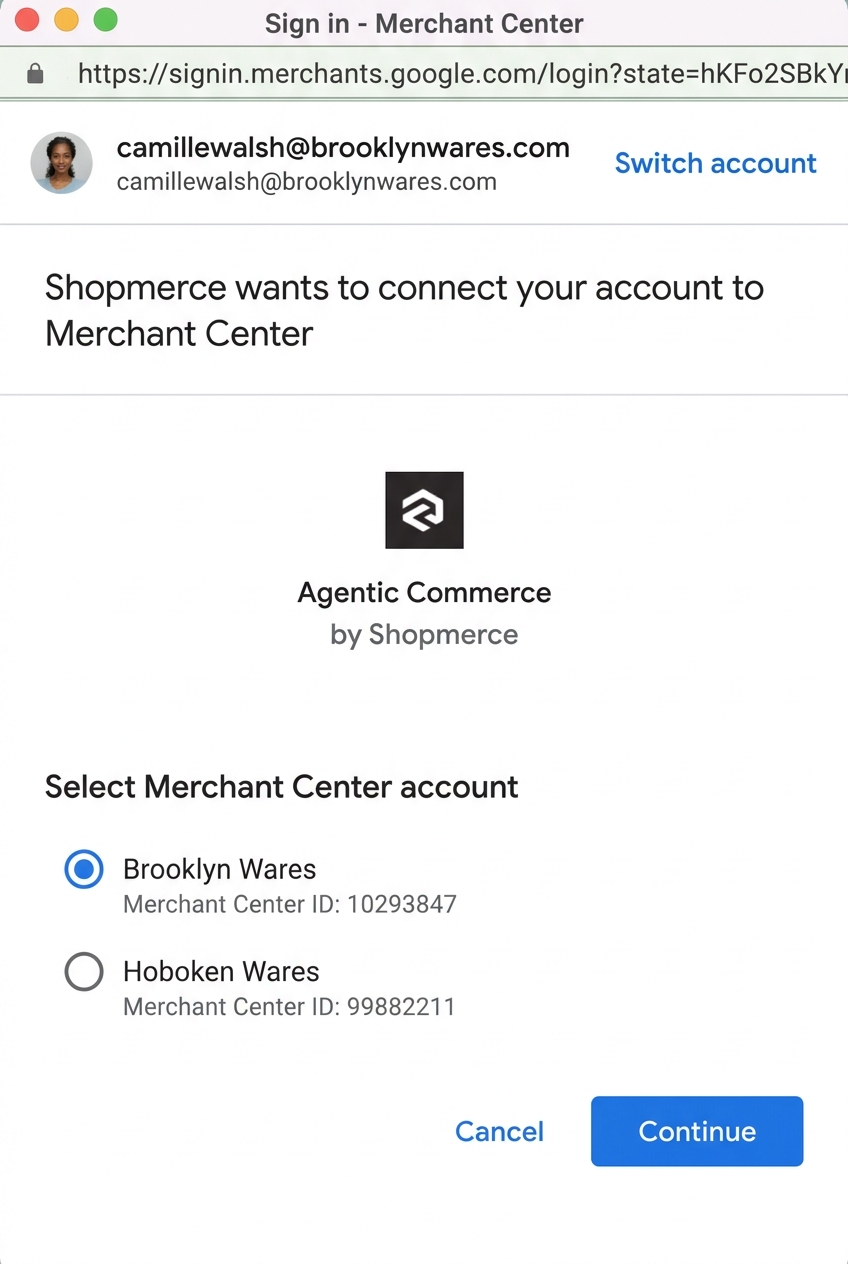
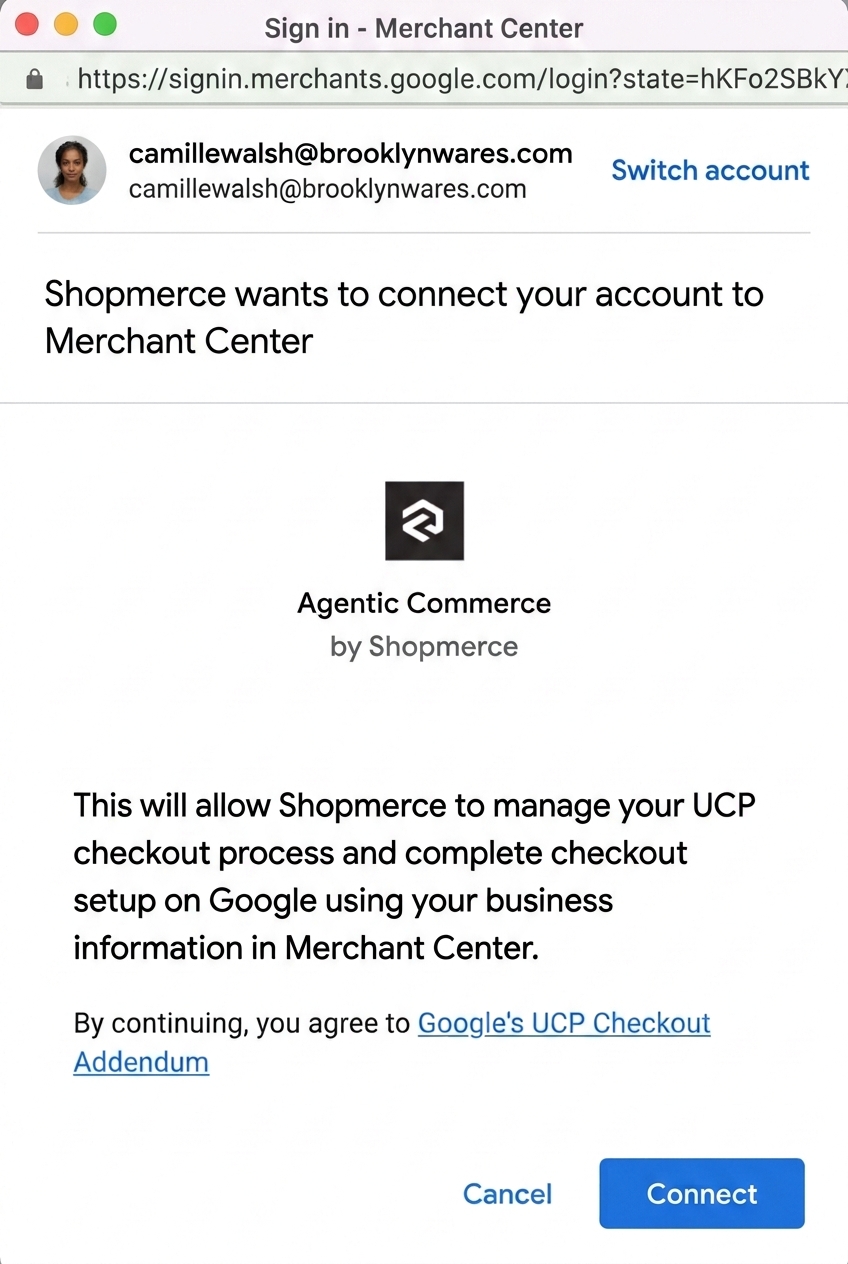
Within the dialog in your website, the merchant signs in, selects their Merchant Center account, reviews permissions, and accepts the Terms of Service .
Redirect callback
We highly recommend that you provide a callback URI (redirect_uri) to
automatically receive the proposal information needed to send the proposal
approval call to the Merchant API, and display a confirmation page after
approval completes. This creates an instantaneous, seamless connection
experience for the merchant.
When you provide a redirect_uri, Google passes parameters back to the
service provider through query parameters:
| Parameter | Type | Description |
|---|---|---|
status |
Integer | Status of the linking request. See Possible status values. |
proposal_names |
Array of strings | Identifier of the account linking proposal to be used in MAPI approve method to accept the linking request. |
google_merchant_id |
Integer (64-bit) | Identifier of the merchant's Merchant Center account. |
provider_merchant_id |
String | Identifier of the merchant's account in the service provider's system. |
timestamp |
Timestamp in ISO 8601 / RFC 3339 format | Timestamp when the linking proposal was sent. |
Possible status values
The status query parameter returns one of the following values:
| Status code | Description |
|---|---|
200 |
Success. |
500 |
General error caused by a failure to issue the linking proposal between the merchant's account and the service provider account. |
Handshake (proposal delivery and approval)
- Proposal Delivery: Google generates a service proposal
(
accounts.services.propose) and delivers the proposal details to one of the following:- Your callback redirect URI
- Through an
ACCOUNT_SERVICE_CHANGEnotification callback. To learn how to decode the notification payload and interpret its contents, see Decode account service change payloads.
- Backend Approval: Your backend server receives the proposal ID and sends
an approval request (
accounts.services.approve) to Google Merchant API on behalf of the merchant. Approving the proposal establishes the service link. - To learn more about the handshake process, see the Account Relationships Handshake Guide.
Service proposal approval API call
POST https://merchantapi.googleapis.com/accounts/v1/accounts/{MERCHANT_ID}/services/{SERVICE_ID}:approve
Content-Type: application/json
Authorization: Bearer {SERVICE_TOKEN}

{}
{MERCHANT_ID}: The numeric Google Merchant Center ID of the merchant.{SERVICE_ID}: The composite service identifier delivered during proposal creation, in the format{PROVIDER_ID}~{PROPOSAL_ID}.
Successful response (200 OK)
{
  "name": "accounts/{MERCHANT_ID}/services/{PROVIDER_ID}~{PROPOSAL_ID}",
  "provider": "providers/{PROVIDER_ID}",
  "providerDisplayName": "Acme Commerce Platform",
  "handshake": {
    "approvalState": "ESTABLISHED",
    "actor": "ACCOUNT"
  },
  "ucpCheckoutManagement": {}
}
State established
Once the accounts.services.approve call has been made, Google marks the
service relationship as ESTABLISHED. You can view the status of requested
service links by calling
accounts.services.list.
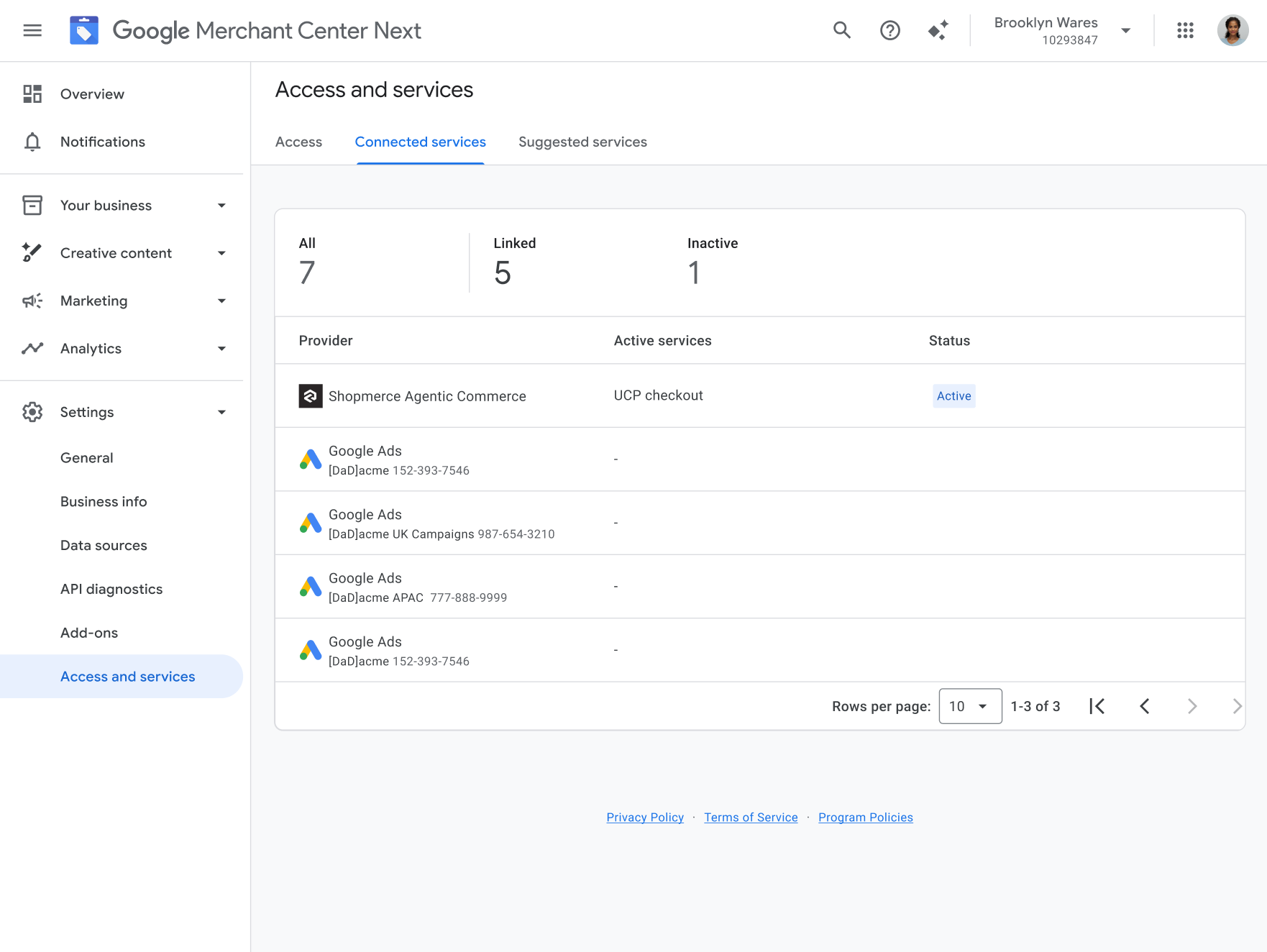
The merchant can view the established service by logging in to
Merchant Center and navigating to
Settings > Access and services > Connected services.
Complete post-linking activation and technical profile setup
Once the service link reaches the ESTABLISHED state, activate UCP
capabilities for the merchant:
Enable UCP Integration Program:
- Call
accounts.programs.enableto activate theucp-integrationprogram for the merchant account. This can only be done using the Merchant API:
POST https://merchantapi.googleapis.com/accounts/v1alpha/accounts/{MERCHANT_ID}/programs/ucp-integration:enable Authorization: Bearer {SERVICE_TOKEN}- Call
Configure Merchant UCP Settings:
- Call
accounts.programs.ucpSettings.updateUcpSettingsto register the merchant's hosted well-known UCP profile URI that you created in the previous step Create a well-known UCP profile URI. For example:https://{MERCHANT_DOMAIN}/.well-known/ucp
PATCH https://merchantapi.googleapis.com/accounts/v1alpha/accounts/{MERCHANT_ID}/programs/ucp-integration/ucpSettings?updateMask=well_known_uri Content-Type: application/json Authorization: Bearer {SERVICE_TOKEN} { "wellKnownUri": "https://{MERCHANT_DOMAIN}/.well-known/ucp" }- Call
Configure Order Webhook Ingestion:
- Stream real-time order lifecycle events to Google's central webhook endpoint:
POST https://shoppingdataintegration.googleapis.com/v1/webhooks/partners/{PARTNER_ID}/events/order?key={API_KEY}{PARTNER_ID}: Your assigned UCP order event partner ID.{API_KEY}: Your production Order Webhook API key.
For more information about how to create UCP checkout endpoints and order webhooks, see Implement UCP checkout endpoints and order webhooks.
Handle merchant-initiated un-linking and disconnects
Service providers must support merchant-initiated disconnect workflows across both their portal and Merchant Center:
- Disconnect from Merchant Center UI: When a merchant disconnects your
platform from the Merchant Center UI, Google sends an
ACCOUNT_SERVICE_CHANGEpush notification to your backend. Decode the notification payload using the Account service change notifications guide to identify the disconnected merchant account. - Disconnect from your portal: If a merchant disconnects their account
directly within your platform's portal, call
accounts.services.rejectto terminate the established service link in Merchant Center. - Graceful decommissioning and in-flight orders: Upon disconnect, update your internal merchant status to stop accepting new UCP checkout sessions, but continue streaming order lifecycle events for any in-flight orders until they reach a terminal state (such as delivered, canceled, or refunded).
Next steps
After completing sandbox validation, proceed to Perform final validation.