

عند ملء عنوان تسليم أو معلومات فوترة أو معلومات حدث، يساعد تفعيل النماذج باستخدام ميزة الإكمال التلقائي للأماكن المستخدمين في تقليل ضغطات المفاتيح والأخطاء عند إدخال معلومات العنوان. يشرح هذا البرنامج التعليمي الخطوات اللازمة لتفعيل حقل إدخال باستخدام ميزة "الإكمال التلقائي للمكان" وتعبئة حقول نموذج العنوان بمكوّنات العنوان من العنوان الذي اختاره المستخدم، وعرض العنوان المحدّد على خريطة للمساعدة في التأكيد المرئي.
فيديوهات: تحسين نماذج العناوين باستخدام ميزة "الإكمال التلقائي للأماكن"
نماذج العناوين
Android
iOS
الويب
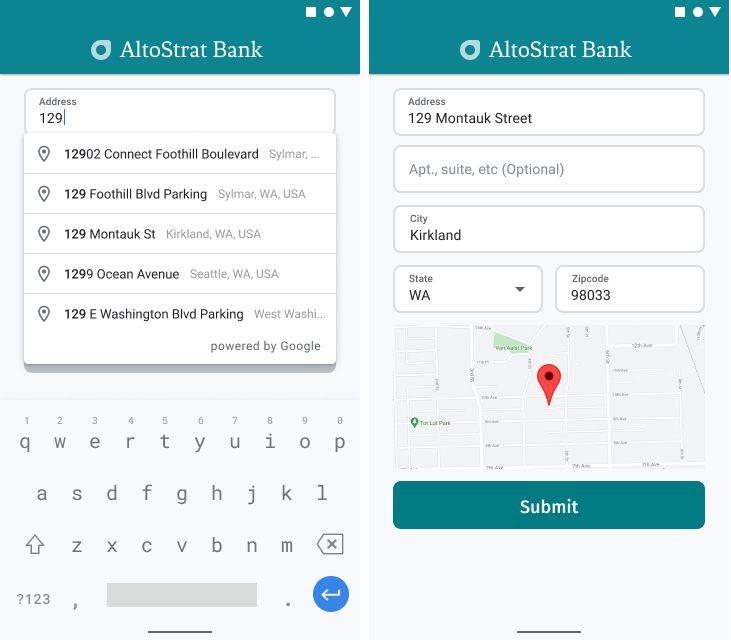
توفّر "منصة خرائط Google" أداة "الإكمال التلقائي للأماكن" المصغّرة للأجهزة الجوّالة والويب. توفّر الأداة، الموضّحة في الأشكال السابقة، مربّع حوار بحث يتضمّن وظيفة الإكمال التلقائي التي يمكنك حتى تحسينها للبحث على مستوى الموقع الجغرافي.
الحصول على الشفرة
استنسِخ أو نزِّل مستودع الإصدارات التجريبية من حزمة تطوير البرامج (SDK) لخدمة "الأماكن" من Google لنظام التشغيل Android من GitHub.
عرض إصدار Java من النشاط:
    /*
 * Copyright 2022 Google LLC
 *
 * Licensed under the Apache License, Version 2.0 (the "License");
 * you may not use this file except in compliance with the License.
 * You may obtain a copy of the License at
 *
 *     https://www.apache.org/licenses/LICENSE-2.0
 *
 * Unless required by applicable law or agreed to in writing, software
 * distributed under the License is distributed on an "AS IS" BASIS,
 * WITHOUT WARRANTIES OR CONDITIONS OF ANY KIND, either express or implied.
 * See the License for the specific language governing permissions and
 * limitations under the License.
 */

package com.example.placesdemo;

import android.annotation.SuppressLint;
import android.app.Activity;
import android.content.Intent;
import android.content.pm.PackageManager;
import android.content.res.Resources;
import android.os.Bundle;
import android.util.Log;
import android.view.View;
import android.view.ViewStub;
import android.widget.Button;
import android.widget.CheckBox;
import android.widget.Toast;

import androidx.activity.result.ActivityResultLauncher;
import androidx.activity.result.contract.ActivityResultContracts;
import androidx.annotation.NonNull;
import androidx.annotation.Nullable;
import androidx.appcompat.app.AppCompatActivity;
import androidx.core.content.ContextCompat;

import com.example.placesdemo.databinding.AutocompleteAddressActivityBinding;
import com.google.android.gms.location.FusedLocationProviderClient;
import com.google.android.gms.location.LocationServices;
import com.google.android.gms.maps.CameraUpdateFactory;
import com.google.android.gms.maps.GoogleMap;
import com.google.android.gms.maps.GoogleMapOptions;
import com.google.android.gms.maps.OnMapReadyCallback;
import com.google.android.gms.maps.SupportMapFragment;
import com.google.android.gms.maps.model.LatLng;
import com.google.android.gms.maps.model.MapStyleOptions;
import com.google.android.gms.maps.model.Marker;
import com.google.android.gms.maps.model.MarkerOptions;
import com.google.android.libraries.places.api.Places;
import com.google.android.libraries.places.api.model.AddressComponent;
import com.google.android.libraries.places.api.model.AddressComponents;
import com.google.android.libraries.places.api.model.Place;
import com.google.android.libraries.places.api.model.PlaceTypes;
import com.google.android.libraries.places.api.net.PlacesClient;
import com.google.android.libraries.places.widget.Autocomplete;
import com.google.android.libraries.places.widget.model.AutocompleteActivityMode;

import java.util.Arrays;
import java.util.List;

import static android.Manifest.permission.ACCESS_FINE_LOCATION;
import static com.google.maps.android.SphericalUtil.computeDistanceBetween;
import androidx.activity.EdgeToEdge;

/**
 * Activity for using Place Autocomplete to assist filling out an address form.
 */
@SuppressWarnings("FieldCanBeLocal")
public class AutocompleteAddressActivity extends AppCompatActivity implements OnMapReadyCallback {

    private static final String TAG = "ADDRESS_AUTOCOMPLETE";
    private static final String MAP_FRAGMENT_TAG = "MAP";
    private LatLng coordinates;
    private boolean checkProximity = false;
    private SupportMapFragment mapFragment;
    private GoogleMap map;
    private Marker marker;
    private PlacesClient placesClient;
    private View mapPanel;
    private LatLng deviceLocation;
    private static final double acceptedProximity = 150;

    private AutocompleteAddressActivityBinding binding;

    View.OnClickListener startAutocompleteIntentListener = view -> {
        view.setOnClickListener(null);
        startAutocompleteIntent();
    };

    private final ActivityResultLauncher<Intent> startAutocomplete = registerForActivityResult(
            new ActivityResultContracts.StartActivityForResult(),
            result -> {
                if (result.getResultCode() == Activity.RESULT_OK) {
                    Intent intent = result.getData();
                    if (intent != null) {
                        Place place = Autocomplete.getPlaceFromIntent(intent);

                        // Write a method to read the address components from the Place
                        // and populate the form with the address components
                        Log.d(TAG, "Place: " + place.getAddressComponents());
                        fillInAddress(place);
                    }
                } else if (result.getResultCode() == Activity.RESULT_CANCELED) {
                    // The user canceled the operation.
                    Log.i(TAG, "User canceled autocomplete");
                }
            });

    @Override
    protected void onActivityResult(int requestCode, int resultCode, @Nullable Intent intent) {
        super.onActivityResult(requestCode, resultCode, intent);
        binding.autocompleteAddress1.setOnClickListener(startAutocompleteIntentListener);
    }

    @Override
    protected void onCreate(Bundle savedInstanceState) {
        // Enable edge-to-edge display. This must be called before calling super.onCreate().
        EdgeToEdge.enable(this);
        super.onCreate(savedInstanceState);

        binding = AutocompleteAddressActivityBinding.inflate(getLayoutInflater());
        setContentView(binding.getRoot());

        // Retrieve a PlacesClient (previously initialized - see MainActivity)
        placesClient = Places.createClient(this);

        // Attach an Autocomplete intent to the Address 1 EditText field
        binding.autocompleteAddress1.setOnClickListener(startAutocompleteIntentListener);

        // Update checkProximity when user checks the checkbox
        CheckBox checkProximityBox = findViewById(R.id.checkbox_proximity);
        checkProximityBox.setOnCheckedChangeListener((view, isChecked) -> {
            // Set the boolean to match user preference for when the Submit button is clicked
            checkProximity = isChecked;
        });

        // Submit and optionally check proximity
        Button saveButton = findViewById(R.id.autocomplete_save_button);
        saveButton.setOnClickListener(v -> saveForm());

        // Reset the form
        Button resetButton = findViewById(R.id.autocomplete_reset_button);
        resetButton.setOnClickListener(v -> clearForm());
    }

    private void startAutocompleteIntent() {

        // Set the fields to specify which types of place data to
        // return after the user has made a selection.
        List<Place.Field> fields = Arrays.asList(Place.Field.ADDRESS_COMPONENTS,
                Place.Field.LOCATION, Place.Field.VIEWPORT);

        // Build the autocomplete intent with field, country, and type filters applied
        Intent intent = new Autocomplete.IntentBuilder(AutocompleteActivityMode.OVERLAY, fields)
                .setCountries(List.of("US"))
                // IMPORTANT: the widget uses the legacy api
                .setTypesFilter(List.of(PlaceTypes.ADDRESS))
                .build(this);
        startAutocomplete.launch(intent);
    }

    @Override
    public void onMapReady(@NonNull GoogleMap googleMap) {
        map = googleMap;
        try {
            // Customise the styling of the base map using a JSON object defined
            // in a string resource.
            boolean success = map.setMapStyle(
                    MapStyleOptions.loadRawResourceStyle(this, R.raw.style_json));

            if (!success) {
                Log.e(TAG, "Style parsing failed.");
            }
        } catch (Resources.NotFoundException e) {
            Log.e(TAG, "Can't find style. Error: ", e);
        }
        map.moveCamera(CameraUpdateFactory.newLatLngZoom(coordinates, 15f));
        marker = map.addMarker(new MarkerOptions().position(coordinates));
    }

    private void fillInAddress(Place place) {
        AddressComponents components = place.getAddressComponents();
        StringBuilder address1 = new StringBuilder();
        StringBuilder postcode = new StringBuilder();

        // Get each component of the address from the place details,
        // and then fill-in the corresponding field on the form.
        // Possible AddressComponent types are documented at https://goo.gle/32SJPM1
        if (components != null) {
            for (AddressComponent component : components.asList()) {
                String type = component.getTypes().get(0);
                switch (type) {
                    case "street_number": {
                        address1.insert(0, component.getName());
                        break;
                    }

                    case "route": {
                        address1.append(" ");
                        address1.append(component.getShortName());
                        break;
                    }

                    case "postal_code": {
                        postcode.insert(0, component.getName());
                        break;
                    }

                    case "postal_code_suffix": {
                        postcode.append("-").append(component.getName());
                        break;
                    }

                    case "locality":
                        binding.autocompleteCity.setText(component.getName());
                        break;

                    case "administrative_area_level_1": {
                        binding.autocompleteState.setText(component.getShortName());
                        break;
                    }

                    case "country":
                        binding.autocompleteCountry.setText(component.getName());
                        break;
                }
            }
        }

        binding.autocompleteAddress1.setText(address1.toString());
        binding.autocompletePostal.setText(postcode.toString());

        // After filling the form with address components from the Autocomplete
        // prediction, set cursor focus on the second address line to encourage
        // entry of sub-premise information such as apartment, unit, or floor number.
        binding.autocompleteAddress2.requestFocus();

        // Add a map for visual confirmation of the address
        showMap(place);
    }

    private void showMap(Place place) {
        coordinates = place.getLocation();

        // It isn't possible to set a fragment's id programmatically so we set a tag instead and
        // search for it using that.
        mapFragment = (SupportMapFragment)
                getSupportFragmentManager().findFragmentByTag(MAP_FRAGMENT_TAG);

        // We only create a fragment if it doesn't already exist.
        if (mapFragment == null) {
            mapPanel = ((ViewStub) findViewById(R.id.stub_map)).inflate();
            GoogleMapOptions mapOptions = new GoogleMapOptions();
            mapOptions.mapToolbarEnabled(false);

            // To programmatically add the map, we first create a SupportMapFragment.
            mapFragment = SupportMapFragment.newInstance(mapOptions);

            // Then we add it using a FragmentTransaction.
            getSupportFragmentManager()
                    .beginTransaction()
                    .add(R.id.confirmation_map, mapFragment, MAP_FRAGMENT_TAG)
                    .commit();
            mapFragment.getMapAsync(this);
        } else {
            updateMap(coordinates);
        }
    }

    private void updateMap(LatLng latLng) {
        marker.setPosition(latLng);
        map.moveCamera(CameraUpdateFactory.newLatLngZoom(latLng, 15f));
        if (mapPanel.getVisibility() == View.GONE) {
            mapPanel.setVisibility(View.VISIBLE);
        }
    }

    private void saveForm() {
        Log.d(TAG, "checkProximity = " + checkProximity);
        if (checkProximity) {
            checkLocationPermissions();
        } else {
            Toast.makeText(
                            this,
                            R.string.autocomplete_skipped_message,
                            Toast.LENGTH_SHORT)
                    .show();
        }
    }

    private void clearForm() {
        binding.autocompleteAddress1.setText("");
        binding.autocompleteAddress2.getText().clear();
        binding.autocompleteCity.getText().clear();
        binding.autocompleteState.getText().clear();
        binding.autocompletePostal.getText().clear();
        binding.autocompleteCountry.getText().clear();
        if (mapPanel != null) {
            mapPanel.setVisibility(View.GONE);
        }
        binding.autocompleteAddress1.requestFocus();
    }

    // Register the permissions callback, which handles the user's response to the
    // system permissions dialog. Save the return value, an instance of
    // ActivityResultLauncher, as an instance variable.
    private final ActivityResultLauncher<String> requestPermissionLauncher =
            registerForActivityResult(new ActivityResultContracts.RequestPermission(), isGranted -> {
                if (isGranted) {
                    // Since ACCESS_FINE_LOCATION is the only permission in this sample,
                    // run the location comparison task once permission is granted.
                    // Otherwise, check which permission is granted.
                    getAndCompareLocations();
                } else {
                    // Fallback behavior if user denies permission
                    Log.d(TAG, "User denied permission");
                }
            });

    private void checkLocationPermissions() {
        if (ContextCompat.checkSelfPermission(this, ACCESS_FINE_LOCATION)
                == PackageManager.PERMISSION_GRANTED) {
            getAndCompareLocations();
        } else {
            requestPermissionLauncher.launch(
                    ACCESS_FINE_LOCATION);
        }
    }

    @SuppressLint("MissingPermission")
    private void getAndCompareLocations() {
        // TODO: Detect and handle if user has entered or modified the address manually and update
        // the coordinates variable to the Lat/Lng of the manually entered address. May use
        // Geocoding API to convert the manually entered address to a Lat/Lng.
        LatLng enteredLocation = coordinates;
        map.setMyLocationEnabled(true);

        FusedLocationProviderClient fusedLocationClient =
                LocationServices.getFusedLocationProviderClient(this);

        fusedLocationClient.getLastLocation()
                .addOnSuccessListener(this, location -> {
                    // Got last known location. In some rare situations this can be null.
                    if (location == null) {
                        return;
                    }

                    deviceLocation = new LatLng(location.getLatitude(), location.getLongitude());
                    Log.d(TAG, "device location = " + deviceLocation);
                    Log.d(TAG, "entered location = " + enteredLocation.toString());

                    // Use the computeDistanceBetween function in the Maps SDK for Android Utility Library
                    // to use spherical geometry to compute the distance between two Lat/Lng points.
                    double distanceInMeters = computeDistanceBetween(deviceLocation, enteredLocation);
                    if (distanceInMeters <= acceptedProximity) {
                        Log.d(TAG, "location matched");
                        // TODO: Display UI based on the locations matching
                    } else {
                        Log.d(TAG, "location not matched");
                        // TODO: Display UI based on the locations not matching
                    }
                });
    }
}
تفعيل واجهات برمجة التطبيقات
لتطبيق هذه الاقتراحات، يجب تفعيل واجهات برمجة التطبيقات التالية في وحدة تحكّم Google Cloud:
- حزمة تطوير البرامج بالاستناد إلى بيانات خرائط Google للتطبيقات المتوافقة مع Android (أو واجهة برمجة التطبيقات للنظام الأساسي الذي تختاره)
- Places API
لمزيد من المعلومات حول الإعداد، يُرجى الاطّلاع على إعداد مشروعك على Google Cloud.
إضافة ميزة الإكمال التلقائي إلى حقول الإدخال
يوضّح هذا القسم كيفية إضافة ميزة "الإكمال التلقائي للأماكن" إلى نموذج عنوان.
إضافة تطبيق "الإكمال التلقائي للأماكن" المصغّر
في Android، يمكنك إضافة تطبيق الإكمال التلقائي المصغّر باستخدام intent الإكمال التلقائي الذي يشغّل ميزة "الإكمال التلقائي للأماكن" من حقل الإدخال "سطر العنوان 1"، حيث سيبدأ المستخدم في إدخال عنوانه. وعندما يبدأون في الكتابة، سيتمكّنون من اختيار عنوانهم من قائمة عبارات البحث المقترحة.
أولاً، عليك إعداد مشغّل نشاط باستخدام
ActivityResultLauncher،
والذي سيستمع إلى نتيجة
من النشاط الذي تم إطلاقه. سيحتوي برنامج معالجة النتائج على عنصر Place
يتوافق مع العنوان الذي يختاره المستخدم من توقعات "الإكمال التلقائي".
    private final ActivityResultLauncher<Intent> startAutocomplete = registerForActivityResult(
            new ActivityResultContracts.StartActivityForResult(),
            result -> {
                if (result.getResultCode() == Activity.RESULT_OK) {
                    Intent intent = result.getData();
                    if (intent != null) {
                        Place place = Autocomplete.getPlaceFromIntent(intent);

                        // Write a method to read the address components from the Place
                        // and populate the form with the address components
                        Log.d(TAG, "Place: " + place.getAddressComponents());
                        fillInAddress(place);
                    }
                } else if (result.getResultCode() == Activity.RESULT_CANCELED) {
                    // The user canceled the operation.
                    Log.i(TAG, "User canceled autocomplete");
                }
            });
بعد ذلك، حدِّد الحقول والموقع الجغرافي وخصائص النوع الخاصة بغرض الإكمال التلقائي للأماكن وأنشئه باستخدام Autocomplete.IntentBuilder.
أخيرًا، شغِّل الغرض باستخدام ActivityResultLauncher المحدّد في عينة تعليمات برمجية السابقة.
    private void startAutocompleteIntent() {

        // Set the fields to specify which types of place data to
        // return after the user has made a selection.
        List<Place.Field> fields = Arrays.asList(Place.Field.ADDRESS_COMPONENTS,
                Place.Field.LOCATION, Place.Field.VIEWPORT);

        // Build the autocomplete intent with field, country, and type filters applied
        Intent intent = new Autocomplete.IntentBuilder(AutocompleteActivityMode.OVERLAY, fields)
                .setCountries(List.of("US"))
                // IMPORTANT: the widget uses the legacy api
                .setTypesFilter(List.of(PlaceTypes.ADDRESS))
                .build(this);
        startAutocomplete.launch(intent);
    }
التعامل مع العنوان الذي تعرضه ميزة "الإكمال التلقائي للأماكن"
وقد حدّد تعريف ActivityResultLauncher سابقًا أيضًا الإجراء الذي يجب اتّخاذه عند عرض نتيجة النشاط في دالة معاودة الاتصال. إذا اختار المستخدم توقّعًا، سيتم عرضه في الـ intent المضمَّن في عنصر النتيجة. بما أنّ الغرض تم إنشاؤه بواسطة Autocomplete.IntentBuilder،
يمكن للإجراء Autocomplete.getPlaceFromIntent() استخراج عنصر المكان
منه.
    private final ActivityResultLauncher<Intent> startAutocomplete = registerForActivityResult(
            new ActivityResultContracts.StartActivityForResult(),
            result -> {
                if (result.getResultCode() == Activity.RESULT_OK) {
                    Intent intent = result.getData();
                    if (intent != null) {
                        Place place = Autocomplete.getPlaceFromIntent(intent);

                        // Write a method to read the address components from the Place
                        // and populate the form with the address components
                        Log.d(TAG, "Place: " + place.getAddressComponents());
                        fillInAddress(place);
                    }
                } else if (result.getResultCode() == Activity.RESULT_CANCELED) {
                    // The user canceled the operation.
                    Log.i(TAG, "User canceled autocomplete");
                }
            });
بعد ذلك، استدعِ Place.getAddressComponents() وطابِق كل مكوّن من مكوّنات العنوان مع حقل الإدخال المناسب في نموذج العنوان، مع ملء الحقل بالقيمة من "المكان" الذي اختاره المستخدم.
تتم مشاركة مثال على تنفيذ ملء حقول نموذج العنوان في طريقة fillInAddress للرمز النموذجي المقدَّم ضمن قسم الحصول على الرمز في هذه الصفحة.
يساعد الحصول على بيانات العنوان من التوقّع بدلاً من العنوان الذي تم إدخاله يدويًا في ضمان دقة العنوان، والتأكّد من أنّ العنوان معروف ويمكن التسليم إليه، وتقليل ضغطات المستخدم على المفاتيح.
الاعتبارات الواجب مراعاتها عند تنفيذ ميزة "الإكمال التلقائي للأماكن"
تتوفّر في ميزة "الإكمال التلقائي للأماكن" مجموعة من الخيارات التي تتيح المرونة في تنفيذها إذا أردت استخدام أكثر من مجرد التطبيق المصغّر. يمكنك استخدام مجموعة من الخدمات للحصول على ما تحتاج إليه بالضبط لمطابقة موقع جغرافي بالطريقة الصحيحة.
بالنسبة إلى نموذج ADDRESS، اضبط مَعلمة الأنواع على
addressلحصر النتائج المطابقة بعناوين الشوارع الكاملة. مزيد من المعلومات عن الأنواع المتوافقة في طلبات "الإكمال التلقائي للأماكن"اضبط القيود والانحيازات المناسبة إذا لم تكن بحاجة إلى البحث في جميع أنحاء العالم. هناك عدد من المَعلمات التي يمكن استخدامها لتفضيل أو حصر أي مطابقة على مناطق معيّنة فقط.
استخدِم
RectangularBoundsلضبط الحدود المستطيلة التي يجب الالتزام بها في منطقة معيّنة، واستخدِمsetLocationRestriction()للتأكّد من عرض العناوين في تلك المناطق فقط.استخدِم
setCountries()لحصر الردود على مجموعة معيّنة من البلدان.
اترك الحقول قابلة للتعديل في حال عدم توفّر حقول معيّنة من المطابقة، واسمح للعملاء بتعديل العنوان إذا لزم الأمر. بما أنّ معظم العناوين التي تعرضها ميزة "الإكمال التلقائي للمكان" لا تحتوي على أرقام المباني الفرعية، مثل أرقام الشقق أو الأجنحة أو الوحدات، يمكنك نقل التركيز إلى سطر العنوان 2 لتشجيع المستخدم على ملء هذه المعلومات إذا لزم الأمر.
تقديم تأكيد مرئي للعنوان
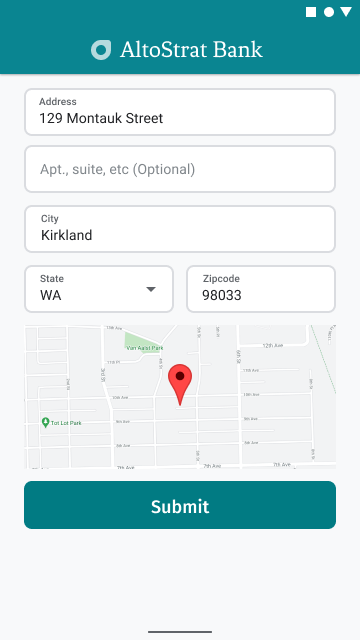
كجزء من عملية إدخال العنوان، قدِّم للمستخدمين تأكيدًا مرئيًا للعنوان على الخريطة. ويوفّر ذلك للمستخدمين تأكيدًا إضافيًا بأنّ العنوان صحيح.
يعرض الشكل التالي خريطة أسفل العنوان مع دبوس على العنوان الذي تم إدخاله.
يتبع المثال التالي الخطوات الأساسية لإضافة خريطة في Android. يُرجى الرجوع إلى المستندات للحصول على مزيد من التفاصيل.
- إضافة
SupportMapFragment(في هذه الحالة، إضافة جزء ديناميكيًا) - الحصول على معرّف للجزء وتسجيل وظيفة معاودة الاتصال
- تنسيق علامة وإضافتها إلى الخريطة
- إيقاف عناصر التحكّم في الخريطة
جارٍ إضافة SupportMapFragment
أولاً، أضِف جزء SupportMapFragment إلى
ملف XML للتصميم.
    <fragment
        android:name="com.google.android.gms.maps.SupportMapFragment"
        android:id="@+id/confirmation_map"
        android:layout_width="match_parent"
        android:layout_height="match_parent"/>
بعد ذلك، أضِف الجزء برمجيًا إذا لم يكن موجودًا بعد.
    private void showMap(Place place) {
        coordinates = place.getLocation();

        // It isn't possible to set a fragment's id programmatically so we set a tag instead and
        // search for it using that.
        mapFragment = (SupportMapFragment)
                getSupportFragmentManager().findFragmentByTag(MAP_FRAGMENT_TAG);

        // We only create a fragment if it doesn't already exist.
        if (mapFragment == null) {
            mapPanel = ((ViewStub) findViewById(R.id.stub_map)).inflate();
            GoogleMapOptions mapOptions = new GoogleMapOptions();
            mapOptions.mapToolbarEnabled(false);

            // To programmatically add the map, we first create a SupportMapFragment.
            mapFragment = SupportMapFragment.newInstance(mapOptions);

            // Then we add it using a FragmentTransaction.
            getSupportFragmentManager()
                    .beginTransaction()
                    .add(R.id.confirmation_map, mapFragment, MAP_FRAGMENT_TAG)
                    .commit();
            mapFragment.getMapAsync(this);
        } else {
            updateMap(coordinates);
        }
    }
الحصول على معرّف للجزء وتسجيل دالة الاستدعاء
للحصول على مؤشر إلى الجزء، استدعِ طريقة
FragmentManager.findFragmentByIdوأدخِل رقم تعريف المورد للجزء في ملف التنسيق. إذا أضفت الجزء ديناميكيًا، يمكنك تخطّي هذه الخطوة لأنّك استرددت المقبض من قبل.استدعِ الطريقة
getMapAsyncلضبط دالة الاستدعاء على الجزء.
على سبيل المثال، إذا أضفت الجزء بشكل ثابت:
Kotlin
val mapFragment = supportFragmentManager
    .findFragmentById(R.id.map) as SupportMapFragment
mapFragment.getMapAsync(this)
جافا
SupportMapFragment mapFragment = (SupportMapFragment) getSupportFragmentManager()
    .findFragmentById(R.id.map);
mapFragment.getMapAsync(this);
تنسيق علامة وإضافتها إلى الخريطة
عندما تصبح الخريطة جاهزة، اضبط النمط، واضبط الكاميرا في المنتصف، وأضِف علامة عند إحداثيات العنوان الذي تم إدخاله. يستخدم الرمز التالي التصميم المحدّد في عنصر JSON، أو يمكنك بدلاً من ذلك تحميل معرّف خريطة تم تحديده باستخدام تصميم الخرائط باستخدام السحابة الإلكترونية.
    @Override
    public void onMapReady(@NonNull GoogleMap googleMap) {
        map = googleMap;
        try {
            // Customise the styling of the base map using a JSON object defined
            // in a string resource.
            boolean success = map.setMapStyle(
                    MapStyleOptions.loadRawResourceStyle(this, R.raw.style_json));

            if (!success) {
                Log.e(TAG, "Style parsing failed.");
            }
        } catch (Resources.NotFoundException e) {
            Log.e(TAG, "Can't find style. Error: ", e);
        }
        map.moveCamera(CameraUpdateFactory.newLatLngZoom(coordinates, 15f));
        marker = map.addMarker(new MarkerOptions().position(coordinates));
    }
(الاطّلاع على عينة تعليمات برمجية كاملة)
إيقاف عناصر التحكّم في الخريطة
للحفاظ على بساطة الخريطة من خلال عرض الموقع الجغرافي بدون عناصر تحكّم إضافية في الخريطة (مثل البوصلة أو شريط الأدوات أو الميزات المضمّنة الأخرى)، ننصحك بإيقاف عناصر التحكّم التي لا تراها ضرورية. على أجهزة Android، يمكنك تفعيل الوضع البسيط لتوفير تفاعلية محدودة.