

مكوّن "تفاصيل المكان" المتقدّم
يوفّر الإصدار المتقدّم من مكوّن "تفاصيل المكان" الميزات نفسها التي يوفّرها Places Details Essentials. ويتيح لك أيضًا ضبط أزرار الإجراءات في المكوّن وتطبيق خيارات البحث والفلترة على المراجعات والوسائط المعروضة.
دعم مدمج لـ Jetpack Compose
توفّر حزمة أدوات "خرائط Google" الجاهزة للأماكن دوال @Composable في Jetpack Compose لكل من AdvancedPlaceDetailsCompact وAdvancedPlaceDetails. تستخدم هذه الدوال المركّبة الحالة المرفوعة، والدعم المضمّن للمعدِّلات، ولغات DSL الخاصة بالخانات في Compose. الاطّلاع على مثال
الرموز المميّزة للتطبيقات المستندة إلى الذكاء الاصطناعي الوكيل
يتيح الرمز المميّز للعرض المرئي للبيانات المستند إلى الوكلاء لتطبيقك المستند إلى الوكلاء عرض عناصر حزمة أدوات "خرائط Google" الجاهزة للأماكن في ردّ "أدوات تجربة الخرائط للوكلاء" (المعروفة سابقًا باسم Maps Grounding Lite) بدون أي تكلفة إضافية. لمزيد من المعلومات، يُرجى الاطّلاع على الرمز المميّز لعرض البيانات باستخدام الذكاء الاصطناعي الوكيل.
الإعدادات المتقدّمة لخدمة "تفاصيل المكان"
استخدِم الدالة البرمجية المركّبة AdvancedPlaceDetailsFragment أو AdvancedPlaceDetailsCompactFragment أو AdvancedPlaceDetails أو AdvancedPlaceDetailsCompact للوصول إلى الميزات المتقدّمة.
خيارات عرض المحتوى
يمكنك تحديد المحتوى الذي تريد عرضه باستخدام التعدادات في AdvancedPlaceDetailsFragment. يمكنك ضبط كل المحتوى نفسه مثل Places Details Essentials. إذا كنت تستخدم الدوالّ المركّبة، يمكنك أيضًا اختيار ما إذا كنت تريد عرض اسم المكان.
ضبط أزرار الإجراءات
استخدِم واجهة PlaceActionProvider في AdvancedPlaceDetailsFragment أو AdvancedPlaceDetailsCompactFragment لتحديد أزرار الإجراءات وتخصيصها.
إذا كنت تستخدم دوال @Composable، استخدِم دالتَي lambda mainActions وcornerActions لضبط أزرار الإجراءات.
متطلبات الإسناد المرئي

ملاحظة مهمة: يجب أن توضّح للمستخدمين النهائيين متى سيشارك زر الإجراء المخصّص معلومات المستخدم مع جهة خارجية غير Google. يُرجى الاطّلاع على متطلبات الإسناد المرئي.
يعرض المثال على اليسار صورة مخصّصة توضّح أنّه سيتم إرسال معلومات المستخدم إلى "Altostrat".
تطبيق خيارات البحث والفلترة
استخدِم الفئتَين SearchMediaOptions وSearchReviewsOptions من AdvancedPlaceDetailsFragment أو AdvancedPlaceDetailsCompactFragment لتفعيل البحث والفلترة للوسائط أو المراجعات.
إذا كنت تستخدم دوال @Composable، استخدِم com.google.android.libraries.places.compose.search.SearchMediaOptions لتفعيل البحث والفلترة للوسائط وcom.google.android.libraries.places.compose.search.SearchReviewsOptions لتفعيل البحث والفلترة للمراجعات.
إنشاء خانات محتوى مخصّصة
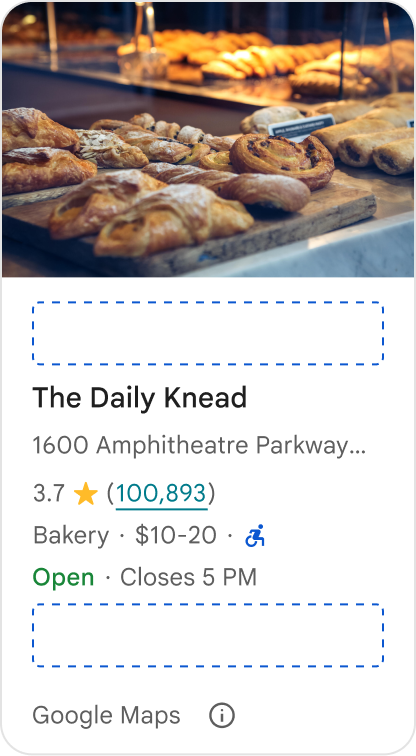
تتيح لك خانات المحتوى المخصّصة إضافة محتوى خاص بك (مثل الملخّصات من إنشاء الذكاء الاصطناعي أو الطوابع الزمنية لبرنامج الرحلة أو الشارات المخصّصة) مباشرةً إلى مناطق تنسيق محدّدة مسبقًا.
متطلبات تحديد المصدر واقتراحات المحتوى لخانة المحتوى
عند تثبيت خانة محتوى مخصّص، يتم تعديل بيان الإفصاح تلقائيًا لتوضيح المحتوى الذي تقدّمه Google والمحتوى الذي تقدّمه جهات خارجية.
الإجراءات المقترَحة
حافظ على تسلسل هرمي مرئي واضح بين تفاصيل المكان في Google والمحتوى المخصّص لمنع أي التباس بشأن مصدر المعلومات.
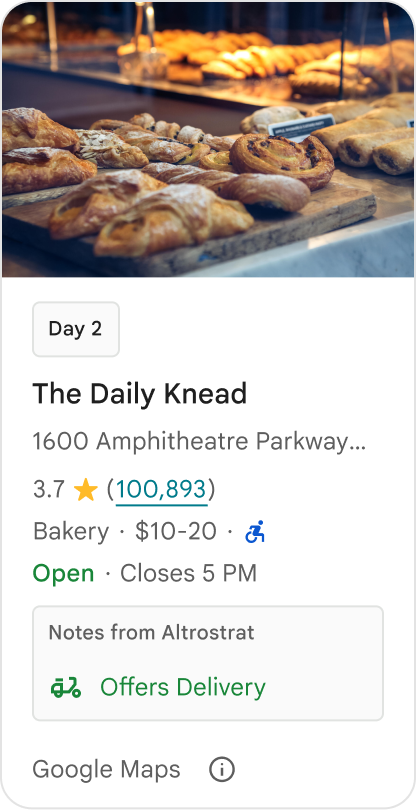
الإجراءات المقترَحة
ننصحك بتقديم إحصاءات محلية وقيّمة ومخصّصة لأهداف المستخدمين الفورية، مثل فترات الحجز في الوقت الفعلي أو مدى التوفّر الحالي، ما يساعدهم في اتّخاذ قرارات أسرع وأكثر دراية.
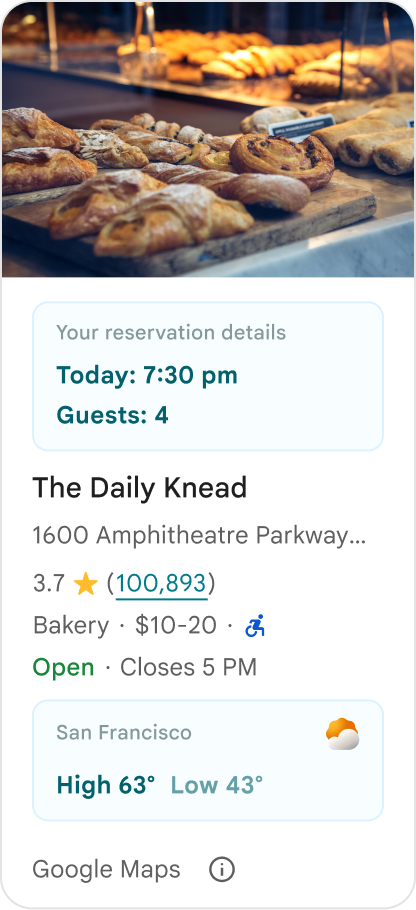
ما ننصحك بتجنّبه
لا تكرِّر تفاصيل الأماكن الحالية على Google، مثل التقييمات أو المراجعات أو ساعات العمل، حتى إذا أخفيت المحتوى الذي توفّره Google. فقد يؤدي ذلك إلى إرباك المستخدمين بشأن مصدر المحتوى وما إذا كان صادرًا عن Google أو جهة خارجية.
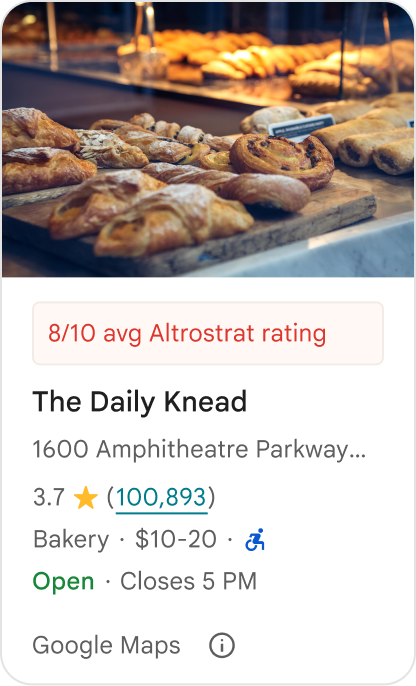
ما ننصحك بتجنّبه
لا تعرض ادّعاءات أو شارات غير منسوبة إلى مصدرها (على سبيل المثال، "أفضل اقتراح!") قد يُعتقد خطأً أنّها صادرة عن Google. يجب أن ينسب المحتوى المخصّص مصدره بشكل صريح.
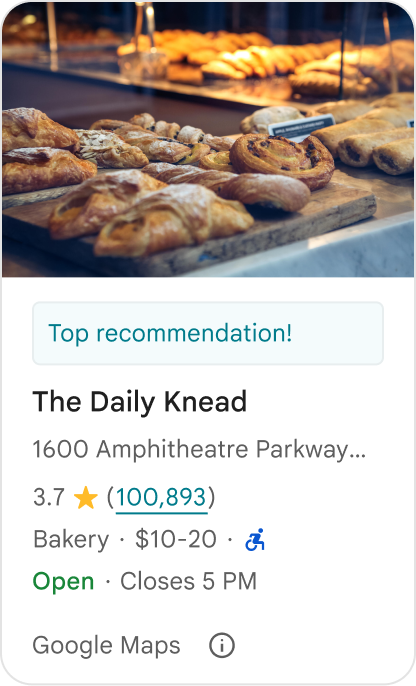
ما ننصحك بتجنّبه
لا تُدرِج إعلانات أو نصوصًا تسويقية أو خصومات ترويجية أو طلبات اشتراك ضمن حاويات الأماكن المخصّصة.
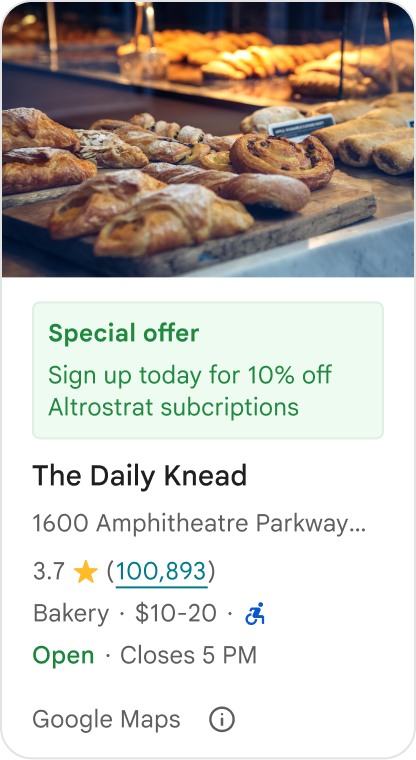
لإضافة محتوى مخصّص، استخدِم الدالة المركّبة AdvancedPlaceDetailsCompact. استخدِم basicSectionTop أو basicSectionBottom لتحديد موضع المحتوى.
أمثلة على تفاصيل الأماكن المتقدّمة
تخصيص أزرار الإجراءات
استخدِم واجهة PlaceActionProvider للتحكّم في الإجراءات المتاحة لكل مكان.
Kotlin
class PlaceDetailsWidgetTestActivity : BaseActivity() {

// simplified example of starting the fragment
fun setupPPDFragment() {
   fullWidgetSelectedContent = AdvancedPlaceDetailsFragment.ALL_CONTENT.toMutableList()
   AdvancedPlaceDetailsFragment.newInstance(fullWidgetSelectedContent, Orientation.VERTICAL)
   supportFragmentManager
      .beginTransaction()
      .replace(R.id.fragment_container, fragment!!)
      .commitNow()
}

// you can set the callback elsewhere, but this is the ideal callback spot
override fun onAttachFragment(fragment: Fragment) {
    super.onAttachFragment(fragment)
    when (fragment) {
      is PlaceActionController -> setPlaceActionProvider(fragment)
    }
}

// have this callback return an empty list to hide all buttons
// if this callback isn't set, default buttons appear
 private fun setPlaceActionProvider(fragment: PlaceActionController) {
    fragment.setPlaceActionProvider(
        object : PlaceActionProvider {
        override fun getMainPlaceActions(place: Place): List<PlaceAction> = buildList {
            // predefined actions can be mixed in with custom ones
            add(PlaceAction.OPEN_IN_MAPS)

            // example of button with both text label and icon
            add(
              PlaceAction.builder()
                .setLabelTextResId(R.string.custom_action)
                .setIconResId(R.drawable.gs_custom_action_icon)
                .setContentDescriptionResId(R.string.custom_action_description)
                .setOnClickListener { /* todo perform action */ }
                .build()
            )

            // icon only button
            add(
              PlaceAction.builder()
                .setIconResId(R.drawable.custom_action_icon_2)
                .setContentDescriptionResId(R.string.custom_action_description_2)
                .setOnClickListener { /* todo perform action */}
                .build()
            )

            // text label only button
            add(
              PlaceAction.builder()
                .setLabelTextResId(R.string.custom_action_3)
                .setContentDescriptionResId(R.string.custom_action_description_2)
                .setOnClickListener {/* todo perform action */ }
                .build()
            )
          }

         /**
         You can also specify whether corner buttons should appear.
         For either callback, returning an empty list results in no buttons appearing
         */
         override fun getCornerPlaceActions(place: Place): List<PlaceAction> {
           return emptyList()
         }

        override fun addPlaceActionsChangedListener(
          listener: PlaceActionProvider.OnChangedListener
        ) {
          // in this example, just one listener and widget
          this@HostAppActivity.listener = listener
        }

        override fun removePlaceActionsChangedListener(
          listener: PlaceActionProvider.OnChangedListener
        ) {
          // if there are multiple listeners, remove only the provided listener
          this@HostAppActivity.listener = null
        }
      })
  }
}
إضافة إجراءات مخصّصة ومحدّدة مسبقًا
يضيف هذا النموذج زر تبديل للمستخدم لإضافة مكان إلى المفضّلة أو إزالته منها.
Kotlin
private var listener: PlaceActionProvider.OnChangedListener? = null

private fun setPlaceActionProvider(fragment: PlaceActionController) {
    fragment.setPlaceActionProvider(
      object : PlaceActionProvider {
        private var placeFavorited = false

        override fun getMainPlaceActions(place: Place): List<PlaceAction> {
          val buttonList = mutableListOf<PlaceAction>()

          if (placeFavorited) {
            buttonList.add(
              PlaceAction.builder()
                .setLabelTextResId(R.string.place_details_button_config_favorite)
                .setIconResId(R.drawable.gs_web_vd_theme_24)
                .setOnClickListener {
                  placeFavorited = !placeFavorited
                  refreshButtonConfigs()
                }
                .build()
            )
          } else {
            buttonList.add(
              PlaceAction.builder()
                .setLabelTextResId(R.string.place_details_button_config_unfavorite)
                .setIconResId(R.drawable.gs_web_vd_theme_24)
                .setOnClickListener {
                  placeFavorited = !placeFavorited
                  refreshButtonConfigs()
                }
                .build()
            )
          }

          return buttonList
        }

        override fun addPlaceActionsChangedListener(
          listener: PlaceActionProvider.OnChangedListener
        ) {
          this@PlaceDetailsWidgetTestActivity.listener = listener
        }

        override fun removePlaceActionsChangedListener(
          listener: PlaceActionProvider.OnChangedListener
        ) {
          // if there are multiple listeners, remove only the provided listener
          this@PlaceDetailsWidgetTestActivity.listener = null
        }
      }
    )
  }

private fun refreshButtonConfigs() {
    listener?.onPlaceActionsChanged()
}
استخدام أزرار عادية محدَّدة مسبقًا
يمكنك إنشاء أزرار إجراءات تنفّذ إجراءات عادية محدّدة من Google.
Kotlin
  override fun getMainPlaceActions(place: Place): List<PlaceAction> {
    val buttonList = mutableListOf<PlaceAction>()
// these buttons will have different background and text color than user-created buttons.
    // Text and icon button
    buttonList.add(PlaceAction.OPEN_IN_MAPS)
    // Icon-only buttons not enabled for main action buttons
    // Use of kotlin extension to do the same.  see
    PlaceAction.OPEN_IN_MAPS {
       setIconResId(0)
     }

    return buttonList
  }
فلترة المراجعات والوسائط
يعرض نموذج الرمز هذا الوسائط والمراجعات التي تتضمّن "سباغيتي" و "لذيذ" فقط.
Kotlin
    import com.google.android.libraries.places.widget.AdvancedPlaceDetailsFragment
    import com.google.android.libraries.places.widget.model.SearchMediaOptions
    import com.google.android.libraries.places.widget.model.SearchReviewsOptions
    import com.google.android.libraries.places.widget.model.Orientation
    import com.google.android.libraries.places.R

     // 1. Create options using the Java builders (called from Kotlin)
    val mediaOptions = SearchMediaOptions.builder()
        .setQuery("spaghetti")
        .setRankPreference(SearchMediaOptions.RankPreference.MOST_RELEVANT)
        .build()

    val reviewOptions = SearchReviewsOptions.builder()
        .setQuery("tasty")
        .setRankPreference(SearchReviewsOptions.RankPreference.NEWEST)
        .build()

    // 2. Create the fragment
    val fragment = AdvancedPlaceDetailsFragment.newInstance(
        AdvancedPlaceDetailsFragment.STANDARD_CONTENT,
        Orientation.VERTICAL,
        R.style.PlacesMaterialTheme
    )

    // 3. Apply options to the fragment
    fragment.applySearchMediaOptions(mediaOptions)
    fragment.applySearchReviewsOptions(reviewOptions)
استخدام دالة مركّبة لتصميم عمودي
يوضّح عينة التعليمات البرمجية التالي كيفية استخدام الدالة المركّبة لتنسيق عمودي لبطاقة AdvancedPlaceDetailsCompact.
Kotlin
import android.util.Log
import androidx.compose.foundation.layout.fillMaxWidth
import androidx.compose.foundation.layout.padding
import androidx.compose.material3.MaterialTheme
import androidx.compose.material3.Text
import androidx.compose.runtime.Composable
import androidx.compose.ui.Modifier
import androidx.compose.ui.graphics.painter.Painter
import androidx.compose.ui.unit.dp
import com.google.android.libraries.places.api.model.Place
import com.google.android.libraries.places.compose.AdvancedPlaceDetailsCompact
import com.google.android.libraries.places.compose.PlaceReference
import com.google.android.libraries.places.compose.action.CornerAction
import com.google.android.libraries.places.compose.action.MainAction
import com.google.android.libraries.places.compose.Orientation

@Composable
fun SampleAdvancedPlaceDetailsCompactCard(
    placeId: String,
    bookmarkIcon: Painter,
    onSavePlaceClicked: (Place) -> Unit
) {
    AdvancedPlaceDetailsCompact(
        // defines the place to be displayed
        reference = PlaceReference.PlaceId(placeId),
        // defines the orientation
        orientation = Orientation.VERTICAL,
        // defines custom styling
        modifier = Modifier
            .fillMaxWidth()
            .padding(16.dp),
        preferTruncation = true,
        enableLightbox = true,
        mainActions = { place ->
            listOf(
                MainAction.OpenDirections(),
                MainAction.OpenWebsite(),
                MainAction.Call()
            )
        },
        // action button configuration
        cornerActions = { place ->
            listOf(
                CornerAction.Custom(
                    icon = bookmarkIcon,
                    text = "Save Place",
                    onClick = { onSavePlaceClicked(place) }
                )
            )
        },
        onPlaceLoaded = { place ->
            Log.d("Places", "Successfully loaded place: ${place.id}")
        },
        onPlaceLoadFailed = { exception ->
            Log.e("Places", "Failed to load place", exception)
        }
    )
}
يوضّح عينة التعليمات البرمجية التالي كيفية استخدام الدالة المركّبة لتنسيق عمودي لبطاقة AdvancedPlaceDetails.
Kotlin
import android.util.Log
import androidx.compose.foundation.layout.fillMaxWidth
import androidx.compose.foundation.layout.padding
import androidx.compose.material3.MaterialTheme
import androidx.compose.material3.Text
import androidx.compose.runtime.Composable
import androidx.compose.ui.Modifier
import androidx.compose.ui.graphics.painter.Painter
import androidx.compose.ui.unit.dp
import com.google.android.libraries.places.api.model.Place
import com.google.android.libraries.places.compose.AdvancedPlaceDetails
import com.google.android.libraries.places.compose.PlaceReference
import com.google.android.libraries.places.compose.action.CornerAction
import com.google.android.libraries.places.compose.action.MainAction
import com.google.android.libraries.places.compose.Orientation

@Composable
fun SampleAdvancedPlaceDetailsCard(
    placeId: String,
    bookmarkIcon: Painter,
    onSavePlaceClicked: (Place) -> Unit
) {
    AdvancedPlaceDetails(
        // defines the place to be displayed
        reference = PlaceReference.PlaceId(placeId),
        // defines the orientation
        orientation = Orientation.VERTICAL,
        // defines custom styling
        modifier = Modifier
            .fillMaxWidth()
            .padding(16.dp),
        mainActions = { place ->
            listOf(
                MainAction.OpenDirections(),
                MainAction.OpenWebsite(),
                MainAction.Call()
            )
        },
        // action button configuration
        cornerActions = { place ->
            listOf(
                CornerAction.Custom(
                    icon = bookmarkIcon,
                    text = "Save Place",
                    onClick = { onSavePlaceClicked(place) }
                )
            )
        },
        onPlaceLoaded = { place ->
            Log.d("Places", "Successfully loaded place: ${place.id}")
        },
        onPlaceLoadFailed = { exception ->
            Log.e("Places", "Failed to load place", exception)
        }
    )
}
إنشاء خانات المحتوى
Kotlin
import androidx.compose.material3.MaterialTheme
import androidx.compose.material3.Text
import androidx.compose.runtime.Composable
import com.google.android.libraries.places.compose.AdvancedPlaceDetailsCompact
import com.google.android.libraries.places.compose.PlaceReference

@Composable
fun ItineraryPlaceCard(placeId: String) {
    AdvancedPlaceDetailsCompact(
        reference = PlaceReference.PlaceId(placeId)
    ) {
        // Slot: Injected directly above the place name
        basicSectionTop {
            Text(
                text = "Day 2 • 2:30 PM",
                style = MaterialTheme.typography.labelSmall,
                color = MaterialTheme.colorScheme.primary
            )
        }

        // Slot: Injected directly below the main action buttons
        basicSectionBottom {
            NotesCard(
                notes = "Great quiet atmosphere for morning meetings. Famous for house-roasted pour-overs."
            )
        }
    }
}