

คอมโพเนนต์รายละเอียดสถานที่ขั้นสูง
คอมโพเนนต์รายละเอียดสถานที่เวอร์ชัน Advanced มีฟีเจอร์เดียวกันกับ รายละเอียดสถานที่เวอร์ชัน Essentials นอกจากนี้ยังช่วยให้คุณกำหนดค่าปุ่มการดำเนินการของคอมโพเนนต์ รวมถึงใช้ตัวเลือกการค้นหาและการกรองกับรีวิวและสื่อที่แสดงได้ด้วย
การรองรับ Jetpack Compose ในตัว
Places UI Kit มี ฟังก์ชัน @Composable ของ Jetpack Compose สำหรับ AdvancedPlaceDetailsCompact คอมโพสเซเบิลเหล่านี้ใช้สถานะที่ยกขึ้น การรองรับตัวปรับแต่งในตัว และ DSL ของช่อง Compose-Native
ตัวอย่างโค้ดต่อไปนี้แสดงวิธีใช้ฟังก์ชันที่ประกอบกันได้สำหรับเลย์เอาต์แนวตั้ง
Kotlin
import android.util.Log
import androidx.compose.foundation.layout.fillMaxWidth
import androidx.compose.foundation.layout.padding
import androidx.compose.material3.MaterialTheme
import androidx.compose.material3.Text
import androidx.compose.runtime.Composable
import androidx.compose.ui.Modifier
import androidx.compose.ui.graphics.painter.Painter
import androidx.compose.ui.unit.dp
import com.google.android.libraries.places.api.model.Place
import com.google.android.libraries.places.compose.AdvancedPlaceDetailsCompact
import com.google.android.libraries.places.compose.PlaceReference
import com.google.android.libraries.places.compose.action.CornerAction
import com.google.android.libraries.places.compose.action.MainAction
import com.google.android.libraries.places.compose.Orientation

@Composable
fun SampleAdvancedPlaceDetailsCompactCard(
    placeId: String,
    bookmarkIcon: Painter,
    onSavePlaceClicked: (Place) -> Unit
) {
    AdvancedPlaceDetailsCompact(
        // defines the place to be displayed
        reference = PlaceReference.PlaceId(placeId),
        // defines the orientation
        orientation = Orientation.VERTICAL,
        // defines custom styling
        modifier = Modifier
            .fillMaxWidth()
            .padding(16.dp),
        preferTruncation = true,
        enableLightbox = true,
        mainActions = { place ->
            listOf(
                MainAction.OpenDirections(),
                MainAction.OpenWebsite(),
                MainAction.Call()
            )
        },
        // action button configuration
        cornerActions = { place ->
            listOf(
                CornerAction.Custom(
                    icon = bookmarkIcon,
                    text = "Save Place",
                    onClick = { onSavePlaceClicked(place) }
                )
            )
        },
        onPlaceLoaded = { place ->
            Log.d("Places", "Successfully loaded place: ${place.id}")
        },
        onPlaceLoadFailed = { exception ->
            Log.e("Places", "Failed to load place", exception)
        }
    ) {
        // --- Slot: Injected directly above the place name ---
        basicSectionTop {
            Text(
                text = "Featured in 'Top 10 Coffee Shops in SF'",
                style = MaterialTheme.typography.labelSmall,
                color = MaterialTheme.colorScheme.secondary,
                modifier = Modifier.padding(top = 4.dp, bottom = 2.dp)
            )
        }

        // --- Slot: Injected directly below the action buttons ---
        basicSectionBottom {
            Text(
                text = "Notes: Great quiet atmosphere for meetings.",
                style = MaterialTheme.typography.bodySmall,
                color = MaterialTheme.colorScheme.onSurfaceVariant
            )
        }
    }
}
การกำหนดค่ารายละเอียดสถานที่ขั้นสูง
ใช้ AdvancedPlaceDetailsFragment หรือ AdvancedPlaceDetailsCompactFragment เพื่อเข้าถึงฟีเจอร์ขั้นสูง
กำหนดค่าปุ่มการดำเนินการ
ใช้อินเทอร์เฟซ PlaceActionProvider ของ AdvancedPlaceDetailsFragment หรือ AdvancedPlaceDetailsCompactFragment เพื่อกำหนดและปรับแต่งปุ่มการดำเนินการ
หากใช้ฟังก์ชัน @composable ให้ใช้แลมบ์ดา mainActions และ cornerActions เพื่อกำหนดค่าปุ่มการดำเนินการ
ข้อกำหนดในการระบุแหล่งที่มาด้วยภาพ
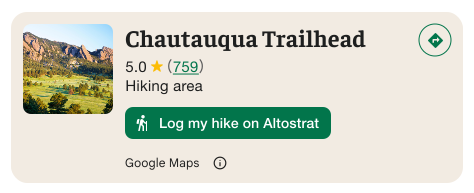
สำคัญ: คุณต้องแจ้งให้ผู้ใช้ปลายทางทราบอย่างชัดเจนเมื่อปุ่มการดำเนินการที่กำหนดเองจะแชร์ข้อมูลผู้ใช้กับบุคคลที่สามที่ไม่ใช่ Google ดูข้อกำหนดการระบุแหล่งที่มาด้วยภาพ
ตัวอย่างทางด้านขวาแสดงรูปภาพที่กำหนดเองซึ่งระบุอย่างชัดเจนว่าจะมีการส่งข้อมูลผู้ใช้ไปยัง "Altostrat"
ใช้ตัวเลือกการค้นหาและการกรอง
ใช้คลาส SearchMediaOptions และ SearchReviewsOptions ของ AdvancedPlaceDetailsFragment หรือ AdvancedPlaceDetailsCompactFragment เพื่อเปิดใช้การค้นหาและการกรองสื่อหรือรีวิว
หากใช้ฟังก์ชัน @composable ให้ใช้ com.google.android.libraries.places.compose.search.SearchMediaOptions เพื่อเปิดใช้การค้นหาและการกรองสื่อหรือรีวิว
สร้างช่องเนื้อหาที่กำหนดเอง

ช่องเนื้อหาที่กำหนดเองช่วยให้คุณเพิ่มเนื้อหาของคุณเอง (เช่น สรุปที่สร้างโดย AI, การประทับเวลาของกำหนดการเดินทาง หรือป้ายที่กำหนดเอง) ลงในโซนเลย์เอาต์ที่กำหนดไว้ล่วงหน้าได้โดยตรง
ข้อกำหนดในการระบุแหล่งที่มาและคำแนะนำเนื้อหาสำหรับช่องเนื้อหา
เมื่อมีการติดตั้งช่องเนื้อหาที่กำหนดเอง การเปิดเผยข้อมูลจะอัปเดตโดยอัตโนมัติเพื่อชี้แจงว่าเนื้อหาใดที่ Google เป็นผู้จัดหา และเนื้อหาบางส่วนมาจากบุคคลที่สาม
สิ่งที่ควรทำ
รักษาลำดับชั้นของภาพที่ชัดเจนระหว่างรายละเอียดสถานที่ของ Google กับเนื้อหาที่กำหนดเอง เพื่อป้องกันไม่ให้เกิดความคลุมเครือเกี่ยวกับแหล่งที่มาของข้อมูล

สิ่งที่ควรทำ
พิจารณาข้อมูลเชิงลึกที่มีคุณค่าสูงและปรับให้เหมาะกับเป้าหมายเร่งด่วนของผู้ใช้ เนื้อหาที่ปรับให้เหมาะกับผู้ใช้ เช่น หน้าต่างการจองแบบเรียลไทม์หรือความพร้อมให้บริการในปัจจุบัน จะช่วยให้ผู้ใช้ตัดสินใจได้เร็วขึ้นและมีข้อมูลมากขึ้น
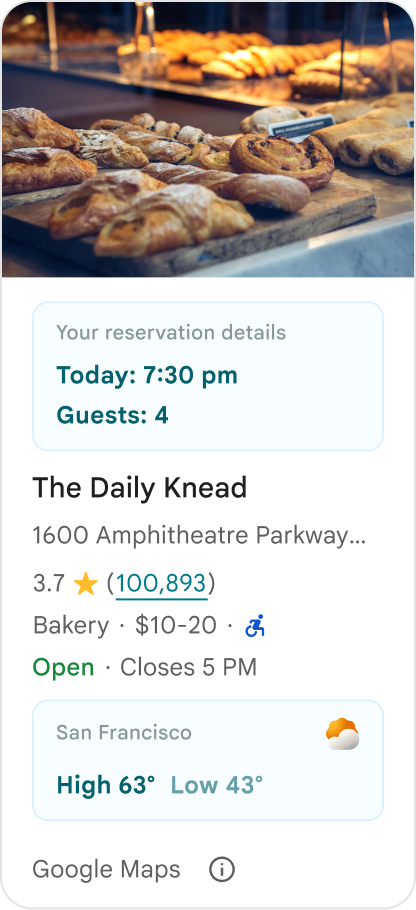
สิ่งที่ไม่ควรทำ
อย่าทำซ้ำรายละเอียดสถานที่ของ Google ที่มีอยู่ เช่น การให้คะแนน รีวิว หรือเวลาทำการ แม้ว่าคุณจะซ่อนเนื้อหาที่ Google จัดหาให้แล้วก็ตาม การทำเช่นนี้อาจทำให้ผู้ใช้สับสนเกี่ยวกับแหล่งที่มาของเนื้อหาและไม่แน่ใจว่าเนื้อหามาจาก Google หรือบุคคลที่สาม

สิ่งที่ไม่ควรทำ
อย่าแสดงคำกล่าวอ้างหรือป้ายที่ไม่ได้ระบุแหล่งที่มา (เช่น "คำแนะนำยอดนิยม!") ซึ่งอาจทำให้เข้าใจผิดว่าเป็นคำรับรองอย่างเป็นทางการจาก Google เนื้อหาที่กำหนดเองต้องระบุแหล่งที่มาอย่างชัดเจน

สิ่งที่ไม่ควรทำ
อย่าใส่โฆษณา ข้อความทางการตลาด ส่วนลดโปรโมชัน หรือข้อความแจ้งการสมัครใช้บริการลงในคอนเทนเนอร์สถานที่ที่กำหนดเอง
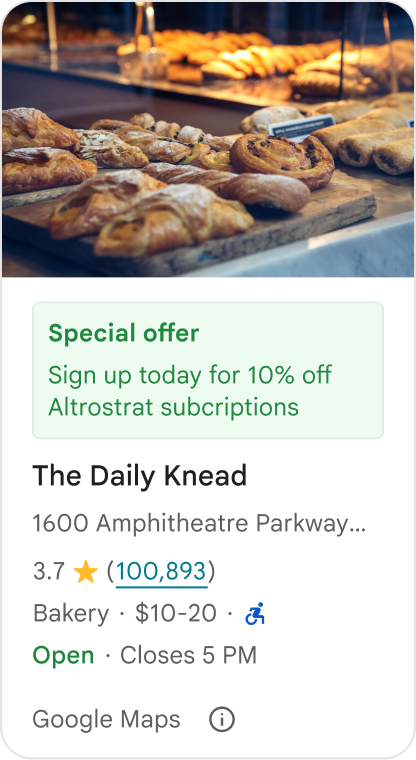
หากต้องการเพิ่มเนื้อหาที่กำหนดเอง ให้ใช้คอมโพสเซเบิล AdvancedPlaceDetailsCompact ใช้ basicSectionTop หรือ basicSectionBottom เพื่อระบุตำแหน่งของเนื้อหา
ตัวอย่างรายละเอียดสถานที่ขั้นสูง
ปรับแต่งปุ่มการดำเนินการ
ใช้อินเทอร์เฟซ PlaceActionProvider เพื่อควบคุมการดำเนินการที่พร้อมใช้งานสำหรับแต่ละสถานที่
Kotlin
class PlaceDetailsWidgetTestActivity : BaseActivity() {

// simplified example of starting the fragment
fun setupPPDFragment() {
   fullWidgetSelectedContent = AdvancedPlaceDetailsFragment.ALL_CONTENT.toMutableList()
   AdvancedPlaceDetailsFragment.newInstance(fullWidgetSelectedContent, Orientation.VERTICAL)
   supportFragmentManager
      .beginTransaction()
      .replace(R.id.fragment_container, fragment!!)
      .commitNow()
}

// you can set the callback elsewhere, but this is the ideal callback spot
override fun onAttachFragment(fragment: Fragment) {
    super.onAttachFragment(fragment)
    when (fragment) {
      is PlaceActionController -> setPlaceActionProvider(fragment)
    }
}

// have this callback return an empty list to hide all buttons
// if this callback isn't set, default buttons appear
 private fun setPlaceActionProvider(fragment: PlaceActionController) {
    fragment.setPlaceActionProvider(
        object : PlaceActionProvider {
        override fun getMainPlaceActions(place: Place): List<PlaceAction> = buildList {
            // predefined actions can be mixed in with custom ones
            add(PlaceAction.OPEN_IN_MAPS)

            // example of button with both text label and icon
            add(
              PlaceAction.builder()
                .setLabelTextResId(R.string.custom_action)
                .setIconResId(R.drawable.gs_custom_action_icon)
                .setContentDescriptionResId(R.string.custom_action_description)
                .setOnClickListener { /* todo perform action */ }
                .build()
            )

            // icon only button
            add(
              PlaceAction.builder()
                .setIconResId(R.drawable.custom_action_icon_2)
                .setContentDescriptionResId(R.string.custom_action_description_2)
                .setOnClickListener { /* todo perform action */}
                .build()
            )

            // text label only button
            add(
              PlaceAction.builder()
                .setLabelTextResId(R.string.custom_action_3)
                .setContentDescriptionResId(R.string.custom_action_description_2)
                .setOnClickListener {/* todo perform action */ }
                .build()
            )
          }

         /**
         You can also specify whether corner buttons should appear.
         For either callback, returning an empty list results in no buttons appearing
         */
         override fun getCornerPlaceActions(place: Place): List<PlaceAction> {
           return emptyList()
         }

        override fun addPlaceActionsChangedListener(
          listener: PlaceActionProvider.OnChangedListener
        ) {
          // in this example, just one listener and widget
          this@HostAppActivity.listener = listener
        }

        override fun removePlaceActionsChangedListener(
          listener: PlaceActionProvider.OnChangedListener
        ) {
          // if there are multiple listeners, remove only the provided listener
          this@HostAppActivity.listener = null
        }
      })
  }
}
เพิ่มการดำเนินการที่กำหนดเองและการดำเนินการที่กำหนดไว้ล่วงหน้า
ตัวอย่างนี้จะเพิ่มปุ่มสลับเพื่อให้ผู้ใช้เพิ่มหรือนำสถานที่ออกจากรายการโปรดได้
Kotlin
private var listener: PlaceActionProvider.OnChangedListener? = null

private fun setPlaceActionProvider(fragment: PlaceActionController) {
    fragment.setPlaceActionProvider(
      object : PlaceActionProvider {
        private var placeFavorited = false

        override fun getMainPlaceActions(place: Place): List<PlaceAction> {
          val buttonList = mutableListOf<PlaceAction>()

          if (placeFavorited) {
            buttonList.add(
              PlaceAction.builder()
                .setLabelTextResId(R.string.place_details_button_config_favorite)
                .setIconResId(R.drawable.gs_web_vd_theme_24)
                .setOnClickListener {
                  placeFavorited = !placeFavorited
                  refreshButtonConfigs()
                }
                .build()
            )
          } else {
            buttonList.add(
              PlaceAction.builder()
                .setLabelTextResId(R.string.place_details_button_config_unfavorite)
                .setIconResId(R.drawable.gs_web_vd_theme_24)
                .setOnClickListener {
                  placeFavorited = !placeFavorited
                  refreshButtonConfigs()
                }
                .build()
            )
          }

          return buttonList
        }

        override fun addPlaceActionsChangedListener(
          listener: PlaceActionProvider.OnChangedListener
        ) {
          this@PlaceDetailsWidgetTestActivity.listener = listener
        }

        override fun removePlaceActionsChangedListener(
          listener: PlaceActionProvider.OnChangedListener
        ) {
          // if there are multiple listeners, remove only the provided listener
          this@PlaceDetailsWidgetTestActivity.listener = null
        }
      }
    )
  }

private fun refreshButtonConfigs() {
    listener?.onPlaceActionsChanged()
}
ใช้ปุ่มมาตรฐานที่กำหนดไว้ล่วงหน้า
สร้างปุ่มดำเนินการที่ดำเนินการมาตรฐานที่ Google กำหนด
Kotlin
  override fun getMainPlaceActions(place: Place): List<PlaceAction> {
    val buttonList = mutableListOf<PlaceAction>()
// these buttons will have different background and text color than user-created buttons.
    // Text and icon button
    buttonList.add(PlaceAction.OPEN_IN_MAPS)
    // Icon-only buttons not enabled for main action buttons
    // Use of kotlin extension to do the same.  see
    PlaceAction.OPEN_IN_MAPS {
       setIconResId(0)
     }

    return buttonList
  }
กรองรีวิวและสื่อ
ตัวอย่างโค้ดนี้จะแสดงเฉพาะสื่อและรีวิวที่พูดถึง "สปาเก็ตตี้" และ "อร่อย"
Kotlin
    import com.google.android.libraries.places.widget.AdvancedPlaceDetailsFragment
    import com.google.android.libraries.places.widget.model.SearchMediaOptions
    import com.google.android.libraries.places.widget.model.SearchReviewsOptions
    import com.google.android.libraries.places.widget.model.Orientation
    import com.google.android.libraries.places.R

     // 1. Create options using the Java builders (called from Kotlin)
    val mediaOptions = SearchMediaOptions.builder()
        .setQuery("spaghetti")
        .setRankPreference(SearchMediaOptions.RankPreference.MOST_RELEVANT)
        .build()

    val reviewOptions = SearchReviewsOptions.builder()
        .setQuery("tasty")
        .setRankPreference(SearchReviewsOptions.RankPreference.NEWEST)
        .build()

    // 2. Create the fragment
    val fragment = AdvancedPlaceDetailsFragment.newInstance(
        AdvancedPlaceDetailsFragment.STANDARD_CONTENT,
        Orientation.VERTICAL,
        R.style.PlacesMaterialTheme
    )

    // 3. Apply options to the fragment
    fragment.applySearchMediaOptions(mediaOptions)
    fragment.applySearchReviewsOptions(reviewOptions)
สร้างช่องเนื้อหา
Kotlin
import androidx.compose.material3.MaterialTheme
import androidx.compose.material3.Text
import androidx.compose.runtime.Composable
import com.google.android.libraries.places.compose.AdvancedPlaceDetailsCompact
import com.google.android.libraries.places.compose.PlaceReference

@Composable
fun ItineraryPlaceCard(placeId: String) {
    AdvancedPlaceDetailsCompact(
        reference = PlaceReference.PlaceId(placeId)
    ) {
        // Slot: Injected directly above the place name
        basicSectionTop {
            Text(
                text = "Day 2 • 2:30 PM",
                style = MaterialTheme.typography.labelSmall,
                color = MaterialTheme.colorScheme.primary
            )
        }

        // Slot: Injected directly below the main action buttons
        basicSectionBottom {
            NotesCard(
                notes = "Great quiet atmosphere for morning meetings. Famous for house-roasted pour-overs."
            )
        }
    }
}