
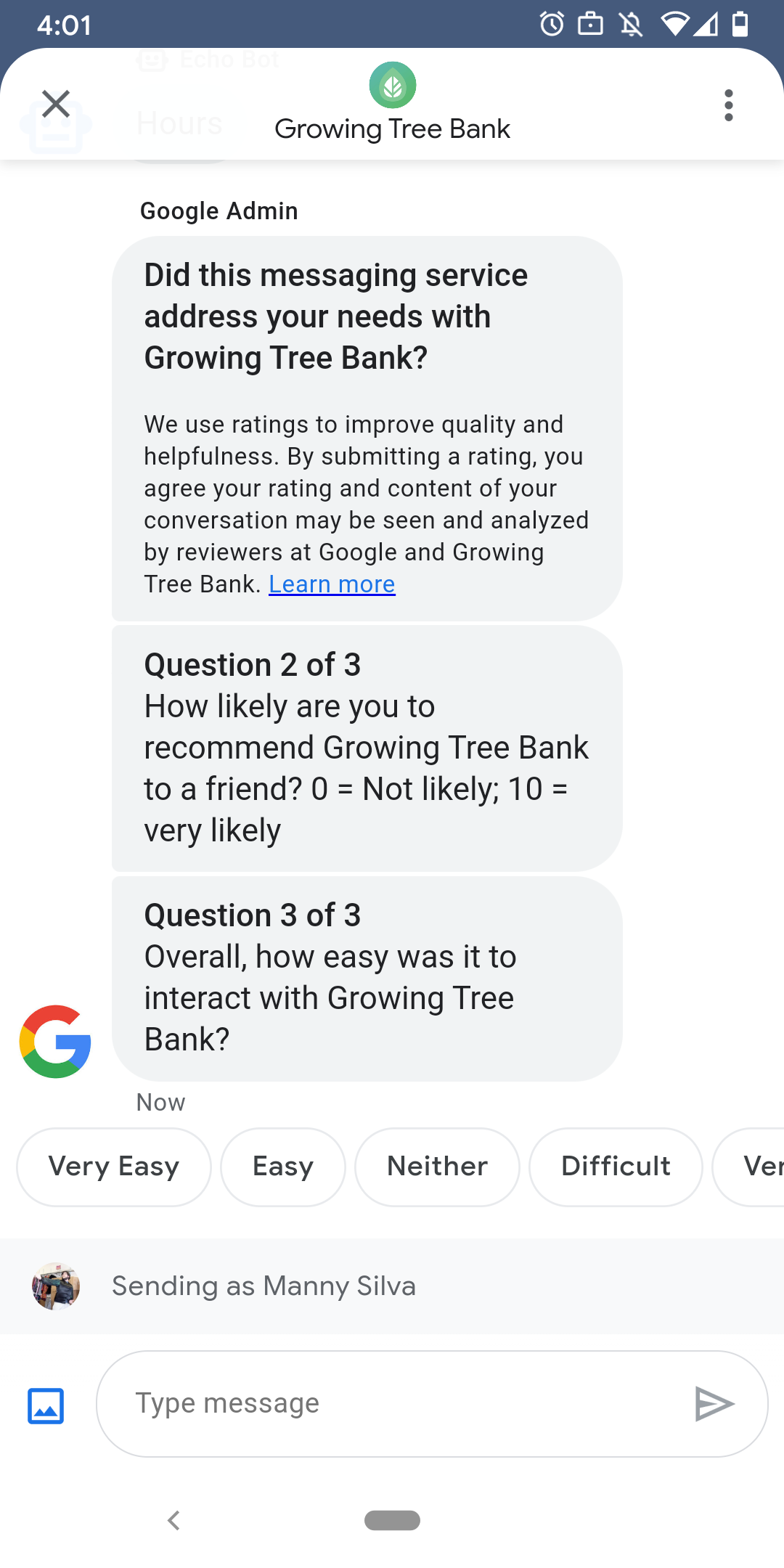
Чтобы пользователи получали удовольствие от общения с вашим агентом, Google отправляет им опросы после завершения разговора. Если вы хотите собирать данные в другое время, например, в конце разговора, вы можете отправлять опросы в контексте беседы. Опросы отображаются в диалоге и позволяют пользователям оставлять отзывы, предлагая различные варианты в зависимости от вопроса.
Время запуска опросов, инициируемых Google, зависит от доступности оператора для обмена сообщениями :
| Доступность | сроки проведения опроса |
|---|---|
| Только для бота | 30 минут после последнего сообщения |
| Только человек | через 24 рабочих часа после последнего сообщения |
| Бот и человек | через 24 рабочих часа после последнего сообщения |
Если в течение следующих 7 дней останется менее 24 рабочих часов, мы используем 24 часа.
You can send one survey per conversation every 24 hours. If you send a survey in a conversation before Google, Google doesn't send a survey to that conversation. If your agent sends multiple surveys in the same conversation within 24 hours, Business Messages only attempts to send the first survey to the user.
The next time a user begins a conversation with your agent after completing a survey, the agent displays a greeting . If a user doesn't respond to a survey, the survey expires after 7 days, and the user sees a greeting in their next conversation after the survey expiration.
Если пользователь отправляет сообщение, не связанное с опросом, во время активного опроса в беседе, Business Messages отменяет опрос и отправляет сообщение пользователя на веб-хук агента.
Если вы не отправляете опросы пользователям, ваш агент все равно получает результаты опросов Google через ваш веб-хук и должен принять и обработать их соответствующим образом.
Вопросы
Surveys can include up to five questions, split into three categories: required , template , and custom . A survey always includes the required question, then displays up to two template questions, and then displays up to two custom questions.
Обязательный вопрос
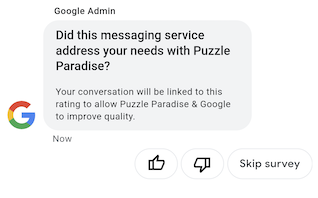
Обязательный вопрос локализован для всех языковых версий, поддерживаемых Business Messages. Пользователи могут ответить, поставив лайк или дизлайк.
The required question: "Did this messaging service address your needs with AGENT_NAME ?"
Шаблонные вопросы
Template questions are optional, Google-defined questions that are localized across all locales that Business Messages supports. A survey can include up to two template questions. User response formats vary by question.
В число типовых вопросов входят
- Как вам понравилось общаться AGENT_NAME ?
- Насколько вероятно, что вы порекомендуете AGENT_NAME своему другу?
- Насколько вероятно, что в следующий раз, когда вы свяжетесь AGENT_NAME , вы выберете вариант общения через мессенджер?
- В целом, насколько легко было взаимодействовать с AGENT_NAME ?
- В какой степени вы согласны или не согласны со следующим утверждением: AGENT_NAME помог мне легко решить мою проблему»?
- Пожалуйста, оцените вашу общую удовлетворенность работой сотрудника службы поддержки.
- Помогла ли вам эта переписка избежать звонка AGENT_NAME ?
Чтобы просмотреть список всех доступных шаблонных вопросов и получить идентификаторы шаблонов,
- Откройте консоль разработчика Business Communications и войдите в систему, используя свою учетную запись Google Business Messages.
- Выберите своего агента.
- В левой панели навигации нажмите «Опрос» .
Вопросы на заказ
Опрос может включать до двух пользовательских вопросов. Если вы указываете пользовательский вопрос, укажите версии вопроса для каждого языкового стандарта , который поддерживает ваш агент. Необходимо указать версию каждого вопроса для вашего языкового стандарта по умолчанию. Если пользователь получает опрос, но находится в языковом стандарте, для которого не указана версия пользовательского вопроса, вопрос отображается так, как он определен в языковом стандарте агента по умолчанию.
Ответы на пользовательские вопросы поддерживают отдельные текстовые данные и данные обратной связи, аналогично предлагаемым ответам .
Настроить опрос
Чтобы настроить опрос под конкретного агента,
- Откройте консоль разработчика Business Communications и войдите в систему, используя свою учетную запись Google Business Messages.
- Выберите своего агента.
- В левой панели навигации нажмите «Опрос» .
- Добавьте в опрос до двух доступных шаблонных вопросов.
- Нажмите «Создать собственный вопрос» , чтобы добавить в опрос пользовательские вопросы.
Информацию о форматировании и параметрах значений см. surveyConfig .
Отправить опрос
To send a survey, run the following command. Replace CONVERSATION_ID with the identifier of the conversation you want to send the survey to and SURVEY_ID with a unique identifier for the survey.
cURL
# Copyright 2021 Google LLC # # Licensed under the Apache License, Version 2.0 (the "License"); # you may not use this file except in compliance with the License. # You may obtain a copy of the License at # https://www.apache.org/licenses/LICENSE-2.0 # Unless required by applicable law or agreed to in writing, software # distributed under the License is distributed on an "AS IS" BASIS, # WITHOUT WARRANTIES OR CONDITIONS OF ANY KIND, either express or implied. # See the License for the specific language governing permissions and # limitations under the License. # This code sends a survey to the user: # Read more: https://developers.google.com/business-communications/business-messages/guides/how-to/message/surveys?hl=en # Replace the __CONVERSATION_ID__ with a conversation id that you can send messages to # Make sure a service account key file exists at ./service_account_key.json curl -X POST "https://businessmessages.googleapis.com/v1/conversations/__CONVERSATION_ID__/surveys?surveyId=f4bd7576-6c2e-4674-9db4-d697166f63ce" \ -H "Content-Type: application/json" \ -H "User-Agent: curl/business-messages" \ -H "$(oauth2l header --json ./service_account_key.json businessmessages)"
Node.js
/** * This code sends a survey to the user: * Read more: https://developers.google.com/business-communications/business-messages/guides/how-to/message/surveys?hl=en * * This code is based on the https://github.com/google-business-communications/nodejs-businessmessages Node.js * Business Messages client library. */ /** * Edit the values below: */ const PATH_TO_SERVICE_ACCOUNT_KEY = './service_account_key.json'; const CONVERSATION_ID = 'EDIT_HERE'; const businessmessages = require('businessmessages'); const uuidv4 = require('uuid').v4; const {google} = require('googleapis'); // Initialize the Business Messages API const bmApi = new businessmessages.businessmessages_v1.Businessmessages({}); // Set the scope that we need for the Business Messages API const scopes = [ 'https://www.googleapis.com/auth/businessmessages', ]; // Set the private key to the service account file const privatekey = require(PATH_TO_SERVICE_ACCOUNT_KEY); /** * Posts a survey to the Business Messages API. * * @param {string} conversationId The unique id for this user and agent. */ async function sendSurvey(conversationId) { const authClient = await initCredentials(); // Create the payload for creating a new survey const apiParams = { auth: authClient, parent: 'conversations/' + conversationId, surveyId: uuidv4(), resource: {} }; // Call the message create function using the // Business Messages client library bmApi.conversations.surveys.create(apiParams, {auth: authClient}, (err, response) => { console.log(err); console.log(response); }); } /** * Initializes the Google credentials for calling the * Business Messages API. */ async function initCredentials() { // configure a JWT auth client const authClient = new google.auth.JWT( privatekey.client_email, null, privatekey.private_key, scopes, ); return new Promise(function(resolve, reject) { // authenticate request authClient.authorize(function(err, tokens) { if (err) { reject(false); } else { resolve(authClient); } }); }); } sendSurvey(CONVERSATION_ID);
Java
import com.google.api.client.googleapis.services.AbstractGoogleClientRequest; import com.google.api.client.http.HttpBackOffUnsuccessfulResponseHandler; import com.google.api.client.http.HttpRequest; import com.google.api.client.googleapis.auth.oauth2.GoogleCredential; import com.google.api.client.googleapis.javanet.GoogleNetHttpTransport; import com.google.api.client.http.HttpTransport; import com.google.api.client.json.jackson2.JacksonFactory; import com.google.api.client.util.ExponentialBackOff; import com.google.api.services.businessmessages.v1.Businessmessages; import com.google.api.services.businessmessages.v1.model.*; import java.io.FileInputStream; import java.util.Arrays; import java.util.UUID; class SendSurveySnippet { /** * Initializes credentials used by the Business Messages API. */ private static Businessmessages.Builder getBusinessMessagesBuilder() { Businessmessages.Builder builder = null; try { GoogleCredential credential = GoogleCredential .fromStream(new FileInputStream("PATH_TO_SERVICE_ACCOUNT_KEY")); credential = credential.createScoped(Arrays.asList( "https://www.googleapis.com/auth/businessmessages")); credential.refreshToken(); HttpTransport httpTransport = GoogleNetHttpTransport.newTrustedTransport(); JacksonFactory jsonFactory = JacksonFactory.getDefaultInstance(); // Create instance of the Business Messages API builder = new Businessmessages .Builder(httpTransport, jsonFactory, null) .setApplicationName("Sample Application"); // Set the API credentials and endpoint builder.setHttpRequestInitializer(credential); } catch (Exception e) { e.printStackTrace(); } return builder; } public static void main(String args[]) { try { String conversationId = "CONVERSATION_ID"; // Create client library reference Businessmessages.Builder builder = getBusinessMessagesBuilder(); // Create a new survey to send to the user associated with the conversationId Businessmessages.Conversations.Surveys.Create request = bmBuilder.build().conversations().surveys() .create("conversations/" + conversationId, new BusinessMessagesSurvey()); request.setSurveyId(UUID.randomUUID().toString()); // Setup retries with exponential backoff HttpRequest httpRequest = ((AbstractGoogleClientRequest) request).buildHttpRequest(); httpRequest.setUnsuccessfulResponseHandler(new HttpBackOffUnsuccessfulResponseHandler( new ExponentialBackOff())); // Execute request httpRequest.execute(); } catch (Exception e) { e.printStackTrace(); } } }
Python
"""This code sends a survey to the user. Read more: https://developers.google.com/business-communications/business-messages/guides/how-to/message/surveys?hl=en This code is based on the https://github.com/google-business-communications/python-businessmessages Python Business Messages client library. """ import uuid from businessmessages import businessmessages_v1_client as bm_client from businessmessages.businessmessages_v1_messages import BusinessmessagesConversationsSurveysCreateRequest from businessmessages.businessmessages_v1_messages import BusinessMessagesSurvey from oauth2client.service_account import ServiceAccountCredentials # Edit the values below: path_to_service_account_key = './service_account_key.json' conversation_id = 'EDIT_HERE' credentials = ServiceAccountCredentials.from_json_keyfile_name( path_to_service_account_key, scopes=['https://www.googleapis.com/auth/businessmessages']) client = bm_client.BusinessmessagesV1(credentials=credentials) # Create the survey request survey_request = BusinessmessagesConversationsSurveysCreateRequest( surveyId=str(uuid.uuid4().int), parent='conversations/' + conversation_id, businessMessagesSurvey=BusinessMessagesSurvey()) # Send the survey bm_client.BusinessmessagesV1.ConversationsSurveysService( client=client).Create(request=survey_request)
Информацию о форматировании и параметрах значений см. в разделе conversations.surveys .
Получите ответы на опрос.
Когда пользователь отвечает на вопрос в опросе, ваш агент получает ответ через свой веб-перехватчик. Получайте и обрабатывайте ответы на опросы так же, как и сообщения .
All questions in a survey have the same surveyResponse.survey value. If your survey includes multiple questions, make sure your infrastructure accepts multiple responses with the same surveyResponse.survey value and identifies individual questions by the surveyResponse.surveyQuestionId field.
Текстовые значения для ответов на опрос отображаются в surveyResponse.questionResponseText . Для обязательных и шаблонных вопросов Business Messages возвращает ответ «палец вверх» как VERY_SATISFIED и ответ «палец вниз» как VERY_DISSATISFIED . Если пользовательский ответ на вопрос содержит эмодзи, рекомендуется использовать surveyResponse.questionResponsePostbackData , а не пытаться анализировать значение Unicode.
Ответы на опрос имеют следующий формат.
{
  "agent": "brands/BRAND_ID/agents/AGENT_ID",
  "sendTime": "SEND_TIME",
  "conversationId": "CONVERSATION_ID",
  "requestId": "REQUEST_ID",
  "surveyResponse": {
    "survey": "conversations/CONVERSATION_ID/surveys/SURVEY_ID",
    "rating": "SURVEY_RATING",
    "createTime": "CREATE_TIME",
    "surveyQuestionId": "QUESTION_ID",
    "questionResponseText": "RESPONSE_TEXT",
    "questionResponsePostbackData": "RESPONSE_POSTBACK_DATA",
    "questionType": "QUESTION_TYPE",
    "questionIndex": QUESTION_INDEX,
    "totalQuestionCount": TOTAL_QUESTION_COUNT,
    "surveyTriggerSource": "TRIGGER_SOURCE"
  }
}
Информацию о форматировании и параметрах значений см. в UserMessage и SurveyResponse .