

نوع پیوند OAuth و Google Sign-In، Google Sign-In را به پیوند حساب مبتنی بر OAuth اضافه می کند. این پیوند بدون درز مبتنی بر صدا را برای کاربران Google فراهم میکند و همچنین پیوند حساب را برای کاربرانی که با هویت غیر Google در سرویس شما ثبتنام کردهاند، امکانپذیر میکند.
این نوع پیوند با Google Sign-In شروع می شود، که به شما امکان می دهد بررسی کنید که آیا اطلاعات نمایه Google کاربر در سیستم شما وجود دارد یا خیر. اگر اطلاعات کاربر در سیستم شما یافت نشد، یک جریان استاندارد OAuth شروع می شود. کاربر همچنین می تواند انتخاب کند که یک حساب کاربری جدید با اطلاعات نمایه Google خود ایجاد کند.
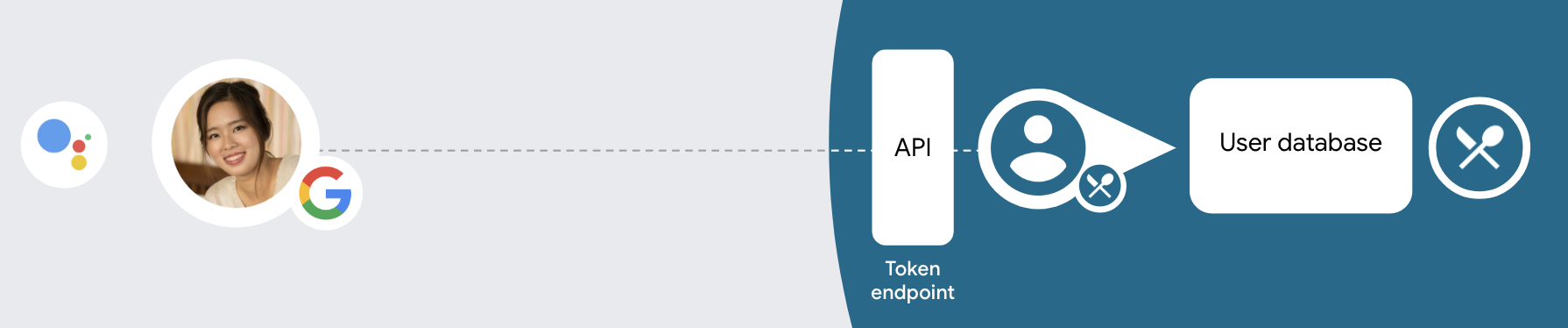
برای انجام پیوند حساب با OAuth و Google Sign-In، این مراحل کلی را دنبال کنید:
- ابتدا از کاربر بخواهید که رضایت خود را برای دسترسی به نمایه Google خود اعلام کند.
- از اطلاعات موجود در پروفایل خود برای شناسایی کاربر استفاده کنید.
- اگر نتوانستید مطابق با کاربر Google در سیستم احراز هویت خود پیدا کنید، جریان بسته به اینکه پروژه Actions خود را در کنسول Actions پیکربندی کرده باشید تا اجازه ایجاد حساب کاربری از طریق صدا یا فقط در وب سایت خود را بدهد، ادامه می یابد.
- اگر اجازه ایجاد حساب از طریق صدا را میدهید، رمز شناسه دریافتی از Google را تأیید کنید. سپس می توانید یک کاربر بر اساس اطلاعات نمایه موجود در رمز شناسه ایجاد کنید.
- اگر اجازه ایجاد حساب از طریق صدا را ندهید، کاربر به مرورگری منتقل میشود تا بتواند صفحه مجوز شما را بارگیری کند و جریان ایجاد کاربر را تکمیل کند.
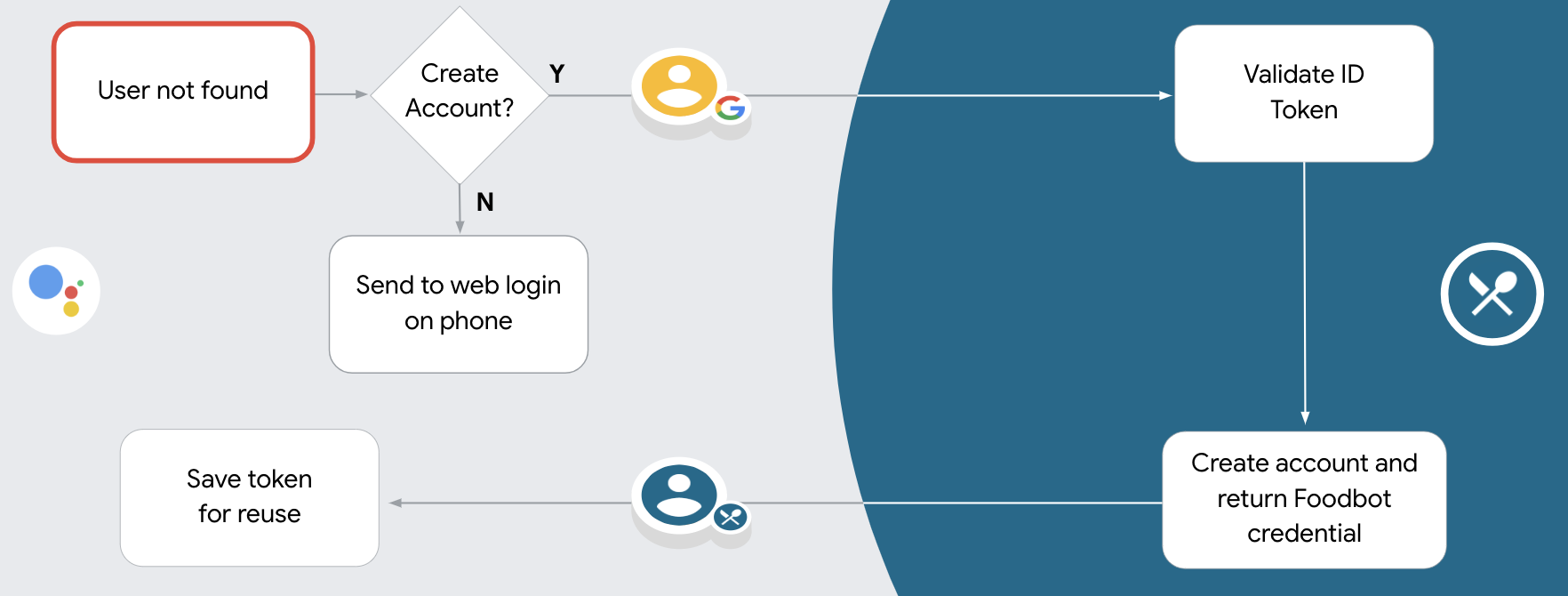
از ایجاد حساب کاربری از طریق صدا پشتیبانی کنید
اگر اجازه ایجاد حساب کاربری از طریق صدا را بدهید، دستیار از کاربر میپرسد که آیا میخواهد کارهای زیر را انجام دهد:
- یک حساب کاربری جدید در سیستم خود با استفاده از اطلاعات حساب Google آنها ایجاد کنید، یا
- اگر آنها یک حساب غیر Google موجود دارند، با حساب دیگری وارد سیستم احراز هویت خود شوید.
اگر میخواهید اصطکاک جریان ایجاد حساب را به حداقل برسانید، اجازه ایجاد حساب از طریق صدا توصیه میشود. کاربر فقط در صورتی باید جریان صدا را ترک کند که بخواهد با استفاده از یک حساب موجود غیر Google وارد سیستم شود.
ایجاد حساب از طریق صدا را ممنوع کنید
اگر ایجاد حساب کاربری از طریق صدا را ممنوع کرده باشید، «دستیار» URL را به وبسایتی که برای احراز هویت کاربر ارائه کردهاید باز میکند. اگر تعامل در دستگاهی انجام میشود که صفحهنمایش ندارد، «دستیار» کاربر را به تلفنی هدایت میکند تا جریان پیوند حساب را ادامه دهد.
عدم اجازه ایجاد توصیه می شود اگر:
شما نمیخواهید به کاربرانی که دارای حسابهای غیر Google هستند اجازه ایجاد یک حساب کاربری جدید بدهید و میخواهید در عوض به حسابهای کاربری موجود خود در سیستم احراز هویت شما پیوند دهند. برای مثال، اگر یک برنامه وفاداری ارائه میدهید، ممکن است بخواهید مطمئن شوید که کاربر امتیازهای جمعشده در حساب موجود خود را از دست نمیدهد.
شما باید کنترل کامل جریان ایجاد حساب را داشته باشید. به عنوان مثال، اگر نیاز دارید شرایط خدمات خود را در حین ایجاد حساب به کاربر نشان دهید، می توانید ایجاد را ممنوع کنید.
پیوند حساب OAuth و Google Sign-In را پیاده سازی کنید
حسابها با جریانهای استاندارد صنعتی OAuth 2.0 مرتبط هستند. Actions on Google از جریان کد ضمنی و مجوز پشتیبانی می کند.
در جریان کد ضمنی، Google نقطه پایانی مجوز شما را در مرورگر کاربر باز میکند. پس از ورود موفقیت آمیز به سیستم، یک توکن دسترسی طولانی مدت به Google برمی گردانید. این نشانه دسترسی اکنون در هر درخواست ارسال شده از دستیار به Action شما گنجانده شده است.
در جریان کد مجوز، به دو نقطه پایانی نیاز دارید:
- نقطه پایانی مجوز ، که مسئول ارائه رابط کاربری ورود به سیستم به کاربرانی است که قبلاً وارد سیستم نشدهاند و رضایت دسترسی درخواستی را در قالب یک کد مجوز کوتاه مدت ثبت میکند.
- نقطه پایانی تبادل توکن ، که مسئول دو نوع مبادله است:
- یک کد مجوز را برای یک نشانه رفرش طولانی مدت و یک رمز دسترسی کوتاه مدت مبادله می کند. این تبادل زمانی اتفاق میافتد که کاربر از جریان پیوند حساب عبور کند.
- یک نشانه رفرش طولانی مدت را با یک توکن دسترسی کوتاه مدت مبادله می کند. این مبادله زمانی اتفاق میافتد که گوگل به یک توکن دسترسی جدید نیاز دارد، زیرا رمز دسترسی منقضی شده است.
اگرچه اجرای جریان کد ضمنی سادهتر است، اما گوگل توصیه میکند که توکنهای دسترسی صادر شده با استفاده از جریان ضمنی هرگز منقضی نمیشوند، زیرا استفاده از انقضای رمز با جریان ضمنی کاربر را مجبور میکند تا حساب خود را دوباره پیوند دهد. اگر به دلایل امنیتی نیاز به انقضای توکن دارید، باید قویاً از جریان کد تأیید استفاده کنید.
پروژه را پیکربندی کنید
برای پیکربندی پروژه خود برای استفاده از پیوند حساب OAuth و Google Sign-In، این مراحل را دنبال کنید:
- کنسول Actions را باز کنید و پروژه ای را که می خواهید استفاده کنید انتخاب کنید.
- روی تب Develop کلیک کنید و Account linking را انتخاب کنید.
- سوئیچ کنار Account linking را فعال کنید.
- در بخش ایجاد حساب ، بله را انتخاب کنید.
در نوع پیوند ، OAuth & Google Sign In و Implicit را انتخاب کنید.
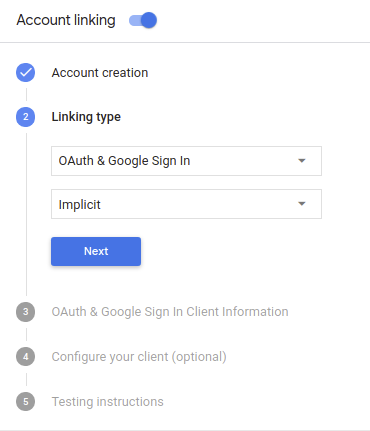
در اطلاعات مشتری ، موارد زیر را انجام دهید:
- یک مقدار به Client ID صادر شده توسط Actions شما به Google اختصاص دهید تا درخواستهای ارسالی از Google را شناسایی کنید.
- آدرسهای اینترنتی را برای نقاط پایانی مجوز و مبادله رمز خود وارد کنید.
روی ذخیره کلیک کنید.
سرور OAuth خود را پیاده سازی کنید
برای پشتیبانی از جریان ضمنی OAuth 2.0، سرویس شما یک نقطه پایانی مجوز را توسط HTTPS در دسترس قرار می دهد. این نقطه پایانی مسئول احراز هویت و کسب رضایت از کاربران برای دسترسی به داده است. نقطه پایانی مجوز یک رابط کاربری برای ورود به سیستم به کاربرانی که قبلاً وارد سیستم نشدهاند ارائه میکند و رضایت را برای دسترسی درخواستی ثبت میکند.
وقتی Action شما نیاز به تماس با یکی از APIهای مجاز سرویس شما دارد، Google از این نقطه پایانی استفاده میکند تا از کاربران شما اجازه بگیرد تا از طرف آنها با این APIها تماس بگیرد.
یک جلسه جریان ضمنی OAuth 2.0 که توسط Google آغاز شده است دارای جریان زیر است:
- Google نقطه پایانی مجوز شما را در مرورگر کاربر باز می کند. اگر کاربر قبلاً وارد سیستم نشده باشد، به سیستم وارد میشود و اگر قبلاً مجوز نداده باشد، به Google اجازه میدهد با API شما به دادههای خود دسترسی داشته باشد.
- سرویس شما یک نشانه دسترسی ایجاد میکند و با هدایت مرورگر کاربر به Google با علامت دسترسی پیوست شده به درخواست، آن را به Google برمیگرداند.
- Google APIهای سرویس شما را فراخوانی میکند و رمز دسترسی را با هر درخواست پیوست میکند. سرویس شما تأیید میکند که نشانه دسترسی به Google مجوز دسترسی به API را میدهد و سپس تماس API را تکمیل میکند.
رسیدگی به درخواست های مجوز
زمانی که Action شما باید پیوند حساب را از طریق جریان ضمنی OAuth2 انجام دهد، Google کاربر را با درخواستی که شامل پارامترهای زیر است به نقطه پایانی مجوز شما میفرستد:
| پارامترهای نقطه پایانی مجوز | |
|---|---|
client_id | شناسه مشتری که به Google اختصاص داده اید. |
redirect_uri | آدرس اینترنتی که پاسخ این درخواست را به آن ارسال می کنید. |
state | یک مقدار حسابداری که بدون تغییر در URI تغییر مسیر به Google بازگردانده می شود. |
response_type | نوع مقداری که باید در پاسخ برگردانده شود. برای جریان ضمنی OAuth 2.0، نوع پاسخ همیشه token است. |
برای مثال، اگر نقطه پایانی مجوز شما در https://myservice.example.com/auth موجود باشد، ممکن است یک درخواست به این صورت باشد:
GET https://myservice.example.com/auth?client_id=GOOGLE_CLIENT_ID&redirect_uri=REDIRECT_URI&state=STATE_STRING&response_type=token
برای اینکه نقطه پایانی مجوز شما به درخواستهای ورود به سیستم رسیدگی کند، مراحل زیر را انجام دهید:
برای جلوگیری از اعطای دسترسی به برنامه های مشتری ناخواسته یا پیکربندی نادرست، مقادیر
client_idوredirect_uriرا تأیید کنید:- تأیید کنید که
client_idبا شناسه مشتری که به Google اختصاص داده اید مطابقت دارد. - تأیید کنید که URL مشخص شده توسط پارامتر
redirect_uriشکل زیر را دارد:https://oauth-redirect.googleusercontent.com/r/YOUR_PROJECT_ID
- تأیید کنید که
بررسی کنید که آیا کاربر به سرویس شما وارد شده است یا خیر. اگر کاربر وارد سیستم نشده است، جریان ورود به سیستم یا ثبت نام سرویس خود را تکمیل کنید.
یک نشانه دسترسی ایجاد کنید که Google از آن برای دسترسی به API شما استفاده می کند. نشانه دسترسی میتواند هر مقدار رشتهای باشد، اما باید بهطور منحصربهفرد نشاندهنده کاربر و کلاینتی باشد که نشانه برای آن است و نباید قابل حدس زدن باشد.
یک پاسخ HTTP ارسال کنید که مرورگر کاربر را به URL مشخص شده توسط پارامتر
redirect_uriهدایت می کند. تمام پارامترهای زیر را در قطعه URL وارد کنید:-
access_token: نشانه دسترسی که ایجاد کردید -
token_type:bearerرشته -
state: مقدار حالت تغییر نیافته از درخواست اصلی مثال زیر نمونه ای از URL به دست آمده است:https://oauth-redirect.googleusercontent.com/r/YOUR_PROJECT_ID#access_token=ACCESS_TOKEN&token_type=bearer&state=STATE_STRING
-
کنترلکننده تغییر مسیر OAuth 2.0 Google نشانه دسترسی را دریافت میکند و تأیید میکند که مقدار state تغییر نکرده است. پس از اینکه Google یک رمز دسترسی برای سرویس شما به دست آورد، Google این رمز را به تماسهای بعدی به Action شما به عنوان بخشی از AppRequest متصل میکند.
مدیریت پیوند خودکار
پس از اینکه کاربر رضایت Action شما را برای دسترسی به نمایه Google خود اعلام کرد، Google درخواستی را ارسال میکند که حاوی تأییدیه امضا شده هویت کاربر Google است. این ادعا حاوی اطلاعاتی است که شامل شناسه حساب Google، نام و آدرس ایمیل کاربر است. نقطه پایانی تبادل توکن که برای پروژه شما پیکربندی شده است، آن درخواست را مدیریت می کند.
اگر حساب Google مربوطه از قبل در سیستم احراز هویت شما وجود داشته باشد، نقطه پایانی مبادله رمز شما رمزی را برای کاربر برمیگرداند. اگر حساب Google با کاربر موجود مطابقت نداشته باشد، نقطه پایانی تبادل توکن شما خطای user_not_found را برمیگرداند.
درخواست دارای فرم زیر است:
POST /token HTTP/1.1
Host: oauth2.example.com
Content-Type: application/x-www-form-urlencoded

grant_type=urn:ietf:params:oauth:grant-type:jwt-bearer&intent=get&assertion=JWT&consent_code=CONSENT_CODE&scope=SCOPES
نقطه پایانی تبادل توکن شما باید بتواند پارامترهای زیر را مدیریت کند:
| پارامترهای نقطه پایانی رمز | |
|---|---|
grant_type | نوع توکن رد و بدل شده برای این درخواستها، این پارامتر دارای مقدار urn:ietf:params:oauth:grant-type:jwt-bearer . |
intent | برای این درخواستها، مقدار این پارامتر «get» است. |
assertion | یک نشانه وب JSON (JWT) که تأیید امضا شده ای از هویت کاربر Google ارائه می دهد. JWT حاوی اطلاعاتی است که شامل شناسه حساب Google، نام و آدرس ایمیل کاربر است. |
consent_code | اختیاری : در صورت وجود، یک کد یکبار مصرف که نشان میدهد کاربر برای Action شما برای دسترسی به محدودههای مشخص شده رضایت داده است. |
scope | اختیاری : هر دامنهای که Google را برای درخواست از کاربران پیکربندی کردهاید. |
هنگامی که نقطه پایانی تبادل توکن شما درخواست پیوند را دریافت می کند، باید کارهای زیر را انجام دهد:
تایید و رمزگشایی ادعای JWT
میتوانید با استفاده از کتابخانه رمزگشایی JWT برای زبان خود، ادعای JWT را تأیید و رمزگشایی کنید. از کلیدهای عمومی Google (در قالب JWK یا PEM موجود است) برای تأیید امضای توکن استفاده کنید.
هنگام رمزگشایی، ادعای JWT مانند مثال زیر است:
{
  "sub": 1234567890,        // The unique ID of the user's Google Account
  "iss": "https://accounts.google.com",        // The assertion's issuer
  "aud": "123-abc.apps.googleusercontent.com", // Your server's client ID
  "iat": 233366400,         // Unix timestamp of the assertion's creation time
  "exp": 233370000,         // Unix timestamp of the assertion's expiration time
  "name": "Jan Jansen",
  "given_name": "Jan",
  "family_name": "Jansen",
  "email": "jan@gmail.com", // If present, the user's email address
  "locale": "en_US"
}
علاوه بر تأیید امضای رمز، تأیید کنید که صادرکننده ادعا (فیلد iss ) https://accounts.google.com باشد و مخاطب (فیلد aud ) شناسه مشتری است که به Action شما اختصاص داده شده است.
بررسی کنید که آیا حساب Google از قبل در سیستم احراز هویت شما وجود دارد یا خیر
بررسی کنید که آیا یکی از شرایط زیر درست است یا خیر:
- شناسه حساب Google که در قسمت
subادعا یافت میشود، در پایگاه داده کاربر شما قرار دارد. - آدرس ایمیل در ادعا با کاربر در پایگاه داده کاربر شما مطابقت دارد.
اگر هر یک از شرط ها درست باشد، کاربر قبلا ثبت نام کرده است و می توانید یک نشانه دسترسی صادر کنید.
اگر نه شناسه حساب Google و نه آدرس ایمیل مشخص شده در ادعا با کاربر موجود در پایگاه داده شما مطابقت ندارد، کاربر هنوز ثبت نام نکرده است. در این مورد، نقطه پایانی تبادل توکن شما باید با یک خطای HTTP 401 پاسخ دهد، که error=user_not_found را مشخص میکند، مانند مثال زیر:
HTTP/1.1 401 Unauthorized
Content-Type: application/json;charset=UTF-8

{
  "error":"user_not_found",
}
user_not_found دریافت میکند، Google نقطه پایانی مبادله رمز شما را با مقدار پارامتر intent تنظیم میکند تا یک رمز شناسه که حاوی اطلاعات نمایه کاربر با درخواست است ایجاد و ارسال کند.
ایجاد حساب کاربری را از طریق Google Sign-In مدیریت کنید
هنگامی که کاربر نیاز به ایجاد یک حساب کاربری در سرویس شما دارد، Google درخواستی را به نقطه پایانی تبادل توکن شما میدهد که intent=create را مشخص میکند، مانند مثال زیر:
POST /token HTTP/1.1
Host: oauth2.example.com
Content-Type: application/x-www-form-urlencoded

response_type=token&grant_type=urn:ietf:params:oauth:grant-type:jwt-bearer&scope=SCOPES&intent=create&consent_code=CONSENT_CODE&assertion=JWT[&NEW_ACCOUNT_INFO]
پارامتر assertion حاوی یک رمز وب JSON (JWT) است که یک ادعای امضا شده از هویت کاربر Google را ارائه می دهد. JWT حاوی اطلاعاتی است که شامل شناسه حساب Google کاربر، نام و آدرس ایمیل کاربر است که می توانید از آنها برای ایجاد یک حساب کاربری جدید در سرویس خود استفاده کنید.
برای پاسخ به درخواستهای ایجاد حساب، نقطه پایانی تبادل توکن شما باید موارد زیر را انجام دهد:
تایید و رمزگشایی ادعای JWT
میتوانید با استفاده از کتابخانه رمزگشایی JWT برای زبان خود، ادعای JWT را تأیید و رمزگشایی کنید. از کلیدهای عمومی Google (در قالب JWK یا PEM موجود است) برای تأیید امضای توکن استفاده کنید.
هنگام رمزگشایی، ادعای JWT مانند مثال زیر است:
{
  "sub": 1234567890,        // The unique ID of the user's Google Account
  "iss": "https://accounts.google.com",        // The assertion's issuer
  "aud": "123-abc.apps.googleusercontent.com", // Your server's client ID
  "iat": 233366400,         // Unix timestamp of the assertion's creation time
  "exp": 233370000,         // Unix timestamp of the assertion's expiration time
  "name": "Jan Jansen",
  "given_name": "Jan",
  "family_name": "Jansen",
  "email": "jan@gmail.com", // If present, the user's email address
  "locale": "en_US"
}
علاوه بر تأیید امضای رمز، تأیید کنید که صادرکننده ادعا (فیلد iss ) https://accounts.google.com باشد و مخاطب (فیلد aud ) شناسه مشتری است که به Action شما اختصاص داده شده است.
اعتبارسنجی اطلاعات کاربر و ایجاد حساب جدید
بررسی کنید که آیا یکی از شرایط زیر درست است یا خیر:
- شناسه حساب Google که در قسمت
subادعا یافت میشود، در پایگاه داده کاربر شما قرار دارد. - آدرس ایمیل در ادعا با کاربر در پایگاه داده کاربر شما مطابقت دارد.
اگر هر یک از این شرایط درست است، از کاربر بخواهید تا حساب موجود خود را با حساب Google خود با پاسخ دادن به درخواست با خطای HTTP 401 پیوند دهد و error=linking_error و آدرس ایمیل کاربر را به عنوان login_hint مشخص کند، مانند مثال زیر:
HTTP/1.1 401 Unauthorized
Content-Type: application/json;charset=UTF-8

{
  "error":"linking_error",
  "login_hint":"foo@bar.com"
}
اگر هیچ یک از این شرایط درست نیست، با استفاده از اطلاعات ارائه شده در JWT یک حساب کاربری جدید ایجاد کنید. حسابهای جدید معمولاً رمز عبور ندارند. توصیه میشود Google Sign In را به پلتفرمهای دیگر اضافه کنید تا کاربران بتوانند از طریق Google در سطوح برنامه شما وارد شوند. از طرف دیگر، میتوانید پیوندی را برای کاربر ایمیل کنید که جریان بازیابی رمز عبور شما را شروع میکند تا کاربر بتواند رمز عبوری برای ورود به سیستم در دیگر پلتفرمها تعیین کند.
پس از تکمیل ساخت، یک نشانه دسترسی صادر کنید و مقادیر موجود در یک شی JSON را در بدنه پاسخ HTTPS خود برگردانید، مانند مثال زیر:
{
  "token_type": "Bearer",
  "access_token": "ACCESS_TOKEN",

  "expires_in": SECONDS_TO_EXPIRATION
}
جریان احراز هویت را شروع کنید
از هدف کمکی ورود به حساب کاربری برای شروع جریان احراز هویت استفاده کنید.
const app = dialogflow({
  // REPLACE THE PLACEHOLDER WITH THE CLIENT_ID OF YOUR ACTIONS PROJECT
  clientId: CLIENT_ID,
})

// Intent that starts the account linking flow.
app.intent('Start Signin', conv => {
  conv.ask(new SignIn('To get your account details'))
})
private String clientId = "<your_client_id>";

@ForIntent("Start Signin")
public ActionResponse text(ActionRequest request) {
  ResponseBuilder rb = getResponseBuilder(request);
  return rb.add(new SignIn().setContext("To get your account details")).build();
}
const app = actionssdk({
  clientId: CLIENT_ID,
})

app.intent('Start Signin', conv => {
  conv.ask(new SignIn('To get your account details'))
})
private String clientId = "<your_client_id>";

@ForIntent("actions.intent.TEXT")
public ActionResponse text(ActionRequest request) {
  ResponseBuilder rb = getResponseBuilder(request);
  return rb.add(new SignIn().setContext("To get your account details")).build();
}
رسیدگی به درخواست های دسترسی به داده ها
اگر درخواست دستیار حاوی یک نشانه دسترسی است ، ابتدا بررسی کنید که رمز دسترسی معتبر است و منقضی نشده است و سپس حساب کاربری مرتبط با رمز را از پایگاه داده حساب کاربری خود بازیابی کنید.