

קישור מסוג OAuth וכניסה באמצעות חשבון Google מוסיף 'כניסה באמצעות חשבון Google' על בסיס פרוטוקול OAuth. קישור חשבונות. כך המשתמשים ב-Google יכולים לבצע קישור קולי פשוט וקל וגם לאפשר קישור חשבונות למשתמשים שנרשמו לשירות באמצעות זהות שאינה של Google.
סוג הקישור הזה מתחיל בכניסה באמצעות חשבון Google, שמאפשרת לבדוק אם חשבון המשתמש קיימים במערכת שלך פרטים מפרופיל Google. אם פרטי המשתמש לא נמצא במערכת, מתחיל תהליך סטנדרטי של OAuth. המשתמש יכול גם לבחור אם ליצור חשבון חדש עם הפרטים מפרופיל Google שלו.
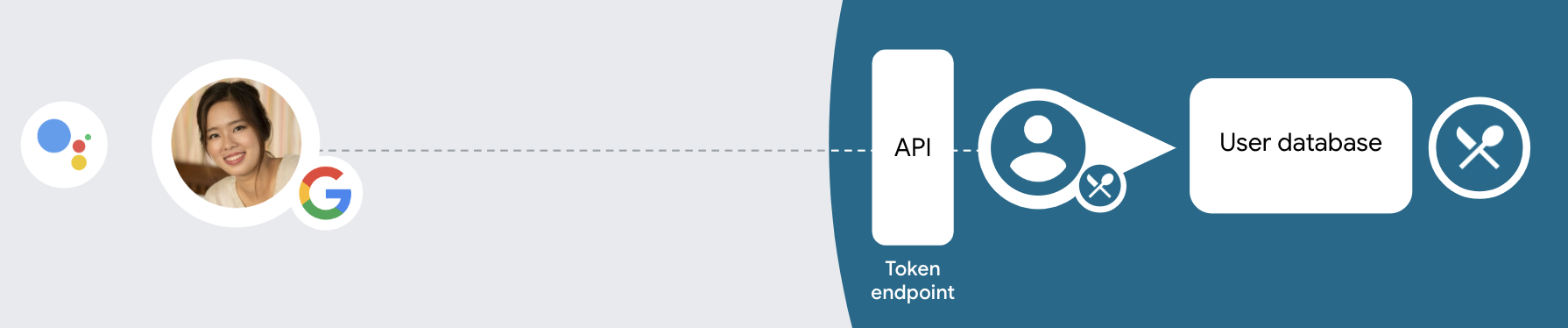
כדי לבצע קישור חשבונות באמצעות OAuth וכניסה באמצעות חשבון Google, יש לפעול לפי ההנחיות הכלליות הבאות שלבים:
- קודם כל, מבקשים מהמשתמש להביע הסכמה לגישה לפרופיל Google שלו.
- משתמשים במידע מהפרופיל שלהם כדי לזהות את המשתמש.
- אם לא מצאתם התאמה למשתמש Google במערכת האימות:
התהליך ממשיך בהתאם לאופן שבו הגדרתם את פרויקט הפעולות
במסוף הפעולות כדי לאפשר יצירת חשבונות משתמשים באמצעות קול או רק
באתר שלך.
- אם מאפשרים יצירת חשבון באמצעות הקול, צריך לאמת את המזהה שהתקבל מ-Google. לאחר מכן אפשר ליצור משתמש על סמך את פרטי הפרופיל שבאסימון המזהה.
- אם לא תאפשרו ליצור חשבונות באמצעות הקול, המשתמש יועבר אל דפדפן שבו ניתן לטעון את דף ההרשאה ולהשלים את תהליך המשתמש בתהליך היצירה.
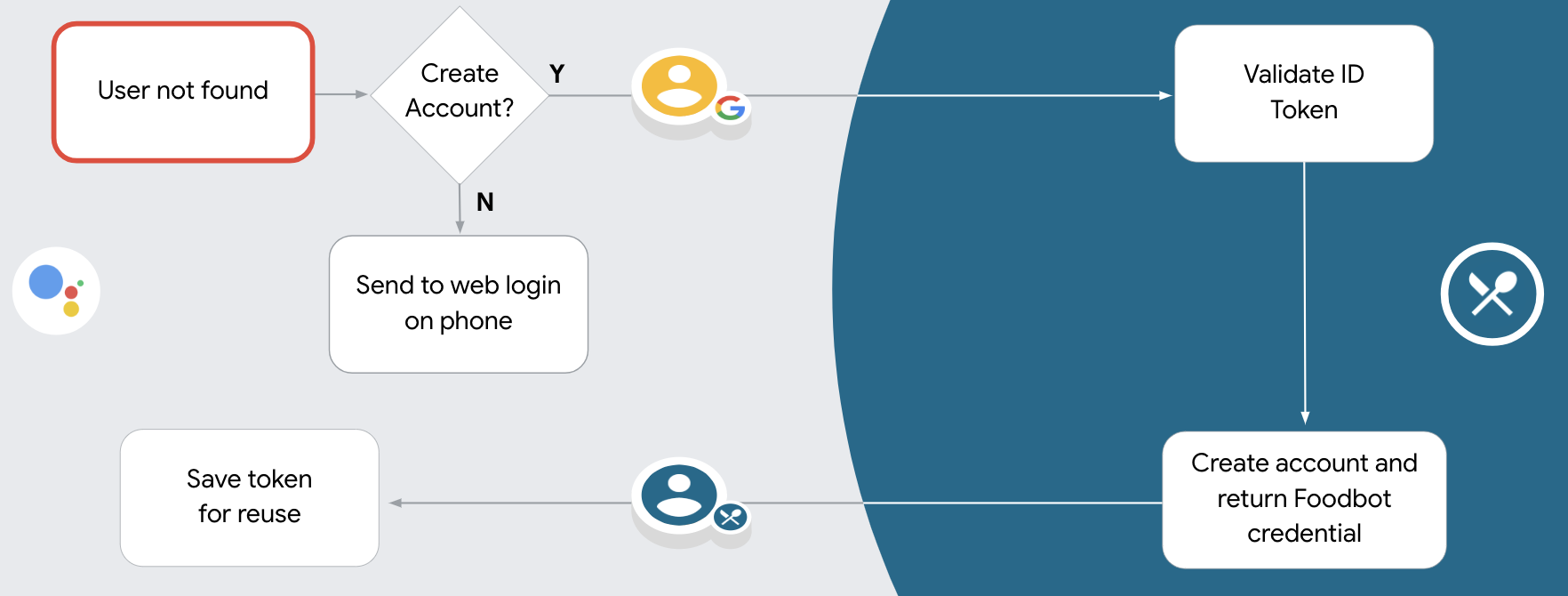
תמיכה ביצירת חשבון באמצעות הקול
אם מאפשרים יצירה של חשבון משתמש באמצעות הקול, Assistant שואלת את המשתמש אם הוא רוצה לבצע את הפעולות הבאות:
- ליצור חשבון חדש במערכת שלכם באמצעות הפרטים של חשבון Google שלו, או
- להיכנס למערכת האימות באמצעות חשבון אחר, אם יש לו חשבון קיים שאינו של Google.
מומלץ לאפשר יצירת חשבונות באמצעות הקול אם רוצים לצמצם את תהליך יצירת החשבון. המשתמש צריך רק לעזוב את התהליך הקולי אם הם רוצים להיכנס באמצעות חשבון קיים שאינו של Google.
אי אפשר ליצור חשבונות באמצעות פקודות קוליות
אם אישרתם את האפשרות ליצור חשבון משתמש באמצעות הקול, Assistant תפתח את כתובת ה-URL של האתר שסיפקת לצורך אימות משתמשים. אם האינטראקציה מתרחשת במכשיר שאין בו מסך, Assistant מפנה את המשתמש לטלפון כדי להמשיך בתהליך קישור החשבונות.
מומלץ למנוע את האפשרות ליצור אם:
אינך רוצה לאפשר למשתמשים שיש להם חשבונות שאינם של Google ליצור חשבון חדש חשבון משתמש מסוים ואתם רוצים שהם יקושרו לחשבונות המשתמש הקיימים שלהם במערכת האימות. לדוגמה, אם אתם מציעים מועדון לקוחות, כדאי לוודא שהמשתמש לא מאבד את הנקודות שנצברו חשבון קיים.
צריכה להיות לך שליטה מלאה על תהליך יצירת החשבון. לדוגמה, אפשר: לאסור את היצירה אם אתם צריכים להציג למשתמש את התנאים וההגבלות שלכם במהלך יצירת חשבון.
הטמעת קישור לחשבון OAuth ולכניסה באמצעות חשבון Google
החשבונות מקושרים לתהליכי OAuth 2.0 המקובלים בתחום. ב-Actions on Google יש תמיכה בתהליכים של קוד ההרשאה המרומז.
בתהליך הקוד המשתמע, Google פותחת את נקודת הקצה של ההרשאה בדפדפן של המשתמש. אחרי שהכניסה לחשבון תושלם בהצלחה, תקבלו מ-Google אסימון גישה לטווח ארוך. אסימון הגישה הזה כלול עכשיו בכל בקשה שנשלחת מ-Assistant לפעולה שלך.
בתהליך הקוד של ההרשאה, נדרשות שתי נקודות קצה:
- נקודת הקצה הרשאה, שאחראית להצגת ממשק המשתמש לכניסה למשתמשים שעדיין לא נכנסו לחשבון, ולתעד הסכמה לגישה המבוקשת כקוד הרשאה לטווח קצר.
- נקודת הקצה להחלפה באסימון, שאחראית לשני סוגים של חילופי הודעות:
- החלפה של קוד הרשאה באסימון רענון לטווח ארוך ובאסימון גישה לטווח קצר. ההחלפה הזו מתרחשת כשהמשתמש עובר את התהליך של קישור החשבון.
- החלפה של אסימון רענון לטווח ארוך באסימון גישה לטווח קצר. ההחלפה הזו מתרחשת כש-Google צריכה אסימון גישה חדש, כי פג התוקף של האסימון שפג תוקפו.
אומנם קל יותר להטמיע את תהליך הקוד המשתמע, אבל ב-Google מומלץ שאף פעם לא יפוג התוקף של אסימוני גישה שהונפקו באמצעות הזרימה המשתמעת, כי השימוש בתפוגת האסימון באמצעות התהליך המשתמע מחייב לאלץ את המשתמש לקשר שוב את החשבון. אם אתם זקוקים לתפוגת תוקף של אסימון מטעמי אבטחה, כדאי מאוד להשתמש בתהליך קוד האימות במקום זאת.
הגדרת הפרויקט
כדי להגדיר בפרויקט שימוש בחשבון OAuth ובחשבון עם כניסה באמצעות חשבון Google קישור, בצעו את השלבים הבאים:
- פותחים את מסוף הפעולות ובוחרים את הפרויקט שבו רוצים להשתמש.
- לוחצים על הכרטיסייה פיתוח ובוחרים באפשרות קישור חשבונות.
- מפעילים את המתג לצד קישור חשבונות.
- בקטע יצירת חשבון, בוחרים באפשרות כן.
בקטע Linking type (סוג הקישור), בוחרים באפשרות OAuth & כניסה באמצעות חשבון Google ומרומז.
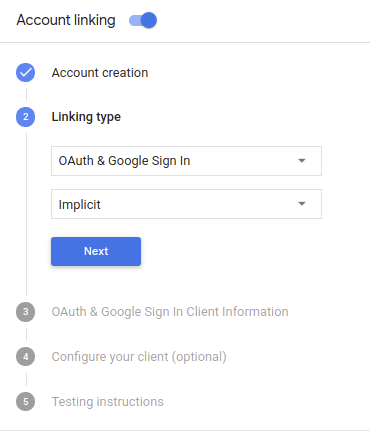
ב-Client Information, מבצעים את הפעולות הבאות:
- מקצים ערך ל-Client-ID שהונפק על ידי הפעולות שלכם ל-Google כדי לזהות בקשות מ-Google.
- מוסיפים את כתובות ה-URL של נקודות הקצה ב-Authorization וב-Token Exchange.
לוחצים על שמירה.
הטמעה של שרת OAuth
כדי לתמוך בזרם הענקת גישה משתמע ב-OAuth 2.0, השירות שלכם יוצר הרשאה נקודת הקצה שזמינה ב-HTTPS. נקודת הקצה (endpoint) הזו אחראית לאימות קבלת הסכמה מהמשתמשים לצורך גישה לנתונים. נקודת הקצה של ההרשאה שמציג ממשק משתמש לכניסה למשתמשים שעדיין לא מחוברים לחשבון, להסכים להרשאת הגישה המבוקשת.
כשהפעולה צריכה להפעיל את אחד מממשקי ה-API המורשים של השירות שלך, Google משתמשת את נקודת הקצה הזו כדי לקבל הרשאה מהמשתמשים שלך לקרוא לממשקי ה-API האלה בשם.
בסשן זרם הענקת גישה משתמע ב-OAuth 2.0 ש-Google יזמה, התהליך הבא:
- Google פותחת את נקודת הקצה להרשאה בדפדפן של המשתמש. משתמש נכנס לחשבון אם הוא עדיין לא מחובר, ומעניק ל-Google הרשאת גישה את הנתונים שלהם באמצעות ה-API, אם הם עדיין לא העניקו הרשאה.
- השירות שלכם יוצר אסימון גישה ומחזיר אותו אל Google מפנה את דפדפן המשתמש חזרה אל Google באמצעות אסימון הגישה שמצורף לבקשה.
- Google קוראת לממשקי ה-API של השירות, ומצרפת את אסימון הגישה עם בכל בקשה. השירות שלך מאמת שאסימון הגישה מעניק ל-Google הרשאה לגשת ל-API ואז משלימה את הקריאה ל-API.
טיפול בבקשות הרשאה
כשהפעולה צריכה לבצע קישור חשבונות באמצעות זרם הענקת גישה משתמע ב-OAuth2, Google שולחת את המשתמש לנקודת הקצה (endpoint) של ההרשאה עם בקשה שכוללת את הפרמטרים הבאים:
| פרמטרים של נקודת קצה להרשאה | |
|---|---|
client_id |
מזהה הלקוח שהקצית ל-Google. |
redirect_uri |
כתובת ה-URL שאליה שולחים את התגובה לבקשה הזו. |
state |
ערך של ניהול חשבונות שמועבר אל Google ללא שינוי URI להפניה אוטומטית. |
response_type |
סוג הערך שיוחזר בתשובה. ל-OAuth 2.0 משתמע
סוג התגובה הוא תמיד token. |
לדוגמה, אם נקודת הקצה להרשאה זמינה ב-https://myservice.example.com/auth,
בקשה עשויה להיראות כך:
GET https://myservice.example.com/auth?client_id=GOOGLE_CLIENT_ID&redirect_uri=REDIRECT_URI&state=STATE_STRING&response_type=token
כדי שנקודת הקצה להרשאה תטפל בבקשות כניסה, מבצעים את השלבים הבאים:
צריך לאמת את הערכים
client_idו-redirect_uriכדי למנוע הענקת גישה לאפליקציות לקוח לא מכוונות או שהוגדרו באופן שגוי:- צריך לוודא שה-
client_idתואם למזהה הלקוח שהוקצו ל-Google. - מוודאים שכתובת ה-URL שצוינה ב-
redirect_uriנראה כך:https://oauth-redirect.googleusercontent.com/r/YOUR_PROJECT_ID
- צריך לוודא שה-
לבדוק אם המשתמש נכנס לשירות. אם המשתמש לא חתום להשלים את תהליך הכניסה או ההרשמה לשירות.
יוצרים אסימון גישה שבו Google תשתמש כדי לגשת ל-API. אסימון גישה יכול להיות כל ערך מחרוזת, אבל הוא חייב לייצג באופן ייחודי את למשתמש וללקוח שבשבילם האסימון מיועד והם חייבים להיות ניתנים לניחוש.
לשלוח תגובת HTTP שמפנה מחדש את דפדפן המשתמש לכתובת ה-URL צוין על ידי הפרמטר
redirect_uri. יש לכלול את כל את הפרמטרים הבאים בקטע של כתובת ה-URL:access_token: אסימון הגישה שיצרתם כרגעtoken_type: המחרוזתbearerstate: ערך המצב ללא שינוי מהמקור בקשה הדוגמה הבאה היא של כתובת ה-URL שתתקבל:https://oauth-redirect.googleusercontent.com/r/YOUR_PROJECT_ID#access_token=ACCESS_TOKEN&token_type=bearer&state=STATE_STRING
ה-handler של Google להפניה אוטומטית ב-OAuth 2.0 יקבל את אסימון הגישה ויאשר
שהערך של state לא השתנה. לאחר ש-Google קיבלה
אסימון הגישה לשירות שלך, Google תצרף את האסימון לשיחות הבאות
לפעולה כחלק מה-AppRequest.
איך מטפלים בקישור האוטומטי
אחרי שהמשתמש מביע הסכמה לפעולה כדי לגשת לפרופיל שלו ב-Google, Google שולחת בקשה שמכילה טענת נכוֹנוּת (assertion) חתומה של זהות המשתמש ב-Google. טענת הנכוֹנוּת (assertion) מכילה מידע שכולל את מספר חשבון Google של המשתמש, את השם שלו וכתובת אימייל. נקודת הקצה להחלפת אסימונים שהוגדרה עבור כינויי הפרויקט שלך של הבקשה.
אם חשבון Google התואם כבר קיים במערכת האימות,
נקודת הקצה (endpoint) של המרת האסימון מחזירה אסימון עבור המשתמש. אם בחשבון Google לא
תואם למשתמש קיים, נקודת הקצה של המרת האסימון תחזיר את השגיאה user_not_found.
הבקשה מוצגת בפורמט הבא:
POST /token HTTP/1.1
Host: oauth2.example.com
Content-Type: application/x-www-form-urlencoded

grant_type=urn:ietf:params:oauth:grant-type:jwt-bearer&intent=get&assertion=JWT&consent_code=CONSENT_CODE&scope=SCOPES
נקודת הקצה (endpoint) של המרת האסימונים חייבת להיות מסוגלת לטפל בפרמטרים הבאים:
| פרמטרים של נקודת קצה של אסימון | |
|---|---|
grant_type |
סוג האסימון המוחלף. בבקשות האלה,
מכיל את הערך urn:ietf:params:oauth:grant-type:jwt-bearer. |
intent |
בבקשות האלה, הערך של הפרמטר הזה הוא 'get'. |
assertion |
אסימון רשת מבוסס JSON (JWT) שמספק טענת נכוֹנוּת (assertion) חתומה של זהות המשתמש. ה-JWT מכיל מידע שכולל את סמל Google של המשתמש מספר חשבון, שם וכתובת אימייל. |
consent_code |
אופציונלי: כשהוא קיים, קוד חד-פעמי שמציין המשתמש נתן את הסכמתו לפעולה כדי לגשת להיקפי ההרשאות שצוינו. |
scope |
אופציונלי: היקפי הרשאות שהגדרתם ש-Google תבקש ממשתמשים. |
כשנקודת הקצה של המרת אסימונים מקבלת את בקשת הקישור, היא צריכה לבצע את הבאים:
אימות ופענוח של טענת הנכוֹנוּת (assertion) של JWT
אפשר לאמת ולפענח את טענת הנכוֹנוּת (assertion) של JWT באמצעות ספריית פענוח קוד של JWT לשפה. להשתמש במפתחות הציבוריים של Google (זמינים ב-JWK או PEM) כדי לאמת את לחתימה.
אחרי הפענוח, טענת הנכוֹנוּת (assertion) של ה-JWT תיראה כמו הדוגמה הבאה:
{
  "sub": 1234567890,        // The unique ID of the user's Google Account
  "iss": "https://accounts.google.com",        // The assertion's issuer
  "aud": "123-abc.apps.googleusercontent.com", // Your server's client ID
  "iat": 233366400,         // Unix timestamp of the assertion's creation time
  "exp": 233370000,         // Unix timestamp of the assertion's expiration time
  "name": "Jan Jansen",
  "given_name": "Jan",
  "family_name": "Jansen",
  "email": "jan@gmail.com", // If present, the user's email address
  "locale": "en_US"
}
בנוסף לאימות החתימה של האסימון, צריך לאמת שמנפיק טענת הנכוֹנוּת (assertion)
(השדה iss) הוא https://accounts.google.com ושהקהל (שדה aud)
הוא מזהה הלקוח שהוקצה לפעולה.
בודקים אם חשבון Google כבר קיים במערכת האימות
בודקים אם אחד מהתנאים הבאים מתקיים:
- מספר חשבון Google, שמופיע בשדה
subשל טענת הנכוֹנוּת (assertion), קיים במסד הנתונים של המשתמשים. - כתובת האימייל בטענת הנכונות (assertion) תואמת למשתמש במסד הנתונים של המשתמשים.
אם אחד מהתנאים מתקיים, המשתמש כבר נרשם וניתן להנפיק אסימון גישה.
אם מספר חשבון Google או כתובת האימייל לא צוינו בטענת הנכונות (assertion)
תואם למשתמש במסד הנתונים שלכם, המשתמש עדיין לא נרשם. במקרה הזה,
נקודת הקצה (endpoint) של המרת אסימון צריכה להשיב עם שגיאת HTTP 401 שמציינת error=user_not_found,
כמו בדוגמה הבאה:
HTTP/1.1 401 Unauthorized
Content-Type: application/json;charset=UTF-8

{
  "error":"user_not_found",
}
user_not_found,
קוראת לנקודת הקצה (endpoint) של המרת האסימון עם הערך של הפרמטר intent
מוגדר כיצירה ושליחה של אסימון מזהה שמכיל את פרטי הפרופיל של המשתמש
עם הבקשה.
איך מטפלים ביצירת החשבון דרך הכניסה באמצעות חשבון Google
כשמשתמש צריך ליצור חשבון בשירות שלך, Google יוצרת
בקשה לנקודת הקצה של המרת האסימון שמציינת
intent=create, כמו בדוגמה הבאה:
POST /token HTTP/1.1
Host: oauth2.example.com
Content-Type: application/x-www-form-urlencoded

response_type=token&grant_type=urn:ietf:params:oauth:grant-type:jwt-bearer&scope=SCOPES&intent=create&consent_code=CONSENT_CODE&assertion=JWT[&NEW_ACCOUNT_INFO]
הפרמטר assertion מכיל אסימון רשת מבוסס JSON (JWT) שמספק
טענת נכוֹנוּת (assertion) חתומה על זהות המשתמש ב-Google. ה-JWT מכיל מידע
שכוללות את מספר חשבון Google, השם וכתובת האימייל של המשתמש, שבהם אפשר להשתמש
כדי ליצור חשבון חדש בשירות.
כדי להגיב לבקשות ליצירת חשבון, נקודת הקצה (endpoint) של המרת האסימונים חייבת הבאים:
אימות ופענוח של טענת הנכוֹנוּת (assertion) של JWT
אפשר לאמת ולפענח את טענת הנכוֹנוּת (assertion) של JWT באמצעות ספריית פענוח קוד של JWT לשפה. להשתמש במפתחות הציבוריים של Google (זמינים ב-JWK או PEM) כדי לאמת את לחתימה.
אחרי הפענוח, טענת הנכוֹנוּת (assertion) של ה-JWT תיראה כמו הדוגמה הבאה:
{
  "sub": 1234567890,        // The unique ID of the user's Google Account
  "iss": "https://accounts.google.com",        // The assertion's issuer
  "aud": "123-abc.apps.googleusercontent.com", // Your server's client ID
  "iat": 233366400,         // Unix timestamp of the assertion's creation time
  "exp": 233370000,         // Unix timestamp of the assertion's expiration time
  "name": "Jan Jansen",
  "given_name": "Jan",
  "family_name": "Jansen",
  "email": "jan@gmail.com", // If present, the user's email address
  "locale": "en_US"
}
בנוסף לאימות החתימה של האסימון, צריך לאמת שמנפיק טענת הנכוֹנוּת (assertion)
(השדה iss) הוא https://accounts.google.com ושהקהל (שדה aud)
הוא מזהה הלקוח שהוקצה לפעולה.
אימות פרטי המשתמש ויצירת חשבון חדש
בודקים אם אחד מהתנאים הבאים מתקיים:
- מספר חשבון Google, שמופיע בשדה
subשל טענת הנכוֹנוּת (assertion), קיים במסד הנתונים של המשתמשים. - כתובת האימייל בטענת הנכונות (assertion) תואמת למשתמש במסד הנתונים של המשתמשים.
אם אחד מהתנאים מתקיים, מבקשים מהמשתמש לקשר את החשבון הקיים עם
לחשבון Google שלהם, על ידי שליחת תגובה לבקשה עם שגיאת HTTP 401, וציון
error=linking_error וכתובת האימייל של המשתמש כ-login_hint, כמו ב-
בדוגמה הבאה:
HTTP/1.1 401 Unauthorized
Content-Type: application/json;charset=UTF-8

{
  "error":"linking_error",
  "login_hint":"foo@bar.com"
}
אם אף אחד מהתנאים לא מתקיים, צריך ליצור חשבון משתמש חדש באמצעות המידע הזה שצוינו ב-JWT. לחשבונות חדשים בדרך כלל לא מוגדרת סיסמה. זה כן מומלץ להוסיף כניסה באמצעות חשבון Google לפלטפורמות אחרות כדי לאפשר למשתמשים להתחבר דרך Google בפלטפורמות השונות של האפליקציה שלכם. לחלופין, אפשר לשלוח למשתמש קישור שמתחיל בתהליך שחזור הסיסמה כדי לאפשר לו להגדיר סיסמה לכניסה בפלטפורמות אחרות.
כשהיצירה הושלמה, צריך להנפיק אסימון גישה ומחזירים את הערכים באובייקט JSON הגוף של תגובת ה-HTTPS, כמו בדוגמה הבאה:
{
  "token_type": "Bearer",
  "access_token": "ACCESS_TOKEN",

  "expires_in": SECONDS_TO_EXPIRATION
}
התחלת תהליך האימות
להשתמש בכוונת העזר לכניסה לחשבון כדי להתחיל את תהליך האימות.
const app = dialogflow({
  // REPLACE THE PLACEHOLDER WITH THE CLIENT_ID OF YOUR ACTIONS PROJECT
  clientId: CLIENT_ID,
})

// Intent that starts the account linking flow.
app.intent('Start Signin', conv => {
  conv.ask(new SignIn('To get your account details'))
})
private String clientId = "<your_client_id>";

@ForIntent("Start Signin")
public ActionResponse text(ActionRequest request) {
  ResponseBuilder rb = getResponseBuilder(request);
  return rb.add(new SignIn().setContext("To get your account details")).build();
}
const app = actionssdk({
  clientId: CLIENT_ID,
})

app.intent('Start Signin', conv => {
  conv.ask(new SignIn('To get your account details'))
})
private String clientId = "<your_client_id>";

@ForIntent("actions.intent.TEXT")
public ActionResponse text(ActionRequest request) {
  ResponseBuilder rb = getResponseBuilder(request);
  return rb.add(new SignIn().setContext("To get your account details")).build();
}
טיפול בבקשות גישה לנתונים
אם הבקשה של Assistant מכילה אסימון גישה, קודם צריך לבדוק שאסימון הגישה בתוקף ושלא פג התוקף שלו, ואז לאחזר מסד נתונים של חשבונות משתמשים, חשבון המשתמש שמשויך לאסימון.