階層型料金割引を計算する

コーディング レベル: 初級
所要時間: 10 分
プロジェクト タイプ: カスタム関数

目標

  • このソリューションの機能について理解する。
  • このソリューションにおける Google Apps Script サービスの機能について理解する。
  • スクリプトを設定する。
  • スクリプトを実行する。

このソリューションについて

お客様に段階的な料金体系を提供している場合、このカスタム関数を使用すると、Google スプレッドシートで料金の割引額を簡単に計算できます。

組み込み関数 SUMPRODUCT を使用して段階的な料金計算を行うこともできますが、SUMPRODUCT はこのソリューションのカスタム関数よりも複雑で柔軟性に欠けます。
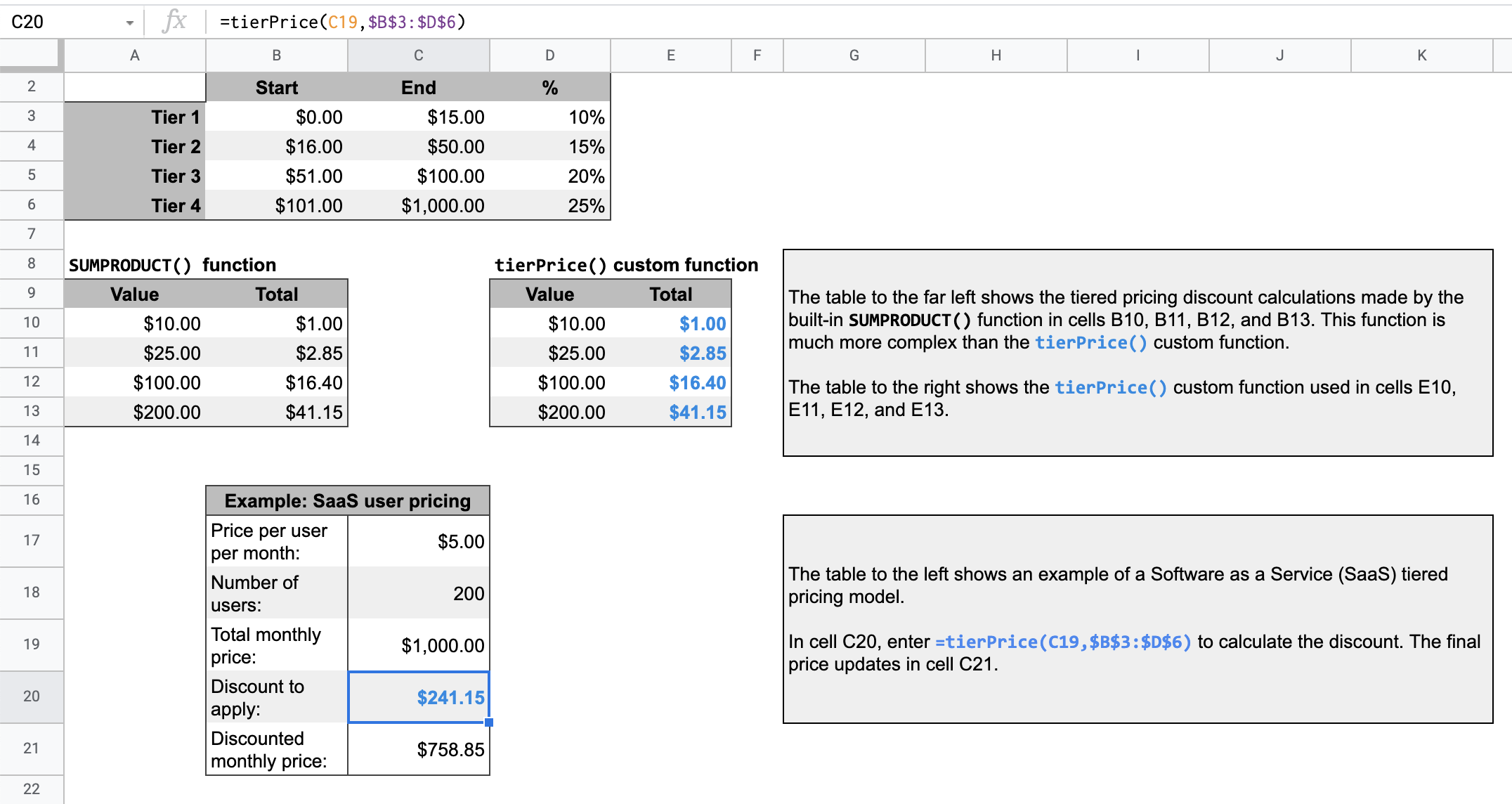
段階的料金計算を示す Google スプレッドシート。

仕組み

段階的な料金モデルとは、購入数量に応じて商品やサービスの費用が下がることを意味します。

たとえば、2 つの段階があるとします。1 つは 0 ~ 500 ドルで 10% の割引、もう 1 つは 501 ~ 1,000 ドルで 20% の割引です。 割引を計算する必要がある合計金額が 700 ドルの場合、スクリプトは最初の 500 ドルに 10% を掛け、残りの 200 ドルに 20% を掛けて、合計割引額は 90 ドルになります。

指定された合計金額に対して、スクリプトは段階的な料金表で指定された段階をループ処理します。合計金額の各部分が段階に該当する場合、その部分に段階に関連付けられたパーセント値が掛けられます。結果は、各段階の計算の合計になります。

Apps Script サービス

このソリューションでは、次のサービスを使用します。

前提条件

このサンプルを使用するには、次の前提条件を満たす必要があります。

  • Google アカウント(Google Workspace アカウントの場合、管理者の承認が必要となる可能性があります)。
  • インターネットにアクセスできるウェブブラウザ。

スクリプトを設定する

[段階的な料金のカスタム関数] スプレッドシートのコピーを作成するには、次のボタンをクリックします。

コピーを作成

このソリューションの Apps Script プロジェクトは、スプレッドシートに添付されています。

スクリプトを実行する

  1. コピーしたスプレッドシートの 16 行目の表に、Software as a Service(SaaS)プロダクトの料金計算の例が示されています。
  2. 割引額を計算するには、セル C20 に「=tierPrice(C19,$B$3:$D$6)」と入力します。最終的な価格がセル C21 に表示されます。小数点にカンマを使用する地域にお住まいの場合は、代わりに「=tierPrice(C19;$B$3:$D$6)」と入力する必要があります。

コードを確認する

このソリューションの Apps Script コードを確認するには、 [ソースコードを表示]をクリックします:

ソースコードを表示

Code.gs

solutions/custom-functions/tier-pricing/Code.js
// To learn how to use this script, refer to the documentation:
// https://developers.google.com/apps-script/samples/custom-functions/tier-pricing

/*
Copyright 2022 Google LLC

Licensed under the Apache License, Version 2.0 (the "License");
you may not use this file except in compliance with the License.
You may obtain a copy of the License at

    https://www.apache.org/licenses/LICENSE-2.0

Unless required by applicable law or agreed to in writing, software
distributed under the License is distributed on an "AS IS" BASIS,
WITHOUT WARRANTIES OR CONDITIONS OF ANY KIND, either express or implied.
See the License for the specific language governing permissions and
limitations under the License.
*/

/**
 * Calculates the tiered pricing discount.
 *
 * You must provide a value to calculate its discount. The value can be a string or a reference
 * to a cell that contains a string.
 * You must provide a data table range, for example, $B$4:$D$7, that includes the
 * tier start, end, and percent columns. If your table has headers, don't include
 * the headers in the range.
 *
 * @param {string} value The value to calculate the discount for, which can be a string or a
 * reference to a cell that contains a string.
 * @param {string} table The tier table data range using A1 notation.
 * @return number The total discount amount for the value.
 * @customfunction
 *
 */
function tierPrice(value, table) {
  let total = 0;
  // Creates an array for each row of the table and loops through each array.
  for (const [start, end, percent] of table) {
    // Checks if the value is less than the starting value of the tier. If it is less, the loop stops.
    if (value < start) {
      break;
    }
    // Calculates the portion of the value to be multiplied by the tier's percent value.
    const amount = Math.min(value, end) - start;
    // Multiplies the amount by the tier's percent value and adds the product to the total.
    total += amount * percent;
  }
  return total;
}

修正

必要に応じて、カスタム関数を自由に編集できます。カスタム関数の結果を手動で更新するオプションの追加を表示するには、[キャッシュされた結果を更新] をクリックします。

キャッシュされた結果を更新

組み込み関数とは異なり、Google はカスタム関数をキャッシュに保存してパフォーマンスを最適化します。そのため、計算対象の値など、カスタム 関数内で変更しても、すぐに 更新されないことがあります。関数の結果を手動で更新する手順は次の とおりです。

  1. [挿入] [>] [チェックボックス] をクリックして、空のセルにチェックボックスを追加します。
  2. チェックボックスを含むセルをカスタム 関数の追加パラメータとして追加します。たとえば、セル D20 にチェックボックスを追加する場合は、 セル C20tierPrice() 関数を =tierPrice(C19,$B$3:$D$6,D20) に更新します。
  3. チェックボックスをオンまたはオフにして、カスタム関数の結果を更新します。

寄稿者

このサンプルは、Google デベロッパー エキスパートの協力のもと、Google によって管理されています。

次のステップ