複数のシートのデータを要約する

コーディング レベル: 初級
期間: 5 分
プロジェクト タイプ: カスタム関数

目標

  • ソリューションの機能について理解する。
  • ソリューション内で Apps Script サービスが果たす役割について理解する。
  • スクリプトを設定する。
  • スクリプトを実行する。

このソリューションについて

スプレッドシートの複数のシートに、チームメンバーのカスタマー サポート指標など、同様の構造化データがある場合は、このカスタム関数を使用して各シートの概要を作成できます。このソリューションはカスタマー サポート チケットに焦点を当てていますが、ニーズに合わせてカスタマイズできます。
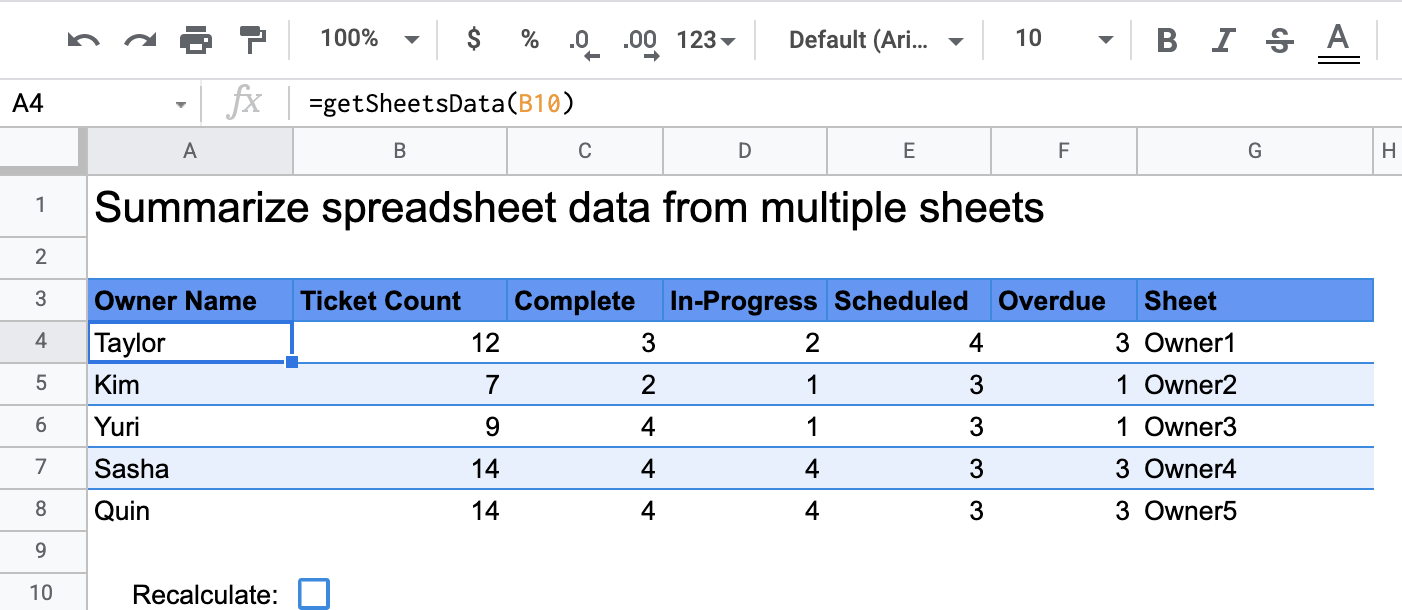
getSheetsData 関数によって生成された、チケットのステータス数を示す概要表。

仕組み

カスタム関数 getSheetsData() は、シートの [ステータス] 列に基づいて、スプレッドシートの各シートのデータを集計します。スクリプトは、[ReadMe] シートや [概要] シートなど、集計に含める必要のないシートを無視します。

Apps Script サービス

このソリューションでは、次のサービスを使用します。

  • スプレッドシート サービス: 集計する必要があるシート を取得し、指定した文字列に一致するアイテムの数を カウントします。次に、スクリプトは、計算された情報を、スプレッドシートでカスタム関数が呼び出された場所を基準とした範囲に追加します。

前提条件

このサンプルを使用するには、次の前提条件を満たす必要があります。

  • Google アカウント(Google Workspace アカウントの場合、管理者の承認が必要となる可能性があります)。
  • インターネットにアクセスできるウェブブラウザ。

スクリプトを設定する

[スプレッドシート データの集計カスタム関数] スプレッドシートのコピーを作成するには、次のボタンをクリックします。

コピーを作成

このソリューションの Apps Script プロジェクトは、スプレッドシートに添付されています。

スクリプトを実行する

  1. コピーしたスプレッドシートで、[概要] シートに移動します。
  2. セル A4 をクリックします。このセルには getSheetsData() 関数があります。
  3. オーナーシートのいずれかに移動し、シートのデータを更新または追加します。次のような操作を試すことができます。
    • サンプル チケット情報を含む新しい行を追加します。
    • [ステータス] 列で、既存のチケットのステータスを変更します。
    • [ステータス] 列の位置を変更します。たとえば、[Owner1] シートで、[ステータス] 列を C 列から D 列に移動します。
  4. [概要] シートに移動し、getSheetsData() がセル A4 から作成した更新された概要表を確認します。カスタム関数のキャッシュされた結果を更新するには、10 行目のチェックボックス をオンにする必要がある場合があります。キャッシュされた結果を更新する Google は、パフォーマンスを最適化するためにカスタム関数をキャッシュします。
    • 行を追加または更新すると、スクリプトによってチケット数とステータス数が更新されます。
    • [ステータス] 列の位置を移動した場合でも、スクリプトは新しい列インデックスで意図したとおりに動作します。

コードを確認する

このソリューションの Apps Script コードを確認するには、 [ソースコードを表示]をクリックします:

ソースコードを表示

Code.gs

solutions/custom-functions/summarize-sheets-data/Code.js
// To learn how to use this script, refer to the documentation:
// https://developers.google.com/apps-script/samples/custom-functions/summarize-sheets-data

/*
Copyright 2022 Google LLC

Licensed under the Apache License, Version 2.0 (the "License");
you may not use this file except in compliance with the License.
You may obtain a copy of the License at

    https://www.apache.org/licenses/LICENSE-2.0

Unless required by applicable law or agreed to in writing, software
distributed under the License is distributed on an "AS IS" BASIS,
WITHOUT WARRANTIES OR CONDITIONS OF ANY KIND, either express or implied.
See the License for the specific language governing permissions and
limitations under the License.
*/

/**
 * Gets summary data from other sheets. The sheets you want to summarize must have columns with headers that match the names of the columns this function summarizes data from.
 *
 * @return {string} Summary data from other sheets.
 * @customfunction
 */

// The following sheets are ignored. Add additional constants for other sheets that should be ignored.
const READ_ME_SHEET_NAME = "ReadMe";
const PM_SHEET_NAME = "Summary";

/**
 * Reads data ranges for each sheet. Filters and counts based on 'Status' columns. To improve performance, the script uses arrays
 * until all summary data is gathered. Then the script writes the summary array starting at the cell of the custom function.
 */
function getSheetsData() {
  const ss = SpreadsheetApp.getActiveSpreadsheet();
  const sheets = ss.getSheets();
  const outputArr = [];

  // For each sheet, summarizes the data and pushes to a temporary array.
  for (const s in sheets) {
    // Gets sheet name.
    const sheetNm = sheets[s].getName();
    // Skips ReadMe and Summary sheets.
    if (sheetNm === READ_ME_SHEET_NAME || sheetNm === PM_SHEET_NAME) {
      continue;
    }
    // Gets sheets data.
    const values = sheets[s].getDataRange().getValues();
    // Gets the first row of the sheet which is the header row.
    const headerRowValues = values[0];
    // Finds the columns with the heading names 'Owner Name' and 'Status' and gets the index value of each.
    // Using 'indexOf()' to get the position of each column prevents the script from breaking if the columns change positions in a sheet.
    const columnOwner = headerRowValues.indexOf("Owner Name");
    const columnStatus = headerRowValues.indexOf("Status");
    // Removes header row.
    values.splice(0, 1);
    // Gets the 'Owner Name' column value by retrieving the first data row in the array.
    const owner = values[0][columnOwner];
    // Counts the total number of tasks.
    const taskCnt = values.length;
    // Counts the number of tasks that have the 'Complete' status.
    // If the options you want to count in your spreadsheet differ, update the strings below to match the text of each option.
    // To add more options, copy the line below and update the string to the new text.
    const completeCnt = filterByPosition(
      values,
      "Complete",
      columnStatus,
    ).length;
    // Counts the number of tasks that have the 'In-Progress' status.
    const inProgressCnt = filterByPosition(
      values,
      "In-Progress",
      columnStatus,
    ).length;
    // Counts the number of tasks that have the 'Scheduled' status.
    const scheduledCnt = filterByPosition(
      values,
      "Scheduled",
      columnStatus,
    ).length;
    // Counts the number of tasks that have the 'Overdue' status.
    const overdueCnt = filterByPosition(values, "Overdue", columnStatus).length;
    // Builds the output array.
    outputArr.push([
      owner,
      taskCnt,
      completeCnt,
      inProgressCnt,
      scheduledCnt,
      overdueCnt,
      sheetNm,
    ]);
  }
  // Writes the output array.
  return outputArr;
}

/**
 * Below is a helper function that filters a 2-dimenstional array.
 */
function filterByPosition(array, find, position) {
  return array.filter((innerArray) => innerArray[position] === find);
}

修正

ニーズに合わせて、カスタム関数を自由に編集できます。カスタム関数の結果を手動で更新するオプションの追加を表示するには、[キャッシュされた結果を更新] をクリックします。

キャッシュされた結果を更新

組み込み関数とは異なり、Google はパフォーマンスを最適化するためにカスタム関数をキャッシュします。つまり、計算される値など、カスタム 関数内で何かを変更しても、すぐに更新が強制されない可能性があります。関数の結果を手動で更新する手順は次の とおりです。

  1. [挿入] [>] [チェックボックス] をクリックして、空のセルにチェックボックスを追加します。
  2. チェックボックスを含むセルをカスタム関数のパラメータとして追加します (例: getSheetsData(B11))。
  3. チェックボックスをオンまたはオフにして、カスタム関数の結果を更新します。

寄稿者

このサンプルは、Google デベロッパー エキスパートの協力のもと、Google によって管理されています。

次のステップ