// To learn how to use this script, refer to the documentation:
// https://developers.google.com/apps-script/samples/automations/generate-pdfs

/*
Copyright 2022 Google LLC

Licensed under the Apache License, Version 2.0 (the "License");
you may not use this file except in compliance with the License.
You may obtain a copy of the License at

    https://www.apache.org/licenses/LICENSE-2.0

Unless required by applicable law or agreed to in writing, software
distributed under the License is distributed on an "AS IS" BASIS,
WITHOUT WARRANTIES OR CONDITIONS OF ANY KIND, either express or implied.
See the License for the specific language governing permissions and
limitations under the License.
*/

// TODO: To test this solution, set EMAIL_OVERRIDE to true and set EMAIL_ADDRESS_OVERRIDE to your email address.
const EMAIL_OVERRIDE = false;
const EMAIL_ADDRESS_OVERRIDE = "test@example.com";

// Application constants
const APP_TITLE = "Generate and send PDFs";
const OUTPUT_FOLDER_NAME = "Customer PDFs";
const DUE_DATE_NUM_DAYS = 15;

// Sheet name constants. Update if you change the names of the sheets.
const CUSTOMERS_SHEET_NAME = "Customers";
const PRODUCTS_SHEET_NAME = "Products";
const TRANSACTIONS_SHEET_NAME = "Transactions";
const INVOICES_SHEET_NAME = "Invoices";
const INVOICE_TEMPLATE_SHEET_NAME = "Invoice Template";

// Email constants
const EMAIL_SUBJECT = "Invoice Notification";
const EMAIL_BODY = "Hello!\rPlease see the attached PDF document.";

/**
 * Iterates through the worksheet data populating the template sheet with
 * customer data, then saves each instance as a PDF document.
 *
 * Called by user via custom menu item.
 */
function processDocuments() {
  const ss = SpreadsheetApp.getActiveSpreadsheet();
  const customersSheet = ss.getSheetByName(CUSTOMERS_SHEET_NAME);
  const productsSheet = ss.getSheetByName(PRODUCTS_SHEET_NAME);
  const transactionsSheet = ss.getSheetByName(TRANSACTIONS_SHEET_NAME);
  const invoicesSheet = ss.getSheetByName(INVOICES_SHEET_NAME);
  const invoiceTemplateSheet = ss.getSheetByName(INVOICE_TEMPLATE_SHEET_NAME);

  // Gets data from the storage sheets as objects.
  const customers = dataRangeToObject(customersSheet);
  const products = dataRangeToObject(productsSheet);
  const transactions = dataRangeToObject(transactionsSheet);

  ss.toast("Creating Invoices", APP_TITLE, 1);
  const invoices = [];

  // Iterates for each customer calling createInvoiceForCustomer routine.
  for (const customer of customers) {
    ss.toast(`Creating Invoice for ${customer.customer_name}`, APP_TITLE, 1);
    const invoice = createInvoiceForCustomer(
      customer,
      products,
      transactions,
      invoiceTemplateSheet,
      ss.getId(),
    );
    invoices.push(invoice);
  }
  // Writes invoices data to the sheet.
  invoicesSheet
    .getRange(2, 1, invoices.length, invoices[0].length)
    .setValues(invoices);
}

/**
 * Processes each customer instance with passed in data parameters.
 *
 * @param {object} customer - Object for the customer
 * @param {object} products - Object for all the products
 * @param {object} transactions - Object for all the transactions
 * @param {object} invoiceTemplateSheet - Object for the invoice template sheet
 * @param {string} ssId - Google Sheet ID
 * Return {array} of instance customer invoice data
 */
function createInvoiceForCustomer(
  customer,
  products,
  transactions,
  templateSheet,
  ssId,
) {
  const customerTransactions = transactions.filter(
    (transaction) => transaction.customer_name === customer.customer_name,
  );

  // Clears existing data from the template.
  clearTemplateSheet();

  const lineItems = [];
  let totalAmount = 0;
  for (const lineItem of customerTransactions) {
    const lineItemProduct = products.filter(
      (product) => product.sku_name === lineItem.sku,
    )[0];
    const qty = Number.parseInt(lineItem.licenses);
    const price = Number.parseFloat(lineItemProduct.price).toFixed(2);
    const amount = Number.parseFloat(qty * price).toFixed(2);
    lineItems.push([
      lineItemProduct.sku_name,
      lineItemProduct.sku_description,
      "",
      qty,
      price,
      amount,
    ]);
    totalAmount += Number.parseFloat(amount);
  }

  // Generates a random invoice number. You can replace with your own document ID method.
  const invoiceNumber = Math.floor(100000 + Math.random() * 900000);

  // Calulates dates.
  const todaysDate = new Date().toDateString();
  const dueDate = new Date(
    Date.now() + 1000 * 60 * 60 * 24 * DUE_DATE_NUM_DAYS,
  ).toDateString();

  // Sets values in the template.
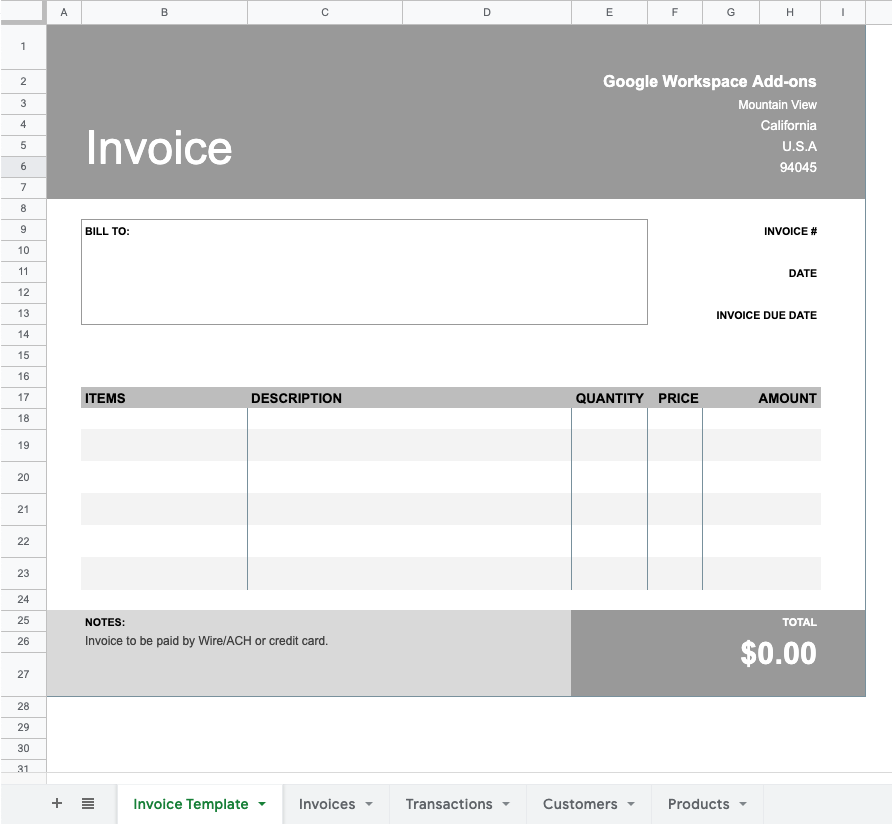
  templateSheet.getRange("B10").setValue(customer.customer_name);
  templateSheet.getRange("B11").setValue(customer.address);
  templateSheet.getRange("F10").setValue(invoiceNumber);
  templateSheet.getRange("F12").setValue(todaysDate);
  templateSheet.getRange("F14").setValue(dueDate);
  templateSheet.getRange(18, 2, lineItems.length, 6).setValues(lineItems);

  // Cleans up and creates PDF.
  SpreadsheetApp.flush();
  Utilities.sleep(500); // Using to offset any potential latency in creating .pdf
  const pdf = createPDF(
    ssId,
    templateSheet,
    `Invoice#${invoiceNumber}-${customer.customer_name}`,
  );
  return [
    invoiceNumber,
    todaysDate,
    customer.customer_name,
    customer.email,
    "",
    totalAmount,
    dueDate,
    pdf.getUrl(),
    "No",
  ];
}

/**
 * Resets the template sheet by clearing out customer data.
 * You use this to prepare for the next iteration or to view blank
 * the template for design.
 *
 * Called by createInvoiceForCustomer() or by the user via custom menu item.
 */
function clearTemplateSheet() {
  const ss = SpreadsheetApp.getActiveSpreadsheet();
  const templateSheet = ss.getSheetByName(INVOICE_TEMPLATE_SHEET_NAME);
  // Clears existing data from the template.
  const rngClear = templateSheet
    .getRangeList(["B10:B11", "F10", "F12", "F14"])
    .getRanges();
  for (const cell of rngClear) {
    cell.clearContent();
  }
  // This sample only accounts for six rows of data 'B18:G24'. You can extend or make dynamic as necessary.
  templateSheet.getRange(18, 2, 7, 6).clearContent();
}

/**
 * Creates a PDF for the customer given sheet.
 * @param {string} ssId - Id of the Google Spreadsheet
 * @param {object} sheet - Sheet to be converted as PDF
 * @param {string} pdfName - File name of the PDF being created
 * @return {file object} PDF file as a blob
 */
function createPDF(ssId, sheet, pdfName) {
  const fr = 0;
  const fc = 0;
  const lc = 9;
  const lr = 27;
  const url = `https://docs.google.com/spreadsheets/d/${ssId}/export?format=pdf&size=7&fzr=true&portrait=true&fitw=true&gridlines=false&printtitle=false&top_margin=0.5&bottom_margin=0.25&left_margin=0.5&right_margin=0.5&sheetnames=false&pagenum=UNDEFINED&attachment=true&gid=${sheet.getSheetId()}&r1=${fr}&c1=${fc}&r2=${lr}&c2=${lc}`;

  const params = {
    method: "GET",
    headers: { authorization: `Bearer ${ScriptApp.getOAuthToken()}` },
  };
  const blob = UrlFetchApp.fetch(url, params)
    .getBlob()
    .setName(`${pdfName}.pdf`);

  // Gets the folder in Drive where the PDFs are stored.
  const folder = getFolderByName_(OUTPUT_FOLDER_NAME);

  const pdfFile = folder.createFile(blob);
  return pdfFile;
}

/**
 * Sends emails with PDF as an attachment.
 * Checks/Sets 'Email Sent' column to 'Yes' to avoid resending.
 *
 * Called by user via custom menu item.
 */
function sendEmails() {
  const ss = SpreadsheetApp.getActiveSpreadsheet();
  const invoicesSheet = ss.getSheetByName(INVOICES_SHEET_NAME);
  const invoicesData = invoicesSheet
    .getRange(1, 1, invoicesSheet.getLastRow(), invoicesSheet.getLastColumn())
    .getValues();
  const keysI = invoicesData.splice(0, 1)[0];
  const invoices = getObjects(invoicesData, createObjectKeys(keysI));
  ss.toast("Emailing Invoices", APP_TITLE, 1);
  invoices.forEach((invoice, index) => {
    if (invoice.email_sent !== "Yes") {
      ss.toast(`Emailing Invoice for ${invoice.customer}`, APP_TITLE, 1);

      const fileId = invoice.invoice_link.match(/[-\w]{25,}(?!.*[-\w]{25,})/);
      const attachment = DriveApp.getFileById(fileId);

      let recipient = invoice.email;
      if (EMAIL_OVERRIDE) {
        recipient = EMAIL_ADDRESS_OVERRIDE;
      }

      GmailApp.sendEmail(recipient, EMAIL_SUBJECT, EMAIL_BODY, {
        attachments: [attachment.getAs(MimeType.PDF)],
        name: APP_TITLE,
      });
      invoicesSheet.getRange(index + 2, 9).setValue("Yes");
    }
  });
}

/**
 * Helper function that turns sheet data range into an object.
 *
 * @param {SpreadsheetApp.Sheet} sheet - Sheet to process
 * Return {object} of a sheet's datarange as an object
 */
function dataRangeToObject(sheet) {
  const dataRange = sheet
    .getRange(1, 1, sheet.getLastRow(), sheet.getLastColumn())
    .getValues();
  const keys = dataRange.splice(0, 1)[0];
  return getObjects(dataRange, createObjectKeys(keys));
}

/**
 * Utility function for mapping sheet data to objects.
 */
function getObjects(data, keys) {
  const objects = [];
  for (let i = 0; i < data.length; ++i) {
    const object = {};
    let hasData = false;
    for (let j = 0; j < data[i].length; ++j) {
      const cellData = data[i][j];
      if (isCellEmpty(cellData)) {
        continue;
      }
      object[keys[j]] = cellData;
      hasData = true;
    }
    if (hasData) {
      objects.push(object);
    }
  }
  return objects;
}
// Creates object keys for column headers.
function createObjectKeys(keys) {
  return keys.map((key) => key.replace(/\W+/g, "_").toLowerCase());
}
// Returns true if the cell where cellData was read from is empty.
function isCellEmpty(cellData) {
  return typeof cellData === "string" && cellData === "";
}

 .
.