إنشاء اشتراك في الجلسات في مكالمة فيديو

مستوى الترميز: مبتدئ
المدة: 5 دقائق
نوع المشروع: أتمتة باستخدام قائمة مخصّصة و مشغّل مستند إلى الأحداث

الأهداف

  • فهم وظيفة الحلّ
  • فهم وظيفة خدمات "برمجة تطبيقات Google" ضمن الحلّ
  • إعداد النص البرمجي
  • تشغيل النص البرمجي

لمحة عن هذا الحلّ

يمكنك إنشاء نظام شامل لتسجيل الحضور في الفعاليات. إذا كان لديك فعالية قادمة، مثل مؤتمر، يمكنك إعداد تقويم جديد لجلسات المؤتمر، وإنشاء نموذج تسجيل، وإرسال بريد إلكتروني تلقائيًا إلى الحاضرين يتضمّن برامج رحلة مخصّصة.
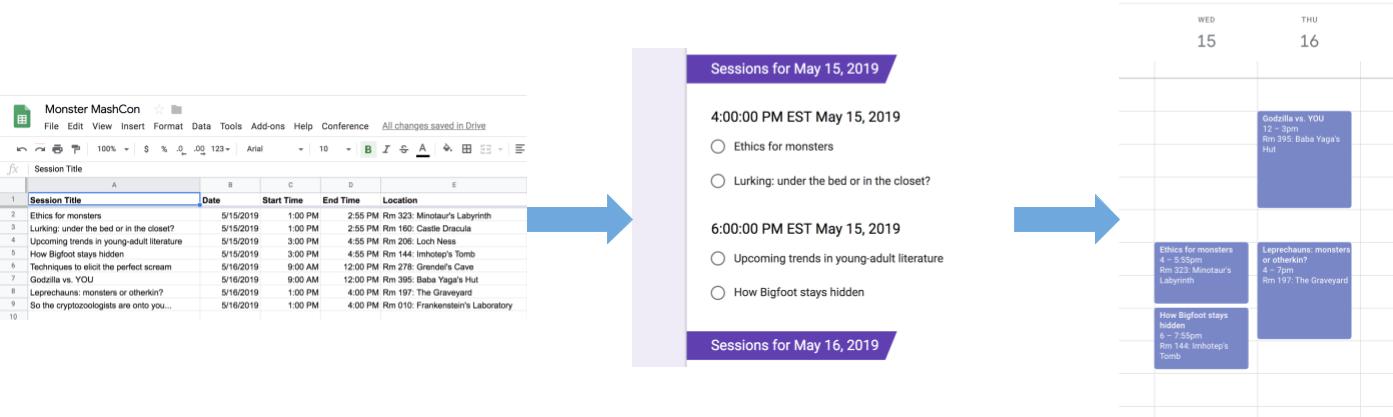
نقل المعلومات من "جداول بيانات Google" إلى "نماذج Google" و"تقويم Google"

آلية العمل

يستخدم هذا الحلّ قائمة مخصّصة في "جداول بيانات Google" لتنفيذ نظام آلي لتسجيل الحضور في الفعاليات. ينشئ النص البرمجي تقويمًا يتضمّن أحداث المؤتمر المدرَجة في جدول بيانات "جداول بيانات Google". بعد ذلك، ينشئ النص البرمجي نموذجًا يتضمّن قائمة بالأحداث التي يمكن للحاضرين التسجيل فيها. بعد أن يملأ الحاضرون النموذج، يضيف النص البرمجي الحاضرين إلى أحداث التقويم ويرسل إليهم برامج الرحلة عبر البريد الإلكتروني.

خدمات "برمجة تطبيقات Google"

يستخدم هذا الحلّ الخدمات التالية:

  • خدمة جداول البيانات: تقدّم معلومات الفعالية إلى الخدمات الأخرى.
  • خدمة "تقويم Google": تنشئ تقويمًا جديدًا للفعالية، وتضيف الأحداث إلى التقويم، وتضيف الحاضرين إلى الأحداث التي يسجّلون فيها.
  • خدمة الخصائص: تخزِّن رقم تعريف التقويم الذي أنشأته خدمة "تقويم Google". عندما ينقر المستخدم على إعداد المؤتمر من القائمة المخصّصة المؤتمر ، تتحقّق خدمة الخصائص مما إذا تم إعداد نظام تسجيل الحضور في الفعاليات من قبل من خلال التحقّق مما إذا كانت خاصية رقم تعريف التقويم متوفّرة. يساعد ذلك في تجنُّب إنشاء نماذج وتقاويم مكرّرة.
  • خدمة "نماذج Google": تنشئ نموذجًا من المعلومات الواردة في جدول البيانات يتيح للحاضرين التسجيل في الجلسات.
  • خدمة النصوص البرمجية: تنشئ مشغّلاً يتم تنشيطه عندما يملأ أحد الحاضرين النموذج.
  • خدمة المستندات: تحصل على معلومات الفعالية للأحداث التي يسجّل فيها أحد المشاركين وتضيف قائمة بالأحداث إلى مستند جديد. يمنح النص البرمجي المشارِك إذن تعديل المستند.
  • خدمة البريد: ترسل مستند برنامج الرحلة إلى المشارِك عبر البريد الإلكتروني.

المتطلبات الأساسية

لاستخدام هذا النموذج، يجب استيفاء المتطلبات الأساسية التالية:

  • حساب Google (قد تتطلب حسابات Google Workspace موافقة المشرف).
  • متصفّح ويب يمكنه الوصول إلى الإنترنت

إعداد النص البرمجي

  1. انقر على الزرّ التالي لإنشاء نسخة من نموذج جدول بيانات "جداول بيانات Google" إنشاء نموذج تسجيل لحضور الجلسات في مؤتمر. مشروع "برمجة تطبيقات Google" لهذا الحلّ مرفق بجدول البيانات:

    إنشاء نسخة

  2. انقر على المؤتمر > إعداد المؤتمر. قد تحتاج إلى إعادة تحميل الصفحة لكي تظهر هذه القائمة المخصّصة.

  3. امنح الإذن للنصّ البرمجي عند مطالبتك بذلك. <<../_snippets/oauth.md>>

  4. انقر على المؤتمر > إعداد المؤتمر مرة أخرى.

تشغيل النص البرمجي

  1. انقر على الأدوات > إدارة النموذج > الانتقال إلى النموذج المباشر.
  2. املأ النموذج وأرسِله.
  3. انتقِل إلى calendar.google.com.
  4. على يمين الصفحة، تأكَّد من وضع علامة في المربّع بجانب تقويم المؤتمر.
  5. انتقِل إلى تواريخ الأحداث التي سجّلت فيها وتأكَّد من أنّه تمّت إضافتك كمشارِك.

(اختياري) إعادة ضبط الحلّ

إذا أردت تجربة هذا الحلّ مرة أخرى أو تخصيصه لاستخدام معلومات الفعالية الخاصة بك، عليك إعادة ضبط بعض العناصر التي تم إعدادها عند تشغيل النص البرمجي لأول مرة. لعرض خطوات إعادة ضبط الحلّ، انقر على إعادة ضبط الحلّ:

إعادة ضبط الحلّ

الخطوة 1: إعادة ضبط خصائص النص البرمجي المخزّنة

إذا حاولت تشغيل النص البرمجي أكثر من مرة، ستظهر لك الرسالة تمّ إعداد المؤتمر من قبل. ابحث عن نموذج التسجيل في Google Drive. يحدث ذلك لأنّه بعد إنشاء "تقويم المؤتمر"، يتم تخزين رقم تعريف التقويم كخاصية نص برمجي. عند تشغيل النص البرمجي، يتحقّق مما إذا كانت خاصية رقم تعريف التقويم موجودة من قبل، ويتوقف عن التشغيل إذا كانت موجودة.

اتّبِع الخطوات التالية لإزالة خاصية رقم تعريف التقويم الحالية:

  1. في جدول البيانات، انقر على الإضافات > برمجة تطبيقات Google.
  2. في أداة تعديل النصوص البرمجية، اختَر resetProperties من القائمة المنسدلة للدالة وانقر على تشغيل.

الخطوة 2: حذف "تقويم المؤتمر"

في كل مرة يتم فيها تشغيل النص البرمجي، يتم إنشاء تقويم جديد. إذا كنت لا تريد الاحتفاظ بالتقويم الأصلي الذي تم إنشاؤه، اتّبِع الخطوات التالية:

  1. انتقِل إلى calendar.google.com.
  2. بجانب "تقويم المؤتمر"، انقر على "خيارات تقويم المؤتمر" > الإعدادات والمشاركة.
  3. انتقِل إلى أسفل الإعدادات وانقر على حذف.

الخطوة 3: حذف مشغّل إرسال النموذج

ينشئ النص البرمجي مشغّلاً لعمليات إرسال النماذج في كل مرة يتم تشغيله فيها. لتجنُّب المشغّلات المتعدّدة التي تؤدي إلى إرسال رسائل إلكترونية مكرّرة، عليك إزالة المشغّل الأصلي. يُرجى اتّباع الخطوات التالية:

  1. في جدول البيانات، انقر على الإضافات > برمجة تطبيقات Google.
  2. في مشروع "برمجة تطبيقات Google"، انقر على المشغّلات على يمين الصفحة.
  3. بجانب المشغّل، انقر على "المزيد" > حذف المشغّل.

في كل مرة يتم فيها تشغيل النص البرمجي، يتم إنشاء نموذج جديد. اتّبِع الخطوات التالية لـ إلغاء ربط النموذج بجدول البيانات وحذفه:

  1. في جدول البيانات، انقر بزر الماوس الأيمن على ورقة ردود النموذج وانقر على إلغاء ربط النموذج > حسنًا.
  2. انقر بزر الماوس الأيمن على ورقة ردود النموذج مرة أخرى وانقر على حذف > حسنًا.
  3. انتقِل إلى forms.google.com.
  4. انقر بزر الماوس الأيمن على نموذج المؤتمر وانقر على إزالة > نقل إلى المهملات.

بعد إعادة ضبط الحلّ، يمكنك إضافة بياناتك الخاصة أو مواصلة استخدام البيانات النموذجية وتشغيل النص البرمجي مرة أخرى.

مراجعة الرمز البرمجي

لمراجعة رمز "برمجة تطبيقات Google" لهذا الحلّ، انقر على عرض رمز المصدر:

عرض رمز المصدر

Code.gs

solutions/automations/event-session-signup/Code.js
// To learn how to use this script, refer to the documentation:
// https://developers.google.com/apps-script/samples/automations/event-session-signup

/*
Copyright 2022 Google LLC

Licensed under the Apache License, Version 2.0 (the "License");
you may not use this file except in compliance with the License.
You may obtain a copy of the License at

    https://www.apache.org/licenses/LICENSE-2.0

Unless required by applicable law or agreed to in writing, software
distributed under the License is distributed on an "AS IS" BASIS,
WITHOUT WARRANTIES OR CONDITIONS OF ANY KIND, either express or implied.
See the License for the specific language governing permissions and
limitations under the License.
*/

/**
 * Inserts a custom menu when the spreadsheet opens.
 */
function onOpen() {
  SpreadsheetApp.getUi()
    .createMenu("Conference")
    .addItem("Set up conference", "setUpConference_")
    .addToUi();
}

/**
 * Uses the conference data in the spreadsheet to create
 * Google Calendar events, a Google Form, and a trigger that allows the script
 * to react to form responses.
 */
function setUpConference_() {
  const scriptProperties = PropertiesService.getScriptProperties();
  if (scriptProperties.getProperty("calId")) {
    Browser.msgBox(
      "Your conference is already set up. Look in Google Drive for your" +
        " sign-up form!",
    );
    return;
  }
  const ss = SpreadsheetApp.getActive();
  const sheet = ss.getSheetByName("Conference Setup");
  const range = sheet.getDataRange();
  const values = range.getValues();
  setUpCalendar_(values, range);
  setUpForm_(ss, values);
  ScriptApp.newTrigger("onFormSubmit")
    .forSpreadsheet(ss)
    .onFormSubmit()
    .create();
}

/**
 * Creates a Google Calendar with events for each conference session in the
 * spreadsheet, then writes the event IDs to the spreadsheet for future use.
 * @param {Array<string[]>} values Cell values for the spreadsheet range.
 * @param {Range} range A spreadsheet range that contains conference data.
 */
function setUpCalendar_(values, range) {
  const cal = CalendarApp.createCalendar("Conference Calendar");
  // Start at 1 to skip the header row.
  for (let i = 1; i < values.length; i++) {
    const session = values[i];
    const title = session[0];
    const start = joinDateAndTime_(session[1], session[2]);
    const end = joinDateAndTime_(session[1], session[3]);
    const options = { location: session[4], sendInvites: true };
    const event = cal
      .createEvent(title, start, end, options)
      .setGuestsCanSeeGuests(false);
    session[5] = event.getId();
  }
  range.setValues(values);

  // Stores the ID for the Calendar, which is needed to retrieve events by ID.
  const scriptProperties = PropertiesService.getScriptProperties();
  scriptProperties.setProperty("calId", cal.getId());
}

/**
 * Creates a single Date object from separate date and time cells.
 *
 * @param {Date} date A Date object from which to extract the date.
 * @param {Date} time A Date object from which to extract the time.
 * @return {Date} A Date object representing the combined date and time.
 */
function joinDateAndTime_(date_, time) {
  const processedDate = new Date(date_);
  processedDate.setHours(time.getHours());
  processedDate.setMinutes(time.getMinutes());
  return processedDate;
}

/**
 * Creates a Google Form that allows respondents to select which conference
 * sessions they would like to attend, grouped by date and start time in the
 * caller's time zone.
 *
 * @param {Spreadsheet} ss The spreadsheet that contains the conference data.
 * @param {Array<String[]>} values Cell values for the spreadsheet range.
 */
function setUpForm_(ss, values) {
  // Group the sessions by date and time so that they can be passed to the form.
  const schedule = {};
  // Start at 1 to skip the header row.
  for (let i = 1; i < values.length; i++) {
    const session = values[i];
    const day = session[1].toLocaleDateString();
    const time = session[2].toLocaleTimeString();
    if (!schedule[day]) {
      schedule[day] = {};
    }
    if (!schedule[day][time]) {
      schedule[day][time] = [];
    }
    schedule[day][time].push(session[0]);
  }

  // Creates the form and adds a multiple-choice question for each timeslot.
  const form = FormApp.create("Conference Form");
  form.setDestination(FormApp.DestinationType.SPREADSHEET, ss.getId());
  form.addTextItem().setTitle("Name").setRequired(true);
  form.addTextItem().setTitle("Email").setRequired(true);
  for (const day of Object.keys(schedule)) {
    form.addSectionHeaderItem().setTitle(`Sessions for ${day}`);
    for (const time of Object.keys(schedule[day])) {
      form
        .addMultipleChoiceItem()
        .setTitle(`${time} ${day}`)
        .setChoiceValues(schedule[day][time]);
    }
  }
}

/**
 * Sends out calendar invitations and a
 * personalized Google Docs itinerary after a user responds to the form.
 *
 * @param {Object} e The event parameter for form submission to a spreadsheet;
 *     see https://developers.google.com/apps-script/understanding_events
 */
function onFormSubmit(e) {
  const user = {
    name: e.namedValues.Name[0],
    email: e.namedValues.Email[0],
  };

  // Grab the session data again so that we can match it to the user's choices.
  const response = [];
  const values = SpreadsheetApp.getActive()
    .getSheetByName("Conference Setup")
    .getDataRange()
    .getValues();
  for (let i = 1; i < values.length; i++) {
    const session = values[i];
    const title = session[0];
    const day = session[1].toLocaleDateString();
    const time = session[2].toLocaleTimeString();
    const timeslot = `${time} ${day}`;

    // For every selection in the response, find the matching timeslot and title
    // in the spreadsheet and add the session data to the response array.
    if (e.namedValues[timeslot] && e.namedValues[timeslot] === title) {
      response.push(session);
    }
  }
  sendInvites_(user, response);
  sendDoc_(user, response);
}

/**
 * Add the user as a guest for every session he or she selected.
 * @param {object} user An object that contains the user's name and email.
 * @param {Array<String[]>} response An array of data for the user's session choices.
 */
function sendInvites_(user, response) {
  const id = ScriptProperties.getProperty("calId");
  const cal = CalendarApp.getCalendarById(id);
  for (let i = 0; i < response.length; i++) {
    cal.getEventSeriesById(response[i][5]).addGuest(user.email);
  }
}

/**
 * Creates and shares a personalized Google Doc that shows the user's itinerary.
 * @param {object} user An object that contains the user's name and email.
 * @param {Array<string[]>} response An array of data for the user's session choices.
 */
function sendDoc_(user, response) {
  const doc = DocumentApp.create(
    `Conference Itinerary for ${user.name}`,
  ).addEditor(user.email);
  const body = doc.getBody();
  let table = [["Session", "Date", "Time", "Location"]];
  for (let i = 0; i < response.length; i++) {
    table.push([
      response[i][0],
      response[i][1].toLocaleDateString(),
      response[i][2].toLocaleTimeString(),
      response[i][4],
    ]);
  }
  body
    .insertParagraph(0, doc.getName())
    .setHeading(DocumentApp.ParagraphHeading.HEADING1);
  table = body.appendTable(table);
  table.getRow(0).editAsText().setBold(true);
  doc.saveAndClose();

  // Emails a link to the Doc as well as a PDF copy.
  MailApp.sendEmail({
    to: user.email,
    subject: doc.getName(),
    body: `Thanks for registering! Here's your itinerary: ${doc.getUrl()}`,
    attachments: doc.getAs(MimeType.PDF),
  });
}

/**
 * Removes the calId script property so that the 'setUpConference_()' can be run again.
 */
function resetProperties() {
  const scriptProperties = PropertiesService.getScriptProperties();
  scriptProperties.deleteAllProperties();
}
</section>

المساهمون

تحتفظ Google بهذا النموذج بمساعدة خبراء التطوير في Google.

الخطوات التالية