
แบนเนอร์แบบปรับขนาดได้คือโฆษณาที่ปรับตามพื้นที่โฆษณารุ่นถัดไป ซึ่งจะเพิ่มประสิทธิภาพ โดยการปรับขนาดโฆษณาให้เหมาะสมกับอุปกรณ์แต่ละเครื่อง แบนเนอร์แบบปรับขนาดได้ได้รับการปรับปรุงจากแบนเนอร์ที่มีขนาดคงที่ซึ่งรองรับเฉพาะความสูงคงที่ โดยช่วยให้นักพัฒนาแอป ระบุความกว้างของโฆษณาและใช้ความกว้างนี้เพื่อกำหนดขนาดโฆษณาที่เหมาะสมที่สุด
แบนเนอร์แบบปรับขนาดได้ในบรรทัดใช้ความสูงสูงสุดแทนที่จะใช้ความสูงคงที่ในการเลือกขนาดโฆษณาที่ดีที่สุด ซึ่งจะช่วยให้มีโอกาสปรับปรุงประสิทธิภาพ
กรณีที่ควรใช้แบนเนอร์แบบปรับขนาดได้ที่แทรกในบรรทัด
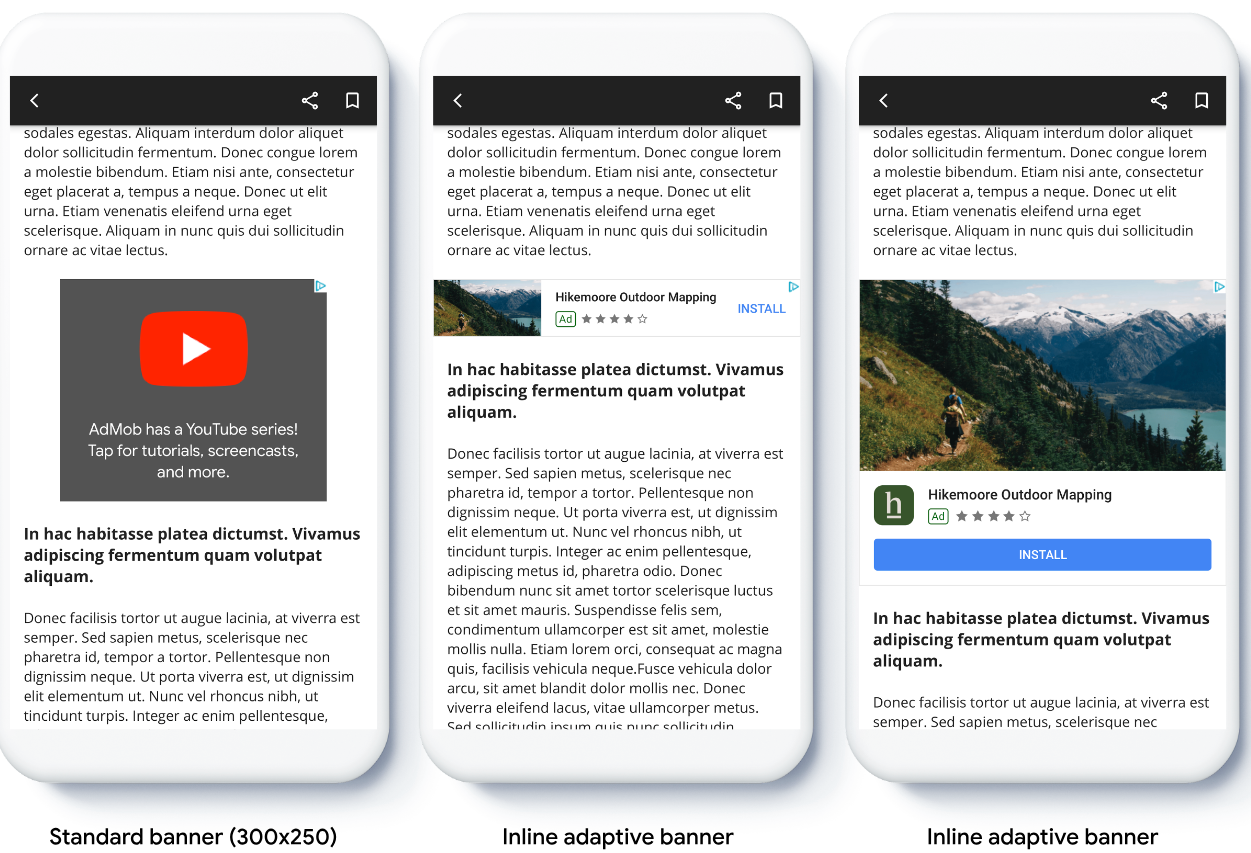
แบนเนอร์แบบปรับขนาดได้แบบแทรกในบรรทัดเป็นแบนเนอร์ที่มีขนาดใหญ่และสูงกว่าแบนเนอร์แบบปรับขนาดได้ที่ตรึงไว้ โดยมีความสูงที่แตกต่างกันและอาจสูงเท่าหน้าจออุปกรณ์
โดยมีวัตถุประสงค์เพื่อวางในเนื้อหาที่เลื่อนได้ เช่น
ข้อกำหนดเบื้องต้น
ตั้งค่า Google Mobile Ads Flutter Plugin ก่อนดำเนินการต่อ
ก่อนเริ่มต้น
เมื่อใช้แบนเนอร์แบบปรับขนาดได้ในแอป โปรดทราบประเด็นต่อไปนี้
ตรวจสอบว่าคุณใช้ Google Mobile Ads Flutter Plugin เวอร์ชันล่าสุด และหากใช้สื่อกลาง AdMob ให้ตรวจสอบว่าคุณใช้เวอร์ชันล่าสุดของอะแดปเตอร์สื่อกลาง
ขนาดแบนเนอร์แบบปรับขนาดได้แบบแทรกในบรรทัดได้รับการออกแบบมาให้ทำงานได้ดีที่สุดเมื่อใช้ เต็มความกว้างที่มี โดยในกรณีส่วนใหญ่จะเป็นความกว้างแบบเต็มหน้าจอของอุปกรณ์ที่ใช้ อย่าลืมคำนึงถึงพื้นที่ปลอดภัยที่เกี่ยวข้อง
วิธีการรับขนาดโฆษณามีดังนี้
AdSize.getCurrentOrientationInlineAdaptiveBannerAdSize(int width)AdSize.getLandscapeInlineAdaptiveBannerAdSize(int width)AdSize.getPortraitInlineAdaptiveBannerAdSize(int width)AdSize.getInlineAdaptiveBannerAdSize(int width, int maxHeight)
เมื่อใช้ API แบนเนอร์แบบปรับขนาดได้ในบรรทัด Google Mobile Ads Flutter Plugin จะแสดง
AdSizeที่มีความกว้างที่ระบุและ แฟล็กในบรรทัด ความสูงจะเป็น 0 หรือmaxHeightขึ้นอยู่กับ API ที่คุณใช้ ความสูงจริงของโฆษณาจะพร้อมใช้งานเมื่อมีการ แสดงผลแบนเนอร์แบบปรับขนาดได้ที่แทรกในบรรทัดได้รับการออกแบบมาเพื่อวางในเนื้อหาแบบเลื่อนได้ แบนเนอร์อาจมีความสูงเท่ากับหน้าจออุปกรณ์หรือจำกัดด้วยความสูงสูงสุด ขึ้นอยู่กับ API
การใช้งาน
ทําตามขั้นตอนด้านล่างเพื่อใช้แบนเนอร์แบบปรับขนาดได้ในบรรทัดอย่างง่าย
- รับขนาดโฆษณาแบนเนอร์แบบปรับขนาดได้ที่แทรกในบรรทัด ระบบจะใช้ขนาดที่คุณได้รับเพื่อ
ขอแบนเนอร์แบบปรับขนาดได้ หากต้องการรับขนาดโฆษณาที่ปรับเปลี่ยนได้ โปรดตรวจสอบว่าคุณได้ดำเนินการต่อไปนี้
- รับความกว้างของอุปกรณ์ที่ใช้ในพิกเซลอิสระความหนาแน่น หรือตั้งค่าความกว้างของคุณเองหากไม่ต้องการใช้ความกว้างเต็มหน้าจอ
คุณใช้
MediaQuery.of(context)เพื่อรับความกว้างของหน้าจอได้ - ใช้เมธอดแบบคงที่ที่เหมาะสมในคลาสขนาดโฆษณา เช่น
AdSize.getCurrentOrientationInlineAdaptiveBannerAdSize(int width)เพื่อรับออบเจ็กต์AdSizeแบบปรับได้ในบรรทัดสำหรับการวางแนวปัจจุบัน - หากต้องการจำกัดความสูงของแบนเนอร์ คุณสามารถใช้วิธีการแบบคงที่
AdSize.getInlineAdaptiveBannerAdSize(int width, int maxHeight)
- รับความกว้างของอุปกรณ์ที่ใช้ในพิกเซลอิสระความหนาแน่น หรือตั้งค่าความกว้างของคุณเองหากไม่ต้องการใช้ความกว้างเต็มหน้าจอ
คุณใช้
- สร้างออบเจ็กต์
BannerAdโดยใช้รหัสหน่วยโฆษณา ขนาดโฆษณาที่ปรับเปลี่ยนได้ และ ออบเจ็กต์คำขอโฆษณา - โหลดโฆษณา
- ใน
onAdLoadedCallback ให้ใช้BannerAd.getPlatformAdSize()เพื่อรับ ขนาดโฆษณาของแพลตฟอร์มที่อัปเดตแล้ว และอัปเดตความสูงของคอนเทนเนอร์AdWidget
ตัวอย่างโค้ด
ต่อไปนี้คือตัวอย่างวิดเจ็ตที่โหลดแบนเนอร์แบบปรับขนาดได้ในบรรทัดให้พอดีกับ ความกว้างของหน้าจอ โดยคำนึงถึงระยะขอบ
import 'package:flutter/material.dart';
import 'package:google_mobile_ads/google_mobile_ads.dart';

/// This example demonstrates inline adaptive banner ads.
///
/// Loads and shows an inline adaptive banner ad in a scrolling view,
/// and reloads the ad when the orientation changes.
class InlineAdaptiveExample extends StatefulWidget {
  @override
  _InlineAdaptiveExampleState createState() => _InlineAdaptiveExampleState();
}

class _InlineAdaptiveExampleState extends State<InlineAdaptiveExample> {
  static const _insets = 16.0;
  BannerAd? _inlineAdaptiveAd;
  bool _isLoaded = false;
  AdSize? _adSize;
  late Orientation _currentOrientation;

  double get _adWidth => MediaQuery.of(context).size.width - (2 * _insets);

  @override
  void didChangeDependencies() {
    super.didChangeDependencies();
    _currentOrientation = MediaQuery.of(context).orientation;
    _loadAd();
  }

  void _loadAd() async {
    await _inlineAdaptiveAd?.dispose();
    setState(() {
      _inlineAdaptiveAd = null;
      _isLoaded = false;
    });

    // Get an inline adaptive size for the current orientation.
    AdSize size = AdSize.getCurrentOrientationInlineAdaptiveBannerAdSize(
        _adWidth.truncate());

    _inlineAdaptiveAd = BannerAd(
      // TODO: replace this test ad unit with your own ad unit.
      adUnitId: 'ca-app-pub-3940256099942544/9214589741',
      size: size,
      request: AdRequest(),
      listener: BannerAdListener(
        onAdLoaded: (Ad ad) async {
          print('Inline adaptive banner loaded: ${ad.responseInfo}');

          // After the ad is loaded, get the platform ad size and use it to
          // update the height of the container. This is necessary because the
          // height can change after the ad is loaded.
          BannerAd bannerAd = (ad as BannerAd);
          final AdSize? size = await bannerAd.getPlatformAdSize();
          if (size == null) {
            print('Error: getPlatformAdSize() returned null for $bannerAd');
            return;
          }

          setState(() {
            _inlineAdaptiveAd = bannerAd;
            _isLoaded = true;
            _adSize = size;
          });
        },
        onAdFailedToLoad: (Ad ad, LoadAdError error) {
          print('Inline adaptive banner failedToLoad: $error');
          ad.dispose();
        },
      ),
    );
    await _inlineAdaptiveAd!.load();
  }

  /// Gets a widget containing the ad, if one is loaded.
  ///
  /// Returns an empty container if no ad is loaded, or the orientation
  /// has changed. Also loads a new ad if the orientation changes.
  Widget _getAdWidget() {
    return OrientationBuilder(
      builder: (context, orientation) {
        if (_currentOrientation == orientation &&
            _inlineAdaptiveAd != null &&
            _isLoaded &&
            _adSize != null) {
          return Align(
              child: Container(
            width: _adWidth,
            height: _adSize!.height.toDouble(),
            child: AdWidget(
              ad: _inlineAdaptiveAd!,
            ),
          ));
        }
        // Reload the ad if the orientation changes.
        if (_currentOrientation != orientation) {
          _currentOrientation = orientation;
          _loadAd();
        }
        return Container();
      },
    );
  }

  @override
  Widget build(BuildContext context) => Scaffold(
      appBar: AppBar(
        title: Text('Inline adaptive banner example'),
      ),
      body: Center(
        child: Padding(
          padding: const EdgeInsets.symmetric(horizontal: _insets),
          child: ListView.separated(
            itemCount: 20,
            separatorBuilder: (BuildContext context, int index) {
              return Container(
                height: 40,
              );
            },
            itemBuilder: (BuildContext context, int index) {
              if (index == 10) {
                return _getAdWidget();
              }
              return Text(
                'Placeholder text',
                style: TextStyle(fontSize: 24),
              );
            },
          ),
        ),
      ));

  @override
  void dispose() {
    super.dispose();
    _inlineAdaptiveAd?.dispose();
  }
}