
This guide shows you how to use GMA Next-Gen SDK to load and display ads from AppLovin using mediation covering both waterfall and bidding integrations. It covers how to add AppLovin to an ad unit's mediation configuration, and how to integrate the AppLovin SDK and adapter into an Android app.
Supported integrations and ad formats
The mediation adapter for AppLovin has the following capabilities:
| Integration | |
|---|---|
| Bidding | |
| Waterfall | |
| Formats | |
| App Open | 1 |
| Banner | 2 |
| Interstitial | |
| Rewarded | |
| Native | |
1 Waterfall integration is in closed beta.
Waterfall supports only 320x50 and 728x90 banner sizes. Bidding doesn't support banner ads.
Prerequisites
Before you continue, verify the following:
- Android API level 24 or later.
- [For bidding]: To integrate all supported ad formats in bidding, use the AppLovin adapter 9.4.2.0 or later (latest version recommended).
Latest GMA Next-Gen SDK version.
Step 1: Set up configurations in AppLovin UI
Sign up or log in to your AppLovin account.
To set up your Ad Manager ad unit, you'll need your AppLovin SDK Key and Report Key. To find them, go to the AppLovin UI > Account > Keys to see both values.
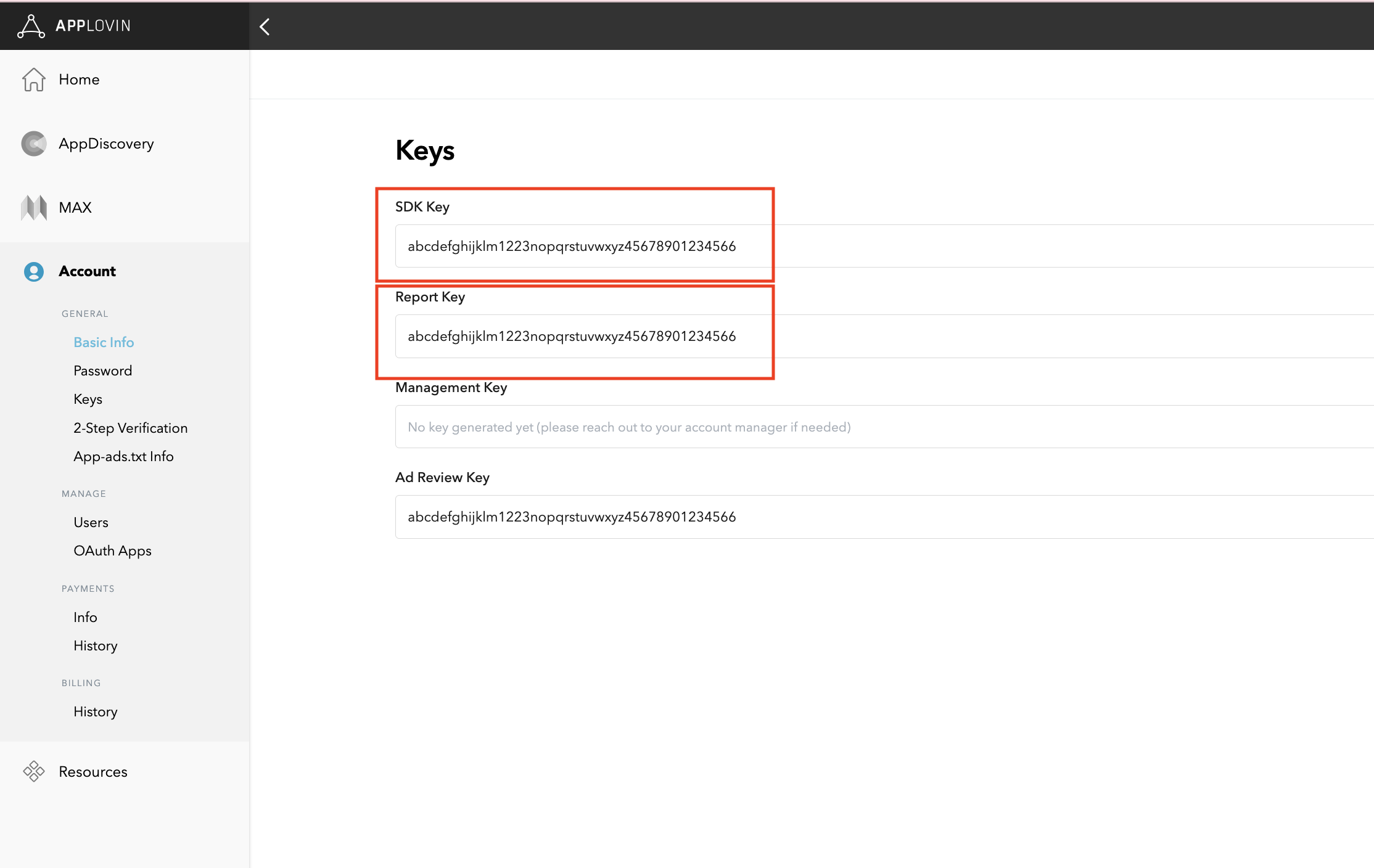
If you plan on just integrating bidding, you can proceed to configure your mediation settings.
Select app for mediation
Bidding
This step isn't required for bidding integrations.
Waterfall
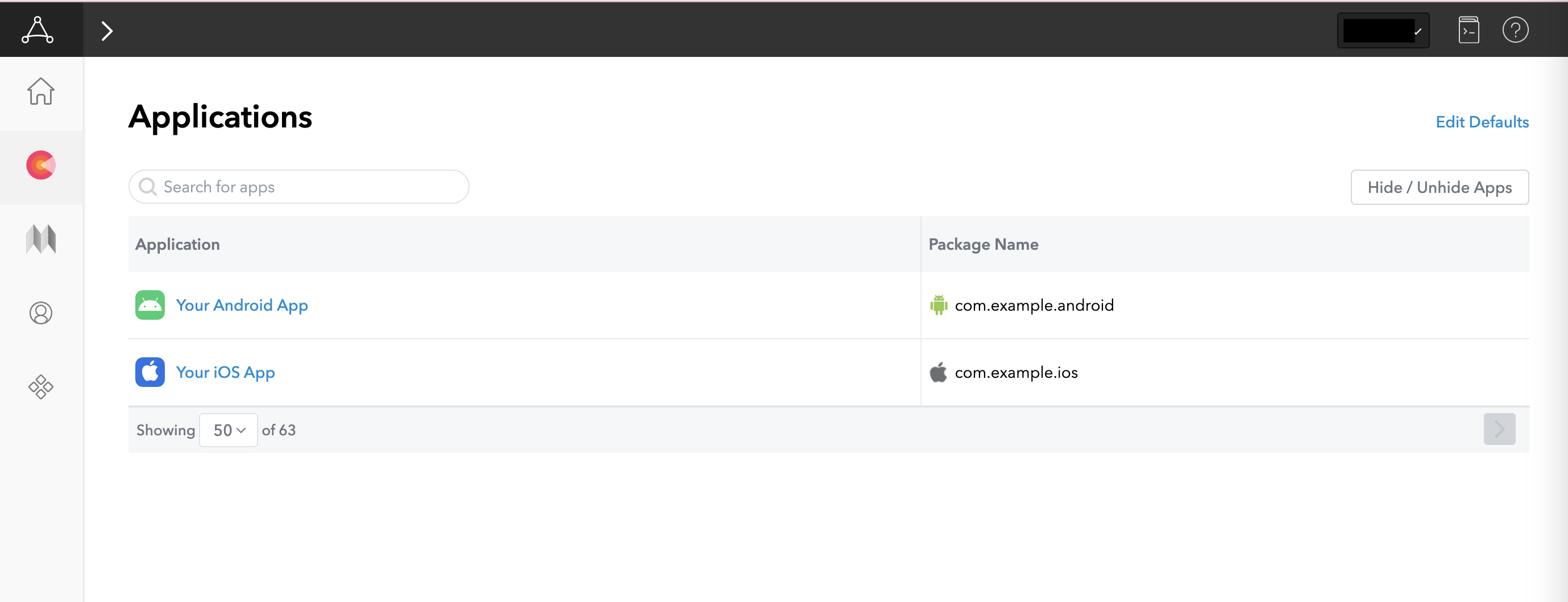
On the AppLovin UI, select Applications under the Monetization section to get to your registered apps. Select the app you'd like to use with mediation from the list of available apps.
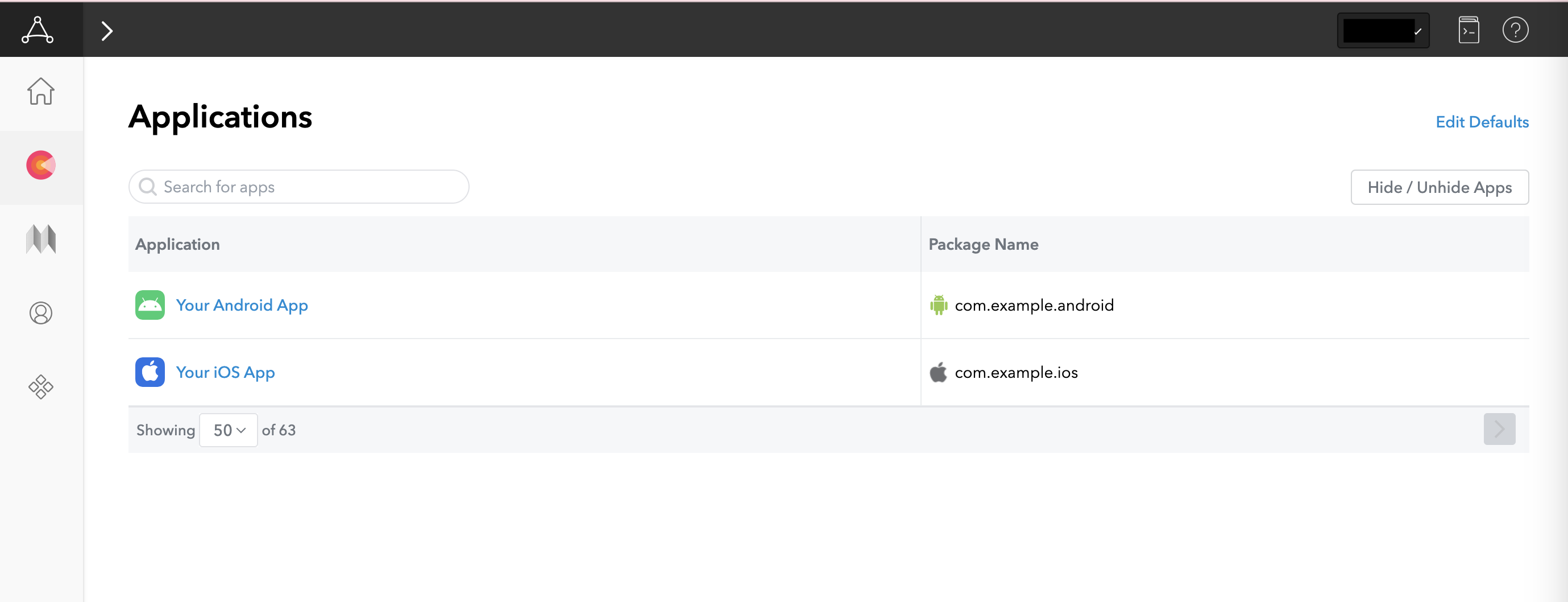
Create a zone
Bidding
This step isn't required for bidding integrations.
Waterfall
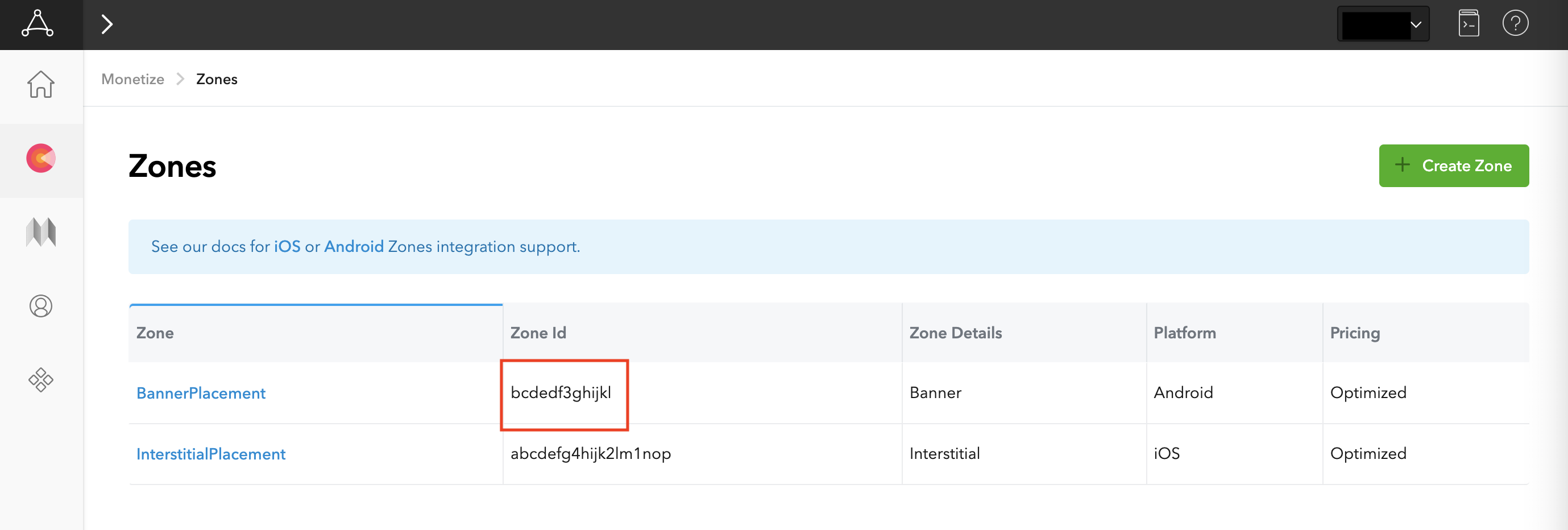
On the AppLovin UI, select Zones under the Monetization section to get to your registered zone IDs. If you have already created the required zones for your app, skip ahead to Step 2. To create a new zone ID, click Create Zone.
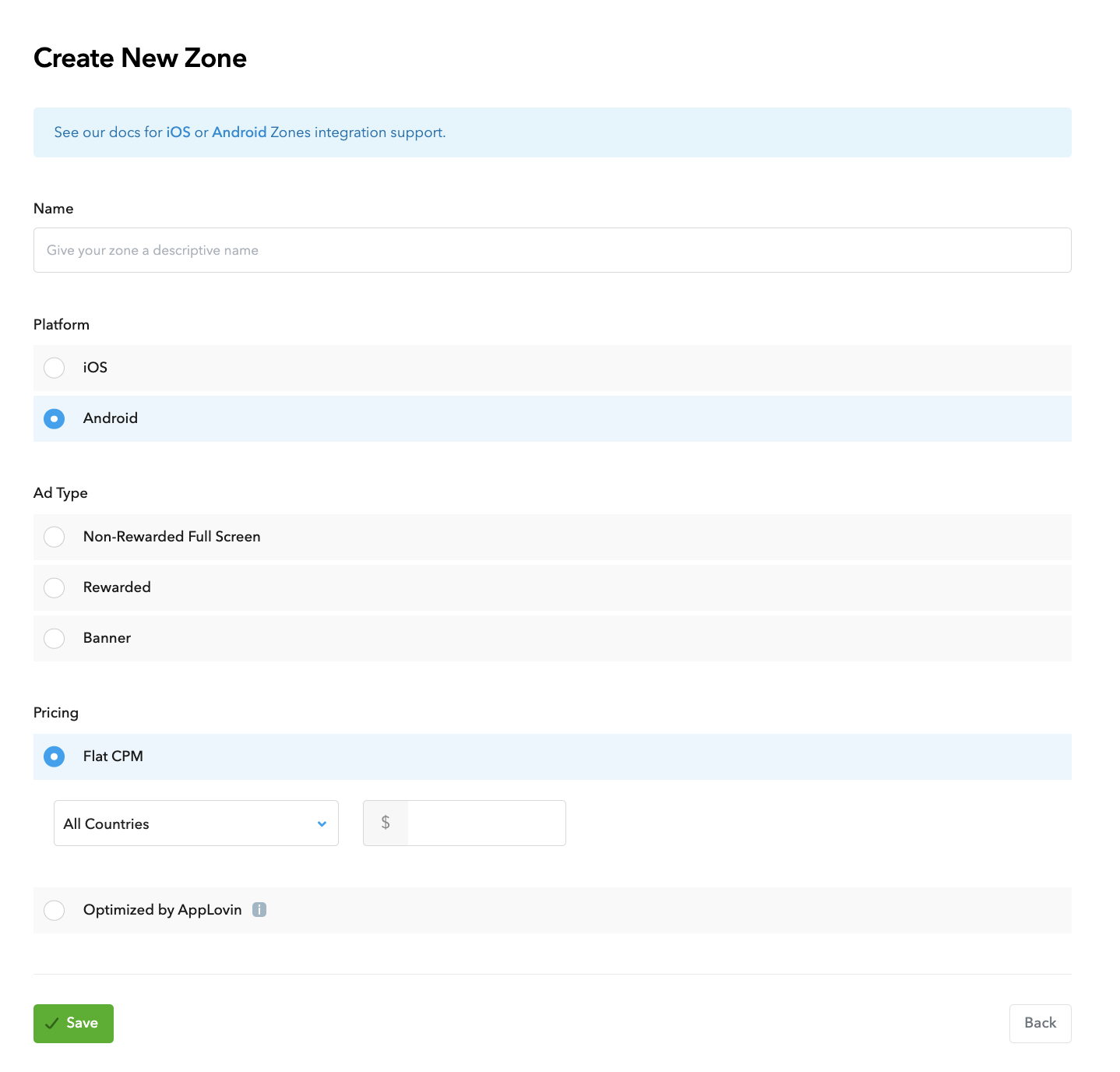
Enter the name of Zone ID, select Android as the Platform, and choose the Ad Type.
Configure Pricing for the zone by selecting either Flat CPM or Optimized by AppLovin. CPMs can be configured on a per country basis for the Flat CPM option. Then, click Save.
Once the zone is created, the zone ID can be found under the Zone ID column.
Update your app-ads.txt
Authorized Sellers for Apps app-ads.txt is an IAB Tech Lab initiative that helps ensure your
app ad inventory is only sold through channels you've identified as authorized. To prevent a
significant loss in ad revenue, you'll need to implement an app-ads.txt file.
If you haven't done so already,
create an app-ads.txt file for Ad Manager.
To implement app-ads.txt for AppLovin,
Add AppLovin to your app-ads.txt file.
Turn on test mode
Follow the instructions in AppLovin's MAX Test Mode guide on how to enable AppLovin test ads.
Step 2: Set up AppLovin demand in Ad Manager UI
Sign in to your Ad Manager account.
Add AppLovin in Companies
Bidding
This step isn't required for bidding integrations.
Waterfall
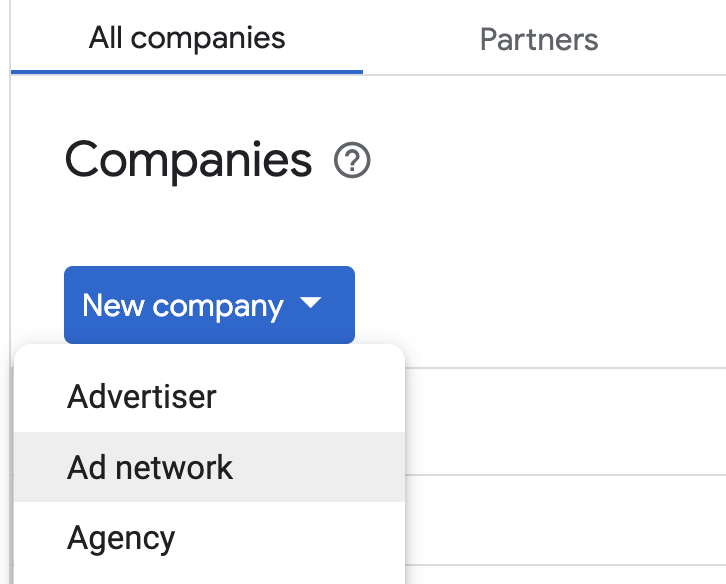
Navigate to Admin > Companies, then click the New company button in the All companies tab. Select Ad network.
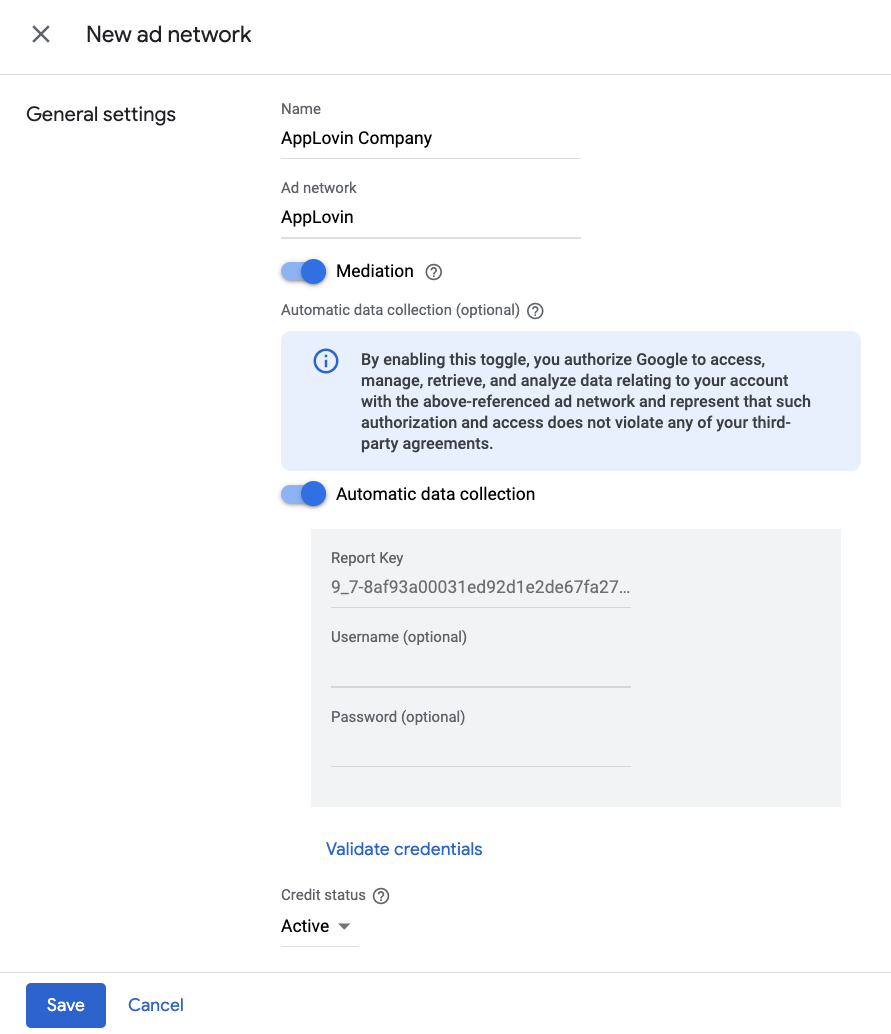
Select AppLovin as the Ad network, enter a unique Name and enable Mediation. Turn on Automatic data collection, and enter the Report Key obtained in the previous section.
You don't need to enter a Username or Password. Click Save when done.
Enable secure signal sharing
Bidding
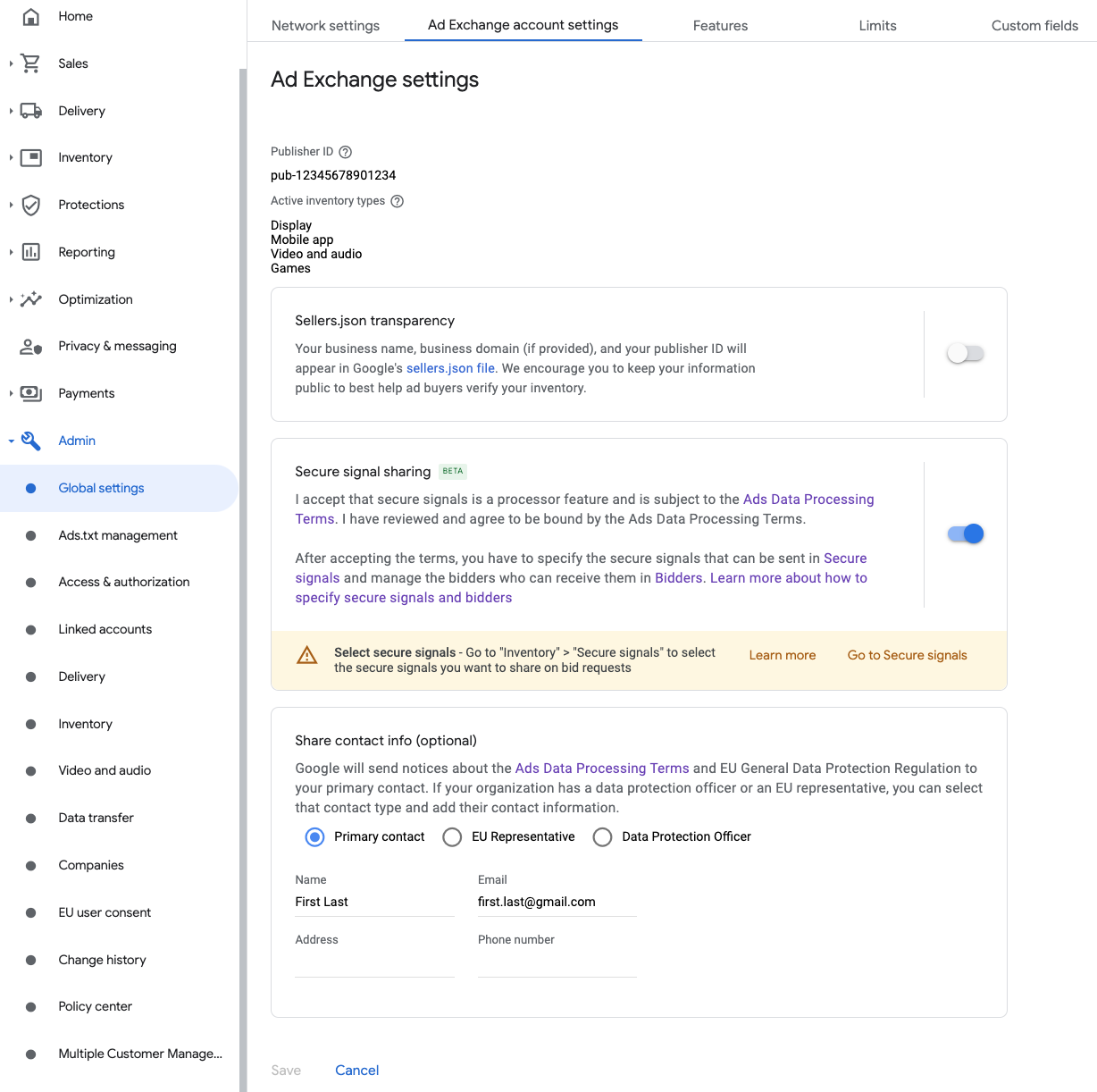
Navigate to Admin > Global settings. Go to the Ad Exchange account settings tab and review and turn on Secure signal sharing. Click Save.
Waterfall
This step isn't required for waterfall integrations.
Share secure signal on bid requests
Bidding
Navigate to Inventory > Secure Signals. Under Secure signals, search for AppLovin Corp. and turn on Enable app integration.
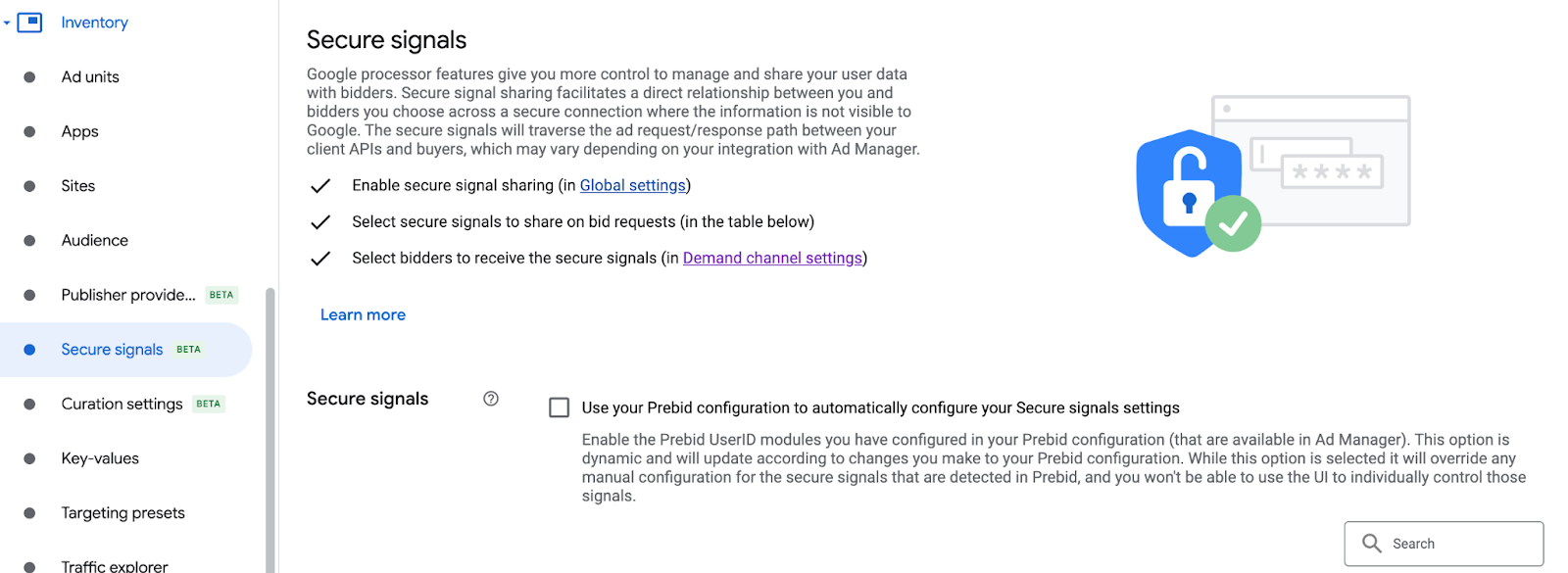
Click Save.
Waterfall
This step isn't required for waterfall integrations.
Allow secure signal sharing for SDK Bidding
Bidding
Navigate to Delivery > Demand channel settings. In the Default settings tab, turn on Allow secure signal sharing for SDK Bidding.
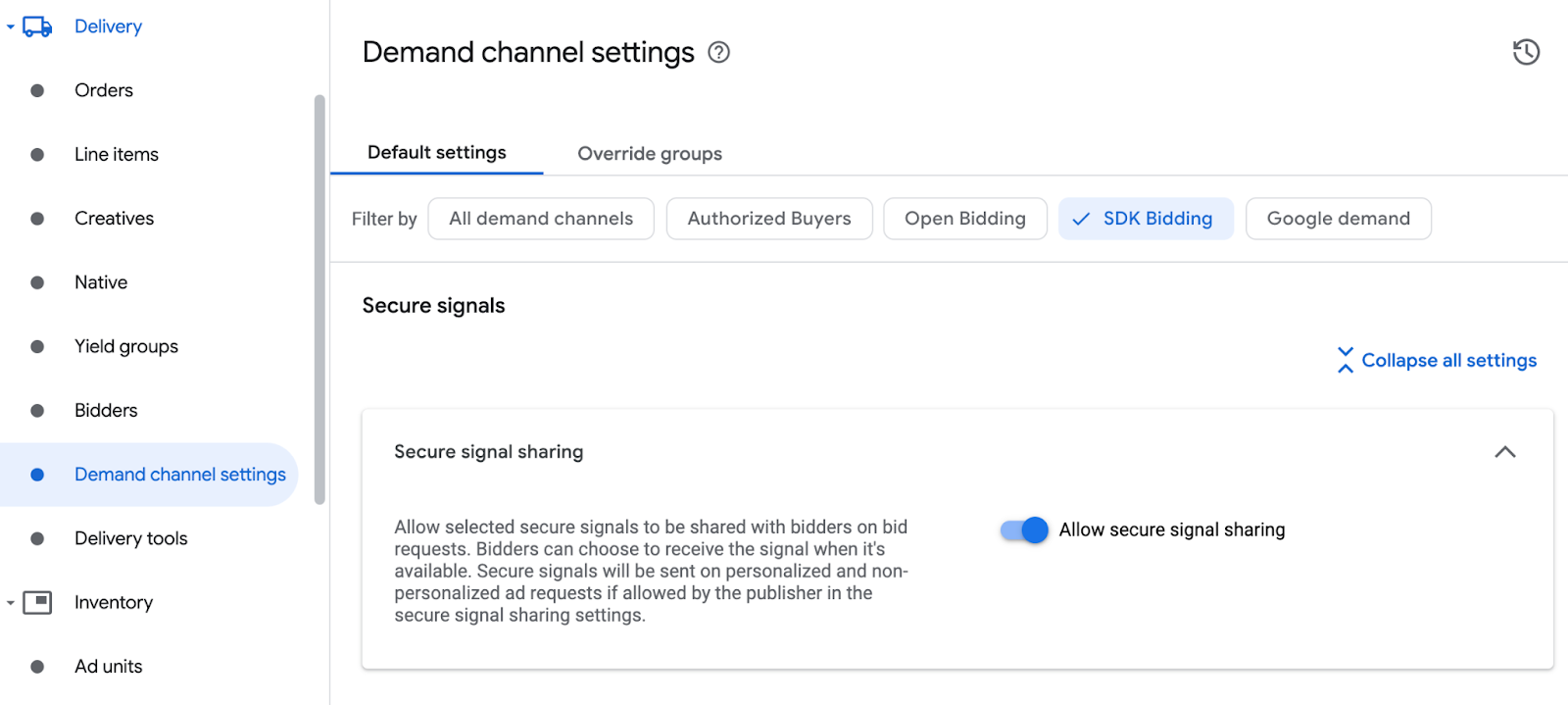
Click Save.
Waterfall
This step isn't required for waterfall integrations.
Configure AppLovin bidding
Bidding
Navigate to Delivery > Bidders, and click Go to SDK Bidding.
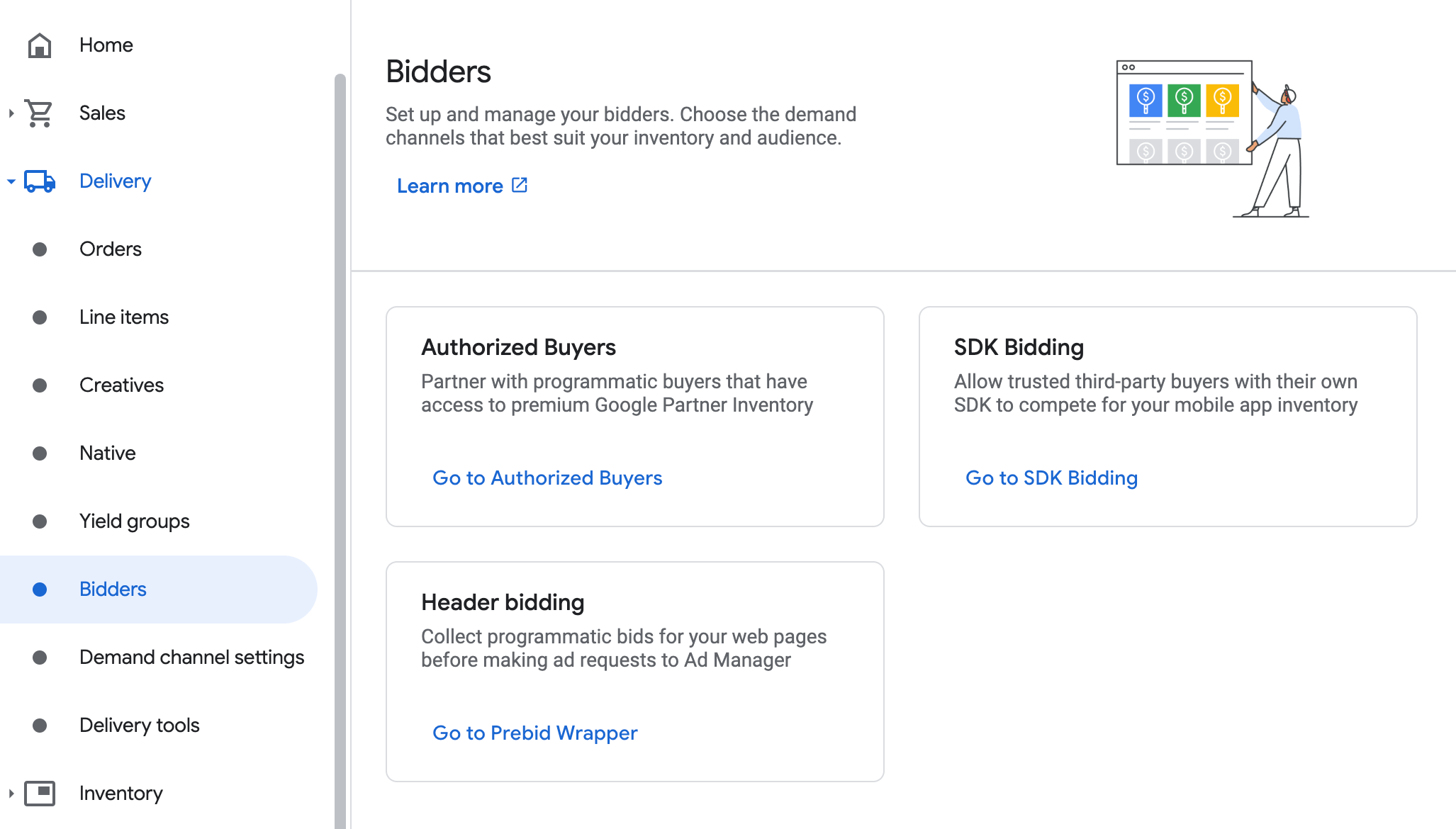
Click New bidder.
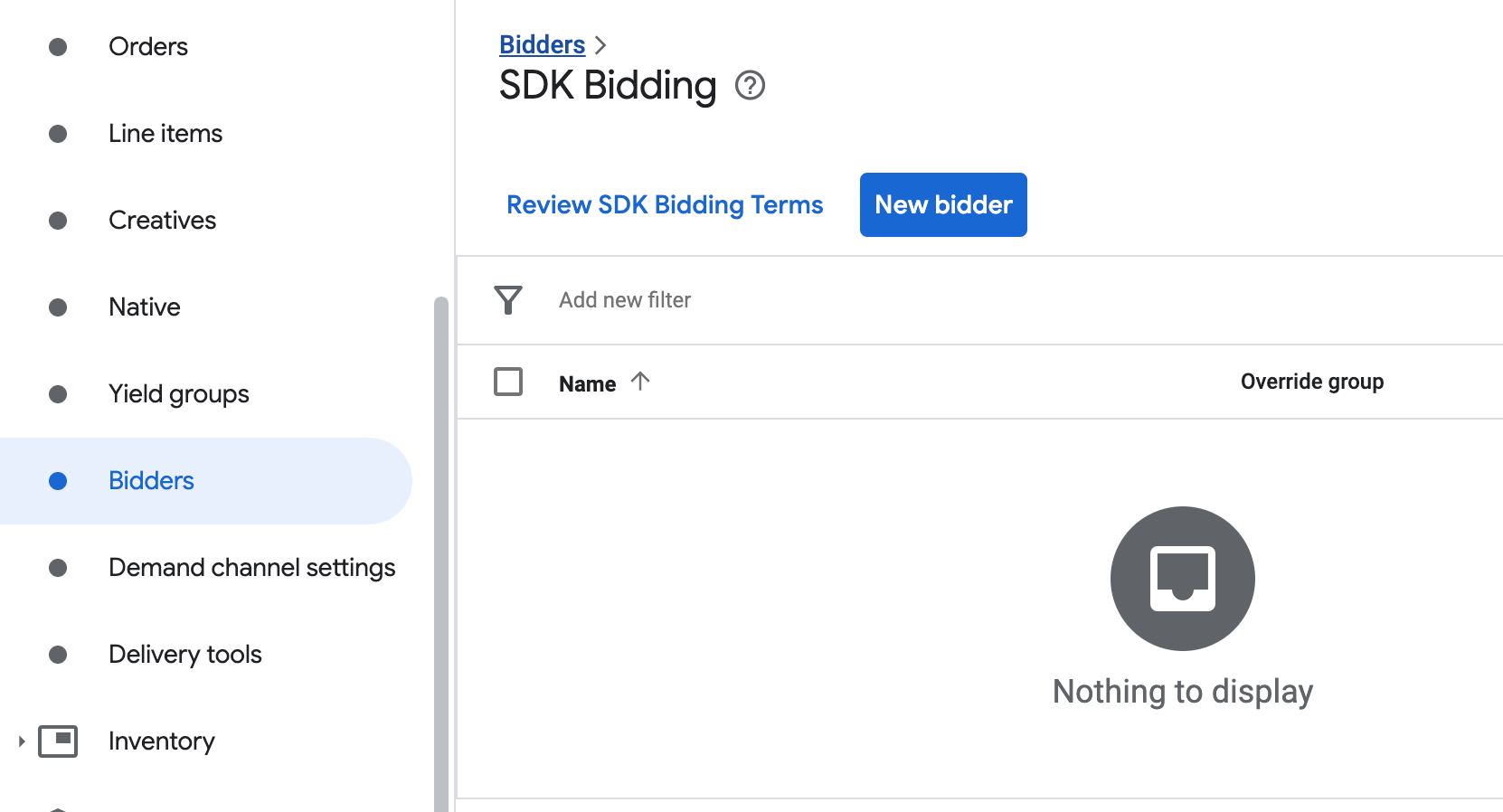
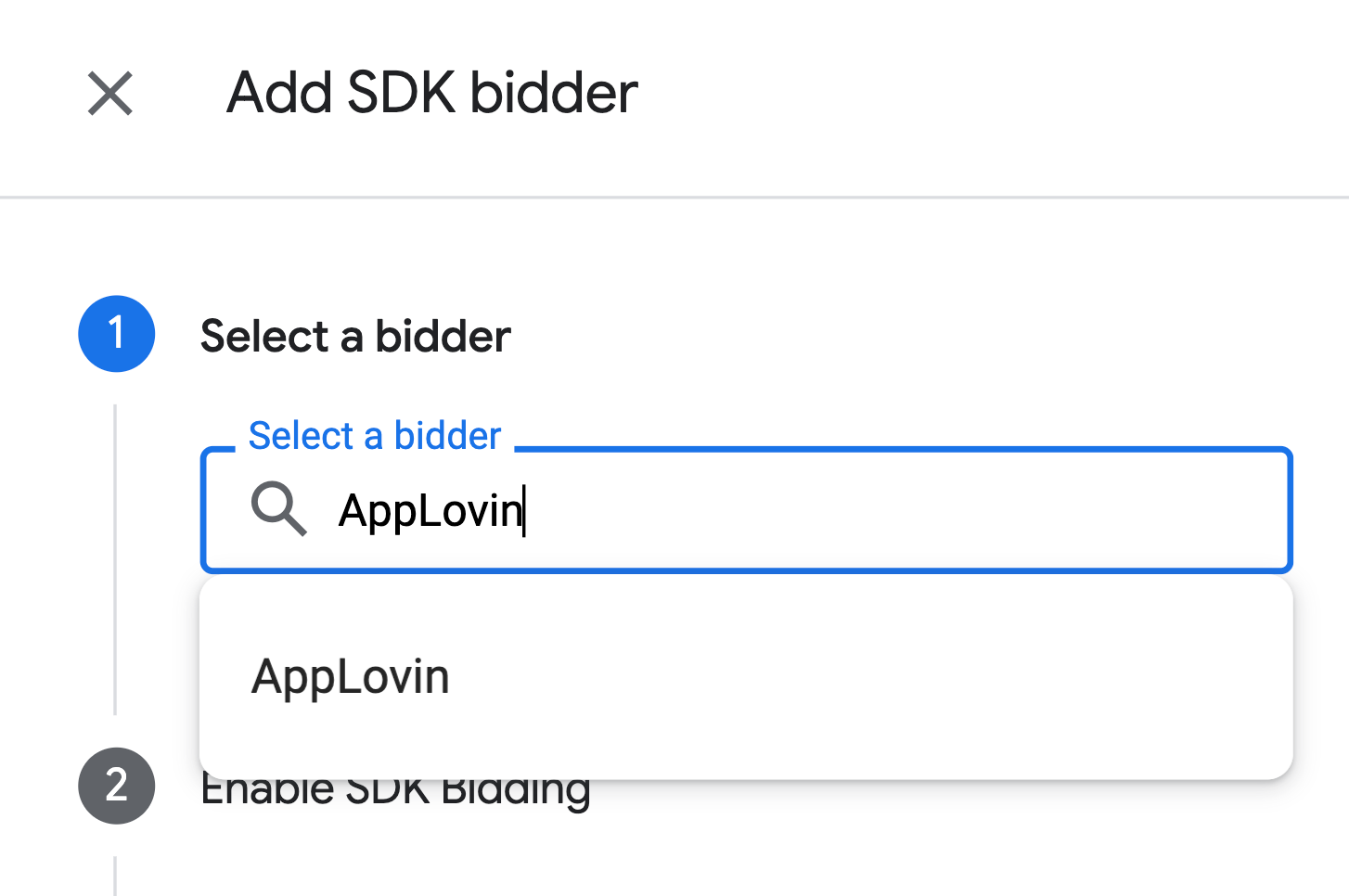
Select AppLovin as the bidder.
Click Continue to enable SDK Bidding for this bidder.
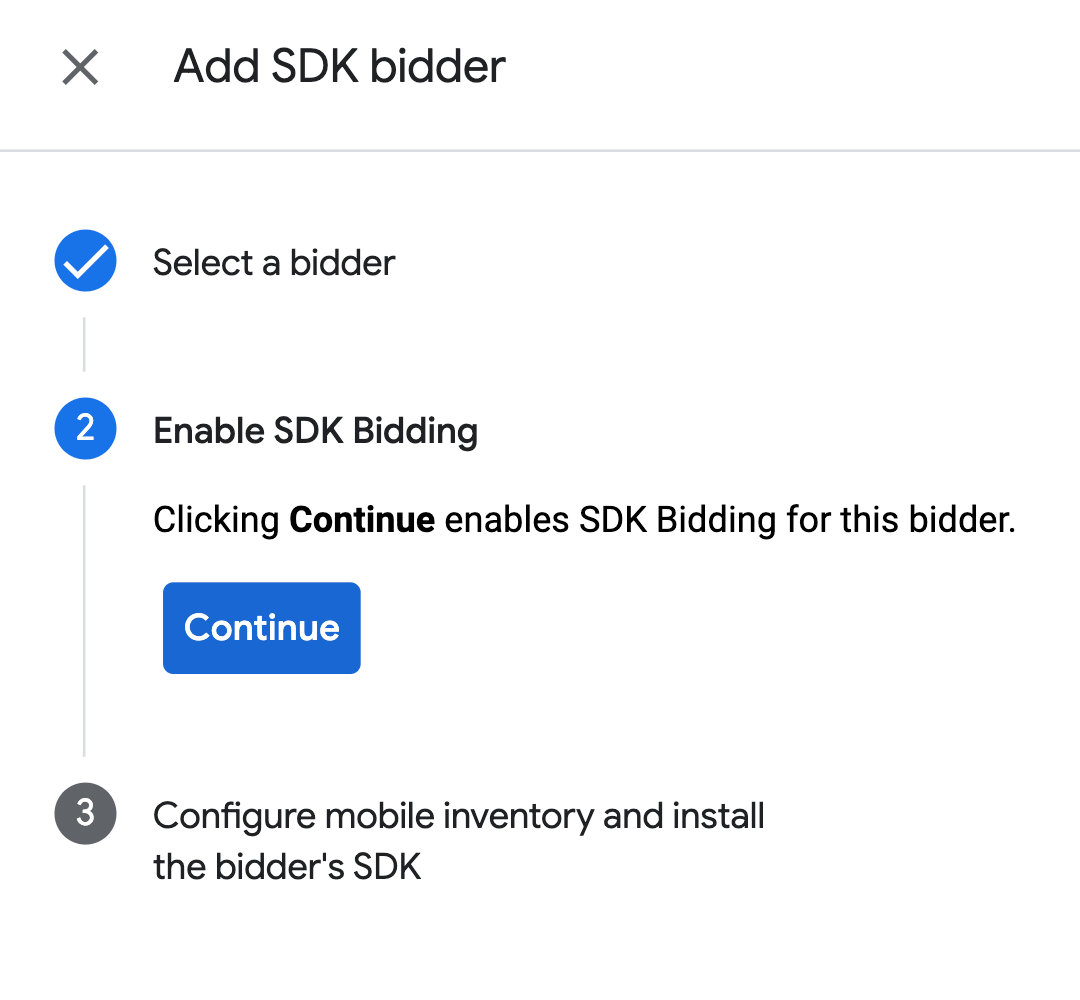
Click Done.
Waterfall
This step isn't required for waterfall integrations.
Configure ad unit mapping
Bidding
Navigate to Delivery > Bidders, and click Go to SDK Bidding.
Select the company for AppLovin.
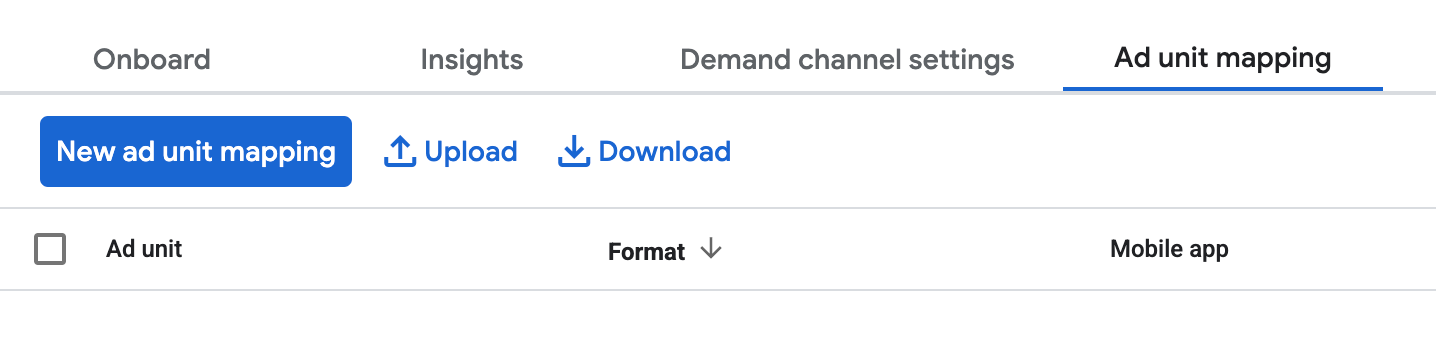
Go to the Ad unit mapping tab and click New ad unit mapping.
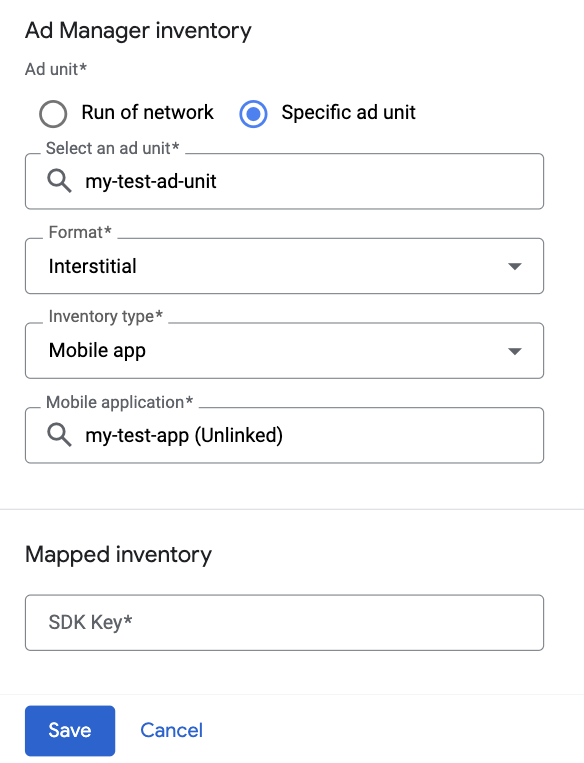
Choose Specific ad unit. Select an ad unit and format, Mobile app as the Inventory type, and your Mobile application. Then, enter SDK Key obtained in the previous section.
Finally, click Save.
Waterfall
Navigate to Delivery > Yield groups and click the New yield group button. Select your Inventory and App.
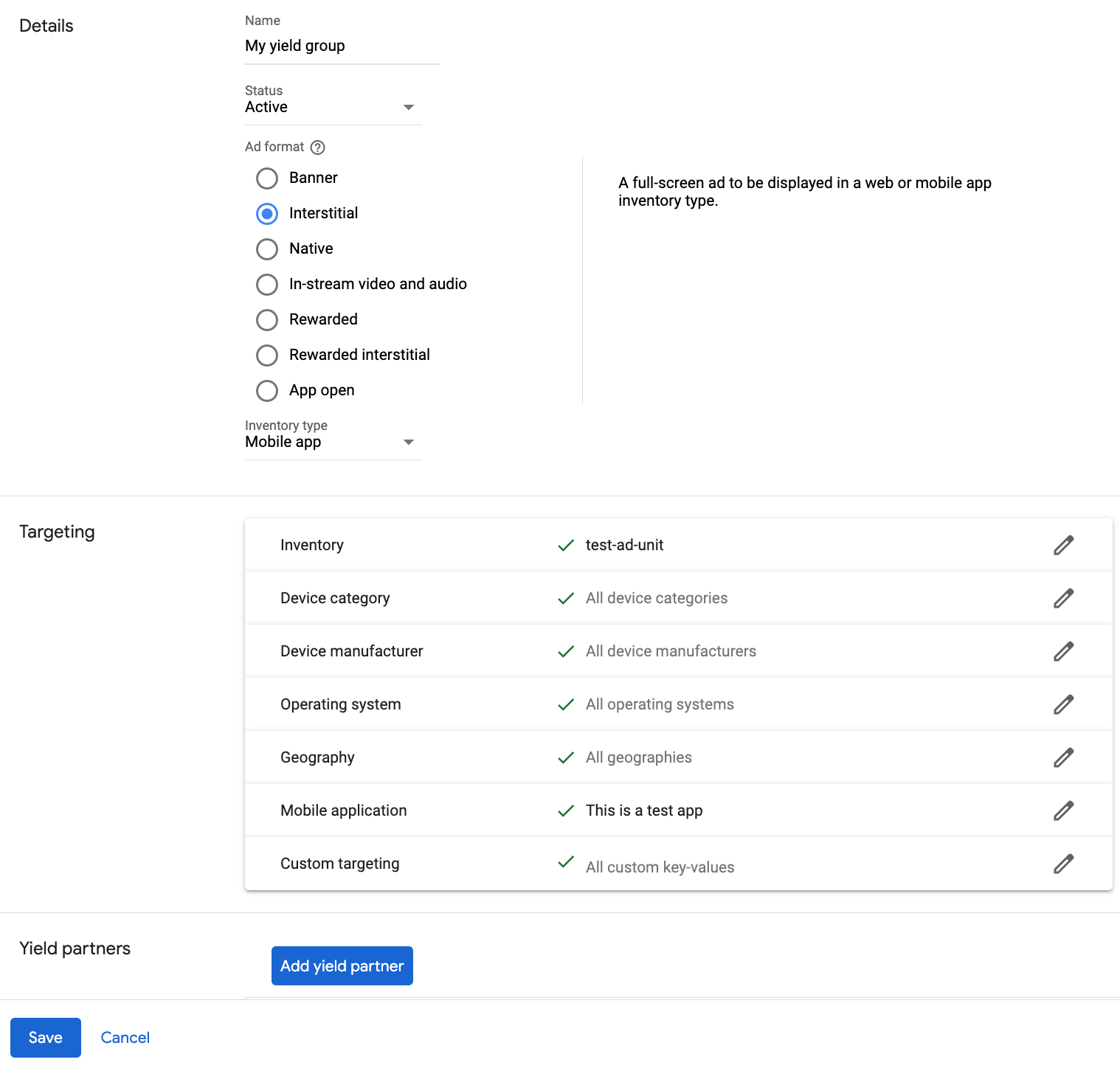
Scroll to Yield partners and click Add mediation partner.

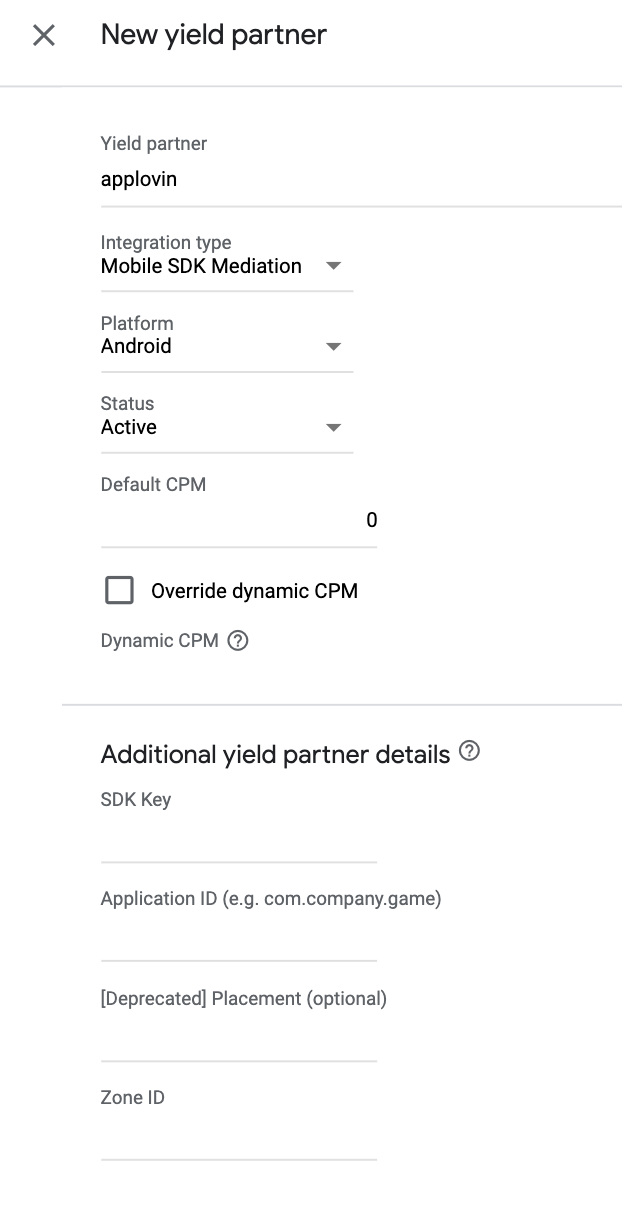
Select the company you created for AppLovin in the previous section. Choose Mobile SDK mediation as the Integration type, Android as the Platform, and Active as the Status.
Enter the Bundle ID of your app along with the SDK Key and the Zone ID obtained in the previous section, and the Default CPM value. Click Save.
Add AppLovin Corp. to GDPR and US state regulations ad partners list
Follow the steps in European regulations settings and US state regulations settings to add AppLovin Corp. to the European and US state regulations ad partners list in the Ad Manager UI.
Step 3: Import the AppLovin SDK and adapter
Android Studio integration (recommended)
In your app-level gradle file, add the following implementation dependencies and configurations:
Kotlin
dependencies {
    implementation("com.google.android.libraries.ads.mobile.sdk:ads-mobile-sdk:1.6.0")
    implementation("com.google.ads.mediation:applovin:13.6.4.2")
}

configurations.configureEach {
    exclude(group = "com.google.android.gms", module = "play-services-ads")
    exclude(group = "com.google.android.gms", module = "play-services-ads-lite")
}
Groovy
dependencies {
    implementation 'com.google.android.libraries.ads.mobile.sdk:ads-mobile-sdk:1.6.0'
    implementation 'com.google.ads.mediation:applovin:13.6.4.2'
}

configurations.configureEach {
    exclude group: 'com.google.android.gms', module: 'play-services-ads'
    exclude group: 'com.google.android.gms', module: 'play-services-ads-lite'
}
Manual integration
Download the AppLovin Android SDK, extract the
applovin-sdk-x.y.z.jar, and add it to your project.Navigate to the AppLovin adapter artifacts on Google's Maven Repository. Select the latest version, download the AppLovin adapter's .aar file, and add it to your project.
Step 4: Implement privacy settings on AppLovin SDK
EU Consent and GDPR
To comply with the Google EU User Consent Policy, you must make certain disclosures to your users in the European Economic Area (EEA), the UK, and Switzerland, and obtain their consent for the use of cookies or other local storage where legally required, and for the collection, sharing, and use of personal data for ads personalization. This policy reflects the requirements of the EU ePrivacy Directive and the General Data Protection Regulation (GDPR). You are responsible for verifying that consent is propagated to each ad source in your mediation chain.
AppLovin Android adapter version 12.0.0.0 and later supports passing GDPR consent signals from UMP SDK and consent management platforms that integrate with Google's Additional Consent specification to AppLovin SDK. For more information, see Privacy.
Declare child users
AppLovin does not support initialization of the AppLovin SDK in connection with a child. For more information, see AppLovin's documentation on Prohibition on Children Data or Using the Services for Children or Apps Exclusively Targeted to Children .
AppLovin adapter version 13.0.0.1 or higher disables AppLovin mediation automatically for apps that declare either of the following settings with the GMA Next-Gen SDK:
US states privacy laws
US states privacy laws require giving users the right to opt out of the "sale" of their "personal information" (as the law defines those terms), with the opt-out offered through a prominent "Do Not Sell My Personal Information" link on the "selling" party's homepage. The US states privacy laws compliance guide offers the ability to enable restricted data processing for Google ad serving, but Google is unable to apply this setting to each ad network in your mediation chain. Therefore, you must identify each ad network in your mediation chain that may participate in the sale of personal information and follow guidance from each of those networks to ensure compliance.
The AppLovin SDK includes the setDoNotSell method to let publishers opt out of
the sale of personal information.
The following example passes this consent information to the AppLovin SDK. You must set these options before you initialize GMA Next-Gen SDK to ensure they get forwarded properly to the AppLovin SDK.
Java
AppLovinPrivacySettings.setDoNotSell(true);
Kotlin
AppLovinPrivacySettings.setDoNotSell(true)
See AppLovin's Privacy documentation for more information.
Step 5: Add required code
No additional code is required for AppLovin integration.
Step 6: Test your implementation
Enable test ads
Make sure you register your test device for Ad Manager and enable test mode in AppLovin UI.
Verify test ads
To verify that you are receiving test ads from AppLovin, enable single ad source testing in ad inspector using the AppLovin (Bidding) and AppLovin (Waterfall) ad source(s).
Optional steps
Network-specific parameters
The AppLovin adapter supports setMuteAudio() which can disable audio on video
ads. This method can be called from an AppLovinExtras.Builder() object:
Java
Bundle extras = new AppLovinExtras.Builder()
  .setMuteAudio(true)
  .build();
AdRequest request = new AdRequest.Builder(AD_UNIT_ID)
  .putAdSourceExtrasBundle(ApplovinAdapter.class, extras)
  .build();
Kotlin
val extras = AppLovinExtras.Builder()
   .setMuteAudio(true)
   .build()
val request = AdRequest.Builder(AD_UNIT_ID)
   .putAdSourceExtrasBundle(ApplovinAdapter::class.java, extras)
   .build()
Optimizations
Initialize the AppLovin SDK when your app launches. This allows AppLovin to start tracking events immediately."Error codes
If the adapter fails to receive an ad from AppLovin, publishers can check the
underlying error from the ad response using
ResponseInfo.getAdSourceResponses()
under the following classes:
com.google.ads.mediation.applovin.ApplovinAdapter
com.google.ads.mediation.applovin.AppLovinMediationAdapter
Here are the codes and accompanying messages thrown by the AppLovin adapter when an ad fails to load:
| Error code | Reason |
|---|---|
| -1009 to -1, 204 | AppLovin SDK returned an error. See AppLovin's documentation for more details. |
| 101 | The requested ad size does not match an AppLovin supported banner size. |
| 103 | Context is null. |
| 104 | AppLovin bid token is empty. |
| 105 | Requested multiple ads for the same zone. AppLovin can only load 1 ad at a time per zone. |
| 106 | Ad is not ready to display. |
| 108 | AppLovin Adapter does not support the ad format being requested. |
| 109 | Context is not an Activity instance. |
| 110 | SDK key is missing. |
| 112 | User is a child. |
| 113 | Ad unit ID is missing. |
AppLovin Android Mediation Adapter Changelog
Next Version
- Updated the adapter to use the
InitializationCompleteCallback.onInitializationFailed(AdError)API.
Version 13.6.4.2
- Added
setTestDeviceAdvertisingIdsAPI toAppLovinMediationAdapterto support AppLovin SDK test mode registration.
Built and tested with:
- Google Mobile Ads SDK version 25.4.0.
- Google Mobile Ads Next-Gen SDK version 1.4.0.
- AppLovin SDK version 13.6.4.
Version 13.6.4.1
- Pin the adapter's Kotlin dependency to 1.9.0 (the min Kotlin version supported by GMA Next-Gen SDK).
Built and tested with:
- Google Mobile Ads SDK version 25.4.0.
- Google Mobile Ads Next-Gen SDK version 1.4.0.
- AppLovin SDK version 13.6.4.
Version 13.6.4.0
- Removed the old API implementation for loading Waterfall Banner ads. Adapter
will now use the new API implementation in
AppLovinMediationAdapterfor loading Waterfall Banner ads. - Updated to report ad impression when AppLovin interstitial ad is displayed.
- Verified compatibility with AppLovin SDK 13.6.4.
Built and tested with:
- Google Mobile Ads SDK version 25.4.0.
- Google Mobile Ads Next-Gen SDK version 1.3.1.
- AppLovin SDK version 13.6.4.
Version 13.6.3.0
- Filter age-restricted requests for AppLovin SDK when new
AgeRestrictedTreatmentis set toCHILD. - Verified compatibility with AppLovin SDK 13.6.3.
Built and tested with:
- Google Mobile Ads SDK version 25.4.0.
- Google Mobile Ads Next-Gen SDK version 1.2.1.
- AppLovin SDK version 13.6.3.
Version 13.6.2.0
- Verified compatibility with AppLovin SDK 13.6.2.
Built and tested with:
- Google Mobile Ads SDK version 25.1.0.
- Google Mobile Ads Next-Gen SDK version 0.25.0-beta01.
- AppLovin SDK version 13.6.2.
Version 13.6.1.0
- Added property to build the adapter with GMA Next-Gen SDK dependency.
- Verified compatibility with AppLovin SDK 13.6.1.
Built and tested with:
- Google Mobile Ads SDK version 25.0.0.
- AppLovin SDK version 13.6.1.
Version 13.6.0.0
- Verified compatibility with AppLovin SDK 13.6.0.
Built and tested with:
- Google Mobile Ads SDK version 25.0.0.
- AppLovin SDK version 13.6.0.
Version 13.5.1.0
- Verified compatibility with AppLovin SDK 13.5.1.
Built and tested with:
- Google Mobile Ads SDK version 24.7.0.
- AppLovin SDK version 13.5.1.
Version 13.5.0.1
- Added Waterfall support for App Open ad format.
Built and tested with:
- Google Mobile Ads SDK version 24.7.0.
- AppLovin SDK version 13.5.0.
Version 13.5.0.0
- Verified compatibility with AppLovin SDK 13.5.0.
Built and tested with:
- Google Mobile Ads SDK version 24.7.0.
- AppLovin SDK version 13.5.0.
Version 13.4.0.1
- Removed old interstitial API implementation. Note: New interstitial API implementation already exists in the adapter and GMA SDK will use that.
- Removed class-level references to Context. Can help reduce memory leak issues.
Built and tested with:
- Google Mobile Ads SDK version 24.7.0.
- AppLovin SDK version 13.4.0.
Version 13.4.0.0
- Verified compatibility with AppLovin SDK 13.4.0.
Built and tested with:
- Google Mobile Ads SDK version 24.5.0.
- AppLovin SDK version 13.4.0.
Version 13.3.1.1
- Removed 300x250 banner size support.
- Fixes banner's height issue.
Built and tested with:
- Google Mobile Ads SDK version 24.4.0.
- AppLovin SDK version 13.3.1.
Version 13.3.1.0
- Verified compatibility with AppLovin SDK 13.3.1.
Built and tested with:
- Google Mobile Ads SDK version 24.4.0.
- AppLovin SDK version 13.3.1.
Version 13.3.0.0
- Verified compatibility with AppLovin SDK 13.3.0.
Built and tested with:
- Google Mobile Ads SDK version 24.3.0.
- AppLovin SDK version 13.3.0.
Version 13.2.0.1
- Updated the adapter to set plugin version when initializing Applovin SDK. This fixes an initialization error some publishers were facing on 13.2.0.0.
Built and tested with:
- Google Mobile Ads SDK version 24.2.0.
- AppLovin SDK version 13.2.0.
Version 13.2.0.0
- Updated the adapter to support
onUserEarnedRewardonvideoPlaybackEndedcallback. - Updated the adapter to use new AppLovin API for initialization.
- Verified compatibility with AppLovin SDK 13.2.0.
Built and tested with:
- Google Mobile Ads SDK version 24.1.0.
- AppLovin SDK version 13.2.0.
Version 13.1.0.1
- Updated the minimum required Android API level to 23.
- Updated the minimum required Google Mobile Ads SDK version to 24.0.0.
Built and tested with:
- Google Mobile Ads SDK version 24.0.0.
- AppLovin SDK version 13.1.0.
Version 13.1.0.0
- Verified compatibility with AppLovin SDK 13.1.0.
Built and tested with:
- Google Mobile Ads SDK version 23.6.0.
- AppLovin SDK version 13.1.0.
Version 13.0.1.1
- Added support to load a second ad with the same ad unit if the first ad has been loaded but not yet shown.
Built and tested with:
- Google Mobile Ads SDK version 23.6.0.
- AppLovin SDK version 13.0.1.
Version 13.0.1.0
- Verified compatibility with AppLovin SDK 13.0.1.
Built and tested with:
- Google Mobile Ads SDK version 23.4.0.
- AppLovin SDK version 13.0.1.
Version 13.0.0.1
- Disabled AppLovin mediation automatically for apps that declare either of the following settings with the Google Mobile Ads SDK:
Built and tested with:
- Google Mobile Ads SDK version 23.3.0.
- AppLovin SDK version 13.0.0.
Version 13.0.0.0
- Verified compatibility with AppLovin SDK 13.0.0.
Built and tested with:
- Google Mobile Ads SDK version 23.3.0.
- AppLovin SDK version 13.0.0.
Version 12.6.1.0
- Verified compatibility with AppLovin SDK 12.6.1.
Built and tested with:
- Google Mobile Ads SDK version 23.3.0.
- AppLovin SDK version 12.6.1.
Version 12.6.0.0
- Verified compatibility with AppLovin SDK 12.6.0.
Built and tested with:
- Google Mobile Ads SDK version 23.2.0.
- AppLovin SDK version 12.6.0.
Version 12.5.0.1
- Added functionality to load a second interstitial or rewarded ad after the previous ad is loaded, if enabled through server parameters.
Built and tested with:
- Google Mobile Ads SDK version 23.1.0.
- AppLovin SDK version 12.5.0.
Version 12.5.0.0
- Updated the minimum required Google Mobile Ads SDK version to 23.1.0.
- Verified compatibility with AppLovin SDK 12.5.0.
Built and tested with:
- Google Mobile Ads SDK version 23.1.0.
- AppLovin SDK version 12.5.0.
Version 12.4.3.0
- Verified compatibility with AppLovin SDK 12.4.3.
Built and tested with:
- Google Mobile Ads SDK version 23.0.0.
- AppLovin SDK version 12.4.3.
Version 12.4.2.0
- Verified compatibility with AppLovin SDK 12.4.2.
Built and tested with:
- Google Mobile Ads SDK version 23.0.0.
- AppLovin SDK version 12.4.2.
Version 12.4.0.0
- Verified compatibility with AppLovin SDK 12.4.0.
Built and tested with:
- Google Mobile Ads SDK version 23.0.0.
- AppLovin SDK version 12.4.0.
Version 12.3.1.0
- Updated the minimum required Google Mobile Ads SDK version to 23.0.0.
- Verified compatibility with AppLovin SDK 12.3.1.
Built and tested with:
- Google Mobile Ads SDK version 23.0.0.
- AppLovin SDK version 12.3.1.
Version 12.3.0.0
- Verified compatibility with AppLovin SDK 12.3.0.
Built and tested with:
- Google Mobile Ads SDK version 22.6.0.
- AppLovin SDK version 12.3.0.
Version 12.2.0.0
- Verified compatibility with AppLovin SDK 12.2.0.
Built and tested with:
- Google Mobile Ads SDK version 22.6.0.
- AppLovin SDK version 12.2.0.
Version 12.1.0.1
- Added the possibility to load interstitial or rewarded ad right after requesting to show them if the server parameters are enabled.
Built and tested with:
- Google Mobile Ads SDK version 22.5.0.
- AppLovin SDK version 12.1.0.
Version 12.1.0.0
- Verified compatibility with AppLovin SDK 12.1.0.
- Fixed an issue that could cause
AppLovinSdkSettingsto be ignored. - Adapter no longer checks for the AppLovin SDK key from the
AndroidManifest.xmlfile. - Updated the minimum required Google Mobile Ads SDK version to 22.5.0.
Built and tested with:
- Google Mobile Ads SDK version 22.5.0.
- AppLovin SDK version 12.1.0.
Version 11.11.3.0
- Verified compatibility with AppLovin SDK 11.11.3.
- Updated the minimum required Google Mobile Ads SDK version to 22.3.0.
Built and tested with:
- Google Mobile Ads SDK version 22.3.0.
- AppLovin SDK version 11.11.3.
Version 11.11.2.0
- Verified compatibility with AppLovin SDK 11.11.2.
Built and tested with:
- Google Mobile Ads SDK version 22.2.0.
- AppLovin SDK version 11.11.2.
Version 11.11.1.0
- Verified compatibility with AppLovin SDK 11.11.1.
Built and tested with:
- Google Mobile Ads SDK version 22.2.0.
- AppLovin SDK version 11.11.1.
Version 11.10.1.0
- Verified compatibility with AppLovin SDK 11.10.1.
Built and tested with:
- Google Mobile Ads SDK version 22.1.0.
- AppLovin SDK version 11.10.1.
Version 11.9.0.0
- Verified compatibility with AppLovin SDK 11.9.0.
Built and tested with:
- Google Mobile Ads SDK version 22.0.0.
- AppLovin SDK version 11.9.0.
Version 11.8.2.1
- Updated adapter to use new
VersionInfoclass. - Updated the minimum required Google Mobile Ads SDK version to 22.0.0.
Built and tested with:
- Google Mobile Ads SDK version 22.0.0.
- AppLovin SDK version 11.8.2.
Version 11.8.2.0
- Verified compatibility with AppLovin SDK 11.8.2.
- Added watermark support for bidding ads.
- Added support for MREC size banner ads.
Built and tested with:
- Google Mobile Ads SDK version 21.5.0.
- AppLovin SDK version 11.8.2.
Version 11.7.1.0
- Verified compatibility with AppLovin SDK 11.7.1.
- Updated the minimum required Google Mobile Ads SDK version to 21.5.0.
Built and tested with:
- Google Mobile Ads SDK version 21.5.0.
- AppLovin SDK version 11.7.1.
Version 11.7.0.0
- Verified compatibility with AppLovin SDK 11.7.0.
- Updated the minimum required Google Mobile Ads SDK version to 21.4.0.
Built and tested with:
- Google Mobile Ads SDK version 21.4.0.
- AppLovin SDK version 11.7.0.
Version 11.6.1.0
- Verified compatibility with AppLovin SDK 11.6.1.
- Updated the minimum required Google Mobile Ads SDK version to 21.4.0.
Built and tested with:
- Google Mobile Ads SDK version 21.4.0.
- AppLovin SDK version 11.6.1.
Version 11.6.0.0
- Verified compatibility with AppLovin SDK 11.6.0.
Built and tested with:
- Google Mobile Ads SDK version 21.3.0.
- AppLovin SDK version 11.6.0.
Version 11.5.5.0
- Verified compatibility with AppLovin SDK 11.5.5.
Built and tested with:
- Google Mobile Ads SDK version 21.3.0.
- AppLovin SDK version 11.5.5.
Version 11.5.4.0
- Verified compatibility with AppLovin SDK 11.5.4.
Built and tested with:
- Google Mobile Ads SDK version 21.3.0.
- AppLovin SDK version 11.5.4.
Version 11.5.3.1
- Fixed an issue that can cause
NullPointerExceptionwhen loading rewarded ads.
Built and tested with:
- Google Mobile Ads SDK version 21.3.0.
- AppLovin SDK version 11.5.3.
Version 11.5.3.0
- Verified compatibility with AppLovin SDK 11.5.3.
- Updated the minimum required Google Mobile Ads SDK version to 21.3.0.
Built and tested with:
- Google Mobile Ads SDK version 21.3.0.
- AppLovin SDK version 11.5.3.
Version 11.5.2.0
- Fixed an issue where rewarded ad requests continuously fail if the initial rewarded ad request times out.
- Verified compatibility with AppLovin SDK 11.5.2.
Built and tested with:
- Google Mobile Ads SDK version 21.2.0.
- AppLovin SDK version 11.5.2.
Version 11.5.1.0
- Verified compatibility with AppLovin SDK 11.5.1.
Built and tested with:
- Google Mobile Ads SDK version 21.2.0.
- AppLovin SDK version 11.5.1.
Version 11.5.0.0
- Verified compatibility with AppLovin SDK 11.5.0.
Built and tested with:
- Google Mobile Ads SDK version 21.2.0.
- AppLovin SDK version 11.5.0.
Version 11.4.6.0
- Verified compatibility with AppLovin SDK 11.4.6.
- Updated the minimum required Google Mobile Ads SDK version to 21.2.0.
Built and tested with:
- Google Mobile Ads SDK version 21.2.0.
- AppLovin SDK version 11.4.6.
Version 11.4.5.0
- Verified compatibility with AppLovin SDK 11.4.5.
- Updated the minimum required Google Mobile Ads SDK version to 21.1.0.
Built and tested with:
- Google Mobile Ads SDK version 21.1.0.
- AppLovin SDK version 11.4.5.
Version 11.4.4.0
- Verified compatibility with AppLovin SDK 11.4.4.
Built and tested with:
- Google Mobile Ads SDK version 21.0.0.
- AppLovin SDK version 11.4.4.
Version 11.4.3.0
- Verified compatibility with AppLovin SDK 11.4.3.
Built and tested with:
- Google Mobile Ads SDK version 21.0.0.
- AppLovin SDK version 11.4.3.
Version 11.4.2.0
- Verified compatibility with AppLovin SDK 11.4.2.
- Updated the minimum required Google Mobile Ads SDK version to 21.0.0.
- Updated the minimum required Android API level to 19.
Built and tested with:
- Google Mobile Ads SDK version 21.0.0.
- AppLovin SDK version 11.4.2.
Version 11.4.0.0
- Verified compatibility with AppLovin SDK 11.4.0.
- Updated
compileSdkVersionandtargetSdkVersionto API 31.
Built and tested with:
- Google Mobile Ads SDK version 20.6.0.
- AppLovin SDK version 11.4.0.
Version 11.3.3.0
- Verified compatibility with AppLovin SDK 11.3.3.
Built and tested with:
- Google Mobile Ads SDK version 20.6.0.
- AppLovin SDK version 11.3.3.
Version 11.3.2.0
- Verified compatibility with AppLovin SDK 11.3.2.
Built and tested with:
- Google Mobile Ads SDK version 20.6.0.
- AppLovin SDK version 11.3.2.
Version 11.3.1.0
- Verified compatibility with AppLovin SDK 11.3.1.
Built and tested with:
- Google Mobile Ads SDK version 20.6.0.
- AppLovin SDK version 11.3.1.
Version 11.3.0.0
- Verified compatibility with AppLovin SDK 11.3.0.
Built and tested with:
- Google Mobile Ads SDK version 20.6.0.
- AppLovin SDK version 11.3.0.
Version 11.2.2.0
- Verified compatibility with AppLovin SDK 11.2.2.
Built and tested with:
- Google Mobile Ads SDK version 20.6.0.
- AppLovin SDK version 11.2.2.
Version 11.2.1.0
- Verified compatibility with AppLovin SDK 11.2.1.
Built and tested with:
- Google Mobile Ads SDK version 20.6.0.
- AppLovin SDK version 11.2.1.
Version 11.1.3.0
- Verified compatibility with AppLovin SDK 11.1.3.
- Updated the minimum required Google Mobile Ads SDK version to 20.6.0.
Built and tested with:
- Google Mobile Ads SDK version 20.6.0.
- AppLovin SDK version 11.1.3.
Version 11.1.2.0
- Verified compatibility with AppLovin SDK 11.1.2.
Built and tested with:
- Google Mobile Ads SDK version 20.5.0.
- AppLovin SDK version 11.1.2.
Version 11.1.0.0
- Verified compatibility with AppLovin SDK 11.1.0.
Built and tested with:
- Google Mobile Ads SDK version 20.5.0.
- AppLovin SDK version 11.1.0.
Version 11.0.0.0
- Verified compatibility with AppLovin SDK 11.0.0.
- Updated the
AppLovinMediationAdapter.getSdkSettings()method to require aContextparameter. - Updated the minimum required Google Mobile Ads SDK version to 20.5.0.
Built and tested with:
- Google Mobile Ads SDK version 20.5.0.
- AppLovin SDK version 11.0.0.
Version 10.3.5.0
- Verified compatibility with AppLovin SDK 10.3.5.
Built and tested with:
- Google Mobile Ads SDK version 20.4.0.
- AppLovin SDK version 10.3.5.
Version 10.3.4.0
- Verified compatibility with AppLovin SDK 10.3.4.
- Updated the minimum required Google Mobile Ads SDK version to 20.4.0.
Built and tested with:
- Google Mobile Ads SDK version 20.4.0.
- AppLovin SDK version 10.3.4.
Version 10.3.3.0
- Verified compatibility with AppLovin SDK 10.3.3.
- Updated the minimum required Google Mobile Ads SDK version to 20.3.0.
Built and tested with:
- Google Mobile Ads SDK version 20.3.0.
- AppLovin SDK version 10.3.3.
Version 10.3.2.0
- Verified compatibility with AppLovin SDK 10.3.2.
- Added standardized adapter error codes and messages.
Built and tested with:
- Google Mobile Ads SDK version 20.2.0.
- AppLovin SDK version 10.3.2.
Version 10.3.1.0
- Verified compatibility with AppLovin SDK 10.3.1.
- Updated the minimum required Google Mobile Ads SDK version to 20.2.0.
Built and tested with:
- Google Mobile Ads SDK version 20.2.0.
- AppLovin SDK version 10.3.1.
Version 10.3.0.0
- Verified compatibility with AppLovin SDK 10.3.0.
Built and tested with:
- Google Mobile Ads SDK version 20.1.0.
- AppLovin SDK version 10.3.0.
Version 10.2.1.0
- Verified compatibility with AppLovin SDK 10.2.1.
- The adapter will now attempt to initialize the AppLovin SDK before requesting ads.
Built and tested with:
- Google Mobile Ads SDK version 20.1.0.
- AppLovin SDK version 10.2.1.
Version 10.2.0.0
- Verified compatibility with AppLovin SDK 10.2.0.
Built and tested with:
- Google Mobile Ads SDK version 20.1.0.
- AppLovin SDK version 10.2.0.
Version 10.1.2.0
- Verified compatibility with AppLovin SDK 10.1.2.
- Updated the minimum required Google Mobile Ads SDK version to 20.1.0.
Built and tested with:
- Google Mobile Ads SDK version 20.1.0.
- AppLovin SDK version 10.1.2.
Version 10.0.1.0
- Verified compatibility with AppLovin SDK 10.0.1.
- Updated the minimum required Google Mobile Ads SDK version to 20.0.0.
- Updated AppLovin adapter for new gradle publication settings.
Built and tested with:
- Google Mobile Ads SDK version 20.0.0.
- AppLovin SDK version 10.0.1.
Version 9.15.2.0
- Verified compatibility with AppLovin SDK 9.15.2.
- Updated the minimum required Google Mobile Ads SDK version to 19.7.0.
Built and tested with:
- Google Mobile Ads SDK version 19.7.0.
- AppLovin SDK version 9.15.2.
Version 9.14.12.0
- Verified compatibility with AppLovin SDK 9.14.12.
- Updated the minimum required Google Mobile Ads SDK version to 19.6.0.
Built and tested with:
- Google Mobile Ads SDK version 19.6.0.
- AppLovin SDK version 9.14.12.
Version 9.14.7.0
- Verified compatibility with AppLovin SDK 9.14.7.
- Added the
AppLovinMediationAdapter.getSdkSettings()method. Publishers may now configure AppLovin SDK settings through these options.
Built and tested with:
- Google Mobile Ads SDK version 19.5.0.
- AppLovin SDK version 9.14.7.
Version 9.14.6.0
- Verified compatibility with AppLovin SDK 9.14.6.
- Updated the minimum required Google Mobile Ads SDK version to 19.5.0.
Built and tested with:
- Google Mobile Ads SDK version 19.5.0.
- AppLovin SDK version 9.14.6.
Version 9.14.5.0
- Verified compatibility with AppLovin SDK 9.14.5.
- Updated the minimum required Google Mobile Ads SDK version to 19.5.0.
Built and tested with:
- Google Mobile Ads SDK version 19.5.0.
- AppLovin SDK version 9.14.5.
Version 9.14.4.0
- Removed support for Native ads and Medium Rectangle banner ads.
- Adapter can now load and request ads using an
Applicationcontext. - Verified compatibility with AppLovin SDK 9.14.4.
Built and tested with:
- Google Mobile Ads SDK version 19.4.0.
- AppLovin SDK version 9.14.4.
Version 9.13.4.0
- Verified compatibility with AppLovin SDK 9.13.4.
- Updated the minimum required Google Mobile Ads SDK version to 19.4.0.
Built and tested with:
- Google Mobile Ads SDK version 19.4.0.
- AppLovin SDK version 9.13.4.
Version 9.13.3.0
- Verified compatibility with AppLovin SDK 9.13.3.
Built and tested with:
- Google Mobile Ads SDK version 19.3.0.
- AppLovin SDK version 9.13.3.
Version 9.13.2.0
- Verified compatibility with AppLovin SDK 9.13.2.
- Updated the minimum required Google Mobile Ads SDK version to 19.3.0.
Built and tested with:
- Google Mobile Ads SDK version 19.3.0.
- AppLovin SDK version 9.13.2.
Version 9.13.1.0
- Verified compatibility with AppLovin SDK 9.13.1.
- Adapter now throws an error if multiple interstitial ads are requested using the same Zone ID.
Built and tested with:
- Google Mobile Ads SDK version 19.2.0.
- AppLovin SDK version 9.13.1.
Version 9.13.0.0
- Updated the adapter to support inline adaptive banner requests.
- Verified compatibility with AppLovin SDK 9.13.0.
- Updated the minimum required Google Mobile Ads SDK version to 19.2.0.
Built and tested with:
- Google Mobile Ads SDK version 19.2.0.
- AppLovin SDK version 9.13.0.
Version 9.12.8.0
- Verified compatibility with AppLovin SDK 9.12.8.
Built and tested with:
- Google Mobile Ads SDK version 19.1.0.
- AppLovin SDK version 9.12.8.
Version 9.12.7.0
- Verified compatibility with AppLovin SDK 9.12.7.
Built and tested with:
- Google Mobile Ads SDK version 19.1.0.
- AppLovin SDK version 9.12.7.
Version 9.12.6.1
- Fixed bug introduced in 9.11.4.1 where bidding banner ads timeout.
Built and tested with:
- Google Mobile Ads SDK version 19.1.0.
- AppLovin SDK version 9.12.6.
Version 9.12.6.0
- Verified compatibility with AppLovin SDK 9.12.6.
Built and tested with:
- Google Mobile Ads SDK version 19.1.0.
- AppLovin SDK version 9.12.6.
Version 9.12.5.0
- Verified compatibility with AppLovin SDK 9.12.5.
Built and tested with:
- Google Mobile Ads SDK version 19.1.0.
- AppLovin SDK version 9.12.5.
Version 9.12.4.0
- Verified compatibility with AppLovin SDK 9.12.4.
- Adapter now requires an
Activitycontext to initialize and load ads from AppLovin.
Built and tested with:
- Google Mobile Ads SDK version 19.1.0.
- AppLovin SDK version 9.12.4.
Version 9.12.3.0
- Verified compatibility with AppLovin SDK 9.12.3.
Built and tested with:
- Google Mobile Ads SDK version 19.1.0.
- AppLovin SDK version 9.12.3.
Version 9.12.2.0
- Verified compatibility with AppLovin SDK 9.12.2.
Built and tested with:
- Google Mobile Ads SDK version 19.1.0.
- AppLovin SDK version 9.12.2.
Version 9.12.1.0
- Verified compatibility with AppLovin SDK 9.12.1.
- Updated the minimum required Google Mobile Ads SDK version to 19.1.0.
Built and tested with:
- Google Mobile Ads SDK version 19.1.0.
- AppLovin SDK version 9.12.1.
Version 9.12.0.0
- Verified compatibility with AppLovin SDK 9.12.0.
Built and tested with:
- Google Mobile Ads SDK version 19.0.1.
- AppLovin SDK version 9.12.0.
Version 9.11.4.1
- Fixed an issue that may cause bidding banner/interstitial ad requests to timeout.
- Added descriptive error codes and reasons for adapter load/show failures.
- Updated the minimum required Google Mobile Ads SDK version to 19.0.1.
Built and tested with:
- Google Mobile Ads SDK version 19.0.1.
- AppLovin SDK version 9.11.4.
Version 9.11.4.0
- Verified compatibility with AppLovin SDK 9.11.4.
Built and tested with:
- Google Mobile Ads SDK version 18.3.0.
- AppLovin SDK version 9.11.4.
Version 9.11.2.0
- Verified compatibility with AppLovin SDK 9.11.2.
Built and tested with:
- Google Mobile Ads SDK version 18.3.0.
- AppLovin SDK version 9.11.2.
Version 9.11.1.0
- Verified compatibility with AppLovin SDK 9.11.1.
Built and tested with:
- Google Mobile Ads SDK version 18.3.0.
- AppLovin SDK version 9.11.1.
Version 9.10.5.0
- Verified compatibility with AppLovin SDK 9.10.5.
Built and tested with:
- Google Mobile Ads SDK version 18.3.0.
- AppLovin SDK version 9.10.5.
Version 9.9.1.2
- Removed all references to AppLovin placement ID.
- Updated the minimum required Google Mobile Ads SDK version to 18.3.0.
Built and tested with:
- Google Mobile Ads SDK version 18.3.0.
- AppLovin SDK version 9.9.1.
Version 9.9.1.1
- Native ads now leverage the unified native ads mediation API.
Built and tested with:
- Google Mobile Ads SDK version 18.2.0.
- AppLovin SDK version 9.9.1.
Version 9.9.1.0
- Verified compatibility with AppLovin SDK 9.9.1.
- Updated the minimum required Google Mobile Ads SDK version to 18.2.0.
Version 9.8.0.0
- Verified compatibility with AppLovin SDK 9.8.0.
- Updated the minimum required Google Mobile Ads SDK version to 18.1.1.
Version 9.7.2.0
- Verified compatibility with AppLovin SDK 9.7.2.
- Updated the minimum required Google Mobile Ads SDK version to 18.1.0.
Version 9.4.2.0
- Added bidding capability to the adapter for banner, interstitial and rewarded ads.
- Added support for flexible banner ad sizes.
- Verified compatibility with AppLovin SDK 9.4.2.
Version 9.2.1.1
- Updated adapter to support new open-beta Rewarded API.
- Updated the minimum required Google Mobile Ads SDK version to 17.2.0.
Version 9.2.1.0
- Verified compatibility with AppLovin SDK 9.2.1
Version 9.1.3.0
- Removed support for placements as they were deprecated by AppLovin SDK.
- Verified compatibility with AppLovin SDK 9.1.3
Version 9.1.0.0
- Verified compatibility with AppLovin SDK 9.1.0
Version 8.1.4.0
- Verified compatibility with AppLovin SDK 8.1.4
Version 8.1.3.0
- Verified compatibility with AppLovin SDK 8.1.3
Version 8.1.0.0
- Verified compatibility with AppLovin SDK 8.1.0
Version 8.0.2.1
- Updated the adapter to invoke the
onRewardedVideoComplete()ad event.
Version 8.0.2.0
- Verified compatibility with AppLovin SDK 8.0.2
Version 8.0.1.1
- Added support for native ads.
- Set AdMob as mediation provider on the AppLovin SDK.
Version 8.0.1.0
- Verified compatibility with AppLovin SDK 8.0.1
Version 8.0.0.0
- Verified compatibility with AppLovin SDK 8.0.0
Version 7.8.6.0
- Verified compatibility with AppLovin SDK 7.8.6
Version 7.8.5.0
- Added support for zones and smart banners.
- Verified compatibility with AppLovin SDK 7.8.5.
Version 7.7.0.0
- Verified compatibility with AppLovin SDK 7.7.0.
Version 7.6.2.0
- Verified compatibility with AppLovin SDK 7.6.2.
Version 7.6.1.0
- Verified compatibility with AppLovin SDK 7.6.1.
Version 7.6.0.0
- Verified compatibility with AppLovin SDK 7.6.0.
Version 7.5.0.0
- Verified compatibility with AppLovin SDK 7.5.0.
Version 7.4.1.1
- Added support for banner ads.
Version 7.4.1.0
- Verified compatibility with AppLovin SDK 7.4.1.
Version 7.3.2.0
- Added support for interstitial ads.
Earlier versions
- Added support for rewarded video ads.