
Every user who has access to a folder also has access to all items inside the folder. This makes it easy to understand who has access to items in a hierarchy and is called expansive access. This access behavior exists in both My Drive and shared drives.
After folders with limited access were introduced, they're the one exception that allows restricting access to a specific subfolder in both My Drive and shared drives.
This document explains how you can manage folders with limited access and expansive access in Google Drive.
About folders with limited access
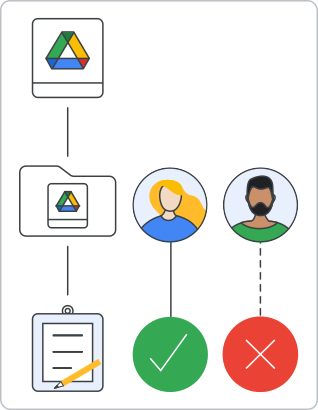
Folders with limited access allow you to restrict folders to specific users. Only users you directly add to the folder's permissions can open it and access its content. Users with inherited access to the shared My Drive folder or shared drive folder (through access from a parent folder) can see the restricted folder in Drive but can't open it. This feature better aligns the sharing behavior of items in both My Drive and shared drives, letting you organize folders with sensitive content alongside more broadly shared content.
Folders with limited access are available in both My Drive and
shared drives. The owner role in My Drive and the organizer
role in shared drives can always access folders with limited access. To modify
the list of folder users, no special permissions are required. Roles that can
share folders can update the member lists. To learn more about roles and
permissions, see Roles and permissions and Shared
drives overview.
Note that although folders are a type of file, limited access isn't available for files.
Set limited access on a folder
While users with direct folder permissions can access a folder with limited
access, only the owner role in My Drive and the organizer
role in shared drives can enable or disable limited access.
Additionally, if a user with the writer role in My Drive has
the writersCanShare boolean field on the files
resource set to true, they can also turn the feature on or off.
To limit access to a folder, set the boolean inheritedPermissionsDisabled
field on the files resource to true. When true, only the owner role, the
organizer role, and users with direct folder permissions can access it.
To turn inherited permissions back on, set inheritedPermissionsDisabled to
false.
Verify permission to limit access on a folder
To check if you can limit access to a folder or not, inspect the boolean values
of the capabilities.canDisableInheritedPermissions and
capabilities.canEnableInheritedPermissions fields on the files resource. These settings confirm if you have
permission to limit access to a folder through the
inheritedPermissionsDisabled field.
For more information about capabilities, see Understand file capabilities.
List children of a folder with limited access
To check if you can list the children of a folder, use the
capabilities.canListChildren boolean field.
The returned value is always false when the item isn't a folder or if the
requester's access to the folder's contents was removed by setting
inheritedPermissionsDisabled to false.
If your access to the folder's contents was removed, you can still access the
folder metadata with the files.get() and
files.list() methods. To confirm access is
limited, check the response body to see if the item is a folder with the MIME
type application/vnd.google-apps.folder and the
capabilities.canListChildren field is set to false. If you try to list the
children of such a folder, the result is always empty.
Access folder with limited access metadata
Folders with limited access let you view folder metadata if you have no access to the folder contents.
When using the permissions resource to
determine a user's access, both My Drive and shared drive folders
that only grant access to the metadata contain the following values in the
response body: inheritedPermissionsDisabled=true and view=metadata. The role
is always set to reader. The view field is only populated for permissions
that belong to a view. For more information, see Views.
All the entries in the permissionDetails field have the inherited field set
to true to denote the permission is inherited and that direct access to the
folder contents hasn't been granted.
To grant access to both the folder contents and metadata, set the
inheritedPermissionsDisabled field to false or update the role to reader
or higher.
Finally, if a permission was first limited by turning off inheritance on a
folder (inheritedPermissionsDisabled=true), and then the permission was added
back directly to the folder, the values in the response body become
inheritedPermissionsDisabled=true with the view field as unset. If the
folder is in a shared drive, the permissionDetails list has an entry with the
inherited field set to false to denote the permission isn't inherited. This
permission grants access to both folder contents and metadata like any other
permission.
Delete folders with limited access
You can delete folders with limited access using the files.delete() method on the files resource.
In My Drive, only the item's owner can delete a folder hierarchy. If a user deletes a hierarchy with folders that have limited access and are owned by others, these folders move to the owner's My Drive.
If the user has the owner role, the entire hierarchy gets deleted.
In shared drives, the organizer role can delete hierarchies even if they
contain folders with limited access. If the fileOrganizer role deletes a
hierarchy that contains folders with limited access, the result depends on if
they were added back as fileOrganizer on the folders with limited access. If
they were, the entire hierarchy gets deleted. If not, the folders with limited
access move to the shared drive's root folder.