
This document explains how to manage approvals in the Google Drive API.
Users can send documents in Google Drive through a formal approval process. You can use this process to get approval on a contract review or an official document before publication. An approval tracks the status of both the review (such as In Progress, Approved, or Declined) and the reviewers involved. Approvals are an excellent way to validate content and to keep a record of reviewers.
You can create and manage content approvals in Drive. The
Google Drive API provides the approvals resource
to work with file approvals. The methods of the approvals resource work on
items within Drive, Google Docs, and other Google Workspace
editors. Reviewers can approve, reject, or leave feedback on the documents
directly.
Before you begin
Your file should contain the
canStartApprovalcapability . To check file capabilities, call thegetmethod on thefilesresource with thefileIdpath parameter and use thecanStartApprovalcapability field in thefieldsparameter. For more information, see Understand file capabilities.The boolean
canStartApprovalcapability isfalsewhen:- Administrator settings restrict access to the feature.
- Your Google Workspace edition is ineligible.
- The file is owned by a user outside your domain.
- The user lacks the
role=writerpermission on the file.
Make sure you manually share the target file with the reviewers. Drive doesn't do this automatically. If a reviewer doesn't have file access, the approval request will succeed, but they won't receive notifications or be able to view the file.
Concepts
The following key concepts form the foundation of approvals.
Approval status
When you request a document approval, the approval process makes sure every reviewer can provide input on the document.
The approvals resource includes a
Status object that details the status
of the approval when the resource is requested. It also includes the
ReviewerResponse object that
details the responses to an approval made by specific reviewers. Each reviewer's
response is represented by the
Response object.
The behavior of the approval when the file content is changed while the approval
Status is IN_PROGRESS is determined by the fileContentChangeBehavior field of the
approvals resource. The following behaviors
can be applied:
RESET_APPROVAL: The approval process makes sure every reviewer approves the same version of the content. If the file is edited after a reviewer approves the request, and before the request is complete, the reviewer's approvals are reset (the response is set back toNO_RESPONSE), and reviewers must approve the new version. When the approval has a status ofAPPROVED, the file is locked to prevent further modifications. Additional content edits after final approval will cause a banner to appear on the document indicating that the current version differs from the approved one. This is the default behavior.NO_APPROVAL_ACTION: Edits to the file content don't reset reviewer decisions while the approval is pending. Additionally, the file isn't locked on final approval. Reviewers can also reset their ownAPPROVEDdecision back to pending status (the response is set back toNO_RESPONSE) anytime before the approval is complete.
Once the approval is complete, this behavior no longer applies.
Every action in the approval process generates email notifications that are sent to the initiator (the user requesting the approval) and all reviewers. It's also added to the approval activity log.
All reviewers must approve an approval. Any reviewer declining an approval sets
the completed state to DECLINED.
After an approval is complete (the status is APPROVED, CANCELLED or
DECLINED), it remains in the completed state and can't be interacted with by
the initiator or reviewers. You can add comments to a completed approval as long
as there's no existing approval on a file with a status of IN_PROGRESS.
Lifecycle of an approval
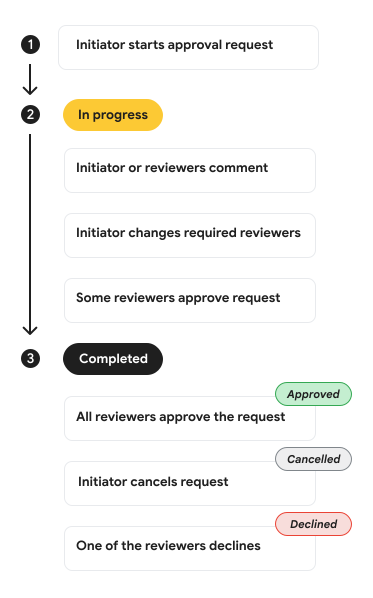
An approval goes through several states during its lifecycle. Figure 1 shows the high-level steps of an approval lifecycle:
Start the approval. Call
startto begin the approval request. Thestatusis then set toIN_PROGRESS.Approval is pending. While the approval is pending (
statusis set toIN_PROGRESS) both the initiator and reviewers can interact with it. They can add acomment, the initiator canreassignreviewers, and one or more reviewers canapprovethe request.Approval is in the completed state. An approval enters the completed state (
statusis set toAPPROVED,CANCELLEDorDECLINED) when all reviewers approve the request, the initiator elects tocancelthe request, or if any reviewer chooses todeclinethe request.
Use the fields parameter
To retrieve approval details, you must explicitly specify the fields you want
using the fields system
parameter
with any method of the approvals resource. Unlike other resources, methods of
the approvals resource don't return a default set of fields when the fields
parameter is omitted. For more information, see Return specific fields.
Start and administer approvals
The approvals resource can be used to start
and manage approvals using Drive API. These methods work with any of
the existing OAuth 2.0 Drive API scopes that allow writing file
metadata. For more information, see Choose Google Drive API scopes.
Start approval
To start a new approval on a file, use the
start method on the approvals resource and include the fileId path parameter.
The request body consists of
a required reviewerEmails field that's an array of strings containing the
email addresses of the reviewers assigned to review the file. Each reviewer
email address must be associated with a Google Account or the request fails.
Additionally, four optional fields are offered:
dueTime: The deadline for the approval in RFC 3339 format.lockFile: A boolean indicating whether to lock the file when starting the approval. This blocks users from modifying the file during the approval process. Any user with therole=writerpermission can remove this lock.message: A custom message sent to reviewers.fileContentChangeBehavior: The behavior of the approval when the file content changes. Supported values are:RESET_APPROVAL: (Default) Resets any reviewer response ofAPPROVEDtoNO_RESPONSEwhen content changes while the approval is in progress. The file is locked once the approval is complete with a status ofAPPROVED.NO_APPROVAL_ACTION: Doesn't reset reviewer responses when content changes, and doesn't lock the file when the approval is complete.
The response body contains an instance of the approvals resource and it
includes the
initiator field
which is the user who requested the approval. The approval Status is set to IN_PROGRESS.
If an existing approval is present with a Status of IN_PROGRESS, the start
method fails. You can only start an approval if there's no existing approval on
the file or if the existing approval is in the completed state (the status is
APPROVED, CANCELLED or DECLINED).
curl
curl -X POST \
  'https://www.googleapis.com/drive/v3/files/FILE_ID/approvals:start' \
  -H 'Authorization: Bearer ACCESS_TOKEN' \
  -H 'Content-Type: application/json' \
  -d '{
    "reviewerEmails": [
     "reviewer1@example.com",
     "reviewer2@example.com"
    ],
    "dueTime": "2026-04-01T15:01:23Z",
    "lockFile": true,
    "message": "Please review this file for approval.",
    "fileContentChangeBehavior": "RESET_APPROVAL"
 }'
Replace the following:
- FILE_ID: The ID of the file the approval is on.
- ACCESS_TOKEN: Your app's OAuth 2.0 token.
Comment on approval
To comment on an approval, use the
comment method on the approvals resource and include the fileId and approvalId
path parameters.
The request body consists
of a required message field that's a string containing the comment you want to
add to the approval.
The response body contains an instance of the approvals resource. The message
is sent to the approval initiator and reviewers as a notification, and it's also
included in the approval activity log.
curl
curl -X POST \
  'https://www.googleapis.com/drive/v3/files/FILE_ID/approvals/APPROVAL_ID:comment' \
  -H 'Authorization: Bearer ACCESS_TOKEN' \
  -H 'Content-Type: application/json' \
  -d '{
    "message": "The required comment on the approval."
 }'
Replace the following:
- FILE_ID: The ID of the file the approval is on.
- APPROVAL_ID: The ID of the approval.
- ACCESS_TOKEN: Your app's OAuth 2.0 token.
Reassign reviewers on approval
To reassign reviewers on an approval, use the
reassign method on the approvals resource and include the fileId and approvalId
path parameters.
The reassign method lets the approval initiator (or a user with the
role=writer permission) to add or replace reviewers in the
ReviewerResponse object of
the approvals resource. A user with the role=reader permission can only
reassign an approval that's assigned to themselves. This lets the user reassign
a request to someone else who's a more capable reviewer.
Reviewers can only be reassigned while the
Status is IN_PROGRESS and the
response
field for the reviewer being reassigned is set to NO_RESPONSE.
Note that you cannot remove a reviewer on an approval. If you need to remove a reviewer, you must cancel the approval and start a new one.
The request body consists
of the optional addReviewers and replaceReviewers fields. Each field has a
repeated object for
AddReviewer
and
ReplaceReviewer
which each contain a single reviewer to add or a pair of reviewers to replace.
You can also add the optional message field containing the comment you want to
send to the new reviewers.
The response body contains an instance of the approvals resource. The message
is sent to the new reviewers as a notification, and it's also included in the
approval activity log.
curl
curl -X POST \
  'https://www.googleapis.com/drive/v3/files/FILE_ID/approvals/APPROVAL_ID:reassign' \
  -H 'Authorization: Bearer ACCESS_TOKEN' \
  -H 'Content-Type: application/json' \
  -d '{
    "addReviewers": [
    {
        "addedReviewerEmail": "new_reviewer@example.com"
    }
    ],
    "replaceReviewers": [
    {
        "addedReviewerEmail": "replacement_reviewer@example.com",
        "removedReviewerEmail": "old_reviewer@example.com"
    }
    ],
    "message": "Reassigning reviewers for this approval request."
 }'
Replace the following:
- FILE_ID: The ID of the file the approval is on.
- APPROVAL_ID: The ID of the approval.
- ACCESS_TOKEN: Your app's OAuth 2.0 token.
Cancel approval
To cancel an approval, use the cancel
method on the approvals resource and include
the fileId and approvalId path parameters.
The cancel method can only be called by the approval initiator (or a user with
the role=writer permission) while the approval
Status is IN_PROGRESS.
The request body consists of
an optional message field that's a string containing the message to accompany
the cancellation of the approval.
The response body contains an instance of the approvals resource. The message
is sent as a notification, and it's also included in the approval activity log.
The approval Status is set to CANCELLED and it's in a completed state.
curl
curl -X POST \
  'https://www.googleapis.com/drive/v3/files/FILE_ID/approvals/APPROVAL_ID:cancel' \
  -H 'Authorization: Bearer ACCESS_TOKEN' \
  -H 'Content-Type: application/json' \
  -d '{
    "message": "The optional reason for cancelling this approval request."
 }'
Replace the following:
- FILE_ID: The ID of the file the approval is on.
- APPROVAL_ID: The ID of the approval.
- ACCESS_TOKEN: Your app's OAuth 2.0 token.
Decline approval
To decline an approval, use the
decline method on the approvals resource and include the fileId and approvalId
path parameters.
The decline method can only be called while the approval Status is IN_PROGRESS.
The request body consists of
an optional message field that's a string containing the message to accompany
the denial of the approval.
The response body contains an instance of the approvals resource. The message
is sent as a notification, and it's also included in the approval activity log.
The response
field of the ReviewerResponse
object of the requesting user is set to DECLINED. Additionally, the approval
Status is set to DECLINED and it's in a completed state.
curl
curl -X POST \
  'https://www.googleapis.com/drive/v3/files/FILE_ID/approvals/APPROVAL_ID:decline' \
  -H 'Authorization: Bearer ACCESS_TOKEN' \
  -H 'Content-Type: application/json' \
  -d '{
    "message": "The optional reason for declining this approval request."
 }'
Replace the following:
- FILE_ID: The ID of the file the approval is on.
- APPROVAL_ID: The ID of the approval.
- ACCESS_TOKEN: Your app's OAuth 2.0 token.
Approve approval
To approve an approval, use the
approve method on the approvals resource and include the fileId and approvalId
path parameters.
The approve method can only be called while the approval Status is IN_PROGRESS.
The request body consists
of an optional message field that's a string containing the message to
accompany the approval.
The response body contains an instance of the approvals resource. The message
is sent as a notification, and it's also included in the approval activity log.
The response
field of the ReviewerResponse
object of the requesting user is set to APPROVED. Additionally, if this is the
last required reviewer response, the approval Status is set to APPROVED and
it's in a completed state.
curl
curl -X POST \
  'https://www.googleapis.com/drive/v3/files/FILE_ID/approvals/APPROVAL_ID:approve' \
  -H 'Authorization: Bearer ACCESS_TOKEN' \
  -H 'Content-Type: application/json' \
  -d '{
    "message": "The optional reason for approving this approval request."
 }'
Replace the following:
- FILE_ID: The ID of the file the approval is on.
- APPROVAL_ID: The ID of the approval.
- ACCESS_TOKEN: Your app's OAuth 2.0 token.
Locate existing approvals
The approvals resource can also be used to get
and list the status of your approvals using Drive API.
To view approvals on a file, you must have permission to read the metadata of the file. For more information, see Roles and permissions.
Get approval
To get an approval on a file, use the get
method on the approvals resource with the fileId and approvalId path
parameters. If you don't know the approval ID, you can list
approvals using the list method.
The response body contains an instance of the approvals resource.
curl
curl -X GET \
  'https://www.googleapis.com/drive/v3/files/FILE_ID/approvals/APPROVAL_ID' \
  -H 'Authorization: Bearer ACCESS_TOKEN' \
  -H 'Accept: application/json'
Replace the following:
- FILE_ID: The ID of the file the approval is on.
- APPROVAL_ID: The ID of the approval.
- ACCESS_TOKEN: Your app's OAuth 2.0 token.
List approvals
To list approvals on a file, call the
list method on the approvals resource
and include the fileId path parameter.
The response body consists of
a list of approvals on the file. The
items
field includes information about each approval in the form of an approvals
resource.
You can also pass the following query parameters to customize pagination of, or filter, the approvals:
pageSize: The maximum number of approvals to return per page. If you don't setpageSize, the server returns up to 100 approvals.pageToken: A page token, received from a previous list call. This token is used to retrieve the subsequent page. It should be set to the value ofnextPageTokenfrom a previous response.
curl
curl -X GET \
  'https://www.googleapis.com/drive/v3/files/FILE_ID/approvals?pageSize=10&fields=nextPageToken,items(approvalId,status)' \
  -H 'Authorization: Bearer ACCESS_TOKEN' \
  -H 'Accept: application/json'
Replace the following:
- FILE_ID: The ID of the file the approval is on.
- ACCESS_TOKEN: Your app's OAuth 2.0 token.