Lên lịch cuộc họp từ Google Chat

Cấp độ lập trình: Trung cấp
Thời lượng: 25 phút
Loại dự án: Ứng dụng Google Chat

Mục tiêu

  • Tìm hiểu chức năng của giải pháp.
  • Tìm hiểu chức năng của các dịch vụ Apps Script trong giải pháp.
  • Thiết lập môi trường.
  • Thiết lập tập lệnh.
  • Chạy tập lệnh.

Giới thiệu về giải pháp này

Lên lịch cuộc họp trong Lịch Google ngay trong tin nhắn trực tiếp (DM) hoặc không gian trong Google Chat. Bạn có thể đặt thông tin chi tiết cụ thể cho cuộc họp, chẳng hạn như chủ đề, thời gian bắt đầu hoặc thời lượng, hoặc sử dụng chế độ cài đặt mặc định để lên lịch cuộc họp tức thì.

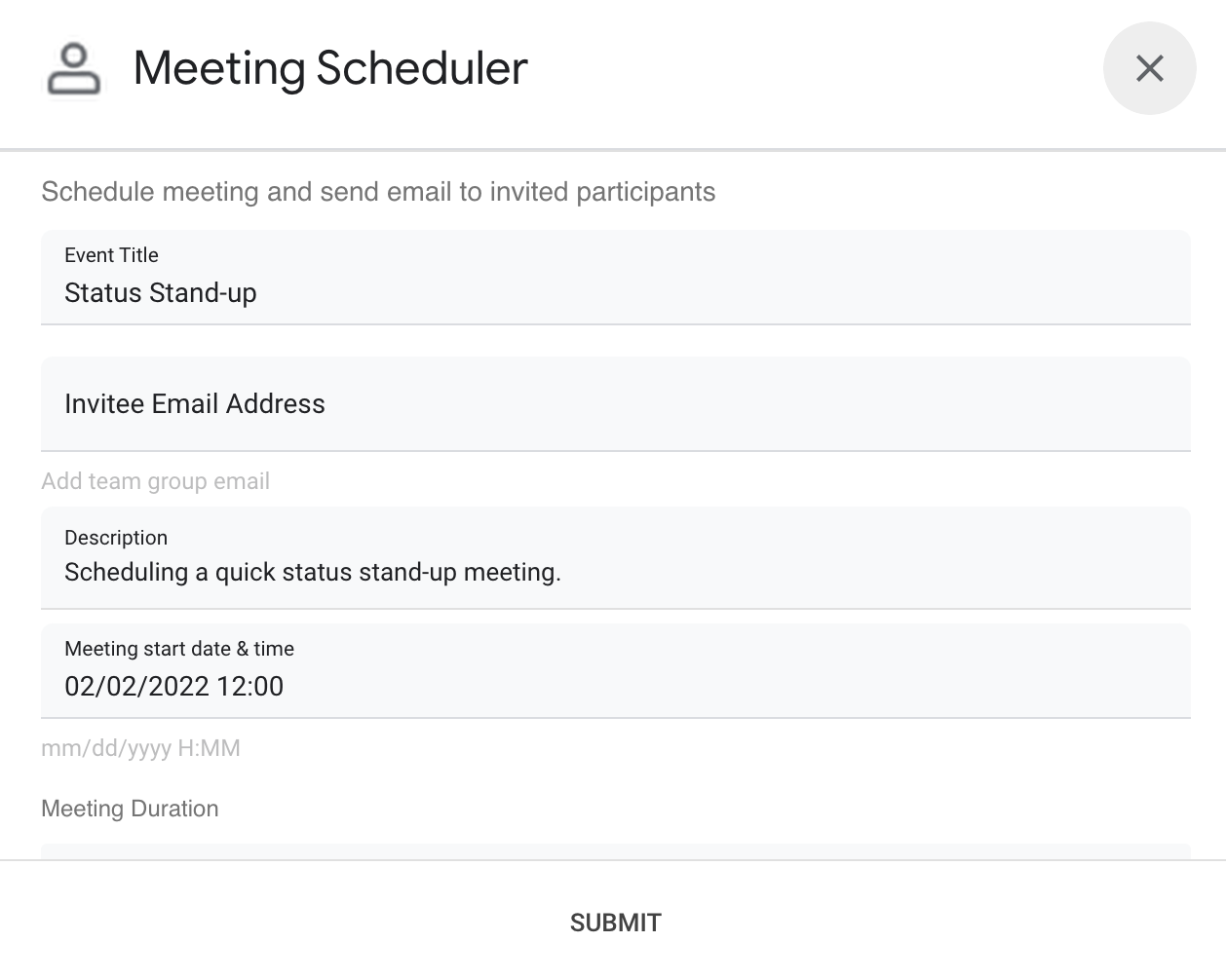
Giao diện hộp thoại của ứng dụng Chat Lập lịch cuộc họp

Cách hoạt động

Tập lệnh ứng dụng Chat sử dụng các lệnh dấu gạch chéohộp thoại để lấy thông tin chi tiết về cuộc họp từ người dùng và lên lịch một sự kiện trên Lịch. Tập lệnh này bao gồm các chế độ cài đặt mặc định cho cuộc họp mà bạn có thể tuỳ chỉnh cho phù hợp với nhu cầu của mình.

Dịch vụ Apps Script

Giải pháp này sử dụng các dịch vụ sau:

  • Dịch vụ Lịch – Tạo sự kiện trên lịch từ thông tin cuộc họp được cung cấp.
  • Dịch vụ cơ sở – Sử dụng lớp Session để lấy múi giờ của tập lệnh. Lịch sử dụng múi giờ này khi lên lịch sự kiện.
  • Dịch vụ Tiện ích – Định dạng ngày cho sự kiện trên lịch và mã hoá mã sự kiện để giúp lấy URL sự kiện.

Điều kiện tiên quyết

Thiết lập môi trường

Mở dự án trên đám mây trong bảng điều khiển Cloud

Nếu chưa mở, hãy mở dự án trên đám mây mà bạn định sử dụng cho mẫu này:

  1. Trong bảng điều khiển Cloud, hãy chuyển đến trang Select a project (Chọn một dự án).

    Chọn một dự án trên đám mây

  2. Chọn dự án trên Google Cloud mà bạn muốn sử dụng. Hoặc nhấp vào Create project (Tạo dự án) rồi làm theo hướng dẫn trên màn hình. Nếu tạo một dự án trên Google Cloud, bạn có thể cần bật tính năng thanh toán cho dự án đó.

Bật API

Trước khi sử dụng API của Google, bạn cần bật các API đó trong một dự án trên Google Cloud. Bạn có thể bật một hoặc nhiều API trong một dự án trên Google Cloud.
  • Trong dự án trên đám mây của bạn, hãy bật API Google Chat.

    Bật API

Tất cả ứng dụng Chat đều yêu cầu cấu hình màn hình xin phép. Việc định cấu hình màn hình xin phép bằng OAuth của ứng dụng sẽ xác định những gì Google hiển thị cho người dùng và đăng ký ứng dụng của bạn để bạn có thể xuất bản ứng dụng đó sau này.

  1. Trong Google API Console, hãy chuyển đến trình đơn Menu > Google Auth platform > Branding.

    Chuyển đến trang Thương hiệu

  2. Nếu đã định cấu hình Nền tảng xác thực của Google, bạn có thể định cấu hình các chế độ cài đặt sau đây cho Màn hình xin phép bằng OAuth trong phần Thương hiệu, Đối tượngQuyền truy cập dữ liệu. Nếu bạn thấy thông báo cho biết Google Auth platform not configured yet (Chưa định cấu hình Nền tảng xác thực của Google), hãy nhấp vào Get Started (Bắt đầu):
    1. Trong phần App Information (Thông tin ứng dụng), ở mục App name (Tên ứng dụng), hãy nhập tên cho ứng dụng.
    2. Trong mục User support email (Email hỗ trợ người dùng), hãy chọn một địa chỉ email hỗ trợ mà người dùng có thể liên hệ với bạn nếu có thắc mắc về việc xin phép.
    3. Nhấp vào Next (Tiếp theo).
    4. Trong phần Đối tượng, hãy chọn Nội bộ.
    5. Nhấp vào Next (Tiếp theo).
    6. Trong phần Contact Information (Thông tin liên hệ), hãy nhập Email address (Địa chỉ email) để bạn có thể nhận thông báo về mọi thay đổi đối với dự án của mình.
    7. Nhấp vào Next (Tiếp theo).
    8. Trong phần Finish (Hoàn tất), hãy xem lại Chính sách dữ liệu người dùng của các dịch vụ API của Google và nếu đồng ý, hãy chọn I agree to the Google API Services: User Data Policy (Tôi đồng ý với Chính sách dữ liệu người dùng của các dịch vụ API của Google).
    9. Nhấp vào Continue (Tiếp tục).
    10. Nhấp vào Tạo.
  3. Hiện tại, bạn có thể bỏ qua bước thêm phạm vi. Trong tương lai, khi tạo một ứng dụng để sử dụng bên ngoài tổ chức Google Workspace, bạn phải thay đổi Loại người dùng thành Bên ngoài. Sau đó, hãy thêm các phạm vi uỷ quyền mà ứng dụng của bạn yêu cầu. Để tìm hiểu thêm, hãy xem hướng dẫn đầy đủ về cách Định cấu hình màn hình xin phép bằng OAuth.

Thiết lập tập lệnh

Tạo dự án Apps Script

  1. Nhấp vào nút sau để mở dự án Apps Script Schedule meetings from Google Chat (Lên lịch cuộc họp từ Google Chat).
    Mở dự án
  2. Nhấp vào Tổng quan .
  3. Trên trang tổng quan, hãy nhấp vào Tạo bản sao Biểu tượng tạo bản sao.

Trong tương lai, nếu muốn sử dụng một số API của Google hoặc xuất bản ứng dụng, bạn phải liên kết dự án trên đám mây với dự án Apps Script. Đối với hướng dẫn này, bạn không cần làm như vậy. Để tìm hiểu thêm, hãy xem hướng dẫn về dự án trên Google Cloud.

Tạo bản triển khai kiểm thử

  1. Trong dự án Apps Script đã sao chép, hãy nhấp vào Deploy > Test deployments.
  2. Sao chép Head deployment ID (Mã bản triển khai chính) để sử dụng trong bước sau và nhấp vào Done (Xong).

Định cấu hình API Chat

  1. Trong Google API Console, hãy chuyển đến trang Chat API.
    Chuyển đến API Chat
  2. Nhấp vào Configuration (Cấu hình).
  3. Xoá dấu chọn Build this Chat app as a Google Workspace add-on (Xây dựng ứng dụng Chat này dưới dạng tiện ích bổ sung cho Google Workspace). Một hộp thoại sẽ mở ra yêu cầu bạn xác nhận. Trong hộp thoại, hãy nhấp vào Disable (Tắt).
  4. Định cấu hình API Chat bằng thông tin sau:
    • Name (Tên): Meeting Scheduler
    • Avatar URL (URL hình đại diện): Thêm một URL trỏ đến hình ảnh có kích thước tối thiểu là 256x256 pixel.
    • Description (Mô tả): Quickly create meetings.
    • Functionality (Chức năng): Chọn cả hai hộp để cho phép người dùng nhắn tin trực tiếp cho ứng dụng và thêm ứng dụng vào không gian.
    • Connection settings (Cài đặt kết nối): Nhấp vào Apps Script rồi nhập mã bản triển khai chính.
    • Lệnh dấu gạch chéo: Thêm lệnh dấu gạch chéo cho /help/schedule_Meeting bằng cách thực hiện các bước sau:
      1. Nhấp vào Add slash command (Thêm lệnh dấu gạch chéo) rồi định cấu hình lệnh đó bằng thông tin sau:
        • Name (Tên): /help
        • Command ID (Mã lệnh): 1
        • Description (Mô tả): Learn what this app does.
      2. Nhấp lại vào Add slash command (Thêm lệnh dấu gạch chéo) rồi định cấu hình lệnh đó bằng thông tin sau:
        • Name (Tên): /schedule_Meeting
        • Command ID (Mã lệnh): 2
        • Description (Mô tả): Schedule a meeting.
        • Chọn hộp Opens a dialog (Mở hộp thoại).
    • Permissions (Quyền): Chọn Specific people and groups in your domain (Những người và nhóm cụ thể trong miền của bạn) rồi nhập địa chỉ email của bạn.
  5. Nhấp vào Save (Lưu) rồi làm mới trang.
  6. Trên trang cấu hình, trong phần App status (Trạng thái ứng dụng), hãy đặt trạng thái thành Live – available to users (Đang hoạt động – người dùng có thể sử dụng).
  7. Nhấp vào Lưu.

Chạy tập lệnh

  1. Mở Google Chat.
  2. Nhấp vào biểu tượng Bắt đầu trò chuyện .
  3. Tìm kiếm tên của ứng dụng, Meeting Scheduler.
  4. Gửi một tin nhắn ban đầu, chẳng hạn như hello, để nhắc cấp quyền.
  5. Khi ứng dụng trả lời, hãy nhấp vào Configure và cấp quyền cho ứng dụng. Nếu màn hình xin phép bằng OAuth hiển thị cảnh báo This app isn't verified, hãy tiếp tục bằng cách chọn Advanced > Go to {Project Name} (unsafe).

  6. Gửi /schedule_Meeting đến ứng dụng.

  7. Trong hộp thoại, hãy thêm ít nhất một địa chỉ email của người được mời. Bạn có thể cập nhật các trường khác hoặc sử dụng mục nhập mặc định.

  8. Nhấp vào Gửi.

  9. Để xem cuộc họp, hãy nhấp vào Open Calendar event (Mở sự kiện trên Lịch).

Xem lại mã

Để xem lại mã Apps Script cho giải pháp này, hãy nhấp vào Xem mã nguồn bên dưới:

Xem mã nguồn

Code.gs

apps-script/schedule-meetings/Code.js
// To learn how to use this script, refer to the documentation:
// https://developers.google.com/workspace/chat/tutorial-schedule-meetings

/*
Copyright 2022 Google LLC

Licensed under the Apache License, Version 2.0 (the "License");
you may not use this file except in compliance with the License.
You may obtain a copy of the License at

    https://www.apache.org/licenses/LICENSE-2.0

Unless required by applicable law or agreed to in writing, software
distributed under the License is distributed on an "AS IS" BASIS,
WITHOUT WARRANTIES OR CONDITIONS OF ANY KIND, either express or implied.
See the License for the specific language governing permissions and
limitations under the License.
*/

// Application constants
const APPNAME = "Chat Meeting Scheduler";
const SLASHCOMMAND = {
  HELP: 1, // /help
  DIALOG: 2, // /schedule_Meeting
};

/**
 * Responds to an ADDED_TO_SPACE event in Google Chat.
 * Called when the Chat app is added to a space. The Chat app can either be directly added to the space
 * or added by a @mention. If the Chat app is added by a @mention, the event object includes a message property.
 * Returns a Message object, which is usually a welcome message informing users about the Chat app.
 *
 * @param {Object} event The event object from Google Chat
 */
function onAddToSpace(event) {
  let message = "";

  // Personalizes the message depending on how the Chat app is called.
  if (event.space.singleUserBotDm) {
    message = `Hi ${event.user.displayName}!`;
  } else {
    const spaceName = event.space.displayName
      ? event.space.displayName
      : "this chat";
    message = `Hi! Thank you for adding me to ${spaceName}`;
  }

  // Lets users know what they can do and how they can get help.
  message = `${message}/nI can quickly schedule a meeting for you with just a few clicks.Try me out by typing */schedule_Meeting*. /nTo learn what else I can do, type */help*.`;

  return { text: message };
}

/**
 * Responds to a MESSAGE event triggered in Chat.
 * Called when the Chat app is already in the space and the user invokes it via @mention or / command.
 * Returns a message object containing the Chat app's response. For this Chat app, the response is either the
 * help text or the dialog to schedule a meeting.
 *
 * @param {object} event The event object from Google Chat
 * @return {object} JSON-formatted response as text or Card message
 */
function onMessage(event) {
  // Handles regular onMessage logic.
  // Evaluates if and handles for all slash commands.
  if (event.message.slashCommand) {
    switch (event.message.slashCommand.commandId) {
      case SLASHCOMMAND.DIALOG: // Displays meeting dialog for /schedule_Meeting.
        // TODO update this with your own logic to set meeting recipients, subjects, etc (e.g. a group email).
        return getInputFormAsDialog_({
          invitee: "",
          startTime: getTopOfHourDateString_(),
          duration: 30,
          subject: "Status Stand-up",
          body: "Scheduling a quick status stand-up meeting.",
        });

      case SLASHCOMMAND.HELP: // Responds with help text for /help.
        return getHelpTextResponse_();

      /* TODO Add other use cases here. E.g:
      case SLASHCOMMAND.NEW_FEATURE:  // Your Feature Here
        getDialogForAddContact(message);
      */
    }
  }
  // Returns text if users didn't invoke a slash command.
  return { text: "No action taken - use Slash Commands." };
}

/**
 * Responds to a CARD_CLICKED event triggered in Chat.
 * @param {object} event the event object from Chat
 * @return {object} JSON-formatted response
 * @see https://developers.google.com/workspace/chat/receive-respond-interactions
 */
function onCardClick(event) {
  if (event.action.actionMethodName === "handleFormSubmit") {
    const recipients = getFieldValue_(event.common.formInputs, "email");
    const subject = getFieldValue_(event.common.formInputs, "subject");
    const body = getFieldValue_(event.common.formInputs, "body");

    // Assumes dialog card inputs for date and times are in the correct format. mm/dd/yyy HH:MM
    const dateTimeInput = getFieldValue_(event.common.formInputs, "date");
    const startTime = getStartTimeAsDateObject_(dateTimeInput);
    const duration = Number(
      getFieldValue_(event.common.formInputs, "duration"),
    );

    // Handles instances of missing or invalid input parameters.
    const errors = [];

    if (!recipients) {
      errors.push("Missing or invalid recipient email address.");
    }
    if (!subject) {
      errors.push("Missing subject line.");
    }
    if (!body) {
      errors.push("Missing event description.");
    }
    if (!startTime) {
      errors.push("Missing or invalid start time.");
    }
    if (!duration || Number.isNaN(duration)) {
      errors.push("Missing or invalid duration");
    }
    if (errors.length) {
      // Redisplays the form if missing or invalid inputs exist.
      return getInputFormAsDialog_({
        errors,
        invitee: recipients,
        startTime: dateTimeInput,
        duration,
        subject,
        body,
      });
    }

    //  Calculates the end time via duration.
    const endTime = new Date(startTime.valueOf());
    endTime.setMinutes(endTime.getMinutes() + duration);

    // Creates calendar event with notification.
    const calendar = CalendarApp.getDefaultCalendar();
    const scheduledEvent = calendar.createEvent(subject, startTime, endTime, {
      guests: recipients,
      sendInvites: true,
      description: `${body}\nThis meeting scheduled by a Google Chat App!`,
    });

    // Gets a link to the Calendar event.
    const url = getCalendarEventURL_(scheduledEvent, calendar);

    return getConfirmationDialog_(url);
  }
  if (event.action.actionMethodName === "closeDialog") {
    // Returns this dialog as success.
    return {
      actionResponse: {
        type: "DIALOG",
        dialog_action: {
          actionStatus: "OK",
        },
      },
    };
  }
}

/**
 * Responds with help text about this Chat app.
 * @return {string} The help text as seen below
 */
function getHelpTextResponse_() {
  const help = `*${APPNAME}* lets you quickly create meetings from Google Chat. Here\'s a list of all its commands:
  \`/schedule_Meeting\`  Opens a dialog with editable, preset parameters to create a meeting event
  \`/help\`  Displays this help message

  Learn more about creating Google Chat apps at https://developers.google.com/chat.`;

  return { text: help };
}

Dialog.gs

apps-script/schedule-meetings/Dialog.js
/**
 * Copyright 2022 Google LLC
 *
 * Licensed under the Apache License, Version 2.0 (the "License");
 * you may not use this file except in compliance with the License.
 * You may obtain a copy of the License at
 *
 *      http://www.apache.org/licenses/LICENSE-2.0
 *
 * Unless required by applicable law or agreed to in writing, software
 * distributed under the License is distributed on an "AS IS" BASIS,
 * WITHOUT WARRANTIES OR CONDITIONS OF ANY KIND, either express or implied.
 * See the License for the specific language governing permissions and
 * limitations under the License.
 */

/**
 * Form input dialog as JSON.
 * @return {object} JSON-formatted cards for the dialog.
 */
function getInputFormAsDialog_(options) {
  const form = getForm_(options);
  return {
    actionResponse: {
      type: "DIALOG",
      dialogAction: {
        dialog: {
          body: form,
        },
      },
    },
  };
}

/**
 * Form JSON to collect inputs regarding the meeting.
 * @return {object} JSON-formatted cards.
 */
function getForm_(options) {
  const sections = [];

  // If errors present, display additional section with validation messages.
  if (options.errors?.length) {
    let errors = options.errors.reduce((str, err) => `${str}${err}<br>`, "");
    errors = `<b>Errors:</b><br><font color="#ba0000">${errors}</font>`;
    const errorSection = {
      widgets: [
        {
          textParagraph: {
            text: errors,
          },
        },
      ],
    };
    sections.push(errorSection);
  }
  const formSection = {
    header: "Schedule meeting and send email to invited participants",
    widgets: [
      {
        textInput: {
          label: "Event Title",
          type: "SINGLE_LINE",
          name: "subject",
          value: options.subject,
        },
      },
      {
        textInput: {
          label: "Invitee Email Address",
          type: "SINGLE_LINE",
          name: "email",
          value: options.invitee,
          hintText: "Add team group email",
        },
      },
      {
        textInput: {
          label: "Description",
          type: "MULTIPLE_LINE",
          name: "body",
          value: options.body,
        },
      },
      {
        textInput: {
          label: "Meeting start date & time",
          type: "SINGLE_LINE",
          name: "date",
          value: options.startTime,
          hintText: "mm/dd/yyyy H:MM",
        },
      },
      {
        selectionInput: {
          type: "DROPDOWN",
          label: "Meeting Duration",
          name: "duration",
          items: [
            {
              text: "15 minutes",
              value: "15",
              selected: options.duration === 15,
            },
            {
              text: "30 minutes",
              value: "30",
              selected: options.duration === 30,
            },
            {
              text: "45 minutes",
              value: "45",
              selected: options.duration === 45,
            },
            {
              text: "1 Hour",
              value: "60",
              selected: options.duration === 60,
            },
            {
              text: "1.5 Hours",
              value: "90",
              selected: options.duration === 90,
            },
            {
              text: "2 Hours",
              value: "120",
              selected: options.duration === 120,
            },
          ],
        },
      },
    ],
    collapsible: false,
  };
  sections.push(formSection);
  const card = {
    sections: sections,
    name: "Google Chat Scheduled Meeting",
    fixedFooter: {
      primaryButton: {
        text: "Submit",
        onClick: {
          action: {
            function: "handleFormSubmit",
          },
        },
        altText: "Submit",
      },
    },
  };
  return card;
}

/**
 * Confirmation dialog after a calendar event is created successfully.
 * @param {string} url The Google Calendar Event url for link button
 * @return {object} JSON-formatted cards for the dialog
 */
function getConfirmationDialog_(url) {
  return {
    actionResponse: {
      type: "DIALOG",
      dialogAction: {
        dialog: {
          body: {
            sections: [
              {
                widgets: [
                  {
                    textParagraph: {
                      text: "Meeting created successfully!",
                    },
                    horizontalAlignment: "CENTER",
                  },
                  {
                    buttonList: {
                      buttons: [
                        {
                          text: "Open Calendar Event",
                          onClick: {
                            openLink: {
                              url: url,
                            },
                          },
                        },
                      ],
                    },
                    horizontalAlignment: "CENTER",
                  },
                ],
              },
            ],
            fixedFooter: {
              primaryButton: {
                text: "OK",
                onClick: {
                  action: {
                    function: "closeDialog",
                  },
                },
              },
            },
          },
        },
      },
    },
  };
}

Utilities.gs

apps-script/schedule-meetings/Utilities.js
/**
 * Copyright 2022 Google LLC
 *
 * Licensed under the Apache License, Version 2.0 (the "License");
 * you may not use this file except in compliance with the License.
 * You may obtain a copy of the License at
 *
 *      http://www.apache.org/licenses/LICENSE-2.0
 *
 * Unless required by applicable law or agreed to in writing, software
 * distributed under the License is distributed on an "AS IS" BASIS,
 * WITHOUT WARRANTIES OR CONDITIONS OF ANY KIND, either express or implied.
 * See the License for the specific language governing permissions and
 * limitations under the License.
 */

/**
 * Helper function that gets the field value from the given form input.
 * @return {string}
 */
function getFieldValue_(formInputs, fieldName) {
  return formInputs[fieldName][""].stringInputs.value[0];
}

// Regular expression to validate the date/time input.
const DATE_TIME_PATTERN = /\d{1,2}\/\d{1,2}\/\d{4}\s+\d{1,2}:\d\d/;

/**
 * Casts date and time from string to Date object.
 * @return {date}
 */
function getStartTimeAsDateObject_(dateTimeStr) {
  if (!dateTimeStr || !dateTimeStr.match(DATE_TIME_PATTERN)) {
    return null;
  }

  const parts = dateTimeStr.split(" ");
  const [month, day, year] = parts[0].split("/").map(Number);
  const [hour, minute] = parts[1].split(":").map(Number);

  Session.getScriptTimeZone();

  return new Date(year, month - 1, day, hour, minute);
}

/**
 * Gets the current date and time for the upcoming top of the hour (e.g. 01/25/2022 18:00).
 * @return {string} date/time in mm/dd/yyy HH:MM format needed for use by Calendar
 */
function getTopOfHourDateString_() {
  const date = new Date();
  date.setHours(date.getHours() + 1);
  date.setMinutes(0, 0, 0);
  // Adding the date as string might lead to an incorrect response due to time zone adjustments.
  return Utilities.formatDate(
    date,
    Session.getScriptTimeZone(),
    "MM/dd/yyyy H:mm",
  );
}

/**
 * Creates the URL for the Google Calendar event.
 *
 * @param {object} event The Google Calendar Event instance
 * @param {object} cal The associated Google Calendar
 * @return {string} URL in the form of 'https://www.google.com/calendar/event?eid={event-id}'
 */
function getCalendarEventURL_(event, cal) {
  const baseCalUrl = "https://www.google.com/calendar";
  // Joins Calendar Event Id with Calendar Id, then base64 encode to derive the event URL.
  let encodedId = Utilities.base64Encode(
    `${event.getId().split("@")[0]} ${cal.getId()}`,
  ).replace(/\=/g, "");
  encodedId = `/event?eid=${encodedId}`;
  return baseCalUrl + encodedId;
}

Các bước tiếp theo