लिंक की झलक देखें

जब लोग Google Chat में कोई लिंक शेयर करते हैं, तो उन्हें कॉन्टेक्स्ट स्विच करने की ज़रूरत नहीं पड़ती. इसके लिए, आपका Chat ऐप्लिकेशन उनके मैसेज में कार्ड अटैच करके, लिंक का प्रीव्यू दिखा सकता है. इस कार्ड में लिंक के बारे में ज़्यादा जानकारी होती है. साथ ही, लोग Google Chat से ही कार्रवाई कर सकते हैं.

उदाहरण के लिए, मान लें कि किसी Google Chat स्पेस में कंपनी के सभी ग्राहक सेवा एजेंट शामिल हैं. साथ ही, इसमें Case-y नाम का एक Chat ऐप्लिकेशन भी शामिल है. एजेंट, अक्सर Chat स्पेस में ग्राहक सेवा के अनुरोधों के लिंक शेयर करते हैं. हर बार जब वे ऐसा करते हैं, तो उनके सहयोगियों को केस का लिंक खोलना होता है, ताकि वे असाइन किए गए व्यक्ति, स्थिति, और विषय जैसी जानकारी देख सकें. इसी तरह, अगर किसी व्यक्ति को किसी केस का मालिकाना हक लेना है या उसकी स्थिति बदलनी है, तो उसे लिंक खोलना होगा.

लिंक की झलक दिखाने की सुविधा की मदद से, स्पेस में मौजूद Chat ऐप्लिकेशन, Case-y, किसी भी व्यक्ति के केस का लिंक शेयर करने पर, असाइन किए गए व्यक्ति, स्टेटस, और विषय की जानकारी दिखाने वाला कार्ड अटैच कर सकता है. कार्ड पर मौजूद बटन की मदद से एजेंट, केस का मालिकाना हक ले सकते हैं. साथ ही, चैट स्ट्रीम से सीधे तौर पर स्टेटस बदल सकते हैं.

जब कोई व्यक्ति अपने मैसेज में कोई लिंक जोड़ता है, तो एक चिप दिखता है. इससे उन्हें पता चलता है कि Chat ऐप्लिकेशन, लिंक की झलक दिखा सकता है.
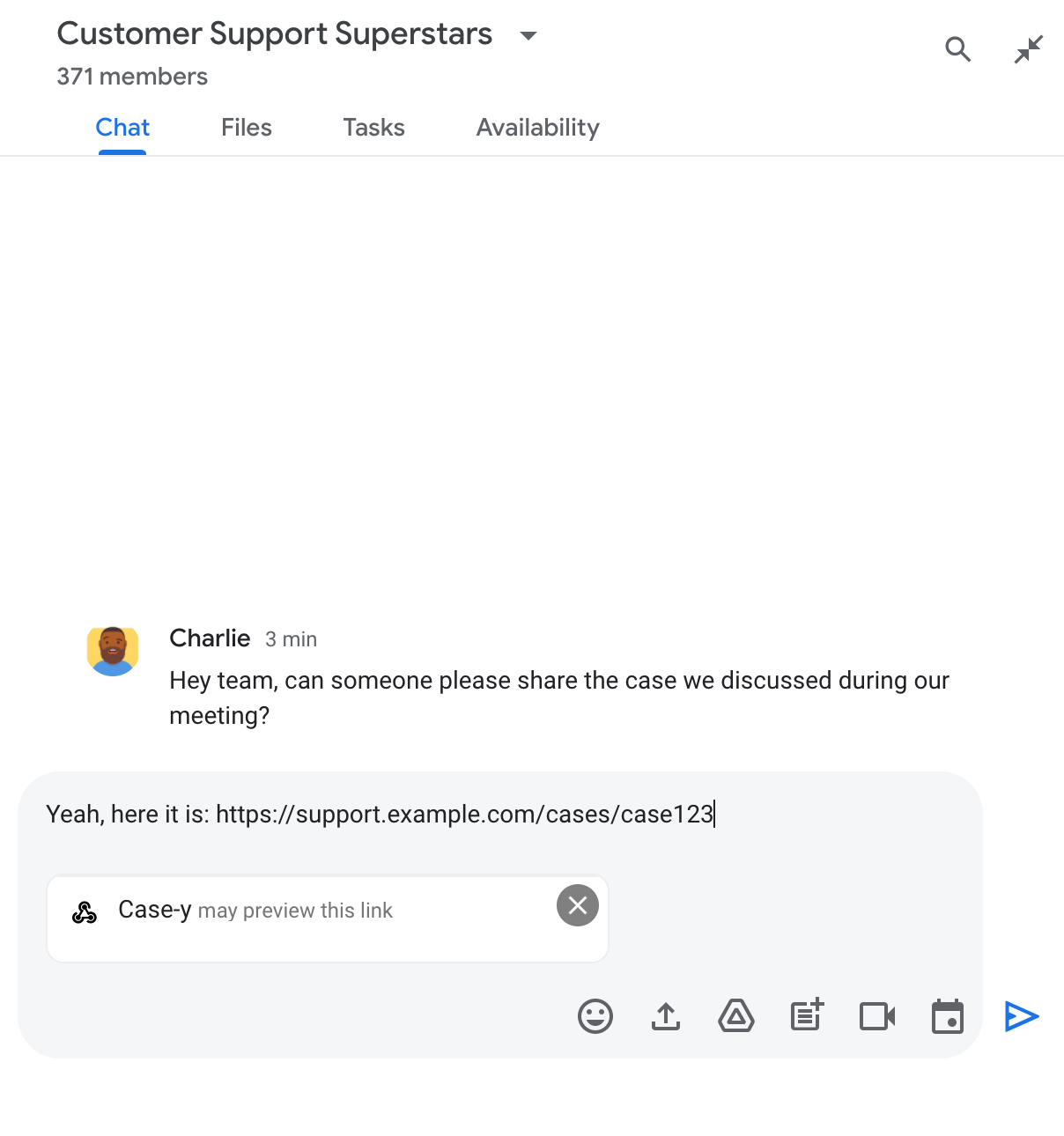
चिप से पता चलता है कि कोई Chat ऐप्लिकेशन, लिंक की झलक दिखा सकता है

मैसेज भेजने के बाद, लिंक को Chat ऐप्लिकेशन पर भेजा जाता है. इसके बाद, Chat ऐप्लिकेशन कार्ड जनरेट करके उसे उपयोगकर्ता के मैसेज में अटैच करता है.
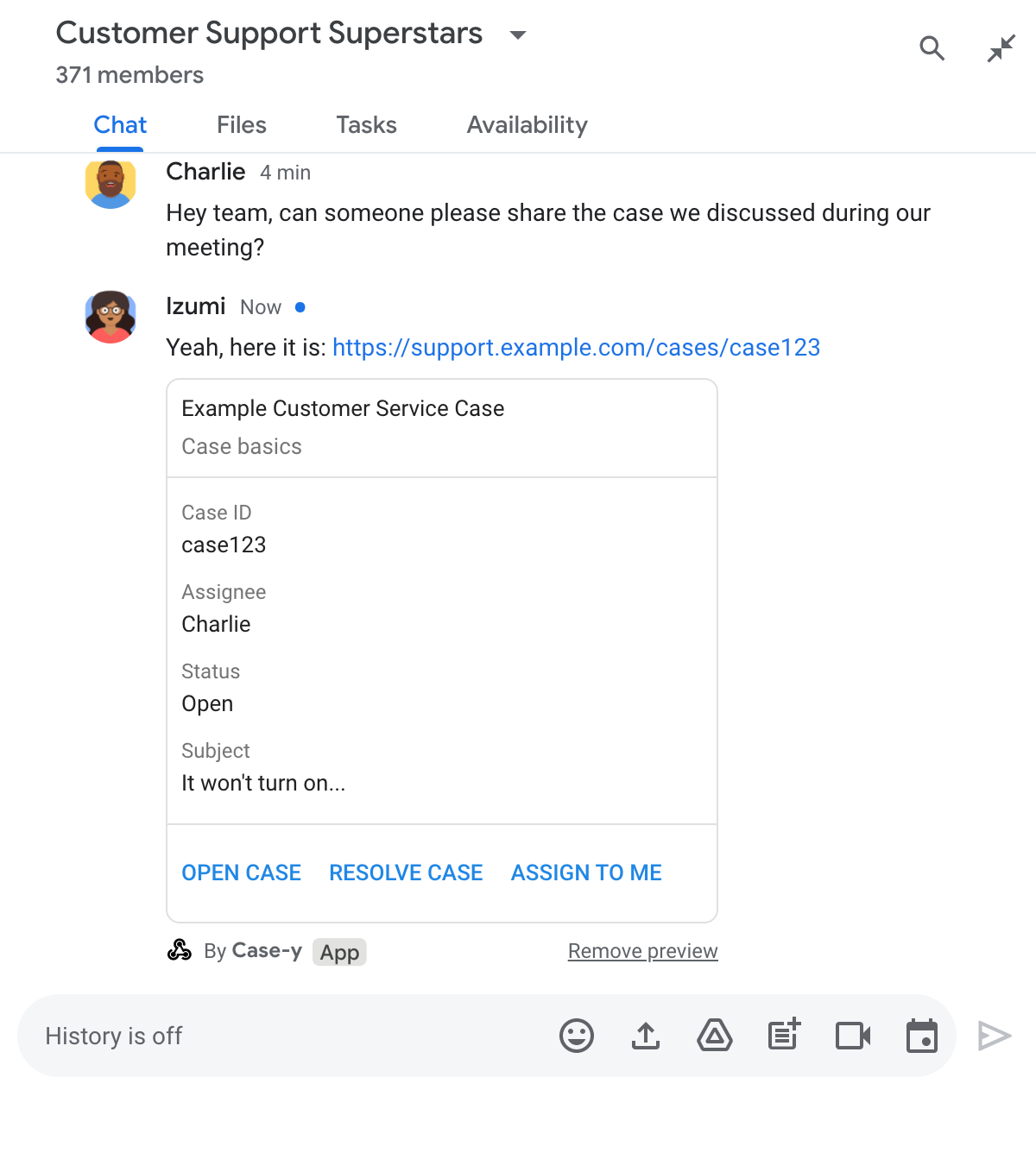
मैसेज में कार्ड अटैच करके, लिंक की झलक दिखाने वाला Chat ऐप्लिकेशन

लिंक के साथ-साथ, कार्ड में लिंक के बारे में ज़्यादा जानकारी भी दी जाती है. इसमें बटन जैसे इंटरैक्टिव एलिमेंट शामिल होते हैं. आपका Chat ऐप्लिकेशन, उपयोगकर्ता के इंटरैक्शन के जवाब में अटैच किए गए कार्ड को अपडेट कर सकता है. जैसे, बटन पर क्लिक करना.

अगर कोई व्यक्ति नहीं चाहता कि Chat ऐप्लिकेशन, उसके मैसेज में कार्ड अटैच करके लिंक की झलक दिखाए, तो वह झलक दिखाने की सुविधा को बंद कर सकता है. इसके लिए, उसे झलक दिखाने वाले चिप पर मौजूद पर क्लिक करना होगा. उपयोगकर्ता, अटैच किए गए कार्ड को किसी भी समय हटा सकते हैं. इसके लिए, उन्हें झलक हटाएं पर क्लिक करना होगा.

ज़रूरी शर्तें

HTTP

Google Chat ऐप्लिकेशन, जो उपयोगकर्ता के इंटरैक्शन को स्वीकार करता है और उनका जवाब देता है. इसे बनाने के लिए, एचटीटीपी क्विकस्टार्ट पूरा करें.

Apps Script

Google Chat ऐप्लिकेशन, जो उपयोगकर्ता के इंटरैक्शन को स्वीकार करता है और उनका जवाब देता है. इसे बनाने के लिए, Apps Script क्विकस्टार्ट पूरा करें.

Google Cloud Console में, Chat ऐप्लिकेशन के कॉन्फ़िगरेशन पेज पर, example.com, support.example.com, और support.example.com/cases/ जैसे लिंक को यूआरएल पैटर्न के तौर पर रजिस्टर करें. इससे आपका Chat ऐप्लिकेशन, इन लिंक की झलक दिखा सकेगा.
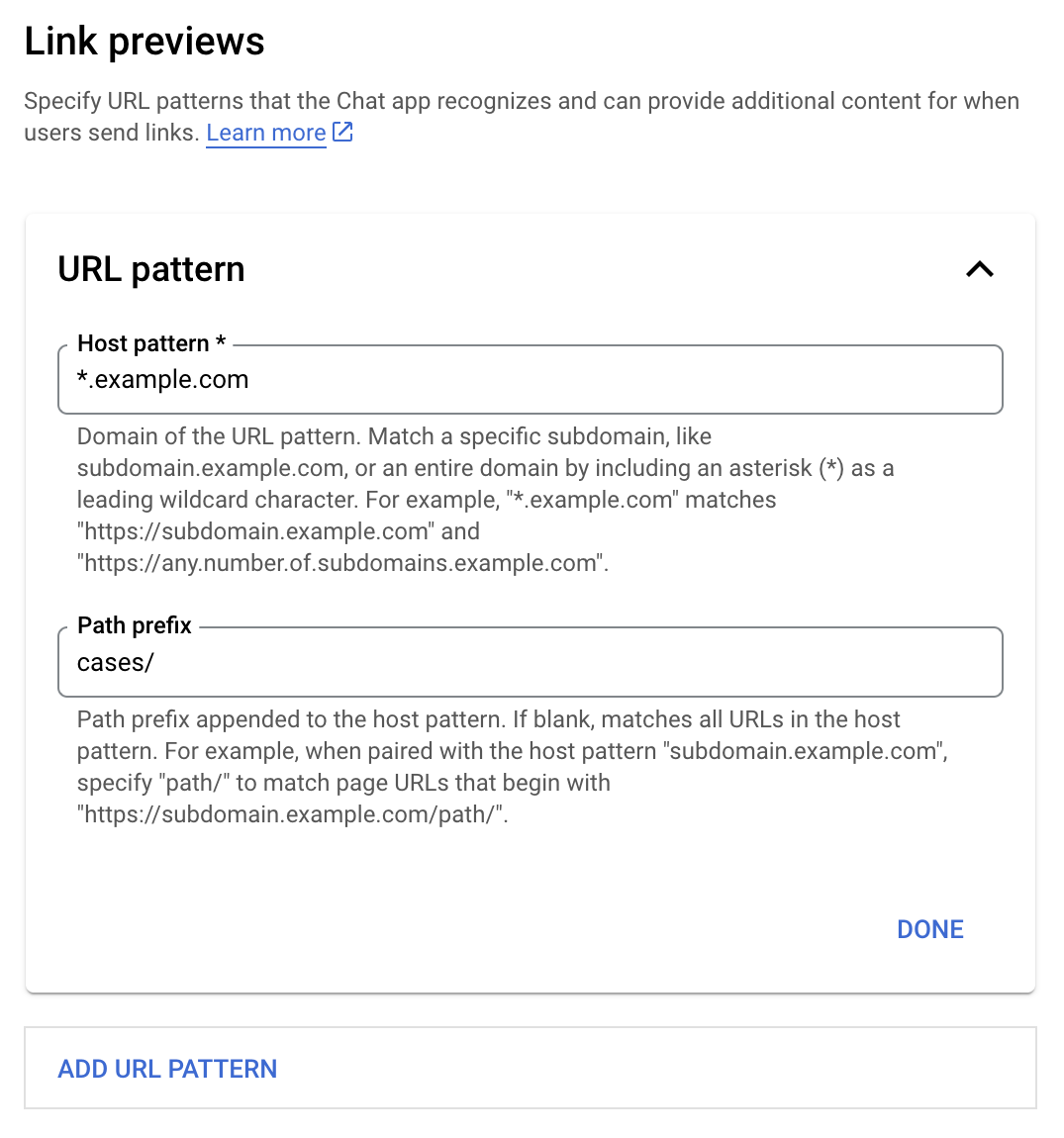
लिंक की झलक दिखाने की सुविधा को कॉन्फ़िगर करने वाला मेन्यू

  1. Google Cloud Console खोलें.
  2. "Google Cloud" के बगल में मौजूद डाउन ऐरो पर क्लिक करें. इसके बाद, Chat ऐप्लिकेशन का प्रोजेक्ट खोलें.
  3. खोज फ़ील्ड में, Google Chat API टाइप करें और Google Chat API पर क्लिक करें.
  4. मैनेज करें > कॉन्फ़िगरेशन पर क्लिक करें.
  5. लिंक की झलक दिखाने की सुविधा में जाकर, यूआरएल पैटर्न जोड़ें या उसमें बदलाव करें.
    1. नए यूआरएल पैटर्न के लिए लिंक की झलक कॉन्फ़िगर करने के लिए, यूआरएल पैटर्न जोड़ें पर क्लिक करें.
    2. किसी मौजूदा यूआरएल पैटर्न के कॉन्फ़िगरेशन में बदलाव करने के लिए, डाउन ऐरो पर क्लिक करें.
  6. होस्ट पैटर्न फ़ील्ड में, यूआरएल पैटर्न का डोमेन डालें. Chat ऐप्लिकेशन, इस डोमेन के लिंक की झलक दिखाएगा.

    अगर आपको Chat ऐप्लिकेशन से किसी खास सबडोमेन, जैसे कि subdomain.example.com के लिंक की झलक देखनी है, तो सबडोमेन शामिल करें.

    अगर आपको पूरे डोमेन के लिए, Chat ऐप्लिकेशन में लिंक की झलक देखने की सुविधा चाहिए, तो सबडोमेन के तौर पर ऐस्टरिक (*) के साथ वाइल्डकार्ड वर्ण डालें. उदाहरण के लिए, *.example.com का मिलान subdomain.example.com और any.number.of.subdomains.example.com से होता है.

  7. पाथ प्रीफ़िक्स फ़ील्ड में, होस्ट पैटर्न डोमेन में जोड़ने के लिए कोई पाथ डालें.

    होस्ट पैटर्न डोमेन में मौजूद सभी यूआरएल से मेल खाने के लिए, पाथ प्रीफ़िक्स को खाली छोड़ दें.

    उदाहरण के लिए, अगर होस्ट पैटर्न support.example.com है, तो support.example.com/cases/ पर होस्ट किए गए मामलों के यूआरएल से मैच करने के लिए, cases/ डालें.

  8. हो गया पर क्लिक करें.

  9. सेव करें पर क्लिक करें.

अब जब भी कोई व्यक्ति, Chat ऐप्लिकेशन वाले Chat स्पेस में किसी ऐसे लिंक को शामिल करेगा जो लिंक की झलक दिखाने वाले यूआरएल पैटर्न से मेल खाता हो, तब आपका ऐप्लिकेशन उस लिंक की झलक दिखाएगा.

किसी लिंक के लिए, लिंक की झलक दिखाने की सुविधा कॉन्फ़िगर करने के बाद, आपका Chat ऐप्लिकेशन उस लिंक को पहचान सकता है और उसकी झलक दिखा सकता है. इसके लिए, वह लिंक में ज़्यादा जानकारी जोड़ता है.

Chat ऐप्लिकेशन वाले Chat स्पेस में, जब किसी व्यक्ति के मैसेज में ऐसा लिंक होता है जो लिंक की झलक दिखाने वाले यूआरएल पैटर्न से मेल खाता है, तो आपके Chat ऐप्लिकेशन को MessagePayload के साथ इवेंट ऑब्जेक्ट मिलता है. पेलोड में, message.matchedUrl (chat.messagePayload.message.matchedUrl.url) ऑब्जेक्ट में वह लिंक होता है जिसे उपयोगकर्ता ने मैसेज में शामिल किया है:

JSON

message: {
  matchedUrl: {
    url: "https://support.example.com/cases/case123"
  },
  ... // other message attributes redacted
}

MESSAGE इवेंट के पेलोड (chat.messagePayload.message.matchedUrl.url) में matchedUrl फ़ील्ड की मौजूदगी की जांच करके, आपका Chat ऐप्लिकेशन, लिंक की झलक के साथ मैसेज में जानकारी जोड़ सकता है. आपका Chat ऐप्लिकेशन, सामान्य टेक्स्ट मैसेज के ज़रिए जवाब दे सकता है या कोई कार्ड अटैच कर सकता है.

टेक्स्ट मैसेज से जवाब देना

सामान्य जवाबों के लिए, Chat ऐप्लिकेशन किसी लिंक की झलक दिखा सकता है. इसके लिए, वह लिंक का जवाब सामान्य टेक्स्ट मैसेज के तौर पर देता है. इस उदाहरण में, एक ऐसा मैसेज अटैच किया गया है जो लिंक के यूआरएल को दोहराता है. यह लिंक, लिंक की झलक दिखाने वाले यूआरएल पैटर्न से मेल खाता है.

Node.js

node/chat/preview-link/index.js
// Reply with a text message for URLs of the subdomain "text"
if (chatMessage.matchedUrl.url.includes("text.example.com")) {
  return { hostAppDataAction: { chatDataAction: { createMessageAction: { message: {
    text: 'event.chat.messagePayload.message.matchedUrl.url: ' + chatMessage.matchedUrl.url
  }}}}};
}

FUNCTION_URL को उस एचटीटीपी एंडपॉइंट से बदलें जो बटन क्लिक को हैंडल करता है.

Python

python/chat/preview-link/main.py
# Reply with a text message for URLs of the subdomain "text"
if "text.example.com" in chatMessage.get('matchedUrl').get('url'):
  return { 'hostAppDataAction': { 'chatDataAction': { 'createMessageAction': { 'message': {
    'text': 'event.chat.messagePayload.message.matchedUrl.url: ' + chatMessage.get('matchedUrl').get('url')
  }}}}}

FUNCTION_URL को उस एचटीटीपी एंडपॉइंट से बदलें जो बटन क्लिक को हैंडल करता है.

Java

java/chat/preview-link/src/main/java/com/google/chat/previewLink/App.java
// Reply with a text message for URLs of the subdomain "text"
if (chatMessage.at("/matchedUrl/url").asText().contains("text.example.com")) {
  return new GenericJson() {{
    put("hostAppDataAction", new GenericJson() {{
      put("chatDataAction", new GenericJson() {{
        put("createMessageAction", new GenericJson() {{
          put("message", new Message()
            .setText("event.chat.messagePayload.message.matchedUrl.url: " + chatMessage.at("/matchedUrl/url").asText()));
        }});
      }});
    }});
  }};
}

FUNCTION_URL को उस एचटीटीपी एंडपॉइंट से बदलें जो बटन क्लिक को हैंडल करता है.

Apps Script

apps-script/chat/preview-link/preview-link.gs
// Reply with a text message for URLs of the subdomain "text".
if (chatMessage.matchedUrl.url.includes("text.example.com")) {
  return { hostAppDataAction: { chatDataAction: { createMessageAction: { message: {
    text: 'event.chat.messagePayload.message.matchedUrl.url: ' + chatMessage.matchedUrl.url
  }}}}};
}

झलक दिखाए गए लिंक में कार्ड अटैच करने के लिए, DataActions ऐक्शन को ChatDataActionMarkup ऑब्जेक्ट के साथ दिखाएं. यह ऑब्जेक्ट UpdateInlinePreviewAction टाइप का होना चाहिए.

यहां दिए गए उदाहरण में, Chat ऐप्लिकेशन ऐसे मैसेज में झलक वाला कार्ड जोड़ता है जिनमें यूआरएल पैटर्न support.example.com शामिल होता है.

मैसेज में कार्ड अटैच करके, लिंक की झलक दिखाने वाला Chat ऐप्लिकेशन

Node.js

node/chat/preview-link/index.js
// Attach a card to the message for URLs of the subdomain "support"
if (chatMessage.matchedUrl.url.includes("support.example.com")) {
  // A hard-coded card is used in this example. In a real-life scenario,
  // the case information would be fetched and used to build the card.
  return { hostAppDataAction: { chatDataAction: { updateInlinePreviewAction: { cardsV2: [{
    cardId: 'attachCard',
    card: {
      header: {
        title: 'Example Customer Service Case',
        subtitle: 'Case basics',
      },
      sections: [{ widgets: [
      { decoratedText: { topLabel: 'Case ID', text: 'case123'}},
      { decoratedText: { topLabel: 'Assignee', text: 'Charlie'}},
      { decoratedText: { topLabel: 'Status', text: 'Open'}},
      { decoratedText: { topLabel: 'Subject', text: 'It won\'t turn on...' }},
      { buttonList: { buttons: [{
        text: 'OPEN CASE',
        onClick: { openLink: {
          url: 'https://support.example.com/orders/case123'
        }},
      }, {
        text: 'RESOLVE CASE',
        onClick: { openLink: {
          url: 'https://support.example.com/orders/case123?resolved=y',
        }},
      }, {
        text: 'ASSIGN TO ME',
        onClick: { action: { function: FUNCTION_URL }}
      }]}}
      ]}]
    }
  }]}}}};
}

FUNCTION_URL को उस एचटीटीपी एंडपॉइंट से बदलें जो बटन क्लिक को हैंडल करता है.

Python

python/chat/preview-link/main.py
# Attach a card to the message for URLs of the subdomain "support"
if "support.example.com" in chatMessage.get('matchedUrl').get('url'):
  # A hard-coded card is used in this example. In a real-life scenario,
  # the case information would be fetched and used to build the card.
  return { 'hostAppDataAction': { 'chatDataAction': { 'updateInlinePreviewAction': { 'cardsV2': [{
    'cardId': 'attachCard',
    'card': {
      'header': {
        'title': 'Example Customer Service Case',
        'subtitle': 'Case basics',
      },
      'sections': [{ 'widgets': [
      { 'decoratedText': { 'topLabel': 'Case ID', 'text': 'case123'}},
      { 'decoratedText': { 'topLabel': 'Assignee', 'text': 'Charlie'}},
      { 'decoratedText': { 'topLabel': 'Status', 'text': 'Open'}},
      { 'decoratedText': { 'topLabel': 'Subject', 'text': 'It won\'t turn on...' }},
      { 'buttonList': { 'buttons': [{
        'text': 'OPEN CASE',
        'onClick': { 'openLink': {
          'url': 'https://support.example.com/orders/case123'
        }},
      }, {
        'text': 'RESOLVE CASE',
        'onClick': { 'openLink': {
          'url': 'https://support.example.com/orders/case123?resolved=y',
        }},
      }, {
        'text': 'ASSIGN TO ME',
        'onClick': { 'action': { 'function': FUNCTION_URL }}
      }]}}
      ]}]
    }
  }]}}}}

FUNCTION_URL को उस एचटीटीपी एंडपॉइंट से बदलें जो बटन क्लिक को हैंडल करता है.

Java

java/chat/preview-link/src/main/java/com/google/chat/previewLink/App.java
// Attach a card to the message for URLs of the subdomain "support"
if (chatMessage.at("/matchedUrl/url").asText().contains("support.example.com")) {
  // A hard-coded card is used in this example. In a real-life scenario,
  // the case information would be fetched and used to build the card.
  CardWithId cardV2 = new CardWithId()
    .setCardId("attachCard")
    .setCard(new GoogleAppsCardV1Card()
      .setHeader(new GoogleAppsCardV1CardHeader()
        .setTitle("Example Customer Service Case")
        .setSubtitle("Case basics"))
      .setSections(List.of(new GoogleAppsCardV1Section().setWidgets(List.of(
        new GoogleAppsCardV1Widget().setDecoratedText(new GoogleAppsCardV1DecoratedText()
          .setTopLabel("Case ID")
          .setText("case123")),
        new GoogleAppsCardV1Widget().setDecoratedText(new GoogleAppsCardV1DecoratedText()
          .setTopLabel("Assignee")
          .setText("Charlie")),
        new GoogleAppsCardV1Widget().setDecoratedText(new GoogleAppsCardV1DecoratedText()
          .setTopLabel("Status")
          .setText("Open")),
        new GoogleAppsCardV1Widget().setDecoratedText(new GoogleAppsCardV1DecoratedText()
          .setTopLabel("Subject")
          .setText("It won't turn on...")),
        new GoogleAppsCardV1Widget().setButtonList(new GoogleAppsCardV1ButtonList()
          .setButtons(List.of(
            new GoogleAppsCardV1Button()
              .setText("OPEN CASE")
            .setOnClick(new GoogleAppsCardV1OnClick()
                .setOpenLink(new GoogleAppsCardV1OpenLink()
                  .setUrl("https://support.example.com/orders/case123"))),
            new GoogleAppsCardV1Button()
              .setText("RESOLVE CASE")
            .setOnClick(new GoogleAppsCardV1OnClick()
                .setOpenLink(new GoogleAppsCardV1OpenLink()
                  .setUrl("https://support.example.com/orders/case123?resolved=y"))),
            new GoogleAppsCardV1Button()
              .setText("ASSIGN TO ME")
              .setOnClick(new GoogleAppsCardV1OnClick()
                .setAction(new GoogleAppsCardV1Action().setFunction(FUNCTION_URL)))
          ))
        )
      ))))
    );

  return new GenericJson() {{
    put("hostAppDataAction", new GenericJson() {{
      put("chatDataAction", new GenericJson() {{
        put("updateInlinePreviewAction", new GenericJson() {{
          put("cardsV2", List.of(cardV2));
        }});
      }});
    }});
  }};
}

FUNCTION_URL को उस एचटीटीपी एंडपॉइंट से बदलें जो बटन क्लिक को हैंडल करता है.

Apps Script

apps-script/chat/preview-link/preview-link.gs
// Attach a card to the message for URLs of the subdomain "support".
if (chatMessage.matchedUrl.url.includes("support.example.com")) {
  // A hard-coded card is used in this example. In a real-life scenario,
  // the case information would be fetched and used to build the card.
  return { hostAppDataAction: { chatDataAction: { updateInlinePreviewAction: { cardsV2: [{
    cardId: 'attachCard',
    card: {
      header: {
        title: 'Example Customer Service Case',
        subtitle: 'Case summary',
      },
      sections: [{ widgets: [
      { decoratedText: { topLabel: 'Case ID', text: 'case123'}},
      { decoratedText: { topLabel: 'Assignee', text: 'Charlie'}},
      { decoratedText: { topLabel: 'Status', text: 'Open'}},
      { decoratedText: { topLabel: 'Subject', text: 'It won\'t turn on...' }},
      { buttonList: { buttons: [{
        text: 'OPEN CASE',
        onClick: { openLink: {
          url: 'https://support.example.com/orders/case123'
        }},
      }, {
        text: 'RESOLVE CASE',
        onClick: { openLink: {
          url: 'https://support.example.com/orders/case123?resolved=y',
        }},
      }, {
        text: 'ASSIGN TO ME',
        // Clicking this button triggers the execution of the function
        // "assign" from the Apps Script project.
        onClick: { action: { function: 'assign'}}
      }]}}
      ]}]
    }
  }]}}}};
}

जब उपयोगकर्ता लिंक की झलक दिखाने वाले कार्ड से इंटरैक्ट करते हैं, तब आपका Chat ऐप्लिकेशन उस कार्ड को अपडेट कर सकता है. जैसे, कार्ड पर मौजूद किसी बटन पर क्लिक करना.

कार्ड को अपडेट करने के लिए, Chat ऐप्लिकेशन को DataActions ऐक्शन के साथ, इनमें से कोई एक ChatDataActionMarkup ऑब्जेक्ट भेजना होगा:

  • अगर किसी उपयोगकर्ता ने मैसेज भेजा है, तो UpdateMessageAction ऑब्जेक्ट दिखाएं.
  • अगर Chat ऐप्लिकेशन ने मैसेज भेजा है, तो UpdateInlinePreviewAction ऑब्जेक्ट दिखाएं.

मैसेज भेजने वाले व्यक्ति का पता लगाने के लिए, इवेंट पेलोड (buttonClickedPayload) का इस्तेमाल करें. इससे यह पता चलेगा कि मैसेज भेजने वाले व्यक्ति (message.sender.type) को HUMAN (उपयोगकर्ता) या BOT (Chat ऐप्लिकेशन) के तौर पर सेट किया गया है या नहीं.

यहां दिए गए उदाहरण में दिखाया गया है कि जब कोई उपयोगकर्ता मुझे असाइन करें बटन पर क्लिक करता है, तो Chat ऐप्लिकेशन लिंक की झलक को कैसे अपडेट करता है. इसके लिए, वह कार्ड के असाइन किया गया व्यक्ति फ़ील्ड को अपडेट करता है और बटन को बंद कर देता है.
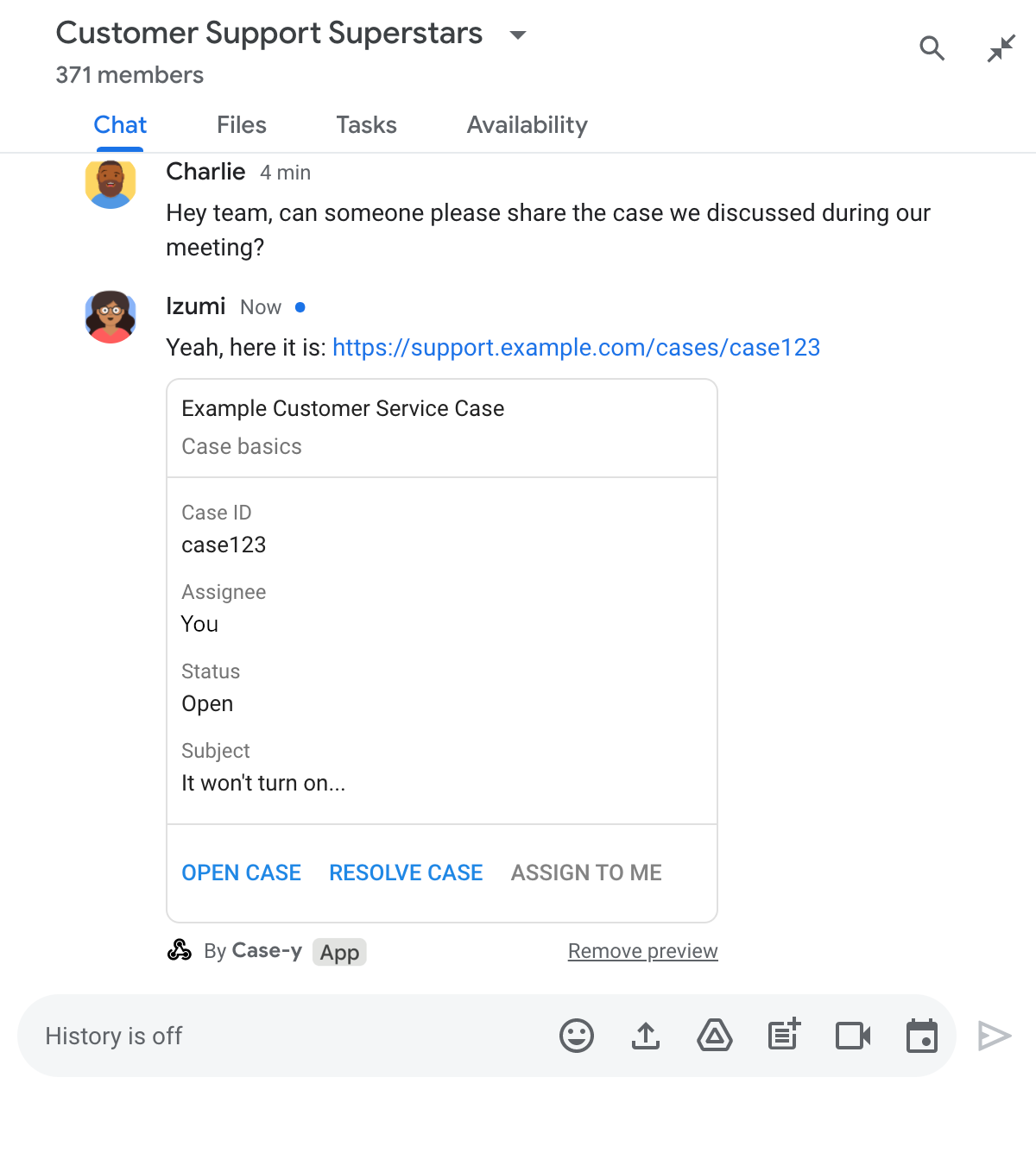
चैट ऐप्लिकेशन में, मैसेज से अटैच किए गए कार्ड के अपडेट किए गए वर्शन के साथ लिंक की झलक दिखाई जा रही है

Node.js

node/chat/preview-link/index.js
/**
 * Respond to clicks by assigning and updating the card that's attached to a
 * message previewed link of the pattern "support.example.com".
 *
 * @param {Object} chatMessage The chat message object from Google Workspace Add On event.
 * @return {Object} Action response depending on the message author.
 */
function handleCardClick(chatMessage) {
  // Creates the updated card that displays "You" for the assignee
  // and that disables the button.
  //
  // A hard-coded card is used in this example. In a real-life scenario,
  // an actual assign action would be performed before building the card.
  const message = { cardsV2: [{
    cardId: 'attachCard',
    card: {
      header: {
        title: 'Example Customer Service Case',
        subtitle: 'Case basics',
      },
      sections: [{ widgets: [
        { decoratedText: { topLabel: 'Case ID', text: 'case123'}},
        // The assignee is now "You"
        { decoratedText: { topLabel: 'Assignee', text: 'You'}},
        { decoratedText: { topLabel: 'Status', text: 'Open'}},
        { decoratedText: { topLabel: 'Subject', text: 'It won\'t turn on...' }},
        { buttonList: { buttons: [{
          text: 'OPEN CASE',
          onClick: { openLink: {
            url: 'https://support.example.com/orders/case123'
          }},
        }, {
          text: 'RESOLVE CASE',
          onClick: { openLink: {
            url: 'https://support.example.com/orders/case123?resolved=y',
          }},
        }, {
          text: 'ASSIGN TO ME',
          // The button is now disabled
          disabled: true,
          onClick: { action: { function: FUNCTION_URL }}
        }]}}
      ]}]
    }
  }]};

  // Use the adequate action response type. It depends on whether the message
  // the preview link card is attached to was created by a human or a Chat app.
  if(chatMessage.sender.type === 'HUMAN') {
    return { hostAppDataAction: { chatDataAction: { updateInlinePreviewAction: message }}};
  } else {
    return { hostAppDataAction: { chatDataAction: { updateMessageAction: message }}};
  }
}

FUNCTION_URL को उस एचटीटीपी एंडपॉइंट से बदलें जो बटन क्लिक को हैंडल करता है.

Python

python/chat/preview-link/main.py
def handle_card_click(chatMessage: dict) -> dict:
  """Respond to clicks by assigning and updating the card that's attached to a
  message previewed link of the pattern "support.example.com".

  - Reply with text messages that echo "text.example.com" link URLs in messages.
  - Attach cards to messages with "support.example.com" link URLs.

  Args:
      chatMessage (Mapping[str, Any]): The chat message object from Google Workspace Add On event.

  Returns:
      Mapping[str, Any]: Action response depending on the message author.
  """
  # Creates the updated card that displays "You" for the assignee
  # and that disables the button.
  #
  # A hard-coded card is used in this example. In a real-life scenario,
  # an actual assign action would be performed before building the card.
  message = { 'cardsV2': [{
    'cardId': 'attachCard',
    'card': {
      'header': {
        'title': 'Example Customer Service Case',
        'subtitle': 'Case basics',
      },
      'sections': [{ 'widgets': [
      { 'decoratedText': { 'topLabel': 'Case ID', 'text': 'case123'}},
      # The assignee is now "You"
      { 'decoratedText': { 'topLabel': 'Assignee', 'text': 'You'}},
      { 'decoratedText': { 'topLabel': 'Status', 'text': 'Open'}},
      { 'decoratedText': { 'topLabel': 'Subject', 'text': 'It won\'t turn on...' }},
      { 'buttonList': { 'buttons': [{
        'text': 'OPEN CASE',
        'onClick': { 'openLink': {
          'url': 'https://support.example.com/orders/case123'
        }},
      }, {
        'text': 'RESOLVE CASE',
        'onClick': { 'openLink': {
          'url': 'https://support.example.com/orders/case123?resolved=y',
        }},
      }, {
        'text': 'ASSIGN TO ME',
        # The button is now disabled
        'disabled': True,
        'onClick': { 'action': { 'function': FUNCTION_URL }}
      }]}}
      ]}]
    }
  }]}

  # Use the adequate action response type. It depends on whether the message
  # the preview link card is attached to was created by a human or a Chat app.
  if chatMessage.get('sender').get('type') == 'HUMAN':
    return { 'hostAppDataAction': { 'chatDataAction': { 'updateInlinePreviewAction': message }}}
  else:
    return { 'hostAppDataAction': { 'chatDataAction': { 'updateMessageAction': message }}}

FUNCTION_URL को उस एचटीटीपी एंडपॉइंट से बदलें जो बटन क्लिक को हैंडल करता है.

Java

java/chat/preview-link/src/main/java/com/google/chat/previewLink/App.java
/**
 * Respond to clicks by assigning and updating the card that's attached to a
 * message previewed link of the pattern "support.example.com".
 *
 * @param chatMessage The chat message object from Google Workspace Add On event.
 * @return Action response depending on the message author.
 */
GenericJson handleCardClick(JsonNode chatMessage) {
  // Creates the updated card that displays "You" for the assignee
  // and that disables the button.
  //
  // A hard-coded card is used in this example. In a real-life scenario,
  // an actual assign action would be performed before building the card.
  Message message = new Message().setCardsV2(List.of(new CardWithId()
    .setCardId("attachCard")
    .setCard(new GoogleAppsCardV1Card()
      .setHeader(new GoogleAppsCardV1CardHeader()
        .setTitle("Example Customer Service Case")
        .setSubtitle("Case basics"))
      .setSections(List.of(new GoogleAppsCardV1Section().setWidgets(List.of(
        new GoogleAppsCardV1Widget().setDecoratedText(new GoogleAppsCardV1DecoratedText()
          .setTopLabel("Case ID")
          .setText("case123")),
        // The assignee is now "You"
        new GoogleAppsCardV1Widget().setDecoratedText(new GoogleAppsCardV1DecoratedText()
          .setTopLabel("Assignee")
          .setText("You")),
        new GoogleAppsCardV1Widget().setDecoratedText(new GoogleAppsCardV1DecoratedText()
          .setTopLabel("Status")
          .setText("Open")),
        new GoogleAppsCardV1Widget().setDecoratedText(new GoogleAppsCardV1DecoratedText()
          .setTopLabel("Subject")
          .setText("It won't turn on...")),
        new GoogleAppsCardV1Widget().setButtonList(new GoogleAppsCardV1ButtonList()
          .setButtons(List.of(
            new GoogleAppsCardV1Button()
              .setText("OPEN CASE")
              .setOnClick(new GoogleAppsCardV1OnClick()
                .setOpenLink(new GoogleAppsCardV1OpenLink()
                  .setUrl("https://support.example.com/orders/case123"))),
            new GoogleAppsCardV1Button()
              .setText("RESOLVE CASE")
              .setOnClick(new GoogleAppsCardV1OnClick()
                .setOpenLink(new GoogleAppsCardV1OpenLink()
                  .setUrl("https://support.example.com/orders/case123?resolved=y"))),
            new GoogleAppsCardV1Button()
              .setText("ASSIGN TO ME")
              // The button is now disabled
              .setDisabled(true)
              .setOnClick(new GoogleAppsCardV1OnClick()
                .setAction(new GoogleAppsCardV1Action().setFunction(FUNCTION_URL)))
          ))
        )
      ))))
    )
  ));

  // Use the adequate action response type. It depends on whether the message
  // the preview link card is attached to was created by a human or a Chat app.
  if("HUMAN".equals(chatMessage.at("/sender/type").asText())) {
    return new GenericJson() {{
      put("hostAppDataAction", new GenericJson() {{
        put("chatDataAction", new GenericJson() {{
          put("updateInlinePreviewAction", message);
        }});
      }});
    }};
  } else {
    return new GenericJson() {{
      put("hostAppDataAction", new GenericJson() {{
        put("chatDataAction", new GenericJson() {{
          put("updateMessageAction", message);
        }});
      }});
    }};
  }
}

FUNCTION_URL को उस एचटीटीपी एंडपॉइंट से बदलें जो बटन क्लिक को हैंडल करता है.

Apps Script

apps-script/chat/preview-link/preview-link.gs
/**
 * Assigns and updates the card that's attached to a message with a
 * previewed link of the pattern "support.example.com".
 *
 * @param {Object} event The event object from the Google Workspace add-on.
 * @return {Object} Action response depending on the message author.
 */
function assign(event) {
  // Creates the updated card that displays "You" for the assignee
  // and that disables the button.
  //
  // A hard-coded card is used in this example. In a real-life scenario,
  // an actual assign action would be performed before building the card.
  const message = { cardsV2: [{
    cardId: 'attachCard',
    card: {
      header: {
        title: 'Example Customer Service Case',
        subtitle: 'Case summary',
      },
      sections: [{ widgets: [
        { decoratedText: { topLabel: 'Case ID', text: 'case123'}},
        // The assignee is now "You"
        { decoratedText: { topLabel: 'Assignee', text: 'You'}},
        { decoratedText: { topLabel: 'Status', text: 'Open'}},
        { decoratedText: { topLabel: 'Subject', text: 'It won\'t turn on...' }},
        { buttonList: { buttons: [{
          text: 'OPEN CASE',
          onClick: { openLink: {
            url: 'https://support.example.com/orders/case123'
          }},
        }, {
          text: 'RESOLVE CASE',
          onClick: { openLink: {
            url: 'https://support.example.com/orders/case123?resolved=y',
          }},
        }, {
          text: 'ASSIGN TO ME',
          // The button is now disabled
          disabled: true,
          onClick: { action: { function: 'assign'}}
        }]}}
      ]}]
    }
  }]};

  // Use the adequate action response type. It depends on whether the message
  // the preview link card is attached to was created by a human or a Chat app.
  if(event.chat.buttonClickedPayload.message.sender.type === 'HUMAN') {
    return { hostAppDataAction: { chatDataAction: { updateInlinePreviewAction: message }}};
  } else {
    return { hostAppDataAction: { chatDataAction: { updateMessageAction: message }}};
  }
}

सीमाएं और ज़रूरी बातें

Chat ऐप्लिकेशन के लिए लिंक की झलक दिखाने की सुविधा कॉन्फ़िगर करते समय, इन सीमाओं और बातों का ध्यान रखें:

  • हर Chat ऐप्लिकेशन, ज़्यादा से ज़्यादा पांच यूआरएल पैटर्न के लिए लिंक की झलक दिखाने की सुविधा देता है.
  • चैट ऐप्लिकेशन, हर मैसेज में एक लिंक की झलक दिखाते हैं. अगर किसी मैसेज में, झलक देखने की सुविधा वाले एक से ज़्यादा लिंक मौजूद हैं, तो सिर्फ़ पहले लिंक की झलक दिखेगी.
  • चैट ऐप्लिकेशन सिर्फ़ उन लिंक की झलक दिखाते हैं जो https:// से शुरू होते हैं. इसलिए, https://support.example.com/cases/ की झलक दिखती है, लेकिन support.example.com/cases/ की नहीं.
  • अगर मैसेज में कोई ऐसी अन्य जानकारी शामिल नहीं है जिसे Chat ऐप्लिकेशन को भेजा जाता है, तो लिंक की झलक दिखाने की सुविधा सिर्फ़ लिंक का यूआरएल, Chat ऐप्लिकेशन को भेजती है. जैसे, स्लैश कमांड.
  • अगर कोई उपयोगकर्ता लिंक पोस्ट करता है, तो Chat ऐप्लिकेशन सिर्फ़ तब लिंक की झलक दिखाने वाले कार्ड को अपडेट कर सकता है, जब उपयोगकर्ता कार्ड के साथ इंटरैक्ट करते हैं. जैसे, बटन पर क्लिक करके. उपयोगकर्ता के मैसेज को एसिंक्रोनस तरीके से अपडेट करने के लिए, Chat API के update() तरीके को Message संसाधन पर कॉल नहीं किया जा सकता.
  • Chat ऐप्लिकेशन को स्पेस में मौजूद सभी लोगों के लिए, लिंक की झलक दिखानी चाहिए. इसलिए, मैसेज में privateMessageViewer फ़ील्ड शामिल नहीं होना चाहिए.

लिंक की झलक दिखाने की सुविधा लागू करते समय, आपको ऐप्लिकेशन के लॉग पढ़कर अपने Chat ऐप्लिकेशन को डीबग करने की ज़रूरत पड़ सकती है. लॉग पढ़ने के लिए, Google Cloud Console पर लॉग एक्सप्लोरर पर जाएं.

यहां दिया गया दस्तावेज़, Google Workspace ऐड-ऑन के अलावा अन्य Chat ऐप्लिकेशन पर लागू होता है. अगर आपको किसी ऐसे Chat ऐप्लिकेशन को माइग्रेट करना है जो ऐड-ऑन नहीं है, तो Google Chat ऐप्लिकेशन को Google Workspace ऐड-ऑन में बदलना लेख पढ़ें.

Chat स्पेस में, ऐड-ऑन के तौर पर उपलब्ध नहीं होने वाले Chat ऐप्लिकेशन में, जब किसी व्यक्ति के मैसेज में ऐसा लिंक होता है जो लिंक की झलक दिखाने वाले यूआरएल पैटर्न से मेल खाता है, तो Chat ऐप्लिकेशन को MESSAGE इंटरैक्शन इवेंट मिलता है. इंटरैक्शन इवेंट के लिए JSON पेलोड में matchedUrl फ़ील्ड शामिल होता है:

JSON

message: {
  matchedUrl: {
    url: "https://support.example.com/cases/case123"
  },
  ... // other message attributes redacted
}

MESSAGE इवेंट के पेलोड में matchedUrl फ़ील्ड की मौजूदगी की जांच करके, ऐड-ऑन नहीं है, वह चैट ऐप्लिकेशन, झलक वाले लिंक के साथ मैसेज में जानकारी जोड़ सकता है.

टेक्स्ट मैसेज से जवाब देना

सामान्य जवाबों के लिए, ऐड-ऑन के तौर पर उपलब्ध नहीं होने वाला Chat ऐप्लिकेशन, लिंक की झलक देख सकता है. इसके लिए, उसे लिंक का जवाब सामान्य टेक्स्ट मैसेज के तौर पर देना होगा. इस उदाहरण में, एक ऐसा मैसेज अटैच किया गया है जो लिंक के उस यूआरएल को दोहराता है जो लिंक की झलक दिखाने वाले यूआरएल पैटर्न से मेल खाता है:

Node.js

node/preview-link/index.js
// Reply with a text message for URLs of the subdomain "text"
if (event.message.matchedUrl.url.includes("text.example.com")) {
  return {
    text: 'event.message.matchedUrl.url: ' + event.message.matchedUrl.url
  };
}

Python

python/preview-link/main.py
# Reply with a text message for URLs of the subdomain "text"
if 'text.example.com' in event.get('message').get('matchedUrl').get('url'):
  return {
    'text': 'event.message.matchedUrl.url: ' +
            event.get('message').get('matchedUrl').get('url')
  }

Java

java/preview-link/src/main/java/com/google/chat/preview/App.java
// Reply with a text message for URLs of the subdomain "text"
if (event.at("/message/matchedUrl/url").asText().contains("text.example.com")) {
  return new Message().setText("event.message.matchedUrl.url: " +
    event.at("/message/matchedUrl/url").asText());
}

Apps Script

apps-script/preview-link/preview-link.gs
// Reply with a text message for URLs of the subdomain "text"
if (event.message.matchedUrl.url.includes("text.example.com")) {
  return {
    text: 'event.message.matchedUrl.url: ' + event.message.matchedUrl.url
  };
}

लिंक की झलक दिखाने वाला कार्ड अटैच करना

अगर आपको किसी ऐसे Chat ऐप्लिकेशन में, झलक दिखाए गए लिंक से कार्ड अटैच करना है जो ऐड-ऑन नहीं है, तो UPDATE_USER_MESSAGE_CARDS टाइप का ActionResponse दिखाएं. इस उदाहरण में, एक बेसिक कार्ड अटैच किया गया है:

Node.js

node/preview-link/index.js
// Attach a card to the message for URLs of the subdomain "support"
if (event.message.matchedUrl.url.includes("support.example.com")) {
  // A hard-coded card is used in this example. In a real-life scenario,
  // the case information would be fetched and used to build the card.
  return {
    actionResponse: { type: 'UPDATE_USER_MESSAGE_CARDS' },
    cardsV2: [{
      cardId: 'attachCard',
      card: {
        header: {
          title: 'Example Customer Service Case',
          subtitle: 'Case basics',
        },
        sections: [{ widgets: [
          { decoratedText: { topLabel: 'Case ID', text: 'case123'}},
          { decoratedText: { topLabel: 'Assignee', text: 'Charlie'}},
          { decoratedText: { topLabel: 'Status', text: 'Open'}},
          { decoratedText: { topLabel: 'Subject', text: 'It won\'t turn on...' }},
          { buttonList: { buttons: [{
            text: 'OPEN CASE',
            onClick: { openLink: {
              url: 'https://support.example.com/orders/case123'
            }},
          }, {
            text: 'RESOLVE CASE',
            onClick: { openLink: {
              url: 'https://support.example.com/orders/case123?resolved=y',
            }},
          }, {
            text: 'ASSIGN TO ME',
            onClick: { action: { function: 'assign'}}
          }]}}
        ]}]
      }
    }]
  };
}

Python

python/preview-link/main.py
# Attach a card to the message for URLs of the subdomain "support"
if 'support.example.com' in event.get('message').get('matchedUrl').get('url'):
  # A hard-coded card is used in this example. In a real-life scenario,
  # the case information would be fetched and used to build the card.
  return {
    'actionResponse': { 'type': 'UPDATE_USER_MESSAGE_CARDS' },
    'cardsV2': [{
      'cardId': 'attachCard',
      'card': {
        'header': {
          'title': 'Example Customer Service Case',
          'subtitle': 'Case basics',
        },
        'sections': [{ 'widgets': [
          { 'decoratedText': { 'topLabel': 'Case ID', 'text': 'case123'}},
          { 'decoratedText': { 'topLabel': 'Assignee', 'text': 'Charlie'}},
          { 'decoratedText': { 'topLabel': 'Status', 'text': 'Open'}},
          { 'decoratedText': { 'topLabel': 'Subject', 'text': 'It won\'t turn on...' }},
          { 'buttonList': { 'buttons': [{
            'text': 'OPEN CASE',
            'onClick': { 'openLink': {
              'url': 'https://support.example.com/orders/case123'
            }},
          }, {
            'text': 'RESOLVE CASE',
            'onClick': { 'openLink': {
              'url': 'https://support.example.com/orders/case123?resolved=y',
            }},
          }, {
            'text': 'ASSIGN TO ME',
            'onClick': { 'action': { 'function': 'assign'}}
          }]}}
        ]}]
      }
    }]
  }

Java

java/preview-link/src/main/java/com/google/chat/preview/App.java
// Attach a card to the message for URLs of the subdomain "support"
if (event.at("/message/matchedUrl/url").asText().contains("support.example.com")) {
  // A hard-coded card is used in this example. In a real-life scenario,
  // the case information would be fetched and used to build the card.
  return new Message()
    .setActionResponse(new ActionResponse()
      .setType("UPDATE_USER_MESSAGE_CARDS"))
    .setCardsV2(List.of(new CardWithId()
      .setCardId("attachCard")
      .setCard(new GoogleAppsCardV1Card()
        .setHeader(new GoogleAppsCardV1CardHeader()
          .setTitle("Example Customer Service Case")
          .setSubtitle("Case basics"))
        .setSections(List.of(new GoogleAppsCardV1Section().setWidgets(List.of(
          new GoogleAppsCardV1Widget().setDecoratedText(new GoogleAppsCardV1DecoratedText()
            .setTopLabel("Case ID")
            .setText("case123")),
          new GoogleAppsCardV1Widget().setDecoratedText(new GoogleAppsCardV1DecoratedText()
            .setTopLabel("Assignee")
            .setText("Charlie")),
          new GoogleAppsCardV1Widget().setDecoratedText(new GoogleAppsCardV1DecoratedText()
            .setTopLabel("Status")
            .setText("Open")),
          new GoogleAppsCardV1Widget().setDecoratedText(new GoogleAppsCardV1DecoratedText()
            .setTopLabel("Subject")
            .setText("It won't turn on...")),
          new GoogleAppsCardV1Widget()
            .setButtonList(new GoogleAppsCardV1ButtonList().setButtons(List.of(
              new GoogleAppsCardV1Button()
                .setText("OPEN CASE")
                .setOnClick(new GoogleAppsCardV1OnClick()
                  .setOpenLink(new GoogleAppsCardV1OpenLink()
                    .setUrl("https://support.example.com/orders/case123"))),
              new GoogleAppsCardV1Button()
                .setText("RESOLVE CASE")
                .setOnClick(new GoogleAppsCardV1OnClick()
                  .setOpenLink(new GoogleAppsCardV1OpenLink()
                    .setUrl("https://support.example.com/orders/case123?resolved=y"))),
              new GoogleAppsCardV1Button()
                .setText("ASSIGN TO ME")
                .setOnClick(new GoogleAppsCardV1OnClick()
                  .setAction(new GoogleAppsCardV1Action().setFunction("assign")))))))))))));
}

Apps Script

इस उदाहरण में, कार्ड JSON को वापस भेजकर, कार्ड मैसेज भेजा जाता है. Apps Script की कार्ड सेवा का भी इस्तेमाल किया जा सकता है.

apps-script/preview-link/preview-link.gs
// Attach a card to the message for URLs of the subdomain "support"
if (event.message.matchedUrl.url.includes("support.example.com")) {
  // A hard-coded card is used in this example. In a real-life scenario,
  // the case information would be fetched and used to build the card.
  return {
    actionResponse: { type: 'UPDATE_USER_MESSAGE_CARDS' },
    cardsV2: [{
      cardId: 'attachCard',
      card: {
        header: {
          title: 'Example Customer Service Case',
          subtitle: 'Case basics',
        },
        sections: [{ widgets: [
          { decoratedText: { topLabel: 'Case ID', text: 'case123'}},
          { decoratedText: { topLabel: 'Assignee', text: 'Charlie'}},
          { decoratedText: { topLabel: 'Status', text: 'Open'}},
          { decoratedText: { topLabel: 'Subject', text: 'It won\'t turn on...' }},
          { buttonList: { buttons: [{
            text: 'OPEN CASE',
            onClick: { openLink: {
              url: 'https://support.example.com/orders/case123'
            }},
          }, {
            text: 'RESOLVE CASE',
            onClick: { openLink: {
              url: 'https://support.example.com/orders/case123?resolved=y',
            }},
          }, {
            text: 'ASSIGN TO ME',
            onClick: { action: { function: 'assign'}}
          }]}}
        ]}]
      }
    }]
  };
}

लिंक की झलक दिखाने वाले कार्ड को अपडेट करना

अगर आपको किसी ऐसे Chat ऐप्लिकेशन में लिंक की झलक दिखाने वाले कार्ड को अपडेट करना है जो ऐड-ऑन नहीं है, तो CARD_CLICKED इंटरैक्शन इवेंट को हैंडल करें. साथ ही, लिंक की झलक दिखाने वाला मैसेज भेजने वाले व्यक्ति के आधार पर actionResponse वापस भेजें:

  • अगर किसी उपयोगकर्ता ने मैसेज भेजा है, तो actionResponse.type को UPDATE_USER_MESSAGE_CARDS पर सेट करें.
  • अगर Chat ऐप्लिकेशन से मैसेज भेजा गया है, तो actionResponse.type को UPDATE_MESSAGE पर सेट करें.

मैसेज भेजने वाले व्यक्ति का पता लगाने के लिए, इंटरैक्शन इवेंट के message.sender.type फ़ील्ड का इस्तेमाल करें. इससे आपको यह पता चलेगा कि मैसेज भेजने वाला व्यक्ति HUMAN का उपयोगकर्ता था या BOT.

यहां दिए गए उदाहरण में दिखाया गया है कि ऐड-ऑन नहीं होने वाला Chat ऐप्लिकेशन, लिंक की झलक को कैसे अपडेट करता है. जब कोई उपयोगकर्ता मुझे असाइन करें बटन पर क्लिक करता है, तब ऐप्लिकेशन कार्ड के वह व्यक्ति जिसे असाइन किया गया फ़ील्ड को अपडेट करता है और बटन को बंद कर देता है:

Node.js

node/preview-link/index.js
/**
 * Updates a card that was attached to a message with a previewed link.
 *
 * @param {Object} event The event object from Chat.
 *
 * @return {Object} Response from the Chat app. Either a new card attached to
 * the message with the previewed link, or an update to an existing card.
 */
function onCardClick(event) {
  // To respond to the correct button, checks the button's actionMethodName.
  if (event.action.actionMethodName === 'assign') {
    // A hard-coded card is used in this example. In a real-life scenario,
    // an actual assign action would be performed before building the card.

    // Checks whether the message event originated from a human or a Chat app
    // and sets actionResponse.type to "UPDATE_USER_MESSAGE_CARDS if human or
    // "UPDATE_MESSAGE" if Chat app.
    const actionResponseType = event.message.sender.type === 'HUMAN' ?
      'UPDATE_USER_MESSAGE_CARDS' :
      'UPDATE_MESSAGE';

    // Returns the updated card that displays "You" for the assignee
    // and that disables the button.
    return {
      actionResponse: { type: actionResponseType },
      cardsV2: [{
        cardId: 'attachCard',
        card: {
          header: {
            title: 'Example Customer Service Case',
            subtitle: 'Case basics',
          },
          sections: [{ widgets: [
            { decoratedText: { topLabel: 'Case ID', text: 'case123'}},
            // The assignee is now "You"
            { decoratedText: { topLabel: 'Assignee', text: 'You'}},
            { decoratedText: { topLabel: 'Status', text: 'Open'}},
            { decoratedText: { topLabel: 'Subject', text: 'It won\'t turn on...' }},
            { buttonList: { buttons: [{
              text: 'OPEN CASE',
              onClick: { openLink: {
                url: 'https://support.example.com/orders/case123'
              }},
            }, {
              text: 'RESOLVE CASE',
              onClick: { openLink: {
                url: 'https://support.example.com/orders/case123?resolved=y',
              }},
            }, {
              text: 'ASSIGN TO ME',
              // The button is now disabled
              disabled: true,
              onClick: { action: { function: 'assign'}}
            }]}}
          ]}]
        }
      }]
    };
  }
}

Python

python/preview-link/main.py
def on_card_click(event: dict) -> dict:
  """Updates a card that was attached to a message with a previewed link."""
  # To respond to the correct button, checks the button's actionMethodName.
  if 'assign' == event.get('action').get('actionMethodName'):
    # A hard-coded card is used in this example. In a real-life scenario,
    # an actual assign action would be performed before building the card.

    # Checks whether the message event originated from a human or a Chat app
    # and sets actionResponse.type to "UPDATE_USER_MESSAGE_CARDS if human or
    # "UPDATE_MESSAGE" if Chat app.
    actionResponseType = 'UPDATE_USER_MESSAGE_CARDS' if \
      event.get('message').get('sender').get('type') == 'HUMAN' else \
      'UPDATE_MESSAGE'

    # Returns the updated card that displays "You" for the assignee
    # and that disables the button.
    return {
      'actionResponse': { 'type': actionResponseType },
      'cardsV2': [{
        'cardId': 'attachCard',
        'card': {
          'header': {
            'title': 'Example Customer Service Case',
            'subtitle': 'Case basics',
          },
          'sections': [{ 'widgets': [
            { 'decoratedText': { 'topLabel': 'Case ID', 'text': 'case123'}},
            # The assignee is now "You"
            { 'decoratedText': { 'topLabel': 'Assignee', 'text': 'You'}},
            { 'decoratedText': { 'topLabel': 'Status', 'text': 'Open'}},
            { 'decoratedText': { 'topLabel': 'Subject', 'text': 'It won\'t turn on...' }},
            { 'buttonList': { 'buttons': [{
              'text': 'OPEN CASE',
              'onClick': { 'openLink': {
                'url': 'https://support.example.com/orders/case123'
              }},
            }, {
              'text': 'RESOLVE CASE',
              'onClick': { 'openLink': {
                'url': 'https://support.example.com/orders/case123?resolved=y',
              }},
            }, {
              'text': 'ASSIGN TO ME',
              # The button is now disabled
              'disabled': True,
              'onClick': { 'action': { 'function': 'assign'}}
            }]}}
          ]}]
        }
      }]
    }

Java

java/preview-link/src/main/java/com/google/chat/preview/App.java
// Updates a card that was attached to a message with a previewed link.
Message onCardClick(JsonNode event) {
  // To respond to the correct button, checks the button's actionMethodName.
  if (event.at("/action/actionMethodName").asText().equals("assign")) {
    // A hard-coded card is used in this example. In a real-life scenario,
    // an actual assign action would be performed before building the card.

    // Checks whether the message event originated from a human or a Chat app
    // and sets actionResponse.type to "UPDATE_USER_MESSAGE_CARDS if human or
    // "UPDATE_MESSAGE" if Chat app.
    String actionResponseType =
      event.at("/message/sender/type").asText().equals("HUMAN")
      ? "UPDATE_USER_MESSAGE_CARDS" : "UPDATE_MESSAGE";

    // Returns the updated card that displays "You" for the assignee
    // and that disables the button.
    return new Message()
    .setActionResponse(new ActionResponse()
      .setType(actionResponseType))
    .setCardsV2(List.of(new CardWithId()
      .setCardId("attachCard")
      .setCard(new GoogleAppsCardV1Card()
        .setHeader(new GoogleAppsCardV1CardHeader()
          .setTitle("Example Customer Service Case")
          .setSubtitle("Case basics"))
        .setSections(List.of(new GoogleAppsCardV1Section().setWidgets(List.of(
          new GoogleAppsCardV1Widget().setDecoratedText(new GoogleAppsCardV1DecoratedText()
            .setTopLabel("Case ID")
            .setText("case123")),
          new GoogleAppsCardV1Widget().setDecoratedText(new GoogleAppsCardV1DecoratedText()
            .setTopLabel("Assignee")
            // The assignee is now "You"
            .setText("You")),
          new GoogleAppsCardV1Widget().setDecoratedText(new GoogleAppsCardV1DecoratedText()
            .setTopLabel("Status")
            .setText("Open")),
          new GoogleAppsCardV1Widget().setDecoratedText(new GoogleAppsCardV1DecoratedText()
            .setTopLabel("Subject")
            .setText("It won't turn on...")),
          new GoogleAppsCardV1Widget()
            .setButtonList(new GoogleAppsCardV1ButtonList().setButtons(List.of(
              new GoogleAppsCardV1Button()
                .setText("OPEN CASE")
                .setOnClick(new GoogleAppsCardV1OnClick()
                  .setOpenLink(new GoogleAppsCardV1OpenLink()
                    .setUrl("https://support.example.com/orders/case123"))),
              new GoogleAppsCardV1Button()
                .setText("RESOLVE CASE")
                .setOnClick(new GoogleAppsCardV1OnClick()
                  .setOpenLink(new GoogleAppsCardV1OpenLink()
                    .setUrl("https://support.example.com/orders/case123?resolved=y"))),
              new GoogleAppsCardV1Button()
                .setText("ASSIGN TO ME")
                // The button is now disabled
                .setDisabled(true)
                .setOnClick(new GoogleAppsCardV1OnClick()
                  .setAction(new GoogleAppsCardV1Action().setFunction("assign")))))))))))));
  }
  return null;
}

Apps Script

इस उदाहरण में, कार्ड JSON को वापस भेजकर, कार्ड मैसेज भेजा जाता है. Apps Script की कार्ड सेवा का भी इस्तेमाल किया जा सकता है.

apps-script/preview-link/preview-link.gs
/**
 * Updates a card that was attached to a message with a previewed link.
 *
 * @param {Object} event The event object from Chat.
 *
 * @return {Object} Response from the Chat app. Either a new card attached to
 * the message with the previewed link, or an update to an existing card.
 */
function onCardClick(event) {
  // To respond to the correct button, checks the button's actionMethodName.
  if (event.action.actionMethodName === 'assign') {
    // A hard-coded card is used in this example. In a real-life scenario,
    // an actual assign action would be performed before building the card.

    // Checks whether the message event originated from a human or a Chat app
    // and sets actionResponse.type to "UPDATE_USER_MESSAGE_CARDS if human or
    // "UPDATE_MESSAGE" if Chat app.
    const actionResponseType = event.message.sender.type === 'HUMAN' ?
      'UPDATE_USER_MESSAGE_CARDS' :
      'UPDATE_MESSAGE';

    // Returns the updated card that displays "You" for the assignee
    // and that disables the button.
    return {
      actionResponse: { type: actionResponseType },
      cardsV2: [{
        cardId: 'attachCard',
        card: {
          header: {
            title: 'Example Customer Service Case',
            subtitle: 'Case basics',
          },
          sections: [{ widgets: [
            { decoratedText: { topLabel: 'Case ID', text: 'case123'}},
            // The assignee is now "You"
            { decoratedText: { topLabel: 'Assignee', text: 'You'}},
            { decoratedText: { topLabel: 'Status', text: 'Open'}},
            { decoratedText: { topLabel: 'Subject', text: 'It won\'t turn on...' }},
            { buttonList: { buttons: [{
              text: 'OPEN CASE',
              onClick: { openLink: {
                url: 'https://support.example.com/orders/case123'
              }},
            }, {
              text: 'RESOLVE CASE',
              onClick: { openLink: {
                url: 'https://support.example.com/orders/case123?resolved=y',
              }},
            }, {
              text: 'ASSIGN TO ME',
              // The button is now disabled
              disabled: true,
              onClick: { action: { function: 'assign'}}
            }]}}
          ]}]
        }
      }]
    };
  }
}