

इस पेज पर, Google Chat ऐप्लिकेशन के तौर पर कमांड सेट अप करने और उनका जवाब देने का तरीका बताया गया है.
कमांड की मदद से, लोग Chat ऐप्लिकेशन की मुख्य सुविधाओं को ढूंढ सकते हैं और उनका इस्तेमाल कर सकते हैं. सिर्फ़ Chat ऐप्लिकेशन, कमांड का कॉन्टेंट देख सकते हैं. उदाहरण के लिए, अगर कोई उपयोगकर्ता स्लैश कमांड का इस्तेमाल करके कोई मैसेज भेजता है, तो वह मैसेज सिर्फ़ उपयोगकर्ता और Chat ऐप्लिकेशन को दिखता है.
यह तय करने के लिए कि आपको कमांड बनानी चाहिए या नहीं और उपयोगकर्ता इंटरैक्शन को डिज़ाइन करने का तरीका जानने के लिए, उपयोगकर्ता के सभी सफ़र तय करें लेख पढ़ें.
Chat ऐप्लिकेशन में इस्तेमाल की जाने वाली कमांड के टाइप
Chat ऐप्लिकेशन की कमांड को स्लैश कमांड, क्विक कमांड या मैसेज ऐक्शन के तौर पर बनाया जा सकता है. हर तरह की कमांड का इस्तेमाल करने के लिए, उपयोगकर्ता ये काम कर सकते हैं:-
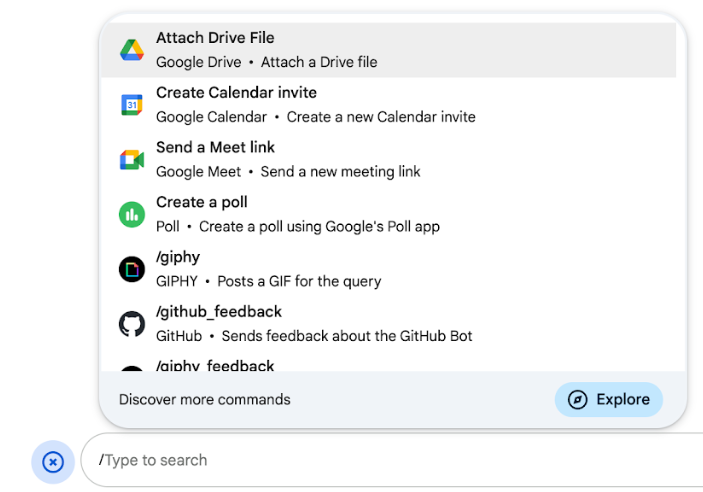
स्लैश कमांड: उपयोगकर्ता, मेन्यू से कोई स्लैश कमांड चुन सकते हैं. इसके अलावा, वे स्लैश (
/) और फिर पहले से तय किया गया टेक्स्ट टाइप कर सकते हैं. जैसे,/about. आम तौर पर, चैट ऐप्लिकेशन को स्लैश कमांड के लिए आर्ग्युमेंट टेक्स्ट की ज़रूरत होती है.अगर आपके Chat ऐप्लिकेशन को उपयोगकर्ता से अतिरिक्त इनपुट की ज़रूरत है, तो स्लैश कमांड बनाएं. उदाहरण के लिए,
/searchनाम की स्लैश कमांड बनाई जा सकती है. यह कमांड तब काम करती है, जब उपयोगकर्ता कोई वाक्यांश डालकर खोज करता है. जैसे,/search receipts. -
क्विक कमांड: उपयोगकर्ता, चैट मैसेज के जवाब देने वाले बॉक्स में मौजूद मेन्यू खोलकर कमांड का इस्तेमाल करते हैं. किसी निर्देश का इस्तेमाल करने के लिए, वे जोड़ें
 पर क्लिक करते हैं. इसके बाद, वे मेन्यू से कोई निर्देश चुनते हैं.
अगर आपका Chat ऐप्लिकेशन, उपयोगकर्ता के सवाल का जवाब तुरंत दे सकता है, तो एक क्विक कमांड बनाएं. इसके लिए, उसे किसी और इनपुट का इंतज़ार नहीं करना चाहिए. उदाहरण के लिए, रैंडम इमेज नाम की एक क्विक कमांड बनाई जा सकती है. इससे तुरंत एक इमेज जनरेट हो जाएगी.
-
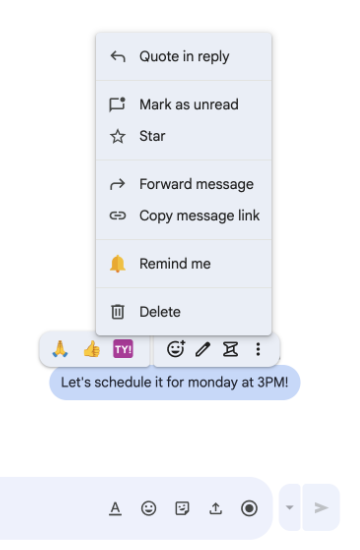
मैसेज से जुड़ी कार्रवाइयां: लोग, मैसेज से जुड़ी कार्रवाइयों का इस्तेमाल करते हैं. इसके लिए, वे किसी मैसेज पर कर्सर घुमाते हैं और तीन बिंदु वाले मेन्यू पर क्लिक करते हैं. किसी निर्देश का इस्तेमाल करने के लिए, वे तीन बिंदु वाला मेन्यू खोलते हैं और मेन्यू से कोई निर्देश चुनते हैं.
अगर आपका Chat ऐप्लिकेशन, मैसेज के कॉन्टेक्स्ट के आधार पर कार्रवाइयां कर सकता है, तो मैसेज पर कार्रवाई बनाएं.
यहां दी गई इमेज में दिखाया गया है कि लोग स्लैश और क्विक कमांड के साथ-साथ मैसेज से जुड़ी कार्रवाइयों का मेन्यू कैसे ढूंढते हैं:
ज़रूरी शर्तें
HTTP
Google Chat ऐप्लिकेशन, जो उपयोगकर्ता के इंटरैक्शन को स्वीकार करता है और उनका जवाब देता है. इसे बनाने के लिए, एचटीटीपी क्विकस्टार्ट पूरा करें.
Apps Script
Google Chat ऐप्लिकेशन, जो उपयोगकर्ता के इंटरैक्शन को स्वीकार करता है और उनका जवाब देता है. इसे बनाने के लिए, Apps Script क्विकस्टार्ट पूरा करें.
कमांड सेट अप करना
इस सेक्शन में, कमांड सेट अप करने के लिए यह तरीका बताया गया है:
- कमांड के लिए नाम और ब्यौरा बनाएं.
- Google Cloud Console में कमांड को कॉन्फ़िगर करें.
- ज़रूरी नहीं: स्टार्टर प्रॉम्प्ट के लिए मैप कमांड.
कमांड का नाम और ब्यौरा दें
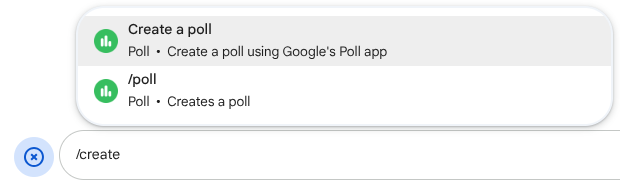
कमांड का नाम वह होता है जिसे उपयोगकर्ता, Chat ऐप्लिकेशन को शुरू करने के लिए टाइप या चुनते हैं. नाम के नीचे, कम शब्दों में ब्यौरा भी दिखता है. इससे उपयोगकर्ताओं को यह जानकारी मिलती है कि कमांड का इस्तेमाल कैसे किया जाए:
अपनी कमांड के लिए नाम और जानकारी चुनते समय, इन सुझावों को ध्यान में रखें:
किसी निर्देश को नाम देने के लिए:
- छोटे, जानकारी देने वाले, और कार्रवाई करने के लिए इस्तेमाल किए जाने वाले शब्दों या वाक्यांशों का इस्तेमाल करें, ताकि उपयोगकर्ता को निर्देश साफ़ तौर पर समझ आएं. उदाहरण के लिए,
Create a reminderके बजायRemind meका इस्तेमाल करें. - अपनी कमांड के लिए, कोई यूनीक या सामान्य नाम इस्तेमाल करें. अगर आपकी कमांड में किसी सामान्य इंटरैक्शन या सुविधा के बारे में बताया गया है, तो ऐसा नाम इस्तेमाल करें जिसे उपयोगकर्ता पहचानते हों और जिसकी उन्हें उम्मीद हो. जैसे,
SettingsयाFeedback. इसके अलावा, कमांड के लिए यूनीक नाम इस्तेमाल करने की कोशिश करें. ऐसा इसलिए, क्योंकि अगर आपकी कमांड का नाम अन्य Chat ऐप्लिकेशन के लिए भी एक जैसा है, तो उपयोगकर्ता को आपकी कमांड ढूंढने और उसका इस्तेमाल करने के लिए, मिलती-जुलती कमांड को फ़िल्टर करना होगा.
किसी निर्देश के बारे में बताने के लिए:
- ब्यौरे को छोटा और आसान रखें, ताकि लोगों को पता चल सके कि कमांड का इस्तेमाल करने पर उन्हें क्या मिलेगा.
- उपयोगकर्ताओं को बताएं कि कमांड के लिए, फ़ॉर्मैटिंग से जुड़ी कोई ज़रूरी शर्त है या नहीं. उदाहरण के लिए, अगर आपको ऐसा स्लैश कमांड बनाना है जिसके लिए आर्ग्युमेंट टेक्स्ट की ज़रूरत होती है, तो ब्यौरे को
Remind me to do [something] at [time]जैसा कुछ सेट करें. - उपयोगकर्ताओं को बताएं कि Chat ऐप्लिकेशन, स्पेस में मौजूद सभी लोगों को जवाब देता है या
सिर्फ़ उस उपयोगकर्ता को जवाब देता है जिसने कमांड दी है. उदाहरण के लिए,
Aboutक्विक कमांड के लिए, इसेLearn about this app (Only visible to you)के तौर पर बताया जा सकता है.
Google Cloud Console में कमांड को कॉन्फ़िगर करना
स्लैश कमांड, क्विक कमांड या मैसेज पर कार्रवाई बनाने के लिए, आपको Google Chat API के लिए Chat ऐप्लिकेशन के कॉन्फ़िगरेशन में कमांड या कार्रवाई के बारे में जानकारी देनी होगी.
Google Chat API में किसी कमांड को कॉन्फ़िगर करने के लिए, यह तरीका अपनाएं:
Google Cloud Console में, मेन्यू > एपीआई और सेवाएं > चालू किए गए एपीआई और सेवाएं > Google Chat API पर क्लिक करें
कॉन्फ़िगरेशन पर क्लिक करें.
कनेक्शन की सेटिंग में जाकर, ट्रिगर पर जाएं और अपने एंडपॉइंट की जानकारी दें. आपको इस ट्रिगर का इस्तेमाल, यहां दिए गए सेक्शन में करना होगा, ताकि निर्देश का जवाब दिया जा सके.
- एचटीटीपी एंडपॉइंट यूआरएल: यहां एक सामान्य एचटीटीपी एंडपॉइंट यूआरएल दिया जा सकता है. इसके अलावा, अलग-अलग ट्रिगर के लिए अलग-अलग एचटीटीपी एंडपॉइंट का इस्तेमाल करने के लिए, ऐप्लिकेशन कमांड फ़ील्ड में सीधे तौर पर एंडपॉइंट डालें.
- Apps Script: Apps Script का डिप्लॉयमेंट आईडी डालें. डिफ़ॉल्ट रूप से,
onAppCommandफ़ंक्शन चालू होगा. किसी दूसरे Apps Script फ़ंक्शन का इस्तेमाल करने के लिए, ऐप्लिकेशन कमांड फ़ील्ड में कस्टम फ़ंक्शन का नाम डालें.
निर्देश में जाकर, कोई निर्देश जोड़ें पर क्लिक करें.
कमांड के बारे में यह जानकारी डालें:
- कमांड आईडी: यह 1 से 1,000 के बीच की एक संख्या होती है. इसका इस्तेमाल, Chat ऐप्लिकेशन कमांड की पहचान करने और जवाब देने के लिए करता है.
- ब्यौरा: वह टेक्स्ट जिसमें कमांड को इस्तेमाल करने और फ़ॉर्मैट करने का तरीका बताया गया हो. ब्यौरे में ज़्यादा से ज़्यादा 50 वर्ण हो सकते हैं.
- निर्देश का टाइप: क्विक कमांड, स्लैश कमांड या मैसेज ऐक्शन में से कोई एक चुनें.
- कमांड के लिए कोई नाम डालें:
- क्विक कमांड का नाम: यह वह नाम होता है जो उपयोगकर्ताओं को मेन्यू में दिखता है. वे इस नाम को चुनकर कमांड को चालू करते हैं. इसमें ज़्यादा से ज़्यादा 50 वर्ण हो सकते हैं और इसमें खास वर्ण शामिल किए जा सकते हैं. उदाहरण के लिए,
Remind me. - स्लैश कमांड का नाम: यह वह टेक्स्ट होता है जिसे उपयोगकर्ता, मैसेज में कमांड को चालू करने के लिए टाइप करते हैं. इसकी शुरुआत स्लैश से होनी चाहिए. इसमें सिर्फ़ टेक्स्ट होना चाहिए. साथ ही, इसमें ज़्यादा से ज़्यादा 50 वर्ण हो सकते हैं. उदाहरण के लिए,
/remindMe. - मैसेज पर कार्रवाई का नाम: यह वह डिसप्ले नेम होता है जिसे लोग, मैसेज पर कार्रवाई को शुरू करने के लिए मेन्यू से चुनते हैं. इसमें ज़्यादा से ज़्यादा 50 वर्ण हो सकते हैं और
खास वर्ण शामिल किए जा सकते हैं. उदाहरण के लिए,
Remind me.
- क्विक कमांड का नाम: यह वह नाम होता है जो उपयोगकर्ताओं को मेन्यू में दिखता है. वे इस नाम को चुनकर कमांड को चालू करते हैं. इसमें ज़्यादा से ज़्यादा 50 वर्ण हो सकते हैं और इसमें खास वर्ण शामिल किए जा सकते हैं. उदाहरण के लिए,
ज़रूरी नहीं: लोडिंग की सूचना देने वाला मैसेज: यह एक टोस्ट सूचना देने वाला मैसेज होता है. इसे उपयोगकर्ता को तब दिखाया जाता है, जब मैसेज पर कार्रवाई हो रही हो. यह सुविधा सिर्फ़ उन मैसेज ऐक्शन के लिए उपलब्ध है जिनसे डायलॉग बॉक्स नहीं खुलते.
ज़रूरी नहीं: अगर आपको Chat ऐप्लिकेशन से, कमांड का जवाब डायलॉग के तौर पर चाहिए, तो डायलॉग खोलें चेकबॉक्स को चुनें.
सेव करें पर क्लिक करें.
यह कमांड अब Chat ऐप्लिकेशन के लिए कॉन्फ़िगर हो गई है.
स्टार्टर प्रॉम्प्ट के लिए मैप कमांड
आप अपनी कमांड को स्टार्टर प्रॉम्प्ट के तौर पर दिखा सकते हैं, ताकि जब उपयोगकर्ता आपके Chat ऐप्लिकेशन पर किसी के साथ सीधी बातचीत शुरू करें, तो उन्हें ये कमांड इंटरैक्टिव चिप के तौर पर दिखें.
किसी निर्देश को स्टार्टर प्रॉम्प्ट से मैप करने के लिए:
- पक्का करें कि आपकी कमांड के लिए, कस्टम आर्ग्युमेंट की ज़रूरत न हो. सिर्फ़ कोई आर्ग्युमेंट नहीं या बुनियादी आर्ग्युमेंट वाली कमांड को स्टार्टर प्रॉम्प्ट के तौर पर इस्तेमाल किया जा सकता है.
- Google Cloud Console में, Chat API के कॉन्फ़िगरेशन पेज पर जाएं.
- इंटरैक्टिव सुविधाएं > सवाल-जवाब के लिए प्रॉम्प्ट में जाकर, प्रॉम्प्ट जोड़ें पर क्लिक करें.
- दिखाने के क्रम के लिए, रैंक (1-3) सेट करें.
- टाइप चुनें में जाकर, कमांड प्रॉम्प्ट चुनें. इसके बाद, ड्रॉप-डाउन से अपनी कमांड चुनें.
- हो गया पर क्लिक करें. इसके बाद, सेव करें पर क्लिक करें.
किसी निर्देश का जवाब देना
जब उपयोगकर्ता किसी कमांड का इस्तेमाल करते हैं, तो आपके Chat ऐप्लिकेशन को इवेंट ऑब्जेक्ट मिलता है.
इवेंट पेलोड (event.chat.appCommandPayload) में एक appCommandPayload ऑब्जेक्ट होता है. इसमें शुरू की गई कमांड के बारे में जानकारी होती है. जैसे, कमांड आईडी और कमांड टाइप. इससे आपको सही जवाब देने में मदद मिलती है.
इवेंट ऑब्जेक्ट को उस एचटीटीपी एंडपॉइंट या Apps Script फ़ंक्शन पर भेजा जाता है जिसे आपने ऐप्लिकेशन कमांड ट्रिगर को कॉन्फ़िगर करते समय तय किया था.

/help का जवाब निजी तौर पर देता है. इसमें बताया जाता है कि सहायता कैसे पाएं.स्लैश कमांड या क्विक कमांड का जवाब देना
यहां दिए गए कोड में, एक ऐसे Chat ऐप्लिकेशन का उदाहरण दिखाया गया है जो टेक्स्ट मैसेज के ज़रिए, /about स्लैश कमांड का जवाब देता है. स्लैश कमांड या फटाफट निर्देशों का जवाब देने के लिए, Chat ऐप्लिकेशन, ऐप्लिकेशन कमांड ट्रिगर से इवेंट ऑब्जेक्ट (event.chat.appCommandPayload) को हैंडल करता है.
जब किसी इवेंट ऑब्जेक्ट के पेलोड में मेल खाने वाला कमांड आईडी होता है, तो Chat ऐप्लिकेशन, createMessageAction
(hostAppDataAction.chatDataAction.createMessageAction) ऑब्जेक्ट के साथ DataActions कार्रवाई दिखाता है:
Node.js
Python
Java
Apps Script
इस कोड सैंपल का इस्तेमाल करने के लिए, ABOUT_COMMAND_ID की जगह उस कमांड आईडी का इस्तेमाल करें जिसे आपने Chat API में कमांड कॉन्फ़िगर करते समय तय किया था.
मैसेज से जुड़ी किसी कार्रवाई का जवाब देना
यहां दिए गए कोड में, Chat ऐप्लिकेशन का एक उदाहरण दिखाया गया है. यह ऐप्लिकेशन, मुझे याद दिलाएं मैसेज पर कार्रवाई का जवाब, टेक्स्ट मैसेज के ज़रिए देता है. मैसेज पर की जाने वाली कार्रवाइयों का जवाब देने के लिए, Chat ऐप्लिकेशन ऐप्लिकेशन कमांड ट्रिगर से इवेंट ऑब्जेक्ट हैंडल करता है. जब किसी इवेंट ऑब्जेक्ट के पेलोड में मैसेज ऐक्शन कमांड आईडी शामिल होता है, तब Chat ऐप्लिकेशन, createMessageAction ऑब्जेक्ट के साथ ऐक्शन DataActions दिखाता है:
Node.js
/**
 * Responds to an APP_COMMAND interaction event from Google Chat.
 *
 * @param {Object} event The interaction event from Google Chat.
 * @param {Object} res The HTTP response object.
 * @return {Object} The JSON response message with a confirmation.
 */
function onAppCommand(event, res) {
  // Collect the command ID and type from the event metadata.
  const {appCommandId, appCommandType} =
    event.chat.appCommandPayload.appCommandMetadata;

  if (appCommandType === 'MESSAGE_ACTION' &&
      appCommandId === REMIND_ME_COMMAND_ID) {

    // Message actions can access the context of the message they were
    // invoked on, such as the text or sender of that message.
    const messageText = event.chat.appCommandPayload.message.text;

    // Return a response that includes details from the original message.
    return res.json({
      "hostAppDataAction": {
        "chatDataAction": {
          "createMessageAction": {
            "message": {
              "text": `Setting a reminder for message: "${messageText}"`
            }
          }
        }
      }
    });
  }
}
Python
def on_app_command(event):
    """Responds to an APP_COMMAND interaction event from Google Chat.

    Args:
        event (dict): The interaction event from Google Chat.

    Returns:
        dict: The JSON response message with a confirmation.
    """
    # Collect the command ID and type from the event metadata.
    payload = event.get('chat', {}).get('appCommandPayload', {})
    metadata = payload.get('appCommandMetadata', {})
    if metadata.get('appCommandType') == 'MESSAGE_ACTION' and \
       metadata.get('appCommandId') == REMIND_ME_COMMAND_ID:

        # Message actions can access the context of the message they were
        # invoked on, such as the text or sender of that message.
        message_text = payload.get('message', {}).get('text')

        # Return a response that includes details from the original message.
        return {
            "hostAppDataAction": {
                "chatDataAction": {
                    "createMessageAction": {
                        "message": {
                            "text": f'Setting a reminder for message: "{message_text}"'
                        }
                    }
                }
            }
        }
Java
/**
 * Responds to an APP_COMMAND interaction event from Google Chat.
 *
 * @param event The interaction event from Google Chat.
 * @param response The HTTP response object.
 */
void onAppCommand(JsonObject event, HttpResponse response) throws Exception {
  // Collect the command ID and type from the event metadata.
  JsonObject payload = event.getAsJsonObject("chat").getAsJsonObject("appCommandPayload");
  JsonObject metadata = payload.getAsJsonObject("appCommandMetadata");
  String appCommandType = metadata.get("appCommandType").getAsString();

  if (appCommandType.equals("MESSAGE_ACTION")) {
    int commandId = metadata.get("appCommandId").getAsInt();
    if (commandId == REMIND_ME_COMMAND_ID) {
      // Message actions can access the context of the message they were
      // invoked on, such as the text or sender of that message.
      String messageText = payload.getAsJsonObject("message").get("text").getAsString();

      // Return a response that includes details from the original message.
      JsonObject responseMessage = new JsonObject();
      responseMessage.addProperty("text", "Setting a reminder for message: " + messageText);

      JsonObject createMessageAction = new JsonObject();
      createMessageAction.add("message", responseMessage);

      JsonObject chatDataAction = new JsonObject();
      chatDataAction.add("createMessageAction", createMessageAction);

      JsonObject hostAppDataAction = new JsonObject();
      hostAppDataAction.add("chatDataAction", chatDataAction);

      JsonObject finalResponse = new JsonObject();
      finalResponse.add("hostAppDataAction", hostAppDataAction);

      response.getWriter().write(finalResponse.toString());
    }
  }
}
Apps Script
/**
 * Responds to an APP_COMMAND interaction event in Google Chat.
 *
 * @param {Object} event The interaction event from Google Chat.
 * @return {Object} The JSON response message with a confirmation.
 */
function onAppCommand(event) {
  // Collect the command ID and type from the event metadata.
  const {appCommandId, appCommandType} =
    event.chat.appCommandPayload.appCommandMetadata;

  if (appCommandType === 'MESSAGE_ACTION' &&
      appCommandId === REMIND_ME_COMMAND_ID) {

    // Message actions can access the context of the message they were
    // invoked on, such as the text or sender of that message.
    const messageText = event.chat.appCommandPayload.message.text;

    // Return a response that includes details from the original message.
    return CardService.newChatResponseBuilder()
        .setText("Setting a reminder for message: " + messageText)
        .build();
  }
}
इस कोड सैंपल का इस्तेमाल करने के लिए, REMIND_ME_COMMAND_ID की जगह उस कमांड आईडी को डालें जिसे आपने Chat API में कमांड कॉन्फ़िगर करते समय डाला था.
निर्देश की जांच करना
कमांड और कोड की जांच करने के लिए, Google Chat ऐप्लिकेशन के लिए इंटरैक्टिव सुविधाओं की जांच करना लेख पढ़ें.
Chat के यूज़र इंटरफ़ेस (यूआई) में कमांड को टेस्ट करने और इस्तेमाल करने का तरीका जानने के लिए, Google Chat के सहायता दस्तावेज़ में Google Chat में ऐप्लिकेशन इस्तेमाल करना लेख पढ़ें.
मिलते-जुलते विषय
- Chat ऐप्लिकेशन के ऐसे सैंपल देखना जिनमें कमांड का इस्तेमाल किया गया हो
- मैसेज भेजें
- इंटरैक्टिव डायलॉग बॉक्स खोलना
ऐसे चैट ऐप्लिकेशन जिन्हें ऐड-ऑन के तौर पर नहीं जोड़ा गया है: ये निर्देश का जवाब देते हैं
यहां दिया गया दस्तावेज़, Google Workspace ऐड-ऑन के अलावा अन्य Chat ऐप्लिकेशन पर लागू होता है. अगर आपको किसी ऐसे Chat ऐप्लिकेशन को माइग्रेट करना है जो ऐड-ऑन नहीं है, तो Google Chat ऐप्लिकेशन को Google Workspace ऐड-ऑन में बदलना लेख पढ़ें.
जब उपयोगकर्ता किसी कमांड का इस्तेमाल करते हैं, तो ऐड-ऑन के तौर पर काम न करने वाले चैट ऐप्लिकेशन को इंटरैक्शन इवेंट मिलता है. इसके बाद, वह सीधे तौर पर Message ऑब्जेक्ट भेजकर जवाब दे सकता है.
इवेंट पेलोड में मेटाडेटा होता है. इसमें शुरू की गई कमांड के बारे में जानकारी होती है. जैसे, कमांड आईडी और कमांड टाइप. इससे आपको सही जवाब देने में मदद मिलती है.
ऐड-ऑन नहीं है, तो आपको इवेंट पेलोड में अलग-अलग इवेंट टाइप और मेटाडेटा ऑब्जेक्ट हैंडल करने होंगे:
| कमांड का टाइप | इवेंट किस तरह का है | कमांड का मेटाडेटा |
|---|---|---|
| स्लैश कमांड | MESSAGE |
message.slashCommand
या message.annotation.slashCommand |
| फ़टाफ़ट निर्देश | APP_COMMAND |
appCommandMetadata
|
| मैसेज पर कार्रवाई | APP_COMMAND |
appCommandMetadata
|
स्लैश कमांड का जवाब देना
यहां दिए गए कोड में, एक ऐसे Chat ऐप्लिकेशन का उदाहरण दिखाया गया है जो ऐड-ऑन नहीं है. यह स्लैश कमांड /about का जवाब देता है. Chat ऐप्लिकेशन, MESSAGE इंटरैक्शन इवेंट को मैनेज करता है. साथ ही, यह पता लगाता है कि इंटरैक्शन इवेंट में मैचिंग कमांड आईडी शामिल है या नहीं. इसके बाद, यह एक निजी Message ऑब्जेक्ट दिखाता है:
Node.js
Apps Script
Python
Java
ABOUT_COMMAND_ID की जगह, वह कमांड आईडी डालें जिसे आपने Google Cloud Console में कमांड कॉन्फ़िगर करते समय डाला था.
किसी कमांड का तुरंत जवाब देना
यहां दिए गए कोड में, एक ऐसे Chat ऐप्लिकेशन का उदाहरण दिखाया गया है जो ऐड-ऑन नहीं है. यह मदद करें क्विक कमांड का जवाब देता है. Chat ऐप्लिकेशन, APP_COMMAND इंटरैक्शन इवेंट को मैनेज करता है. साथ ही, यह पता लगाता है कि इंटरैक्शन इवेंट में मैचिंग कमांड आईडी शामिल है या नहीं. इसके बाद, यह एक निजी Message ऑब्जेक्ट दिखाता है:
Node.js
Apps Script
Python
Java
HELP_COMMAND_ID की जगह, वह कमांड आईडी डालें जिसे आपने Google Cloud Console में कमांड कॉन्फ़िगर करते समय डाला था.
मैसेज से जुड़ी किसी कार्रवाई का जवाब देना
यहां दिए गए कोड में, ऐसे Chat ऐप्लिकेशन का उदाहरण दिखाया गया है जो ऐड-ऑन नहीं है. यह मैसेज ऐक्शन मुझे याद दिलाएं का जवाब देता है. Chat ऐप्लिकेशन, APP_COMMAND इंटरैक्शन इवेंट को हैंडल करता है. साथ ही, यह पता लगाता है कि इंटरैक्शन इवेंट में मैचिंग कमांड आईडी शामिल है या नहीं. इसके अलावा, यह एक निजी Message ऑब्जेक्ट दिखाता है:
Node.js
/**
 * Responds to an APP_COMMAND interaction event from Google Chat.
 *
 * @param {Object} event The interaction event from Google Chat.
 * @param {Object} res The HTTP response object.
 * @return {Object} The JSON response message with a confirmation.
 */
function handleAppCommand(event, res) {
  // Collect the command ID and type from the event metadata.
  const {appCommandId, appCommandType} = event.appCommandMetadata;

  // Use appCommandType to detect message actions.
  if (appCommandType === 'MESSAGE_ACTION' &&
      appCommandId === REMIND_ME_COMMAND_ID) {

    // Message actions can access the context of the message they were
    // invoked on, such as the text or sender of that message.
    const messageText = event.message.text;

    // Return a response that includes details from the original message.
    return res.send({
      text: `Setting a reminder for this message: "${messageText}"`
    });
  }
}
Apps Script
/**
 * Responds to an APP_COMMAND interaction event in Google Chat.
 *
 * @param {Object} event The interaction event from Google Chat.
 * @return {Object} The JSON response message with a confirmation.
 */
function onAppCommand(event) {
  // Collect the command ID and type from the event metadata.
  const {appCommandId, appCommandType} = event.appCommandMetadata;

  if (appCommandType === 'MESSAGE_ACTION' &&
      appCommandId === REMIND_ME_COMMAND_ID) {

    // Message actions can access the context of the message they were
    // invoked on, such as the text or sender of that message.
    const messageText = event.message.text;

    // Return a response that includes details from the original message.
    return { "text": "Setting a reminder for message: " + messageText };
  }
}
Python
def handle_app_command(event):
    """Responds to an APP_COMMAND interaction event from Google Chat.

    Args:
        event (dict): The interaction event from Google Chat.

    Returns:
        dict: The JSON response message with a confirmation.
    """
    # Collect the command ID and type from the event metadata.
    metadata = event.get('appCommandMetadata', {})
    if metadata.get('appCommandType') == 'MESSAGE_ACTION' and \
       metadata.get('appCommandId') == REMIND_ME_COMMAND_ID:

        # Message actions can access the context of the message they were
        # invoked on, such as the text or sender of that message.
        message_text = event.get('message', {}).get('text')

        # Return a response that includes details from the original message.
        return {
            "text": f'Setting a reminder for message: "{message_text}"'
        }
Java
/**
 * Responds to an APP_COMMAND interaction event from Google Chat.
 *
 * @param event The interaction event from Google Chat.
 * @param response The HTTP response object.
 */
void handleAppCommand(JsonObject event, HttpResponse response) throws Exception {
  // Collect the command ID and type from the event metadata.
  JsonObject metadata = event.getAsJsonObject("appCommandMetadata");
  String appCommandType = metadata.get("appCommandType").getAsString();

  if (appCommandType.equals("MESSAGE_ACTION")) {
    int commandId = metadata.get("appCommandId").getAsInt();
    if (commandId == REMIND_ME_COMMAND_ID) {
      // Message actions can access the context of the message they were
      // invoked on, such as the text or sender of that message.
      String messageText = event.getAsJsonObject("message").get("text").getAsString();

      // Return a response that includes details from the original message.
      JsonObject responseMessage = new JsonObject();
      responseMessage.addProperty("text", "Setting a reminder for message: " + messageText);
      response.getWriter().write(responseMessage.toString());
    }
  }
}
REMIND_ME_COMMAND_ID की जगह, वह कमांड आईडी डालें जिसे आपने Google Cloud Console में कमांड कॉन्फ़िगर करते समय डाला था.