

این صفحه توضیح میدهد که چگونه بهعنوان برنامه Google Chat فرمانها را راهاندازی کنید و به آنها پاسخ دهید.
فرمانها به کاربران کمک میکنند ویژگیهای کلیدی برنامه Chat را کشف و استفاده کنند. فقط برنامههای Chat میتوانند محتوای فرمان را ببینند. برای مثال، اگر کاربری پیامی با فرمان خط مورب ارسال کند، پیام فقط برای کاربر و برنامه Chat قابلمشاهده است.
برای تصمیمگیری درباره اینکه آیا باید فرمان بسازید یا نه، و برای درک نحوه طراحی تعاملات کاربر، به تعریف همه سفرهای کاربر مراجعه کنید.
انواع فرمانهای برنامه Chat
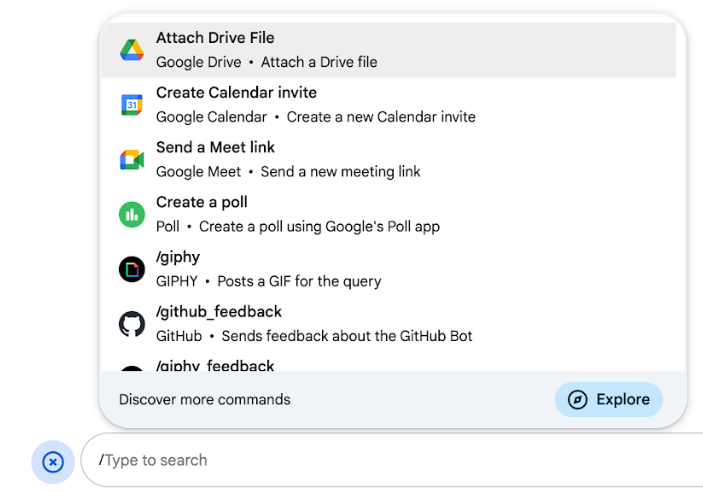
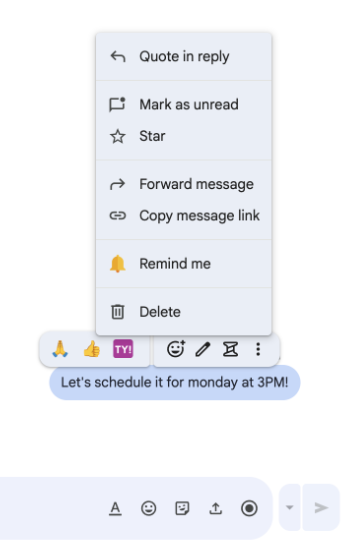
میتوانید فرمانهای برنامه Chat را بهعنوان فرمانهای خط مورب، فرمانهای سریع، یا کنشهای پیام بسازید. برای استفاده از هر نوع فرمان، کاربران میتوانند کارهای زیر را انجام دهند:-
فرمانهای خط مورب: کاربران میتوانند فرمان خط موربی را از منو انتخاب کنند یا خط موربی (
/) و سپس نوشتار ازپیشتعریفشدهای مثل/aboutرا تایپ کنند. برنامههای گپ معمولاً برای فرمان خط مورب به نوشتار آرگومان نیاز دارند.اگر برنامه Chat شما به ورودی اضافی از کاربر نیاز دارد، فرمان خط مورب ایجاد کنید. برای مثال، میتوانید فرمان برشی بهنام
/searchایجاد کنید که پساز وارد کردن عبارتی برای جستجو توسط کاربر، مثل/search receipts، اجرا شود. -
فرمانهای سریع: کاربران با باز کردن منو از ناحیه پاسخ پیام Chat از فرمانها استفاده میکنند. برای استفاده از فرمان، روی افزودن
 کلیک میکنند و
فرمانی را از منو انتخاب میکنند.
کلیک میکنند و
فرمانی را از منو انتخاب میکنند.
اگر برنامه Chat شما میتواند بلافاصله و بدون انتظار برای ورودی اضافی به کاربر پاسخ دهد، فرمان سریعی ایجاد کنید. برای مثال، میتوانید فرمان سریعی بهنام تصویر تصادفی ایجاد کنید که بلافاصله با تصویری پاسخ میدهد.
-
کنشهای پیام: کاربران با نگه داشتن نشانگر روی پیام و کلیک کردن روی منو سهنقطهای از کنشهای پیام استفاده میکنند. برای استفاده از فرمان، منو سهنقطهای را باز میکنند و فرمانی را از منو انتخاب میکنند.
اگر برنامه Chat شما میتواند براساس بافت پیام کنش انجام دهد، کنش پیام ایجاد کنید.
تصاویر زیر نشان میدهد که کاربران چگونه منو فرمانهای خط مورب و سریع و کنشهای پیام را پیدا میکنند:
پیشنیازها
HTTP
برنامه Google Chat که تعاملات کاربر را دریافت و به آنها پاسخ میدهد. برای ساختن آن، شروع سریع HTTP را تکمیل کنید.
Apps Script
برنامه Google Chat که تعاملات کاربر را دریافت و به آنها پاسخ میدهد. برای ساختن یکی از آنها، راهاندازی سریع Apps Script را تکمیل کنید.
راهاندازی فرمان
این بخش توضیح میدهد که چگونه مراحل زیر را برای راهاندازی فرمان تکمیل کنید:
- نام و شرحی برای فرمان ایجاد کنید.
- دستور را در کنسول Google Cloud پیکربندی کنید.
- اختیاری: فرمانها را به پیاموارههای آغازگر اختصاص دهید.
نام و شرح فرمان
نام فرمان چیزی است که کاربران برای فراخواندن برنامه Chat تایپ یا انتخاب میکنند. شرح کوتاهی نیز در زیر نام ظاهر میشود تا کاربران را بیشتر درباره نحوه استفاده از فرمان راهنمایی کند:

هنگام انتخاب نام و شرح برای فرمان، توصیههای زیر را درنظر بگیرید:
برای نامگذاری فرمان:
- از کلمات یا عبارات کوتاه، توصیفی، و کنشگرا استفاده کنید تا فرمانها برای کاربر واضح باشد. برای مثال، بهجای نام
Create a reminder، ازRemind meاستفاده کنید. - از نام منحصربهفرد یا رایجی برای فرمان خود استفاده کنید. اگر فرمان شما تعامل یا ویژگی
معمولی را توصیف میکند، میتوانید از نام رایجی که کاربران میشناسند و انتظار دارند استفاده کنید،
مثل
SettingsیاFeedback. درغیراینصورت، سعی کنید از نامهای فرمان یکتا استفاده کنید، زیرا اگر نام فرمان شما برای برنامههای دیگر Chat یکسان باشد، کاربر باید از میان فرمانهای مشابه فیلتر کند تا فرمان شما را پیدا و استفاده کند.
برای توصیف یک فرمان:
- شرح را کوتاه و واضح نگه دارید تا کاربران بدانند هنگام استفاده از فرمان چه انتظاری داشته باشند.
- اگر فرمان الزامات قالببندی دارد، به کاربران اطلاع دهید. برای مثال، اگر فرمان برشیای ایجاد کنید که به نوشتار آرگومان نیاز داشته باشد، شرح را روی چیزی مثل
Remind me to do [something] at [time]تنظیم کنید. - به کاربران اطلاع دهید که برنامه Chat به همه افراد در فضا پاسخ میدهد یا
بهصورت خصوصی به کاربری که فرمان را فراخوانی میکند. برای مثال، برای فرمان سریع
About، میتوانید آن را بهصورتLearn about this app (Only visible to you)توصیف کنید.
پیکربندی کردن فرمان در کنسول Google Cloud
برای ایجاد فرمان خط مورب، فرمان سریع، یا کنش پیام، اطلاعات مربوط به فرمان یا کنش را در پیکربندی برنامه Chat برای Google Chat API مشخص میکنید.
برای پیکربندی کردن فرمان در Google Chat API، مراحل زیر را تکمیل کنید:
در کنسول Google Cloud، روی «منو» کلیک کنید > میاناهای برنامهسازی کاربردی و سرویسها > میاناهای برنامهسازی کاربردی و سرویسهای فعال > Google Chat API
روی پیکربندی کلیک کنید.
در بخش تنظیمات اتصال، به محرکها بروید و جزئیات نقطه پایانی خود را مشخص کنید. برای پاسخ دادن به فرمان، باید از این راهانداز در بخش زیر استفاده کنید.
- نشانی وب نقطه پایان HTTP: میتوانید یک نشانی وب نقطه پایان HTTP مشترک در اینجا مشخص کنید. یا، برای استفاده از نقطههای پایانی HTTP متفاوت برای راهاندازهای متفاوت، نقطه پایانی را مستقیماً در فیلد فرمان برنامه مشخص کنید.
- Apps Script: «شناسه استقرار Apps Script» را وارد کنید. بهطور پیشفرض،
تابع
onAppCommandفراخوانده خواهد شد. برای استفاده از تابع Apps Script دیگری، نام تابع سفارشی را در فیلد فرمان برنامه مشخص کنید.
در بخش فرمانها، روی افزودن فرمان کلیک کنید.
اطلاعات زیر را درباره فرمان وارد کنید:
- شناسه فرمان: عددی از ۱ تا ۱۰۰۰ که برنامه Chat شما برای تشخیص فرمان و برگرداندن پاسخ استفاده میکند.
- شرح: نوشتاری که نحوه استفاده و قالببندی فرمان را شرح میدهد. شرح میتواند حداکثر ۵۰ نویسه داشته باشد.
- نوع فرمان: فرمان سریع، فرمان خط مورب، یا کنش پیام را انتخاب کنید.
- نامی برای فرمان مشخص کنید:
- نام فرمان سریع: نام نمایشی که کاربران از منو برای فراخوانی فرمان انتخاب میکنند. میتواند حداکثر ۵۰ نویسه داشته باشد و شامل
نویسههای ویژه باشد. برای مثال،
Remind me. - نام فرمان خط مورب: نوشتاری که کاربران برای فراخواندن فرمان در پیام تایپ میکنند. باید با خط مورب شروع شود، فقط حاوی نوشتار باشد، و
میتواند حداکثر ۵۰ نویسه داشته باشد. برای مثال،
/remindMe. - نام کنش پیام: نام نمایشی که کاربران از منو برای فراخوانی کنش پیام انتخاب میکنند. میتواند حداکثر ۵۰ نویسه داشته باشد و
شامل نویسههای خاص باشد. برای مثال،
Remind me.
- نام فرمان سریع: نام نمایشی که کاربران از منو برای فراخوانی فرمان انتخاب میکنند. میتواند حداکثر ۵۰ نویسه داشته باشد و شامل
نویسههای ویژه باشد. برای مثال،
اختیاری: پیام اعلان بارگیری: پیام اعلان لحظهای برای نمایش به کاربر درحین اجرای کنش پیام. فقط برای کنشهای پیام دردسترس است که کادرهای گفتگو را باز نمیکنند.
اختیاری: اگر میخواهید برنامه Chat به فرمان با کادر گفتگو پاسخ دهد، چارگوش انتخاب باز کردن کادر گفتگو را انتخاب کنید.
روی ذخیره کلیک کنید.
اکنون این فرمان برای برنامه Chat پیکربندی شده است.
فرمانها را به پیاموارههای آغازگر اختصاص دهید
میتوانید فرمانهایتان را بهعنوان پیاموارههای آغازگر ویژه کنید تا کاربران آنها را بهعنوان تراشههای تعاملی هنگام شروع پیام مستقیم یکبهیک خالی با برنامه Chat شما ببینند.
برای تخصیص فرمان به پیامواره آغازگر:
- مطمئن شوید که فرمان شما به متغیرهای مستقل سفارشی اضافی نیاز ندارد (فقط فرمانهای دارای بدون متغیر مستقل یا متغیرهای مستقل پایه بهعنوان پیاموارههای آغازگر پشتیبانی میشوند).
- در کنسول Google Cloud، به صفحه پیکربندی «میانای برنامهسازی کاربردی Chat» بروید.
- در بخش ویژگیهای تعاملی > پیاموارههای آغازگر، روی افزودن پیامواره کلیک کنید.
- رتبه (۱ تا ۳) را برای ترتیب نمایش تنظیم کنید.
- در بخش انتخاب نوع، پیامواره فرمان را انتخاب کنید و فرمان موردنظرتان را از منو کرکرهای انتخاب کنید.
- روی تمام و سپس روی ذخیره کردن کلیک کنید.
پاسخ دادن به فرمان
وقتی کاربران از فرمانی استفاده میکنند، برنامه Chat شما
شیء رویداد را دریافت میکند.
بار رویداد (event.chat.appCommandPayload) حاوی
appCommandPayload
شیئی با جزئیات مربوط به فرمان فراخواندهشده (ازجمله شناسه فرمان و نوع فرمان) است،
تا بتوانید پاسخ مناسبی برگردانید.
وقتی
راهانداز فرمان برنامه را پیکربندی کردید،
شیء رویداد به نقطه پایانی HTTP یا تابع Apps Script ارسال میشود.

/help پاسخ میدهد تا نحوه دریافت پشتیبانی را توضیح دهد.پاسخ دادن به فرمان خط مورب یا فرمان سریع
کد زیر نمونهای از برنامه Chat را نشان میدهد
که با پیام نوشتاری به فرمان خط مورب /about پاسخ میدهد. برای پاسخ دادن به فرمانهای خط مورب یا فرمانهای سریع، برنامه Chat اشیای رویداد (event.chat.appCommandPayload) را از راهانداز فرمان برنامه مدیریت میکند.
وقتی بار رویداد شیء حاوی شناسه فرمان منطبق باشد، برنامه Chat کنش DataActions را با شیء
createMessageAction
(hostAppDataAction.chatDataAction.createMessageAction) برمیگرداند:
Node.js
Python
جاوا
Apps Script
برای استفاده از این نمونه کد، ABOUT_COMMAND_ID را با شناسه فرمان که هنگام
پیکربندی فرمان در Chat API مشخص کردهاید جایگزین کنید.
پاسخ دادن به کنش پیام
کد زیر نمونهای از برنامه Chat را نشان میدهد که به کنش پیام به من یادآوری کن با پیام نوشتاری پاسخ میدهد. برای پاسخ دادن به کنشهای پیام، برنامه Chat
اشیاء رویداد را از راهانداز فرمان برنامه مدیریت میکند. وقتی پایهبار شیء رویداد حاوی
شناسه فرمان کنش پیام باشد، برنامه Chat کنش
DataActions را با شیء
createMessageAction برمیگرداند:
Node.js
/**
 * Responds to an APP_COMMAND interaction event from Google Chat.
 *
 * @param {Object} event The interaction event from Google Chat.
 * @param {Object} res The HTTP response object.
 * @return {Object} The JSON response message with a confirmation.
 */
function onAppCommand(event, res) {
  // Collect the command ID and type from the event metadata.
  const {appCommandId, appCommandType} =
    event.chat.appCommandPayload.appCommandMetadata;

  if (appCommandType === 'MESSAGE_ACTION' &&
      appCommandId === REMIND_ME_COMMAND_ID) {

    // Message actions can access the context of the message they were
    // invoked on, such as the text or sender of that message.
    const messageText = event.chat.appCommandPayload.message.text;

    // Return a response that includes details from the original message.
    return res.json({
      "hostAppDataAction": {
        "chatDataAction": {
          "createMessageAction": {
            "message": {
              "text": `Setting a reminder for message: "${messageText}"`
            }
          }
        }
      }
    });
  }
}
Python
def on_app_command(event):
    """Responds to an APP_COMMAND interaction event from Google Chat.

    Args:
        event (dict): The interaction event from Google Chat.

    Returns:
        dict: The JSON response message with a confirmation.
    """
    # Collect the command ID and type from the event metadata.
    payload = event.get('chat', {}).get('appCommandPayload', {})
    metadata = payload.get('appCommandMetadata', {})
    if metadata.get('appCommandType') == 'MESSAGE_ACTION' and \
       metadata.get('appCommandId') == REMIND_ME_COMMAND_ID:

        # Message actions can access the context of the message they were
        # invoked on, such as the text or sender of that message.
        message_text = payload.get('message', {}).get('text')

        # Return a response that includes details from the original message.
        return {
            "hostAppDataAction": {
                "chatDataAction": {
                    "createMessageAction": {
                        "message": {
                            "text": f'Setting a reminder for message: "{message_text}"'
                        }
                    }
                }
            }
        }
جاوا
/**
 * Responds to an APP_COMMAND interaction event from Google Chat.
 *
 * @param event The interaction event from Google Chat.
 * @param response The HTTP response object.
 */
void onAppCommand(JsonObject event, HttpResponse response) throws Exception {
  // Collect the command ID and type from the event metadata.
  JsonObject payload = event.getAsJsonObject("chat").getAsJsonObject("appCommandPayload");
  JsonObject metadata = payload.getAsJsonObject("appCommandMetadata");
  String appCommandType = metadata.get("appCommandType").getAsString();

  if (appCommandType.equals("MESSAGE_ACTION")) {
    int commandId = metadata.get("appCommandId").getAsInt();
    if (commandId == REMIND_ME_COMMAND_ID) {
      // Message actions can access the context of the message they were
      // invoked on, such as the text or sender of that message.
      String messageText = payload.getAsJsonObject("message").get("text").getAsString();

      // Return a response that includes details from the original message.
      JsonObject responseMessage = new JsonObject();
      responseMessage.addProperty("text", "Setting a reminder for message: " + messageText);

      JsonObject createMessageAction = new JsonObject();
      createMessageAction.add("message", responseMessage);

      JsonObject chatDataAction = new JsonObject();
      chatDataAction.add("createMessageAction", createMessageAction);

      JsonObject hostAppDataAction = new JsonObject();
      hostAppDataAction.add("chatDataAction", chatDataAction);

      JsonObject finalResponse = new JsonObject();
      finalResponse.add("hostAppDataAction", hostAppDataAction);

      response.getWriter().write(finalResponse.toString());
    }
  }
}
Apps Script
/**
 * Responds to an APP_COMMAND interaction event in Google Chat.
 *
 * @param {Object} event The interaction event from Google Chat.
 * @return {Object} The JSON response message with a confirmation.
 */
function onAppCommand(event) {
  // Collect the command ID and type from the event metadata.
  const {appCommandId, appCommandType} =
    event.chat.appCommandPayload.appCommandMetadata;

  if (appCommandType === 'MESSAGE_ACTION' &&
      appCommandId === REMIND_ME_COMMAND_ID) {

    // Message actions can access the context of the message they were
    // invoked on, such as the text or sender of that message.
    const messageText = event.chat.appCommandPayload.message.text;

    // Return a response that includes details from the original message.
    return CardService.newChatResponseBuilder()
        .setText("Setting a reminder for message: " + messageText)
        .build();
  }
}
برای استفاده از این نمونه کد، REMIND_ME_COMMAND_ID را با شناسه فرمان که هنگام
پیکربندی فرمان در Chat API مشخص کردهاید جایگزین کنید.
امتحان کردن فرمان
برای آزمایش فرمان و کد، به آزمایش ویژگیهای تعاملی برای برنامههای Google Chat مراجعه کنید.
برای آشنایی با نحوه آزمایش و استفاده از فرمان در «واسط کاربر Chat»، به استفاده از برنامهها در Google Chat در مستندات «راهنمای Google Chat» مراجعه کنید.
موضوعات مرتبط
- مشاهده نمونههای برنامه Chat که از فرمانها استفاده میکنند
- ارسال پیام
- باز کردن کادرهای گفتگوی تعاملی
برنامههای گپی که برافزا نیستند: به فرمانها پاسخ میدهند
اسناد زیر برای برنامههای Chat که برافزاهای Google Workspace نیستند اعمال میشود. برای انتقال برنامه Chat که برافزا نیست، تبدیل برنامه Google Chat به برافزای Google Workspace را ببینید.
وقتی کاربران از فرمان استفاده میکنند، برنامه Chat که برافزا نیست
رویداد تعاملی
دریافت میکند و میتواند با برگرداندن مستقیم شیء Message پاسخ دهد.
بار رویداد حاوی فرادادههایی با جزئیات مربوط به فرمان فراخواندهشده (ازجمله شناسه فرمان و نوع فرمان) است تا بتوانید پاسخ مناسبی برگردانید.
برای پاسخ دادن به هر نوع فرمان در برنامه Chat که برافزا نیست، باید انواع رویداد و اشیاء فراداده مختلف را در بار رویداد مدیریت کنید:
| نوع فرمان | نوع رویداد | فراداده فرمان |
|---|---|---|
| فرمان خط مورب | MESSAGE |
message.slashCommand
یا message.annotation.slashCommand |
| فرمان سریع | APP_COMMAND |
appCommandMetadata
|
| کنش پیام | APP_COMMAND |
appCommandMetadata
|
پاسخ دادن به فرمان خط مورب
کد زیر نمونهای از برنامه Chat را نشان میدهد که
برافزایی نیست که به فرمان خط مورب
/about پاسخ دهد. برنامه Chat
رویدادهای تعامل MESSAGE را مدیریت میکند، تشخیص میدهد که آیا رویداد تعامل
حاوی شناسه فرمان منطبق است یا نه، و شیء خصوصی Message را برمیگرداند:
Node.js
Apps Script
Python
جاوا
شناسه فرمان را که هنگام پیکربندی فرمان در کنسول Google Cloud مشخص کردهاید جایگزین ABOUT_COMMAND_ID کنید.
پاسخ دادن به فرمان سریع
کد زیر نمونهای از برنامه Chat را نشان میدهد که
برافزایی نیست که به فرمان سریع
راهنما پاسخ دهد. برنامه Chat
رویدادهای تعامل APP_COMMAND را مدیریت میکند، تشخیص میدهد که آیا رویداد تعامل
حاوی شناسه فرمان منطبق است یا نه، و شیء خصوصی Message را برمیگرداند:
Node.js
Apps Script
Python
جاوا
شناسه فرمان را که هنگام پیکربندی فرمان در کنسول Google Cloud مشخص کردهاید جایگزین HELP_COMMAND_ID کنید.
پاسخ دادن به کنش پیام
کد زیر نمونهای از برنامه Chat را نشان میدهد که
یک برافزایی نیست که به کنش پیام
به من یادآوری کن پاسخ دهد. برنامه Chat APP_COMMAND رویداد تعامل را مدیریت میکند،
تشخیص میدهد که آیا رویداد تعامل حاوی شناسه فرمان منطبق است یا نه، و
شیء خصوصی Message را برمیگرداند:
Node.js
/**
 * Responds to an APP_COMMAND interaction event from Google Chat.
 *
 * @param {Object} event The interaction event from Google Chat.
 * @param {Object} res The HTTP response object.
 * @return {Object} The JSON response message with a confirmation.
 */
function handleAppCommand(event, res) {
  // Collect the command ID and type from the event metadata.
  const {appCommandId, appCommandType} = event.appCommandMetadata;

  // Use appCommandType to detect message actions.
  if (appCommandType === 'MESSAGE_ACTION' &&
      appCommandId === REMIND_ME_COMMAND_ID) {

    // Message actions can access the context of the message they were
    // invoked on, such as the text or sender of that message.
    const messageText = event.message.text;

    // Return a response that includes details from the original message.
    return res.send({
      text: `Setting a reminder for this message: "${messageText}"`
    });
  }
}
Apps Script
/**
 * Responds to an APP_COMMAND interaction event in Google Chat.
 *
 * @param {Object} event The interaction event from Google Chat.
 * @return {Object} The JSON response message with a confirmation.
 */
function onAppCommand(event) {
  // Collect the command ID and type from the event metadata.
  const {appCommandId, appCommandType} = event.appCommandMetadata;

  if (appCommandType === 'MESSAGE_ACTION' &&
      appCommandId === REMIND_ME_COMMAND_ID) {

    // Message actions can access the context of the message they were
    // invoked on, such as the text or sender of that message.
    const messageText = event.message.text;

    // Return a response that includes details from the original message.
    return { "text": "Setting a reminder for message: " + messageText };
  }
}
Python
def handle_app_command(event):
    """Responds to an APP_COMMAND interaction event from Google Chat.

    Args:
        event (dict): The interaction event from Google Chat.

    Returns:
        dict: The JSON response message with a confirmation.
    """
    # Collect the command ID and type from the event metadata.
    metadata = event.get('appCommandMetadata', {})
    if metadata.get('appCommandType') == 'MESSAGE_ACTION' and \
       metadata.get('appCommandId') == REMIND_ME_COMMAND_ID:

        # Message actions can access the context of the message they were
        # invoked on, such as the text or sender of that message.
        message_text = event.get('message', {}).get('text')

        # Return a response that includes details from the original message.
        return {
            "text": f'Setting a reminder for message: "{message_text}"'
        }
جاوا
/**
 * Responds to an APP_COMMAND interaction event from Google Chat.
 *
 * @param event The interaction event from Google Chat.
 * @param response The HTTP response object.
 */
void handleAppCommand(JsonObject event, HttpResponse response) throws Exception {
  // Collect the command ID and type from the event metadata.
  JsonObject metadata = event.getAsJsonObject("appCommandMetadata");
  String appCommandType = metadata.get("appCommandType").getAsString();

  if (appCommandType.equals("MESSAGE_ACTION")) {
    int commandId = metadata.get("appCommandId").getAsInt();
    if (commandId == REMIND_ME_COMMAND_ID) {
      // Message actions can access the context of the message they were
      // invoked on, such as the text or sender of that message.
      String messageText = event.getAsJsonObject("message").get("text").getAsString();

      // Return a response that includes details from the original message.
      JsonObject responseMessage = new JsonObject();
      responseMessage.addProperty("text", "Setting a reminder for message: " + messageText);
      response.getWriter().write(responseMessage.toString());
    }
  }
}
شناسه فرمان را که هنگام پیکربندی فرمان در کنسول Google Cloud مشخص کردهاید جایگزین REMIND_ME_COMMAND_ID کنید.