

इस गाइड में, Google Chat API के Message संसाधन पर create() तरीके का इस्तेमाल करने के बारे में बताया गया है. इससे ये काम किए जा सकते हैं:
- टेक्स्ट, कार्ड, और इंटरैक्टिव विजेट वाले मैसेज भेजना.
- Chat का इस्तेमाल करने वाले किसी व्यक्ति को निजी तौर पर मैसेज भेजना.
- कोई मैसेज थ्रेड शुरू करना या उसका जवाब देना.
- किसी मैसेज को नाम दें, ताकि उसे अन्य Chat API अनुरोधों में शामिल किया जा सके.
मैसेज का साइज़ 32,000 बाइट से ज़्यादा नहीं होना चाहिए. इसमें कोई टेक्स्ट या कार्ड भी शामिल है. अगर आपको इससे ज़्यादा साइज़ का मैसेज भेजना है, तो आपके चैट ऐप्लिकेशन को एक से ज़्यादा मैसेज भेजने होंगे.
मैसेज बनाने के लिए Chat API को कॉल करने के अलावा, Chat ऐप्लिकेशन, उपयोगकर्ता के इंटरैक्शन का जवाब देने के लिए मैसेज बना सकते हैं और भेज सकते हैं. जैसे, उपयोगकर्ता के Chat ऐप्लिकेशन को किसी स्पेस में जोड़ने के बाद, वेलकम मैसेज पोस्ट करना. इंटरैक्शन का जवाब देते समय, चैट ऐप्लिकेशन अन्य तरह की मैसेजिंग सुविधाओं का इस्तेमाल कर सकते हैं. इनमें इंटरैक्टिव डायलॉग और लिंक की झलक दिखाने वाले इंटरफ़ेस शामिल हैं. किसी उपयोगकर्ता को जवाब देने के लिए, Chat ऐप्लिकेशन, Chat API को कॉल किए बिना, सिंक्रोनस तरीके से मैसेज दिखाता है. इंटरैक्शन का जवाब देने के लिए मैसेज भेजने के बारे में जानने के लिए, Google Chat ऐप्लिकेशन से इंटरैक्शन पाना और उनका जवाब देना लेख पढ़ें.
Chat API की मदद से बनाए गए मैसेज, Chat में कैसे दिखते हैं और उन्हें कैसे एट्रिब्यूट किया जाता है
ऐप्लिकेशन की पुष्टि और उपयोगकर्ता की पुष्टि का इस्तेमाल करके, create() तरीके को कॉल किया जा सकता है.
Chat, मैसेज भेजने वाले व्यक्ति को अलग-अलग तरीके से एट्रिब्यूट करता है. यह इस बात पर निर्भर करता है कि आपने पुष्टि करने के लिए किस तरीके का इस्तेमाल किया है.
Chat ऐप्लिकेशन के तौर पर पुष्टि करने पर, Chat ऐप्लिकेशन मैसेज भेजता है.

App दिखाता है.जब उपयोगकर्ता के तौर पर आपकी पुष्टि हो जाती है, तो Chat ऐप्लिकेशन आपकी ओर से मैसेज भेजता है. Chat, मैसेज के साथ Chat ऐप्लिकेशन का नाम भी दिखाता है.

पुष्टि करने के तरीके से यह भी तय होता है कि मैसेज में कौनसी सुविधाएं और इंटरफ़ेस शामिल किए जा सकते हैं. ऐप्लिकेशन की पुष्टि करने की सुविधा की मदद से, Chat ऐप्लिकेशन ऐसे मैसेज भेज सकते हैं जिनमें रिच टेक्स्ट, कार्ड पर आधारित इंटरफ़ेस, और इंटरैक्टिव विजेट शामिल हों. उपयोगकर्ता की पुष्टि करने के बाद, टेक्स्ट मैसेज भेजे जा सकते हैं या कार्ड वाले मैसेज बनाए जा सकते हैं. इसके बारे में, इंटरैक्टिव कार्ड बनाना और अपडेट करना में बताया गया है.
Chat API के लिए उपलब्ध मैसेज की सुविधाओं के बारे में ज़्यादा जानने के लिए, Google Chat के मैसेज की खास जानकारी देखें.
इस गाइड में, Chat API की मदद से मैसेज भेजने के लिए, पुष्टि करने के दोनों तरीकों का इस्तेमाल करने के बारे में बताया गया है.
ज़रूरी शर्तें
Node.js
- Business या Enterprise Google Workspace खाता, जिसमें Google Chat का ऐक्सेस हो.
- अपना एनवायरमेंट सेट अप करने का तरीका:
- Google Cloud प्रोजेक्ट बनाएं.
- ऐसी स्क्रीन को कॉन्फ़िगर करें जहां OAuth के लिए सहमति दी जाती है.
- अपने चैट ऐप्लिकेशन के नाम, आइकॉन, और ब्यौरे के साथ Google Chat API को चालू और कॉन्फ़िगर करें.
- Node.js क्लाउड क्लाइंट लाइब्रेरी इंस्टॉल करें.
- Google Chat API के अनुरोध में, पुष्टि करने के तरीके के आधार पर ऐक्सेस क्रेडेंशियल बनाएं:
- Chat के उपयोगकर्ता के तौर पर पुष्टि करने के लिए,
OAuth क्लाइंट आईडी
क्रेडेंशियल बनाएं. इसके बाद, क्रेडेंशियल को
credentials.jsonनाम की JSON फ़ाइल के तौर पर, अपनी लोकल डायरेक्ट्री में सेव करें. - चैट ऐप्लिकेशन के तौर पर पुष्टि करने के लिए,
सेवा खाते के क्रेडेंशियल बनाएं और क्रेडेंशियल को
credentials.jsonनाम की JSON फ़ाइल के तौर पर सेव करें.
- Chat के उपयोगकर्ता के तौर पर पुष्टि करने के लिए,
OAuth क्लाइंट आईडी
क्रेडेंशियल बनाएं. इसके बाद, क्रेडेंशियल को
- अनुमति देने का स्कोप चुनें. यह इस बात पर निर्भर करता है कि आपको उपयोगकर्ता के तौर पर पुष्टि करनी है या Chat ऐप्लिकेशन के तौर पर.
- कोई Google Chat स्पेस, जिसमें पुष्टि किया गया उपयोगकर्ता या कॉल करने वाला Chat ऐप्लिकेशन सदस्य हो. चैट ऐप्लिकेशन के तौर पर पुष्टि करने के लिए, चैट ऐप्लिकेशन को स्पेस में जोड़ें.
Python
- Business या Enterprise Google Workspace खाता, जिसमें Google Chat का ऐक्सेस हो.
- अपना एनवायरमेंट सेट अप करने का तरीका:
- Google Cloud प्रोजेक्ट बनाएं.
- ऐसी स्क्रीन को कॉन्फ़िगर करें जहां OAuth के लिए सहमति दी जाती है.
- अपने चैट ऐप्लिकेशन के नाम, आइकॉन, और ब्यौरे के साथ Google Chat API को चालू और कॉन्फ़िगर करें.
- Python Cloud क्लाइंट लाइब्रेरी इंस्टॉल करें.
- Google Chat API के अनुरोध में, पुष्टि करने के तरीके के आधार पर ऐक्सेस क्रेडेंशियल बनाएं:
- Chat के उपयोगकर्ता के तौर पर पुष्टि करने के लिए,
OAuth क्लाइंट आईडी
क्रेडेंशियल बनाएं. इसके बाद, क्रेडेंशियल को
credentials.jsonनाम की JSON फ़ाइल के तौर पर, अपनी लोकल डायरेक्ट्री में सेव करें. - चैट ऐप्लिकेशन के तौर पर पुष्टि करने के लिए,
सेवा खाते के क्रेडेंशियल बनाएं और क्रेडेंशियल को
credentials.jsonनाम की JSON फ़ाइल के तौर पर सेव करें.
- Chat के उपयोगकर्ता के तौर पर पुष्टि करने के लिए,
OAuth क्लाइंट आईडी
क्रेडेंशियल बनाएं. इसके बाद, क्रेडेंशियल को
- अनुमति देने का स्कोप चुनें. यह इस बात पर निर्भर करता है कि आपको उपयोगकर्ता के तौर पर पुष्टि करनी है या Chat ऐप्लिकेशन के तौर पर.
- कोई Google Chat स्पेस, जिसमें पुष्टि किया गया उपयोगकर्ता या कॉल करने वाला Chat ऐप्लिकेशन सदस्य हो. चैट ऐप्लिकेशन के तौर पर पुष्टि करने के लिए, चैट ऐप्लिकेशन को स्पेस में जोड़ें.
Java
- Business या Enterprise Google Workspace खाता, जिसमें Google Chat का ऐक्सेस हो.
- अपना एनवायरमेंट सेट अप करने का तरीका:
- Google Cloud प्रोजेक्ट बनाएं.
- ऐसी स्क्रीन को कॉन्फ़िगर करें जहां OAuth के लिए सहमति दी जाती है.
- अपने चैट ऐप्लिकेशन के नाम, आइकॉन, और ब्यौरे के साथ Google Chat API को चालू और कॉन्फ़िगर करें.
- Java Cloud क्लाइंट लाइब्रेरी इंस्टॉल करें.
- Google Chat API के अनुरोध में, पुष्टि करने के तरीके के आधार पर ऐक्सेस क्रेडेंशियल बनाएं:
- Chat के उपयोगकर्ता के तौर पर पुष्टि करने के लिए,
OAuth क्लाइंट आईडी
क्रेडेंशियल बनाएं. इसके बाद, क्रेडेंशियल को
credentials.jsonनाम की JSON फ़ाइल के तौर पर, अपनी लोकल डायरेक्ट्री में सेव करें. - चैट ऐप्लिकेशन के तौर पर पुष्टि करने के लिए,
सेवा खाते के क्रेडेंशियल बनाएं और क्रेडेंशियल को
credentials.jsonनाम की JSON फ़ाइल के तौर पर सेव करें.
- Chat के उपयोगकर्ता के तौर पर पुष्टि करने के लिए,
OAuth क्लाइंट आईडी
क्रेडेंशियल बनाएं. इसके बाद, क्रेडेंशियल को
- अनुमति देने का स्कोप चुनें. यह इस बात पर निर्भर करता है कि आपको उपयोगकर्ता के तौर पर पुष्टि करनी है या Chat ऐप्लिकेशन के तौर पर.
- कोई Google Chat स्पेस, जिसमें पुष्टि किया गया उपयोगकर्ता या कॉल करने वाला Chat ऐप्लिकेशन सदस्य हो. चैट ऐप्लिकेशन के तौर पर पुष्टि करने के लिए, चैट ऐप्लिकेशन को स्पेस में जोड़ें.
Apps Script
- Business या Enterprise Google Workspace खाता, जिसमें Google Chat का ऐक्सेस हो.
- अपना एनवायरमेंट सेट अप करने का तरीका:
- Google Cloud प्रोजेक्ट बनाएं.
- ऐसी स्क्रीन को कॉन्फ़िगर करें जहां OAuth के लिए सहमति दी जाती है.
- अपने चैट ऐप्लिकेशन के नाम, आइकॉन, और ब्यौरे के साथ Google Chat API को चालू और कॉन्फ़िगर करें.
- स्टैंडअलोन Apps Script प्रोजेक्ट बनाएं और बेहतर Chat सेवा चालू करें.
- इस गाइड में, आपको उपयोगकर्ता या ऐप्लिकेशन की पुष्टि का इस्तेमाल करना होगा. चैट ऐप्लिकेशन के तौर पर पुष्टि करने के लिए, सेवा खाते के क्रेडेंशियल बनाएं. इसके लिए, Google Chat ऐप्लिकेशन के तौर पर पुष्टि करना और अनुमति देना लेख पढ़ें.
- अनुमति देने का स्कोप चुनें. यह इस बात पर निर्भर करता है कि आपको उपयोगकर्ता के तौर पर पुष्टि करनी है या Chat ऐप्लिकेशन के तौर पर.
- कोई Google Chat स्पेस, जिसमें पुष्टि किया गया उपयोगकर्ता या कॉल करने वाला Chat ऐप्लिकेशन सदस्य हो. चैट ऐप्लिकेशन के तौर पर पुष्टि करने के लिए, चैट ऐप्लिकेशन को स्पेस में जोड़ें.
चैट ऐप्लिकेशन के तौर पर मैसेज भेजना
इस सेक्शन में, ऐप्लिकेशन की पुष्टि का इस्तेमाल करके, टेक्स्ट, कार्ड, और इंटरैक्टिव ऐक्सेसरी विजेट वाले मैसेज भेजने का तरीका बताया गया है.

ऐप्लिकेशन की पुष्टि करने की सुविधा का इस्तेमाल करके, CreateMessage() तरीके को कॉल करने के लिए, आपको अनुरोध में ये फ़ील्ड डालने होंगे:
chat.botअनुमति का दायरा.- वह
Spaceसंसाधन जिसमें आपको मैसेज पोस्ट करना है. चैट ऐप्लिकेशन, स्पेस का सदस्य होना चाहिए. - बनाया जाने वाला
Messageसंसाधन. मैसेज के कॉन्टेंट को तय करने के लिए, रिच टेक्स्ट (text), एक या उससे ज़्यादा कार्ड इंटरफ़ेस (cardsV2) या दोनों को शामिल किया जा सकता है.
इसके अलावा, ये चीज़ें भी शामिल की जा सकती हैं:
- मैसेज में उद्धरण जोड़ने के लिए,
elementsफ़ील्ड. accessoryWidgetsफ़ील्ड, ताकि मैसेज के सबसे नीचे इंटरैक्टिव बटन शामिल किए जा सकें.privateMessageViewerफ़ील्ड का इस्तेमाल, किसी उपयोगकर्ता को निजी तौर पर मैसेज भेजने के लिए किया जाता है.messageIdफ़ील्ड, जिसकी मदद से मैसेज को नाम दिया जा सकता है, ताकि उसे अन्य एपीआई अनुरोधों में इस्तेमाल किया जा सके.thread.threadKeyऔरmessageReplyOptionफ़ील्ड, थ्रेड शुरू करने या उसका जवाब देने के लिए हैं. अगर स्पेस में थ्रेडिंग का इस्तेमाल नहीं किया जाता है, तो इस फ़ील्ड को अनदेखा कर दिया जाता है.
यहां दिए गए कोड में, चैट ऐप्लिकेशन के तौर पर पोस्ट किया गया मैसेज भेजने का उदाहरण दिखाया गया है. इसमें टेक्स्ट, कार्ड, और मैसेज के सबसे नीचे क्लिक किया जा सकने वाला बटन शामिल है:
Node.js
Python
Java
Apps Script
इस सैंपल को चलाने के लिए, SPACE_NAME को स्पेस के name फ़ील्ड के आईडी से बदलें. आईडी पाने के लिए, ListSpaces() तरीके को कॉल करें या स्पेस के यूआरएल का इस्तेमाल करें.
मैसेज के सबसे नीचे इंटरैक्टिव विजेट जोड़ना
इस गाइड के पहले कोड सैंपल में, Chat ऐप्लिकेशन के मैसेज में सबसे नीचे, क्लिक किया जा सकने वाला एक बटन दिखता है. इसे ऐक्सेसरी विजेट कहा जाता है. ऐक्सेसरी विजेट, मैसेज में मौजूद किसी भी टेक्स्ट या कार्ड के बाद दिखते हैं. इन विजेट का इस्तेमाल करके, उपयोगकर्ताओं को आपके मैसेज के साथ कई तरीकों से इंटरैक्ट करने के लिए कहा जा सकता है. इनमें ये तरीके शामिल हैं:
- किसी मैसेज के सटीक होने या उससे मिलने वाली संतुष्टि को रेट करना.
- मैसेज या Chat ऐप्लिकेशन से जुड़ी समस्या की शिकायत करना.
- मिलते-जुलते कॉन्टेंट का लिंक खोलें, जैसे कि दस्तावेज़.
- चैट ऐप्लिकेशन से मिलने वाले मिलते-जुलते मैसेज को खारिज करना या उन्हें कुछ समय के लिए स्नूज़ करना.
ऐक्सेसरी विजेट जोड़ने के लिए, अपने अनुरोध के मुख्य हिस्से में accessoryWidgets[] फ़ील्ड शामिल करें. साथ ही, एक या उससे ज़्यादा ऐसे विजेट की जानकारी दें जिन्हें आपको शामिल करना है.
यहां दी गई इमेज में एक चैट ऐप्लिकेशन दिखाया गया है, जो ऐक्सेसरी विजेट के साथ एक टेक्स्ट मैसेज जोड़ता है. इससे उपयोगकर्ता, चैट ऐप्लिकेशन के साथ अपने अनुभव को रेटिंग दे सकते हैं.
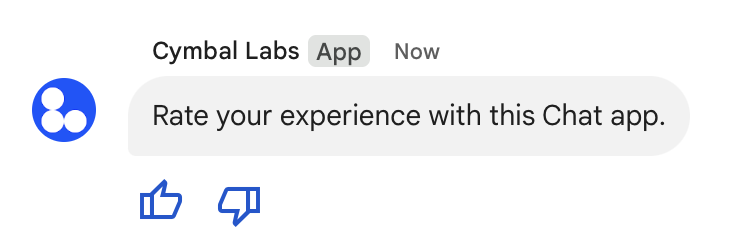
यहां अनुरोध का मुख्य हिस्सा दिखाया गया है. इससे दो ऐक्सेसरी बटन वाला टेक्स्ट मैसेज बनता है. जब कोई उपयोगकर्ता किसी बटन पर क्लिक करता है, तो उससे जुड़ा फ़ंक्शन (जैसे कि doUpvote) इंटरैक्शन को प्रोसेस करता है:
{
  text: "Rate your experience with this Chat app.",
  accessoryWidgets: [{ buttonList: { buttons: [{
    icon: { material_icon: {
      name: "thumb_up"
    }},
    color: { red: 0, blue: 255, green: 0 },
    onClick: { action: {
      function: "doUpvote"
    }}
  }, {
    icon: { material_icon: {
      name: "thumb_down"
    }},
    color: { red: 0, blue: 255, green: 0 },
    onClick: { action: {
      function: "doDownvote"
    }}
  }]}}]
}
निजी तौर पर मैसेज भेजना
चैट ऐप्लिकेशन, निजी तौर पर मैसेज भेज सकते हैं, ताकि स्पेस में मौजूद किसी खास उपयोगकर्ता को ही मैसेज दिखे. जब कोई चैट ऐप्लिकेशन किसी व्यक्ति को निजी मैसेज भेजता है, तो उस मैसेज पर एक लेबल दिखता है. इससे उपयोगकर्ता को पता चलता है कि यह मैसेज सिर्फ़ उसे दिखेगा.
Chat API का इस्तेमाल करके निजी तौर पर मैसेज भेजने के लिए, अपने अनुरोध के मुख्य हिस्से में privateMessageViewer फ़ील्ड की जानकारी दें. उपयोगकर्ता की जानकारी देने के लिए, वैल्यू को
User
संसाधन पर सेट करें. यह संसाधन, Chat के उपयोगकर्ता को दिखाता है. User रिसॉर्स के name फ़ील्ड का भी इस्तेमाल किया जा सकता है, जैसा कि इस उदाहरण में दिखाया गया है:
{
  text: "Hello private world!",
  privateMessageViewer: {
    name: "users/USER_ID"
  }
}
इस सैंपल का इस्तेमाल करने के लिए, USER_ID को उपयोगकर्ता के यूनीक आईडी से बदलें. जैसे, 12345678987654321 या hao@cymbalgroup.com. उपयोगकर्ताओं की जानकारी देने के बारे में ज़्यादा जानने के लिए, Google Chat के उपयोगकर्ताओं की पहचान करना और उनकी जानकारी देना लेख पढ़ें.
निजी तौर पर मैसेज भेजने के लिए, आपको अपने अनुरोध में ये चीज़ें शामिल नहीं करनी होंगी:
ज़बरदस्ती सूचनाएं या साइलेंट मैसेज भेजना
जब कोई चैट ऐप्लिकेशन मैसेज भेजता है, तो वह उपयोगकर्ताओं को सूचना देने के लिए इनमें से किसी एक विकल्प का इस्तेमाल कर सकता है:
- सूचना भेजने के लिए मजबूर करना: Chat, मैसेज पाने वाले लोगों को हमेशा पुश नोटिफ़िकेशन भेजता है. भले ही, उनकी सूचना सेटिंग कुछ भी हो या उनका स्टेटस 'परेशान न करें' (डीएनडी) पर सेट हो. Chat में, मैसेज पाने वाले लोगों की सूची या होम पेज पर मौजूद सूची में, मैसेज बोल्ड और बंप हो जाता है. साथ ही, एक बैज दिखता है.
- साइलेंट मैसेज भेजना: Chat, मैसेज पाने वाले लोगों के लिए पुश नोटिफ़िकेशन को दबा देता है. Chat में, मैसेज पाने वाले लोगों की सूची या होम पेज की सूची में, मैसेज को बोल्ड नहीं किया जाता या उसे सबसे ऊपर नहीं दिखाया जाता. साथ ही, कोई बैज नहीं दिखाया जाता. अगर साइलेंट मैसेज, बातचीत का आखिरी मैसेज है, तो उसका कॉन्टेंट होम स्निपेट में नहीं दिखता.
चाहे ये मैसेज ज़बरदस्ती भेजे गए हों या साइलेंट मोड में भेजे गए हों, इनमें एक विज़ुअल इंडिकेटर शामिल होता है. इससे, मैसेज पाने वाले लोगों को खास सूचना के बारे में पता चलता है.
ज़बरदस्ती सूचनाएं भेजने और साइलेंट मैसेज भेजने की सुविधा, सिर्फ़ उन Chat ऐप्लिकेशन के लिए उपलब्ध है जो ऐप्लिकेशन की पुष्टि करने की सुविधा का इस्तेमाल करते हैं.
ज़बरदस्ती भेजी जाने वाली सूचनाओं और साइलेंट मैसेज की ये सीमाएं हैं:
- बाहरी उपयोगकर्ता: स्पेस में मौजूद बाहरी उपयोगकर्ताओं (मेहमानों) पर, ज़बरदस्ती भेजे जाने वाले नोटिफ़िकेशन और साइलेंट मैसेज लागू नहीं होते. संगठन से बाहर के उपयोगकर्ताओं को उनकी सेटिंग के हिसाब से सूचनाएं मिलती हैं.
- टैग करना: साइलेंट मैसेज में उपयोगकर्ताओं को टैग नहीं किया जा सकता. अगर साइलेंट मैसेज में किसी व्यक्ति का नाम टैग किया जाता है, तो उसे सामान्य टेक्स्ट माना जाता है.
- थ्रेडिंग: साइलेंट मैसेज का इस्तेमाल करके, कोई थ्रेड शुरू नहीं की जा सकती या उसका जवाब नहीं दिया जा सकता.
- स्पेस का टाइप: ज़बरदस्ती सूचनाएं भेजने और साइलेंट मैसेज भेजने की सुविधा, डायरेक्ट मैसेज (डीएम) या उन स्पेस में काम नहीं करती है जिनका मालिकाना हक ऐसे लोगों के पास है जिनके पास Google Workspace खाता नहीं है.
- ईमेल से मिलने वाली सूचनाएं: साइलेंट मैसेज के लिए, ईमेल से सूचनाएं नहीं मिलती हैं. 'सूचना देना ज़रूरी है' के तौर पर सेट किए गए मैसेज के लिए, ईमेल से सूचनाएं सिर्फ़ तब ट्रिगर होती हैं, जब उनमें किसी उपयोगकर्ता का नाम टैग किया गया हो.
किसी सूचना को ज़बरदस्ती दिखाने या साइलेंट मैसेज भेजने के लिए, अपने अनुरोध में createMessageNotificationOptions फ़ील्ड शामिल करें. साथ ही, notificationType को इनमें से किसी एक पर सेट करें:
| वैल्यू | व्यवहार |
|---|---|
NOTIFICATION_TYPE_FORCE_NOTIFY |
इससे सूचना को ज़बरदस्ती दिखाया जाता है. |
NOTIFICATION_TYPE_SILENT |
इससे मैसेज बिना आवाज़ के भेजा जाता है. |
इस उदाहरण में, अनुरोध का JSON मुख्य हिस्सा दिखाया गया है. इसका इस्तेमाल, सूचना के साथ मैसेज भेजने के लिए किया जाता है:
{
  "text": "Critical update: the server is down!",
  "createMessageNotificationOptions": {
    "notificationType": "NOTIFICATION_TYPE_FORCE_NOTIFY"
  }
}
किसी उपयोगकर्ता की ओर से मैसेज भेजना
इस सेक्शन में, उपयोगकर्ता की पुष्टि का इस्तेमाल करके, किसी उपयोगकर्ता की ओर से मैसेज भेजने का तरीका बताया गया है. उपयोगकर्ता की पुष्टि करने की सुविधा की मदद से, किसी उपयोगकर्ता की ओर से टेक्स्ट मैसेज भेजे जा सकते हैं या कार्ड वाले मैसेज बनाए जा सकते हैं. किसी उपयोगकर्ता की ओर से कार्ड भेजने के बारे में ज़्यादा जानने के लिए, इंटरैक्टिव कार्ड बनाना और उन्हें अपडेट करना लेख पढ़ें.

उपयोगकर्ता की पुष्टि करने के तरीके का इस्तेमाल करके CreateMessage() तरीके को कॉल करने के लिए, आपको अनुरोध में ये फ़ील्ड डालने होंगे:
- अनुमति का दायरा, जो इस तरीके के लिए उपयोगकर्ता की पुष्टि करने की सुविधा देता है. यहां दिए गए सैंपल में,
chat.messages.createस्कोप का इस्तेमाल किया गया है. - वह
Spaceसंसाधन जिसमें आपको मैसेज पोस्ट करना है. पुष्टि किया गया उपयोगकर्ता, स्पेस का सदस्य होना चाहिए. - बनाया जाने वाला
Messageसंसाधन. मैसेज के कॉन्टेंट के बारे में बताने के लिए, आपकोtextफ़ील्ड शामिल करना होगा.
इसके अलावा, ये चीज़ें भी शामिल की जा सकती हैं:
- सूचना भेजने या मैसेज को साइलेंट मोड में भेजने के लिए,
createMessageNotificationOptionsफ़ील्ड. messageIdफ़ील्ड, जिसकी मदद से अन्य एपीआई अनुरोधों में इस्तेमाल करने के लिए, मैसेज को नाम दिया जा सकता है.thread.threadKeyऔरmessageReplyOptionफ़ील्ड, थ्रेड शुरू करने या उसका जवाब देने के लिए हैं. अगर स्पेस में थ्रेडिंग का इस्तेमाल नहीं किया जाता है, तो इस फ़ील्ड को अनदेखा कर दिया जाता है.
यहां दिए गए कोड में एक उदाहरण दिया गया है. इसमें बताया गया है कि पुष्टि किए गए उपयोगकर्ता की ओर से, किसी स्पेस में चैट ऐप्लिकेशन टेक्स्ट मैसेज कैसे भेज सकता है:
Node.js
Python
Java
Apps Script
इस सैंपल को चलाने के लिए, SPACE_NAME को स्पेस के name फ़ील्ड के आईडी से बदलें. आईडी पाने के लिए, ListSpaces() तरीके को कॉल करें या स्पेस के यूआरएल का इस्तेमाल करें.
कोई थ्रेड शुरू करना या उसमें जवाब देना
थ्रेड का इस्तेमाल करने वाले स्पेस के लिए, यह तय किया जा सकता है कि कोई नया मैसेज, थ्रेड शुरू करे या किसी मौजूदा थ्रेड का जवाब दे.
डिफ़ॉल्ट रूप से, Chat API का इस्तेमाल करके बनाए गए मैसेज, एक नया थ्रेड शुरू करते हैं. थ्रेड की पहचान करने और बाद में उसका जवाब देने के लिए, अपने अनुरोध में थ्रेड पासकोड तय किया जा सकता है:
- अपने अनुरोध के मुख्य हिस्से में,
thread.threadKeyफ़ील्ड की जानकारी दें. - क्वेरी पैरामीटर
messageReplyOptionकी वैल्यू तय करें, ताकि यह तय किया जा सके कि कुंजी पहले से मौजूद होने पर क्या होगा.
किसी मौजूदा थ्रेड में जवाब देने के लिए:
- अपने अनुरोध के मुख्य हिस्से में,
threadफ़ील्ड शामिल करें. अगर यह सेट है, तो आपके पास अपने बनाए गएthreadKeyको तय करने का विकल्प होता है. ऐसा न होने पर, आपको थ्रेड केnameका इस्तेमाल करना होगा. - क्वेरी पैरामीटर
messageReplyOptionकी जानकारी दें.
यहां दिए गए कोड से पता चलता है कि चैट ऐप्लिकेशन, पुष्टि किए गए उपयोगकर्ता की ओर से टेक्स्ट मैसेज कैसे भेज सकता है. यह मैसेज, किसी स्पेस की कुंजी से पहचाने गए थ्रेड को शुरू करने या उसका जवाब देने के लिए भेजा जाता है:
Node.js
Python
Java
Apps Script
इस सैंपल को चलाने के लिए, इन्हें बदलें:
THREAD_KEY: स्पेस में मौजूद किसी थ्रेड की कुंजी या नया थ्रेड बनाने के लिए, थ्रेड का कोई यूनीक नाम.SPACE_NAME: स्पेस केnameफ़ील्ड का आईडी. आईडी पाने के लिए,ListSpaces()तरीके को कॉल करें या स्पेस के यूआरएल का इस्तेमाल करें.
मैसेज को नाम देना
आने वाले समय में एपीआई कॉल में किसी मैसेज को वापस पाने या उसकी जानकारी देने के लिए, मैसेज को नाम दिया जा सकता है. इसके लिए, अपने अनुरोध में messageId फ़ील्ड सेट करें.
मैसेज को नाम देने से, मैसेज के संसाधन के नाम से सिस्टम से असाइन किए गए आईडी को सेव किए बिना, मैसेज की जानकारी दी जा सकती है. यह आईडी, name फ़ील्ड में दिखता है.
उदाहरण के लिए, get() तरीके का इस्तेमाल करके कोई मैसेज पाने के लिए, संसाधन के नाम का इस्तेमाल करके यह तय किया जाता है कि कौनसा मैसेज पाना है. संसाधन के नाम को spaces/{space}/messages/{message} के तौर पर फ़ॉर्मैट किया जाता है. इसमें {message}, सिस्टम से असाइन किया गया आईडी या वह कस्टम नाम होता है जिसे आपने मैसेज बनाते समय सेट किया था.
किसी मैसेज को नाम देने के लिए, मैसेज बनाते समय
messageId
फ़ील्ड में कोई कस्टम आईडी डालें. messageId फ़ील्ड, Message संसाधन के clientAssignedMessageId फ़ील्ड की वैल्यू सेट करता है.
मैसेज बनाते समय ही उसे नाम दिया जा सकता है. मौजूदा मैसेज के लिए, कस्टम आईडी का नाम नहीं दिया जा सकता या उसमें बदलाव नहीं किया जा सकता. कस्टम आईडी को इन ज़रूरी शर्तों को पूरा करना होगा:
client-से शुरू होता है. उदाहरण के लिए,client-custom-nameएक मान्य कस्टम आईडी है, लेकिनcustom-nameमान्य नहीं है.- इसमें ज़्यादा से ज़्यादा 63 वर्ण हो सकते हैं. साथ ही, इसमें सिर्फ़ अंग्रेज़ी के छोटे अक्षर, संख्याएं, और हाइफ़न शामिल हो सकते हैं.
- यह किसी स्पेस में यूनीक हो. कोई चैट ऐप्लिकेशन, अलग-अलग मैसेज के लिए एक ही कस्टम आईडी का इस्तेमाल नहीं कर सकता.
यहां दिए गए कोड में एक उदाहरण दिया गया है. इसमें बताया गया है कि चैट ऐप्लिकेशन, किसी स्पेस में आईडी के साथ टेक्स्ट मैसेज कैसे भेज सकता है. यह मैसेज, पुष्टि किए गए उपयोगकर्ता की ओर से भेजा जाता है:
Node.js
Python
Java
Apps Script
इस सैंपल को चलाने के लिए, इन्हें बदलें:
SPACE_NAME: स्पेस केnameफ़ील्ड का आईडी. आईडी पाने के लिए,ListSpaces()तरीके को कॉल करें या स्पेस के यूआरएल का इस्तेमाल करें.MESSAGE-ID: मैसेज का ऐसा नाम जोcustom-से शुरू होता है. यह नाम, उस स्पेस में Chat ऐप्लिकेशन से बनाए गए किसी भी अन्य मैसेज के नाम से अलग होना चाहिए.
किसी मैसेज को कोट करना
अनुरोध में CreateMessage() (rpc, rest) को कॉल करके और quotedMessageMetadata (rpc, rest) को सेट करके, किसी दूसरे मैसेज को कोट किया जा सकता है.
किसी थ्रेड या मुख्य चैट में मैसेज कोट किए जा सकते हैं. हालांकि, किसी अन्य थ्रेड के मैसेज को कोट नहीं किया जा सकता.
यहां दिए गए कोड से पता चलता है कि किसी दूसरे मैसेज को कोट करने वाला मैसेज कैसे बनाया जाता है:
Node.js
import {createClientWithUserCredentials} from './authentication-utils.js';

const USER_AUTH_OAUTH_SCOPES = ['https://www.googleapis.com/auth/chat.messages.create'];

// This sample shows how to create a message that quotes another message.
async function main() {

  // Create a client
  const chatClient = await createClientWithUserCredentials(USER_AUTH_OAUTH_SCOPES);

  // Initialize request argument(s)
  const request = {

    // TODO(developer): Replace SPACE_NAME .
    parent: 'spaces/SPACE_NAME',

    message: {
      text: 'I am responding to a quoted message!',

      // quotedMessageMetadata lets Chat apps respond to a message by quoting it.
      quotedMessageMetadata: {

        // TODO(developer): Replace QUOTED_MESSAGE_NAME
        // and QUOTED_MESSAGE_LAST_UPDATE_TIME.
        name: 'QUOTED_MESSAGE_NAME',
        lastUpdateTime: 'QUOTED_MESSAGE_LAST_UPDATE_TIME'
      }
    }
  };

  // Make the request
  const response = await chatClient.createMessage(request);

  // Handle the response
  console.log(response);
}

main().catch(console.error);
Python
from authentication_utils import create_client_with_user_credentials
from google.apps import chat_v1 as google_chat
from google.protobuf.timestamp_pb2 import Timestamp

SCOPES = ['https://www.googleapis.com/auth/chat.messages.create']

# This sample shows how to create a message that quotes another message.
def create_message_quote_message():
    '''Creates a message that quotes another message.'''

    # Create a client
    client = create_client_with_user_credentials(SCOPES)

    # Create a timestamp from the RFC-3339 string.
    # TODO(developer): Replace QUOTED_MESSAGE_LAST_UPDATE_TIME.
    last_update_time = Timestamp()
    last_update_time.FromJsonString('QUOTED_MESSAGE_LAST_UPDATE_TIME')

    # Initialize request argument(s)
    request = google_chat.CreateMessageRequest(

        # TODO(developer): Replace SPACE_NAME.
        parent='spaces/SPACE_NAME',

        # Create the message.
        message = google_chat.Message(
            text='I am responding to a quoted message!',

            # quotedMessageMetadata lets Chat apps respond to a message by quoting it.
            quoted_message_metadata=google_chat.QuotedMessageMetadata(

                name='QUOTED_MESSAGE_NAME',
                last_update_time=last_update_time
            )
        )
    )

    # Make the request
    response = client.create_message(request)

    # Handle the response
    print(response)

create_message_quote_message()
Java
import com.google.chat.v1.ChatServiceClient;
import com.google.chat.v1.CreateMessageRequest;
import com.google.chat.v1.Message;
import com.google.chat.v1.QuotedMessageMetadata;
import com.google.protobuf.util.Timestamps;
import com.google.workspace.api.chat.samples.utils.AuthenticationUtils;
import java.text.ParseException;

// This sample shows how to create a message that quotes another message.
public class CreateMessageQuoteMessage {
  public static void main(String[] args) throws Exception, ParseException {
    // Create a client.
    ChatServiceClient chatClient = AuthenticationUtils.createClientWithUserCredentials();

    // Initialize request argument(s).
    // TODO(developer): Replace SPACE_NAME, QUOTED_MESSAGE_NAME,
    // and QUOTED_MESSAGE_LAST_UPDATE_TIME here.
    String parent = "spaces/SPACE_NAME";
    String quotedMessageName = "QUOTED_MESSAGE_NAME";
    String lastUpdateTime = "QUOTED_MESSAGE_LAST_UPDATE_TIME";

    QuotedMessageMetadata quotedMessageMetadata =
        QuotedMessageMetadata.newBuilder()
            .setName(quotedMessageName)
            .setLastUpdateTime(Timestamps.parse(lastUpdateTime))
            .build();

    Message message = Message.newBuilder()
        .setText("I am responding to a quoted message!")
        .setQuotedMessageMetadata(quotedMessageMetadata)
        .build();

    CreateMessageRequest request =
        CreateMessageRequest.newBuilder()
            .setParent(parent)
            .setMessage(message)
            .build();

    // Make the request.
    Message response = chatClient.createMessage(request);

    // Handle the response.
    System.out.println(response);
  }
}
Apps Script
/**
 * Creates a message that quotes another message.
 *
 * Relies on the OAuth2 scope 'https://www.googleapis.com/auth/chat.messages.create'
 * referenced in the manifest file (appsscript.json).
 */
function createMessageQuoteMessage() {

  // Initialize request argument(s)
  // TODO(developer): Replace SPACE_NAME here.
  const parent = 'spaces/SPACE_NAME';

  const message = {

    // The text content of the message.
    text: 'I am responding to a quoted message!',

    // quotedMessageMetadata lets Chat apps respond to a message by quoting it.
    //
    // TODO(developer): Replace QUOTED_MESSAGE_NAME
    // and QUOTED_MESSAGE_LAST_UPDATE_TIME .
    quotedMessageMetadata: {
      name: 'QUOTED_MESSAGE_NAME',
      lastUpdateTime: 'QUOTED_MESSAGE_LAST_UPDATE_TIME',
    }
  };

  // Make the request
  const response = Chat.Spaces.Messages.create(message, parent);

  // Handle the response
  console.log(response);
}
इस सैंपल को चलाने के लिए, इन्हें बदलें:
SPACE_NAME: स्पेस केnameफ़ील्ड का आईडी. आईडी पाने के लिए,ListSpaces()(rpc,rest) तरीके को कॉल करें या स्पेस के यूआरएल का इस्तेमाल करें.QUOTED_MESSAGE_NAME: मैसेज का मैसेज रिसॉर्सname(rpc,rest), जिसेspaces/{space}/messages/{message}फ़ॉर्मैट में कोट करना है.QUOTED_MESSAGE_LAST_UPDATE_TIME: उस मैसेज को पिछली बार अपडेट किए जाने का समय जिसे आपको कोट करना है. अगर मैसेज में कभी बदलाव नहीं किया गया, तोcreateTime(rpc,rest) से मेल खाता है. अगर मैसेज में बदलाव किया गया, तोlastUpdateTime(rpc,rest) से मेल खाता है.
समस्या हल करें
जब Google Chat ऐप्लिकेशन या कार्ड में कोई गड़बड़ी होती है, तो Chat इंटरफ़ेस पर "कोई गड़बड़ी हुई" मैसेज दिखता है. या "आपका अनुरोध प्रोसेस नहीं किया जा सका." कभी-कभी Chat का यूज़र इंटरफ़ेस (यूआई) कोई गड़बड़ी का मैसेज नहीं दिखाता, लेकिन Chat ऐप्लिकेशन या कार्ड से अनचाहा नतीजा मिलता है. उदाहरण के लिए, हो सकता है कि कार्ड मैसेज न दिखे.
ऐसा हो सकता है कि Chat के यूज़र इंटरफ़ेस (यूआई) में गड़बड़ी का मैसेज न दिखे. हालांकि, Chat ऐप्लिकेशन के लिए गड़बड़ी की जानकारी लॉग करने की सुविधा चालू होने पर, गड़बड़ी के बारे में ज़्यादा जानकारी देने वाले मैसेज और लॉग डेटा उपलब्ध होता है. इससे आपको गड़बड़ियां ठीक करने में मदद मिलती है. गड़बड़ियों को देखने, उन्हें डीबग करने, और ठीक करने में मदद पाने के लिए, Google Chat से जुड़ी गड़बड़ियों को ठीक करना लेख पढ़ें.
मिलते-जुलते विषय
- कार्ड बिल्डर का इस्तेमाल करके, Chat ऐप्लिकेशन के लिए JSON कार्ड मैसेज डिज़ाइन करें और उनकी झलक देखें.
- मैसेज की फ़ॉर्मेटिंग करना.
- किसी मैसेज की जानकारी पाना.
- किसी स्पेस में मौजूद मैसेज की सूची देखना.
- मैसेज अपडेट करना.
- कोई मैसेज मिटाना.
- Google Chat के चैट मैसेज में उपयोगकर्ताओं की पहचान करना.
- इनकमिंग वेबहुक की मदद से, Google Chat में मैसेज भेजना.