

Page Summary
-
This tutorial demonstrates building an Android app to find the device's location and display nearby places using the Maps SDK, Places SDK, and Fused Location Provider.
-
The app requests location permission, retrieves the device's location, and presents a list of likely places for the user to choose from.
-
Upon selection, a marker is added to the map at the chosen location, displaying its name and address, and the map's camera focuses on that place.
-
Code samples are provided in both Java and Kotlin, covering initialization, permission handling, location retrieval, place selection, and UI updates.
-
The tutorial requires Google Play services, API keys for the Maps and Places SDKs, and a basic understanding of Android development.
Learn how to find find the current location of an Android device and display details of the place (a business or other point of interest) at that location. Follow this tutorial to build an Android app using the Maps SDK for Android, the Places SDK for Android, and the fused location provider in the Google Play services location APIs.
Get the code
Clone or download the Google Maps Android API v2 Samples repository from GitHub.
View the Java version of the activity:
// Copyright 2020 Google LLC // // Licensed under the Apache License, Version 2.0 (the "License"); // you may not use this file except in compliance with the License. // You may obtain a copy of the License at // // http://www.apache.org/licenses/LICENSE-2.0 // // Unless required by applicable law or agreed to in writing, software // distributed under the License is distributed on an "AS IS" BASIS, // WITHOUT WARRANTIES OR CONDITIONS OF ANY KIND, either express or implied. // See the License for the specific language governing permissions and // limitations under the License. package com.example.currentplacedetailsonmap; import android.content.DialogInterface; import android.content.pm.PackageManager; import android.location.Location; import android.os.Bundle; import android.util.Log; import android.util.TypedValue; import android.view.Menu; import android.view.MenuItem; import android.view.View; import android.widget.FrameLayout; import android.widget.TextView; import android.widget.Toast; import androidx.annotation.NonNull; import androidx.appcompat.app.AlertDialog; import androidx.appcompat.app.AppCompatActivity; import androidx.core.app.ActivityCompat; import androidx.core.content.ContextCompat; import androidx.core.graphics.Insets; import androidx.core.view.ViewCompat; import androidx.core.view.WindowInsetsCompat; import com.google.android.gms.location.FusedLocationProviderClient; import com.google.android.gms.location.LocationServices; import com.google.android.gms.maps.CameraUpdateFactory; import com.google.android.gms.maps.GoogleMap; import com.google.android.gms.maps.OnMapReadyCallback; import com.google.android.gms.maps.SupportMapFragment; import com.google.android.gms.maps.model.CameraPosition; import com.google.android.gms.maps.model.LatLng; import com.google.android.gms.maps.model.Marker; import com.google.android.gms.maps.model.MarkerOptions; import com.google.android.gms.tasks.OnCompleteListener; import com.google.android.gms.tasks.Task; import com.google.android.libraries.places.api.Places; import com.google.android.libraries.places.api.model.CircularBounds; import com.google.android.libraries.places.api.model.Place; import com.google.android.libraries.places.api.net.PlacesClient; import com.google.android.libraries.places.api.net.SearchNearbyRequest; import com.google.android.libraries.places.api.net.SearchNearbyResponse; import java.util.ArrayList; import java.util.Arrays; import java.util.List; /** An activity that displays a map showing the place at the device's current location. */ public class MapsActivityCurrentPlace extends AppCompatActivity implements OnMapReadyCallback { private static final String TAG = MapsActivityCurrentPlace.class.getSimpleName(); private GoogleMap map; private CameraPosition cameraPosition; // The entry point to the Places API. private PlacesClient placesClient; // The entry point to the Fused Location Provider. private FusedLocationProviderClient fusedLocationProviderClient; // A default location (Sydney, Australia) and default zoom to use when location permission is // not granted. private final LatLng defaultLocation = new LatLng(-33.8523341, 151.2106085); private static final int DEFAULT_ZOOM = 15; private static final int PERMISSIONS_REQUEST_ACCESS_FINE_LOCATION = 1; private boolean locationPermissionGranted; // The geographical location where the device is currently located. That is, the last-known // location retrieved by the Fused Location Provider or set via long press. Location lastKnownLocation; // Keys for storing activity state. private static final String KEY_CAMERA_POSITION = "camera_position"; private static final String KEY_LOCATION = "location"; // Used for selecting the current place. private static final int M_MAX_ENTRIES = 5; private static final double SEARCH_RADIUS_METERS = 100.0; @Override protected void onCreate(Bundle savedInstanceState) { super.onCreate(savedInstanceState); // Retrieve location and camera position from saved instance state. if (savedInstanceState != null) { lastKnownLocation = savedInstanceState.getParcelable(KEY_LOCATION); cameraPosition = savedInstanceState.getParcelable(KEY_CAMERA_POSITION); } // Retrieve the content view that renders the map. setContentView(R.layout.activity_maps); ViewCompat.setOnApplyWindowInsetsListener( getWindow().getDecorView(), (v, insets) -> { Insets systemBars = insets.getInsets( WindowInsetsCompat.Type.systemBars() | WindowInsetsCompat.Type.displayCutout()); View actionBarContainer = getWindow() .getDecorView() .findViewById(androidx.appcompat.R.id.action_bar_container); if (actionBarContainer != null) { actionBarContainer.setPadding( actionBarContainer.getPaddingLeft(), systemBars.top, actionBarContainer.getPaddingRight(), actionBarContainer.getPaddingBottom()); } TypedValue typedValue = new TypedValue(); int actionBarHeight = getTheme() .resolveAttribute( android.R.attr.actionBarSize, typedValue, true) ? TypedValue.complexToDimensionPixelSize( typedValue.data, getResources().getDisplayMetrics()) : 0; if (map != null) { map.setPadding(0, systemBars.top + actionBarHeight, 0, systemBars.bottom); } return insets; }); // Construct a PlacesClient Places.initializeWithNewPlacesApiEnabled(getApplicationContext(), BuildConfig.MAPS_API_KEY); placesClient = Places.createClient(this); // Construct a FusedLocationProviderClient. fusedLocationProviderClient = LocationServices.getFusedLocationProviderClient(this); // Build the map. SupportMapFragment mapFragment = (SupportMapFragment) getSupportFragmentManager().findFragmentById(R.id.map); mapFragment.getMapAsync(this); } /** Saves the state of the map when the activity is paused. */ @Override protected void onSaveInstanceState(Bundle outState) { if (map != null) { outState.putParcelable(KEY_CAMERA_POSITION, map.getCameraPosition()); outState.putParcelable(KEY_LOCATION, lastKnownLocation); } super.onSaveInstanceState(outState); } /** * Sets up the options menu. * * @param menu The options menu. * @return Boolean. */ @Override public boolean onCreateOptionsMenu(Menu menu) { getMenuInflater().inflate(R.menu.current_place_menu, menu); return true; } /** * Handles a click on the menu option to get a place. * * @param item The menu item to handle. * @return Boolean. */ @Override public boolean onOptionsItemSelected(MenuItem item) { if (item.getItemId() == R.id.option_get_place) { showCurrentPlace(); } return true; } /** * Manipulates the map when it's available. This callback is triggered when the map is ready to * be used. */ @Override public void onMapReady(GoogleMap map) { this.map = map; // Use a custom info window adapter to handle multiple lines of text in the // info window contents. this.map.setInfoWindowAdapter( new GoogleMap.InfoWindowAdapter() { @Override // Return null here, so that getInfoContents() is called next. public View getInfoWindow(Marker arg0) { return null; } @Override public View getInfoContents(Marker marker) { // Inflate the layouts for the info window, title and snippet. View infoWindow = getLayoutInflater() .inflate( R.layout.custom_info_contents, (FrameLayout) findViewById(R.id.map), false); TextView title = infoWindow.findViewById(R.id.title); title.setText(marker.getTitle()); TextView snippet = infoWindow.findViewById(R.id.snippet); snippet.setText(marker.getSnippet()); return infoWindow; } }); // Allow moving the current location with a long press on the map to easily // demo and discover nearby places anywhere in the world. this.map.setOnMapLongClickListener(this::setCustomLocation); // Prompt the user for permission. getLocationPermission(); WindowInsetsCompat rootInsets = ViewCompat.getRootWindowInsets(getWindow().getDecorView()); if (rootInsets != null) { Insets systemBars = rootInsets.getInsets( WindowInsetsCompat.Type.systemBars() | WindowInsetsCompat.Type.displayCutout()); TypedValue typedValue = new TypedValue(); int actionBarHeight = getTheme().resolveAttribute(android.R.attr.actionBarSize, typedValue, true) ? TypedValue.complexToDimensionPixelSize( typedValue.data, getResources().getDisplayMetrics()) : 0; this.map.setPadding(0, systemBars.top + actionBarHeight, 0, systemBars.bottom); } // Turn on the My Location layer and the related control on the map. updateLocationUI(); // Get the current location of the device and set the position of the map. getDeviceLocation(); } /** Gets the current location of the device, and positions the map's camera. */ private void getDeviceLocation() { /* * Get the best and most recent location of the device, which may be null in rare * cases when a location is not available. */ try { if (locationPermissionGranted) { Task<Location> locationResult = fusedLocationProviderClient.getLastLocation(); locationResult.addOnCompleteListener( this, new OnCompleteListener<Location>() { @Override public void onComplete(@NonNull Task<Location> task) { if (task.isSuccessful()) { // Set the map's camera position to the current location of the // device. lastKnownLocation = task.getResult(); if (lastKnownLocation != null) { map.moveCamera( CameraUpdateFactory.newLatLngZoom( new LatLng( lastKnownLocation.getLatitude(), lastKnownLocation.getLongitude()), DEFAULT_ZOOM)); } } else { Log.d(TAG, "Current location is null. Using defaults."); Log.e(TAG, "Exception: %s", task.getException()); map.moveCamera( CameraUpdateFactory.newLatLngZoom( defaultLocation, DEFAULT_ZOOM)); map.getUiSettings().setMyLocationButtonEnabled(false); } } }); } } catch (SecurityException e) { Log.e("Exception: %s", e.getMessage(), e); } } /** Prompts the user for permission to use the device location. */ private void getLocationPermission() { /* * Request location permission, so that we can get the location of the * device. The result of the permission request is handled by a callback, * onRequestPermissionsResult. */ if (ContextCompat.checkSelfPermission( this.getApplicationContext(), android.Manifest.permission.ACCESS_FINE_LOCATION) == PackageManager.PERMISSION_GRANTED) { locationPermissionGranted = true; } else { ActivityCompat.requestPermissions( this, new String[] {android.Manifest.permission.ACCESS_FINE_LOCATION}, PERMISSIONS_REQUEST_ACCESS_FINE_LOCATION); } } /** Handles the result of the request for location permissions. */ @Override public void onRequestPermissionsResult( int requestCode, @NonNull String[] permissions, @NonNull int[] grantResults) { locationPermissionGranted = false; if (requestCode == PERMISSIONS_REQUEST_ACCESS_FINE_LOCATION) { // If request is cancelled, the // result arrays are empty. if (grantResults.length > 0 && grantResults[0] == PackageManager.PERMISSION_GRANTED) { locationPermissionGranted = true; } } else { super.onRequestPermissionsResult(requestCode, permissions, grantResults); } updateLocationUI(); } /** * UI representation of a place item to display in the selection dialog and map marker. * * <p>It is good practice to decouple the external data/backend model ({@link Place}) from the * UI layer. The UI should be as free of logic as possible: it receives presentation-ready data * (non-null coordinates, ready-to-display title and snippet strings) so that dialogs and map * overlays remain simple, predictable, and testable. */ static class PlaceItemUiModel { final String title; final String snippet; final LatLng position; PlaceItemUiModel(String title, String snippet, LatLng position) { this.title = title; this.snippet = snippet; this.position = position; } } /** * Maps an external {@link Place} domain model into a display-ready {@link PlaceItemUiModel}. * * <p>The mapper encapsulates all data normalization, default value fallbacks (such as fallback * titles), and string formatting (such as appending third-party attributions to the address). * Keeping this transformation logic in the mapper prevents business and formatting logic from * leaking into the UI components. Returns {@code null} if essential coordinates are missing. */ private PlaceItemUiModel toUiModel(Place place) { return toUiModel(place, getString(R.string.default_info_title)); } static PlaceItemUiModel toUiModel(Place place, String defaultTitle) { if (place.getLocation() == null) { return null; } String title = place.getDisplayName() != null ? place.getDisplayName() : defaultTitle; StringBuilder snippet = new StringBuilder(); if (place.getFormattedAddress() != null) { snippet.append(place.getFormattedAddress()); } if (place.getAttributions() != null && !place.getAttributions().isEmpty()) { if (snippet.length() > 0) { snippet.append("\n"); } snippet.append(String.join("\n", place.getAttributions())); } return new PlaceItemUiModel(title, snippet.toString(), place.getLocation()); } /** * Prompts the user to select the current place from a list of likely places, and shows the * current place on the map - provided the user has granted location permission. */ private void showCurrentPlace() { if (map == null) { return; } if (lastKnownLocation != null && "manual".equals(lastKnownLocation.getProvider())) { locationPermissionGranted = true; } if (locationPermissionGranted) { // Use fields to define the data types to return. List<Place.Field> placeFields = Arrays.asList( Place.Field.DISPLAY_NAME, Place.Field.FORMATTED_ADDRESS, Place.Field.LOCATION); // Search around the device's last-known location, falling back to the center of the // map if the location is not available yet. LatLng center = lastKnownLocation != null ? new LatLng( lastKnownLocation.getLatitude(), lastKnownLocation.getLongitude()) : map.getCameraPosition().target; CircularBounds searchArea = CircularBounds.newInstance(center, SEARCH_RADIUS_METERS); // Use the builder to create a SearchNearbyRequest that returns the closest places // first. SearchNearbyRequest request = SearchNearbyRequest.builder(searchArea, placeFields) .setMaxResultCount(M_MAX_ENTRIES) .setRankPreference(SearchNearbyRequest.RankPreference.DISTANCE) .build(); // Get the likely places - that is, the businesses and other points of interest that // are closest to the device's current location. final Task<SearchNearbyResponse> placeResult = placesClient.searchNearby(request); placeResult.addOnCompleteListener( new OnCompleteListener<SearchNearbyResponse>() { @Override public void onComplete(@NonNull Task<SearchNearbyResponse> task) { if (task.isSuccessful() && task.getResult() != null) { List<Place> responsePlaces = task.getResult().getPlaces(); int count = Math.min(responsePlaces.size(), M_MAX_ENTRIES); List<PlaceItemUiModel> likelyPlaces = new ArrayList<>(); for (int i = 0; i < count; i++) { PlaceItemUiModel model = toUiModel(responsePlaces.get(i)); if (model != null) { likelyPlaces.add(model); } } // Show a dialog offering the user the list of likely places, and // add a marker at the selected place. MapsActivityCurrentPlace.this.openPlacesDialog(likelyPlaces); } else { Log.e(TAG, "Exception: %s", task.getException()); } } }); } else { // The user has not granted permission. Log.i(TAG, "The user did not grant location permission."); // Add a default marker, because the user hasn't selected a place. map.addMarker( new MarkerOptions() .title(getString(R.string.default_info_title)) .position(defaultLocation) .snippet(getString(R.string.default_info_snippet))); // Prompt the user for permission. getLocationPermission(); } } /** Displays a form allowing the user to select a place from a list of likely places. */ void openPlacesDialog(List<PlaceItemUiModel> likelyPlaces) { if (likelyPlaces.isEmpty()) { Toast.makeText( this, "No places found nearby. Long-press on the map to choose another location.", Toast.LENGTH_LONG) .show(); return; } // Ask the user to choose the place where they are now. DialogInterface.OnClickListener listener = new DialogInterface.OnClickListener() { @Override public void onClick(DialogInterface dialog, int which) { // The "which" argument contains the position of the selected item. PlaceItemUiModel selectedPlace = likelyPlaces.get(which); // Add a marker for the selected place, with an info window // showing information about that place. map.addMarker( new MarkerOptions() .title(selectedPlace.title) .position(selectedPlace.position) .snippet(selectedPlace.snippet)); // Position the map's camera at the location of the marker. map.moveCamera( CameraUpdateFactory.newLatLngZoom( selectedPlace.position, DEFAULT_ZOOM)); } }; // Display the dialog. String[] titles = new String[likelyPlaces.size()]; for (int i = 0; i < likelyPlaces.size(); i++) { titles[i] = likelyPlaces.get(i).title; } new AlertDialog.Builder(this) .setTitle(R.string.pick_place) .setItems(titles, listener) .show(); } /** Updates the map's UI settings based on whether the user has granted location permission. */ private void updateLocationUI() { if (map == null) { return; } try { if (locationPermissionGranted) { map.setMyLocationEnabled(true); map.getUiSettings().setMyLocationButtonEnabled(true); } else { map.setMyLocationEnabled(false); map.getUiSettings().setMyLocationButtonEnabled(false); lastKnownLocation = null; } } catch (SecurityException e) { Log.e("Exception: %s", e.getMessage()); } } /** Updates the current location and searches for places around the specified coordinate. */ void setCustomLocation(LatLng latLng) { Location location = new Location("manual"); location.setLatitude(latLng.latitude); location.setLongitude(latLng.longitude); lastKnownLocation = location; if (map != null) { map.animateCamera(CameraUpdateFactory.newLatLng(latLng)); } showCurrentPlace(); } }
View the Kotlin version of the activity:
    // Copyright 2020 Google LLC
//
// Licensed under the Apache License, Version 2.0 (the "License");
// you may not use this file except in compliance with the License.
// You may obtain a copy of the License at
//
//      http://www.apache.org/licenses/LICENSE-2.0
//
// Unless required by applicable law or agreed to in writing, software
// distributed under the License is distributed on an "AS IS" BASIS,
// WITHOUT WARRANTIES OR CONDITIONS OF ANY KIND, either express or implied.
// See the License for the specific language governing permissions and
// limitations under the License.
package com.example.currentplacedetailsonmap

import android.Manifest
import android.annotation.SuppressLint
import android.content.DialogInterface
import android.content.pm.PackageManager
import android.location.Location
import android.os.Bundle
import android.util.Log
import android.util.TypedValue
import android.view.Menu
import android.view.MenuItem
import android.view.View
import android.widget.FrameLayout
import android.widget.TextView
import android.widget.Toast
import androidx.appcompat.app.AlertDialog
import androidx.appcompat.app.AppCompatActivity
import androidx.core.app.ActivityCompat
import androidx.core.content.ContextCompat
import androidx.core.view.ViewCompat
import androidx.core.view.WindowInsetsCompat
import com.google.android.gms.location.FusedLocationProviderClient
import com.google.android.gms.location.LocationServices
import com.google.android.gms.maps.CameraUpdateFactory
import com.google.android.gms.maps.GoogleMap
import com.google.android.gms.maps.GoogleMap.InfoWindowAdapter
import com.google.android.gms.maps.OnMapReadyCallback
import com.google.android.gms.maps.SupportMapFragment
import com.google.android.gms.maps.model.CameraPosition
import com.google.android.gms.maps.model.LatLng
import com.google.android.gms.maps.model.Marker
import com.google.android.gms.maps.model.MarkerOptions
import com.google.android.libraries.places.api.Places
import com.google.android.libraries.places.api.model.CircularBounds
import com.google.android.libraries.places.api.model.Place
import com.google.android.libraries.places.api.net.PlacesClient
import com.google.android.libraries.places.api.net.SearchNearbyRequest

/**
 * An activity that displays a map showing the place at the device's current location.
 */
class MapsActivityCurrentPlace :
    AppCompatActivity(),
    OnMapReadyCallback {
    private var map: GoogleMap? = null
    private var cameraPosition: CameraPosition? = null
    internal var selectedMarker: Marker? = null

    // The entry point to the Places API.
    private lateinit var placesClient: PlacesClient

    // The entry point to the Fused Location Provider.
    private lateinit var fusedLocationProviderClient: FusedLocationProviderClient

    // A default location (Sydney, Australia) and default zoom to use when location permission is
    // not granted.
    private val defaultLocation = LatLng(-33.8523341, 151.2106085)
    private var locationPermissionGranted = false

    // The geographical location where the device is currently located. That is, the last-known
    // location retrieved by the Fused Location Provider or set via long press.
    internal var lastKnownLocation: Location? = null

    override fun onCreate(savedInstanceState: Bundle?) {
        super.onCreate(savedInstanceState)

        // Retrieve location and camera position from saved instance state.
        if (savedInstanceState != null) {
            lastKnownLocation = savedInstanceState.getParcelable(KEY_LOCATION)
            cameraPosition = savedInstanceState.getParcelable(KEY_CAMERA_POSITION)
        }

        // Retrieve the content view that renders the map.
        setContentView(R.layout.activity_maps)

        ViewCompat.setOnApplyWindowInsetsListener(window.decorView) { _, insets ->
            val systemBars = insets.getInsets(
                WindowInsetsCompat.Type.systemBars() or WindowInsetsCompat.Type.displayCutout(),
            )
            val actionBarContainer = window.decorView.findViewById<View>(androidx.appcompat.R.id.action_bar_container)
            actionBarContainer?.setPadding(
                actionBarContainer.paddingLeft,
                systemBars.top,
                actionBarContainer.paddingRight,
                actionBarContainer.paddingBottom,
            )
            val typedValue = TypedValue()
            val actionBarHeight = if (theme.resolveAttribute(android.R.attr.actionBarSize, typedValue, true)) {
                TypedValue.complexToDimensionPixelSize(typedValue.data, resources.displayMetrics)
            } else {
                0
            }
            map?.setPadding(0, systemBars.top + actionBarHeight, 0, systemBars.bottom)
            insets
        }
        // Construct a PlacesClient
        Places.initializeWithNewPlacesApiEnabled(applicationContext, BuildConfig.MAPS_API_KEY)
        placesClient = Places.createClient(this)

        // Construct a FusedLocationProviderClient.
        fusedLocationProviderClient = LocationServices.getFusedLocationProviderClient(this)

        // Build the map.
        val mapFragment = supportFragmentManager
            .findFragmentById(R.id.map) as SupportMapFragment?
        mapFragment?.getMapAsync(this)
    }

    /**
     * Saves the state of the map when the activity is paused.
     */
    override fun onSaveInstanceState(outState: Bundle) {
        map?.let { map ->
            outState.putParcelable(KEY_CAMERA_POSITION, map.cameraPosition)
            outState.putParcelable(KEY_LOCATION, lastKnownLocation)
        }
        super.onSaveInstanceState(outState)
    }

    /**
     * Sets up the options menu.
     * @param menu The options menu.
     * @return Boolean.
     */
    override fun onCreateOptionsMenu(menu: Menu): Boolean {
        menuInflater.inflate(R.menu.current_place_menu, menu)
        return true
    }

    /**
     * Handles a click on the menu option to get a place.
     * @param item The menu item to handle.
     * @return Boolean.
     */
    override fun onOptionsItemSelected(item: MenuItem): Boolean {
        if (item.itemId == R.id.option_get_place) {
            showCurrentPlace()
        }
        return true
    }

    /**
     * Manipulates the map when it's available.
     * This callback is triggered when the map is ready to be used.
     */
    override fun onMapReady(map: GoogleMap) {
        this.map = map

        // Use a custom info window adapter to handle multiple lines of text in the
        // info window contents.
        this.map?.setInfoWindowAdapter(object : InfoWindowAdapter {
            // Return null here, so that getInfoContents() is called next.
            override fun getInfoWindow(arg0: Marker): View? = null

            override fun getInfoContents(marker: Marker): View {
                // Inflate the layouts for the info window, title and snippet.
                val infoWindow = layoutInflater.inflate(
                    R.layout.custom_info_contents,
                    findViewById<FrameLayout>(R.id.map),
                    false,
                )
                val title = infoWindow.findViewById<TextView>(R.id.title)
                title.text = marker.title
                val snippet = infoWindow.findViewById<TextView>(R.id.snippet)
                snippet.text = marker.snippet
                return infoWindow
            }
        })

        // Allow moving the current location with a long press on the map to easily
        // demo and discover nearby places anywhere in the world.
        this.map?.setOnMapLongClickListener { latLng ->
            setCustomLocation(latLng)
        }

        // Prompt the user for permission.
        getLocationPermission()

        val insets = ViewCompat.getRootWindowInsets(window.decorView)
            ?.getInsets(WindowInsetsCompat.Type.systemBars() or WindowInsetsCompat.Type.displayCutout())
        val topInset = insets?.top ?: 0
        val bottomInset = insets?.bottom ?: 0
        val typedValue = TypedValue()
        val actionBarHeight = if (theme.resolveAttribute(android.R.attr.actionBarSize, typedValue, true)) {
            TypedValue.complexToDimensionPixelSize(typedValue.data, resources.displayMetrics)
        } else {
            0
        }
        this.map?.setPadding(0, topInset + actionBarHeight, 0, bottomInset)

        // Turn on the My Location layer and the related control on the map.
        updateLocationUI()

        // Get the current location of the device and set the position of the map.
        getDeviceLocation()
    }

    /**
     * Gets the current location of the device, and positions the map's camera.
     */
    @SuppressLint("MissingPermission")
    private fun getDeviceLocation() {
        /*
         * Get the best and most recent location of the device, which may be null in rare
         * cases when a location is not available.
         */
        try {
            if (locationPermissionGranted) {
                val locationResult = fusedLocationProviderClient.lastLocation
                locationResult.addOnCompleteListener(this) { task ->
                    if (task.isSuccessful) {
                        // Set the map's camera position to the current location of the device.
                        lastKnownLocation = task.result
                        if (lastKnownLocation != null) {
                            map?.moveCamera(
                                CameraUpdateFactory.newLatLngZoom(
                                    LatLng(
                                        lastKnownLocation!!.latitude,
                                        lastKnownLocation!!.longitude,
                                    ),
                                    DEFAULT_ZOOM.toFloat(),
                                ),
                            )
                        }
                    } else {
                        Log.d(TAG, "Current location is null. Using defaults.")
                        Log.e(TAG, "Exception: %s", task.exception)
                        map?.moveCamera(
                            CameraUpdateFactory
                                .newLatLngZoom(defaultLocation, DEFAULT_ZOOM.toFloat()),
                        )
                        map?.uiSettings?.isMyLocationButtonEnabled = false
                    }
                }
            }
        } catch (e: SecurityException) {
            Log.e("Exception: %s", e.message, e)
        }
    }

    /**
     * Prompts the user for permission to use the device location.
     */
    private fun getLocationPermission() {
        /*
         * Request location permission, so that we can get the location of the
         * device. The result of the permission request is handled by a callback,
         * onRequestPermissionsResult.
         */
        if (ContextCompat.checkSelfPermission(
                this.applicationContext,
                Manifest.permission.ACCESS_FINE_LOCATION,
            )
            == PackageManager.PERMISSION_GRANTED
        ) {
            locationPermissionGranted = true
        } else {
            ActivityCompat.requestPermissions(
                this,
                arrayOf(Manifest.permission.ACCESS_FINE_LOCATION),
                PERMISSIONS_REQUEST_ACCESS_FINE_LOCATION,
            )
        }
    }

    /**
     * Handles the result of the request for location permissions.
     */
    override fun onRequestPermissionsResult(requestCode: Int, permissions: Array<String>, grantResults: IntArray) {
        locationPermissionGranted = false
        when (requestCode) {
            PERMISSIONS_REQUEST_ACCESS_FINE_LOCATION -> {
                // If request is cancelled, the result arrays are empty.
                if (grantResults.isNotEmpty() &&
                    grantResults[0] == PackageManager.PERMISSION_GRANTED
                ) {
                    locationPermissionGranted = true
                }
            }

            else -> super.onRequestPermissionsResult(requestCode, permissions, grantResults)
        }
        updateLocationUI()
    }

    private fun Place.toUiModel(): PlaceItemUiModel? = toPlaceItemUiModel(this, getString(R.string.default_info_title))

    /**
     * Prompts the user to select the current place from a list of likely places, and shows the
     * current place on the map - provided the user has granted location permission.
     */
    private fun showCurrentPlace() {
        val map = map ?: return
        if (lastKnownLocation?.provider == "manual") {
            locationPermissionGranted = true
        }
        if (locationPermissionGranted) {
            // Use fields to define the data types to return.
            val placeFields = listOf(
                Place.Field.DISPLAY_NAME,
                Place.Field.FORMATTED_ADDRESS,
                Place.Field.LOCATION,
            )

            // Search around the device's last-known location, falling back to the center of
            // the map if the location is not available yet.
            val center = lastKnownLocation?.let { LatLng(it.latitude, it.longitude) }
                ?: map.cameraPosition.target
            val searchArea = CircularBounds.newInstance(center, SEARCH_RADIUS_METERS)

            // Use the builder to create a SearchNearbyRequest that returns the closest places
            // first.
            val request = SearchNearbyRequest.builder(searchArea, placeFields)
                .setMaxResultCount(M_MAX_ENTRIES)
                .setRankPreference(SearchNearbyRequest.RankPreference.DISTANCE)
                .build()

            // Get the likely places - that is, the businesses and other points of interest that
            // are closest to the device's current location.
            val placeResult = placesClient.searchNearby(request)
            placeResult.addOnCompleteListener { task ->
                if (task.isSuccessful && task.result != null) {
                    val likelyPlaces = task.result.places
                        .take(M_MAX_ENTRIES)
                        .mapNotNull { it.toUiModel() }

                    // Show a dialog offering the user the list of likely places, and add a
                    // marker at the selected place.
                    openPlacesDialog(likelyPlaces)
                } else {
                    Log.e(TAG, "Exception: %s", task.exception)
                }
            }
        } else {
            // The user has not granted permission.
            Log.i(TAG, "The user did not grant location permission.")

            // Add a default marker, because the user hasn't selected a place.
            map.addMarker(
                MarkerOptions()
                    .title(getString(R.string.default_info_title))
                    .position(defaultLocation)
                    .snippet(getString(R.string.default_info_snippet)),
            )

            // Prompt the user for permission.
            getLocationPermission()
        }
    }

    /**
     * Displays a form allowing the user to select a place from a list of likely places.
     */
    internal fun openPlacesDialog(likelyPlaces: List<PlaceItemUiModel>) {
        if (likelyPlaces.isEmpty()) {
            Toast.makeText(
                this,
                "No places found nearby. Long-press on the map to choose another location.",
                Toast.LENGTH_LONG,
            ).show()
            return
        }
        // Ask the user to choose the place where they are now.
        val listener = DialogInterface.OnClickListener { _, which ->
            // The "which" argument contains the position of the selected item.
            val selectedPlace = likelyPlaces[which]

            // Add a marker for the selected place, with an info window
            // showing information about that place.
            selectedMarker = map?.addMarker(
                MarkerOptions()
                    .title(selectedPlace.title)
                    .position(selectedPlace.position)
                    .snippet(selectedPlace.snippet),
            )

            // Position the map's camera at the location of the marker.
            map?.moveCamera(
                CameraUpdateFactory.newLatLngZoom(
                    selectedPlace.position,
                    DEFAULT_ZOOM.toFloat(),
                ),
            )
        }

        // Display the dialog.
        val titles = likelyPlaces.map { it.title }.toTypedArray()
        AlertDialog.Builder(this)
            .setTitle(R.string.pick_place)
            .setItems(titles, listener)
            .show()
    }

    /**
     * Updates the map's UI settings based on whether the user has granted location permission.
     */
    @SuppressLint("MissingPermission")
    private fun updateLocationUI() {
        if (map == null) {
            return
        }
        try {
            if (locationPermissionGranted) {
                map?.isMyLocationEnabled = true
                map?.uiSettings?.isMyLocationButtonEnabled = true
            } else {
                map?.isMyLocationEnabled = false
                map?.uiSettings?.isMyLocationButtonEnabled = false
                lastKnownLocation = null
                getLocationPermission()
            }
        } catch (e: SecurityException) {
            Log.e("Exception: %s", e.message, e)
        }
    }

    /**
     * Updates the current location and searches for places around the specified coordinate.
     */
    internal fun setCustomLocation(latLng: LatLng) {
        val location = Location("manual").apply {
            latitude = latLng.latitude
            longitude = latLng.longitude
        }
        lastKnownLocation = location
        map?.animateCamera(CameraUpdateFactory.newLatLng(latLng))
        showCurrentPlace()
    }

    companion object {
        private val TAG = MapsActivityCurrentPlace::class.java.simpleName
        private const val DEFAULT_ZOOM = 15
        private const val PERMISSIONS_REQUEST_ACCESS_FINE_LOCATION = 1

        // Keys for storing activity state.
        private const val KEY_CAMERA_POSITION = "camera_position"
        private const val KEY_LOCATION = "location"

        // Used for selecting the current place.
        private const val M_MAX_ENTRIES = 5
        private const val SEARCH_RADIUS_METERS = 100.0
    }
}


/**
 * UI representation of a place item to display in the selection dialog and map marker.
 *
 * It is good practice to decouple the external data/backend model ([Place]) from the UI layer.
 * The UI should be as free of logic as possible: it receives presentation-ready data (non-null
 * coordinates, ready-to-display title and snippet strings) so that dialogs and map overlays
 * remain simple, predictable, and testable.
 */
internal data class PlaceItemUiModel(val title: String, val snippet: String, val position: LatLng)

/**
 * Maps an external [Place] domain model into a display-ready [PlaceItemUiModel].
 *
 * The mapper encapsulates all data normalization, default value fallbacks (such as fallback
 * titles), and string formatting (such as appending third-party attributions to the address).
 * Keeping this transformation logic in the mapper prevents business and formatting logic
 * from leaking into the UI components. Returns `null` if essential coordinates are missing.
 */
internal fun toPlaceItemUiModel(place: Place, defaultTitle: String): PlaceItemUiModel? {
    val position = place.location ?: return null
    val title = place.displayName ?: defaultTitle
    val snippet = buildString {
        place.formattedAddress?.let { append(it) }
        place.attributions?.takeIf { it.isNotEmpty() }?.let {
            if (isNotEmpty()) append("\n")
            append(it.joinToString("\n"))
        }
    }
    return PlaceItemUiModel(title = title, snippet = snippet, position = position)
}
Set up your development project
Follow these steps to create the tutorial project in Android Studio.
- Download and install Android Studio.
- Add the Google Play services package to Android Studio.
- Clone or download the Google Maps Android API v2 Samples repository if you didn't do that when you started reading this tutorial.
Import the tutorial project:
- In Android Studio, select File > New > Import Project.
- Go to the location where you saved the Google Maps Android API v2 Samples repository after downloading it.
- Find the CurrentPlaceDetailsOnMap project at this
location:
PATH-TO-SAVED-REPO/android-samples/tutorials/java/CurrentPlaceDetailsOnMap(Java) or
PATH-TO-SAVED-REPO/android-samples/tutorials/kotlin/CurrentPlaceDetailsOnMap(Kotlin) - Select the project directory, then click Open. Android Studio now builds your project, using the Gradle build tool.
Enable the necessary APIs and get an API key
To complete this tutorial, you need a Google Cloud project with the necessary APIs enabled and an API key that's authorized to use the Maps SDK for Android. For more details, see:
To view the APIs your enabled APIs, go to the Google Maps Platform page in the Cloud console and select your project:
Go to Google Maps Platform pageIf you do not see that the Places API is enabled in your project, you must enable it:
Enable the Places APIIf you add any restrictions to your API key, make sure to add the Places API to the key. See Using API Keys for more information.
Add the API key to your app
- Open your project's
local.propertiesfile. Add the following string and then replace
YOUR_API_KEYwith the value of your API key:MAPS_API_KEY=YOUR_API_KEY
When you build your app, the Secrets Gradle Plugin for Android will copy the API key and make it available as a build variable in the Android manifest.
Build and run your app
Connect an Android device to your computer. Follow the instructions to enable developer options on your Android device and configure your system to detect the device.
Alternatively, you can use the Android Virtual Device (AVD) Manager to configure a virtual device. When choosing an emulator, make sure you pick an image that includes the Google APIs. For more details, see the Set Up an Android Studio Project.
- In Android Studio, click the Run menu option (or the play button icon). Choose a device as prompted.
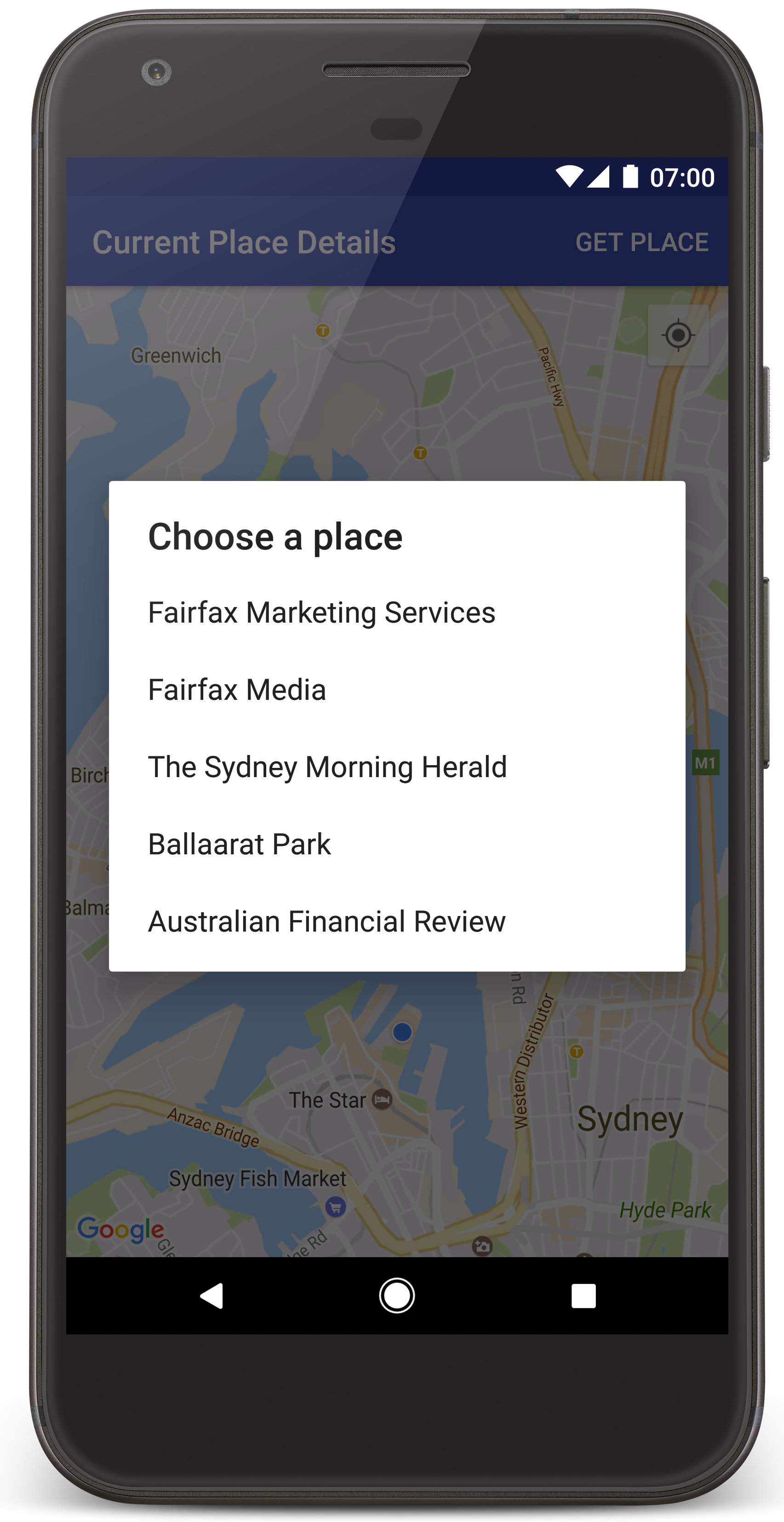
Android Studio invokes Gradle to build the app, and then runs the app on the device or on the emulator. You should see a map with a number of markers centered around your current location, similar to the image on this page.
- Select Get Place to open a list of places (a business or other point of interest) near your current location. To see the list of places, you must grant location permission when prompted.
- Select a place from the list. A marker is added to the map for the selected place.
Troubleshooting:
- If you don't see a map, check that you've obtained an API key and added it to the app, as described above. Check the log in Android Studio's Android Monitor for error messages about the API key.
- If the map shows just a single marker located on Sydney Harbour Bridge (the default location specified in the app), check that you've granted location permission to the app. The app prompts for location permission at run time, following the pattern described in the Android permissions guide. Note that you can also set permissions directly on the device, by choosing Settings > Apps > app name > Permissions > Location. For details on how to handle permissions in your code, see the guide below to requesting location permission in your app.
- Use the Android Studio debugging tools to view logs and debug the app.
Understand the code
This part of the tutorial explains the most significant parts of the CurrentPlaceDetailsOnMap app, to help you understand how to build a similar app.
Instantiate the Places API client
These objects are the primary entry points to the Places SDK for Android:
- The
Placesclass creates and manages clients for the Places SDK for Android. - The
PlacesClientinterface retrieves the current location of the device and the places near the location.
The LocationServices interface is the main entry point for Android location services.
To use the APIs, do the following in the
onCreate()
method of your fragment or activity:
- Initialize a
Placesobject. - Create a
PlacesClientobject. - Create a
FusedLocationProviderClientobject.
For example:
Java
@Override
protected void onCreate(Bundle savedInstanceState) {
    super.onCreate(savedInstanceState);

    // ...

    // Retrieve the content view that renders the map.
    setContentView(R.layout.activity_maps);

    // Construct a PlacesClient
    Places.initialize(getApplicationContext(), getString(R.string.maps_api_key));
    placesClient = Places.createClient(this);

    // Construct a FusedLocationProviderClient.
    fusedLocationProviderClient = LocationServices.getFusedLocationProviderClient(this);
}
Kotlin
override fun onCreate(savedInstanceState: Bundle?) {
    super.onCreate(savedInstanceState)

    // ...

    // Retrieve the content view that renders the map.
    setContentView(R.layout.activity_maps)

    // Construct a PlacesClient
    Places.initialize(applicationContext, getString(R.string.maps_api_key))
    placesClient = Places.createClient(this)

    // Construct a FusedLocationProviderClient.
    fusedLocationProviderClient = LocationServices.getFusedLocationProviderClient(this)

}
Request location permission
Your app must request location permission in order to determine the location of the device and to allow the user to tap the My Location button on the map.
This tutorial provides the code you need to request fine location permission. For more details, see the guide to Android permissions.
Add the permission as a child of the
<manifest>element in your Android manifest:<manifest xmlns:android="http://schemas.android.com/apk/res/android" package="com.example.currentplacedetailsonmap"> <uses-permission android:name="android.permission.ACCESS_FINE_LOCATION" /> </manifest>
Request runtime permissions in your app, giving the user the opportunity to allow or deny location permission. The following code checks whether the user has granted fine location permission. If not, it requests the permission:
Java
private void getLocationPermission() { /* * Request location permission, so that we can get the location of the * device. The result of the permission request is handled by a callback, * onRequestPermissionsResult. */ if (ContextCompat.checkSelfPermission( this.getApplicationContext(), android.Manifest.permission.ACCESS_FINE_LOCATION) == PackageManager.PERMISSION_GRANTED) { locationPermissionGranted = true; } else { ActivityCompat.requestPermissions( this, new String[] {android.Manifest.permission.ACCESS_FINE_LOCATION}, PERMISSIONS_REQUEST_ACCESS_FINE_LOCATION); } }
Kotlin
private fun getLocationPermission() { /* * Request location permission, so that we can get the location of the * device. The result of the permission request is handled by a callback, * onRequestPermissionsResult. */ if (ContextCompat.checkSelfPermission( this.applicationContext, Manifest.permission.ACCESS_FINE_LOCATION, ) == PackageManager.PERMISSION_GRANTED ) { locationPermissionGranted = true } else { ActivityCompat.requestPermissions( this, arrayOf(Manifest.permission.ACCESS_FINE_LOCATION), PERMISSIONS_REQUEST_ACCESS_FINE_LOCATION, ) } }
Override the
onRequestPermissionsResult()callback to handle the result of the permission request:Java
@Override public void onRequestPermissionsResult( int requestCode, @NonNull String[] permissions, @NonNull int[] grantResults) { locationPermissionGranted = false; if (requestCode == PERMISSIONS_REQUEST_ACCESS_FINE_LOCATION) { // If request is cancelled, the // result arrays are empty. if (grantResults.length > 0 && grantResults[0] == PackageManager.PERMISSION_GRANTED) { locationPermissionGranted = true; } } else { super.onRequestPermissionsResult(requestCode, permissions, grantResults); } updateLocationUI(); }
Kotlin
override fun onRequestPermissionsResult(requestCode: Int, permissions: Array<String>, grantResults: IntArray) { locationPermissionGranted = false when (requestCode) { PERMISSIONS_REQUEST_ACCESS_FINE_LOCATION -> { // If request is cancelled, the result arrays are empty. if (grantResults.isNotEmpty() && grantResults[0] == PackageManager.PERMISSION_GRANTED ) { locationPermissionGranted = true } } else -> super.onRequestPermissionsResult(requestCode, permissions, grantResults) } updateLocationUI() }
A later section of this tutorial describes the
updateLocationUI()method.
Add a map
Display a map, using the Maps SDK for Android.
Add a
<fragment>element to your activity's layout file,activity_maps.xml. This element defines aSupportMapFragmentto act as a container for the map and to provide access to theGoogleMapobject. The tutorial uses the Android support library version of the map fragment, to ensure backward compatibility with earlier versions of the Android framework.<!-- Copyright 2020 Google LLC Licensed under the Apache License, Version 2.0 (the "License"); you may not use this file except in compliance with the License. You may obtain a copy of the License at http://www.apache.org/licenses/LICENSE-2.0 Unless required by applicable law or agreed to in writing, software distributed under the License is distributed on an "AS IS" BASIS, WITHOUT WARRANTIES OR CONDITIONS OF ANY KIND, either express or implied. See the License for the specific language governing permissions and limitations under the License. --> <fragment xmlns:android="http://schemas.android.com/apk/res/android" xmlns:tools="http://schemas.android.com/tools" android:id="@+id/map" android:name="com.google.android.gms.maps.SupportMapFragment" android:layout_width="match_parent" android:layout_height="match_parent" tools:context="com.example.currentplacedetailsonmap.MapsActivityCurrentPlace" />
In your activity's
onCreate()method, set the layout file as the content view:Java
@Override protected void onCreate(Bundle savedInstanceState) { super.onCreate(savedInstanceState); // Retrieve the content view that renders the map. setContentView(R.layout.activity_maps); }
Kotlin
override fun onCreate(savedInstanceState: Bundle?) { super.onCreate(savedInstanceState) // Retrieve the content view that renders the map. setContentView(R.layout.activity_maps) }
Implement the
OnMapReadyCallbackinterface and override theonMapReady()method, to set up the map when theGoogleMapobject is available:Java
@Override public void onMapReady(GoogleMap map) { this.map = map; // ... // Turn on the My Location layer and the related control on the map. updateLocationUI(); // Get the current location of the device and set the position of the map. getDeviceLocation(); }
Kotlin
override fun onMapReady(map: GoogleMap) { this.map = map // ... // Turn on the My Location layer and the related control on the map. updateLocationUI() // Get the current location of the device and set the position of the map. getDeviceLocation() }
In your activity's
onCreate()method, get a handle to the map fragment by callingFragmentManager.findFragmentById(). Then usegetMapAsync()to register for the map callback:Java
SupportMapFragment mapFragment = (SupportMapFragment) getSupportFragmentManager().findFragmentById(R.id.map); mapFragment.getMapAsync(this);
Kotlin
val mapFragment = supportFragmentManager .findFragmentById(R.id.map) as SupportMapFragment? mapFragment?.getMapAsync(this)
Write an
updateLocationUI()method to set the location controls on the map. If the user has granted location permission, enable the My Location layer and the related control on the map, otherwise disable the layer and the control, and set the current location to null:Java
private void updateLocationUI() { if (map == null) { return; } try { if (locationPermissionGranted) { map.setMyLocationEnabled(true); map.getUiSettings().setMyLocationButtonEnabled(true); } else { map.setMyLocationEnabled(false); map.getUiSettings().setMyLocationButtonEnabled(false); lastKnownLocation = null; } } catch (SecurityException e) { Log.e("Exception: %s", e.getMessage()); } }
Kotlin
@SuppressLint("MissingPermission") private fun updateLocationUI() { if (map == null) { return } try { if (locationPermissionGranted) { map?.isMyLocationEnabled = true map?.uiSettings?.isMyLocationButtonEnabled = true } else { map?.isMyLocationEnabled = false map?.uiSettings?.isMyLocationButtonEnabled = false lastKnownLocation = null getLocationPermission() } } catch (e: SecurityException) { Log.e("Exception: %s", e.message, e) } }
Get the location of the Android device and position the map
Use the fused location provider to find the device's last-known location, then use that location to position the map. The tutorial provides the code you need. For more details on getting the device's location, see the guide to the fused location provider in the Google Play services location APIs.
Java
private void getDeviceLocation() { /* * Get the best and most recent location of the device, which may be null in rare * cases when a location is not available. */ try { if (locationPermissionGranted) { Task<Location> locationResult = fusedLocationProviderClient.getLastLocation(); locationResult.addOnCompleteListener( this, new OnCompleteListener<Location>() { @Override public void onComplete(@NonNull Task<Location> task) { if (task.isSuccessful()) { // Set the map's camera position to the current location of the // device. lastKnownLocation = task.getResult(); if (lastKnownLocation != null) { map.moveCamera( CameraUpdateFactory.newLatLngZoom( new LatLng( lastKnownLocation.getLatitude(), lastKnownLocation.getLongitude()), DEFAULT_ZOOM)); } } else { Log.d(TAG, "Current location is null. Using defaults."); Log.e(TAG, "Exception: %s", task.getException()); map.moveCamera( CameraUpdateFactory.newLatLngZoom( defaultLocation, DEFAULT_ZOOM)); map.getUiSettings().setMyLocationButtonEnabled(false); } } }); } } catch (SecurityException e) { Log.e("Exception: %s", e.getMessage(), e); } }
Kotlin
@SuppressLint("MissingPermission") private fun getDeviceLocation() { /* * Get the best and most recent location of the device, which may be null in rare * cases when a location is not available. */ try { if (locationPermissionGranted) { val locationResult = fusedLocationProviderClient.lastLocation locationResult.addOnCompleteListener(this) { task -> if (task.isSuccessful) { // Set the map's camera position to the current location of the device. lastKnownLocation = task.result if (lastKnownLocation != null) { map?.moveCamera( CameraUpdateFactory.newLatLngZoom( LatLng( lastKnownLocation!!.latitude, lastKnownLocation!!.longitude, ), DEFAULT_ZOOM.toFloat(), ), ) } } else { Log.d(TAG, "Current location is null. Using defaults.") Log.e(TAG, "Exception: %s", task.exception) map?.moveCamera( CameraUpdateFactory .newLatLngZoom(defaultLocation, DEFAULT_ZOOM.toFloat()), ) map?.uiSettings?.isMyLocationButtonEnabled = false } } } } catch (e: SecurityException) { Log.e("Exception: %s", e.message, e) } }
Get the current place
Use the Places SDK for Android to get a list of likely places at the device's current location. In this context, a place is a business or other point of interest.
This tutorial gets the current place when the user clicks a Get Place button. It offers the user a list of likely places to choose from, then adds a marker on the map at the location of the selected place. The tutorial provides the code you need to interact with the Places SDK for Android. For more details, see the guide to getting the current place.
- Create a layout file (
current_place_menu.xml) for the options menu, and override theonCreateOptionsMenu()method, to set up the options menu. See the accompanying sample app for the code. - Override the
onOptionsItemSelected()method to get the current place when the user clicks the Get Place option:Java
@Override public boolean onOptionsItemSelected(MenuItem item) { if (item.getItemId() == R.id.option_get_place) { showCurrentPlace(); } return true; }
Kotlin
override fun onOptionsItemSelected(item: MenuItem): Boolean { if (item.itemId == R.id.option_get_place) { showCurrentPlace() } return true }
Create a
showCurrentPlace()method to get a list of likely places at the device's current location:Java
private void showCurrentPlace() { if (map == null) { return; } // ... if (locationPermissionGranted) { // Use fields to define the data types to return. List<Place.Field> placeFields = Arrays.asList( Place.Field.DISPLAY_NAME, Place.Field.FORMATTED_ADDRESS, Place.Field.LOCATION); // Search around the device's last-known location, falling back to the center of the // map if the location is not available yet. LatLng center = lastKnownLocation != null ? new LatLng( lastKnownLocation.getLatitude(), lastKnownLocation.getLongitude()) : map.getCameraPosition().target; CircularBounds searchArea = CircularBounds.newInstance(center, SEARCH_RADIUS_METERS); // Use the builder to create a SearchNearbyRequest that returns the closest places // first. SearchNearbyRequest request = SearchNearbyRequest.builder(searchArea, placeFields) .setMaxResultCount(M_MAX_ENTRIES) .setRankPreference(SearchNearbyRequest.RankPreference.DISTANCE) .build(); // Get the likely places - that is, the businesses and other points of interest that // are closest to the device's current location. final Task<SearchNearbyResponse> placeResult = placesClient.searchNearby(request); placeResult.addOnCompleteListener( new OnCompleteListener<SearchNearbyResponse>() { @Override public void onComplete(@NonNull Task<SearchNearbyResponse> task) { if (task.isSuccessful() && task.getResult() != null) { List<Place> responsePlaces = task.getResult().getPlaces(); int count = Math.min(responsePlaces.size(), M_MAX_ENTRIES); List<PlaceItemUiModel> likelyPlaces = new ArrayList<>(); for (int i = 0; i < count; i++) { PlaceItemUiModel model = toUiModel(responsePlaces.get(i)); if (model != null) { likelyPlaces.add(model); } } // Show a dialog offering the user the list of likely places, and // add a marker at the selected place. MapsActivityCurrentPlace.this.openPlacesDialog(likelyPlaces); } else { Log.e(TAG, "Exception: %s", task.getException()); } } }); } else { // The user has not granted permission. Log.i(TAG, "The user did not grant location permission."); // Add a default marker, because the user hasn't selected a place. map.addMarker( new MarkerOptions() .title(getString(R.string.default_info_title)) .position(defaultLocation) .snippet(getString(R.string.default_info_snippet))); // Prompt the user for permission. getLocationPermission(); } }
Kotlin
private fun showCurrentPlace() { val map = map ?: return // ... if (locationPermissionGranted) { // Use fields to define the data types to return. val placeFields = listOf( Place.Field.DISPLAY_NAME, Place.Field.FORMATTED_ADDRESS, Place.Field.LOCATION, ) // Search around the device's last-known location, falling back to the center of // the map if the location is not available yet. val center = lastKnownLocation?.let { LatLng(it.latitude, it.longitude) } ?: map.cameraPosition.target val searchArea = CircularBounds.newInstance(center, SEARCH_RADIUS_METERS) // Use the builder to create a SearchNearbyRequest that returns the closest places // first. val request = SearchNearbyRequest.builder(searchArea, placeFields) .setMaxResultCount(M_MAX_ENTRIES) .setRankPreference(SearchNearbyRequest.RankPreference.DISTANCE) .build() // Get the likely places - that is, the businesses and other points of interest that // are closest to the device's current location. val placeResult = placesClient.searchNearby(request) placeResult.addOnCompleteListener { task -> if (task.isSuccessful && task.result != null) { val likelyPlaces = task.result.places .take(M_MAX_ENTRIES) .mapNotNull { it.toUiModel() } // Show a dialog offering the user the list of likely places, and add a // marker at the selected place. openPlacesDialog(likelyPlaces) } else { Log.e(TAG, "Exception: %s", task.exception) } } } else { // The user has not granted permission. Log.i(TAG, "The user did not grant location permission.") // Add a default marker, because the user hasn't selected a place. map.addMarker( MarkerOptions() .title(getString(R.string.default_info_title)) .position(defaultLocation) .snippet(getString(R.string.default_info_snippet)), ) // Prompt the user for permission. getLocationPermission() } }
Create an
openPlacesDialog()method to display a form allowing the user to select a place from a list of likely places. Add a marker on the map for the selected place. The marker content includes the name and address of the place, and any attributions that the API supplies:Java
void openPlacesDialog(List<PlaceItemUiModel> likelyPlaces) { // ... // Ask the user to choose the place where they are now. DialogInterface.OnClickListener listener = new DialogInterface.OnClickListener() { @Override public void onClick(DialogInterface dialog, int which) { // The "which" argument contains the position of the selected item. PlaceItemUiModel selectedPlace = likelyPlaces.get(which); // Add a marker for the selected place, with an info window // showing information about that place. map.addMarker( new MarkerOptions() .title(selectedPlace.title) .position(selectedPlace.position) .snippet(selectedPlace.snippet)); // Position the map's camera at the location of the marker. map.moveCamera( CameraUpdateFactory.newLatLngZoom( selectedPlace.position, DEFAULT_ZOOM)); } }; // Display the dialog. String[] titles = new String[likelyPlaces.size()]; for (int i = 0; i < likelyPlaces.size(); i++) { titles[i] = likelyPlaces.get(i).title; } new AlertDialog.Builder(this) .setTitle(R.string.pick_place) .setItems(titles, listener) .show(); }
Kotlin
internal fun openPlacesDialog(likelyPlaces: List<PlaceItemUiModel>) { // ... // Ask the user to choose the place where they are now. val listener = DialogInterface.OnClickListener { _, which -> // The "which" argument contains the position of the selected item. val selectedPlace = likelyPlaces[which] // Add a marker for the selected place, with an info window // showing information about that place. selectedMarker = map?.addMarker( MarkerOptions() .title(selectedPlace.title) .position(selectedPlace.position) .snippet(selectedPlace.snippet), ) // Position the map's camera at the location of the marker. map?.moveCamera( CameraUpdateFactory.newLatLngZoom( selectedPlace.position, DEFAULT_ZOOM.toFloat(), ), ) } // Display the dialog. val titles = likelyPlaces.map { it.title }.toTypedArray() AlertDialog.Builder(this) .setTitle(R.string.pick_place) .setItems(titles, listener) .show() }
Create a custom layout for the info window content. This makes it possible to display multiple lines of content in the info window. First, add an XML layout file,
custom_info_contents.xml, containing a text view for the info window title, and another text view for the snippet (that is, the info window's textual content):<?xml version="1.0" encoding="utf-8"?> <!-- Copyright 2020 Google LLC Licensed under the Apache License, Version 2.0 (the "License"); you may not use this file except in compliance with the License. You may obtain a copy of the License at http://www.apache.org/licenses/LICENSE-2.0 Unless required by applicable law or agreed to in writing, software distributed under the License is distributed on an "AS IS" BASIS, WITHOUT WARRANTIES OR CONDITIONS OF ANY KIND, either express or implied. See the License for the specific language governing permissions and limitations under the License. --> <LinearLayout xmlns:android="http://schemas.android.com/apk/res/android" android:layout_width="wrap_content" android:layout_height="wrap_content" android:layoutDirection="locale" android:orientation="vertical"> <TextView android:id="@+id/title" android:layout_width="wrap_content" android:layout_height="wrap_content" android:layout_gravity="center_horizontal" android:textColor="#ff000000" android:textStyle="bold" /> <TextView android:id="@+id/snippet" android:layout_width="wrap_content" android:layout_height="wrap_content" android:textColor="#ff7f7f7f" /> </LinearLayout>
Implement the
InfoWindowAdapterinterface to inflate the layout and load the info window content:Java
// Use a custom info window adapter to handle multiple lines of text in the // info window contents. this.map.setInfoWindowAdapter( new GoogleMap.InfoWindowAdapter() { @Override // Return null here, so that getInfoContents() is called next. public View getInfoWindow(Marker arg0) { return null; } @Override public View getInfoContents(Marker marker) { // Inflate the layouts for the info window, title and snippet. View infoWindow = getLayoutInflater() .inflate( R.layout.custom_info_contents, (FrameLayout) findViewById(R.id.map), false); TextView title = infoWindow.findViewById(R.id.title); title.setText(marker.getTitle()); TextView snippet = infoWindow.findViewById(R.id.snippet); snippet.setText(marker.getSnippet()); return infoWindow; } });
Kotlin
// Use a custom info window adapter to handle multiple lines of text in the // info window contents. this.map?.setInfoWindowAdapter(object : InfoWindowAdapter { // Return null here, so that getInfoContents() is called next. override fun getInfoWindow(arg0: Marker): View? = null override fun getInfoContents(marker: Marker): View { // Inflate the layouts for the info window, title and snippet. val infoWindow = layoutInflater.inflate( R.layout.custom_info_contents, findViewById<FrameLayout>(R.id.map), false, ) val title = infoWindow.findViewById<TextView>(R.id.title) title.text = marker.title val snippet = infoWindow.findViewById<TextView>(R.id.snippet) snippet.text = marker.snippet return infoWindow } })
Save the map's state
Save the map's camera position and the device location. When a user rotates an Android device, or makes configuration changes, the Android framework destroys and rebuilds the map activity. To ensure a smooth user experience, it's good to store relevant application state and restore it when needed.
This tutorial provides all the code you need to save the map's state. For
more details, see the guide to the
savedInstanceState
bundle.
In your map activity, set up key values for storing activity state:
Java
private static final String KEY_CAMERA_POSITION = "camera_position"; private static final String KEY_LOCATION = "location";
Kotlin
private const val KEY_CAMERA_POSITION = "camera_position" private const val KEY_LOCATION = "location"
Implement the
onSaveInstanceState()callback to save the state when the activity pauses:Java
@Override protected void onSaveInstanceState(Bundle outState) { if (map != null) { outState.putParcelable(KEY_CAMERA_POSITION, map.getCameraPosition()); outState.putParcelable(KEY_LOCATION, lastKnownLocation); } super.onSaveInstanceState(outState); }
Kotlin
override fun onSaveInstanceState(outState: Bundle) { map?.let { map -> outState.putParcelable(KEY_CAMERA_POSITION, map.cameraPosition) outState.putParcelable(KEY_LOCATION, lastKnownLocation) } super.onSaveInstanceState(outState) }
In your activity's
onCreate()method, retrieve the device's location and the map's camera position if previously saved:Java
// Retrieve location and camera position from saved instance state. if (savedInstanceState != null) { lastKnownLocation = savedInstanceState.getParcelable(KEY_LOCATION); cameraPosition = savedInstanceState.getParcelable(KEY_CAMERA_POSITION); }
Kotlin
if (savedInstanceState != null) { lastKnownLocation = savedInstanceState.getParcelable(KEY_LOCATION) cameraPosition = savedInstanceState.getParcelable(KEY_CAMERA_POSITION) }