Gemini Apps Developer Mode is an interactive, web-based debugging and evaluation workspace where you can inspect live tool execution, validate schemas, and simulate user context before submitting your connected app for review.
You can connect your Model Context Protocol (MCP) server to Developer Mode in two ways, depending on your workflow:
- Through the Google Connected Console: If you are onboarding your MCP server in the Google Connected Console, you can launch Developer Mode with your registered app already preselected.
- As a custom MCP app: If you want to prototype or debug a deployed HTTPS MCP server endpoint before registering it in the console, you can connect your server directly in Gemini as a custom MCP app.
Gemini Apps Developer Mode helps you complete the following tasks:
- Inspect live JSON-RPC request and response payloads, HTTP status codes, and execution latency in real time.
- Verify how Gemini parses your MCP tool schemas, parameter constraints, and safety annotations.
- Simulate user environment attributes—such as date, time, and language—and test client authentication flows.
To enter Gemini Apps Developer Mode in the Gemini web app, do the following:
- Open the Gemini app in your web browser.
- Click Settings > Gemini Apps Developer Mode (or go directly to gemini.google.com/devmode).
- In the Choose an app dialog, select your registered connected app (if it isn't already preselected), or click + Create new to connect an HTTPS MCP server endpoint as a custom MCP app. For complete setup instructions, see Enable Gemini Apps Developer Mode.
Split-pane workspace
When you enable Gemini Apps Developer Mode in Gemini Apps and select your custom MCP app, Gemini opens a split-pane workspace that's bound to your server endpoint. The top header bar displays the active app name and lets you switch between connected custom apps. You can reopen the Gemini Apps Developer Mode side panel from Settings > Gemini Apps Developer Mode at any time.
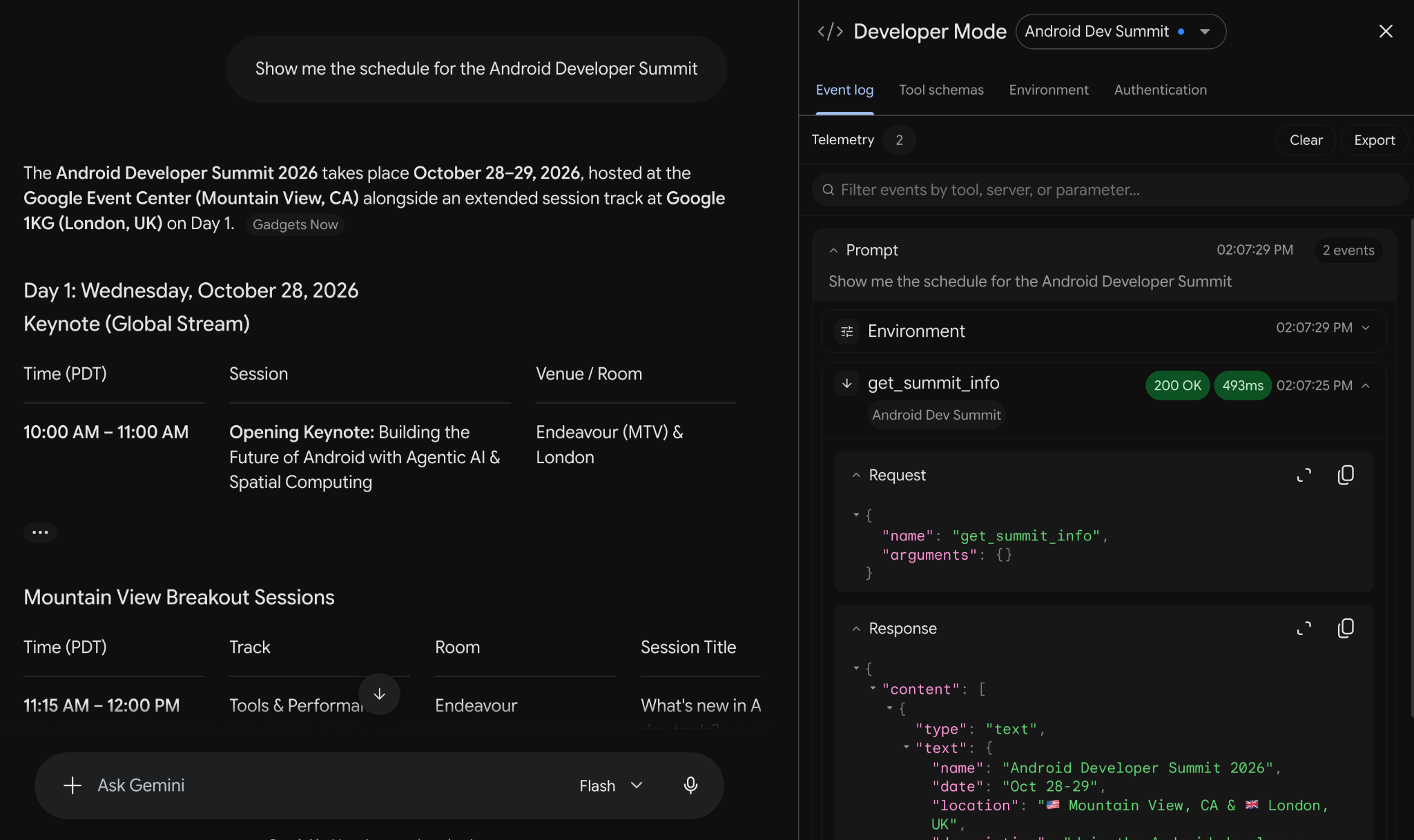
Gemini chat preview
The left pane simulates the Gemini client experience so you can test how end users interact with your connected app.
Inspector and telemetry tabs
The right pane provides four diagnostic and configuration tabs for inspecting and testing your MCP server:
- Event Log: Displays a chronological Telemetry stream of prompts, UI
interactions, outbound
Tool callrequests, and inboundTool resultresponses. Each event displays badges for the HTTP status code, execution latency in milliseconds, and payload size in kilobytes. You can expand an event to reveal the full prompt text and formatted JSON-RPC request and response payloads. You can use Clear and Export to manage session telemetry. - Tool Schemas: Lists the server instructions and all operations returned
by your server's
tools/listendpoint. You can filter tools using Filter tools, review safety and authentication badges (Read-only, Destructive, Auth-required), and expand any tool to inspect its parameter types, required fields, descriptions, Raw Schema JSON, and sample response structure. You can also click Sync schema to re-fetchtools/listfrom your MCP server without resetting your conversation history. - Environment: Provides Simulated Context controls to test context-dependent tool behavior without modifying your local machine. You can override Date and Time (Simulated Date and Simulated Time) and Preferences (Language), or click Reset to restore default values.
- Authentication: Configures how Gemini establishes client and user credentials with your MCP server under Dynamic Client Registration.
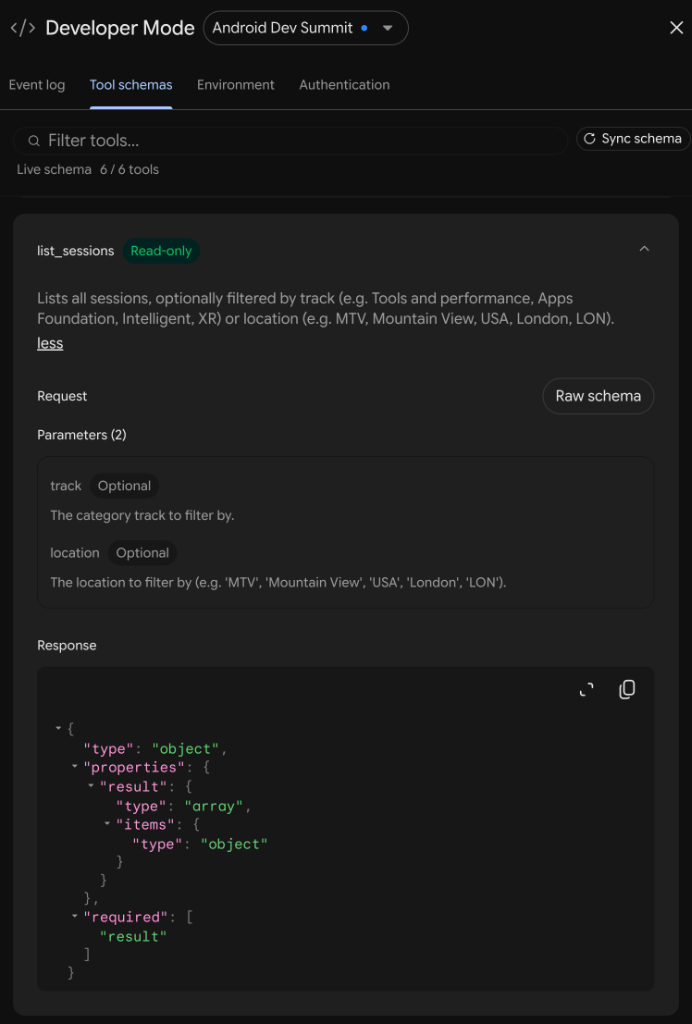
Safety annotations and tool chaining
Gemini evaluates your MCP tool annotations and the active conversation context
to determine when to prompt the user for confirmation before executing a tool.
During testing in Gemini Apps Developer Mode, you can verify that your tools
declare the appropriate readOnlyHint and destructiveHint annotations and
invoke confirmation cards when expected.