
Page Summary
-
Carriers actively manage agents on their network by approving or rejecting them before they can send traffic.
-
Agents have fluid statuses, starting in Pending, moving to Launched if approved, and can be Rejected, Suspended, Reactivated, or Terminated.
-
You can review agent launches in the RBM Administration Console by assessing branding, use case, and billing category.
-
Agents can be suspended temporarily for erratic behavior or policy breaches and then reactivated or permanently terminated.
As a carrier managing agents on your network, you control which agents can send messages to your users. You can approve, reject, suspend or hide agents based on your operational needs and policy compliance.
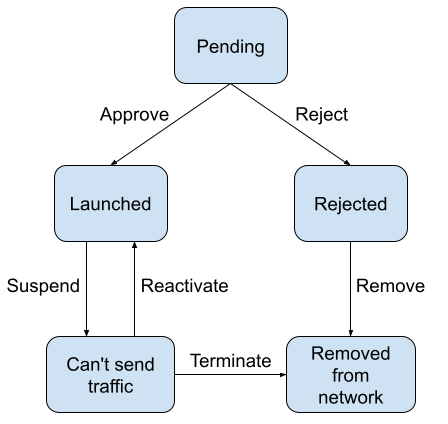
An agent's status on your network is dynamic. All agents begin in a Pending status and move through the lifecycle based on how you manage them. The following statuses are available:
- Pending: Agent is awaiting review before it can be launched on your network.
- Launched: Agent has been approved and can now send messages to end users.
- Rejected: Agent doesn't meet the review criteria and has been rejected. You can remove the agent from your network in the console.
- Suspended: Agent is temporarily blocked from sending traffic (for example, for behaving erratically, generating spam, or violating the policy). You can reactivate a suspended agent to return it to a Launched status.
Review agent launches
When you review an agent's launch request, you can either approve or reject it.
To review the agent before launch:
- Open the Administration Console and sign in with your RCS for Business Carrier Google Account.
- Select an agent with the Pending status.
- Review the agent's details against your launch criteria:
- Navigate to the Agent information page and check that the agent's branding aligns with your standards.
- Check that the agent's use case and billing category match the agent's intended behavior.
- Navigate to the Launch page and check the launch details to confirm all requirements are met.
- Check the Supporting documents section for partner-uploaded PDF documents that can provide additional context for the agent launch. Providing these documents is optional and not required to complete the verification process.
You can also view and change the agent status on the Overview page.
Approve an agent
When an agent meets your network's launch criteria, you can approve the agent launch. When approved, the agent can immediately start interacting with your end users.
To approve an agent for launch on your network:
- Open the Administration Console and sign in with your RCS for Business Carrier Google Account.
- In the Agents list, select your agent.
- On the Launch page, click Approve.
- Optional. In the confirmation dialog, enter a comment to provide context for the approval.
- Click Approve.
Reject an agent
If an agent doesn't meet your network's launch criteria, you can reject its launch. When you reject an agent, you must provide a reason. Google shares this reason with the agent owners.
If you reject an agent, you can reach out to the agent owners to try to fix the issues you identified.
- Find the agent's primary email on the Agent information page.
- Find the email for the individual who submitted the launch request in the agent's launch questionnaire.
If the issues can't be resolved, you can remove the agent from the Administration Console.
To reject an agent launch on your network:
- Open the Administration Console and sign in with your RCS for Business Carrier Google Account.
- In the Agents list, select your agent.
- On the Launch page, click Reject.
- Provide a reason for rejecting the agent.
- Click Reject.
Suspend an agent
When an agent behaves erratically or breaks a contract, you can suspend the agent to temporarily pause its traffic on your network. Suspending an agent gives you the opportunity to investigate its recent behavior and reach out to the agent owner.
To suspend an agent:
- Open the Administration Console and sign in with your RCS for Business Carrier Google Account.
- In the Agents list, select the agent you want to suspend.
- On the Launch page, click Suspend.
- Provide a reason for suspending the agent. Google shares this reason with the agent owner.
- Click Suspend.
Reactivate a suspended agent
When you or an agent owner resolve issues with a suspended agent, you can reactivate the agent to re-enable its traffic on your network. When you reactivate an agent, it can immediately start communicating with your end users.
To reactivate a suspended agent:
- Open the Administration Console and sign in with your RCS for Business Carrier Google Account.
- In the Agents list, select the suspended agent.
- On the Launch page, click Reactivate.
- In the confirmation dialog, click Reactivate.
View an agent's launch history
The Administration Console provides a record of the changes to an agent's launch status, including what the change was, who made it, and when.
- To view the most recent change to an agent's launch status, see Overview.
- For a detailed list of changes to an agent's launch status, see Agent history.
Hide or unhide agents
To maintain a clean and organized workspace, you can hide agents that are no longer in use on your network. Hiding an agent removes it from your primary list in the Administration Console.
Hiding is a visibility-only change. It only affects the view for your specific carrier and does not impact the agent's status for the partner or other carriers. You can unhide an agent at any time to restore its visibility.
To make sure that active agents are not accidentally removed from view, the following rules apply:
- Eligibility: You can only hide agents that are in an inactive state on your network: Suspended or Rejected.
- Restrictions: You cannot hide an agent if its launch status on your network is Launched or Pending. This option is disabled for these agents.
Hide an agent
You can hide a single agent from either the Agents list, the Overview page, or the Launch page in the Administration Console.
- Open the Administration Console.
Navigate to the agent you want to hide and click Hide.
- In the Agents list, the Hide agent icon appears when you hover over the agent row.
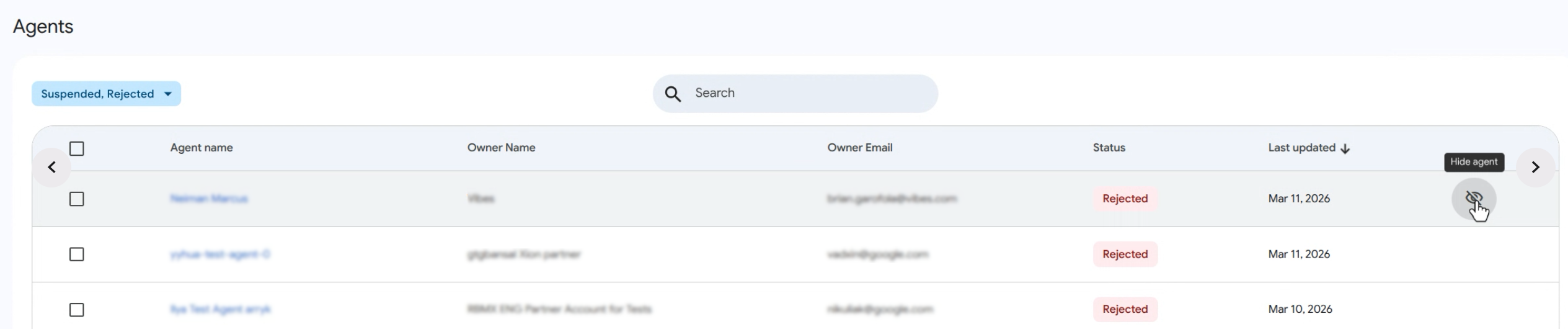
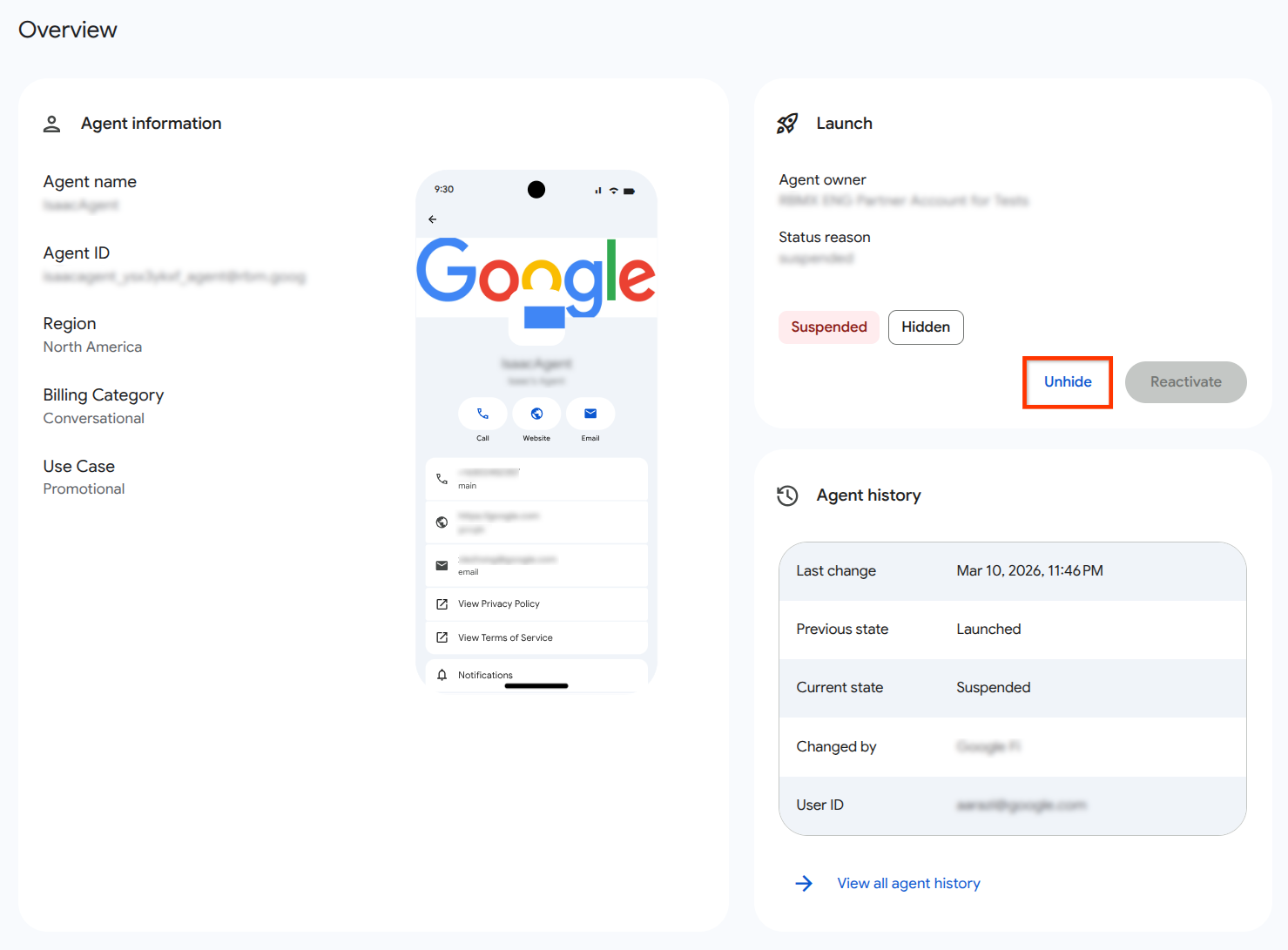
- On the Overview page, the Hide button is located in the Launch card.
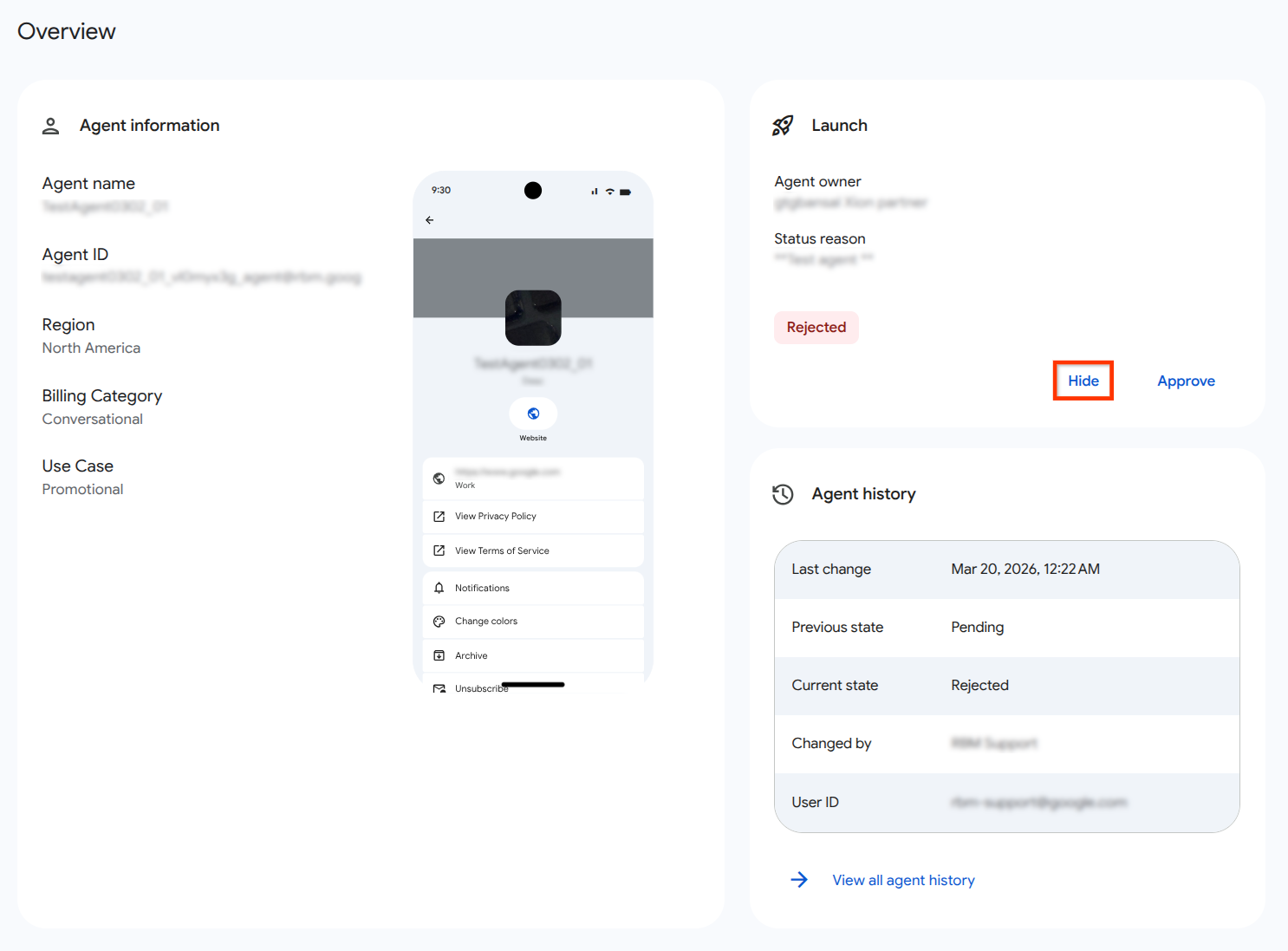
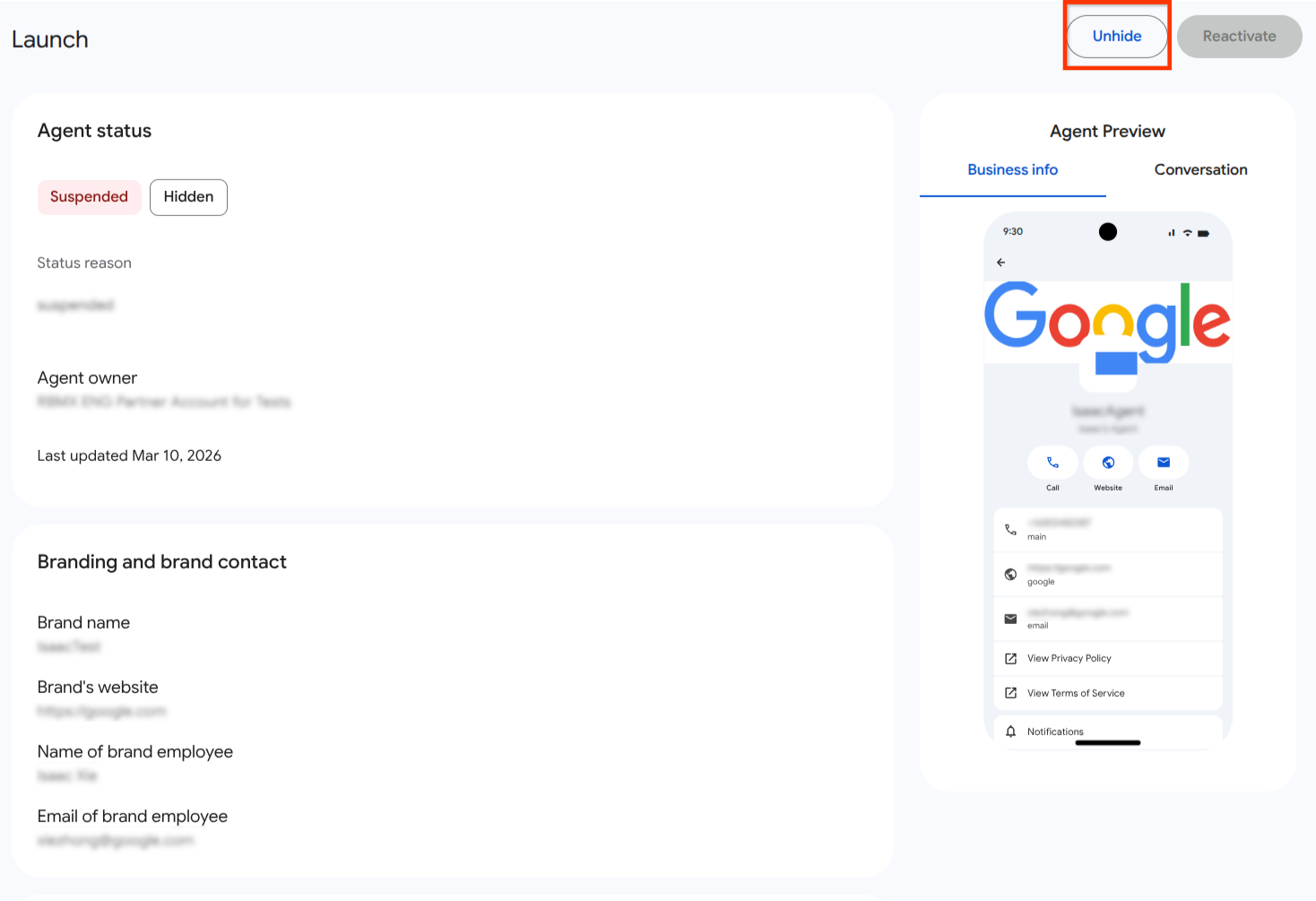
- On the Launch page, click the Hide button.
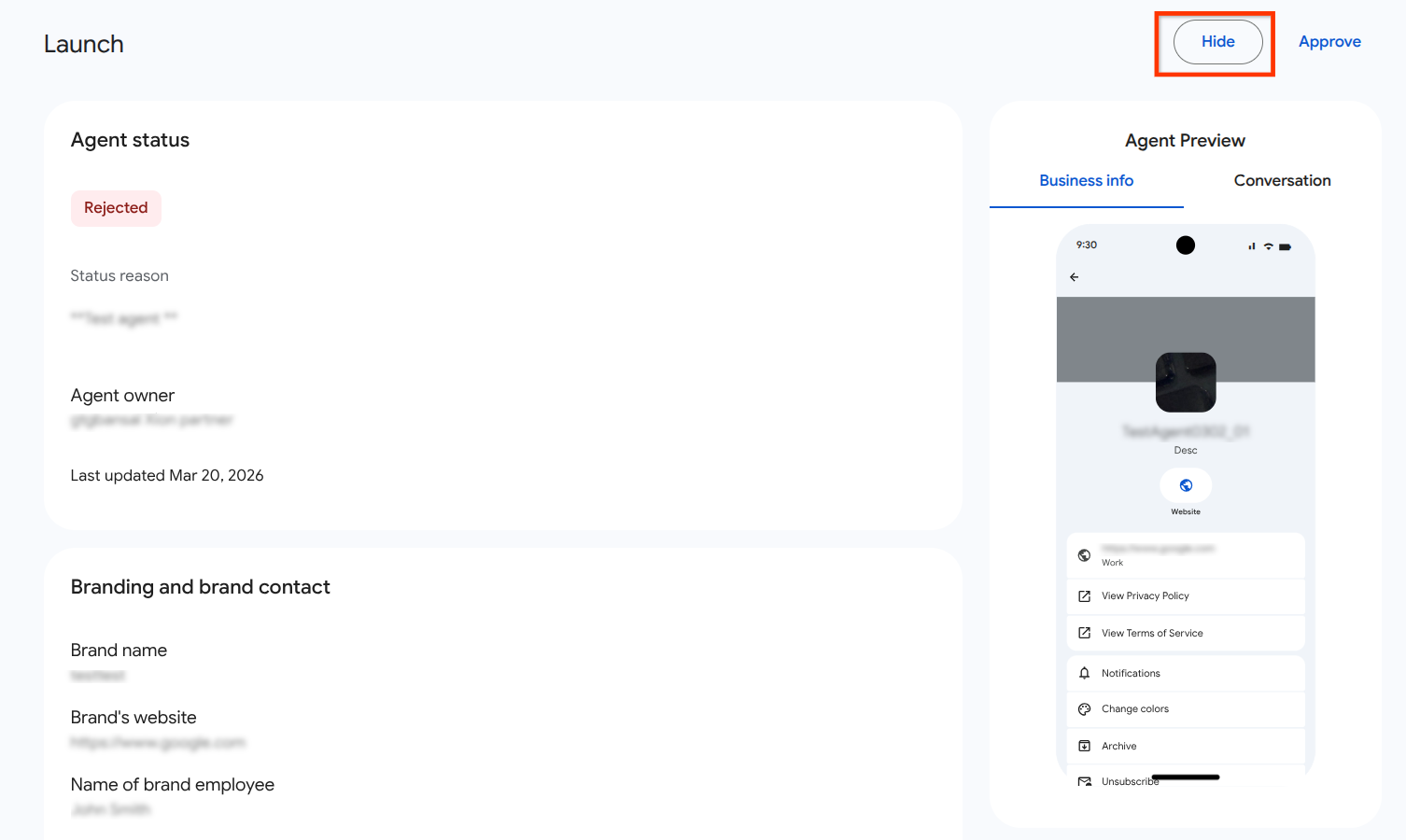
In the confirmation dialog, review the Hide agent? dialog.
Click Hide.
To see hidden agents, filter the agents table by the Hidden status.
Unhide an agent
You can unhide a single agent from either the Agents list, the Overview page, or the Launch page in the Administration Console.
Unhiding restores an agent to your primary agent list.
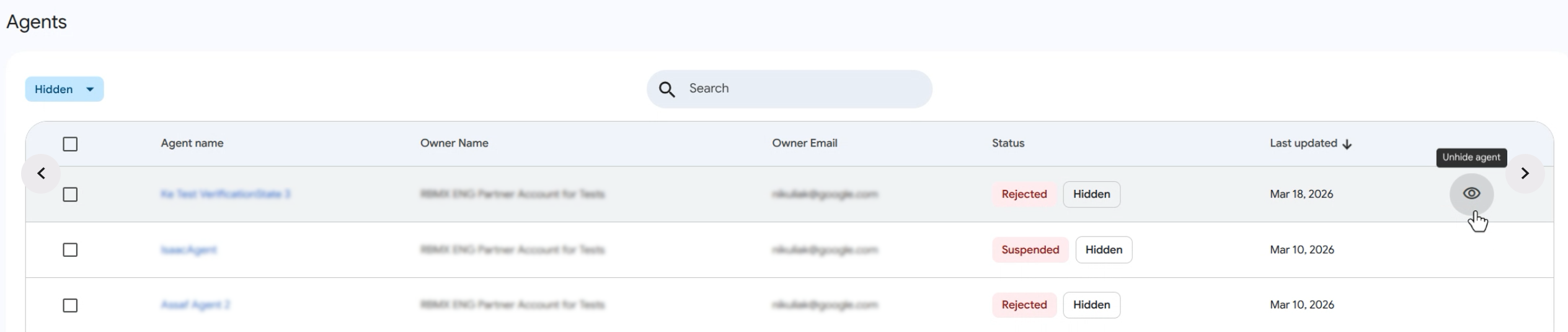
- In the Agents list, use the filter settings to select the Hidden agents.
Navigate to the agent you want to unhide and click Unhide.
- In the Agents list, click the Unhide agent icon that appears when you hover over the agent row.
- On the Overview page, click the Unhide button located on the Launch card.
- On the Launch page, click the Unhide button.
In the confirmation dialog, review the Unhide agent? dialog.
Click Unhide.
Bulk hide or unhide agents
To bulk hide agents, use the Agents list in the Administration Console.
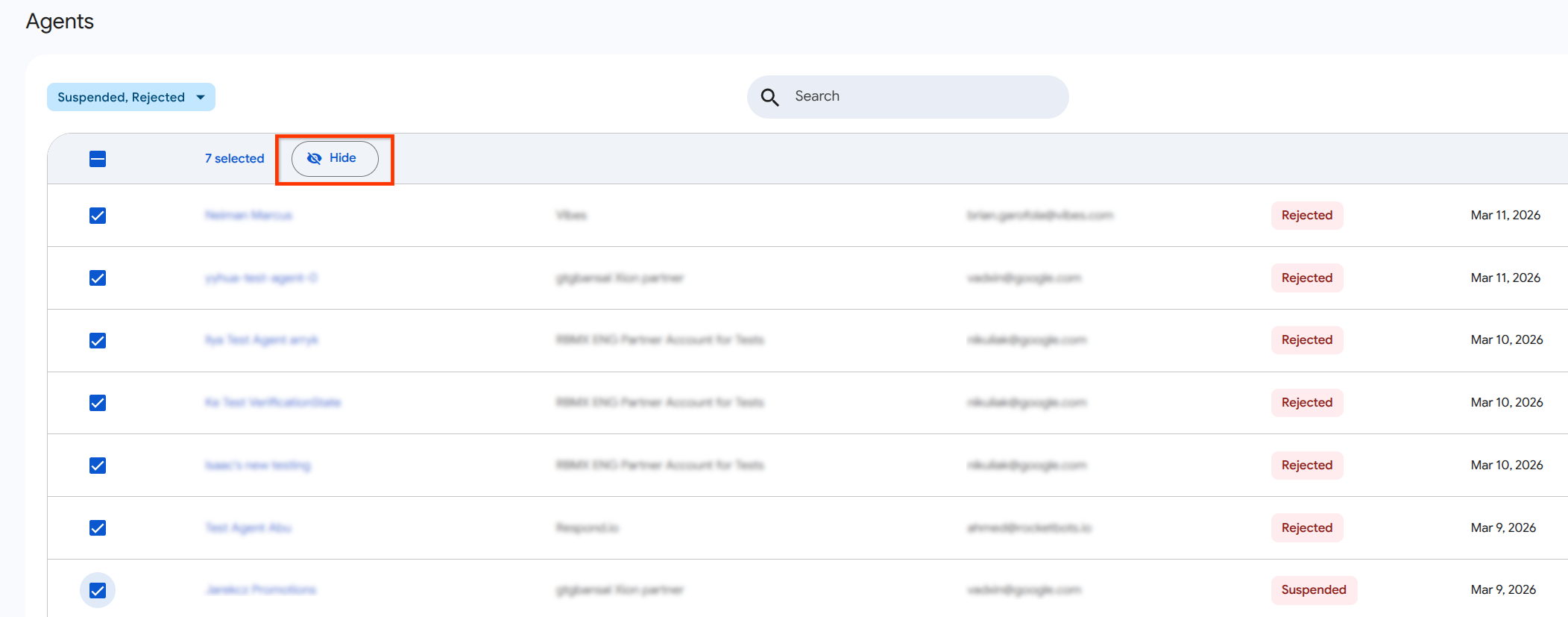
- In the Agents list, use the checkboxes to select the agents you want to modify.
- In the table header, click Hide.
- Confirm the action in the pop-up dialog.
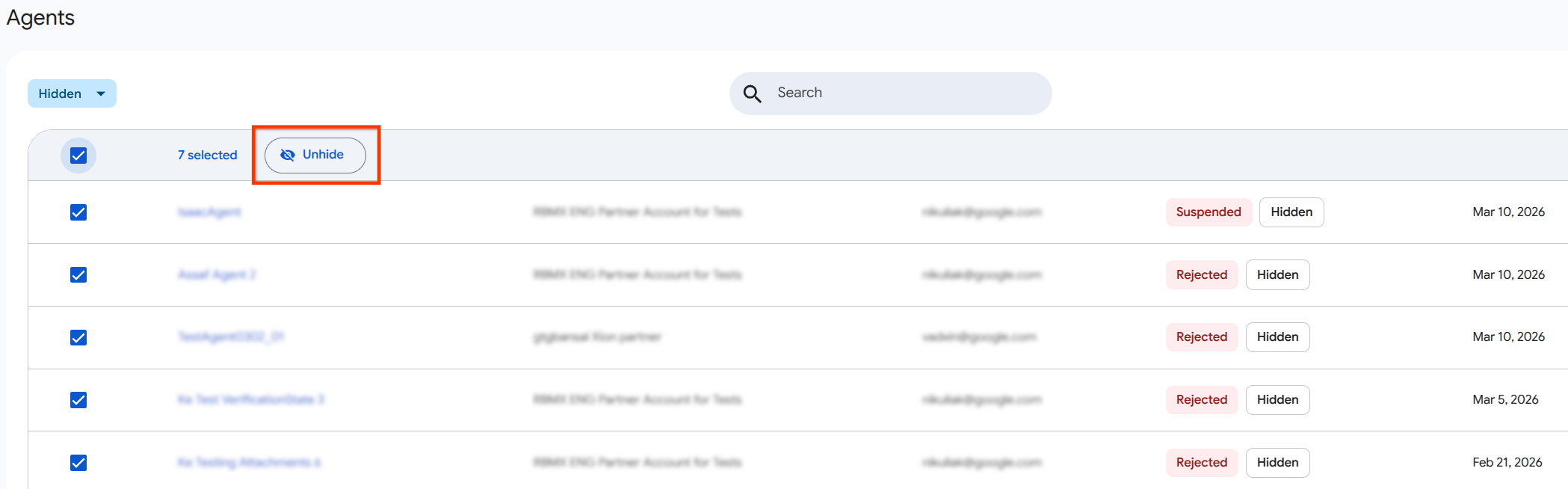
To bulk unhide agents, use the Agents list in the Administration Console.
- In the Agents list, filter the agents table by Hidden status.
- Use checkboxes to select the agents you want to modify.
- In the table header, click Unhide.
- Confirm your action in the dialog.
If any selected agents are ineligible for hiding (for example, they are Launched on your network), the Console will process the eligible agents and display an information dialog after the request finishes. This dialog contains
- Display names of agents that were successfully hidden
- Display names of agents that failed along with the specific reason for failure, for example, "Launched agents cannot be hidden".
Filtered views
By default, hidden agents are excluded from the main list. To include them in your results, filter the agents list by the Hidden status in the Console.