

OAuth 連結類型支援兩種業界標準 OAuth 2.0 流程,為隱含 及授權代碼流程
在隱式程式碼流程中,Google 會在使用者的瀏覽器中開啟您的授權端點。成功登入後,系統會將長期存取權杖傳回 Google。從現在起,每次透過 Google 助理傳送給您動作的要求中,都會包含這個存取權杖。
在授權碼流程中,您需要兩個端點:
- 授權端點,該端點負責將登入 UI 提供給未登入的使用者,並以簡碼授權代碼的形式,記錄使用者要求的存取權。
- 權杖交換端點,負責以下兩種交換類型:
- 交換長期更新權杖的授權碼和短期存取權杖。這項交換作業會在使用者完成帳戶連結流程時進行。
- 對短期存取權杖交換交換憑證。當 Google 需要新的存取權杖,因為更新權杖已過期時,就會發生此交換行為。
雖然隱含程式碼流程的實作方式較簡單,但 Google 建議使用隱含流程發布的存取權杖不會過期,因為若權杖與隱含流程搭配使用,就會強制使用者重新連結帳戶。如果基於安全考量而需要權杖過期,您應該考慮改用授權碼流程。
導入 OAuth 帳戶連結
設定專案
如要設定專案使用 OAuth 帳戶連結功能,請按照下列步驟操作:
- 開啟 Actions Console 並選取要使用的專案。
- 按一下「開發」分頁標籤,然後選擇「帳戶連結」。
- 啟用「帳戶連結」旁的切換鈕。
- 在「建立帳戶」部分中,選取「否,我只想允許在我的網站上建立帳戶」。
在「連結類型」中,選取「OAuth」OAuth和「隱含」OAuth。
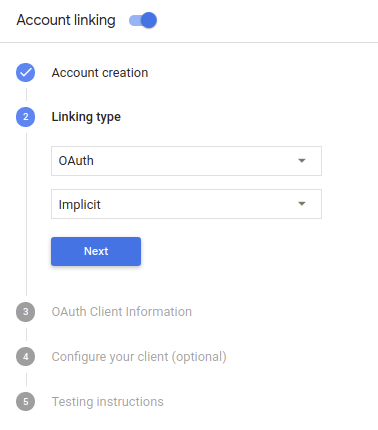
在「客戶資訊」中:
- 指派值給「Actions to Google」核發的用戶端 ID,用來識別用戶端 ID 以及來自 Google 的要求
- 插入授權和權杖交換端點的網址。
- 按一下 [儲存]。
實作 OAuth 伺服器
為支援 OAuth 2.0 隱含流程,您的服務會進行授權 並可透過 HTTPS 存取端點這個端點會負責驗證 徵得使用者同意,才能存取資料。授權端點 為使用者提供未登入並記錄登入的登入使用者介面 同意授予請求的存取權。
當您的動作需要呼叫服務的其中一個已授權 API 時,Google 會使用 以取得使用者授權,讓他們能在自己的
由 Google 發起的一般 OAuth 2.0 隱含流程工作階段,是 下列流程:
- Google 會在使用者的瀏覽器中開啟授權端點。 使用者登入後,並授權 Google 存取 並透過您的 API 取得資料。
- 您的服務會建立存取權杖,並傳回給 將使用者的瀏覽器重新導向回 Google,取得存取權杖 附加在要求中
- Google 會呼叫服務的 API,並將存取權杖附加至 每個要求您的服務會確認存取權杖是否已授予 Google 授權存取 API,然後完成 API 呼叫。
處理授權要求
當您的動作需要透過 OAuth2 隱含流程進行帳戶連結時, Google 會在要求中附加以下內容,將使用者傳送到您的授權端點 分別是
| 授權端點參數 | |
|---|---|
client_id |
您指派給 Google 的用戶端 ID。 |
redirect_uri |
您傳送回應到這項要求的網址。 |
state |
傳回給 Google 的記帳金額,值維持不變 重新導向 URI |
response_type |
要在回應中傳回的值類型。以 OAuth 2.0 隱含
回應類型則一律為 token。 |
舉例來說,如果您的授權端點位於 https://myservice.example.com/auth,
要求看起來可能像這樣:
GET https://myservice.example.com/auth?client_id=GOOGLE_CLIENT_ID&redirect_uri=REDIRECT_URI&state=STATE_STRING&response_type=token
如要讓授權端點處理登入要求,請按照下列步驟操作:
確認
client_id和redirect_uri的值如下: 防止授予非預期或設定錯誤的用戶端應用程式存取權:- 確認
client_id與您用戶端 ID 相符 而是指派給 Google - 確認
redirect_uri指定的網址 參數的格式如下:https://oauth-redirect.googleusercontent.com/r/YOUR_PROJECT_ID
- 確認
檢查使用者是否已登入您的服務。如果使用者未簽署 的登入或申請流程。
產生 Google 將用來存取您的 API 的存取權杖。 存取權杖可以是任何字串值,但必須明確代表 以及該權杖適用的用戶端,且不可猜測。
傳送 HTTP 回應,將使用者的瀏覽器重新導向至網址 由
redirect_uri參數指定。包含所有 網址片段中的下列參數:access_token:您剛剛產生的存取權杖token_type:字串bearerstate:原始資料中未經修改的狀態值 要求 以下是最終網址的範例:https://oauth-redirect.googleusercontent.com/r/YOUR_PROJECT_ID#access_token=ACCESS_TOKEN&token_type=bearer&state=STATE_STRING
Google 的 OAuth 2.0 重新導向處理常式將收到存取權杖並確認
state 值未變更。Google 取得
服務的存取權杖,Google 會在後續的呼叫中附加該權杖
作為 AppRequest 的一部分動作。
啟動驗證流程
使用帳戶登入輔助意圖 以啟動驗證流程下列程式碼片段說明如何 在 Dialogflow 和 Actions SDK 中傳送回覆,即可使用這個輔助程式。
Dialogflow:
const {dialogflow, SignIn} = require('actions-on-google');
const app = dialogflow({
  // REPLACE THE PLACEHOLDER WITH THE CLIENT_ID OF YOUR ACTIONS PROJECT
  clientId: CLIENT_ID,
});
// Intent that starts the account linking flow.
app.intent('Start Signin', (conv) => {
  conv.ask(new SignIn('To get your account details'));
});
@ForIntent("Start Signin")
public ActionResponse text(ActionRequest request) {
  ResponseBuilder rb = getResponseBuilder(request);
  return rb.add(new SignIn().setContext("To get your account details")).build();
}
{
  "payload": {
    "google": {
      "expectUserResponse": true,
      "richResponse": {
        "items": [
          {
            "simpleResponse": {
              "textToSpeech": "PLACEHOLDER"
            }
          }
        ]
      },
      "userStorage": "{\"data\":{}}",
      "systemIntent": {
        "intent": "actions.intent.SIGN_IN",
        "data": {
          "@type": "type.googleapis.com/google.actions.v2.SignInValueSpec",
          "optContext": "To get your account details"
        }
      }
    }
  },
  "outputContexts": [
    {
      "name": "/contexts/_actions_on_google",
      "lifespanCount": 99,
      "parameters": {
        "data": "{}"
      }
    }
  ]
}
Actions SDK:
const {actionssdk, SignIn} = require('actions-on-google');
const app = actionssdk({
  // REPLACE THE PLACEHOLDER WITH THE CLIENT_ID OF YOUR ACTIONS PROJECT
  clientId: CLIENT_ID,
});
// Intent that starts the account linking flow.
app.intent('actions.intent.TEXT', (conv) => {
  conv.ask(new SignIn('To get your account details'));
});
@ForIntent("actions.intent.TEXT")
public ActionResponse text(ActionRequest request) {
  ResponseBuilder rb = getResponseBuilder(request);
  return rb.add(new SignIn().setContext("To get your account details")).build();
}
{
  "expectUserResponse": true,
  "expectedInputs": [
    {
      "inputPrompt": {
        "richInitialPrompt": {
          "items": [
            {
              "simpleResponse": {
                "textToSpeech": "PLACEHOLDER"
              }
            }
          ]
        }
      },
      "possibleIntents": [
        {
          "intent": "actions.intent.SIGN_IN",
          "inputValueData": {
            "@type": "type.googleapis.com/google.actions.v2.SignInValueSpec",
            "optContext": "To get your account details"
          }
        }
      ]
    }
  ],
  "conversationToken": "{\"data\":{}}",
  "userStorage": "{\"data\":{}}"
}
處理資料存取要求
如果 Google 助理要求包含存取權杖, 請先檢查存取權杖是否有效 (且尚未過期),然後從資料庫擷取相關聯的使用者帳戶。