This guide shows you how to use Google Mobile Ads SDK for React Native to load and display ads from Moloco Ads SDK using mediation, covering bidding integrations. It covers how to add Moloco Ads SDK to an ad unit's mediation configuration, and how to integrate the Moloco Ads SDK SDK and adapter into a React Native app.
Supported integrations and ad formats
The AdMob mediation adapter for Moloco Ads SDK has the following capabilities:
| Integration | |
|---|---|
| Bidding | |
| Waterfall | |
| Formats | |
| App Open | |
| Banner | |
| Interstitial | |
| Rewarded | |
| Rewarded Interstitial | |
Prerequisites
Before you continue, verify the following:
- Latest Google Mobile Ads SDK for React Native version.
- React Native framework version 0.85.0 or later.
- To deploy on Android
- Android API level 24 or later.
- To deploy on iOS
- iOS deployment target of 13.0 or later.
- A working React Native project configured with Google Mobile Ads SDK for React Native. See Set up
Google Mobile Ads SDK for React Native for details.
- Make sure you have downloaded and extracted the
adaptersfolder from thegma-sdk-react-nativefolder. If you don't have theadaptersfolder, follow steps one, two, and three in Install Google Mobile Ads SDK for React Native.
- Make sure you have downloaded and extracted the
- Set up AdMob Mediation.
Step 1: Set up configurations in Moloco Ads SDK UI
Log in to the Moloco Publisher Portal.
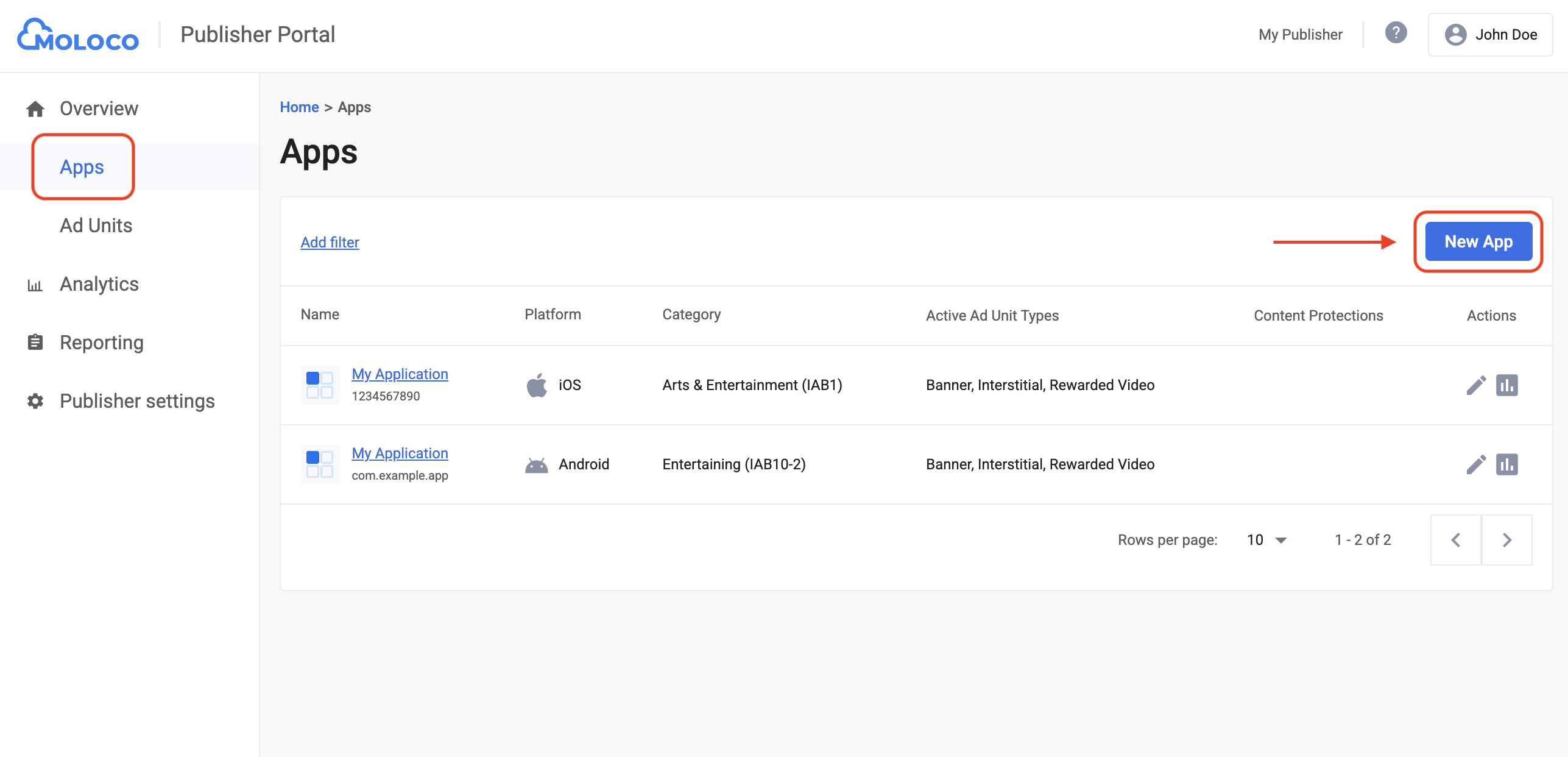
Navigate to Overview > Apps tab, then click the Add App button to create a new app.
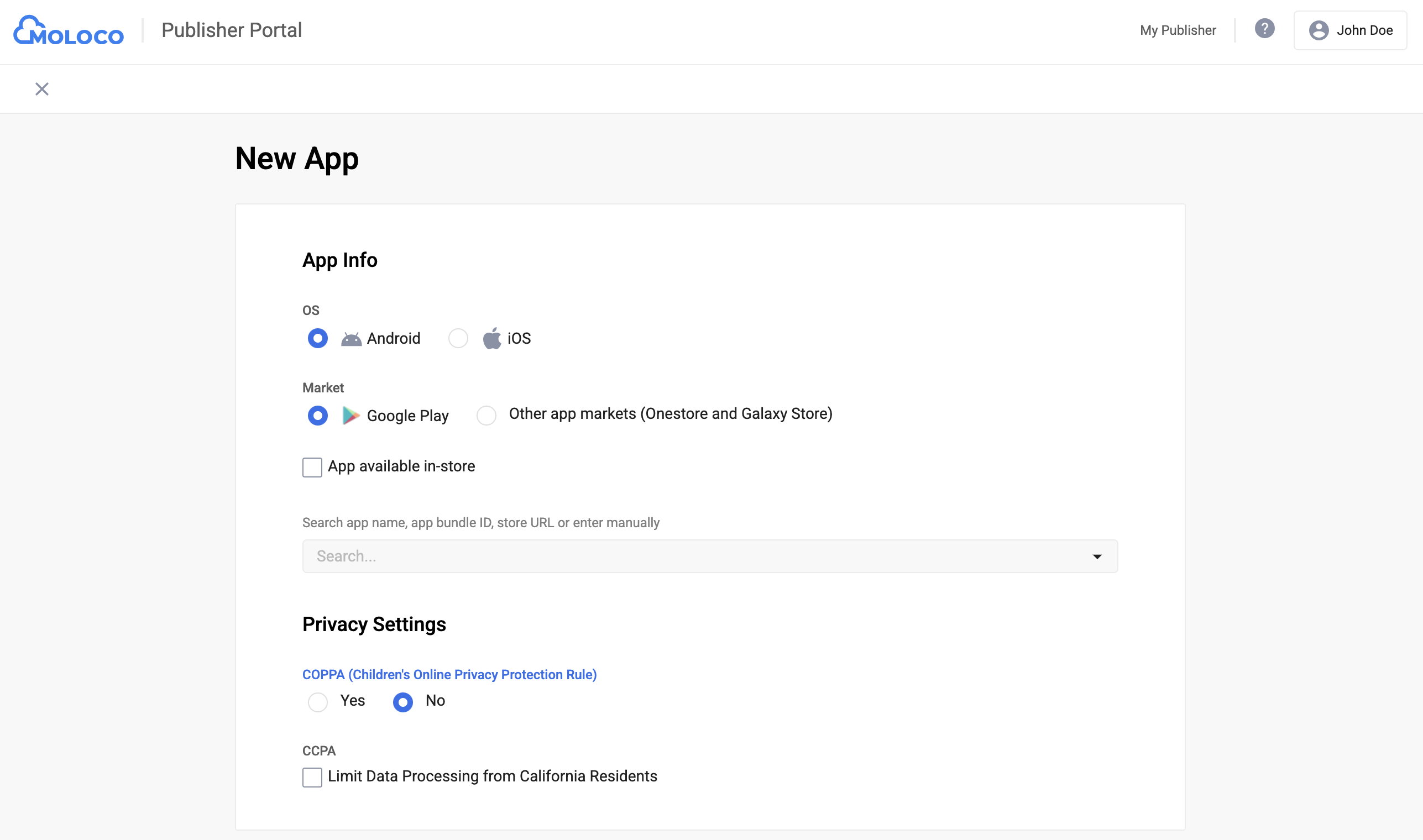
Select the OS and Privacy Settings for your app, fill out the rest of the form, and then click Create.
Android
iOS

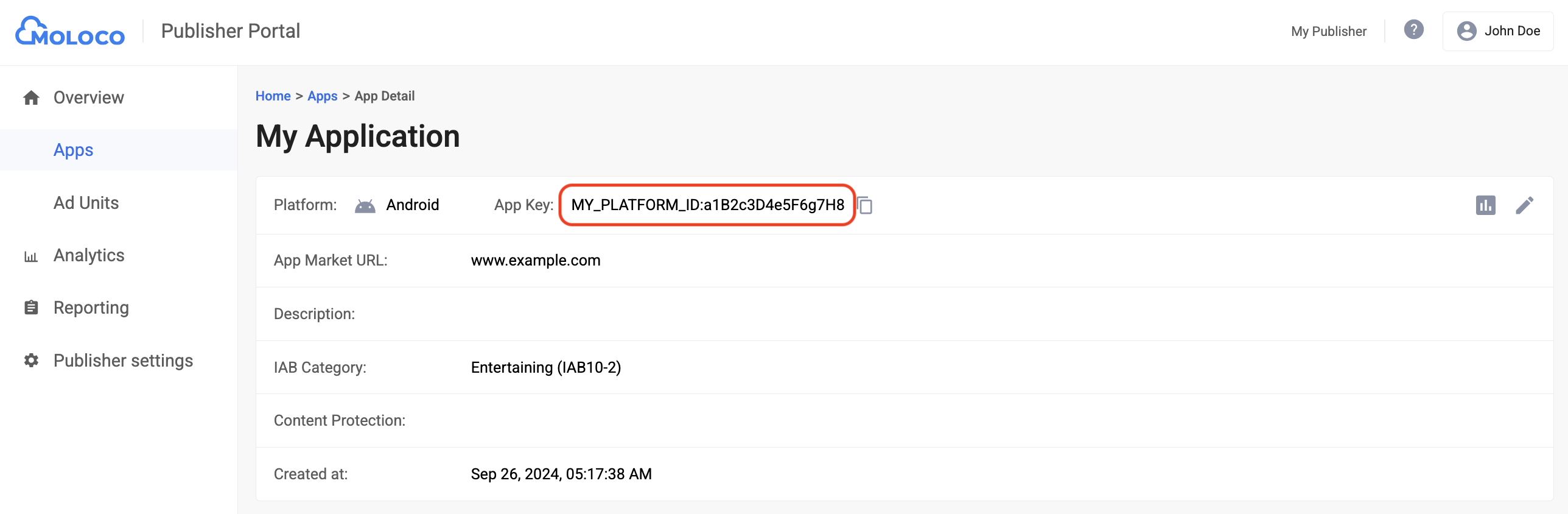
Once your app is created, select it from the Apps tab to view the details and take note of the App Key.
Android
iOS

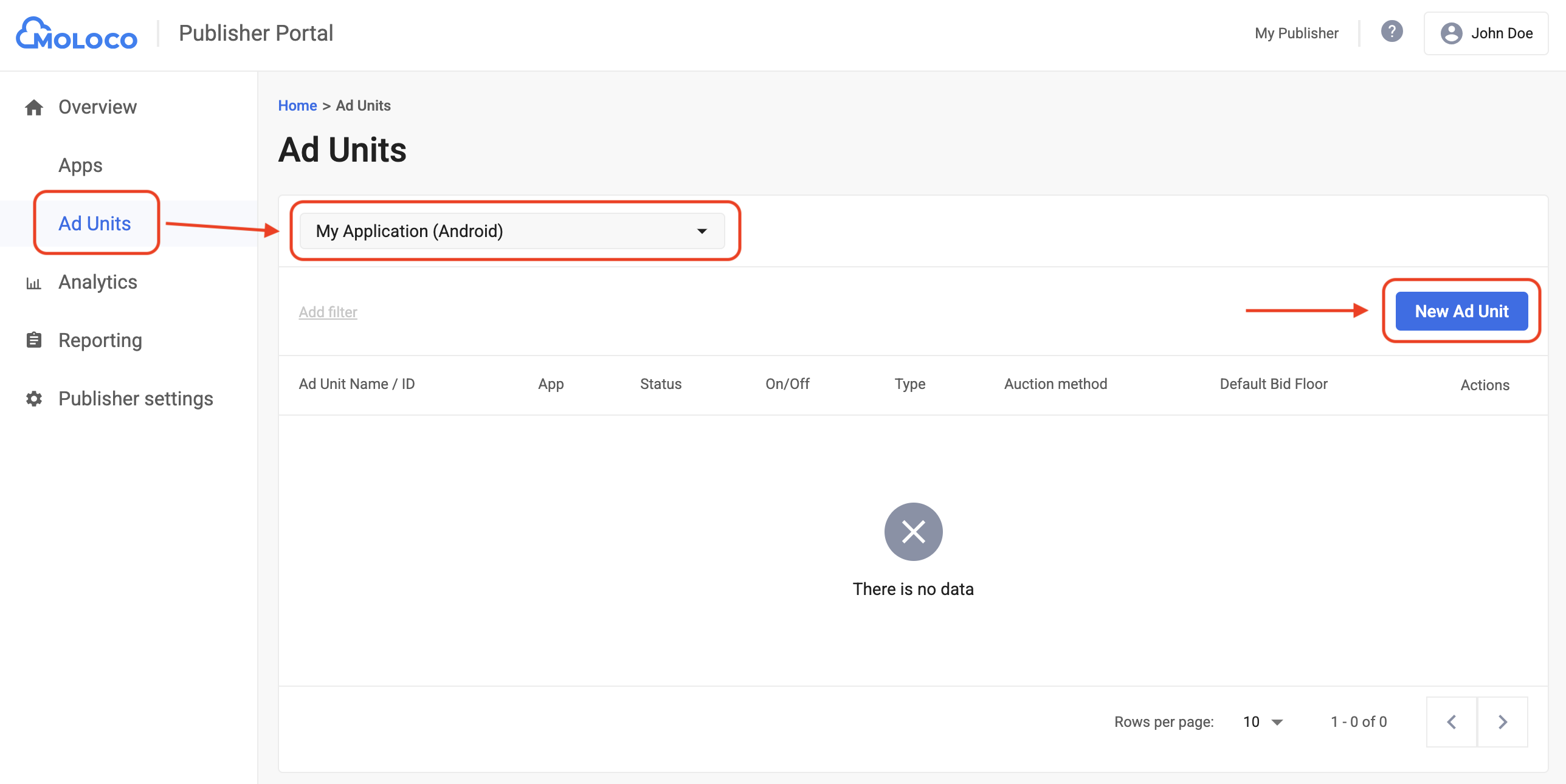
Navigate to the Overview > Ad Units tab, select the app from the drop-down menu, and then click New Ad Unit.
Select In-app bidding as the Auction method and fill out the rest of the form. Then, click Create.
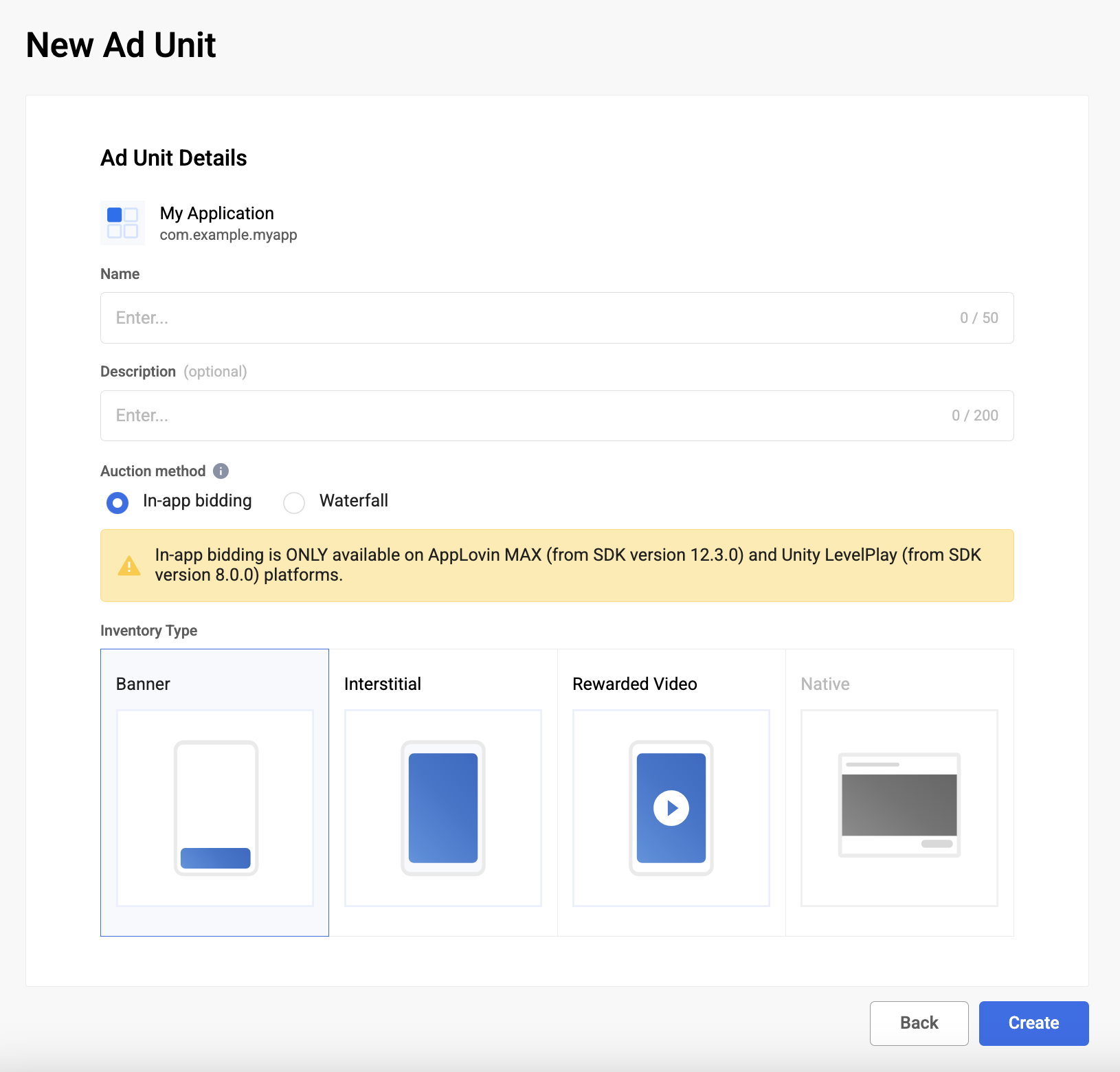
Navigate to your newly created ad unit under the Ad Units tab to view its details. Take note of the Ad Unit ID.

Step 2: Set up Moloco Ads SDK demand in AdMob UI
Configure mediation settings for your ad unit
Android
For instructions, see step 2 in the guide for Android.
iOS
For instructions, see step 2 in the guide for iOS.
Add Moloco Ads to GDPR and US state regulations ad partners list
Follow the steps in European regulations settings and US state regulations settings to add Moloco Ads to the European and US state regulations ad partners list in the AdMob UI.
Step 3: Import the Moloco Ads SDK SDK and adapter
In your project's root directory, install the Google Mobile Ads SDK for React Native mediation adapter for Moloco Ads SDK. Complete the following:
Copy the Google Mobile Ads SDK for React Native adapter tar file from the
gma-sdk-react-native/adapters/moloco/directory into your project'slocal_packages/directory. If you don't have theadaptersfolder, see Prerequisites.mkdir -p local_packages cp EXTRACT_DIR/gma-sdk-react-native/adapters/moloco/gma-mediation-moloco-0.1.0.tgz local_packages/Replace EXTRACT_DIR with the path to the directory where you extracted the archive.
Install the adapter package using your preferred package manager:
npm
npm install ./local_packages/gma-mediation-moloco-0.1.0.tgzyarn
yarn add ./local_packages/gma-mediation-moloco-0.1.0.tgz
Step 4: Implement privacy settings on Moloco SDK
EU consent and GDPR
To comply with the Google EU User Consent Policy, you must make certain disclosures to your users in the European Economic Area (EEA), the UK, and Switzerland, and obtain their consent for the use of cookies or other local storage where legally required, and for the collection, sharing, and use of personal data for ads personalization. This policy reflects the requirements of the EU ePrivacy Directive and the General Data Protection Regulation (GDPR). You are responsible for verifying that consent is propagated to each ad source in your mediation chain.
Moloco Ads SDK React Native adapter version
0.1.0
and later supports passing GDPR consent signals from consent management
platforms that integrate with IAB's Transparency and Consent Framework (TCF)
to Moloco Ads SDK SDK.
For more information, see
MolocoPrivacy documentation
for Android and
TCF Consent String
for iOS.
US states privacy laws
US states privacy laws require giving users the right to opt out of the "sale" of their "personal information" (as the law defines those terms), with the opt-out offered through a prominent "Do Not Sell My Personal Information" link on the "selling" party's homepage. The US states privacy laws compliance guide offers the ability to enable restricted data processing for Google ad serving, but Google is unable to apply this setting to each ad network in your mediation chain. Therefore, you must identify each ad network in your mediation chain that may participate in the sale of personal information and follow guidance from each of those networks to ensure compliance.
The Google Mobile Ads Unity mediation plugin for
Moloco Ads SDK includes the
Moloco.SetDoNotSell(bool) method to pass consent information to the
Moloco Ads SDK SDK. The following sample code
shows how to pass this consent information to the
Moloco Ads SDK SDK. If you choose to set
these flags, it is recommended that you do so prior to requesting ads through
Google Mobile Ads SDK for React Native.
import { MolocoMediation } from '@google/gma-mediation-moloco';
// ...

MolocoMediation.setDoNotSell(true);
See Moloco Ads SDK's recommended implementation instructions for Android and iOS for more details.
Step 5: Add required code
No additional code is required for Moloco Ads SDK integration.
Step 6: Test your implementation
Enable test ads
Make sure you register your test device for AdMob.
Verify test ads
To verify that you are receiving test ads from Moloco Ads SDK, enable single ad source testing in ad inspector using the Moloco (Bidding) ad source(s).
Error codes
If the adapter fails to receive an ad from Moloco, publishers can check the
underlying error from the ad response using ResponseInfo under the following classes:
Android
com.moloco.sdk
com.google.ads.mediation.moloco.MolocoMediationAdapter
iOS
MolocoSDK.MolocoError
GADMediationAdapterMoloco
Here are the codes and accompanying messages thrown by the Moloco adapter when an ad fails to load:
Android
| Error code | Domain | Reason |
|---|---|---|
| 101 | com.google.ads.mediation.moloco | Missing or invalid Moloco App Key. |
| 102 | com.google.ads.mediation.moloco | Missing or invalid Moloco Ad unit ID. |
| 103 | com.google.ads.mediation.moloco | Moloco ad object returned was null. |
| 104 | com.google.ads.mediation.moloco | Moloco SDK failed to initialize. |
| -1 to 5000 | com.moloco.sdk | Moloco SDK returned an error. See Moloco's documentation for more details. |
iOS
| Error code | Domain | Reason |
|---|---|---|
| 101 | com.google.ads.mediation.moloco | Moloco SDK does not support serving ads on iOS 12 and below. |
| 102 | com.google.ads.mediation.moloco | Missing or invalid Moloco App Key. |
| 103 | com.google.ads.mediation.moloco | Missing or invalid Moloco Ad unit ID. |
| 104 | com.google.ads.mediation.moloco | Ad is not ready to be shown. |
| 105 | com.google.ads.mediation.moloco | Ad failed to show. |
| 106 | com.google.ads.mediation.moloco | Rendering data not available to render the ad. |
| -1 to 5000 | Sent by Moloco SDK | Moloco SDK returned an error. See Moloco's documentation for more details. |
Version 0.1.0
- Initial release.
- Supports Moloco Android adapter version 4.12.0.1.
- Supports Moloco iOS adapter version 4.10.0.0.
- Built and tested with the Google Mobile Ads React Native Plugin version 0.1.0.