Enable test ads during development to test click behavior on ads without charging Google advertisers. If you click many ads in production mode, your account might be flagged for invalid activity.
You can get test ads in the following ways:
- Use one of the test ad units.
- Use your own ad unit and enable test devices.
This guide explains how to enable test ads in your ads integration.
Prerequisites
Before you continue, set up Google Mobile Ads SDK for React Native.
Use test ad unit IDs
To test your integration, use test ad unit IDs. These test ad unit IDs let you test all ad formats without using your ad unit IDs.
The following table lists the test ad units for each ad format:
Android
| Ad format | Test ad unit ID |
|---|---|
| App Open | ca-app-pub-3940256099942544/9257395921 |
| Banner (Anchored Adaptive) | ca-app-pub-3940256099942544/9214589741 |
| Banner (Inline Adaptive) | ca-app-pub-3940256099942544/9214589741 |
| Banner (Fixed Size) | ca-app-pub-3940256099942544/6300978111 |
| Interstitial | ca-app-pub-3940256099942544/1033173712 |
| Rewarded Ads | ca-app-pub-3940256099942544/5224354917 |
| Rewarded Interstitial | ca-app-pub-3940256099942544/5354046379 |
| Native | ca-app-pub-3940256099942544/2247696110 |
| Native Video | ca-app-pub-3940256099942544/1044960115 |
iOS
| Ad format | Test ad unit ID |
|---|---|
| App Open | ca-app-pub-3940256099942544/5575463023 |
| Banner (Anchored Adaptive) | ca-app-pub-3940256099942544/2435281174 |
| Banner (Inline Adaptive) | ca-app-pub-3940256099942544/2435281174 |
| Banner (Fixed Size) | ca-app-pub-3940256099942544/2934735716 |
| Interstitial | ca-app-pub-3940256099942544/4411468910 |
| Rewarded Ads | ca-app-pub-3940256099942544/1712485313 |
| Rewarded Interstitial | ca-app-pub-3940256099942544/6978759866 |
| Native | ca-app-pub-3940256099942544/3986624511 |
| Native Video | ca-app-pub-3940256099942544/2521693316 |
Enable test devices
If you want to test ads in your app as you're developing, configure your device as a test device. Use your ad unit IDs that you've created in AdMob.
Add a test device in the AdMob UI
To add a test device and test ads in your app builds non-programmatically, use the AdMob UI. For details, see Add a test device.
Add your test device programmatically
To add your test device programmatically, follow these steps:
Run an app configured with Google Mobile Ads SDK for React Native.
Make an ad request with a test ad unit ID. For details, see Use test ad units.
Check the iOS console or Android Logcat output for a message similar to the following:
Android
I/Ads: Use RequestConfiguration.Builder().setTestDeviceIds(Arrays.asList("33BE2250B43518CCDA7DE426D04EE231"))
  to get test ads on this device.
iOS
<Google> To get test ads on this device, set:
  GADMobileAds.sharedInstance.requestConfiguration.testDeviceIdentifiers =
  @[ @"2077ef9a63d2b398840261c8221a0c9b" ];
Copy your alphanumeric test device ID, for example,
2077ef9a63d2b398840261c8221a0c9b.Before you make an ad request, configure your test device ID:
import {setRequestConfiguration} from '@google/mobile-ads';

setRequestConfiguration({
  testDeviceIds: ['33BE2250B43518CCDA7DE426D04EE231'],
});
This example adds the test device ID in the
RequestConfigurationobject. For details, seeRequestConfiguration.Re-run your app. If successful, you see the following on these ad formats:
Banner, interstitial, and rewarded ads: The Test Ad label centered on the ad:

Native ads: The string Test Ad in the headline asset:
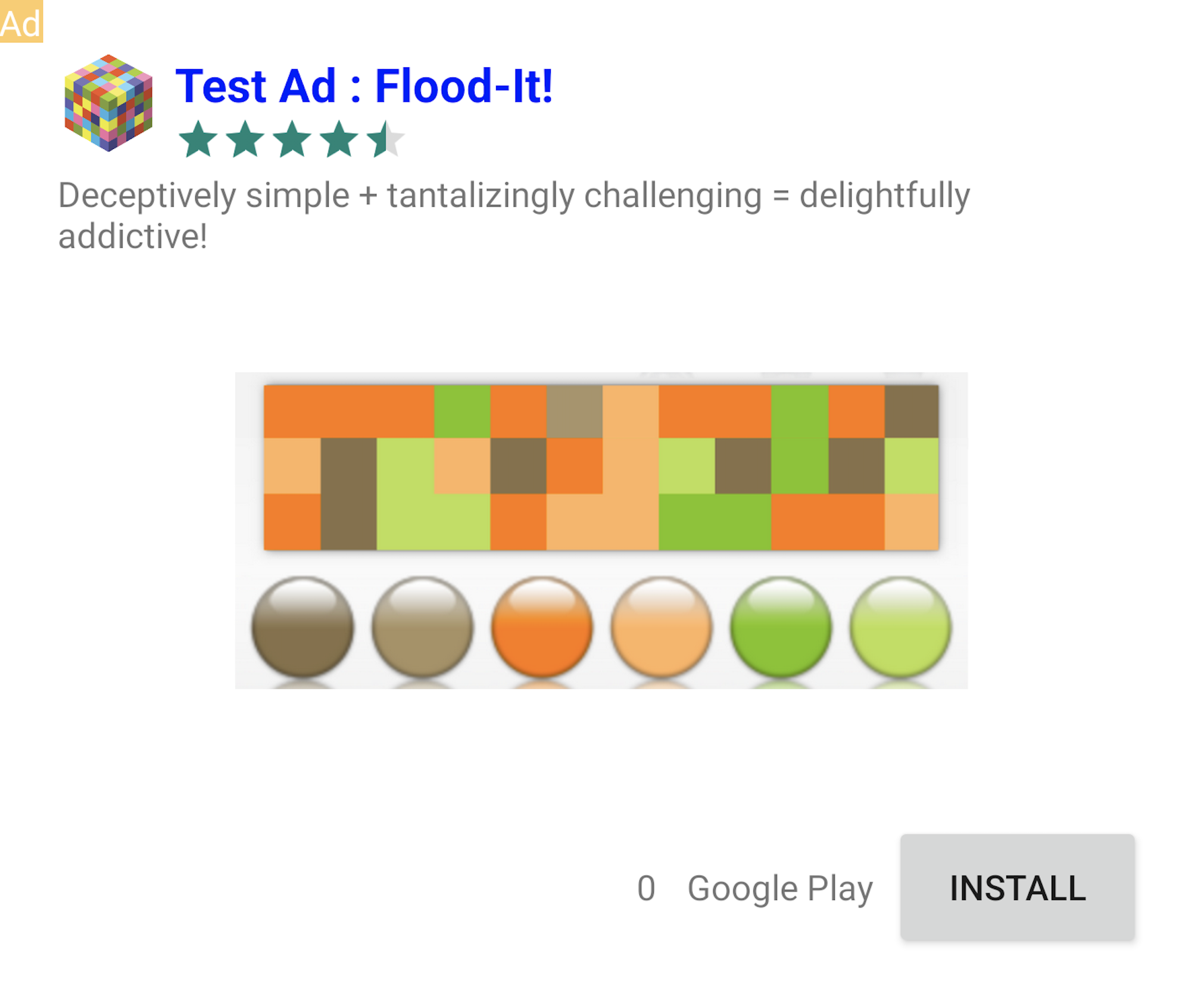
After you register your test device, replace the test ad unit IDs with your ad unit IDs.
Ads with the Test Ad label are safe to tap. Requests, impressions, and clicks on test ads don't show up in your account's reports.
Test ads with mediation
Test ad units only show ads from Google. To test your AdMob Mediation configuration, you must enable test devices.
Mediated ads don't render a Test Ad label. You are responsible for enabling test ads for each mediation network. This process prevents networks from flagging your account for invalid activity. For details, see Set up AdMob Mediation.
If you aren't sure whether a mediation network adapter supports test ads, avoid clicking ads from that network during development. To determine which mediation network adapter served the current ad, inspect the response info of the ad format. For details, see Retrieve information about the ad response.