
This guide shows you how to use GMA Next-Gen SDK to load and display ads from i-mobile using mediation, covering waterfall integrations. It covers how to add i-mobile to an ad unit's mediation configuration, and how to integrate the i-mobile SDK and adapter into an Android app.
The dashboard interface for i-mobile uses Japanese text for its labels, buttons, and descriptions. The screenshots in this guide have not been translated. In this guide's descriptions and instructions however, labels and buttons are translated with their English language equivalents in parentheses.
Supported integrations and ad formats
The mediation adapter for i-mobile has the following capabilities:
| Integration | |
|---|---|
| Bidding | |
| Waterfall | |
| Formats | |
| Banner | |
| Interstitial | |
| Rewarded | |
| Native | |
Prerequisites
Before you continue, verify the following:
- Android API level 24 or later.
Latest GMA Next-Gen SDK version.
Step 1: Set up configurations in i-mobile UI
Sign up or log in to your i-mobile account.
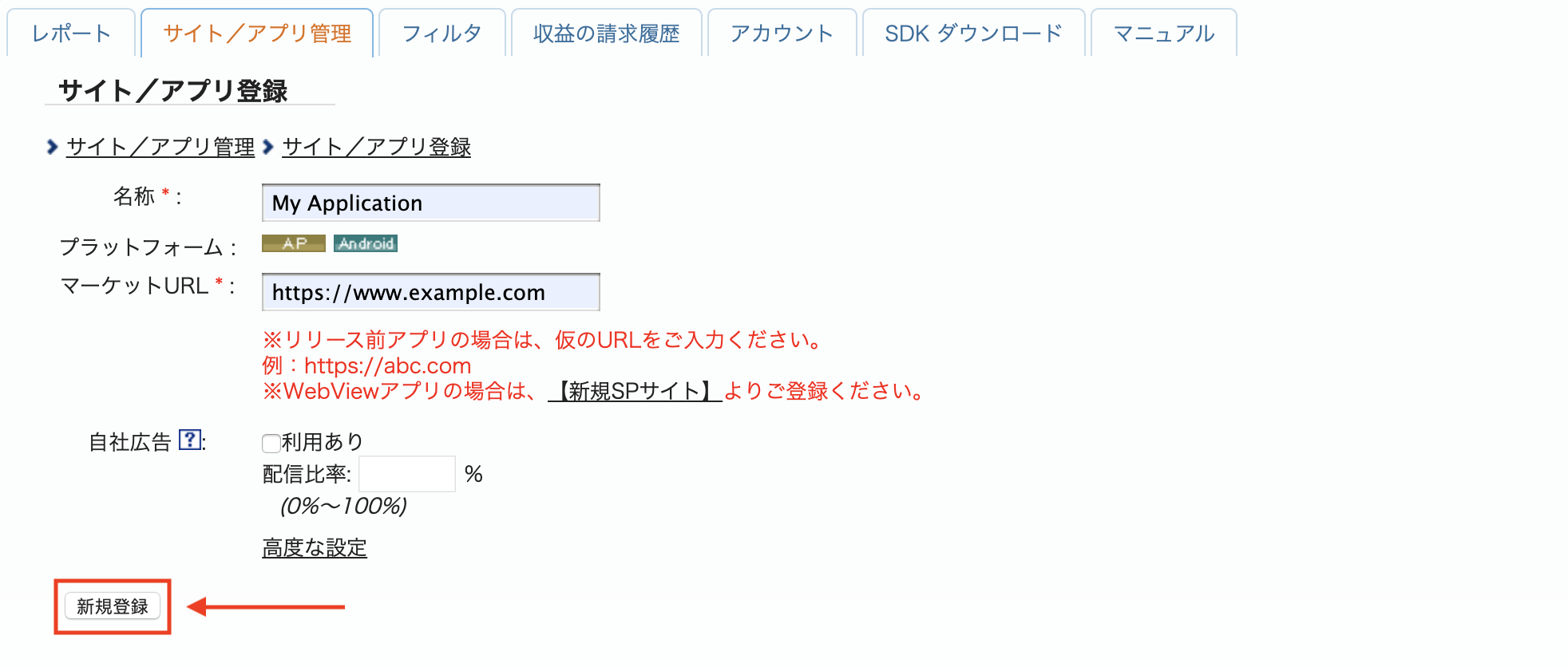
Add your app to the i-mobile dashboard by clicking the サイト/アプリ管理 (Site/Application Management) tab and the button for your app's platform.

Fill out the form and click the 新規登録 (Sign up) button.
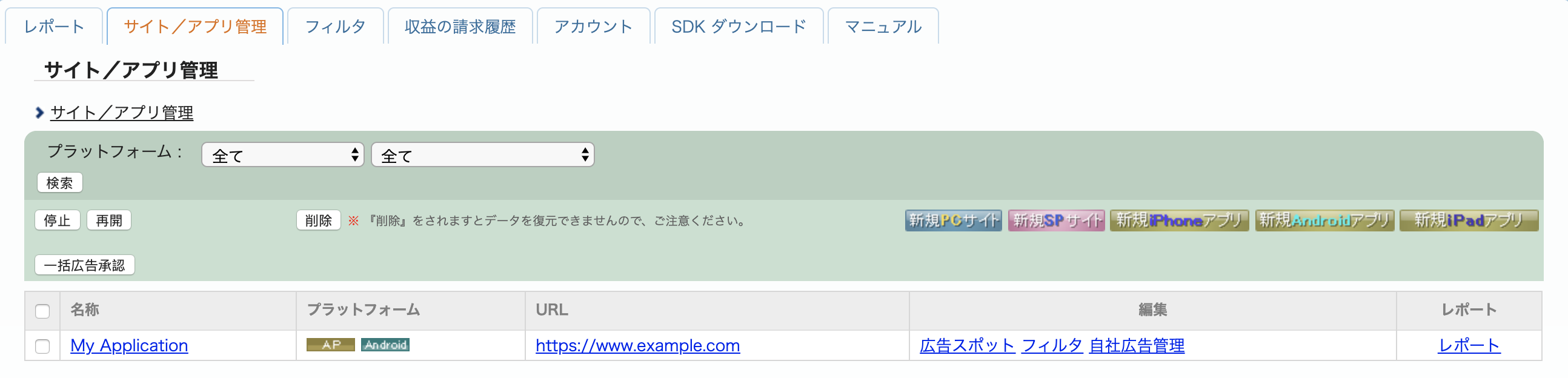
To create a new Advertising Spot, select your app under the サイト/アプリ管理 (Site/Application Management) tab.
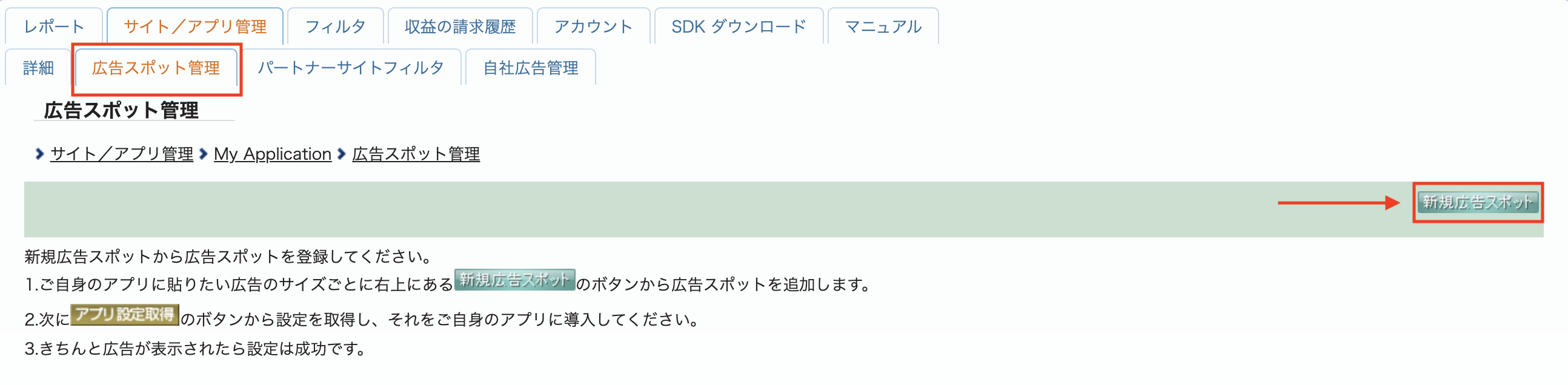
Navigate to the 広告スポット管理 (Ad Spot Management) tab and click the 新規広告スポット (New Ad Spot) button.
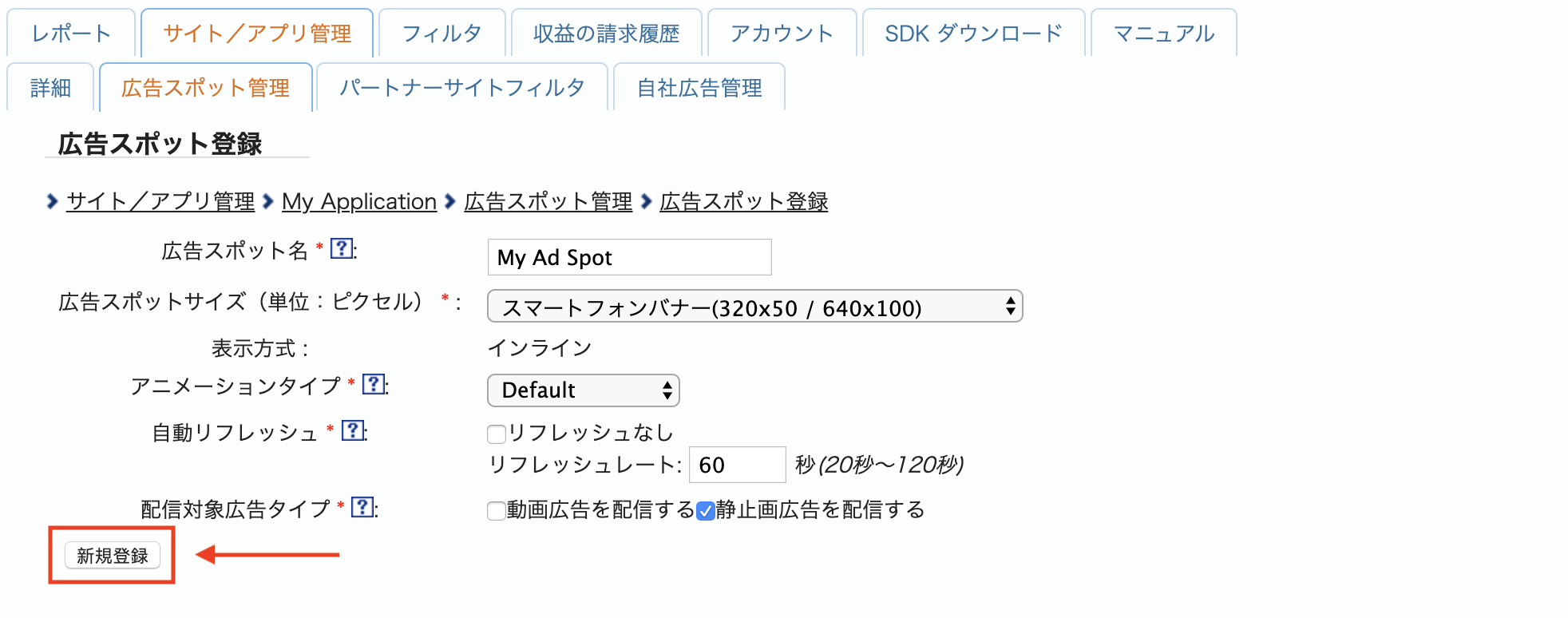
Next, fill out the form by providing the 広告スポット名 (Ad Spot name), 広告スポットサイズ (Ad Spot size) and other details. Then, click the 新規登録 (Sign up) button.
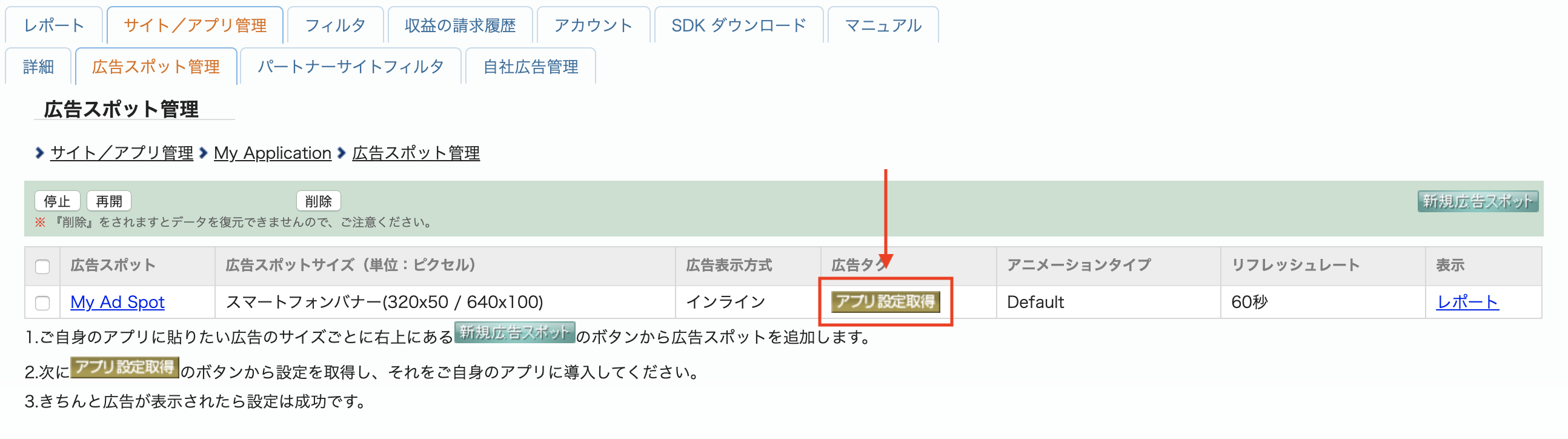
Your new Ad spot is ready. To view its integration details, click the アプリ設定取得 (Get App settings) button.
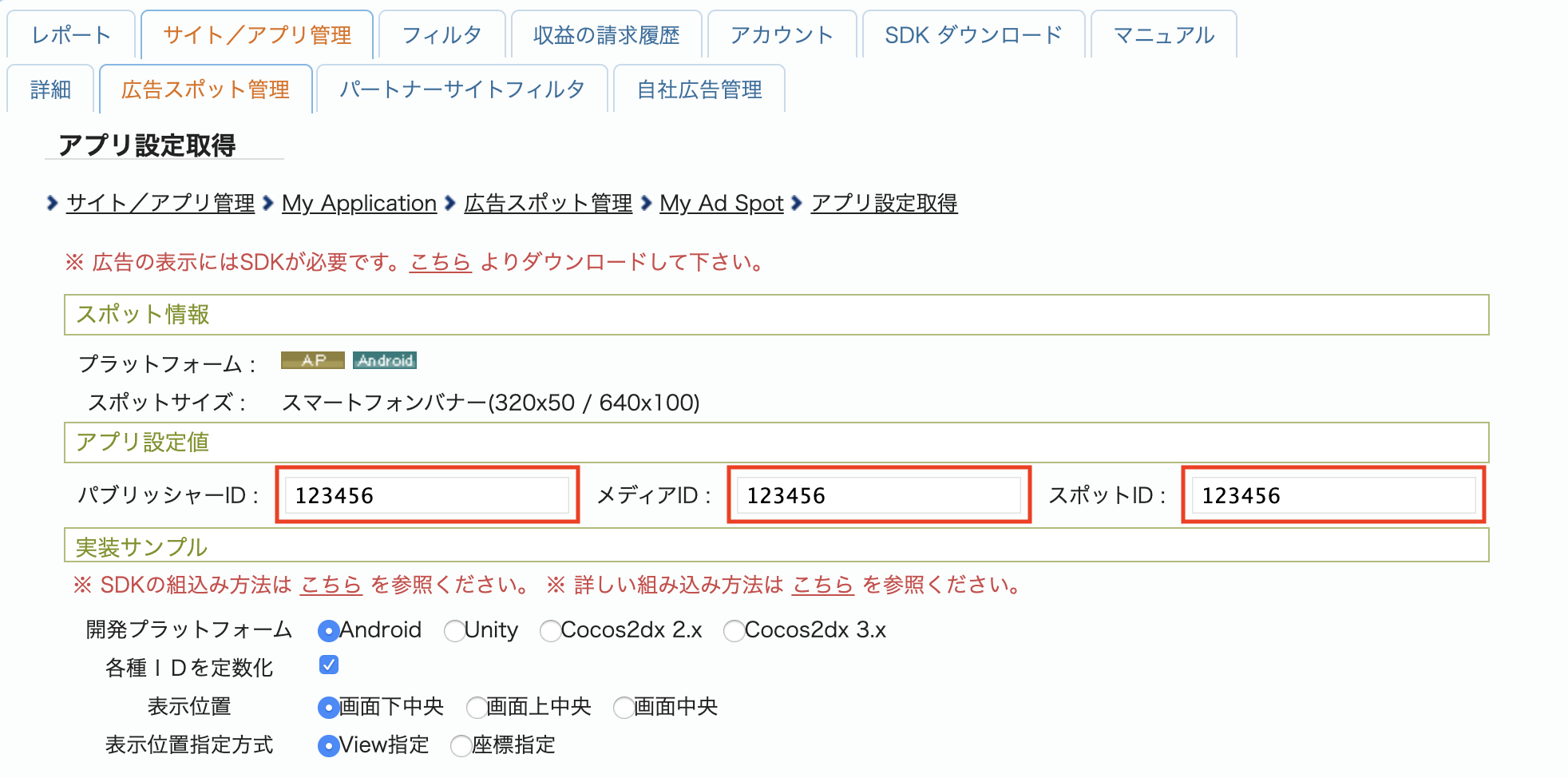
Take note of the パブリッシャーID (Publisher ID), メディアID (Media ID), and スポットID (Spot ID). You'll need these parameters later when configuring i-mobile for mediation in the Ad Manager UI.
Update your app-ads.txt
Authorized Sellers for Apps app-ads.txt is an IAB Tech Lab initiative that helps ensure your
app ad inventory is only sold through channels you've identified as authorized. To prevent a
significant loss in ad revenue, you'll need to implement an app-ads.txt file.
If you haven't done so already,
create an app-ads.txt file for Ad Manager.
To implement app-ads.txt for i-mobile, see their
Frequently Asked Questions.
Step 2: Set up i-mobile demand in Ad Manager UI
Configure mediation settings for your ad unit
Sign in to your Ad Manager account.
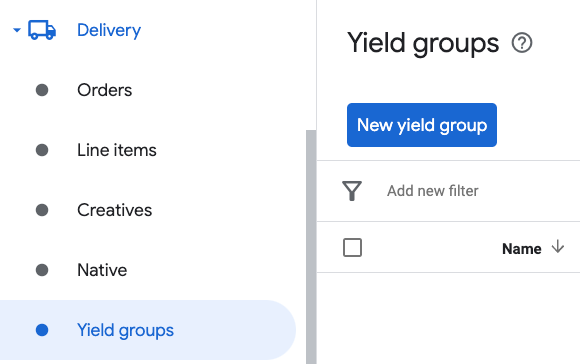
Navigate to Delivery > Yield groups and click the New yield group button.
Enter a unique Name for your yield group, set the Status to Active, select your Ad Format, and set the Inventory type to Mobile App. Under the Targeting > Inventory section, select the ad unit under Inventory and Mobile application to which you want to add mediation.
Next, click the Add yield partner button.
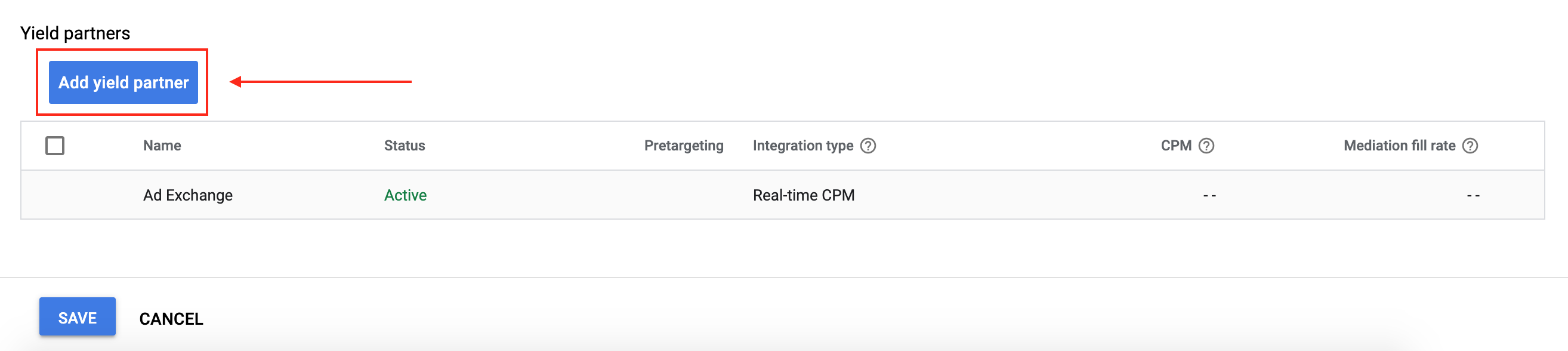
If you already have a Yield partner for i-mobile, you can select it. Otherwise, select Create a new yield partner.
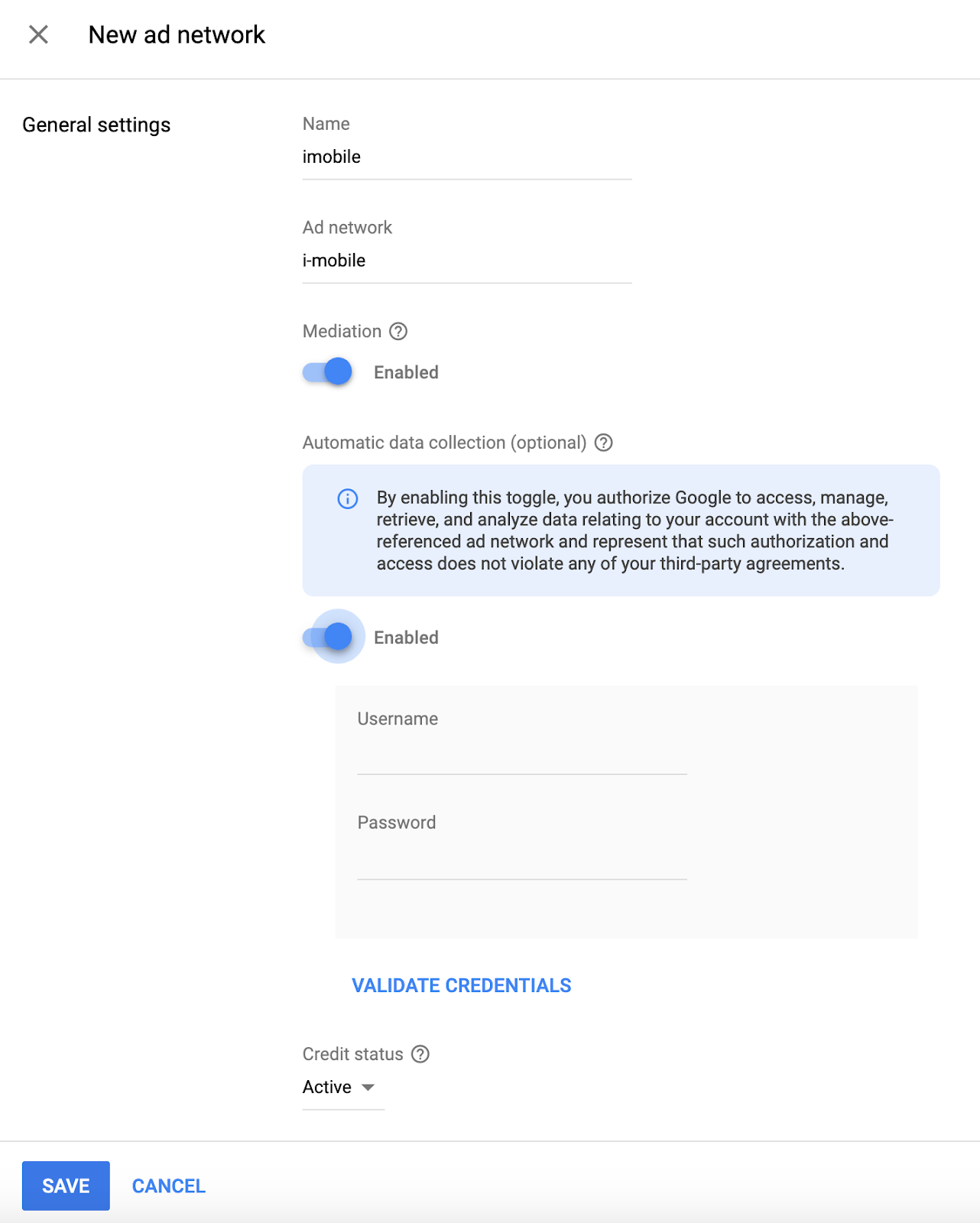
Select i-mobile as the Ad network, enter a unique Name and enable Mediation.
Turn on Automatic data collection, and enter the Login name and API Password
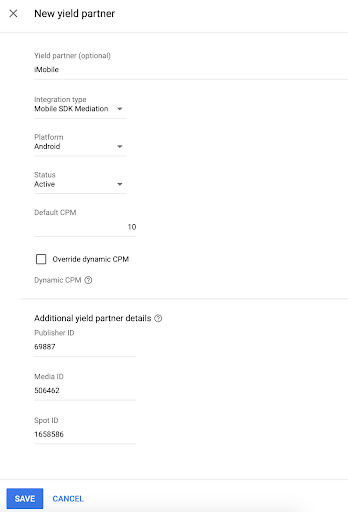
Once the Yield partner is selected, choose Mobile SDK Mediation as the Integration type, Android as the Platform, and Active as the Status. Enter the Publisher ID, Media ID and Spot ID obtained in the previous section. Then, enter a Default CPM value.
Click Save at the bottom of the page when done.
Step 3: Import the i-mobile SDK and Adapter
Android Studio integration (recommended)
In your project-level settings.gradle.kts file, add the following
repositories:
dependencyResolutionManagement {
  repositories {
    google()
    mavenCentral()
    maven {
      url = uri("https://imobile.github.io/adnw-sdk-android")
    }
  }
}
In your app-level gradle file, add the following implementation dependencies and configurations:
Kotlin
dependencies {
    implementation("com.google.android.libraries.ads.mobile.sdk:ads-mobile-sdk:1.4.0")
    implementation("com.google.ads.mediation:imobile:2.3.2.4")
}

configurations.configureEach {
    exclude(group = "com.google.android.gms", module = "play-services-ads")
    exclude(group = "com.google.android.gms", module = "play-services-ads-lite")
}
Groovy
dependencies {
    implementation 'com.google.android.libraries.ads.mobile.sdk:ads-mobile-sdk:1.4.0'
    implementation 'com.google.ads.mediation:imobile:2.3.2.4'
}

configurations.configureEach {
    exclude group: 'com.google.android.gms', module: 'play-services-ads'
    exclude group: 'com.google.android.gms', module: 'play-services-ads-lite'
}
Manual integration
Download the latest version of the i-mobile SDK and extract the
android-ad-sdk.aarunder thesdkfolder and add it to your project.Navigate to the i-mobile adapter artifacts on Google's Maven Repository. Select the latest version, download the i-mobile adapter's
.aarfile, and add it to your project.
Step 4: Add required code
Load ad with activity context
Pass Activity context when loading Banner, Interstitial, Rewarded and Native
ad formats.Without activity context, ad load will fail.
Step 5: Test your implementation
Enable test ads
Make sure you register your test device for Ad Manager. i-mobile provides test Spot ID, Media ID, and Publisher ID for testing, you can find them here.
Verify test ads
To verify that you are receiving test ads from i-mobile, enable single ad source testing in ad inspector using the i-mobile (Waterfall) ad source(s).
Optional steps
Using native ads
Ad rendering
The i-mobile adapter populates the following
fields
for a
NativeAd.
| Field | Assets always included by i-mobile adapter |
|---|---|
| Headline | |
| Image | |
| Body | |
| App icon | 1 |
| Call to action | |
| Star rating | |
| Store | |
| Price |
1 For native ads, the i-mobile SDK does not provide an app icon asset. Instead, the i-mobile adapter populates the app icon with a transparent image.
Error codes
If the adapter fails to receive an ad from i-mobile,
publishers can check the underlying error from the ad response using
ResponseInfo.getAdSourceResponses()
under the following classes:
| Format | Class name |
|---|---|
| Banner | com.google.ads.mediation.imobile.IMobileAdapter |
| Interstitial | com.google.ads.mediation.imobile.IMobileAdapter |
| Native | com.google.ads.mediation.imobile.IMobileMediationAdapter |
Here are the codes and accompanying messages thrown by the i-mobile adapter when an ad fails to load:
| Error code | Reason |
|---|---|
| 0-99 | i-mobile SDK returned an error. See code for more details. |
| 101 | i-mobile requires an Activity context to load ads. |
| 102 | i-mobile server parameters configured in the Ad Manager UI are missing/invalid. |
| 103 | The requested ad size does not match an i-mobile supported banner size. |
| 104 | i-mobile's native ad load success callback returned an empty native ads list. |
| 105 | The request had age-restricted treatment, but i-mobile SDK cannot receive age-restricted signals |
i-mobile Android Mediation Adapter Changelog
Next Version
- Fixed fall-through behavior on age-restricted failure branches during ad initialization and ad load requests.
Version 2.3.2.4
- Filter age-restricted requests for i-mobile SDK when new
AgeRestrictedTreatmentis set toCHILD.
Built and tested with:
- Google Mobile Ads SDK version 25.4.0.
- Google Mobile Ads Next-Gen SDK version 1.2.0.
- IMobile SDK version 2.3.2.
Version 2.3.2.3
- Filter age-restricted requests for i-mobile SDK because it cannot receive age-restricted signals.
Built and tested with:
- Google Mobile Ads SDK version 25.1.0.
- Google Mobile Ads Next-Gen SDK version 1.1.0.
- IMobile SDK version 2.3.2.
Version 2.3.2.2
- Added property to build the adapter with GMA Next-Gen SDK dependency.
- Migrated banner, interstitial and native ad implementations from old API to new API.
Built and tested with:
- Google Mobile Ads SDK version 25.1.0.
- IMobile SDK version 2.3.2.
Version 2.3.2.1
- Updated the minimum required Android API level to 23.
- Updated the minimum required Google Mobile Ads SDK version to 24.0.0.
Built and tested with:
- Google Mobile Ads SDK version 24.0.0.
- IMobile SDK version 2.3.2.
Version 2.3.2.0
- Verified compatibility with i-mobile SDK v2.3.2.
Built and tested with:
- Google Mobile Ads SDK version 23.1.0.
- IMobile SDK version 2.3.2.
Version 2.3.1.2
- Updated the minimum required Google Mobile Ads SDK version to 23.0.0.
- Verified compatibility with i-mobile SDK v2.3.1.
Built and tested with:
- Google Mobile Ads SDK version 23.0.0.
- IMobile SDK version 2.3.1.
Version 2.3.1.1
- Updated adapter to use new
VersionInfoclass. - Updated the minimum required Google Mobile Ads SDK version to 22.0.0.
Built and tested with:
- Google Mobile Ads SDK version 22.0.0.
- IMobile SDK version 2.3.1.
Version 2.3.1.0
- Verified compatibility with i-mobile SDK v2.3.1.
- Updated the minimum required Google Mobile Ads SDK version to 21.5.0.
Built and tested with:
- Google Mobile Ads SDK version 21.5.0.
- IMobile SDK version 2.3.1.
Version 2.3.0.0
- Verified compatibility with i-mobile SDK v2.3.0.
- Updated the minimum required Google Mobile Ads SDK version to 21.3.0.
Built and tested with:
- Google Mobile Ads SDK version 21.3.0.
- IMobile SDK version 2.3.0.
Version 2.0.23.1
- Updated
compileSdkVersionandtargetSdkVersionto API 31. - Updated the minimum required Google Mobile Ads SDK version to 21.0.0.
- Updated the minimum required Android API level to 19.
Built and tested with:
- Google Mobile Ads SDK version 21.0.0.
- IMobile SDK version 2.0.23.
Version 2.0.23.0
- Verified compatibility with i-mobile SDK v2.0.23.
- Updated the minimum required Google Mobile Ads SDK version to 20.5.0.
Built and tested with
- Google Mobile Ads SDK version 20.5.0.
- IMobile SDK version 2.0.23.
Version 2.0.22.2
- Added standardized adapter error codes and messages.
- Updated the minimum required Google Mobile Ads SDK version to 20.1.0.
Built and tested with
- Google Mobile Ads SDK version 20.1.0.
- IMobile SDK version 2.0.22.
Version 2.0.22.1
- Updated the minimum required Google Mobile Ads SDK version to 20.0.0.
Built and tested with
- Google Mobile Ads SDK version 20.0.0.
- IMobile SDK version 2.0.22.
Version 2.0.22.0
- Verified compatibility with i-mobile SDK v2.0.22.
- Updated the adapter to support inline adaptive banner requests.
Built and tested with
- Google Mobile Ads SDK version 19.1.0.
- IMobile SDK version 2.0.22.
Version 2.0.21.0
- Verified compatibility with i-mobile SDK v2.0.21.
- Updated the minimum required Google Mobile Ads SDK version to 19.1.0.
- Added support for scaling adaptive banner ads.
Built and tested with
- Google Mobile Ads SDK version 19.1.0.
- IMobile SDK version 2.0.21.
Version 2.0.20.2
- Added support for flexible banner ad sizes.
- Updated the minimum required Google Mobile Ads SDK version to 18.3.0.
Built and tested with
- Google Mobile Ads SDK version 18.3.0.
- IMobile SDK version 2.0.20.
Version 2.0.20.1
- Adapter now returns a non-zero
mediaContentaspect ratio.
Built and tested with
- Google Mobile Ads SDK version 18.2.0.
- IMobile SDK version 2.0.20.
Version 2.0.20.0
- Initial release!
- Added support for banner, interstitial, and native ads.