Планируйте встречи из Google Chat

Уровень владения программированием : Средний
Продолжительность : 25 минут
Тип проекта : приложение Google Chat

Цели

  • Поймите, для чего предназначено это решение.
  • Разберитесь, что делают службы Apps Script в рамках данного решения.
  • Настройте свою среду.
  • Настройте скрипт.
  • Запустите скрипт.

Об этом решении

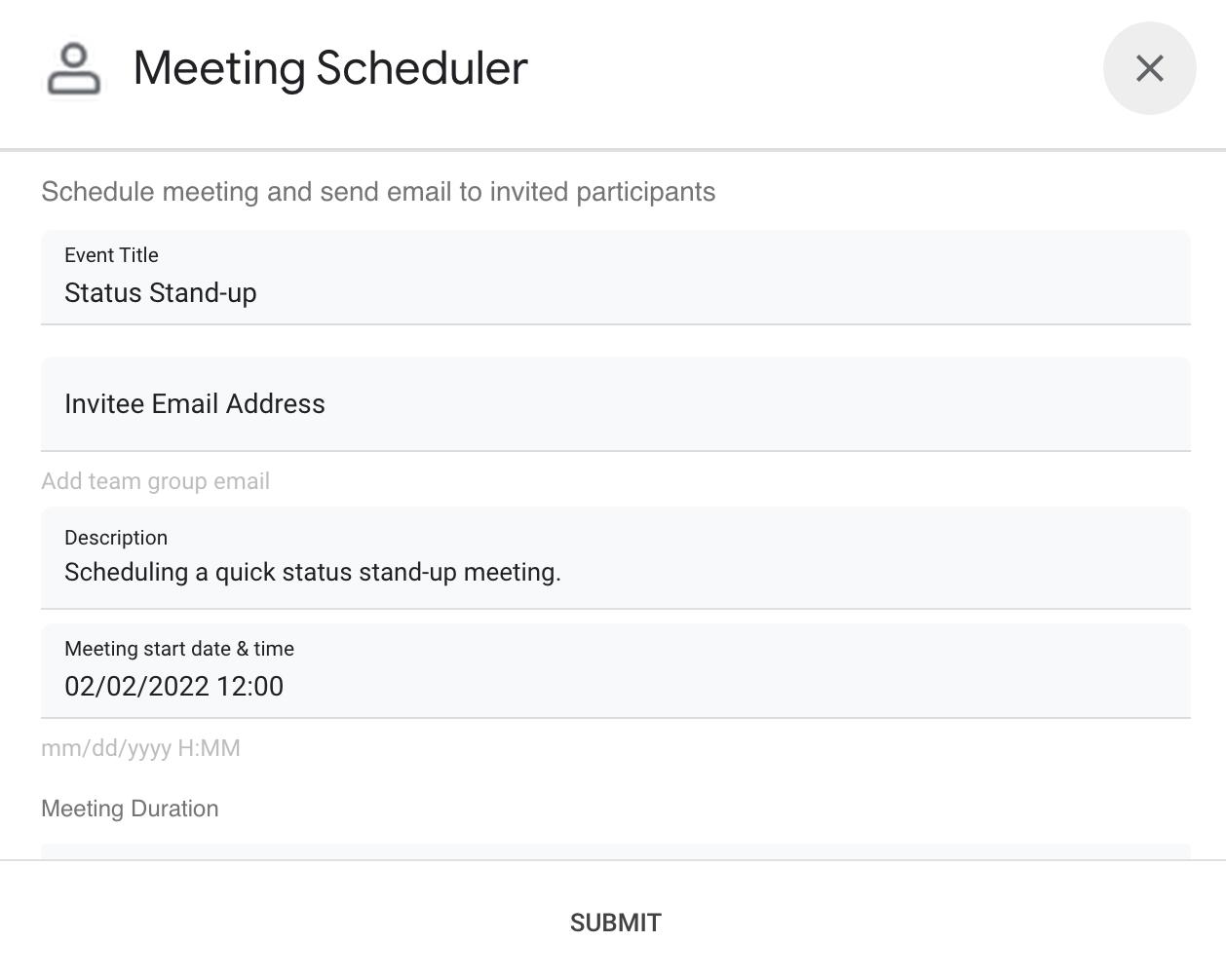
Запланируйте встречу в Google Календаре прямо из личного сообщения (DM) или в чате Google. Вы можете указать конкретные детали встречи, такие как тема, время начала или продолжительность, или использовать настройки по умолчанию для мгновенного планирования встреч.

Диалоговый интерфейс приложения «Чат планировщика встреч».

Как это работает

Скрипт приложения «Чат» использует команды и диалоги с косой чертой для получения от пользователей информации о встрече и планирования события в календаре. Скрипт включает в себя настройки встречи по умолчанию, которые можно настроить в соответствии с вашими потребностями.

Сервисы Apps Script

Данное решение использует следующие сервисы:

  • Календарный сервис — создает событие в календаре на основе предоставленной информации о встрече.
  • Базовый сервис — использует класс Session для получения часового пояса скрипта. Календарь использует этот часовой пояс при планировании события.
  • Вспомогательная служба — форматирует дату для события в календаре и кодирует идентификатор события, чтобы помочь получить URL-адрес события.

Предварительные требования

Настройте свою среду

Откройте свой облачный проект в консоли Google Cloud.

Если проект Cloud, который вы собираетесь использовать в этом примере, еще не открыт, откройте его:

  1. В консоли Google Cloud перейдите на страницу «Выберите проект» .

    Выберите облачный проект

  2. Выберите проект Google Cloud, который хотите использовать. Или нажмите «Создать проект» и следуйте инструкциям на экране. Если вы создаете проект Google Cloud, вам может потребоваться включить оплату для этого проекта .

Включите API

Перед использованием API Google необходимо включить их в проекте Google Cloud. В одном проекте Google Cloud можно включить один или несколько API.
  • В своем облачном проекте включите Google Chat API.

    Включите API

Для всех чат-приложений требуется настройка экрана согласия. Настройка экрана согласия OAuth в вашем приложении определяет, что Google отображает пользователям, и регистрирует ваше приложение, чтобы вы могли опубликовать его позже.

  1. В консоли Google Cloud перейдите в >Google Auth platform > Брендинг .

    Перейти к разделу «Брендинг»

  2. Если вы уже настроили Google Auth platformВы можете настроить следующие параметры экрана согласия OAuth в разделах «Брендинг» , «Аудитория» и «Доступ к данным» . Если вы видите сообщение, в котором говорится... Google Auth platform Если конфигурация еще не выполнена , нажмите «Начать» :
    1. В разделе «Информация о приложении» , в поле «Название приложения» , введите название для приложения.
    2. В разделе «Электронная почта службы поддержки пользователей» выберите адрес электронной почты, по которому пользователи смогут связаться с вами, если у них возникнут вопросы относительно их согласия.
    3. Нажмите «Далее» .
    4. В разделе «Аудитория» выберите «Внутренняя» .
    5. Нажмите «Далее» .
    6. В поле «Контактная информация» укажите адрес электронной почты , на который вы сможете получать уведомления об изменениях в вашем проекте.
    7. Нажмите «Далее» .
    8. В разделе «Завершить» ознакомьтесь с Политикой использования пользовательских данных сервисов Google API и, если вы согласны, выберите «Я согласен с Политикой использования пользовательских данных сервисов Google API» .
    9. Нажмите «Продолжить» .
    10. Нажмите «Создать» .
  3. На данный момент добавление областей действия можно пропустить. В будущем, при создании приложения для использования за пределами вашей организации Google Workspace, необходимо изменить тип пользователя на «Внешний» . Затем добавьте необходимые для вашего приложения области авторизации. Для получения дополнительной информации см. полное руководство по настройке согласия OAuth .

Настройте скрипт

Создайте проект Apps Script.

  1. Нажмите на следующую кнопку, чтобы открыть проект «Планирование встреч из Google Chat Apps Script».
    Откройте проект
  2. Нажмите «Обзор .
  3. На странице обзора нажмите «Создать копию». Значок для создания копии .

В будущем, если вы захотите использовать определенные API Google или опубликовать свое приложение, вам необходимо будет связать свой проект Cloud с проектом Apps Script. В этом руководстве это делать не требуется. Для получения дополнительной информации см. руководство по проектам Google Cloud .

Создайте тестовое развертывание.

  1. В скопированном проекте Apps Script нажмите «Развернуть» > «Проверить развертывания» .
  2. Скопируйте идентификатор развертывания Head для использования на следующем шаге и нажмите «Готово» .

Настройте API чата.

  1. В консоли Google Cloud перейдите на страницу Chat API .
    Перейти к API чата
  2. Нажмите «Конфигурация» .
  3. Нажмите «Отключить ». Создайте это приложение чата как надстройку для Google Workspace . Откроется диалоговое окно с запросом подтверждения. В диалоговом окне нажмите «Отключить» .
  4. Настройте API чата, указав следующую информацию:
    • Имя : Meeting Scheduler
    • URL аватара : Добавьте URL-адрес, указывающий на изображение с минимальным размером 256x256 пикселей.
    • Описание : Quickly create meetings.
    • Функциональность : Отметьте оба поля, чтобы пользователи могли отправлять сообщения в приложение напрямую и добавлять его в пространства.
    • Настройки подключения : Нажмите «Apps Script» и введите идентификатор развертывания головного приложения.
    • Команды со слэшем : Добавьте команды со слэшем для /help и /schedule_Meeting , выполнив следующие шаги:
      1. Нажмите «Добавить команду слэша» и настройте её, указав следующую информацию:
        • Имя : /help
        • Идентификатор команды : 1
        • Описание : Learn what this app does.
      2. Снова нажмите кнопку «Добавить команду слэша» и настройте её, указав следующую информацию:
        • Имя : /schedule_Meeting
        • Идентификатор команды : 2
        • Описание : Schedule a meeting.
        • Установите флажок «Открыть диалоговое окно».
    • Права доступа : выберите определенных людей и группы в вашем домене и введите свой адрес электронной почты.
  5. Нажмите «Сохранить» и обновите страницу.
  6. На странице настроек в разделе «Статус приложения» установите статус «В работе — доступно пользователям» .
  7. Нажмите « Сохранить ».

Запустите скрипт

  1. Откройте Google Чат .
  2. Нажмите « чат».
  3. Найдите приложение по его названию: Meeting Scheduler .
  4. Для подтверждения авторизации отправьте первоначальное сообщение, например, hello .
  5. Когда приложение ответит, нажмите «Настроить» и авторизуйте приложение. Если на экране подтверждения OAuth отобразится предупреждение « Это приложение не проверено» , продолжите, выбрав «Дополнительно» > «Перейти к {Название проекта} (небезопасно)» .

  6. Отправьте в приложение команду /schedule_Meeting .

  7. В диалоговом окне добавьте как минимум один адрес электронной почты приглашенного. Вы можете изменить остальные поля или использовать значения по умолчанию.

  8. Нажмите «Отправить» .

  9. Чтобы просмотреть запись встречи, нажмите «Открыть событие в календаре» .

Просмотрите код

Чтобы просмотреть код Apps Script для этого решения, нажмите «Просмотреть исходный код» ниже:

Просмотреть исходный код

Code.gs

apps-script/schedule-meetings/Code.js
// To learn how to use this script, refer to the documentation:
// https://developers.google.com/workspace/chat/tutorial-schedule-meetings

/*
Copyright 2022 Google LLC

Licensed under the Apache License, Version 2.0 (the "License");
you may not use this file except in compliance with the License.
You may obtain a copy of the License at

    https://www.apache.org/licenses/LICENSE-2.0

Unless required by applicable law or agreed to in writing, software
distributed under the License is distributed on an "AS IS" BASIS,
WITHOUT WARRANTIES OR CONDITIONS OF ANY KIND, either express or implied.
See the License for the specific language governing permissions and
limitations under the License.
*/

// Application constants
const APPNAME = "Chat Meeting Scheduler";
const SLASHCOMMAND = {
  HELP: 1, // /help
  DIALOG: 2, // /schedule_Meeting
};

/**
 * Responds to an ADDED_TO_SPACE event in Google Chat.
 * Called when the Chat app is added to a space. The Chat app can either be directly added to the space
 * or added by a @mention. If the Chat app is added by a @mention, the event object includes a message property.
 * Returns a Message object, which is usually a welcome message informing users about the Chat app.
 *
 * @param {Object} event The event object from Google Chat
 */
function onAddToSpace(event) {
  let message = "";

  // Personalizes the message depending on how the Chat app is called.
  if (event.space.singleUserBotDm) {
    message = `Hi ${event.user.displayName}!`;
  } else {
    const spaceName = event.space.displayName
      ? event.space.displayName
      : "this chat";
    message = `Hi! Thank you for adding me to ${spaceName}`;
  }

  // Lets users know what they can do and how they can get help.
  message = `${message}/nI can quickly schedule a meeting for you with just a few clicks.Try me out by typing */schedule_Meeting*. /nTo learn what else I can do, type */help*.`;

  return { text: message };
}

/**
 * Responds to a MESSAGE event triggered in Chat.
 * Called when the Chat app is already in the space and the user invokes it via @mention or / command.
 * Returns a message object containing the Chat app's response. For this Chat app, the response is either the
 * help text or the dialog to schedule a meeting.
 *
 * @param {object} event The event object from Google Chat
 * @return {object} JSON-formatted response as text or Card message
 */
function onMessage(event) {
  // Handles regular onMessage logic.
  // Evaluates if and handles for all slash commands.
  if (event.message.slashCommand) {
    switch (event.message.slashCommand.commandId) {
      case SLASHCOMMAND.DIALOG: // Displays meeting dialog for /schedule_Meeting.
        // TODO update this with your own logic to set meeting recipients, subjects, etc (e.g. a group email).
        return getInputFormAsDialog_({
          invitee: "",
          startTime: getTopOfHourDateString_(),
          duration: 30,
          subject: "Status Stand-up",
          body: "Scheduling a quick status stand-up meeting.",
        });

      case SLASHCOMMAND.HELP: // Responds with help text for /help.
        return getHelpTextResponse_();

      /* TODO Add other use cases here. E.g:
      case SLASHCOMMAND.NEW_FEATURE:  // Your Feature Here
        getDialogForAddContact(message);
      */
    }
  }
  // Returns text if users didn't invoke a slash command.
  return { text: "No action taken - use Slash Commands." };
}

/**
 * Responds to a CARD_CLICKED event triggered in Chat.
 * @param {object} event the event object from Chat
 * @return {object} JSON-formatted response
 * @see https://developers.google.com/workspace/chat/receive-respond-interactions
 */
function onCardClick(event) {
  if (event.action.actionMethodName === "handleFormSubmit") {
    const recipients = getFieldValue_(event.common.formInputs, "email");
    const subject = getFieldValue_(event.common.formInputs, "subject");
    const body = getFieldValue_(event.common.formInputs, "body");

    // Assumes dialog card inputs for date and times are in the correct format. mm/dd/yyy HH:MM
    const dateTimeInput = getFieldValue_(event.common.formInputs, "date");
    const startTime = getStartTimeAsDateObject_(dateTimeInput);
    const duration = Number(
      getFieldValue_(event.common.formInputs, "duration"),
    );

    // Handles instances of missing or invalid input parameters.
    const errors = [];

    if (!recipients) {
      errors.push("Missing or invalid recipient email address.");
    }
    if (!subject) {
      errors.push("Missing subject line.");
    }
    if (!body) {
      errors.push("Missing event description.");
    }
    if (!startTime) {
      errors.push("Missing or invalid start time.");
    }
    if (!duration || Number.isNaN(duration)) {
      errors.push("Missing or invalid duration");
    }
    if (errors.length) {
      // Redisplays the form if missing or invalid inputs exist.
      return getInputFormAsDialog_({
        errors,
        invitee: recipients,
        startTime: dateTimeInput,
        duration,
        subject,
        body,
      });
    }

    //  Calculates the end time via duration.
    const endTime = new Date(startTime.valueOf());
    endTime.setMinutes(endTime.getMinutes() + duration);

    // Creates calendar event with notification.
    const calendar = CalendarApp.getDefaultCalendar();
    const scheduledEvent = calendar.createEvent(subject, startTime, endTime, {
      guests: recipients,
      sendInvites: true,
      description: `${body}\nThis meeting scheduled by a Google Chat App!`,
    });

    // Gets a link to the Calendar event.
    const url = getCalendarEventURL_(scheduledEvent, calendar);

    return getConfirmationDialog_(url);
  }
  if (event.action.actionMethodName === "closeDialog") {
    // Returns this dialog as success.
    return {
      actionResponse: {
        type: "DIALOG",
        dialog_action: {
          actionStatus: "OK",
        },
      },
    };
  }
}

/**
 * Responds with help text about this Chat app.
 * @return {string} The help text as seen below
 */
function getHelpTextResponse_() {
  const help = `*${APPNAME}* lets you quickly create meetings from Google Chat. Here\'s a list of all its commands:
  \`/schedule_Meeting\`  Opens a dialog with editable, preset parameters to create a meeting event
  \`/help\`  Displays this help message

  Learn more about creating Google Chat apps at https://developers.google.com/chat.`;

  return { text: help };
}

Dialog.gs

apps-script/schedule-meetings/Dialog.js
/**
 * Copyright 2022 Google LLC
 *
 * Licensed under the Apache License, Version 2.0 (the "License");
 * you may not use this file except in compliance with the License.
 * You may obtain a copy of the License at
 *
 *      http://www.apache.org/licenses/LICENSE-2.0
 *
 * Unless required by applicable law or agreed to in writing, software
 * distributed under the License is distributed on an "AS IS" BASIS,
 * WITHOUT WARRANTIES OR CONDITIONS OF ANY KIND, either express or implied.
 * See the License for the specific language governing permissions and
 * limitations under the License.
 */

/**
 * Form input dialog as JSON.
 * @return {object} JSON-formatted cards for the dialog.
 */
function getInputFormAsDialog_(options) {
  const form = getForm_(options);
  return {
    actionResponse: {
      type: "DIALOG",
      dialogAction: {
        dialog: {
          body: form,
        },
      },
    },
  };
}

/**
 * Form JSON to collect inputs regarding the meeting.
 * @return {object} JSON-formatted cards.
 */
function getForm_(options) {
  const sections = [];

  // If errors present, display additional section with validation messages.
  if (options.errors?.length) {
    let errors = options.errors.reduce((str, err) => `${str}${err}<br>`, "");
    errors = `<b>Errors:</b><br><font color="#ba0000">${errors}</font>`;
    const errorSection = {
      widgets: [
        {
          textParagraph: {
            text: errors,
          },
        },
      ],
    };
    sections.push(errorSection);
  }
  const formSection = {
    header: "Schedule meeting and send email to invited participants",
    widgets: [
      {
        textInput: {
          label: "Event Title",
          type: "SINGLE_LINE",
          name: "subject",
          value: options.subject,
        },
      },
      {
        textInput: {
          label: "Invitee Email Address",
          type: "SINGLE_LINE",
          name: "email",
          value: options.invitee,
          hintText: "Add team group email",
        },
      },
      {
        textInput: {
          label: "Description",
          type: "MULTIPLE_LINE",
          name: "body",
          value: options.body,
        },
      },
      {
        textInput: {
          label: "Meeting start date & time",
          type: "SINGLE_LINE",
          name: "date",
          value: options.startTime,
          hintText: "mm/dd/yyyy H:MM",
        },
      },
      {
        selectionInput: {
          type: "DROPDOWN",
          label: "Meeting Duration",
          name: "duration",
          items: [
            {
              text: "15 minutes",
              value: "15",
              selected: options.duration === 15,
            },
            {
              text: "30 minutes",
              value: "30",
              selected: options.duration === 30,
            },
            {
              text: "45 minutes",
              value: "45",
              selected: options.duration === 45,
            },
            {
              text: "1 Hour",
              value: "60",
              selected: options.duration === 60,
            },
            {
              text: "1.5 Hours",
              value: "90",
              selected: options.duration === 90,
            },
            {
              text: "2 Hours",
              value: "120",
              selected: options.duration === 120,
            },
          ],
        },
      },
    ],
    collapsible: false,
  };
  sections.push(formSection);
  const card = {
    sections: sections,
    name: "Google Chat Scheduled Meeting",
    fixedFooter: {
      primaryButton: {
        text: "Submit",
        onClick: {
          action: {
            function: "handleFormSubmit",
          },
        },
        altText: "Submit",
      },
    },
  };
  return card;
}

/**
 * Confirmation dialog after a calendar event is created successfully.
 * @param {string} url The Google Calendar Event url for link button
 * @return {object} JSON-formatted cards for the dialog
 */
function getConfirmationDialog_(url) {
  return {
    actionResponse: {
      type: "DIALOG",
      dialogAction: {
        dialog: {
          body: {
            sections: [
              {
                widgets: [
                  {
                    textParagraph: {
                      text: "Meeting created successfully!",
                    },
                    horizontalAlignment: "CENTER",
                  },
                  {
                    buttonList: {
                      buttons: [
                        {
                          text: "Open Calendar Event",
                          onClick: {
                            openLink: {
                              url: url,
                            },
                          },
                        },
                      ],
                    },
                    horizontalAlignment: "CENTER",
                  },
                ],
              },
            ],
            fixedFooter: {
              primaryButton: {
                text: "OK",
                onClick: {
                  action: {
                    function: "closeDialog",
                  },
                },
              },
            },
          },
        },
      },
    },
  };
}

Utilities.gs

apps-script/schedule-meetings/Utilities.js
/**
 * Copyright 2022 Google LLC
 *
 * Licensed under the Apache License, Version 2.0 (the "License");
 * you may not use this file except in compliance with the License.
 * You may obtain a copy of the License at
 *
 *      http://www.apache.org/licenses/LICENSE-2.0
 *
 * Unless required by applicable law or agreed to in writing, software
 * distributed under the License is distributed on an "AS IS" BASIS,
 * WITHOUT WARRANTIES OR CONDITIONS OF ANY KIND, either express or implied.
 * See the License for the specific language governing permissions and
 * limitations under the License.
 */

/**
 * Helper function that gets the field value from the given form input.
 * @return {string}
 */
function getFieldValue_(formInputs, fieldName) {
  return formInputs[fieldName][""].stringInputs.value[0];
}

// Regular expression to validate the date/time input.
const DATE_TIME_PATTERN = /\d{1,2}\/\d{1,2}\/\d{4}\s+\d{1,2}:\d\d/;

/**
 * Casts date and time from string to Date object.
 * @return {date}
 */
function getStartTimeAsDateObject_(dateTimeStr) {
  if (!dateTimeStr || !dateTimeStr.match(DATE_TIME_PATTERN)) {
    return null;
  }

  const parts = dateTimeStr.split(" ");
  const [month, day, year] = parts[0].split("/").map(Number);
  const [hour, minute] = parts[1].split(":").map(Number);

  Session.getScriptTimeZone();

  return new Date(year, month - 1, day, hour, minute);
}

/**
 * Gets the current date and time for the upcoming top of the hour (e.g. 01/25/2022 18:00).
 * @return {string} date/time in mm/dd/yyy HH:MM format needed for use by Calendar
 */
function getTopOfHourDateString_() {
  const date = new Date();
  date.setHours(date.getHours() + 1);
  date.setMinutes(0, 0, 0);
  // Adding the date as string might lead to an incorrect response due to time zone adjustments.
  return Utilities.formatDate(
    date,
    Session.getScriptTimeZone(),
    "MM/dd/yyyy H:mm",
  );
}

/**
 * Creates the URL for the Google Calendar event.
 *
 * @param {object} event The Google Calendar Event instance
 * @param {object} cal The associated Google Calendar
 * @return {string} URL in the form of 'https://www.google.com/calendar/event?eid={event-id}'
 */
function getCalendarEventURL_(event, cal) {
  const baseCalUrl = "https://www.google.com/calendar";
  // Joins Calendar Event Id with Calendar Id, then base64 encode to derive the event URL.
  let encodedId = Utilities.base64Encode(
    `${event.getId().split("@")[0]} ${cal.getId()}`,
  ).replace(/\=/g, "");
  encodedId = `/event?eid=${encodedId}`;
  return baseCalUrl + encodedId;
}

Следующие шаги