

Page Summary
-
Google Chat apps can have a customizable homepage, called "app home," in direct message spaces for sharing tips or accessing external tools.
-
Building an app home requires configuring your Chat app to receive
APP_HOMEevents and designing a card interface using the Card Builder or code. -
App home cards can include interactive widgets like buttons that trigger events, which your app needs to handle to update the displayed content.
-
You can open dialogs from app home to gather information from users or perform other actions, and these dialogs can be sequential.
-
When users interact with widgets in app home or dialogs, your app responds by returning
RenderActionsto update the card or navigate within the app.
This page explains how to build a homepage for direct messages with your Google Chat app. A homepage, referred to as App Home in the Google Chat API, is a customizable card interface that appears in the Home tab of 1:1 direct message spaces between a user and a Chat app.

Unlike other Google Workspace host applications, add-ons that
extend Chat don't display a homepage in the right-side quick
access panel and don't use addOns.common.homepageTrigger in the manifest.
Instead, Chat displays your homepage as a card in the Home
tab of a 1:1 direct message with the Chat app and is
configured in the Google Cloud console.
You can use App Home to share tips for interacting with the Chat app, display a personalized user dashboard, or let users access and configure an external service or tool from Chat.
Use the Card Builder to design and preview messaging and user interfaces for Chat apps:
Open the Card BuilderPrerequisites
HTTP
A Google Chat app that receives and responds to user interactions. To build one, complete the HTTP quickstart.
Apps Script
A Google Chat app that receives and responds to user interactions. To build one, complete the Apps Script quickstart.
Configure App Home for your Chat app
To support App Home, enable Support App Home and configure the App home trigger in the Google Cloud console. Your Chat app receives an App Home trigger event whenever a user opens the Home tab in a 1:1 direct message with the Chat app.
To configure App Home in the Google Cloud console:
In the Google Cloud console, go to Menu > APIs & Services > Enabled APIs & Services > Google Chat API > Configuration.
Under Interactive features, make sure Enable interactive features is turned on, and then under Functionality, select the Support App Home checkbox.
Under Connection settings > Triggers, specify your App Home handler in the App home field based on your Chat app architecture:
- HTTP: Enter the HTTPS endpoint URL that handles App Home requests (or select Use common HTTP endpoint URL for all triggers so your common HTTP endpoint URL receives all events).
- Google Apps Script: Enter the name of the Google Apps Script
callback function that builds and returns your homepage card (defaults to
onAppHome).
Click Save.
Handle the App Home event object
When a user opens the Home tab of a 1:1 direct message with your Chat app, Chat sends an event object to your App Home endpoint or callback function.
Unlike space or message interaction events, the initial App Home event object
doesn't include a union interaction payload (such as messagePayload). It
contains the following fields:
commonEventObject: IncludesclientPlatform,hostApp("CHAT"),userLocale, anduserTimezone.chat.user: The Chat user who opened the Home tab.chat.eventTime: The timestamp when the user opened the Home tab.
Build an App Home card
When a user opens the Home tab, handle the App Home trigger event by
returning a
RenderActions object with a pushCard
navigation action and a
Card. To create
an interactive experience, the card can contain interactive widgets such as
buttons or text inputs.
HTTP
{
  "action": {
    "navigations": [
      {
        "pushCard": {
          "header": {
            "title": "Welcome to App Home"
          },
          "sections": [
            {
              "widgets": [
                {
                  "textParagraph": {
                    "text": "Manage your settings and view your dashboard here."
                  }
                },
                {
                  "buttonList": {
                    "buttons": [
                      {
                        "text": "Refresh",
                        "onClick": {
                          "action": {
                            "function": "https://example.com/updateAppHome"
                          }
                        }
                      }
                    ]
                  }
                }
              ]
            }
          ]
        }
      }
    ]
  }
}
Apps Script
/**
 * Builds and returns the App Home card when a user opens the Home tab.
 *
 * @param {Object} event The event object from Google Chat.
 * @return {ActionResponse} The RenderActions response pushing the homepage card.
 */
function onAppHome(event) {
  const card = CardService.newCardBuilder()
      .setHeader(
          CardService.newCardHeader().setTitle('Welcome to App Home'))
      .addSection(
          CardService.newCardSection()
              .addWidget(
                  CardService.newTextParagraph().setText(
                      'Manage your settings and view your dashboard here.'))
              .addWidget(
                  CardService.newButtonSet().addButton(
                      CardService.newTextButton()
                          .setText('Refresh')
                          .setOnClickAction(
                              CardService.newAction().setFunctionName(
                                  'updateAppHome')))))
      .build();

  return CardService.newActionResponseBuilder()
      .setNavigation(CardService.newNavigation().pushCard(card))
      .build();
}
Respond to App Home interactions
If your App Home card contains interactive widgets, such as buttons or form
inputs, clicking a button sends an event object containing
chat.buttonClickedPayload (along with commonEventObject.parameters and
commonEventObject.formInputs) to the button's configured action function or
endpoint.
To update the App Home card in response to a user interaction, return a
RenderActions object with an updateCard
navigation action. To learn more about reading form inputs from interactive
widgets, see
Read form data input by users on cards.
HTTP
{
  "action": {
    "navigations": [
      {
        "updateCard": {
          "header": {
            "title": "Welcome to App Home"
          },
          "sections": [
            {
              "widgets": [
                {
                  "textParagraph": {
                    "text": "Last updated: 2026-10-02T23:00:00Z"
                  }
                }
              ]
            }
          ]
        }
      }
    ]
  }
}
Apps Script
/**
 * Updates the App Home card when a user clicks the Refresh button.
 *
 * @param {Object} event The event object from Google Chat.
 * @return {ActionResponse} The RenderActions response updating the homepage card.
 */
function updateAppHome(event) {
  const updatedCard = CardService.newCardBuilder()
      .setHeader(
          CardService.newCardHeader().setTitle('Welcome to App Home'))
      .addSection(
          CardService.newCardSection().addWidget(
              CardService.newTextParagraph().setText(
                  'Last updated: ' + new Date().toTimeString())))
      .build();

  return CardService.newActionResponseBuilder()
      .setNavigation(CardService.newNavigation().updateCard(updatedCard))
      .build();
}
Open dialogs from App Home
Your Chat app can also respond to interactions in App Home by opening dialogs.
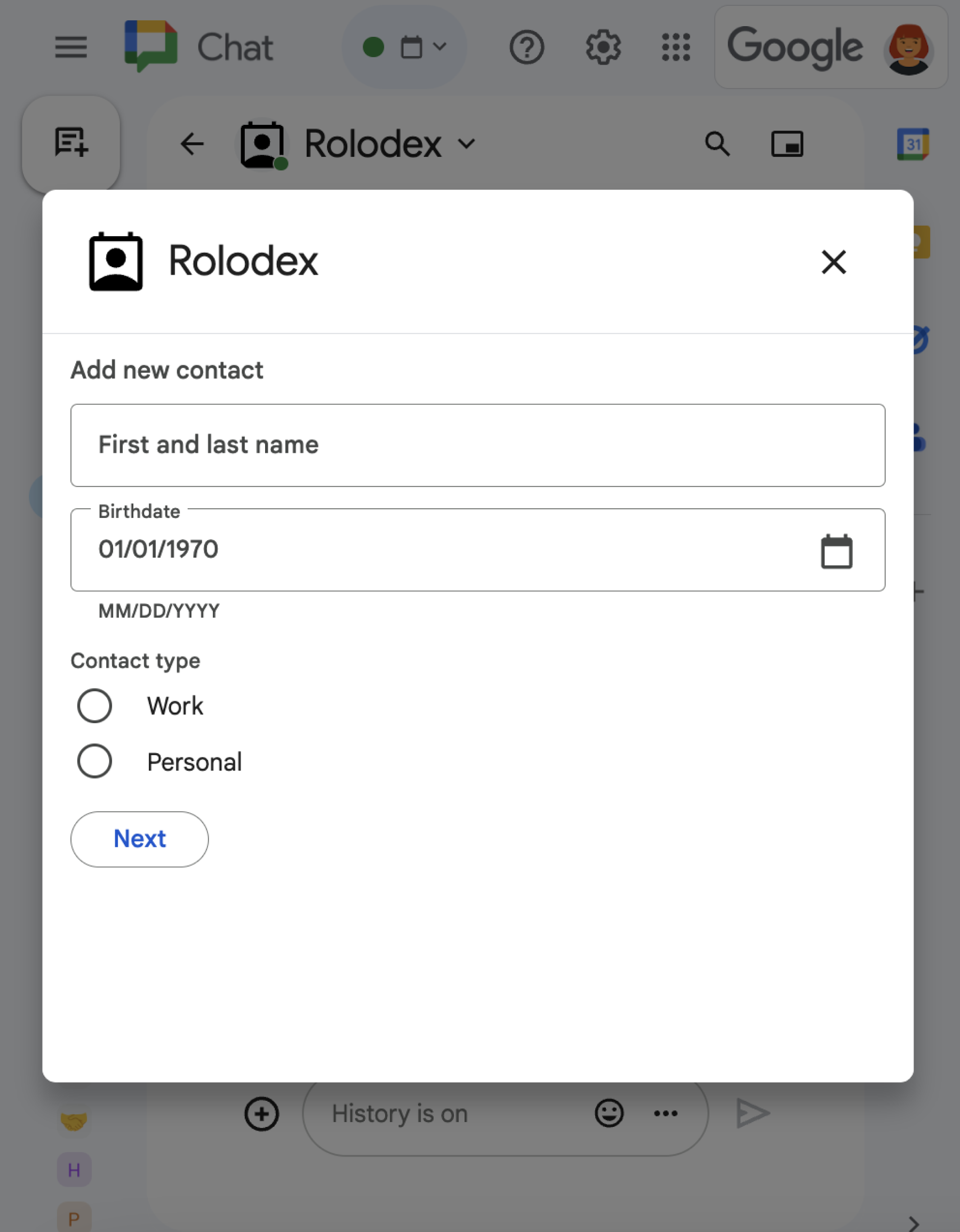
To learn how to open, update, and close dialogs using RenderActions
(pushCard, updateCard, and endNavigation: "CLOSE_DIALOG"), see
Open interactive dialogs.
Related topics
- Receive and respond to user interactions
- Open interactive dialogs
- Read form data input by users on cards
- View Chat app samples
Chat apps that aren't add-ons: Build a homepage for a Chat app
If you maintain a Chat app that isn't a
Google Workspace add-on, Chat sends an
APP_HOME interaction event
when a user opens the Home tab, and sends CARD_CLICKED or SUBMIT_FORM
interaction events when a user interacts with widgets on the App Home card.
To upgrade a Chat app that isn't an add-on to the Google Workspace add-ons framework, see Convert a Google Chat app to a Google Workspace add-on.
Build an App Home card in a Chat app that isn't an add-on
In a Chat app that isn't an
add-on, handle the APP_HOME interaction event by
returning a response containing a top-level renderActions field with
pushCard navigation:
Node.js
Python
Java
Apps Script
This example sends a card message by returning card JSON. You can also use the Apps Script card service.
Respond to App Home interactions in a Chat app that isn't an add-on
In a Chat app that isn't an
add-on, handle CARD_CLICKED or SUBMIT_FORM
interaction events from an App Home card by returning a response containing a
top-level renderActions field with updateCard navigation:
Node.js
Python
Java
Apps Script
This example sends a card message by returning card JSON. You can also use the Apps Script card service.