แสดงตัวอย่างลิงก์

หากไม่ต้องการให้ผู้ใช้เปลี่ยนบริบทเมื่อแชร์ลิงก์ใน Google Chat แอป Chat ของคุณสามารถแสดงตัวอย่างลิงก์ได้โดยแนบการ์ดไปกับข้อความ ซึ่งจะให้ข้อมูลเพิ่มเติมและช่วยให้ผู้ใช้ดำเนินการได้จาก Google Chat โดยตรง

ตัวอย่างเช่น ลองนึกถึงพื้นที่ใน Google Chat ที่มีตัวแทนฝ่ายบริการลูกค้าทั้งหมดของบริษัท รวมถึงแอป Chat ชื่อ Case-y ตัวแทนมักจะแชร์ลิงก์ไปยังเคสการบริการลูกค้าในพื้นที่ Chat และ ทุกครั้งที่แชร์ เพื่อนร่วมงานจะต้องเปิดลิงก์เคสเพื่อดูรายละเอียด เช่น ผู้รับมอบหมาย สถานะ และเรื่อง ในทำนองเดียวกัน หากมีผู้ต้องการเป็นเจ้าของเคสหรือเปลี่ยนสถานะ ก็จะต้องเปิดลิงก์

การแสดงตัวอย่างลิงก์ช่วยให้แอป Chat ในพื้นที่ทำงาน Case-y แนบการ์ดที่แสดงผู้รับผิดชอบ สถานะ และเรื่องได้ทุกครั้งที่มีคน แชร์ลิงก์เคส ปุ่มในการ์ดช่วยให้ตัวแทนเป็นเจ้าของเคสและเปลี่ยนสถานะได้โดยตรงจากสตรีมแชท

เมื่อมีผู้เพิ่มลิงก์ไปยังข้อความ ชิปจะปรากฏขึ้นเพื่อแจ้งให้ผู้ใช้ทราบ ว่าแอป Chat อาจแสดงตัวอย่างลิงก์
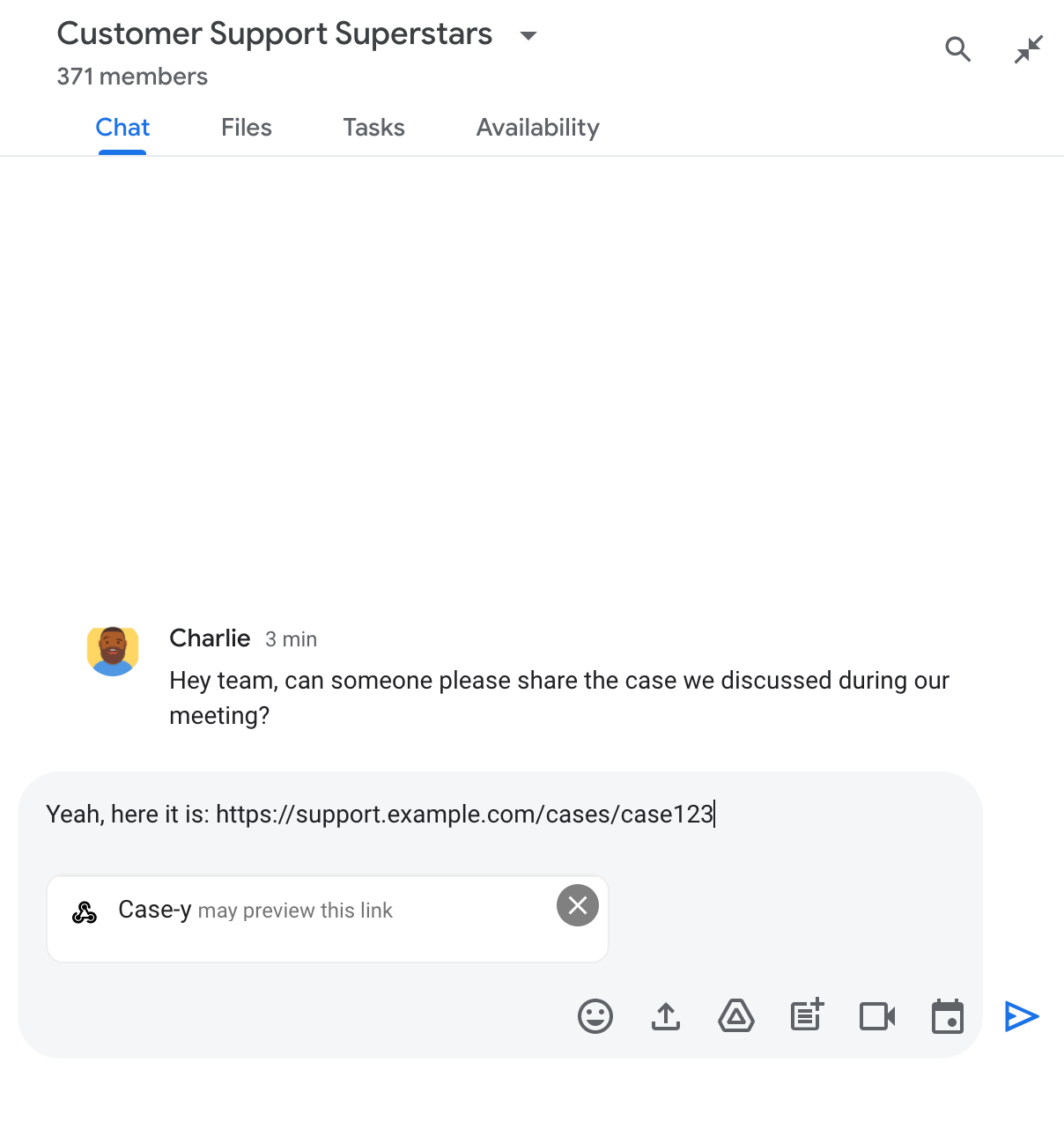
ชิปที่ระบุว่าแอป Chat อาจแสดงตัวอย่างลิงก์

หลังจากส่งข้อความแล้ว ระบบจะส่งลิงก์ไปยังแอป Chat ซึ่งจะสร้างและแนบการ์ดไปกับข้อความของผู้ใช้

แอป Chat แสดงตัวอย่างลิงก์โดยแนบการ์ดไปกับข้อความ

การ์ดจะแสดงข้อมูลเพิ่มเติมเกี่ยวกับลิงก์ รวมถึงองค์ประกอบแบบอินเทอร์แอกทีฟ เช่น ปุ่ม ข้างลิงก์ แอปแชทสามารถอัปเดตการ์ดที่แนบมาเพื่อตอบสนองต่อ การโต้ตอบของผู้ใช้ เช่น การคลิกปุ่ม

หากไม่ต้องการให้แอป Chat แสดงตัวอย่างลิงก์โดยการแนบบัตรไปยังข้อความ ผู้ใช้สามารถป้องกันไม่ให้แสดงตัวอย่างได้โดยคลิก ในชิปตัวอย่าง ผู้ใช้ สามารถนำการ์ดที่แนบมาออกได้ทุกเมื่อโดยคลิกนำตัวอย่างออก

ข้อกำหนดเบื้องต้น

HTTP

แอป Google Chat ที่รับและตอบสนองต่อการโต้ตอบของผู้ใช้ หากต้องการสร้าง ให้ทำตามการเริ่มต้นใช้งาน HTTP

Apps Script

แอป Google Chat ที่รับและตอบสนองต่อการโต้ตอบของผู้ใช้ หากต้องการสร้าง ให้ทำตามการเริ่มต้นใช้งาน Apps Script อย่างรวดเร็ว

ลงทะเบียนลิงก์ที่เฉพาะเจาะจง เช่น example.com, support.example.com และ support.example.com/cases/ เป็นรูปแบบ URL ในหน้าการกำหนดค่าของแอป Chat ในคอนโซล Google Cloud เพื่อให้แอป Chat แสดงตัวอย่างลิงก์เหล่านั้นได้
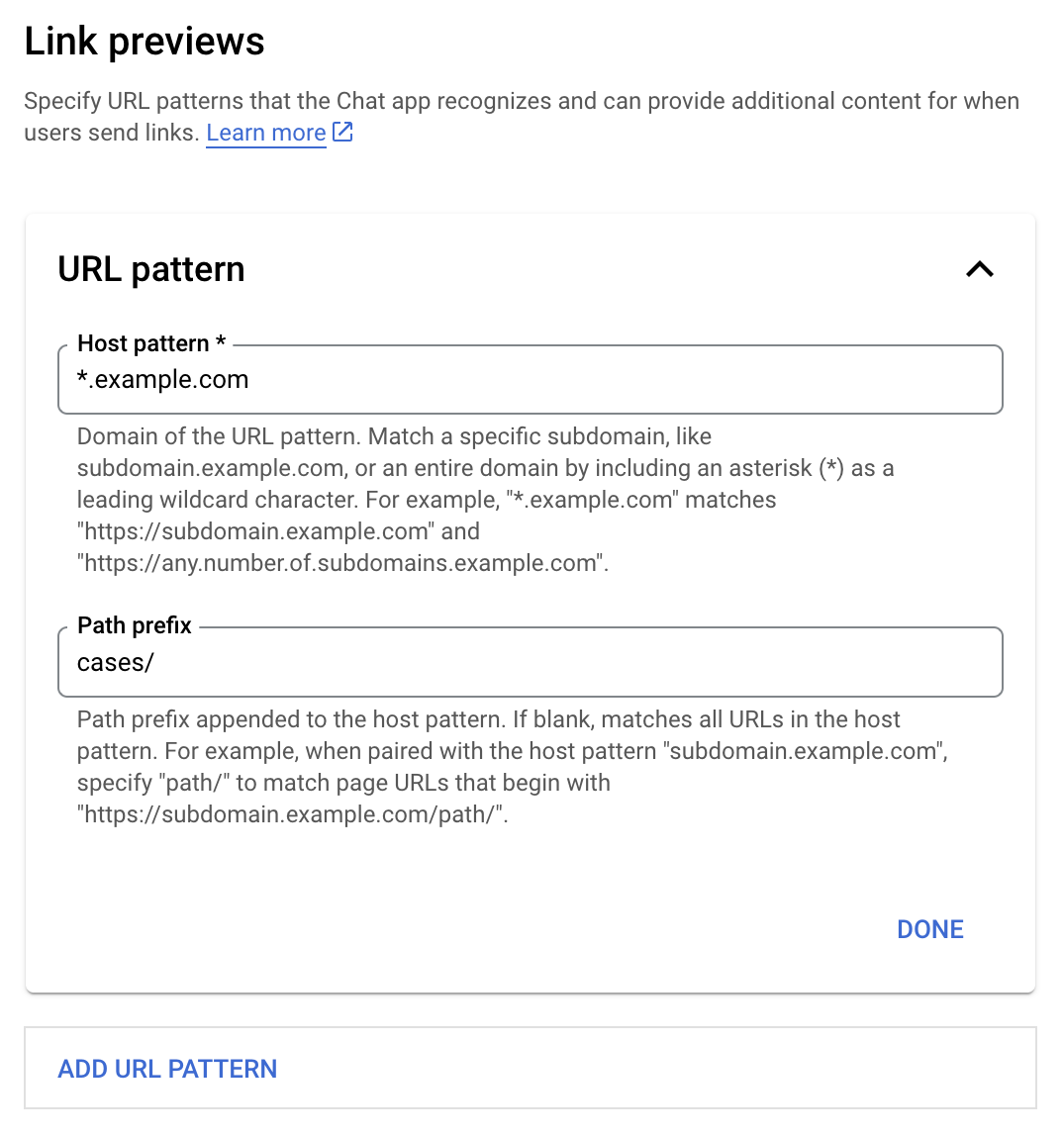
เมนูการกำหนดค่าตัวอย่างลิงก์

  1. เปิด คอนโซล Google Cloud
  2. คลิกลูกศรลง ข้าง "Google Cloud" แล้วเปิดโปรเจ็กต์ แอป Chat
  3. ในช่องค้นหา ให้พิมพ์ Google Chat API แล้วคลิก Google Chat API
  4. คลิกจัดการ > การกำหนดค่า
  5. เพิ่มหรือแก้ไขรูปแบบ URL ในส่วนตัวอย่างลิงก์
    1. หากต้องการกําหนดค่าตัวอย่างลิงก์สําหรับรูปแบบ URL ใหม่ ให้คลิกเพิ่มรูปแบบ URL
    2. หากต้องการแก้ไขการกำหนดค่าสำหรับรูปแบบ URL ที่มีอยู่ ให้คลิกลูกศรลง
  6. ในช่องรูปแบบโฮสต์ ให้ป้อนโดเมนของรูปแบบ URL แอป Chat จะแสดงตัวอย่างลิงก์ไปยังโดเมนนี้

    หากต้องการให้แอป Chat แสดงตัวอย่างลิงก์สำหรับโดเมนย่อยที่เฉพาะเจาะจง เช่น subdomain.example.com ให้ระบุโดเมนย่อย

    หากต้องการให้แอป Chat แสดงตัวอย่างลิงก์สำหรับทั้งโดเมน ให้ระบุอักขระไวลด์การ์ดที่มีเครื่องหมายดอกจัน (*) เป็นโดเมนย่อย เช่น *.example.com จะตรงกับ subdomain.example.com และ any.number.of.subdomains.example.com

  7. ในช่องคำนำหน้าเส้นทาง ให้ป้อนเส้นทางที่จะต่อท้ายโดเมนรูปแบบโฮสต์

    หากต้องการจับคู่ URL ทั้งหมดในโดเมนรูปแบบโฮสต์ ให้ปล่อยคำนำหน้าเส้นทางว่างไว้

    ตัวอย่างเช่น หากรูปแบบโฮสต์คือ support.example.com หากต้องการจับคู่ URL สำหรับเคสที่โฮสต์อยู่ที่ support.example.com/cases/ ให้ป้อน cases/

  8. คลิกเสร็จสิ้น

  9. คลิกบันทึก

ตอนนี้เมื่อใดก็ตามที่มีคนใส่ลิงก์ที่ตรงกับรูปแบบ URL ของตัวอย่างลิงก์ในข้อความในพื้นที่ Chat ที่มีแอป Chat ของคุณ แอปจะแสดงตัวอย่างลิงก์

หลังจากกำหนดค่าการแสดงตัวอย่างลิงก์สำหรับลิงก์หนึ่งๆ แล้ว แอป Chat จะจดจำและแสดงตัวอย่างลิงก์ได้โดยการแนบข้อมูลเพิ่มเติมไปกับลิงก์

ในพื้นที่ใน Chat ที่มีแอป Chat ของคุณ เมื่อข้อความของใครก็ตามมีลิงก์ที่ตรงกับรูปแบบ URL ของตัวอย่างลิงก์ แอป Chat ของคุณจะได้รับออบเจ็กต์เหตุการณ์ที่มี MessagePayload ในเพย์โหลด ออบเจ็กต์ message.matchedUrl (chat.messagePayload.message.matchedUrl.url) จะมีลิงก์ที่ผู้ใช้ ใส่ไว้ในข้อความ

JSON

message: {
  matchedUrl: {
    url: "https://support.example.com/cases/case123"
  },
  ... // other message attributes redacted
}

การตรวจสอบว่ามีฟิลด์ matchedUrl ในเพย์โหลดเหตุการณ์ MESSAGE (chat.messagePayload.message.matchedUrl.url) หรือไม่ จะช่วยให้แอป Chat เพิ่มข้อมูลลงในข้อความที่มีลิงก์ที่แสดงตัวอย่างได้ แอป Chat สามารถตอบกลับด้วย ข้อความธรรมดาหรือแนบการ์ด

ตอบกลับด้วยข้อความ

สำหรับการตอบกลับพื้นฐาน แอป Chat จะแสดงตัวอย่างลิงก์ได้ โดยการตอบกลับด้วยข้อความธรรมดา ไปยังลิงก์ ตัวอย่างนี้จะแนบข้อความที่ทำซ้ำ URL ของลิงก์ซึ่งตรงกับรูปแบบ URL ของตัวอย่างลิงก์

Node.js

node/chat/preview-link/index.js
// Reply with a text message for URLs of the subdomain "text"
if (chatMessage.matchedUrl.url.includes("text.example.com")) {
  return { hostAppDataAction: { chatDataAction: { createMessageAction: { message: {
    text: 'event.chat.messagePayload.message.matchedUrl.url: ' + chatMessage.matchedUrl.url
  }}}}};
}

แทนที่ FUNCTION_URL ด้วยปลายทาง HTTP ที่จัดการการคลิกปุ่ม

Python

python/chat/preview-link/main.py
# Reply with a text message for URLs of the subdomain "text"
if "text.example.com" in chatMessage.get('matchedUrl').get('url'):
  return { 'hostAppDataAction': { 'chatDataAction': { 'createMessageAction': { 'message': {
    'text': 'event.chat.messagePayload.message.matchedUrl.url: ' + chatMessage.get('matchedUrl').get('url')
  }}}}}

แทนที่ FUNCTION_URL ด้วยปลายทาง HTTP ที่จัดการการคลิกปุ่ม

Java

java/chat/preview-link/src/main/java/com/google/chat/previewLink/App.java
// Reply with a text message for URLs of the subdomain "text"
if (chatMessage.at("/matchedUrl/url").asText().contains("text.example.com")) {
  return new GenericJson() {{
    put("hostAppDataAction", new GenericJson() {{
      put("chatDataAction", new GenericJson() {{
        put("createMessageAction", new GenericJson() {{
          put("message", new Message()
            .setText("event.chat.messagePayload.message.matchedUrl.url: " + chatMessage.at("/matchedUrl/url").asText()));
        }});
      }});
    }});
  }};
}

แทนที่ FUNCTION_URL ด้วยปลายทาง HTTP ที่จัดการการคลิกปุ่ม

Apps Script

apps-script/chat/preview-link/preview-link.gs
// Reply with a text message for URLs of the subdomain "text".
if (chatMessage.matchedUrl.url.includes("text.example.com")) {
  return { hostAppDataAction: { chatDataAction: { createMessageAction: { message: {
    text: 'event.chat.messagePayload.message.matchedUrl.url: ' + chatMessage.matchedUrl.url
  }}}}};
}

หากต้องการแนบการ์ดกับลิงก์ที่แสดงตัวอย่าง ให้ส่งคืนการดำเนินการ DataActions พร้อมกับออบเจ็กต์ ChatDataActionMarkup ประเภท UpdateInlinePreviewAction

ในตัวอย่างต่อไปนี้ แอป Chat จะเพิ่มการ์ดแสดงตัวอย่าง ลงในข้อความที่มีรูปแบบ URL support.example.com

แอป Chat แสดงตัวอย่างลิงก์โดยแนบการ์ดไปกับข้อความ

Node.js

node/chat/preview-link/index.js
// Attach a card to the message for URLs of the subdomain "support"
if (chatMessage.matchedUrl.url.includes("support.example.com")) {
  // A hard-coded card is used in this example. In a real-life scenario,
  // the case information would be fetched and used to build the card.
  return { hostAppDataAction: { chatDataAction: { updateInlinePreviewAction: { cardsV2: [{
    cardId: 'attachCard',
    card: {
      header: {
        title: 'Example Customer Service Case',
        subtitle: 'Case basics',
      },
      sections: [{ widgets: [
      { decoratedText: { topLabel: 'Case ID', text: 'case123'}},
      { decoratedText: { topLabel: 'Assignee', text: 'Charlie'}},
      { decoratedText: { topLabel: 'Status', text: 'Open'}},
      { decoratedText: { topLabel: 'Subject', text: 'It won\'t turn on...' }},
      { buttonList: { buttons: [{
        text: 'OPEN CASE',
        onClick: { openLink: {
          url: 'https://support.example.com/orders/case123'
        }},
      }, {
        text: 'RESOLVE CASE',
        onClick: { openLink: {
          url: 'https://support.example.com/orders/case123?resolved=y',
        }},
      }, {
        text: 'ASSIGN TO ME',
        onClick: { action: { function: FUNCTION_URL }}
      }]}}
      ]}]
    }
  }]}}}};
}

แทนที่ FUNCTION_URL ด้วยปลายทาง HTTP ที่จัดการการคลิกปุ่ม

Python

python/chat/preview-link/main.py
# Attach a card to the message for URLs of the subdomain "support"
if "support.example.com" in chatMessage.get('matchedUrl').get('url'):
  # A hard-coded card is used in this example. In a real-life scenario,
  # the case information would be fetched and used to build the card.
  return { 'hostAppDataAction': { 'chatDataAction': { 'updateInlinePreviewAction': { 'cardsV2': [{
    'cardId': 'attachCard',
    'card': {
      'header': {
        'title': 'Example Customer Service Case',
        'subtitle': 'Case basics',
      },
      'sections': [{ 'widgets': [
      { 'decoratedText': { 'topLabel': 'Case ID', 'text': 'case123'}},
      { 'decoratedText': { 'topLabel': 'Assignee', 'text': 'Charlie'}},
      { 'decoratedText': { 'topLabel': 'Status', 'text': 'Open'}},
      { 'decoratedText': { 'topLabel': 'Subject', 'text': 'It won\'t turn on...' }},
      { 'buttonList': { 'buttons': [{
        'text': 'OPEN CASE',
        'onClick': { 'openLink': {
          'url': 'https://support.example.com/orders/case123'
        }},
      }, {
        'text': 'RESOLVE CASE',
        'onClick': { 'openLink': {
          'url': 'https://support.example.com/orders/case123?resolved=y',
        }},
      }, {
        'text': 'ASSIGN TO ME',
        'onClick': { 'action': { 'function': FUNCTION_URL }}
      }]}}
      ]}]
    }
  }]}}}}

แทนที่ FUNCTION_URL ด้วยปลายทาง HTTP ที่จัดการการคลิกปุ่ม

Java

java/chat/preview-link/src/main/java/com/google/chat/previewLink/App.java
// Attach a card to the message for URLs of the subdomain "support"
if (chatMessage.at("/matchedUrl/url").asText().contains("support.example.com")) {
  // A hard-coded card is used in this example. In a real-life scenario,
  // the case information would be fetched and used to build the card.
  CardWithId cardV2 = new CardWithId()
    .setCardId("attachCard")
    .setCard(new GoogleAppsCardV1Card()
      .setHeader(new GoogleAppsCardV1CardHeader()
        .setTitle("Example Customer Service Case")
        .setSubtitle("Case basics"))
      .setSections(List.of(new GoogleAppsCardV1Section().setWidgets(List.of(
        new GoogleAppsCardV1Widget().setDecoratedText(new GoogleAppsCardV1DecoratedText()
          .setTopLabel("Case ID")
          .setText("case123")),
        new GoogleAppsCardV1Widget().setDecoratedText(new GoogleAppsCardV1DecoratedText()
          .setTopLabel("Assignee")
          .setText("Charlie")),
        new GoogleAppsCardV1Widget().setDecoratedText(new GoogleAppsCardV1DecoratedText()
          .setTopLabel("Status")
          .setText("Open")),
        new GoogleAppsCardV1Widget().setDecoratedText(new GoogleAppsCardV1DecoratedText()
          .setTopLabel("Subject")
          .setText("It won't turn on...")),
        new GoogleAppsCardV1Widget().setButtonList(new GoogleAppsCardV1ButtonList()
          .setButtons(List.of(
            new GoogleAppsCardV1Button()
              .setText("OPEN CASE")
            .setOnClick(new GoogleAppsCardV1OnClick()
                .setOpenLink(new GoogleAppsCardV1OpenLink()
                  .setUrl("https://support.example.com/orders/case123"))),
            new GoogleAppsCardV1Button()
              .setText("RESOLVE CASE")
            .setOnClick(new GoogleAppsCardV1OnClick()
                .setOpenLink(new GoogleAppsCardV1OpenLink()
                  .setUrl("https://support.example.com/orders/case123?resolved=y"))),
            new GoogleAppsCardV1Button()
              .setText("ASSIGN TO ME")
              .setOnClick(new GoogleAppsCardV1OnClick()
                .setAction(new GoogleAppsCardV1Action().setFunction(FUNCTION_URL)))
          ))
        )
      ))))
    );

  return new GenericJson() {{
    put("hostAppDataAction", new GenericJson() {{
      put("chatDataAction", new GenericJson() {{
        put("updateInlinePreviewAction", new GenericJson() {{
          put("cardsV2", List.of(cardV2));
        }});
      }});
    }});
  }};
}

แทนที่ FUNCTION_URL ด้วยปลายทาง HTTP ที่จัดการการคลิกปุ่ม

Apps Script

apps-script/chat/preview-link/preview-link.gs
// Attach a card to the message for URLs of the subdomain "support".
if (chatMessage.matchedUrl.url.includes("support.example.com")) {
  // A hard-coded card is used in this example. In a real-life scenario,
  // the case information would be fetched and used to build the card.
  return { hostAppDataAction: { chatDataAction: { updateInlinePreviewAction: { cardsV2: [{
    cardId: 'attachCard',
    card: {
      header: {
        title: 'Example Customer Service Case',
        subtitle: 'Case summary',
      },
      sections: [{ widgets: [
      { decoratedText: { topLabel: 'Case ID', text: 'case123'}},
      { decoratedText: { topLabel: 'Assignee', text: 'Charlie'}},
      { decoratedText: { topLabel: 'Status', text: 'Open'}},
      { decoratedText: { topLabel: 'Subject', text: 'It won\'t turn on...' }},
      { buttonList: { buttons: [{
        text: 'OPEN CASE',
        onClick: { openLink: {
          url: 'https://support.example.com/orders/case123'
        }},
      }, {
        text: 'RESOLVE CASE',
        onClick: { openLink: {
          url: 'https://support.example.com/orders/case123?resolved=y',
        }},
      }, {
        text: 'ASSIGN TO ME',
        // Clicking this button triggers the execution of the function
        // "assign" from the Apps Script project.
        onClick: { action: { function: 'assign'}}
      }]}}
      ]}]
    }
  }]}}}};
}

แอป Chat สามารถอัปเดตการ์ดแสดงตัวอย่างลิงก์ได้เมื่อ ผู้ใช้โต้ตอบกับการ์ด เช่น คลิกปุ่มในการ์ด

หากต้องการอัปเดตการ์ด แอป Chat ต้องส่งคืนการดำเนินการ DataActions พร้อมกับ ออบเจ็กต์ ChatDataActionMarkup อย่างใดอย่างหนึ่งต่อไปนี้

  • หากผู้ใช้ส่งข้อความ ให้แสดงออบเจ็กต์ UpdateMessageAction
  • หากแอป Chat ส่งข้อความ ให้แสดงผลออบเจ็กต์ UpdateInlinePreviewAction

หากต้องการระบุว่าใครเป็นผู้ส่งข้อความ ให้ใช้เพย์โหลดของเหตุการณ์ (buttonClickedPayload) เพื่อตรวจสอบว่ามีการตั้งค่าผู้ส่ง (message.sender.type) เป็น HUMAN (ผู้ใช้) หรือ BOT (แอป Chat) หรือไม่

ตัวอย่างต่อไปนี้แสดงวิธีที่แอป Chat อัปเดต ตัวอย่างลิงก์ทุกครั้งที่ผู้ใช้คลิกปุ่มมอบหมายให้ฉัน โดยการอัปเดตฟิลด์ผู้รับมอบหมายของการ์ดและปิดใช้ปุ่ม

แอปแชทแสดงตัวอย่างลิงก์ที่มีการ์ดเวอร์ชันที่อัปเดตแล้วแนบไปกับข้อความ

Node.js

node/chat/preview-link/index.js
/**
 * Respond to clicks by assigning and updating the card that's attached to a
 * message previewed link of the pattern "support.example.com".
 *
 * @param {Object} chatMessage The chat message object from Google Workspace Add On event.
 * @return {Object} Action response depending on the message author.
 */
function handleCardClick(chatMessage) {
  // Creates the updated card that displays "You" for the assignee
  // and that disables the button.
  //
  // A hard-coded card is used in this example. In a real-life scenario,
  // an actual assign action would be performed before building the card.
  const message = { cardsV2: [{
    cardId: 'attachCard',
    card: {
      header: {
        title: 'Example Customer Service Case',
        subtitle: 'Case basics',
      },
      sections: [{ widgets: [
        { decoratedText: { topLabel: 'Case ID', text: 'case123'}},
        // The assignee is now "You"
        { decoratedText: { topLabel: 'Assignee', text: 'You'}},
        { decoratedText: { topLabel: 'Status', text: 'Open'}},
        { decoratedText: { topLabel: 'Subject', text: 'It won\'t turn on...' }},
        { buttonList: { buttons: [{
          text: 'OPEN CASE',
          onClick: { openLink: {
            url: 'https://support.example.com/orders/case123'
          }},
        }, {
          text: 'RESOLVE CASE',
          onClick: { openLink: {
            url: 'https://support.example.com/orders/case123?resolved=y',
          }},
        }, {
          text: 'ASSIGN TO ME',
          // The button is now disabled
          disabled: true,
          onClick: { action: { function: FUNCTION_URL }}
        }]}}
      ]}]
    }
  }]};

  // Use the adequate action response type. It depends on whether the message
  // the preview link card is attached to was created by a human or a Chat app.
  if(chatMessage.sender.type === 'HUMAN') {
    return { hostAppDataAction: { chatDataAction: { updateInlinePreviewAction: message }}};
  } else {
    return { hostAppDataAction: { chatDataAction: { updateMessageAction: message }}};
  }
}

แทนที่ FUNCTION_URL ด้วยปลายทาง HTTP ที่จัดการการคลิกปุ่ม

Python

python/chat/preview-link/main.py
def handle_card_click(chatMessage: dict) -> dict:
  """Respond to clicks by assigning and updating the card that's attached to a
  message previewed link of the pattern "support.example.com".

  - Reply with text messages that echo "text.example.com" link URLs in messages.
  - Attach cards to messages with "support.example.com" link URLs.

  Args:
      chatMessage (Mapping[str, Any]): The chat message object from Google Workspace Add On event.

  Returns:
      Mapping[str, Any]: Action response depending on the message author.
  """
  # Creates the updated card that displays "You" for the assignee
  # and that disables the button.
  #
  # A hard-coded card is used in this example. In a real-life scenario,
  # an actual assign action would be performed before building the card.
  message = { 'cardsV2': [{
    'cardId': 'attachCard',
    'card': {
      'header': {
        'title': 'Example Customer Service Case',
        'subtitle': 'Case basics',
      },
      'sections': [{ 'widgets': [
      { 'decoratedText': { 'topLabel': 'Case ID', 'text': 'case123'}},
      # The assignee is now "You"
      { 'decoratedText': { 'topLabel': 'Assignee', 'text': 'You'}},
      { 'decoratedText': { 'topLabel': 'Status', 'text': 'Open'}},
      { 'decoratedText': { 'topLabel': 'Subject', 'text': 'It won\'t turn on...' }},
      { 'buttonList': { 'buttons': [{
        'text': 'OPEN CASE',
        'onClick': { 'openLink': {
          'url': 'https://support.example.com/orders/case123'
        }},
      }, {
        'text': 'RESOLVE CASE',
        'onClick': { 'openLink': {
          'url': 'https://support.example.com/orders/case123?resolved=y',
        }},
      }, {
        'text': 'ASSIGN TO ME',
        # The button is now disabled
        'disabled': True,
        'onClick': { 'action': { 'function': FUNCTION_URL }}
      }]}}
      ]}]
    }
  }]}

  # Use the adequate action response type. It depends on whether the message
  # the preview link card is attached to was created by a human or a Chat app.
  if chatMessage.get('sender').get('type') == 'HUMAN':
    return { 'hostAppDataAction': { 'chatDataAction': { 'updateInlinePreviewAction': message }}}
  else:
    return { 'hostAppDataAction': { 'chatDataAction': { 'updateMessageAction': message }}}

แทนที่ FUNCTION_URL ด้วยปลายทาง HTTP ที่จัดการการคลิกปุ่ม

Java

java/chat/preview-link/src/main/java/com/google/chat/previewLink/App.java
/**
 * Respond to clicks by assigning and updating the card that's attached to a
 * message previewed link of the pattern "support.example.com".
 *
 * @param chatMessage The chat message object from Google Workspace Add On event.
 * @return Action response depending on the message author.
 */
GenericJson handleCardClick(JsonNode chatMessage) {
  // Creates the updated card that displays "You" for the assignee
  // and that disables the button.
  //
  // A hard-coded card is used in this example. In a real-life scenario,
  // an actual assign action would be performed before building the card.
  Message message = new Message().setCardsV2(List.of(new CardWithId()
    .setCardId("attachCard")
    .setCard(new GoogleAppsCardV1Card()
      .setHeader(new GoogleAppsCardV1CardHeader()
        .setTitle("Example Customer Service Case")
        .setSubtitle("Case basics"))
      .setSections(List.of(new GoogleAppsCardV1Section().setWidgets(List.of(
        new GoogleAppsCardV1Widget().setDecoratedText(new GoogleAppsCardV1DecoratedText()
          .setTopLabel("Case ID")
          .setText("case123")),
        // The assignee is now "You"
        new GoogleAppsCardV1Widget().setDecoratedText(new GoogleAppsCardV1DecoratedText()
          .setTopLabel("Assignee")
          .setText("You")),
        new GoogleAppsCardV1Widget().setDecoratedText(new GoogleAppsCardV1DecoratedText()
          .setTopLabel("Status")
          .setText("Open")),
        new GoogleAppsCardV1Widget().setDecoratedText(new GoogleAppsCardV1DecoratedText()
          .setTopLabel("Subject")
          .setText("It won't turn on...")),
        new GoogleAppsCardV1Widget().setButtonList(new GoogleAppsCardV1ButtonList()
          .setButtons(List.of(
            new GoogleAppsCardV1Button()
              .setText("OPEN CASE")
              .setOnClick(new GoogleAppsCardV1OnClick()
                .setOpenLink(new GoogleAppsCardV1OpenLink()
                  .setUrl("https://support.example.com/orders/case123"))),
            new GoogleAppsCardV1Button()
              .setText("RESOLVE CASE")
              .setOnClick(new GoogleAppsCardV1OnClick()
                .setOpenLink(new GoogleAppsCardV1OpenLink()
                  .setUrl("https://support.example.com/orders/case123?resolved=y"))),
            new GoogleAppsCardV1Button()
              .setText("ASSIGN TO ME")
              // The button is now disabled
              .setDisabled(true)
              .setOnClick(new GoogleAppsCardV1OnClick()
                .setAction(new GoogleAppsCardV1Action().setFunction(FUNCTION_URL)))
          ))
        )
      ))))
    )
  ));

  // Use the adequate action response type. It depends on whether the message
  // the preview link card is attached to was created by a human or a Chat app.
  if("HUMAN".equals(chatMessage.at("/sender/type").asText())) {
    return new GenericJson() {{
      put("hostAppDataAction", new GenericJson() {{
        put("chatDataAction", new GenericJson() {{
          put("updateInlinePreviewAction", message);
        }});
      }});
    }};
  } else {
    return new GenericJson() {{
      put("hostAppDataAction", new GenericJson() {{
        put("chatDataAction", new GenericJson() {{
          put("updateMessageAction", message);
        }});
      }});
    }};
  }
}

แทนที่ FUNCTION_URL ด้วยปลายทาง HTTP ที่จัดการการคลิกปุ่ม

Apps Script

apps-script/chat/preview-link/preview-link.gs
/**
 * Assigns and updates the card that's attached to a message with a
 * previewed link of the pattern "support.example.com".
 *
 * @param {Object} event The event object from the Google Workspace add-on.
 * @return {Object} Action response depending on the message author.
 */
function assign(event) {
  // Creates the updated card that displays "You" for the assignee
  // and that disables the button.
  //
  // A hard-coded card is used in this example. In a real-life scenario,
  // an actual assign action would be performed before building the card.
  const message = { cardsV2: [{
    cardId: 'attachCard',
    card: {
      header: {
        title: 'Example Customer Service Case',
        subtitle: 'Case summary',
      },
      sections: [{ widgets: [
        { decoratedText: { topLabel: 'Case ID', text: 'case123'}},
        // The assignee is now "You"
        { decoratedText: { topLabel: 'Assignee', text: 'You'}},
        { decoratedText: { topLabel: 'Status', text: 'Open'}},
        { decoratedText: { topLabel: 'Subject', text: 'It won\'t turn on...' }},
        { buttonList: { buttons: [{
          text: 'OPEN CASE',
          onClick: { openLink: {
            url: 'https://support.example.com/orders/case123'
          }},
        }, {
          text: 'RESOLVE CASE',
          onClick: { openLink: {
            url: 'https://support.example.com/orders/case123?resolved=y',
          }},
        }, {
          text: 'ASSIGN TO ME',
          // The button is now disabled
          disabled: true,
          onClick: { action: { function: 'assign'}}
        }]}}
      ]}]
    }
  }]};

  // Use the adequate action response type. It depends on whether the message
  // the preview link card is attached to was created by a human or a Chat app.
  if(event.chat.buttonClickedPayload.message.sender.type === 'HUMAN') {
    return { hostAppDataAction: { chatDataAction: { updateInlinePreviewAction: message }}};
  } else {
    return { hostAppDataAction: { chatDataAction: { updateMessageAction: message }}};
  }
}

ข้อจำกัดและข้อควรพิจารณา

เมื่อกำหนดค่าตัวอย่างลิงก์สำหรับแอป Chat โปรดทราบข้อจำกัดและข้อควรพิจารณาต่อไปนี้

  • แอป Chat แต่ละแอปจะรองรับตัวอย่างลิงก์สำหรับรูปแบบ URL ได้สูงสุด 5 รูปแบบ
  • แอปแชทจะแสดงตัวอย่างลิงก์ 1 รายการต่อข้อความ หากมีลิงก์ที่แสดงตัวอย่างได้หลายลิงก์ในข้อความเดียว ระบบจะแสดงตัวอย่างเฉพาะลิงก์แรกที่แสดงตัวอย่างได้
  • แอปแชทจะแสดงตัวอย่างเฉพาะลิงก์ที่ขึ้นต้นด้วย https:// ดังนั้น https://support.example.com/cases/ จะแสดงตัวอย่าง แต่ support.example.com/cases/ จะไม่แสดง
  • หากข้อความไม่มีข้อมูลอื่นๆ ที่จะส่งไปยังแอป Chat เช่น คำสั่งเครื่องหมายทับ ระบบจะส่งเฉพาะ URL ของลิงก์ไปยังแอป Chat โดยตัวอย่างลิงก์
  • หากผู้ใช้โพสต์ลิงก์ แอป Chat จะอัปเดตได้เฉพาะการ์ดตัวอย่างลิงก์เมื่อผู้ใช้โต้ตอบกับการ์ด เช่น คลิกปุ่ม คุณไม่สามารถเรียกใช้เมธอด update() ของ Chat API ในทรัพยากร Message เพื่ออัปเดตข้อความของผู้ใช้แบบไม่พร้อมกันได้
  • แอปแชทต้องแสดงตัวอย่างลิงก์สำหรับทุกคนในพื้นที่ทำงาน ดังนั้น ข้อความจึงต้องละเว้นฟิลด์ privateMessageViewer

ขณะใช้ตัวอย่างลิงก์ คุณอาจต้องแก้ไขข้อบกพร่องของแอป Chat โดยอ่านบันทึกของแอป หากต้องการอ่านบันทึก ให้ไปที่ Logs Explorer ในคอนโซล Google Cloud

เอกสารต่อไปนี้ใช้กับแอป Chat ที่ไม่ใช่ส่วนเสริมของ Google Workspace หากต้องการย้ายข้อมูลแอป Chat ที่ไม่ใช่ส่วนเสริม โปรดดูหัวข้อแปลงแอป Google Chat เป็นส่วนเสริม Google Workspace

ในพื้นที่ใน Chat ที่มี แอป Chat ที่ไม่ใช่ส่วนเสริม เมื่อข้อความของบุคคลอื่นมีลิงก์ที่ ตรงกับรูปแบบ URL ของตัวอย่างลิงก์ แอป Chat จะได้รับ MESSAGE เหตุการณ์การโต้ตอบ เพย์โหลด JSON สำหรับเหตุการณ์การโต้ตอบมีฟิลด์ matchedUrl ดังนี้

JSON

message: {
  matchedUrl: {
    url: "https://support.example.com/cases/case123"
  },
  ... // other message attributes redacted
}

การตรวจสอบว่ามีฟิลด์ matchedUrl ในเพย์โหลดเหตุการณ์ MESSAGE หรือไม่ จะช่วยให้แอป Chat ที่ไม่ใช่ส่วนเสริมสามารถเพิ่มข้อมูลลงในข้อความที่มีลิงก์ที่แสดงตัวอย่างได้

ตอบกลับด้วยข้อความ

สำหรับการตอบกลับพื้นฐาน แอป Chat ที่ไม่ใช่ส่วนเสริมจะแสดงตัวอย่างลิงก์ได้โดยการตอบกลับด้วยข้อความธรรมดา ไปยังลิงก์ ตัวอย่างนี้แนบข้อความที่ทำซ้ำ URL ของลิงก์ที่ ตรงกับรูปแบบ URL ของตัวอย่างลิงก์

Node.js

node/preview-link/index.js
// Reply with a text message for URLs of the subdomain "text"
if (event.message.matchedUrl.url.includes("text.example.com")) {
  return {
    text: 'event.message.matchedUrl.url: ' + event.message.matchedUrl.url
  };
}

Python

python/preview-link/main.py
# Reply with a text message for URLs of the subdomain "text"
if 'text.example.com' in event.get('message').get('matchedUrl').get('url'):
  return {
    'text': 'event.message.matchedUrl.url: ' +
            event.get('message').get('matchedUrl').get('url')
  }

Java

java/preview-link/src/main/java/com/google/chat/preview/App.java
// Reply with a text message for URLs of the subdomain "text"
if (event.at("/message/matchedUrl/url").asText().contains("text.example.com")) {
  return new Message().setText("event.message.matchedUrl.url: " +
    event.at("/message/matchedUrl/url").asText());
}

Apps Script

apps-script/preview-link/preview-link.gs
// Reply with a text message for URLs of the subdomain "text"
if (event.message.matchedUrl.url.includes("text.example.com")) {
  return {
    text: 'event.message.matchedUrl.url: ' + event.message.matchedUrl.url
  };
}

แนบการ์ดที่แสดงตัวอย่างลิงก์

หากต้องการแนบการ์ดกับลิงก์ที่แสดงตัวอย่าง ในแอป Chat ที่ไม่ใช่ ส่วนเสริม ให้ส่งActionResponse ประเภท UPDATE_USER_MESSAGE_CARDS ตัวอย่างนี้แนบการ์ดพื้นฐาน

Node.js

node/preview-link/index.js
// Attach a card to the message for URLs of the subdomain "support"
if (event.message.matchedUrl.url.includes("support.example.com")) {
  // A hard-coded card is used in this example. In a real-life scenario,
  // the case information would be fetched and used to build the card.
  return {
    actionResponse: { type: 'UPDATE_USER_MESSAGE_CARDS' },
    cardsV2: [{
      cardId: 'attachCard',
      card: {
        header: {
          title: 'Example Customer Service Case',
          subtitle: 'Case basics',
        },
        sections: [{ widgets: [
          { decoratedText: { topLabel: 'Case ID', text: 'case123'}},
          { decoratedText: { topLabel: 'Assignee', text: 'Charlie'}},
          { decoratedText: { topLabel: 'Status', text: 'Open'}},
          { decoratedText: { topLabel: 'Subject', text: 'It won\'t turn on...' }},
          { buttonList: { buttons: [{
            text: 'OPEN CASE',
            onClick: { openLink: {
              url: 'https://support.example.com/orders/case123'
            }},
          }, {
            text: 'RESOLVE CASE',
            onClick: { openLink: {
              url: 'https://support.example.com/orders/case123?resolved=y',
            }},
          }, {
            text: 'ASSIGN TO ME',
            onClick: { action: { function: 'assign'}}
          }]}}
        ]}]
      }
    }]
  };
}

Python

python/preview-link/main.py
# Attach a card to the message for URLs of the subdomain "support"
if 'support.example.com' in event.get('message').get('matchedUrl').get('url'):
  # A hard-coded card is used in this example. In a real-life scenario,
  # the case information would be fetched and used to build the card.
  return {
    'actionResponse': { 'type': 'UPDATE_USER_MESSAGE_CARDS' },
    'cardsV2': [{
      'cardId': 'attachCard',
      'card': {
        'header': {
          'title': 'Example Customer Service Case',
          'subtitle': 'Case basics',
        },
        'sections': [{ 'widgets': [
          { 'decoratedText': { 'topLabel': 'Case ID', 'text': 'case123'}},
          { 'decoratedText': { 'topLabel': 'Assignee', 'text': 'Charlie'}},
          { 'decoratedText': { 'topLabel': 'Status', 'text': 'Open'}},
          { 'decoratedText': { 'topLabel': 'Subject', 'text': 'It won\'t turn on...' }},
          { 'buttonList': { 'buttons': [{
            'text': 'OPEN CASE',
            'onClick': { 'openLink': {
              'url': 'https://support.example.com/orders/case123'
            }},
          }, {
            'text': 'RESOLVE CASE',
            'onClick': { 'openLink': {
              'url': 'https://support.example.com/orders/case123?resolved=y',
            }},
          }, {
            'text': 'ASSIGN TO ME',
            'onClick': { 'action': { 'function': 'assign'}}
          }]}}
        ]}]
      }
    }]
  }

Java

java/preview-link/src/main/java/com/google/chat/preview/App.java
// Attach a card to the message for URLs of the subdomain "support"
if (event.at("/message/matchedUrl/url").asText().contains("support.example.com")) {
  // A hard-coded card is used in this example. In a real-life scenario,
  // the case information would be fetched and used to build the card.
  return new Message()
    .setActionResponse(new ActionResponse()
      .setType("UPDATE_USER_MESSAGE_CARDS"))
    .setCardsV2(List.of(new CardWithId()
      .setCardId("attachCard")
      .setCard(new GoogleAppsCardV1Card()
        .setHeader(new GoogleAppsCardV1CardHeader()
          .setTitle("Example Customer Service Case")
          .setSubtitle("Case basics"))
        .setSections(List.of(new GoogleAppsCardV1Section().setWidgets(List.of(
          new GoogleAppsCardV1Widget().setDecoratedText(new GoogleAppsCardV1DecoratedText()
            .setTopLabel("Case ID")
            .setText("case123")),
          new GoogleAppsCardV1Widget().setDecoratedText(new GoogleAppsCardV1DecoratedText()
            .setTopLabel("Assignee")
            .setText("Charlie")),
          new GoogleAppsCardV1Widget().setDecoratedText(new GoogleAppsCardV1DecoratedText()
            .setTopLabel("Status")
            .setText("Open")),
          new GoogleAppsCardV1Widget().setDecoratedText(new GoogleAppsCardV1DecoratedText()
            .setTopLabel("Subject")
            .setText("It won't turn on...")),
          new GoogleAppsCardV1Widget()
            .setButtonList(new GoogleAppsCardV1ButtonList().setButtons(List.of(
              new GoogleAppsCardV1Button()
                .setText("OPEN CASE")
                .setOnClick(new GoogleAppsCardV1OnClick()
                  .setOpenLink(new GoogleAppsCardV1OpenLink()
                    .setUrl("https://support.example.com/orders/case123"))),
              new GoogleAppsCardV1Button()
                .setText("RESOLVE CASE")
                .setOnClick(new GoogleAppsCardV1OnClick()
                  .setOpenLink(new GoogleAppsCardV1OpenLink()
                    .setUrl("https://support.example.com/orders/case123?resolved=y"))),
              new GoogleAppsCardV1Button()
                .setText("ASSIGN TO ME")
                .setOnClick(new GoogleAppsCardV1OnClick()
                  .setAction(new GoogleAppsCardV1Action().setFunction("assign")))))))))))));
}

Apps Script

ตัวอย่างนี้จะส่งข้อความการ์ดโดยการส่งคืน JSON ของการ์ด คุณยังใช้บริการการ์ด Apps Script ได้ด้วย

apps-script/preview-link/preview-link.gs
// Attach a card to the message for URLs of the subdomain "support"
if (event.message.matchedUrl.url.includes("support.example.com")) {
  // A hard-coded card is used in this example. In a real-life scenario,
  // the case information would be fetched and used to build the card.
  return {
    actionResponse: { type: 'UPDATE_USER_MESSAGE_CARDS' },
    cardsV2: [{
      cardId: 'attachCard',
      card: {
        header: {
          title: 'Example Customer Service Case',
          subtitle: 'Case basics',
        },
        sections: [{ widgets: [
          { decoratedText: { topLabel: 'Case ID', text: 'case123'}},
          { decoratedText: { topLabel: 'Assignee', text: 'Charlie'}},
          { decoratedText: { topLabel: 'Status', text: 'Open'}},
          { decoratedText: { topLabel: 'Subject', text: 'It won\'t turn on...' }},
          { buttonList: { buttons: [{
            text: 'OPEN CASE',
            onClick: { openLink: {
              url: 'https://support.example.com/orders/case123'
            }},
          }, {
            text: 'RESOLVE CASE',
            onClick: { openLink: {
              url: 'https://support.example.com/orders/case123?resolved=y',
            }},
          }, {
            text: 'ASSIGN TO ME',
            onClick: { action: { function: 'assign'}}
          }]}}
        ]}]
      }
    }]
  };
}

อัปเดตการ์ดแสดงตัวอย่างลิงก์

หากต้องการอัปเดตการ์ดแสดงตัวอย่างลิงก์ในแอป Chat ที่ไม่ใช่ ส่วนเสริม ให้จัดการเหตุการณ์การโต้ตอบ CARD_CLICKED และส่งคืน actionResponse โดยอิงตามผู้ที่ส่งข้อความที่มีตัวอย่างลิงก์

  • หากผู้ใช้ส่งข้อความ ให้ตั้งค่า actionResponse.typeเป็น UPDATE_USER_MESSAGE_CARDS
  • หากแอป Chat ส่งข้อความ ให้ตั้งค่า actionResponse.type เป็น UPDATE_MESSAGE

หากต้องการระบุว่าใครเป็นผู้ส่งข้อความ คุณสามารถใช้ฟิลด์ message.sender.type ของเหตุการณ์การโต้ตอบเพื่อดูว่าผู้ส่งเป็นผู้ใช้ HUMAN หรือ BOT

ตัวอย่างต่อไปนี้แสดงวิธีที่แอป Chat ที่ไม่ใช่ ส่วนเสริม อัปเดตตัวอย่างลิงก์ทุกครั้งที่ผู้ใช้คลิกปุ่มมอบหมายให้ฉัน โดยการอัปเดตช่องผู้ได้รับมอบหมายของการ์ดและปิดใช้ปุ่ม

Node.js

node/preview-link/index.js
/**
 * Updates a card that was attached to a message with a previewed link.
 *
 * @param {Object} event The event object from Chat.
 *
 * @return {Object} Response from the Chat app. Either a new card attached to
 * the message with the previewed link, or an update to an existing card.
 */
function onCardClick(event) {
  // To respond to the correct button, checks the button's actionMethodName.
  if (event.action.actionMethodName === 'assign') {
    // A hard-coded card is used in this example. In a real-life scenario,
    // an actual assign action would be performed before building the card.

    // Checks whether the message event originated from a human or a Chat app
    // and sets actionResponse.type to "UPDATE_USER_MESSAGE_CARDS if human or
    // "UPDATE_MESSAGE" if Chat app.
    const actionResponseType = event.message.sender.type === 'HUMAN' ?
      'UPDATE_USER_MESSAGE_CARDS' :
      'UPDATE_MESSAGE';

    // Returns the updated card that displays "You" for the assignee
    // and that disables the button.
    return {
      actionResponse: { type: actionResponseType },
      cardsV2: [{
        cardId: 'attachCard',
        card: {
          header: {
            title: 'Example Customer Service Case',
            subtitle: 'Case basics',
          },
          sections: [{ widgets: [
            { decoratedText: { topLabel: 'Case ID', text: 'case123'}},
            // The assignee is now "You"
            { decoratedText: { topLabel: 'Assignee', text: 'You'}},
            { decoratedText: { topLabel: 'Status', text: 'Open'}},
            { decoratedText: { topLabel: 'Subject', text: 'It won\'t turn on...' }},
            { buttonList: { buttons: [{
              text: 'OPEN CASE',
              onClick: { openLink: {
                url: 'https://support.example.com/orders/case123'
              }},
            }, {
              text: 'RESOLVE CASE',
              onClick: { openLink: {
                url: 'https://support.example.com/orders/case123?resolved=y',
              }},
            }, {
              text: 'ASSIGN TO ME',
              // The button is now disabled
              disabled: true,
              onClick: { action: { function: 'assign'}}
            }]}}
          ]}]
        }
      }]
    };
  }
}

Python

python/preview-link/main.py
def on_card_click(event: dict) -> dict:
  """Updates a card that was attached to a message with a previewed link."""
  # To respond to the correct button, checks the button's actionMethodName.
  if 'assign' == event.get('action').get('actionMethodName'):
    # A hard-coded card is used in this example. In a real-life scenario,
    # an actual assign action would be performed before building the card.

    # Checks whether the message event originated from a human or a Chat app
    # and sets actionResponse.type to "UPDATE_USER_MESSAGE_CARDS if human or
    # "UPDATE_MESSAGE" if Chat app.
    actionResponseType = 'UPDATE_USER_MESSAGE_CARDS' if \
      event.get('message').get('sender').get('type') == 'HUMAN' else \
      'UPDATE_MESSAGE'

    # Returns the updated card that displays "You" for the assignee
    # and that disables the button.
    return {
      'actionResponse': { 'type': actionResponseType },
      'cardsV2': [{
        'cardId': 'attachCard',
        'card': {
          'header': {
            'title': 'Example Customer Service Case',
            'subtitle': 'Case basics',
          },
          'sections': [{ 'widgets': [
            { 'decoratedText': { 'topLabel': 'Case ID', 'text': 'case123'}},
            # The assignee is now "You"
            { 'decoratedText': { 'topLabel': 'Assignee', 'text': 'You'}},
            { 'decoratedText': { 'topLabel': 'Status', 'text': 'Open'}},
            { 'decoratedText': { 'topLabel': 'Subject', 'text': 'It won\'t turn on...' }},
            { 'buttonList': { 'buttons': [{
              'text': 'OPEN CASE',
              'onClick': { 'openLink': {
                'url': 'https://support.example.com/orders/case123'
              }},
            }, {
              'text': 'RESOLVE CASE',
              'onClick': { 'openLink': {
                'url': 'https://support.example.com/orders/case123?resolved=y',
              }},
            }, {
              'text': 'ASSIGN TO ME',
              # The button is now disabled
              'disabled': True,
              'onClick': { 'action': { 'function': 'assign'}}
            }]}}
          ]}]
        }
      }]
    }

Java

java/preview-link/src/main/java/com/google/chat/preview/App.java
// Updates a card that was attached to a message with a previewed link.
Message onCardClick(JsonNode event) {
  // To respond to the correct button, checks the button's actionMethodName.
  if (event.at("/action/actionMethodName").asText().equals("assign")) {
    // A hard-coded card is used in this example. In a real-life scenario,
    // an actual assign action would be performed before building the card.

    // Checks whether the message event originated from a human or a Chat app
    // and sets actionResponse.type to "UPDATE_USER_MESSAGE_CARDS if human or
    // "UPDATE_MESSAGE" if Chat app.
    String actionResponseType =
      event.at("/message/sender/type").asText().equals("HUMAN")
      ? "UPDATE_USER_MESSAGE_CARDS" : "UPDATE_MESSAGE";

    // Returns the updated card that displays "You" for the assignee
    // and that disables the button.
    return new Message()
    .setActionResponse(new ActionResponse()
      .setType(actionResponseType))
    .setCardsV2(List.of(new CardWithId()
      .setCardId("attachCard")
      .setCard(new GoogleAppsCardV1Card()
        .setHeader(new GoogleAppsCardV1CardHeader()
          .setTitle("Example Customer Service Case")
          .setSubtitle("Case basics"))
        .setSections(List.of(new GoogleAppsCardV1Section().setWidgets(List.of(
          new GoogleAppsCardV1Widget().setDecoratedText(new GoogleAppsCardV1DecoratedText()
            .setTopLabel("Case ID")
            .setText("case123")),
          new GoogleAppsCardV1Widget().setDecoratedText(new GoogleAppsCardV1DecoratedText()
            .setTopLabel("Assignee")
            // The assignee is now "You"
            .setText("You")),
          new GoogleAppsCardV1Widget().setDecoratedText(new GoogleAppsCardV1DecoratedText()
            .setTopLabel("Status")
            .setText("Open")),
          new GoogleAppsCardV1Widget().setDecoratedText(new GoogleAppsCardV1DecoratedText()
            .setTopLabel("Subject")
            .setText("It won't turn on...")),
          new GoogleAppsCardV1Widget()
            .setButtonList(new GoogleAppsCardV1ButtonList().setButtons(List.of(
              new GoogleAppsCardV1Button()
                .setText("OPEN CASE")
                .setOnClick(new GoogleAppsCardV1OnClick()
                  .setOpenLink(new GoogleAppsCardV1OpenLink()
                    .setUrl("https://support.example.com/orders/case123"))),
              new GoogleAppsCardV1Button()
                .setText("RESOLVE CASE")
                .setOnClick(new GoogleAppsCardV1OnClick()
                  .setOpenLink(new GoogleAppsCardV1OpenLink()
                    .setUrl("https://support.example.com/orders/case123?resolved=y"))),
              new GoogleAppsCardV1Button()
                .setText("ASSIGN TO ME")
                // The button is now disabled
                .setDisabled(true)
                .setOnClick(new GoogleAppsCardV1OnClick()
                  .setAction(new GoogleAppsCardV1Action().setFunction("assign")))))))))))));
  }
  return null;
}

Apps Script

ตัวอย่างนี้จะส่งข้อความการ์ดโดยการส่งคืน JSON ของการ์ด คุณยังใช้บริการการ์ด Apps Script ได้ด้วย

apps-script/preview-link/preview-link.gs
/**
 * Updates a card that was attached to a message with a previewed link.
 *
 * @param {Object} event The event object from Chat.
 *
 * @return {Object} Response from the Chat app. Either a new card attached to
 * the message with the previewed link, or an update to an existing card.
 */
function onCardClick(event) {
  // To respond to the correct button, checks the button's actionMethodName.
  if (event.action.actionMethodName === 'assign') {
    // A hard-coded card is used in this example. In a real-life scenario,
    // an actual assign action would be performed before building the card.

    // Checks whether the message event originated from a human or a Chat app
    // and sets actionResponse.type to "UPDATE_USER_MESSAGE_CARDS if human or
    // "UPDATE_MESSAGE" if Chat app.
    const actionResponseType = event.message.sender.type === 'HUMAN' ?
      'UPDATE_USER_MESSAGE_CARDS' :
      'UPDATE_MESSAGE';

    // Returns the updated card that displays "You" for the assignee
    // and that disables the button.
    return {
      actionResponse: { type: actionResponseType },
      cardsV2: [{
        cardId: 'attachCard',
        card: {
          header: {
            title: 'Example Customer Service Case',
            subtitle: 'Case basics',
          },
          sections: [{ widgets: [
            { decoratedText: { topLabel: 'Case ID', text: 'case123'}},
            // The assignee is now "You"
            { decoratedText: { topLabel: 'Assignee', text: 'You'}},
            { decoratedText: { topLabel: 'Status', text: 'Open'}},
            { decoratedText: { topLabel: 'Subject', text: 'It won\'t turn on...' }},
            { buttonList: { buttons: [{
              text: 'OPEN CASE',
              onClick: { openLink: {
                url: 'https://support.example.com/orders/case123'
              }},
            }, {
              text: 'RESOLVE CASE',
              onClick: { openLink: {
                url: 'https://support.example.com/orders/case123?resolved=y',
              }},
            }, {
              text: 'ASSIGN TO ME',
              // The button is now disabled
              disabled: true,
              onClick: { action: { function: 'assign'}}
            }]}}
          ]}]
        }
      }]
    };
  }
}