

Page Summary
-
Google Chat link previewing allows Chat apps to display rich previews of shared links, enhancing context and enabling direct interaction within Chat spaces.
-
Chat apps can be configured to preview specific links by registering URL patterns in the Google Cloud Console.
-
When a matching link is shared, the Chat app receives a
MESSAGEevent and can respond with either a basic text message or a detailed card attachment containing interactive elements. -
User interactions with card elements trigger
CARD_CLICKEDevents, allowing the Chat app to update the card dynamically based on user actions. -
This functionality streamlines workflows by reducing context switching and enabling users to take actions directly from within Chat, improving overall user experience and efficiency.
To prevent context switching when users share a link in Google Chat, your Chat app can preview the link by attaching a card to their message that gives more information and lets people take action right from Google Chat.
For example, imagine a Google Chat space that includes all of a company's customer service agents plus a Chat app named Case-y. Agents frequently share links to customer service cases in the Chat space, and each time they do their colleagues must open the case link to see details like assignee, status, and subject. Likewise, if someone wants to take ownership of a case or change the status, then they need to open the link.
Link previewing enables the space's resident Chat app, Case-y, to attach a card showing assignee, status, and subject whenever someone shares a case link. Buttons on the card let agents take ownership of the case and change the status directly from the chat stream.
How link previewing works
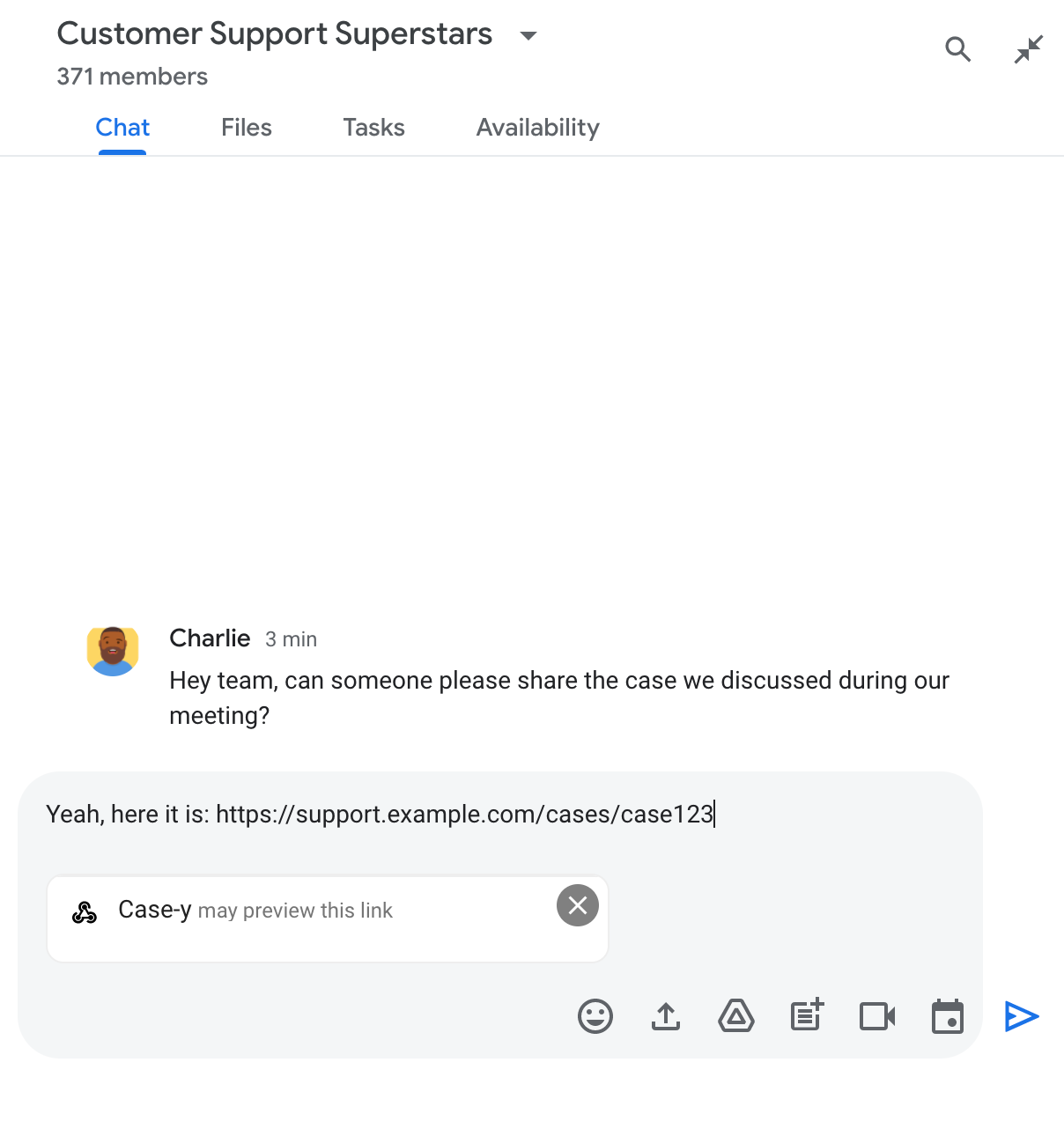
When someone adds a link to their message, a chip appears which lets them know that a Chat app might preview the link.
After sending the message, the link is sent to the Chat app, which then generates and attaches the card to the user's message.
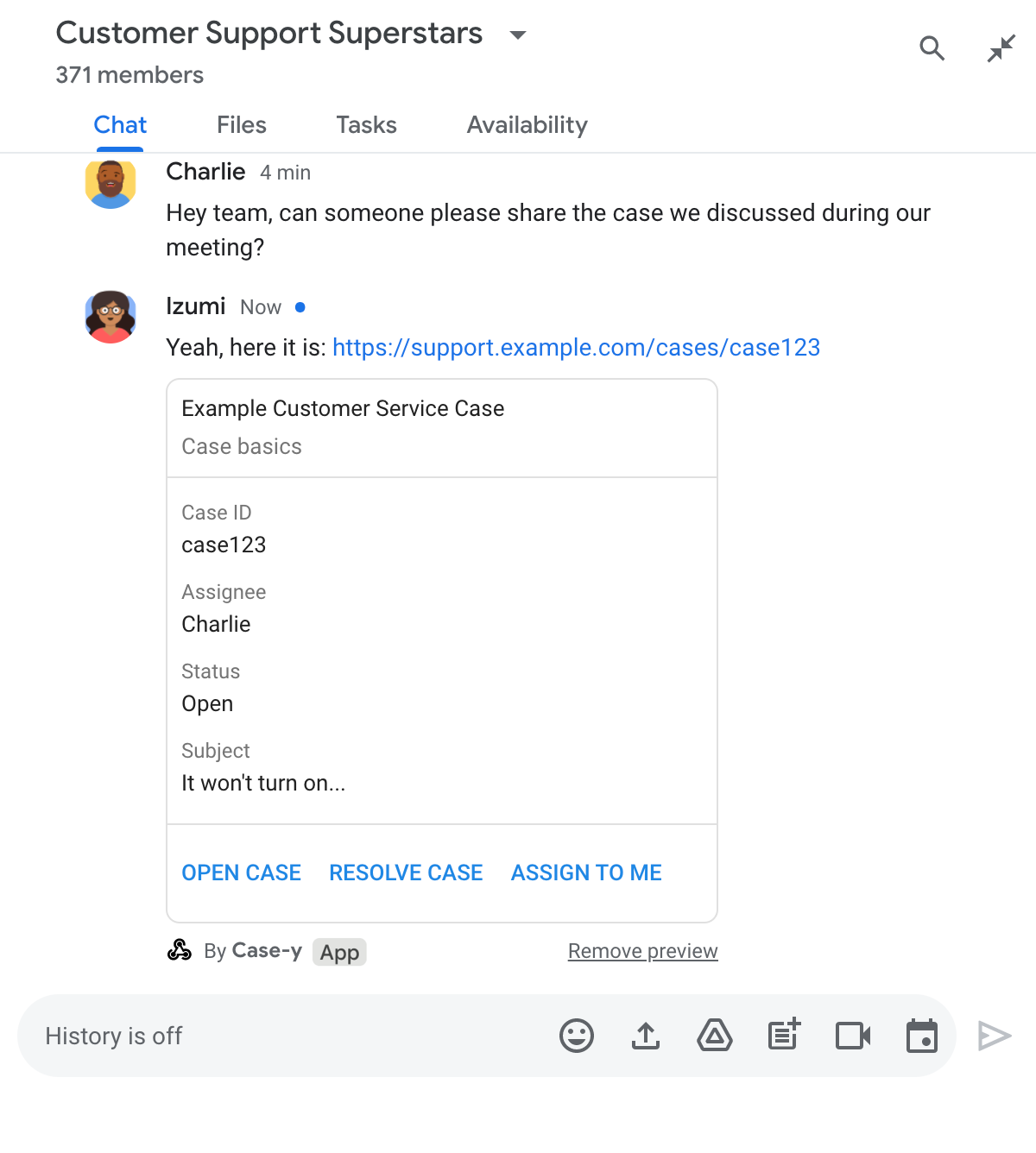
Alongside the link, the card provides additional information about the link, including interactive elements like buttons. Your Chat app can update the attached card in response to user interactions, like button clicks.
If someone doesn't want the Chat app to preview their link by attaching a card to their message, they can prevent previewing by clicking on the preview chip. Users can remove the attached card at any time by clicking Remove preview.
Prerequisites
HTTP
A Google Chat app that receives and responds to user interactions. To build one, complete the HTTP quickstart.
Apps Script
A Google Chat app that receives and responds to user interactions. To build one, complete the Apps Script quickstart.
Configure link previews
Register specific links - like example.com, support.example.com, and
support.example.com/cases/ - as URL patterns on your
Chat app's configuration page in Google Cloud console so
your Chat app can preview them.
- Open the Google Cloud console.
- Next to "Google Cloud," click the Down arrow and open your Chat app's project.
- In the search field, type
Google Chat APIand click Google Chat API. - Click Manage > Configuration.
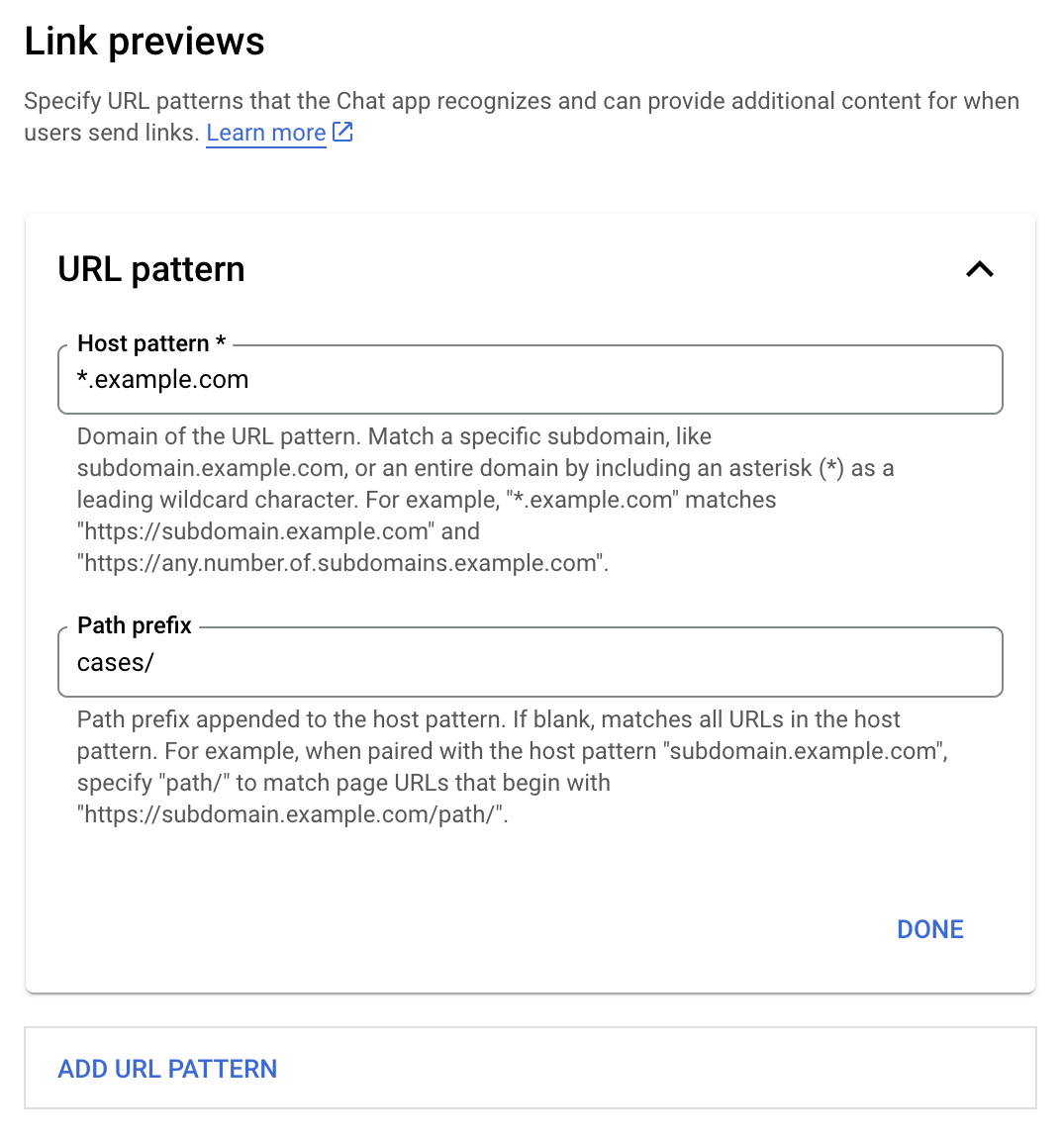
- Under Link previews, add or edit a URL pattern.
- To configure link previews for a new URL pattern, click Add URL Pattern.
- To edit the configuration for an existing URL pattern, click the Down arrow .
In the Host pattern field, enter the domain of the URL pattern. The Chat app will preview links to this domain.
To have the Chat app preview links for a specific subdomain, like
subdomain.example.com, include the subdomain.To have the Chat app preview links for the entire domain, specify a wildcard character with an asterisk (*) as the subdomain. For example,
*.example.commatchessubdomain.example.comandany.number.of.subdomains.example.com.In the Path prefix field, enter a path to append to the host pattern domain.
To match all URLs in the host pattern domain, leave Path prefix empty.
For example, if the Host pattern is
support.example.com, to match URLs for cases hosted atsupport.example.com/cases/, entercases/.Click Done.
Click Save.
Now, whenever someone includes a link that matches a link preview URL pattern to a message in a Chat space that includes your Chat app, your app previews the link.
Preview a link
After you configure link previewing for a given link, your Chat app can recognize and preview the link by attaching more information to it.
Inside Chat spaces that include your
Chat app, when someone's message contains a link that
matches a link preview URL pattern, your Chat app
receives an
event object with
a MessagePayload.
In the payload, the
message.matchedUrl
(chat.messagePayload.message.matchedUrl.url) object contains the link that the
user included in the message:
JSON
message: {
  matchedUrl: {
    url: "https://support.example.com/cases/case123"
  },
  ... // other message attributes redacted
}
By checking for the presence of the matchedUrl field in the MESSAGE event
payload (chat.messagePayload.message.matchedUrl.url), your
Chat app can add information to the message with the
previewed link. Your Chat app can either reply with a
basic text message or attach a card.
Reply with a text message
For basic responses, your Chat app can preview a link by replying with a simple text message to a link. This example attaches a message that repeats the link URL that matches a link preview URL pattern.
Node.js
Replace FUNCTION_URL with the HTTP endpoint that handles
button clicks.
Python
Replace FUNCTION_URL with the HTTP endpoint that handles
button clicks.
Java
Replace FUNCTION_URL with the HTTP endpoint that handles
button clicks.
Apps Script
Attach a card that previews the link
To attach a card to a previewed link,
return the action DataActions with
the ChatDataActionMarkup object of type
UpdateInlinePreviewAction.
In the following example, a Chat app adds a preview
card to messages that contain the URL pattern support.example.com.
Node.js
Replace FUNCTION_URL with the HTTP endpoint that handles
button clicks.
Python
Replace FUNCTION_URL with the HTTP endpoint that handles
button clicks.
Java
Replace FUNCTION_URL with the HTTP endpoint that handles
button clicks.
Apps Script
Update a link preview card
Your Chat app can update a link preview card when users interact with it, such as clicking a button on the card.
To update the card, your Chat app
must return the action DataActions with
one of the following ChatDataActionMarkup objects:
- If a user sent the message, return an
UpdateMessageActionobject. - If the Chat app sent the message, return an
UpdateInlinePreviewActionobject.
To determine who sent the message, use the event payload
(buttonClickedPayload)
to check whether the sender (message.sender.type) is set to HUMAN (user) or
BOT (Chat app).
The following example shows how a Chat app updates a link preview whenever a user clicks the Assign to Me button by updating the card's Assignee field and disabling the button.

Node.js
Replace FUNCTION_URL with the HTTP endpoint that handles
button clicks.
Python
Replace FUNCTION_URL with the HTTP endpoint that handles
button clicks.
Java
Replace FUNCTION_URL with the HTTP endpoint that handles
button clicks.
Apps Script
Limits and considerations
As you configure link previews for your Chat app, take note of these limits and considerations:
- Each Chat app supports link previews for up to 5 URL patterns.
- Chat apps preview one link per message. If multiple previewable links are present in a single message, only the first previewable link previews.
- Chat apps only preview links that begin with
https://, sohttps://support.example.com/cases/previews, butsupport.example.com/cases/does not. - Unless the message includes other information that gets sent to the Chat app, such as a slash command, only the link URL is sent to the Chat app by link previews.
- If a user posts the link, a Chat app can only update
the link preview card if users interact with the card, such as with a button
click. You can't call the Chat API's
update()method on theMessageresource to update a user's message asynchronously. - Chat apps must preview links for everyone in the space, so
the message must omit the
privateMessageViewerfield.
Debug link previews
As you implement link previews, you might need to debug your Chat app by reading the app's logs. To read the logs, visit the Logs Explorer on Google Cloud console.
Chat apps that aren't add-ons: Preview links
The following documentation applies to Chat apps that aren't Google Workspace add-ons. To migrate a Chat app that isn't an add-on, see Convert a Google Chat app to a Google Workspace add-on.
Inside Chat spaces that include a
Chat app that isn't an add-on,
when someone's message contains a link that
matches a link preview URL pattern, the Chat app
receives a
MESSAGE interaction event. The JSON
payload for the interaction event contains the matchedUrl field:
JSON
message: {
  matchedUrl: {
    url: "https://support.example.com/cases/case123"
  },
  ... // other message attributes redacted
}
By checking for the presence of the matchedUrl field in the MESSAGE event
payload, a Chat app that isn't an
add-on can add information to the
message with the previewed link.
Reply with a text message
For basic responses, a Chat app that isn't an add-on can preview a link by replying with a simple text message to a link. This example attaches a message that repeats the link URL that matches a link preview URL pattern:
Node.js
Python
Java
Apps Script
Attach a card that previews the link
To attach a card to a previewed link
in a Chat app that isn't an
add-on, return an
ActionResponse
of type UPDATE_USER_MESSAGE_CARDS. This example attaches a basic card:
Node.js
Python
Java
Apps Script
This example sends a card message by returning card JSON. You can also use the Apps Script card service.
Update a link preview card
To update a link preview card in a Chat app that isn't
an add-on,
handle the CARD_CLICKED
interaction event and return an
actionResponse
based on who sent the message that contains the link preview:
- If a user sent the message, set the
actionResponse.typetoUPDATE_USER_MESSAGE_CARDS. - If the Chat app sent the message, set the
actionResponse.typetoUPDATE_MESSAGE.
To determine who sent the message, you can use the message.sender.type field
of the interaction event to see whether the sender was a HUMAN user or BOT.
The following example shows how a Chat app that isn't an add-on updates a link preview whenever a user clicks the Assign to Me button by updating the card's Assignee field and disabling the button:
Node.js
Python
Java
Apps Script
This example sends a card message by returning card JSON. You can also use the Apps Script card service.