

本页介绍了如何设置 Google Chat 应用并响应命令。
命令可帮助用户发现和使用聊天应用的关键功能。只有聊天应用才能看到命令的内容。例如,如果用户发送包含斜杠命令的消息,则只有该用户和 Chat 应用可以查看该消息。
如需确定是否应构建命令,并了解如何设计用户互动,请参阅定义所有用户历程。
聊天应用命令的类型
您可以将 Chat 应用命令构建为斜杠命令、快速命令或消息操作。 如需使用每种类型的命令,用户可以执行以下操作:-
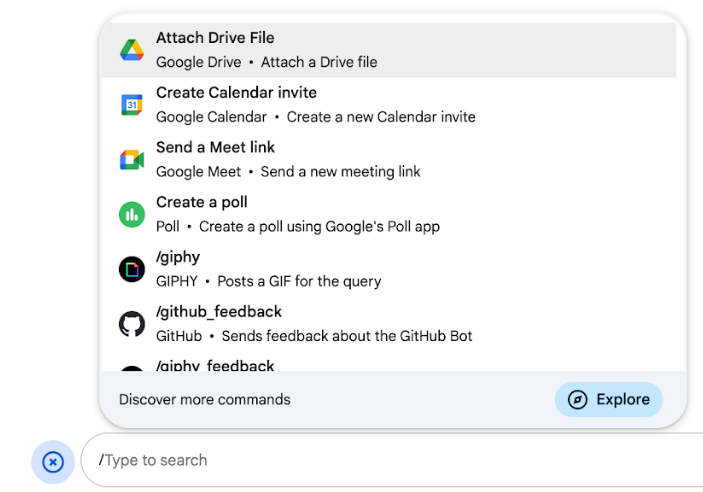
斜杠命令:用户可以从菜单中选择斜杠命令,也可以输入斜杠 (
/),然后输入预定义的文本,例如/about。聊天应用通常需要斜杠命令的实参文本。如果您的 Chat 应用需要用户提供其他输入内容,请创建斜杠命令。例如,您可以创建一个名为
/search的斜杠命令,该命令会在用户输入要搜索的短语(例如/search receipts)后运行。 -
快速命令:用户可以通过打开 Chat 消息的回复区域中的菜单来使用命令。如需使用命令,用户可以点击添加图标
 ,然后从菜单中选择命令。
如果您的 Chat 应用可以立即响应用户,而无需等待其他输入,请创建快速命令。例如,您可以创建一个名为 Random image 的快速命令,该命令会立即以图片作为响应。
-
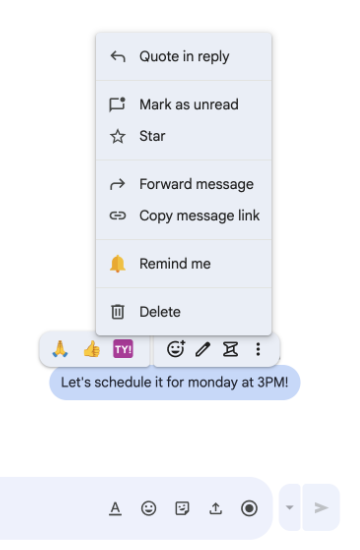
消息操作: ( 开发者预览版) 用户只需将鼠标悬停在消息上,然后点击三点状菜单,即可使用消息操作。如需使用命令,用户可以打开三点状菜单,然后从菜单中选择命令。
如果 Chat 应用可以根据消息的上下文执行操作,请创建消息操作。
以下图片展示了用户如何发现斜杠命令和快速命令以及消息操作的菜单:
前提条件
Node.js
一种 Google Chat 应用,可接收并响应互动事件。如需使用 HTTP 服务创建互动式 Chat 应用,请完成此快速入门。
Apps 脚本
一种 Google Chat 应用,可接收并响应互动事件。如需在 Apps 脚本中创建交互式 Chat 应用,请完成此快速入门。
Python
一种 Google Chat 应用,可接收并响应互动事件。如需使用 HTTP 服务创建互动式 Chat 应用,请完成此快速入门。
Java
一种 Google Chat 应用,可接收并响应互动事件。如需使用 HTTP 服务创建互动式 Chat 应用,请完成此快速入门。
设置命令
本部分介绍了如何完成以下步骤来设置命令:
为命令命名并添加说明
命令名称是用户输入或选择以调用 Chat 应用的内容。名称下方还会显示简短说明,进一步提示用户如何使用该命令:

为命令选择名称和说明时,请考虑以下建议:
如需命名指令,请执行以下操作:
- 使用简短、描述性强且可操作的字词或短语,让用户清楚了解命令。例如,使用
Remind me,而不是Create a reminder。 - 考虑为命令使用唯一名称或常用名称。如果您的命令描述的是典型的互动或功能,则可以使用用户熟悉且预期的常用名称,例如
Settings或Feedback。否则,请尝试使用唯一的命令名称,因为如果您的命令名称与其他聊天应用的命令名称相同,用户必须过滤相似的命令才能找到并使用您的命令。
如需描述命令,请执行以下操作:
- 请确保说明简短明了,以便用户了解使用该命令后会发生什么。
- 告知用户该命令是否有任何格式要求。例如,如果您创建的斜杠命令需要实参文本,请将说明设置为类似
Remind me to do [something] at [time]的内容。 - 告知用户 Chat 应用是回复聊天室中的所有人,还是私下回复调用该命令的用户。例如,对于快捷指令
About,您可以将其描述为Learn about this app (Only visible to you)。
在 Google Cloud 控制台中配置命令
如需创建斜杠命令、快捷命令或消息操作,您需要在 Chat 应用的 Google Chat API 配置中指定有关命令或操作的信息。
如需在 Google Chat API 中配置命令,请完成以下步骤:
在 Google Cloud 控制台中,依次点击“菜单”图标 > API 和服务 > 已启用的 API 和服务 > Google Chat API
点击配置。
在命令下,点击添加命令。
为命令输入命令 ID、说明、命令类型和名称:
- 命令 ID:一个介于 1 到 1000 之间的数字,供 Chat 应用用于识别命令并返回响应。
- 说明:描述命令作用的文本。 说明最多可包含 50 个字符,并且可以包含特殊字符。
- 命令类型:选择快速命令、斜杠命令或消息操作。
- 为命令指定名称:
- 快速命令名称:用户从菜单中选择以调用命令的显示名称。最多可包含 50 个字符,并且可以包含特殊字符。例如
Remind me。 - 斜杠命令名称:用户在消息中输入以调用命令的文本。必须以斜杠开头,只能包含文本,并且不得超过 50 个字符。例如
/remindMe。 - 消息操作名称:
( 开发者预览版)
用户从菜单中选择以调用消息操作的显示名称。最多可包含 50 个字符,并且可以包含特殊字符。例如
Remind me。
- 快速命令名称:用户从菜单中选择以调用命令的显示名称。最多可包含 50 个字符,并且可以包含特殊字符。例如
可选:加载通知消息:( 开发者预览版) 在执行消息操作时向用户显示的 Toast 通知消息。仅适用于不打开对话框的消息操作。
可选:如果您希望 Chat 应用通过对话框响应命令,请选中打开对话框复选框。
点击保存。
现在,该命令已针对 Chat 应用配置完毕。
响应命令
当用户使用命令时,您的 Chat 应用会收到互动事件。事件载荷包含元数据,其中详细说明了所调用的命令(包括命令 ID 和命令类型),以便您可以返回适当的响应。

/help,说明如何获取支持。为了响应每种类型的命令,您必须处理事件载荷中的不同事件类型和元数据对象:
| 命令类型 | 事件类型 | 命令元数据 |
|---|---|---|
| 斜杠命令 | MESSAGE |
message.slashCommand 或 message.annotation.slashCommand |
| 快速命令 | APP_COMMAND |
appCommandMetadata
|
| 消息操作 | APP_COMMAND |
appCommandMetadata
|
如需了解如何使用消息响应命令,请参阅以下部分。
响应斜杠命令
以下代码展示了一个聊天应用的示例,该应用可回复斜杠命令 /about。Chat 应用会处理 MESSAGE 互动事件,检测互动事件是否包含匹配的命令 ID,并返回一条私信:
Node.js
Apps 脚本
Python
Java
将 ABOUT_COMMAND_ID 替换为您在 Google Cloud 控制台中配置命令时指定的命令 ID。
响应快速命令
以下代码展示了一个聊天应用的示例,该应用可回复快速命令 Help。Chat 应用会处理 APP_COMMAND 互动事件,检测互动事件是否包含匹配的命令 ID,并返回一条私信:
Node.js
Apps 脚本
Python
Java
将 HELP_COMMAND_ID 替换为您在 Google Cloud 控制台中配置命令时指定的命令 ID。
响应消息操作
以下代码展示了一个聊天应用的示例,该应用可对消息操作 提醒我做出回复。Chat 应用会处理 APP_COMMAND 互动事件,检测互动事件是否包含匹配的命令 ID,并返回一条私信:
Node.js
/**
 * Responds to an APP_COMMAND interaction event from Google Chat.
 *
 * @param {Object} event The interaction event from Google Chat.
 * @param {Object} res The HTTP response object.
 * @return {Object} The JSON response message with a confirmation.
 */
function handleAppCommand(event, res) {
  // Collect the command ID and type from the event metadata.
  const {appCommandId, appCommandType} = event.appCommandMetadata;

  // Use appCommandType to detect message actions.
  if (appCommandType === 'MESSAGE_ACTION' &&
      appCommandId === REMIND_ME_COMMAND_ID) {

    // Message actions can access the context of the message they were
    // invoked on, such as the text or sender of that message.
    const messageText = event.message.text;

    // Return a response that includes details from the original message.
    return res.send({
      text: `Setting a reminder for this message: "${messageText}"`
    });
  }
}
Apps 脚本
/**
 * Responds to an APP_COMMAND interaction event in Google Chat.
 *
 * @param {Object} event The interaction event from Google Chat.
 * @return {Object} The JSON response message with a confirmation.
 */
function onAppCommand(event) {
  // Collect the command ID and type from the event metadata.
  const {appCommandId, appCommandType} = event.appCommandMetadata;

  if (appCommandType === 'MESSAGE_ACTION' &&
      appCommandId === REMIND_ME_COMMAND_ID) {

    // Message actions can access the context of the message they were
    // invoked on, such as the text or sender of that message.
    const messageText = event.message.text;

    // Return a response that includes details from the original message.
    return { "text": "Setting a reminder for message: " + messageText };
  }
}
Python
def handle_app_command(event):
    """Responds to an APP_COMMAND interaction event from Google Chat.

    Args:
        event (dict): The interaction event from Google Chat.

    Returns:
        dict: The JSON response message with a confirmation.
    """
    # Collect the command ID and type from the event metadata.
    metadata = event.get('appCommandMetadata', {})
    if metadata.get('appCommandType') == 'MESSAGE_ACTION' and \
       metadata.get('appCommandId') == REMIND_ME_COMMAND_ID:

        # Message actions can access the context of the message they were
        # invoked on, such as the text or sender of that message.
        message_text = event.get('message', {}).get('text')

        # Return a response that includes details from the original message.
        return {
            "text": f'Setting a reminder for message: "{message_text}"'
        }
Java
/**
 * Responds to an APP_COMMAND interaction event from Google Chat.
 *
 * @param event The interaction event from Google Chat.
 * @param response The HTTP response object.
 */
void handleAppCommand(JsonObject event, HttpResponse response) throws Exception {
  // Collect the command ID and type from the event metadata.
  JsonObject metadata = event.getAsJsonObject("appCommandMetadata");
  String appCommandType = metadata.get("appCommandType").getAsString();

  if (appCommandType.equals("MESSAGE_ACTION")) {
    int commandId = metadata.get("appCommandId").getAsInt();
    if (commandId == REMIND_ME_COMMAND_ID) {
      // Message actions can access the context of the message they were
      // invoked on, such as the text or sender of that message.
      String messageText = event.getAsJsonObject("message").get("text").getAsString();

      // Return a response that includes details from the original message.
      JsonObject responseMessage = new JsonObject();
      responseMessage.addProperty("text", "Setting a reminder for message: " + messageText);
      response.getWriter().write(responseMessage.toString());
    }
  }
}
将 REMIND_ME_COMMAND_ID 替换为您在 Google Cloud 控制台中配置命令时指定的命令 ID。
测试命令
如需测试命令和代码,请参阅测试 Google Chat 应用的互动功能。
如需了解如何在 Chat 界面中测试和使用该命令,请参阅 Google Chat 帮助文档中的在 Google Chat 中使用应用。