

Page Summary
-
Google Chat apps can format text messages using Markdown syntax for bold, italic, strikethrough, monospace, and bulleted lists.
-
Chat apps can format text within cards using a subset of HTML tags for bold, italics, underline, strikethrough, font color, hyperlinks, and newlines.
-
You can @mention specific users or all users in a space within text messages using
<users/{user}>or<users/all>respectively. -
Google Chat apps can use built-in icons, Google Material icons, or custom icons within cards to add visuals alongside text.
This page explains how Google Chat apps can format text to send messages that contain any of the following:
- Rich text that contains hyperlinks or @mentions one or all users in a Chat space.
- Text that appears in a card interface, including as paragraph text or UI text that displays alongside an icon, such as a button.
Format a text message
Chat lets you add basic formatting to a text message, including bold, italic, and strikethrough. You format text differently in text messages than in card messages because text messages are formatted with the same syntax that Chat users use.
For messages sent using the Chat API, you can continue using the original Chat syntax or use standard Markdown syntax (supported by specifying markup_syntax in the request body).
To format text messages, use the following syntax:
| Format | MARKUP_SYNTAX_CHAT | MARKUP_SYNTAX_MARKDOWN | Example syntax | Text displayed in Google Chat |
|---|---|---|---|---|
| Bold | * |
** |
Or:
|
hello |
| Italic | _ (underscore) |
* |
Or:
|
hello |
| Strikethrough | ~ |
~~ |
Or:
|
|
| Monospace | ` (backquote) | ` (backquote) | `hello` | hello |
| Monospace block | ` ` ` (three backquotes) | ` ` ` (three backquotes) | ``` Hello World ``` |
Hello |
| Bulleted list | * or - (hyphen) followed by a space | * or - (hyphen) followed by a space | * This is the first item in the list. * This is the second item in the list. |
|
| Nested list | * or - (hyphen) followed by a space, preceded by four spaces per nest level | * or - (hyphen) followed by a space, preceded by four spaces per nest level | * This is the item with nested depth one in the list. * This is the item with nested depth two in the list. * This is the item with nested depth three in the list. |
|
| Numbered list | Not supported | 1. (number followed by a period and a space) | 1. This is the first item in the list. 2. This is the second item in the list. |
|
| Block quote | > (greater than sign) | > (greater than sign) | >hello |
|
| Hyperlink | <hyperlink|display text> |
[display text](hyperlink) |
Or:
|
To learn more about hyperlinking, see Format links. |
| Mention user | <users/{user}> where {user} is the user ID. |
Or:
|
Or:
|
@Mahan S To learn more about mentioning users, see Mention users in a text message. |
| Custom Emoji |
Or:
|
Or:
|
Or:
Or:
Or:
|
🐱 (Smiley Cat custom emoji) |
| Citation | Not supported | <chat-citation data-id="{id}">{text}</chat-citation> where {id} is the citation ID defined in the message elements. |
<chat-citation data-id="cite_1">cited text</chat-citation> |
cited text To learn more about citations, see Add citations to a text message. |
 hello
hello
For example, consider the following JSON:
    {
      "text": "Your pizza delivery *has arrived*!\nThank you for using _Cymbal Pizza!_"
    }
This formatted text message displays the following in a Chat space:

View text formatting sent in a message
When a user sends a message, the plain-text body of the message is in the
text field. Some formatting that is applied to the text message using Markdown
syntax, is in the text field. Additional formatting is in the
output-only formattedText field, including the following:
- Additional Markdown syntax for text
- User mentions
- Custom hyperlinks
- Custom emoji
For example, consider the following text sent by a user:
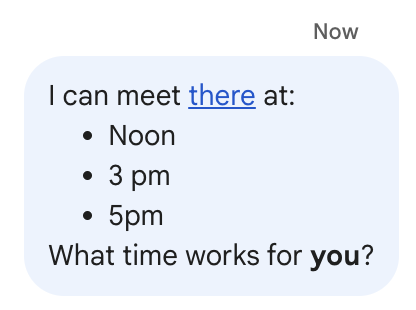
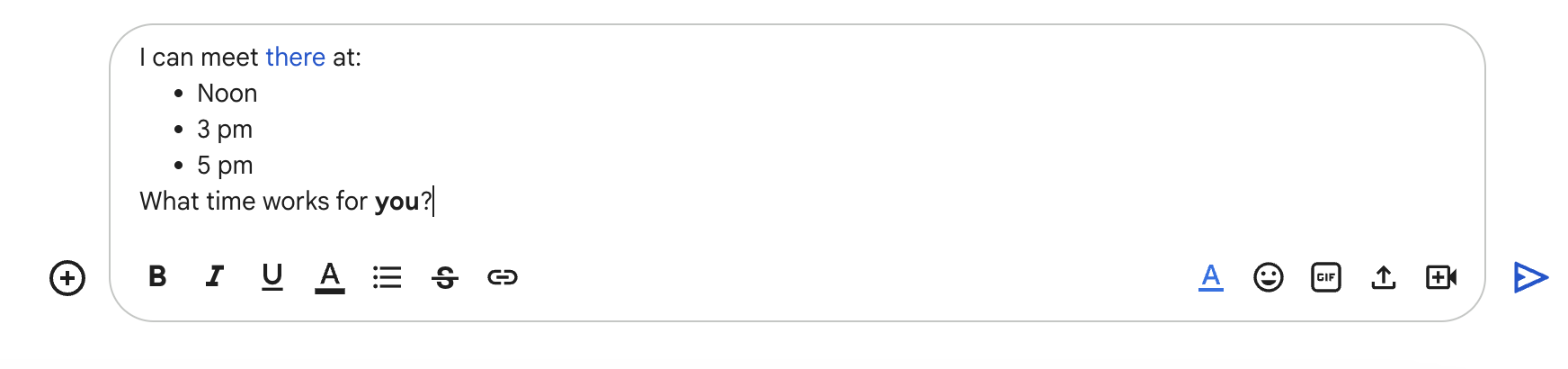
If the message was formatted by using the Format menu in the
Chat UI, the text field contains the text only, while the
formattedText field contains the markups, the text, and the hyperlink. The
following example shows the draft of a text message with a word hyperlinked,
items in a list, and one word bolded:
The message is received in the following format:
    {
      "text": "I can meet there at:\nNoon\n3 pm\n5 pm\nWhat time works for you?",
      "formattedText": "I can meet <http://example.com|there> at:\n* Noon\n* 3 pm\n* 5 pm\nWhat time works for *you*?",
    }
Format links
If you include a plain link URL in your message text, such as
http://www.example.com/, Google Chat uses this as the link text and
automatically hyperlinks that text to the specified URL.
To provide alternate link text for your link, use the following syntax:
For API messages configured with Markdown, use standard Markdown link syntax:
Example syntax Text displayed in Google Chat [Example website](https://example.com)For standard plain-text messages, use the pipe syntax:
Example syntax Text displayed in Google Chat <https://example.com|Example website>The pipe and link text are optional, so that
<https://example.com>andhttps://example.comare equivalent.
Use custom emoji in a text message
Chat apps can send text messages with custom emoji to personalize messages. Custom emojis are only available for Google Workspace organizations, and the administrator must turn custom emojis on for the organization. For more information, see Learn about custom emojis in Google Chat and Manage custom emoji permissions.
To create messages with custom emojis, your app must use user authentication. Custom emojis aren't supported in messages created as a webhook or in messages created with app authentication.
To add custom emoji to the text of a message, specify the name or
emoji_name of the customEmoji resource:
{
    "text": "Hello <customEmojis/CUSTOM_EMOJI_ID>."
}
To use this sample, replace CUSTOM_EMOJI_ID with the ID
for the custom emoji. You can find this ID in the
name
or emoji_name
field of the customEmoji resource.
If your app sends messages using the Markdown syntax, you can specify custom emojis in HTML tag format using the custom emoji ID:
{
  "text": "Hello <chat-emoji data-custom-emoji=\"customEmojis/CUSTOM_EMOJI_ID\">."
}
Or you can specify the custom emoji name:
{
  "text": "Hello <chat-emoji data-emoji-name=\"CUSTOM_EMOJI_NAME\">."
}
To use these samples, replace CUSTOM_EMOJI_ID with the custom emoji ID, and CUSTOM_EMOJI_NAME with the custom emoji shortcode name.
Mention users in a text message
Chat apps can send text messages that @mention one or all users in a Chat space. Chat apps can also mention users that haven't joined the space or are members of a space that is in import mode.
Silent messages don't support mentioning users. Including a mention in a silent message returns an error.
@mention specific users
To @mention a specific user, add <users/{user}> to the text message where
{user} is the ID of the user. For example, consider the following text
message where 123456789012345678901 represents the ID for the user Mahan S.:
{
    "text": "A customer has reported an issue. Assigning ticket #942 to <users/123456789012345678901>."
}
If your app sends messages using the Markdown syntax, use the chat-user HTML tag format to specify the user ID:
{
  "text": "Assigning ticket #942 to <chat-user data-user=\"users/123456789012345678901\">."
}
Or specify by email:
{
  "text": "Assigning ticket #942 to <chat-user data-email=\"mahan@example.com\">."
}
The text message displays as the following:

You can specify the users/{user} value in the following ways:
- If your Google Chat app is responding to a message sent by the
user, you can use the
message.sender.namefield of theMESSAGEinteraction event. If your Google Chat app is creating an asynchronous text message, you can specify the value for
users/{user}in the following ways:- Use the
namefield of the Google ChatUserresource, such asusers/123456789012345678901. - Use the user's email address as an alias for the
{user}value. For example, if the email address ismahan@example.com, you can specify the user asusers/mahan@example.com. To use an email alias, your Google Chat app must authenticate as a user.
- Use the
If you use the People API, you can also use the
people.getmethod to identify the user ID.
@mention all users
To create a text message that @mentions everyone in a space, replace {user}
with all. The following JSON example mentions all users in a message:
{
    "text": "Important message for <users/all>: Code freeze starts at midnight tonight!"
}
If your app sends messages using the Markdown syntax, specify the mention using the chat-user HTML tag format:
{
  "text": "Important message for <chat-user data-user=\"users/all\">: Code freeze starts at midnight tonight!"
}
Add citations to a text message
Chat apps can include citations in text messages to provide detailed source information to users. You can provide sources in two ways:
- Inline citations: Add interactive cards that appear when users hold the pointer over specific parts of your message text.
- Footer sources: Display a list of sources at the bottom of the message as footer links.
Citations are only supported when the message's markupSyntax is set to MARKUP_SYNTAX_MARKDOWN. This feature is only supported through asynchronous message creation using the Chat API.
To add inline citations to a message:
- Provide the sources in the
citationslist of the messageelements, assigning a uniqueidto eachCitationobject. - In the message text, wrap the text you want to cite using the
chat-citationHTML tag format:<chat-citation data-id="{id}">{text}</chat-citation>. Make sure the{id}matches the ID you defined in theelements. Unreferenced citations (those without a matching tag) are ignored.
{
  "text": "This is a <chat-citation data-id=\"cite_1\">cited</chat-citation> text.",
  "markupSyntax": "MARKUP_SYNTAX_MARKDOWN",
  "elements": {
    "citations": [
      {
        "id": "cite_1",
        "citedSources": [
          {
            "title": "Example Source",
            "uri": "https://example.com"
          }
        ]
      }
    ]
  }
}
To add footer sources to a message, provide the sources in the citedSources list of the message elements. Any sources provided here automatically appear below the message as footer links, and don't require any inline tags in the message text.
{
  "text": "This is a message with a footer source.",
  "markupSyntax": "MARKUP_SYNTAX_MARKDOWN",
  "elements": {
    "citedSources": [
      {
        "title": "Example Source",
        "uri": "https://example.com"
      }
    ]
  }
}
Format text that appears in cards
Inside cards, most text fields support basic text formatting by using a small subset of HTML tags. You format text differently in card messages than in text messages because text messages are formatted with the same syntax that Chat users use.
Use the Card Builder to design and preview messaging and user interfaces for Chat apps:
Open the Card BuilderFormat paragraph text
The supported tags and their purpose are shown in the following table:
| Format | Example | Rendered result |
|---|---|---|
| Bold | "This is <b>bold</b>." |
This is bold. |
| Italics | "This is <i>italics</i>." |
This is italics. |
| Underline | "This is <u>underline</u>." |
This is underline. |
| Strikethrough | "This is <s>strikethrough</s>." |
This is |
| Font color | "This is <font color=\"#FF0000\">red font</font>." |
This is red font. |
| Hyperlink | "This is a <a href=\"https://www.google.com\">hyperlink</a>." |
This is a hyperlink. |
| Time | "This is a time format: <time>2023-02-16 15:00</time>." |
This is a time format: . |
| Newline | "This is the first line. <br> This is a new line." |
This is the first line. This is a new line. |
To define lists and code blocks, use the following tags:
| Format | Example | Rendered result |
|---|---|---|
| New line | "Line 1<br>Line 2" |
Line 1 Line 2 |
| Monospace | "This is an <code>inline code</code>." |
This is an inline code. |
| Monospace block | "<pre><code>This a code block.</code></pre>" |
|
| Bulleted list | "<ul><li>List item 1</li><li>List item 2</li></ul>" |
|
| Ordered list | "<ol><li>List item 1</li><li>List item 2</li></ol>" |
|
Markdown
When Markdown syntax is turned on, you can use the following syntax:
| Format | Example | Rendered result |
|---|---|---|
| Bold | **hello** or __hello__ | hello |
| Italic | *hello* or _hello_ | hello |
| Strikethrough | ~hello~ | |
| Monospace | `hello` | hello |
| Monospace block | ``` Hello World ``` |
Hello |
| Bulleted list | - This is the first item in the list - This is the second item in the list |
|
|
* This is the first item in the list * This is the second item in the list |
|
|
| Ordered list | 1. This is the first item in the list 2. This is the second item in the list |
|
| Hyperlink | [Example website](https://example.com) | Example website |
Add icons to text
To display icons alongside text in a card, you can use the
DecoratedText
and
ButtonList
widgets.
The following sections explain how to use built-in icons, Google Material icons, or custom icons in decorated text or buttons.
Use icons from Chat
To use a built-in icons available in Chat, specify one of the following:
The following table lists the built-in icons that are available for card messages:
| AIRPLANE | BOOKMARK | ||
| BUS | CAR | ||
| CLOCK | CONFIRMATION_NUMBER_ICON | ||
| DESCRIPTION | DOLLAR | ||
| EVENT_SEAT | |||
| FLIGHT_ARRIVAL | FLIGHT_DEPARTURE | ||
| HOTEL | HOTEL_ROOM_TYPE | ||
| INVITE | MAP_PIN | ||
| MEMBERSHIP | MULTIPLE_PEOPLE | ||
| PERSON | PHONE | ||
| RESTAURANT_ICON | SHOPPING_CART | ||
| STAR | STORE | ||
| TICKET | TRAIN | ||
| VIDEO_CAMERA | VIDEO_PLAY |
The following is an example of a card with an email icon:
Use Google Material icons
You can use Google Material icons to select from over 2500+ icon options and customize the weight, fill, and grade of the icons.
The following is an example of card with a Google Material icon:
Use custom icons
To add a custom icon, include the iconUrl field and specify the icon's
corresponding URL.
The following is an example of a custom icon: