

Page Summary
-
Google Chat apps can connect with external services for enhanced functionality, such as account linking and data access.
-
To enable external connections, Chat apps use a configuration URL that prompts users to complete setup outside of Chat.
-
Upon successful configuration, the original message in Chat becomes public and is resent to the app for processing.
-
Google Sign-in is recommended for authenticating Chat users in external systems by using the identity token's
subclaim. -
Ensure the identity token's integrity is validated before using the user ID for any operations.
This page describes how to connect a Google Chat app with a service or tool outside of Google Chat. While Chat apps are powerful on their own, they often work in concert with other systems and require companion applications to connect accounts, authorize data access, display additional data, or configure user preferences.
To authenticate users with a third-party service or OAuth flow, your Chat app performs the following steps:
- Detect when authorization or configuration is required.
- Return a basic authorization card that prompts the user to sign in or configure the service.
- Redirect to the completion URI so Google Chat automatically retries the original interaction after the user completes authorization.

Prerequisites
HTTP
A Google Chat app that receives and responds to user interactions. To build one, complete the HTTP quickstart.
Apps Script
A Google Chat app that receives and responds to user interactions. To build one, complete the Apps Script quickstart.
Detect that authorization is required
When interacting with your Chat app, users might not be authorized to access a protected resource for a variety of reasons, such as the following:
- An access token to connect to the third-party service hasn't been generated yet or is expired.
- The access token doesn't cover the requested resource.
- The access token doesn't cover the request's required scopes.
Your Chat app should detect these cases so that users can sign in and authorize access to your service.
If you're building in Apps Script, you can use the
OAuth2 for Google Apps Script library
(or the OAuth1 version),
where the hasAccess function checks whether the user has authorized access to
a service. Alternatively, when using
UrlFetchApp.fetch
requests, you can set the muteHttpExceptions parameter to true to inspect
the response code and content in the returned
HttpResponse object.
Prompt users with a basic authorization card
When your Chat app detects that authorization or
configuration is required, return an AuthorizationError response to display a
private basic authorization card to the user.
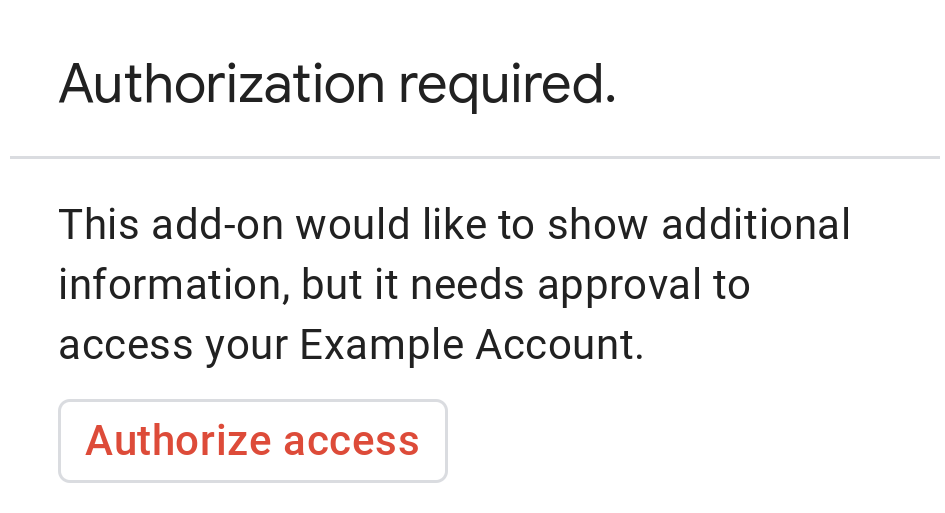
The following image shows an example of Google's basic authorization card:
To prompt users with a basic authorization card, return an
AuthorizationError object:
HTTP
Return the following JSON response:
{
  "basic_authorization_prompt": {
    "authorization_url": "<var>AUTHORIZATION_URL</var>",
    "resource": "<var>RESOURCE_DISPLAY_NAME</var>"
  }
}
Apps Script
CardService.newAuthorizationException()
    .setAuthorizationUrl('<var>AUTHORIZATION_URL</var>')
    .setResourceDisplayName('<var>RESOURCE_DISPLAY_NAME</var>')
    .throwException();
Replace the following:
AUTHORIZATION_URL: The HTTPS URL for the web app that handles authentication, authorization, or configuration.RESOURCE_DISPLAY_NAME: The display name for the protected resource or service. This name is displayed to the user on the authorization prompt. For example, if yourRESOURCE_DISPLAY_NAMEisExample Account, the prompt says that the app needs approval to access yourExample Account.
Complete the configuration request
In Chat, the user can complete the authorization process and have Chat automatically retry the original interaction without a manual refresh. Chat supports automatic retry if the trigger is Message, Added to space, or App command.
For these triggers, your Chat app receives a
completion redirect URI (configCompleteRedirectUri / completeRedirectUri) in
the event payload:
- Message:
chat.messagePayload.configCompleteRedirectUri - Added to space:
chat.addedToSpacePayload.configCompleteRedirectUri - App command:
chat.appCommandPayload.configCompleteRedirectUri
You must encode this redirect URI in your <var>AUTHORIZATION_URL</var> and
redirect the user's browser to it after the authorization flow completes.
Redirecting to this URL signals to Google Chat that the authorization or
configuration request was fulfilled.
When a user is successfully redirected to the completion redirect URI provided in the original event payload, Google Chat performs the following steps:
- Erases the private authorization prompt displayed to the initiating user.
- Converts the original message to public, making it visible to other members of the space.
- Sends the original event object to your Chat app a second time.
If you don't redirect to the completion redirect URI, the user can still complete the authorization flow, but Google Chat doesn't automatically retry the previous execution and the user must manually invoke your Chat app again.
Visiting a completion redirect URI only affects a single user interaction. If a user has messaged a Chat app multiple times and received multiple prompts, completing the authentication and configuration process for one prompt only retries that specific interaction.
Authenticate the Chat user outside of Chat
When linking to a URL outside of Chat (such as an OAuth web callback), you often need to correlate the external web session with the user identity in Chat. We recommend that you guard the destination web app with Google Sign-in.
Use the
identity token
issued during sign-in to get the user ID. The sub claim contains the user's
unique Google ID and can be correlated with the user resource name (chat.user.name)
from Google Chat.
To correlate the sub claim with a Google Chat users/{user} resource name,
prepend the sub claim value with users/. For example, a sub claim value
of 123 corresponds to users/123 in event objects sent to your
Chat app.
Code samples
The following code samples demonstrate how a Chat app can request offline OAuth2 credentials using a basic authorization card, store them in a database, redirect to the completion URI, and make API calls with user authentication:
Node.js
Python
Java
Apps Script
Related topics
- Receive and respond to user interactions
- Authenticate and authorize Google Chat apps and Google Chat API requests
- Connect your Google Workspace add-on to a third-party service
Chat apps that aren't add-ons: Connect a Chat app with other services and tools
If you maintain a Chat app that isn't a
Google Workspace add-on, your Chat app requests
configuration using an actionResponse of type REQUEST_CONFIG and reads
configCompleteRedirectUrl from the top-level
Event object.
To upgrade a Chat app that isn't an add-on to the Google Workspace add-ons framework, see Convert a Google Chat app to a Google Workspace add-on.
Request configuration from a user in a Chat app that isn't an add-on
In a Chat app that isn't an add-on, return a configuration URL to the user in the following form:
{
  "actionResponse": {
    "type": "REQUEST_CONFIG",
    "url": "CONFIGURATION_URL"
  }
}
This tells Google Chat to present the user with a private prompt, where
CONFIGURATION_URL is a link for the user to visit for additional
authentication, authorization, or configuration. A REQUEST_CONFIG response is
mutually exclusive with a regular response message; any text, cards, or other
attributes are ignored.
Complete the configuration request in a Chat app that isn't an add-on
Every MESSAGE, ADDED_TO_SPACE, and APP_COMMAND interaction
Event that a
Chat app that isn't an add-on
receives includes the top-level field configCompleteRedirectUrl. Encode this
URL in your configuration URL and redirect the user to it upon completion so
that Google Chat erases the prompt, converts the original message to public,
and resends the original interaction event to your
Chat app.
For sample implementations, see the Node.js connectivity app sample and the Python MyProfile auth app sample on GitHub.