

หน้านี้อธิบายวิธีตั้งค่าและตอบกลับคำสั่งในฐานะแอปใน Google Chat
คำสั่งช่วยให้ผู้ใช้ค้นพบและใช้ฟีเจอร์หลักของแอปใน Chat ได้ มีเพียงแอปใน Chat เท่านั้นที่จะเห็นเนื้อหาของคำสั่ง ตัวอย่างเช่น หากผู้ใช้ส่งข้อความที่มีคำสั่งเครื่องหมายทับ ข้อความนั้นจะปรากฏให้เฉพาะผู้ใช้และแอปใน Chat เห็นเท่านั้น
หากต้องการตัดสินใจว่าควรสร้างคำสั่งหรือไม่ และทำความเข้าใจวิธีออกแบบ การโต้ตอบของผู้ใช้ โปรดดูหัวข้อ กำหนดเส้นทางของผู้ใช้ทั้งหมด
ประเภทของคำสั่งแอปใน Chat
คุณสามารถสร้างคำสั่งแอปใน Chat เป็นคำสั่งเครื่องหมายทับ คำสั่งด่วน หรือการดำเนินการกับข้อความ ผู้ใช้สามารถทำสิ่งต่อไปนี้เพื่อใช้คำสั่งแต่ละประเภท-
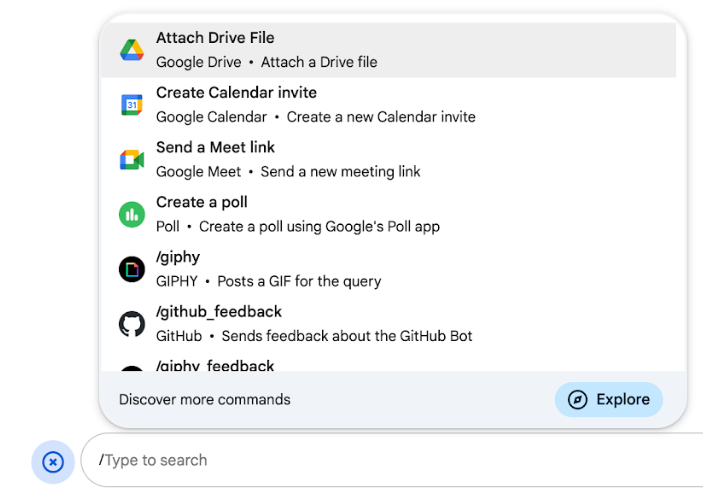
คำสั่งเครื่องหมายทับ: ผู้ใช้สามารถเลือกคำสั่งเครื่องหมายทับจากเมนู หรือพิมพ์เครื่องหมายทับ (
/) แล้วตามด้วยข้อความที่กำหนดไว้ล่วงหน้า เช่น/aboutโดยปกติแล้วแอปใน Chat จะต้องใช้ข้อความอาร์กิวเมนต์สำหรับคำสั่งเครื่องหมายทับสร้างคำสั่งเครื่องหมายทับหากแอปใน Chat ต้องใช้ข้อมูลเพิ่มเติม จากผู้ใช้ ตัวอย่างเช่น คุณสามารถสร้างคำสั่งเครื่องหมายทับที่ชื่อว่า
/searchซึ่งจะทำงานหลังจากที่ผู้ใช้ป้อนวลีที่จะ ค้นหา เช่น/search receipts -
คำสั่งด่วน: ผู้ใช้ใช้คำสั่งโดยเปิดเมนูจากส่วนตอบกลับของข้อความแชทใน Chat หากต้องการใช้คำสั่ง ให้คลิกเพิ่ม
 แล้ว
เลือกคำสั่งจากเมนู
แล้ว
เลือกคำสั่งจากเมนู
สร้างคำสั่งด่วนหากแอปใน Chat ตอบกลับผู้ใช้ได้ทันทีโดยไม่ต้องรอข้อมูลเพิ่มเติม ตัวอย่างเช่น คุณสามารถสร้างคำสั่งด่วนที่ชื่อว่า Random image ซึ่งจะตอบกลับด้วยรูปภาพทันที
-
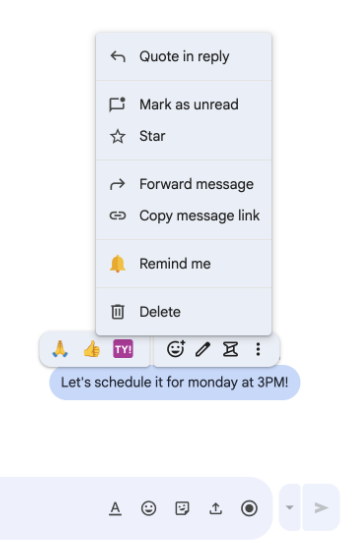
การดำเนินการกับข้อความ: ผู้ใช้ใช้การดำเนินการกับข้อความโดยวางเมาส์เหนือข้อความแล้ว คลิกเมนู 3 จุด หากต้องการใช้คำสั่ง ให้เปิดเมนู 3 จุดแล้วเลือก คำสั่งจากเมนู
สร้างการดำเนินการที่แนะนำหากแอปใน Chat สามารถดำเนินการตามบริบทของข้อความได้
รูปภาพต่อไปนี้แสดงวิธีที่ผู้ใช้ค้นพบเมนูสำหรับคำสั่งเครื่องหมายทับและคำสั่งด่วน รวมถึงการดำเนินการกับข้อความ
ข้อกำหนดเบื้องต้น
Node.js
แอปใน Google Chat ที่รับและตอบกลับเหตุการณ์การโต้ตอบ หากต้องการสร้าง แอปใน Chat แบบอินเทอร์แอกทีฟโดยใช้บริการ HTTP ให้ทำตามคู่มือเริ่มต้นฉบับย่อนี้
Apps Script
แอปใน Google Chat ที่รับและตอบกลับเหตุการณ์การโต้ตอบ หากต้องการสร้างแอปใน Chat แบบอินเทอร์แอกทีฟใน Apps Script ให้ทำตามคู่มือเริ่มต้นฉบับย่อนี้
Python
แอปใน Google Chat ที่รับและตอบกลับเหตุการณ์การโต้ตอบ หากต้องการสร้างแอปใน Chat แบบอินเทอร์แอกทีฟโดยใช้บริการ HTTP ให้ทำตามคู่มือเริ่มต้นฉบับย่อนี้
Java
แอปใน Google Chat ที่รับและตอบกลับเหตุการณ์การโต้ตอบ หากต้องการสร้าง แอปใน Chat แบบอินเทอร์แอกทีฟโดยใช้บริการ HTTP ให้ทำตามคู่มือเริ่มต้นฉบับย่อนี้
ตั้งค่าคำสั่ง
ส่วนนี้อธิบายวิธีทำตามขั้นตอนต่อไปนี้เพื่อตั้งค่าคำสั่ง
- สร้างชื่อและคำอธิบายสำหรับคำสั่ง
- กำหนดค่าคำสั่งในคอนโซล Google Cloud
ตั้งชื่อและอธิบายคำสั่ง
ชื่อของคำสั่งคือสิ่งที่ผู้ใช้พิมพ์หรือเลือกเพื่อเรียกใช้แอปใน Chat นอกจากนี้ คำอธิบายสั้นๆ จะปรากฏใต้ชื่อเพื่อแจ้งให้ผู้ใช้ทราบเพิ่มเติมเกี่ยวกับวิธีใช้คำสั่ง
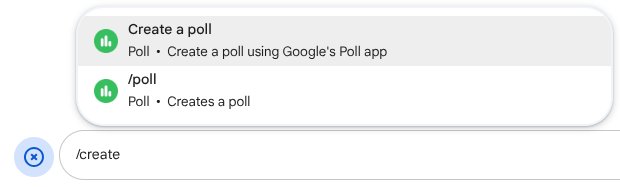
เมื่อเลือกชื่อและคำอธิบายสำหรับคำสั่ง ให้พิจารณาคำแนะนำต่อไปนี้
วิธีตั้งชื่อคำสั่ง
- ใช้คำหรือวลีที่สั้น สื่อความหมาย และกระตุ้นให้ดำเนินการเพื่อให้ผู้ใช้เข้าใจคำสั่งได้ชัดเจน
เช่น ใช้
Remind meแทนชื่อCreate a reminder - ลองใช้ชื่อที่ไม่ซ้ำกันหรือชื่อทั่วไปสำหรับคำสั่ง หากคำสั่งอธิบายการโต้ตอบหรือฟีเจอร์ทั่วไป คุณสามารถใช้ชื่อทั่วไปที่ผู้ใช้รู้จักและคาดหวังได้ เช่น
SettingsหรือFeedbackมิฉะนั้น ให้ลองใช้ชื่อคำสั่งที่ไม่ซ้ำกัน เนื่องจากหากชื่อคำสั่งเหมือนกับแอปใน Chat อื่นๆ ผู้ใช้จะต้องกรองคำสั่งที่คล้ายกันเพื่อค้นหาและใช้คำสั่งของคุณ
วิธีอธิบายคำสั่ง
- อธิบายคำสั่งให้สั้นและชัดเจนเพื่อให้ผู้ใช้ทราบว่าจะเกิดอะไรขึ้นเมื่อใช้คำสั่ง
- แจ้งให้ผู้ใช้ทราบหากมีข้อกำหนดด้านการจัดรูปแบบสำหรับคำสั่ง ตัวอย่างเช่น หากคุณ
สร้างคำสั่งเครื่องหมายทับที่ต้องใช้ข้อความอาร์กิวเมนต์ ให้ตั้งคำอธิบายเป็นข้อความ เช่น
Remind me to do [something] at [time] - แจ้งให้ผู้ใช้ทราบว่าแอปใน Chat จะตอบกลับทุกคนในพื้นที่ทำงานหรือ
ตอบกลับแบบส่วนตัวกับผู้ใช้ที่เรียกใช้คำสั่ง ตัวอย่างเช่น สำหรับคำสั่งด่วน
Aboutคุณสามารถอธิบายได้ว่าLearn about this app (Only visible to you)
กำหนดค่าคำสั่งในคอนโซล Google Cloud
หากต้องการสร้างคำสั่งเครื่องหมายทับ คำสั่งด่วน หรือการดำเนินการกับข้อความ คุณต้องระบุข้อมูลเกี่ยวกับคำสั่งหรือการดำเนินการในการกำหนดค่าของแอปใน Chat สำหรับ Google Chat API
หากต้องการกำหนดค่าคำสั่งใน Google Chat API ให้ทำตามขั้นตอนต่อไปนี้
ในคอนโซล Google Cloud ให้คลิกเมนู > API และบริการ > API และบริการที่เปิดใช้ > Google Chat API
คลิกการกำหนดค่า
ในส่วนคำสั่ง ให้คลิกเพิ่มคำสั่ง
ป้อนรหัสคำสั่ง คำอธิบาย ประเภทคำสั่ง และชื่อสำหรับคำสั่ง
- รหัสคำสั่ง: ตัวเลขตั้งแต่ 1 ถึง 1000 ที่แอปใน Chat ใช้เพื่อจดจำคำสั่งและแสดงผลการตอบกลับ
- คำอธิบาย: ข้อความที่อธิบายสิ่งที่คำสั่งทำ คำอธิบายมีความยาวได้ไม่เกิน 50 ตัวอักษรและสามารถมีอักขระพิเศษได้
- ประเภทคำสั่ง: เลือกคำสั่งด่วน คำสั่งเครื่องหมายทับ หรือการดำเนินการกับข้อความ
- ระบุชื่อสำหรับคำสั่ง
- ชื่อคำสั่งด่วน: ชื่อที่แสดงซึ่งผู้ใช้เลือกจากเมนูเพื่อเรียกใช้คำสั่ง มีความยาวได้ไม่เกิน 50 ตัวอักษรและสามารถมีอักขระพิเศษได้ เช่น
Remind me - ชื่อคำสั่งเครื่องหมายทับ: ข้อความที่ผู้ใช้พิมพ์เพื่อเรียกใช้คำสั่งในข้อความ ต้องขึ้นต้นด้วยเครื่องหมายทับ มีเฉพาะข้อความ และมีความยาวได้ไม่เกิน 50 ตัวอักษร เช่น
/remindMe - ชื่อการดำเนินการกับข้อความ: ชื่อที่แสดงซึ่งผู้ใช้เลือกจากเมนูเพื่อเรียกใช้การดำเนินการกับข้อความ มีความยาวได้ไม่เกิน 50 ตัวอักษรและสามารถมีอักขระพิเศษได้ เช่น
Remind me
- ชื่อคำสั่งด่วน: ชื่อที่แสดงซึ่งผู้ใช้เลือกจากเมนูเพื่อเรียกใช้คำสั่ง มีความยาวได้ไม่เกิน 50 ตัวอักษรและสามารถมีอักขระพิเศษได้ เช่น
ไม่บังคับ: ข้อความแจ้งเตือนการโหลด: ข้อความแจ้งเตือนแบบสั้นที่จะ แสดงต่อผู้ใช้ขณะที่การดำเนินการกับข้อความกำลังทำงาน ใช้ได้เฉพาะกับการดำเนินการกับข้อความที่ไม่เปิดกล่องโต้ตอบ
ไม่บังคับ: หากต้องการให้แอปใน Chat ตอบกลับ คำสั่งด้วยกล่องโต้ตอบ ให้เลือก เปิดกล่องโต้ตอบช่องทำเครื่องหมาย
คลิกบันทึก
ตอนนี้คำสั่งได้รับการกำหนดค่าสำหรับแอปใน Chat แล้ว
ตอบกลับคำสั่ง
เมื่อผู้ใช้ใช้คำสั่ง แอปใน Chat จะได้รับ เหตุการณ์การโต้ตอบ เพย์โหลดของเหตุการณ์จะมีข้อมูลเมตาพร้อมรายละเอียดเกี่ยวกับคำสั่งที่เรียกใช้ (รวมถึงรหัสคำสั่งและประเภทคำสั่ง) เพื่อให้คุณแสดงผลการตอบกลับที่เหมาะสมได้

/help เพื่ออธิบายวิธีรับความช่วยเหลือหากต้องการตอบกลับคำสั่งแต่ละประเภท คุณต้องจัดการออบเจ็กต์ประเภทเหตุการณ์และข้อมูลเมตาที่แตกต่างกันในเพย์โหลดของเหตุการณ์
| ประเภทคำสั่ง | ประเภทเหตุการณ์ | ข้อมูลเมตาของคำสั่ง |
|---|---|---|
| คำสั่งเครื่องหมายทับ | MESSAGE |
message.slashCommand
หรือ message.annotation.slashCommand |
| คำสั่งด่วน | APP_COMMAND |
appCommandMetadata
|
| การดำเนินการกับข้อความ | APP_COMMAND |
appCommandMetadata
|
ดูวิธีตอบกลับคำสั่งด้วยข้อความได้ในส่วนต่อไปนี้
ตอบกลับคำสั่งเครื่องหมายทับ
โค้ดต่อไปนี้แสดงตัวอย่างแอปใน Chat ที่ตอบกลับคำสั่งเครื่องหมายทับ /about แอปใน Chat จะจัดการเหตุการณ์การโต้ตอบ MESSAGE ตรวจสอบว่าเหตุการณ์การโต้ตอบมีรหัสคำสั่งที่ตรงกันหรือไม่ และแสดงผลข้อความส่วนตัว
Node.js
Apps Script
Python
Java
แทนที่ ABOUT_COMMAND_ID ด้วยรหัสคำสั่งที่คุณระบุเมื่อกำหนดค่าคำสั่งในคอนโซล Google Cloud
ตอบกลับคำสั่งด่วน
โค้ดต่อไปนี้แสดงตัวอย่างแอปใน Chat ที่ตอบกลับคำสั่งด่วน Help แอปใน Chat จะจัดการเหตุการณ์การโต้ตอบ APP_COMMAND ตรวจสอบว่าเหตุการณ์การโต้ตอบมีรหัสคำสั่งที่ตรงกันหรือไม่ และแสดงผลข้อความส่วนตัว
Node.js
Apps Script
Python
Java
แทนที่ HELP_COMMAND_ID ด้วยรหัสคำสั่งที่คุณระบุเมื่อกำหนดค่าคำสั่งในคอนโซล Google Cloud
ตอบกลับการดำเนินการกับข้อความ
โค้ดต่อไปนี้แสดงตัวอย่างแอปใน Chat ที่ตอบกลับการดำเนินการกับข้อความ Remind me แอปใน Chat จะจัดการเหตุการณ์การโต้ตอบ APP_COMMAND ตรวจสอบว่าเหตุการณ์การโต้ตอบมีรหัสคำสั่งที่ตรงกันหรือไม่ และแสดงผลข้อความส่วนตัว
Node.js
/**
 * Responds to an APP_COMMAND interaction event from Google Chat.
 *
 * @param {Object} event The interaction event from Google Chat.
 * @param {Object} res The HTTP response object.
 * @return {Object} The JSON response message with a confirmation.
 */
function handleAppCommand(event, res) {
  // Collect the command ID and type from the event metadata.
  const {appCommandId, appCommandType} = event.appCommandMetadata;

  // Use appCommandType to detect message actions.
  if (appCommandType === 'MESSAGE_ACTION' &&
      appCommandId === REMIND_ME_COMMAND_ID) {

    // Message actions can access the context of the message they were
    // invoked on, such as the text or sender of that message.
    const messageText = event.message.text;

    // Return a response that includes details from the original message.
    return res.send({
      text: `Setting a reminder for this message: "${messageText}"`
    });
  }
}
Apps Script
/**
 * Responds to an APP_COMMAND interaction event in Google Chat.
 *
 * @param {Object} event The interaction event from Google Chat.
 * @return {Object} The JSON response message with a confirmation.
 */
function onAppCommand(event) {
  // Collect the command ID and type from the event metadata.
  const {appCommandId, appCommandType} = event.appCommandMetadata;

  if (appCommandType === 'MESSAGE_ACTION' &&
      appCommandId === REMIND_ME_COMMAND_ID) {

    // Message actions can access the context of the message they were
    // invoked on, such as the text or sender of that message.
    const messageText = event.message.text;

    // Return a response that includes details from the original message.
    return { "text": "Setting a reminder for message: " + messageText };
  }
}
Python
def handle_app_command(event):
    """Responds to an APP_COMMAND interaction event from Google Chat.

    Args:
        event (dict): The interaction event from Google Chat.

    Returns:
        dict: The JSON response message with a confirmation.
    """
    # Collect the command ID and type from the event metadata.
    metadata = event.get('appCommandMetadata', {})
    if metadata.get('appCommandType') == 'MESSAGE_ACTION' and \
       metadata.get('appCommandId') == REMIND_ME_COMMAND_ID:

        # Message actions can access the context of the message they were
        # invoked on, such as the text or sender of that message.
        message_text = event.get('message', {}).get('text')

        # Return a response that includes details from the original message.
        return {
            "text": f'Setting a reminder for message: "{message_text}"'
        }
Java
/**
 * Responds to an APP_COMMAND interaction event from Google Chat.
 *
 * @param event The interaction event from Google Chat.
 * @param response The HTTP response object.
 */
void handleAppCommand(JsonObject event, HttpResponse response) throws Exception {
  // Collect the command ID and type from the event metadata.
  JsonObject metadata = event.getAsJsonObject("appCommandMetadata");
  String appCommandType = metadata.get("appCommandType").getAsString();

  if (appCommandType.equals("MESSAGE_ACTION")) {
    int commandId = metadata.get("appCommandId").getAsInt();
    if (commandId == REMIND_ME_COMMAND_ID) {
      // Message actions can access the context of the message they were
      // invoked on, such as the text or sender of that message.
      String messageText = event.getAsJsonObject("message").get("text").getAsString();

      // Return a response that includes details from the original message.
      JsonObject responseMessage = new JsonObject();
      responseMessage.addProperty("text", "Setting a reminder for message: " + messageText);
      response.getWriter().write(responseMessage.toString());
    }
  }
}
แทนที่ REMIND_ME_COMMAND_ID ด้วยรหัสคำสั่งที่คุณระบุเมื่อกำหนดค่าคำสั่งในคอนโซล Google Cloud
ทดสอบคำสั่ง
หากต้องการทดสอบคำสั่งและโค้ด โปรดดู หัวข้อทดสอบฟีเจอร์แบบอินเทอร์แอกทีฟสำหรับแอปใน Google Chat
หากต้องการดูวิธีทดสอบและใช้คำสั่งใน UI ของ Chat โปรดดูหัวข้อใช้แอปใน Google Chat ในเอกสารประกอบของศูนย์ช่วยเหลือของ Google Chat