

Questa pagina spiega come configurare e rispondere ai comandi come app Google Chat.
I comandi aiutano gli utenti a scoprire e utilizzare le funzionalità chiave di un'app di chat. Solo le app di chat possono visualizzare il contenuto di un comando. Ad esempio, se un utente invia un messaggio con un comando con slash, il messaggio è visibile solo all'utente e all'app Chat.
Per decidere se creare comandi e per capire come progettare le interazioni degli utenti, consulta Definisci tutti i percorsi utente.
Tipi di comandi dell'app Chat
Puoi creare comandi dell'app di chat come comandi slash, comandi rapidi o azioni sui messaggi. Per utilizzare ogni tipo di comando, gli utenti possono procedere nel seguente modo:-
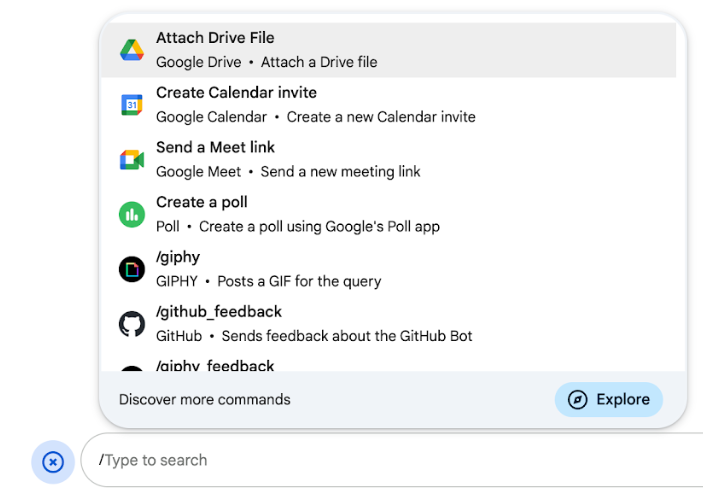
Comandi slash:gli utenti possono selezionare un comando slash dal menu o digitare una barra (
/) e poi un testo predefinito, ad esempio/about. Le app di chat in genere richiedono il testo dell'argomento per il comando slash.Crea un comando slash se la tua app Chat richiede input aggiuntivi da parte dell'utente. Ad esempio, puoi creare un comando slash chiamato
/searchche viene eseguito dopo che l'utente inserisce una frase da cercare, ad esempio/search receipts. -
Comandi rapidi:gli utenti utilizzano i comandi aprendo il menu dall'area di risposta di un messaggio chat. Per utilizzare un comando, fai clic su Aggiungi
 e
seleziona un comando dal menu.
e
seleziona un comando dal menu.
Crea un comando rapido se la tua app di chat può rispondere all'utente immediatamente, senza attendere ulteriori input. Ad esempio, puoi creare un comando rapido chiamato Immagine casuale che risponde immediatamente con un'immagine.
-
Azioni sui messaggi: gli utenti utilizzano le azioni sui messaggi passando il mouse sopra un messaggio e facendo clic sul menu con tre puntini. Per utilizzare un comando, l'utente apre il menu con tre puntini e seleziona un comando dal menu.
Crea un'azione suggerita se la tua app Chat può eseguire azioni in base al contesto di un messaggio.
Le seguenti immagini mostrano come gli utenti scoprono il menu per i comandi slash e rapidi e le azioni dei messaggi:

Prerequisiti
HTTP
Un'app Google Chat che riceve e risponde alle interazioni degli utenti. Per crearne uno, completa la guida rapida HTTP.
Apps Script
Un'app Google Chat che riceve e risponde alle interazioni degli utenti. Per crearne uno, completa la guida rapida di Apps Script.
Configurare il comando
Questa sezione spiega come completare i seguenti passaggi per configurare un comando:
- Crea un nome e una descrizione per il comando.
- Configura il comando nella console Google Cloud.
- (Facoltativo) Mappa i comandi con i prompt iniziali.
Assegna un nome e una descrizione al comando
Il nome di un comando è ciò che gli utenti digitano o selezionano per richiamare l'app Chat. Sotto il nome viene visualizzata anche una breve descrizione per invitare gli utenti a utilizzare il comando:
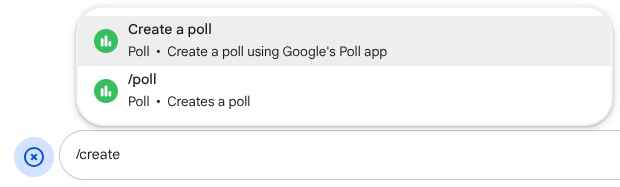
Quando scegli un nome e una descrizione per il comando, tieni presente i seguenti suggerimenti:
Per assegnare un nome a un comando:
- Utilizza parole o frasi brevi, descrittive e pratiche per rendere i comandi chiari per l'utente. Ad esempio, anziché il nome
Create a reminder, utilizzaRemind me. - Valuta la possibilità di utilizzare un nome univoco o comune per il comando. Se il comando descrive un'interazione o una funzionalità tipica, puoi utilizzare un nome comune che gli utenti riconoscono e si aspettano, ad esempio
SettingsoFeedback. In caso contrario, prova a utilizzare nomi di comandi univoci, perché se il nome del comando è lo stesso per altre app di chat, l'utente deve filtrare i comandi simili per trovare e utilizzare il tuo.
Per descrivere un comando:
- Mantieni la descrizione breve e chiara, in modo che gli utenti sappiano cosa aspettarsi quando utilizzano il comando.
- Comunica agli utenti se esistono requisiti di formattazione per il comando. Ad esempio, se
crei un comando slash che richiede un testo dell'argomento, imposta la descrizione su un valore simile a
Remind me to do [something] at [time]. - Comunica agli utenti se l'app Chat risponde a tutti nello spazio o
privatamente all'utente che richiama il comando. Ad esempio, per il comando rapido
About, potresti descriverlo comeLearn about this app (Only visible to you).
Configurare il comando nella console Google Cloud
Per creare un comando slash, un comando rapido o un'azione suggerita, devi specificare le informazioni sul comando o sull'azione nella configurazione dell'app di Chat per l'API Google Chat.
Per configurare un comando nell'API Google Chat, completa i seguenti passaggi:
Nella console Google Cloud, fai clic su Menu > API e servizi > API e servizi abilitati > API Google Chat
Fai clic su Configurazione.
Nella sezione Impostazioni di connessione, vai a Trigger e specifica i dettagli dell'endpoint. Devi utilizzare questo trigger nella sezione seguente per rispondere al comando.
- URL endpoint HTTP: qui puoi specificare un URL endpoint HTTP comune. In alternativa, per utilizzare endpoint HTTP diversi per trigger diversi, specifica l'endpoint direttamente nel campo Comando app.
- Apps Script: inserisci l'ID deployment di Apps Script. Per impostazione predefinita,
viene richiamata la funzione
onAppCommand. Per utilizzare una funzione Apps Script diversa, specifica il nome della funzione personalizzata nel campo Comando app.
Nella sezione Comandi, fai clic su Aggiungi un comando.
Inserisci le seguenti informazioni sul comando:
- ID comando:un numero da 1 a 1000 che l'app Chat utilizza per riconoscere il comando e restituire una risposta.
- Descrizione:il testo che descrive come utilizzare e formattare il comando. Le descrizioni possono contenere fino a 50 caratteri.
- Tipo di comando:seleziona Comando rapido, Comando slash o Azione messaggio.
- Specifica un nome per il comando:
- Nome comando rapido:il nome visualizzato che gli utenti selezionano dal
menu per richiamare il comando. Può contenere fino a 50 caratteri e includere
caratteri speciali. Ad esempio,
Remind me. - Nome del comando slash:il testo che gli utenti digitano per richiamare il
comando in un messaggio. Deve iniziare con una barra, contenere solo testo e
può contenere fino a 50 caratteri. Ad esempio,
/remindMe. - Nome azione suggerita:il nome visualizzato che gli utenti selezionano dal menu per richiamare l'azione suggerita. Può contenere fino a 50 caratteri e
includere caratteri speciali. Ad esempio,
Remind me.
- Nome comando rapido:il nome visualizzato che gli utenti selezionano dal
menu per richiamare il comando. Può contenere fino a 50 caratteri e includere
caratteri speciali. Ad esempio,
(Facoltativo) Messaggio di notifica di caricamento: un messaggio di notifica toast da mostrare all'utente durante l'esecuzione dell'azione suggerita. Disponibile solo per le azioni sui messaggi che non aprono finestre di dialogo.
(Facoltativo) Se vuoi che la tua app Chat risponda al comando con una finestra di dialogo, seleziona la casella di controllo Apri una finestra di dialogo.
Fai clic su Salva.
Il comando è ora configurato per l'app Chat.
Mappare i comandi ai prompt iniziali
Puoi mettere in evidenza i tuoi comandi come prompt iniziali in modo che gli utenti li vedano come chip interattivi quando iniziano un messaggio diretto 1:1 vuoto con la tua app di chat.
Per mappare un comando a un prompt iniziale:
- Assicurati che il comando non richieda argomenti personalizzati aggiuntivi (solo i comandi con Nessun argomento o Argomenti di base sono supportati come prompt iniziali).
- Nella console Google Cloud, vai alla pagina Configurazione dell'API Chat.
- In Funzionalità interattive > Prompt iniziali, fai clic su Aggiungi un prompt.
- Imposta il ranking (1-3) per l'ordine di visualizzazione.
- In Selezione tipo, scegli Prompt dei comandi e seleziona il comando dal menu a discesa.
- Fai clic su Fine e poi su Salva.
Rispondere a un comando
Quando gli utenti utilizzano un comando, la tua app di chat
riceve un
oggetto evento.
Il payload dell'evento (event.chat.appCommandPayload) contiene un
oggetto appCommandPayload
con i dettagli del comando richiamato (inclusi l'ID e il tipo di comando), in modo da poter restituire una risposta appropriata.
L'oggetto evento viene inviato all'endpoint HTTP o alla funzione Apps Script
che hai specificato quando hai
configurato il trigger Comando app.

/help per spiegare come ricevere assistenza.Rispondere a un comando slash o a un comando rapido
Il seguente codice mostra un esempio di app Chat
che risponde al comando slash /about con un messaggio di testo. Per rispondere a
comandi slash o rapidi, l'app Chat gestisce
gli oggetti evento (event.chat.appCommandPayload) da un trigger Comando app.
Quando il payload di un oggetto evento contiene un ID comando corrispondente, l'app
Chat restituisce l'azione DataActions con un oggetto
createMessageAction
(hostAppDataAction.chatDataAction.createMessageAction):
Node.js
Python
Java
Apps Script
Per utilizzare questo esempio di codice, sostituisci ABOUT_COMMAND_ID con l'ID comando specificato quando hai configurato il comando nell'API Chat.
Rispondere a un'azione suggerita
Il seguente codice mostra un esempio di app di Chat
che risponde all'azione suggerita Ricordamelo con un messaggio di testo. Per rispondere
alle azioni dei messaggi, l'app Chat gestisce gli oggetti evento
da un attivatore Comando app. Quando il payload di un oggetto evento contiene un ID comando di azione del messaggio, l'app Chat restituisce l'azione DataActions con un oggetto createMessageAction:
Node.js
/**
 * Responds to an APP_COMMAND interaction event from Google Chat.
 *
 * @param {Object} event The interaction event from Google Chat.
 * @param {Object} res The HTTP response object.
 * @return {Object} The JSON response message with a confirmation.
 */
function onAppCommand(event, res) {
  // Collect the command ID and type from the event metadata.
  const {appCommandId, appCommandType} =
    event.chat.appCommandPayload.appCommandMetadata;

  if (appCommandType === 'MESSAGE_ACTION' &&
      appCommandId === REMIND_ME_COMMAND_ID) {

    // Message actions can access the context of the message they were
    // invoked on, such as the text or sender of that message.
    const messageText = event.chat.appCommandPayload.message.text;

    // Return a response that includes details from the original message.
    return res.json({
      "hostAppDataAction": {
        "chatDataAction": {
          "createMessageAction": {
            "message": {
              "text": `Setting a reminder for message: "${messageText}"`
            }
          }
        }
      }
    });
  }
}
Python
def on_app_command(event):
    """Responds to an APP_COMMAND interaction event from Google Chat.

    Args:
        event (dict): The interaction event from Google Chat.

    Returns:
        dict: The JSON response message with a confirmation.
    """
    # Collect the command ID and type from the event metadata.
    payload = event.get('chat', {}).get('appCommandPayload', {})
    metadata = payload.get('appCommandMetadata', {})
    if metadata.get('appCommandType') == 'MESSAGE_ACTION' and \
       metadata.get('appCommandId') == REMIND_ME_COMMAND_ID:

        # Message actions can access the context of the message they were
        # invoked on, such as the text or sender of that message.
        message_text = payload.get('message', {}).get('text')

        # Return a response that includes details from the original message.
        return {
            "hostAppDataAction": {
                "chatDataAction": {
                    "createMessageAction": {
                        "message": {
                            "text": f'Setting a reminder for message: "{message_text}"'
                        }
                    }
                }
            }
        }
Java
/**
 * Responds to an APP_COMMAND interaction event from Google Chat.
 *
 * @param event The interaction event from Google Chat.
 * @param response The HTTP response object.
 */
void onAppCommand(JsonObject event, HttpResponse response) throws Exception {
  // Collect the command ID and type from the event metadata.
  JsonObject payload = event.getAsJsonObject("chat").getAsJsonObject("appCommandPayload");
  JsonObject metadata = payload.getAsJsonObject("appCommandMetadata");
  String appCommandType = metadata.get("appCommandType").getAsString();

  if (appCommandType.equals("MESSAGE_ACTION")) {
    int commandId = metadata.get("appCommandId").getAsInt();
    if (commandId == REMIND_ME_COMMAND_ID) {
      // Message actions can access the context of the message they were
      // invoked on, such as the text or sender of that message.
      String messageText = payload.getAsJsonObject("message").get("text").getAsString();

      // Return a response that includes details from the original message.
      JsonObject responseMessage = new JsonObject();
      responseMessage.addProperty("text", "Setting a reminder for message: " + messageText);

      JsonObject createMessageAction = new JsonObject();
      createMessageAction.add("message", responseMessage);

      JsonObject chatDataAction = new JsonObject();
      chatDataAction.add("createMessageAction", createMessageAction);

      JsonObject hostAppDataAction = new JsonObject();
      hostAppDataAction.add("chatDataAction", chatDataAction);

      JsonObject finalResponse = new JsonObject();
      finalResponse.add("hostAppDataAction", hostAppDataAction);

      response.getWriter().write(finalResponse.toString());
    }
  }
}
Apps Script
/**
 * Responds to an APP_COMMAND interaction event in Google Chat.
 *
 * @param {Object} event The interaction event from Google Chat.
 * @return {Object} The JSON response message with a confirmation.
 */
function onAppCommand(event) {
  // Collect the command ID and type from the event metadata.
  const {appCommandId, appCommandType} =
    event.chat.appCommandPayload.appCommandMetadata;

  if (appCommandType === 'MESSAGE_ACTION' &&
      appCommandId === REMIND_ME_COMMAND_ID) {

    // Message actions can access the context of the message they were
    // invoked on, such as the text or sender of that message.
    const messageText = event.chat.appCommandPayload.message.text;

    // Return a response that includes details from the original message.
    return CardService.newChatResponseBuilder()
        .setText("Setting a reminder for message: " + messageText)
        .build();
  }
}
Per utilizzare questo esempio di codice, sostituisci REMIND_ME_COMMAND_ID con
l'ID comando specificato quando hai
configurato il comando nell'API Chat.
Testare il comando
Per testare il comando e il codice, vedi Testare le funzionalità interattive per le app Google Chat.
Per scoprire come testare e utilizzare il comando nell'interfaccia utente di Chat, consulta Utilizzare le app in Google Chat nella documentazione della Guida di Google Chat.
Argomenti correlati
- Visualizza esempi di app di chat che utilizzano i comandi
- Invia un messaggio
- Aprire finestre di dialogo interattive
App di chat che non sono componenti aggiuntivi: rispondono ai comandi
La seguente documentazione si applica alle app di Chat che non sono componenti aggiuntivi di Google Workspace. Per eseguire la migrazione di un'app di Chat che non è un componente aggiuntivo, vedi Convertire un'app Google Chat in un componente aggiuntivo di Google Workspace.
Quando gli utenti utilizzano un comando, un'app di chat che non è un componente aggiuntivo riceve un evento di interazione e può rispondere restituendo direttamente un oggetto Message.
Il payload dell'evento contiene metadati con dettagli sul comando richiamato (inclusi l'ID comando e il tipo di comando), in modo da poter restituire una risposta appropriata.
Per rispondere a ogni tipo di comando in un'app di chat che non è un componente aggiuntivo, devi gestire diversi tipi di eventi e oggetti di metadati nel payload dell'evento:
| Tipo di comando | Tipo di evento | Metadati del comando |
|---|---|---|
| Comando slash | MESSAGE |
message.slashCommand
o message.annotation.slashCommand |
| Comando rapido | APP_COMMAND |
appCommandMetadata
|
| Azione messaggio | APP_COMMAND |
appCommandMetadata
|
Rispondere a un comando slash
Il seguente codice mostra un esempio di app Chat che
non è un componente aggiuntivo che risponde al comando slash
/about. L'app Chat
gestisce gli eventi di interazione MESSAGE, rileva se l'evento di interazione
contiene l'ID comando corrispondente e restituisce un oggetto Message privato:
Node.js
Apps Script
Python
Java
Sostituisci ABOUT_COMMAND_ID con l'ID comando che hai specificato quando hai configurato il comando nella console Google Cloud.
Rispondere a un comando rapido
Il seguente codice mostra un esempio di app di chat che
non è un componente aggiuntivo che risponde al comando rapido
Aiuto. L'app Chat
gestisce gli eventi di interazione APP_COMMAND, rileva se l'evento di interazione
contiene l'ID comando corrispondente e restituisce un oggetto Message privato:
Node.js
Apps Script
Python
Java
Sostituisci HELP_COMMAND_ID con l'ID comando che hai specificato quando hai configurato il comando nella console Google Cloud.
Rispondere a un'azione suggerita
Il seguente codice mostra un esempio di app Chat che
non è un componente aggiuntivo che risponde all'azione del messaggio
Promemoria. L'app
Chat gestisce gli eventi di interazione APP_COMMAND,
rileva se l'evento di interazione contiene l'ID comando corrispondente e
restituisce un oggetto privato Message:
Node.js
/**
 * Responds to an APP_COMMAND interaction event from Google Chat.
 *
 * @param {Object} event The interaction event from Google Chat.
 * @param {Object} res The HTTP response object.
 * @return {Object} The JSON response message with a confirmation.
 */
function handleAppCommand(event, res) {
  // Collect the command ID and type from the event metadata.
  const {appCommandId, appCommandType} = event.appCommandMetadata;

  // Use appCommandType to detect message actions.
  if (appCommandType === 'MESSAGE_ACTION' &&
      appCommandId === REMIND_ME_COMMAND_ID) {

    // Message actions can access the context of the message they were
    // invoked on, such as the text or sender of that message.
    const messageText = event.message.text;

    // Return a response that includes details from the original message.
    return res.send({
      text: `Setting a reminder for this message: "${messageText}"`
    });
  }
}
Apps Script
/**
 * Responds to an APP_COMMAND interaction event in Google Chat.
 *
 * @param {Object} event The interaction event from Google Chat.
 * @return {Object} The JSON response message with a confirmation.
 */
function onAppCommand(event) {
  // Collect the command ID and type from the event metadata.
  const {appCommandId, appCommandType} = event.appCommandMetadata;

  if (appCommandType === 'MESSAGE_ACTION' &&
      appCommandId === REMIND_ME_COMMAND_ID) {

    // Message actions can access the context of the message they were
    // invoked on, such as the text or sender of that message.
    const messageText = event.message.text;

    // Return a response that includes details from the original message.
    return { "text": "Setting a reminder for message: " + messageText };
  }
}
Python
def handle_app_command(event):
    """Responds to an APP_COMMAND interaction event from Google Chat.

    Args:
        event (dict): The interaction event from Google Chat.

    Returns:
        dict: The JSON response message with a confirmation.
    """
    # Collect the command ID and type from the event metadata.
    metadata = event.get('appCommandMetadata', {})
    if metadata.get('appCommandType') == 'MESSAGE_ACTION' and \
       metadata.get('appCommandId') == REMIND_ME_COMMAND_ID:

        # Message actions can access the context of the message they were
        # invoked on, such as the text or sender of that message.
        message_text = event.get('message', {}).get('text')

        # Return a response that includes details from the original message.
        return {
            "text": f'Setting a reminder for message: "{message_text}"'
        }
Java
/**
 * Responds to an APP_COMMAND interaction event from Google Chat.
 *
 * @param event The interaction event from Google Chat.
 * @param response The HTTP response object.
 */
void handleAppCommand(JsonObject event, HttpResponse response) throws Exception {
  // Collect the command ID and type from the event metadata.
  JsonObject metadata = event.getAsJsonObject("appCommandMetadata");
  String appCommandType = metadata.get("appCommandType").getAsString();

  if (appCommandType.equals("MESSAGE_ACTION")) {
    int commandId = metadata.get("appCommandId").getAsInt();
    if (commandId == REMIND_ME_COMMAND_ID) {
      // Message actions can access the context of the message they were
      // invoked on, such as the text or sender of that message.
      String messageText = event.getAsJsonObject("message").get("text").getAsString();

      // Return a response that includes details from the original message.
      JsonObject responseMessage = new JsonObject();
      responseMessage.addProperty("text", "Setting a reminder for message: " + messageText);
      response.getWriter().write(responseMessage.toString());
    }
  }
}
Sostituisci REMIND_ME_COMMAND_ID con l'ID comando che hai specificato quando hai configurato il comando nella console Google Cloud.